

Microsoft is quietly reshaping how hidden Windows 11 features reach testers, and the implications go well beyond a few cosmetic tweaks. Instead of relying on community tools and registry-style workarounds, the company is moving more experiments into built-in, Settings-style controls that are easier to discover, easier to explain, and harder to break. That matters because Windows 11 has spent years shipping features in fragments, with enthusiasts often using tools like ViVeTool to surface items Microsoft had already wired into Insider builds. The new direction suggests a more deliberate, more visible, and slightly more consumer-friendly model for feature exploration.
For years, Windows Insiders have lived in a strange middle ground: Microsoft would place features in preview builds, but many remained dormant unless users flipped obscure flags or relied on third-party utilities. In practice, this meant enthusiasts got early access, but only if they were willing to accept trial-and-error, command-line switches, and the occasional broken UI after a feature flag changed. That approach worked for power users, but it was never truly mainstream-friendly.
The broader Windows 11 Insider strategy has already been moving toward gradual rollout controls. Microsoft repeatedly describes Dev and Beta Channel changes as being delivered in buckets, with some features available only when a toggle is enabled in Settings > Windows Update. The company has also documented a wave of new preview experiences that can be turned on or off more transparently, including Start menu refinements, File Explorer experiments, and accessibility updates. In other words, the “hidden feature” problem has been shrinking for some time, even before this latest shift.
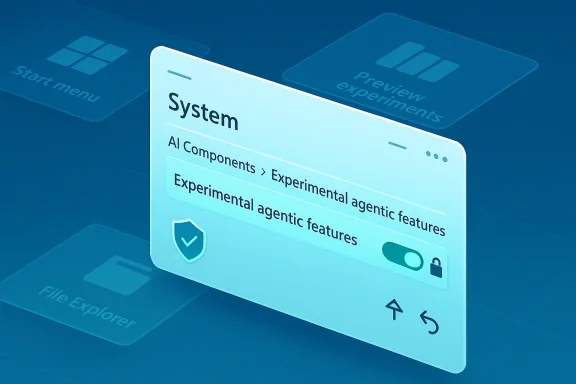
What appears to be changing now is the interface layer around those experiments. Microsoft is increasingly exposing preview functionality through native settings pages, such as the new System > AI Components > Experimental agentic features page in support documentation. That is not the same thing as opening every hidden feature to everyone, but it does show the direction of travel: fewer hacks, more first-party toggles, and a more controlled testing pipeline. (support.microsoft.com)
This matters for both consumers and enterprises. For enthusiasts, it means the fun of exploring unfinished Windows features may become safer and simpler. For IT admins, it creates a more manageable environment where Microsoft can gate experimental functionality with policy-like controls rather than leaving users to improvise with unsupported tools.
That distinction matters because it shows the company is not simply loosening the reins. It is formalizing the test process. The new setting creates a separate agent account and workspace, allowing agentic apps to operate with isolation and scoped access rather than broad, uncontrolled permissions. Microsoft also states that only an administrative user can enable the setting, and once enabled, it applies to all users on the device. (support.microsoft.com)
The difference is that ViVeTool remains an enthusiast workaround, while Microsoft’s native approach is designed to be a supported experience. That does not make it fully stable, but it does make it more legible to users and administrators. In a platform as large as Windows, legibility is a feature in itself.
That rollout model is important because it shows Microsoft already thinks of feature delivery as layered access, not a binary on/off switch. In Dev Channel builds, new items may appear for only some testers, while others see them later after a reboot or a later flight. Microsoft even notes that “many features” are delivered using Control Feature Rollout technology, which is essentially a staged deployment pipeline for Windows features. (blogs.windows.com)
That is strategically smart. It lets Microsoft test UI reactions, telemetry, and security implications without accidentally encouraging unsupported behavior. It also gives users a clear sense of what is experimental and what is actually meant for them to turn on. That clarity may prove more valuable than any individual feature being tested.
This is significant because it shows Microsoft is now comfortable surfacing experimentation in a user-facing settings category. The page is structured with consent, access boundaries, and per-agent controls. In preview builds 26100.7344 and later, Microsoft says users can manage access to core folders individually per agent, and by default Windows asks for consent when agents request access. That is a major step toward predictable behavior in an area that could otherwise become chaotic very quickly. (support.microsoft.com)
That security posture also reflects the broader reality of AI on the desktop. If future Windows features are going to act on a user’s behalf, they will need permissions, isolation, and auditability. A toggle buried in Settings is less about novelty and more about trust.
The user-facing payoff is obvious. If Microsoft provides an official switch for preview items, then power users can test them without diving into community-maintained scripts. That should make experimentation more approachable for a wider audience while still allowing Microsoft to preserve staged deployment.
This also gives Microsoft room to test controversial changes without forcing them on every Insider. In practice, that can soften user backlash when a new UI element is still being refined. A controlled toggle is always easier to defend than a surprise rollout.
Microsoft’s broader management stack already supports hiding Windows features through Group Policy and Intune, and its documentation makes clear that administrators can control feature visibility and optional components centrally. That means the new experimental toggles are not appearing in a vacuum; they are being layered onto an existing enterprise control model.
That could become particularly important for AI-related features. If Microsoft’s agentic functionality expands, enterprises will need to decide whether those tools can interact with documents, downloads, desktop data, or other known folders. Microsoft’s support materials already make clear that folder access and consent are part of the design. (support.microsoft.com)
A more polished feature toggle experience helps Microsoft compete on perception as much as on function. Windows 11 has sometimes been criticized for making simple tasks feel hidden behind layered menus or inconsistent rollout rules. If experimental features become easier to enable, Windows starts to feel less like an old desktop operating system and more like a living platform.
The company also gets to reduce dependence on the enthusiast underground. That is a strategic benefit because third-party toggling tools create a mismatch between what users think is “official” and what Microsoft can truly support. Native feature management narrows that gap.
There is also a privacy and security angle. Agentic features in particular are powerful precisely because they can interact with folders, permissions, and workflows. That power is useful, but it also raises the stakes if users misunderstand what access they have granted or fail to appreciate the preview nature of the feature. Microsoft’s folder-consent model helps, but it does not eliminate the risk.
Another key question is how much of this reaches non-Insider users, if at all. Microsoft often tests features in Dev and Beta first, then gradually decides whether they belong in production. That means the presence of a toggle in one build is not a promise of permanent availability. Preview is not product, and Windows users have learned that lesson the hard way.
Microsoft is clearly trying to make the future of Windows feel less secretive and more deliberate. If the company can pair that openness with strong guardrails, the result may be a rare win-win: enthusiasts get easier access to experiments, enterprises get better control, and Microsoft gets a more sustainable way to test the next generation of Windows. The challenge, as always, is making flexibility feel empowering rather than chaotic.
Source: thewincentral.com Windows 11 Hidden Features Just Got Easier to Enable - WinCentral
 Overview
For years, Windows Insiders have lived in a strange middle ground: Microsoft would place features in preview builds, but many remained dormant unless users flipped obscure flags or relied on third-party utilities. In practice, this meant enthusiasts got early access, but only if they were willing to accept trial-and-error, command-line switches, and the occasional broken UI after a feature flag changed. That approach worked for power users, but it was never truly mainstream-friendly.The broader Windows 11 Insider strategy has already been moving toward gradual rollout controls. Microsoft repeatedly describes Dev and Beta Channel changes as being delivered in buckets, with some features available only when a toggle is enabled in Settings > Windows Update. The company has also documented a wave of new preview experiences that can be turned on or off more transparently, including Start menu refinements, File Explorer experiments, and accessibility updates. In other words, the “hidden feature” problem has been shrinking for some time, even before this latest shift.
What appears to be changing now is the interface layer around those experiments. Microsoft is increasingly exposing preview functionality through native settings pages, such as the new System > AI Components > Experimental agentic features page in support documentation. That is not the same thing as opening every hidden feature to everyone, but it does show the direction of travel: fewer hacks, more first-party toggles, and a more controlled testing pipeline. (support.microsoft.com)
This matters for both consumers and enterprises. For enthusiasts, it means the fun of exploring unfinished Windows features may become safer and simpler. For IT admins, it creates a more manageable environment where Microsoft can gate experimental functionality with policy-like controls rather than leaving users to improvise with unsupported tools.
What Microsoft Is Actually Changing
The key point is not that Microsoft is suddenly shipping every hidden Windows 11 feature to the public. Instead, it is building a more official mechanism for enabling experiments, especially in the areas where it wants structured feedback and better security boundaries. Microsoft’s recent documentation around Experimental agentic features makes this especially clear: the setting is off by default, is preview-only, and is designed as a security control rather than an AI feature in itself. (support.microsoft.com)That distinction matters because it shows the company is not simply loosening the reins. It is formalizing the test process. The new setting creates a separate agent account and workspace, allowing agentic apps to operate with isolation and scoped access rather than broad, uncontrolled permissions. Microsoft also states that only an administrative user can enable the setting, and once enabled, it applies to all users on the device. (support.microsoft.com)
Why this is different from ViVeTool
Community tools like ViVeTool became popular because Microsoft often shipped hidden feature flags long before it exposed any UI for them. That made it possible to manually force-enable things such as the new Start menu or interface changes still in development. Microsoft Q&A now explicitly acknowledges that ViVeTool works by calling Windows’ official Feature Management API, which helps explain why it became the go-to tool for power users. (learn.microsoft.com)The difference is that ViVeTool remains an enthusiast workaround, while Microsoft’s native approach is designed to be a supported experience. That does not make it fully stable, but it does make it more legible to users and administrators. In a platform as large as Windows, legibility is a feature in itself.
- Native toggles reduce guesswork.
- Administrative gating improves control.
- Preview features become easier to communicate.
- Users no longer need to trust random command snippets.
- Microsoft can collect feedback in a cleaner way.
Why This Matters for the Insider Program
Microsoft’s Insider program has always been a balancing act between openness and control. The company wants real-world feedback, but it also wants to prevent preview features from becoming a support nightmare. Recent Dev and Beta Channel posts show that Microsoft increasingly rolls out features in phases, often starting with a small subset of users who have turned on the “get the latest updates as they are available” toggle in Settings. (blogs.windows.com)That rollout model is important because it shows Microsoft already thinks of feature delivery as layered access, not a binary on/off switch. In Dev Channel builds, new items may appear for only some testers, while others see them later after a reboot or a later flight. Microsoft even notes that “many features” are delivered using Control Feature Rollout technology, which is essentially a staged deployment pipeline for Windows features. (blogs.windows.com)
The shift from hidden flags to visible staging
Historically, hidden Windows features were hidden because Microsoft wanted freedom to test without promising availability. The downside was that curious users often had to rely on outside tooling to see what was already embedded in a build. The new approach suggests Microsoft would rather keep that experimentation inside the ecosystem it controls.That is strategically smart. It lets Microsoft test UI reactions, telemetry, and security implications without accidentally encouraging unsupported behavior. It also gives users a clear sense of what is experimental and what is actually meant for them to turn on. That clarity may prove more valuable than any individual feature being tested.
- Feature rollouts are increasingly staged.
- Toggle-based delivery is becoming normal.
- The Insider ring is acting more like a managed laboratory.
- Microsoft is prioritizing controlled feedback loops.
- The end user gets a clearer contract about risk.
The New AI Components Model
The clearest proof of this direction is Microsoft’s support documentation for Experimental agentic features, which exposes a very specific path: System > AI Components > Experimental agentic features. That is not a random test hook buried in an obscure subsystem. It is a visible, named settings page meant to control a preview security feature for agents like Copilot Actions. (support.microsoft.com)This is significant because it shows Microsoft is now comfortable surfacing experimentation in a user-facing settings category. The page is structured with consent, access boundaries, and per-agent controls. In preview builds 26100.7344 and later, Microsoft says users can manage access to core folders individually per agent, and by default Windows asks for consent when agents request access. That is a major step toward predictable behavior in an area that could otherwise become chaotic very quickly. (support.microsoft.com)
Security first, not convenience first
Microsoft is careful to frame these agentic controls as a security feature, not a feature showcase. That is an important rhetorical shift. The company is effectively saying that the most experimental parts of Windows 11 need a guardrail story before they need a marketing story.That security posture also reflects the broader reality of AI on the desktop. If future Windows features are going to act on a user’s behalf, they will need permissions, isolation, and auditability. A toggle buried in Settings is less about novelty and more about trust.
- Experimental features can now be mediated through the UI.
- Agent workspaces separate assistant activity from the main desktop.
- Folder permissions can be managed explicitly.
- Consent prompts reduce silent data exposure.
- Administrative activation helps enterprises keep control.
What Hidden Windows 11 Features Are Likely to Benefit
The most visible short-term beneficiaries are the kinds of features that have often been teased in Insider builds before they are ready for broader exposure. The new Start menu, File Explorer refinements, taskbar experiments, and context menu changes are all examples of features that frequently appear first behind rollout gates. Windows Insider posts over the past year have shown that Microsoft often uses small subsets of testers to validate these changes before expanding them. (blogs.windows.com)The user-facing payoff is obvious. If Microsoft provides an official switch for preview items, then power users can test them without diving into community-maintained scripts. That should make experimentation more approachable for a wider audience while still allowing Microsoft to preserve staged deployment.
Likely feature categories
A native toggle system is most useful for features that are already present in the OS image but not universally activated. Those typically include visual refinements, AI assistance, new shell behavior, and behind-the-scenes performance tweaks.- Start menu redesigns and account manager changes
- File Explorer updates such as launch preloading
- Context menu reorganization and flyouts
- AI-powered helpers and Copilot-related controls
- Accessibility enhancements like voice access refinements
- Performance experiments that Microsoft wants to test quietly
This also gives Microsoft room to test controversial changes without forcing them on every Insider. In practice, that can soften user backlash when a new UI element is still being refined. A controlled toggle is always easier to defend than a surprise rollout.
Enterprise Implications Are Bigger Than Consumer Convenience
For consumers, the new model is mostly about ease and safety. For enterprises, it is about governance. If Microsoft continues pushing experimental features into first-party settings, IT teams gain a cleaner way to decide what belongs on corporate endpoints and what should stay disabled. That is especially important in environments where Windows features intersect with AI, compliance, and data access. (support.microsoft.com)Microsoft’s broader management stack already supports hiding Windows features through Group Policy and Intune, and its documentation makes clear that administrators can control feature visibility and optional components centrally. That means the new experimental toggles are not appearing in a vacuum; they are being layered onto an existing enterprise control model.
A cleaner path for admins
In an enterprise context, unsupported tools are a liability. A company may tolerate a power user running a hack on a personal laptop, but it will not tolerate an employee forcing hidden shell flags across managed devices. Official toggles, by contrast, can be documented, audited, and restricted.That could become particularly important for AI-related features. If Microsoft’s agentic functionality expands, enterprises will need to decide whether those tools can interact with documents, downloads, desktop data, or other known folders. Microsoft’s support materials already make clear that folder access and consent are part of the design. (support.microsoft.com)
- Better alignment with admin policy tools
- Less need to block community utilities
- Easier compliance review
- More predictable device behavior
- Clearer separation between preview and production use
The Competitive Angle: Windows vs. Other Modern Platforms
Microsoft is also responding to a broader expectation shaped by phones, browsers, and cloud services. In those environments, beta features and experimental flags are often visible in settings menus or feature preview sections. Users are accustomed to testing rough edges if the company makes the process transparent. Windows has often lagged behind that model because of its legacy complexity.A more polished feature toggle experience helps Microsoft compete on perception as much as on function. Windows 11 has sometimes been criticized for making simple tasks feel hidden behind layered menus or inconsistent rollout rules. If experimental features become easier to enable, Windows starts to feel less like an old desktop operating system and more like a living platform.
Why competitors should care
This is not just about aesthetics. If Microsoft can make experimental features safer to try, it can accelerate the feedback cycle. That means better data, faster refinement, and a more responsive product narrative. Competitors that rely on feature flags already understand this model; Microsoft is simply bringing Windows closer to that discipline.The company also gets to reduce dependence on the enthusiast underground. That is a strategic benefit because third-party toggling tools create a mismatch between what users think is “official” and what Microsoft can truly support. Native feature management narrows that gap.
- Faster experimentation cycles
- More transparent test coverage
- Better user trust in preview features
- Less fragmentation between insider communities
- Stronger alignment with modern software delivery practices
Strengths and Opportunities
Microsoft’s approach has several clear advantages, and the opportunity here is larger than simply pleasing enthusiasts. If implemented well, it could improve the quality of Windows feedback, reduce support burden, and make the operating system easier to explain to non-experts. It also gives Microsoft a cleaner bridge between experimental development and mainstream release.- Safer experimentation for users who want to try preview functionality.
- Less reliance on third-party tools that may confuse or break with updates.
- Better feedback loops because Microsoft can track usage more cleanly.
- Improved transparency around what is being tested and why.
- Stronger enterprise governance through policy and admin controls.
- More modern product behavior that matches contemporary software platforms.
- Cleaner security model for AI and agent-based features.
Risks and Concerns
The danger is that making hidden features easier to enable may also make it easier to create support confusion. Users who turn on preview functionality may not understand the difference between a controlled experiment and a feature that is ready for general use. If Microsoft exposes too much too soon, the result could be more instability, not less.There is also a privacy and security angle. Agentic features in particular are powerful precisely because they can interact with folders, permissions, and workflows. That power is useful, but it also raises the stakes if users misunderstand what access they have granted or fail to appreciate the preview nature of the feature. Microsoft’s folder-consent model helps, but it does not eliminate the risk.
- User confusion about what is stable versus experimental.
- Support burden if people enable features they do not understand.
- Privacy concerns around AI agents and file access.
- Fragmentation if different users see different shell states.
- Potential instability from toggling immature code paths.
- Security risk perception if preview controls are not well explained.
- Expectations mismatch if features change or disappear between builds.
What to Watch Next
The next phase will tell us whether Microsoft is merely improving Insider usability or genuinely rethinking how Windows 11 surfaces unfinished features. The most important signal will be whether more settings pages appear for preview components outside the AI space. If the company expands this model, it could become the default way Windows handles experimental capabilities.Another key question is how much of this reaches non-Insider users, if at all. Microsoft often tests features in Dev and Beta first, then gradually decides whether they belong in production. That means the presence of a toggle in one build is not a promise of permanent availability. Preview is not product, and Windows users have learned that lesson the hard way.
Key things to monitor
- Additional Settings pages for other experimental Windows components
- Expansion of the AI Components category
- Whether Microsoft adds per-feature descriptions and warnings
- How enterprises can manage or suppress these toggles
- Whether new Start menu and File Explorer tests gain official controls
- If third-party tools like ViVeTool become less necessary over time
- How Microsoft documents rollback and disable options
Microsoft is clearly trying to make the future of Windows feel less secretive and more deliberate. If the company can pair that openness with strong guardrails, the result may be a rare win-win: enthusiasts get easier access to experiments, enterprises get better control, and Microsoft gets a more sustainable way to test the next generation of Windows. The challenge, as always, is making flexibility feel empowering rather than chaotic.
Source: thewincentral.com Windows 11 Hidden Features Just Got Easier to Enable - WinCentral
