

Microsoft’s Windows 11 does include advanced power-management settings that are hidden from the default Control Panel interface, and users can expose some of them by changing power-setting attributes through the registry or the built-in
Windows has long had more power-policy settings than the average user sees in the old Control Panel applet. These settings live under Windows’ power configuration framework, are addressed by GUIDs, and can be queried or changed with
Some settings are simply marked hidden. That does not mean they are experimental, forbidden, or newly discovered. It means Windows will not display them in the Advanced settings dialog unless the hidden attribute is removed or altered.
The registry trick described in the WinCentral post is one way to expose those entries. A setting stored under
That distinction matters. Registry editing makes the story feel like a forbidden hatch in the floorboards.
Processor boost behavior, idle-state residency, cooling policy, energy-performance preference, and frequency ceilings are not cosmetic preferences. They influence how aggressively the CPU enters turbo frequencies, how quickly it backs off under load, how much power it draws, how hot the chassis gets, and how loud the fan becomes. On a desktop with a large cooler, the wrong setting may only waste electricity. On a thin laptop, the wrong setting can turn a comfortable machine into a lap-warmer with worse sustained performance.
The default Windows experience is built around a blunt premise: most users should not need to understand CPU package power, boost bins, or fan curves to write email, browse the web, or join a video call. That premise is not absurd. The PC ecosystem contains everything from passively cooled tablets to high-end gaming notebooks, and many of those systems ship with OEM firmware and control software that already manipulates power behavior in the background.
The trouble is that the same simplification that protects casual users also frustrates enthusiasts and administrators. If a laptop runs hot during Teams calls, or a gaming notebook boosts too eagerly and then throttles, the hidden settings can be the difference between accepting the OEM default and imposing a more rational policy.
That model predates Windows 11 and still carries the shape of earlier Windows eras. Power plans, subgroups, aliases, AC and DC values, processor policies, sleep timers, USB selective suspend, PCI Express link-state power management, and display timeouts all belong to a system that was designed to be scriptable and manageable before it was designed to be pretty.
This is why the “unlock” trick feels oddly powerful. It exposes settings that were always part of the machinery, but which the visible interface had deliberately suppressed. You are not installing a performance mod. You are telling Windows to show more of its own control surface.
For sysadmins, that difference is comforting. Built-in tools are auditable, scriptable, and reversible in a way random “debloat” utilities are not. For home users, it is a warning: built-in does not automatically mean harmless.
On many laptops, disabling or softening boost can produce an immediate change in acoustics and thermals. The machine may feel calmer because the CPU stops sprinting to high clocks for every small burst of work. For office workloads, browser use, video playback, and light coding, that can be a sensible exchange.
The catch is obvious: boost exists because performance matters. Games, compilers, renderers, compression tools, and other CPU-heavy workloads may run slower if boost is disabled or constrained. The user who copies a forum tweak without measuring before and after may trade away responsiveness and call it optimization because the fan got quieter.
This is the central paradox of Windows tuning. A lower temperature is not automatically a better computer. It is only better if the workload still performs acceptably.
Modern processors already manage frequency and voltage dynamically, often with help from firmware, operating-system hints, and vendor-specific algorithms. A hard cap can reduce heat, but it can also interfere with the CPU’s ability to complete work quickly and return to a low-power idle state. The old tuning assumption that “lower clock equals lower power” is too simple for modern silicon.
There are cases where a cap makes sense. A laptop with poor cooling may deliver smoother sustained performance at a lower, steadier frequency than it does when it boosts, overheats, and throttles repeatedly. A small-form-factor desktop in a warm room may benefit from a ceiling that keeps fan noise civilized. A battery-powered device used for note-taking may not need full turbo behavior at all.
But frequency caps should be treated like a governor, not a universal upgrade. They are a way to enforce discipline on unruly hardware. They are not a free performance boost hiding in Windows.
That is closer to how today’s systems actually behave. Windows, the processor, and the firmware are constantly negotiating: Is this task urgent? Is the system on battery? Is there thermal headroom? Should the CPU race to finish or sip power over a longer interval? Energy-performance preference gives that negotiation a policy bias.
For laptop users, this can matter more than a single maximum-frequency cap. A more efficiency-oriented policy may preserve battery life and reduce heat without completely forbidding short bursts of speed. A more performance-oriented policy may make sense for plugged-in creative work, gaming, or development workloads where latency and completion time matter.
This is also where OEM behavior complicates the picture. Many laptops already map vendor modes such as Quiet, Balanced, Performance, or Turbo onto firmware and Windows policies. Changing hidden Windows settings underneath an OEM control center can produce confusing results if the vendor software later overwrites them.
Neither is morally superior. A recording engineer, student in a lecture hall, or late-night bedroom user may prefer passive behavior because fan noise is the problem they actually perceive. A gamer or engineer running a long job may prefer active cooling because performance collapse is worse than noise.
Windows can expose that choice, but the hardware still has the final word. A thin laptop with limited heat pipes cannot become a workstation because the cooling policy changed. A fanless device cannot choose active cooling. A gaming notebook may have firmware-level fan curves that override or reinterpret what Windows asks for.
Still, the setting is useful because it makes the trade-off explicit. Quietness, temperature, and sustained performance are not three separate wins waiting to be unlocked. They are usually a triangle.
But administrators should prefer supported tooling where possible.
The safer workflow starts with observation. Run
That last point is where many tuning guides fail. They promise lower heat, better battery life, quieter fans, and improved performance in the same breath. Real tuning is less glamorous: change one variable, measure the effect, and decide whether the trade-off is acceptable.
Windows 11 has to feel responsive on store shelves, pass battery-life expectations, avoid support calls, respect OEM thermal designs, and work across Intel, AMD, Arm, tablets, desktops, handhelds, and virtual machines. The resulting defaults are compromises. They are not necessarily the best settings for your laptop, your room temperature, your tolerance for fan noise, or your electricity bill.
This is especially obvious on gaming laptops. Vendors often ship machines tuned to impress in benchmarks and reviews, even when the long-term user experience would be better with a quieter, slightly slower profile. Disabling aggressive boost can sometimes make a laptop feel more premium because it stops behaving like a hair dryer during ordinary tasks.
The same applies in reverse to desktops. A tower PC with strong cooling and no battery constraint may benefit from performance-oriented settings that would be silly on an ultrabook. The hidden nature of these controls makes Windows look more paternalistic than it needs to be, but the diversity of PC hardware explains why Microsoft does not surface every lever by default.
The right enterprise answer is not to send users into Registry Editor. It is to define power policy through supported management channels, test it across hardware models, and document exceptions.
There is also a supportability issue. If an IT department exposes hidden options widely, users may change settings that undermine standard behavior. One user’s “optimization” can become another ticket about poor performance, strange sleep behavior, or missing battery life.
That does not mean enterprises should ignore these controls. It means they should treat them as configuration policy, not folklore. The fact that a setting is hidden in the UI does not make it illegitimate, but it does make it a candidate for careful testing.
A setting that helps a Ryzen gaming laptop may do little for an Intel ultrabook. A change that improves battery life on one BIOS revision may be overwritten by OEM software on another. A thermal improvement observed during a YouTube video test may not hold during a compile, render, or game.
Even the language of “performance” can mislead. Peak performance, sustained performance, responsiveness, frame pacing, battery endurance, skin temperature, and fan noise are different outcomes. A tweak can improve one while worsening another.
The serious version of this advice is therefore modest. Hidden Windows power settings can help you tune a PC to your preferences. They cannot repeal physics, fix bad cooling, or guarantee that a laptop will be faster and cooler at the same time.
Microsoft does not need to dump every GUID-backed processor setting into the Settings app. That would be chaos. But it could expose a more honest advanced power page with clear profiles, plain-language consequences, and a reset button. Users should not need to choose between a childish slider and registry surgery.
Apple’s tighter hardware control makes its power-management story easier to hide. Windows does not have that luxury. The PC market is built on variation, and variation creates legitimate reasons for user control.
A well-designed Windows interface could say the quiet part out loud: performance, battery life, heat, and noise are trade-offs. Let users choose, explain the likely consequences, and make reversal obvious. That would be better than letting blog posts turn old administrative settings into “secret” discoveries.
powercfg command. That is the factual core behind the latest round of “secret settings” advice circulating through Windows blogs. The more important story is not that Microsoft has buried magic performance switches. It is that Windows power management has become a layered compromise among silicon vendors, OEM utilities, battery-life targets, thermal limits, and Microsoft’s desire to keep ordinary users away from knobs that can make a laptop worse.
 The Hidden Menu Is Real, but the Word “Secret” Does Too Much Work
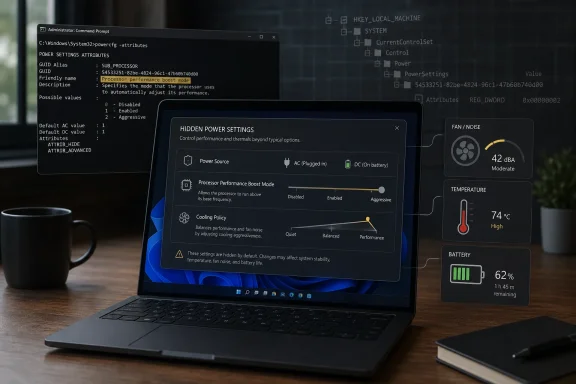
Windows has long had more power-policy settings than the average user sees in the old Control Panel applet. These settings live under Windows’ power configuration framework, are addressed by GUIDs, and can be queried or changed with powercfg, the command-line tool administrators have used for years to inspect sleep states, power plans, device wake behavior, and processor policies.Some settings are simply marked hidden. That does not mean they are experimental, forbidden, or newly discovered. It means Windows will not display them in the Advanced settings dialog unless the hidden attribute is removed or altered.
The registry trick described in the WinCentral post is one way to expose those entries. A setting stored under
HKEY_LOCAL_MACHINE\SYSTEM\CurrentControlSet\Control\Power\PowerSettings may include an Attributes value, and changing that value can make the setting appear in Power Options. The less click-heavy route is often powercfg -attributes, which can remove the hidden flag without asking users to spelunk through registry paths.That distinction matters. Registry editing makes the story feel like a forbidden hatch in the floorboards.
powercfg makes it look like what it is: an administrative interface for a power-policy system Microsoft has never fully translated into a consumer-friendly Settings page.Microsoft Hid the Knobs Because the Knobs Are Sharp
The useful way to think about these settings is not “Microsoft is hiding performance from you.” It is “Microsoft is hiding trade-offs from people who did not ask to debug thermals.”Processor boost behavior, idle-state residency, cooling policy, energy-performance preference, and frequency ceilings are not cosmetic preferences. They influence how aggressively the CPU enters turbo frequencies, how quickly it backs off under load, how much power it draws, how hot the chassis gets, and how loud the fan becomes. On a desktop with a large cooler, the wrong setting may only waste electricity. On a thin laptop, the wrong setting can turn a comfortable machine into a lap-warmer with worse sustained performance.
The default Windows experience is built around a blunt premise: most users should not need to understand CPU package power, boost bins, or fan curves to write email, browse the web, or join a video call. That premise is not absurd. The PC ecosystem contains everything from passively cooled tablets to high-end gaming notebooks, and many of those systems ship with OEM firmware and control software that already manipulates power behavior in the background.
The trouble is that the same simplification that protects casual users also frustrates enthusiasts and administrators. If a laptop runs hot during Teams calls, or a gaming notebook boosts too eagerly and then throttles, the hidden settings can be the difference between accepting the OEM default and imposing a more rational policy.
The Old Control Panel Still Has the Real Machinery
One of Windows 11’s stranger design contradictions is that the modern Settings app is where Microsoft wants users to live, while the old Control Panel remains where many of the serious power-plan details still reside. The power mode slider in Settings may offer friendly labels such as best efficiency or best performance, but those labels sit on top of a deeper power-policy model.That model predates Windows 11 and still carries the shape of earlier Windows eras. Power plans, subgroups, aliases, AC and DC values, processor policies, sleep timers, USB selective suspend, PCI Express link-state power management, and display timeouts all belong to a system that was designed to be scriptable and manageable before it was designed to be pretty.
This is why the “unlock” trick feels oddly powerful. It exposes settings that were always part of the machinery, but which the visible interface had deliberately suppressed. You are not installing a performance mod. You are telling Windows to show more of its own control surface.
For sysadmins, that difference is comforting. Built-in tools are auditable, scriptable, and reversible in a way random “debloat” utilities are not. For home users, it is a warning: built-in does not automatically mean harmless.
Processor Boost Is the Setting Everyone Talks About for a Reason
The headline setting in most of these guides is Processor Performance Boost Mode. That is because boost behavior is the most visible power trade-off on modern PCs. A CPU that boosts aggressively can make short tasks feel snappier and improve bursty workloads, but the same behavior can raise temperatures quickly, trigger fan noise, and reduce battery life.On many laptops, disabling or softening boost can produce an immediate change in acoustics and thermals. The machine may feel calmer because the CPU stops sprinting to high clocks for every small burst of work. For office workloads, browser use, video playback, and light coding, that can be a sensible exchange.
The catch is obvious: boost exists because performance matters. Games, compilers, renderers, compression tools, and other CPU-heavy workloads may run slower if boost is disabled or constrained. The user who copies a forum tweak without measuring before and after may trade away responsiveness and call it optimization because the fan got quieter.
This is the central paradox of Windows tuning. A lower temperature is not automatically a better computer. It is only better if the workload still performs acceptably.
Frequency Caps Are a Blunt Instrument, Not a Scalpel
Maximum Processor Frequency is another setting that attracts attention because it appears to offer direct control. Set a ceiling, keep the CPU from climbing too high, and the system should run cooler. In practice, it can work, but it is one of the more primitive tools in the box.Modern processors already manage frequency and voltage dynamically, often with help from firmware, operating-system hints, and vendor-specific algorithms. A hard cap can reduce heat, but it can also interfere with the CPU’s ability to complete work quickly and return to a low-power idle state. The old tuning assumption that “lower clock equals lower power” is too simple for modern silicon.
There are cases where a cap makes sense. A laptop with poor cooling may deliver smoother sustained performance at a lower, steadier frequency than it does when it boosts, overheats, and throttles repeatedly. A small-form-factor desktop in a warm room may benefit from a ceiling that keeps fan noise civilized. A battery-powered device used for note-taking may not need full turbo behavior at all.
But frequency caps should be treated like a governor, not a universal upgrade. They are a way to enforce discipline on unruly hardware. They are not a free performance boost hiding in Windows.
Energy Preference Is Where the Real Philosophy Lives
Processor Energy Performance Preference is less flashy than boost mode, but it better captures the modern Windows power story. Instead of simply asking whether the CPU should go fast, it expresses a preference along the performance-efficiency spectrum.That is closer to how today’s systems actually behave. Windows, the processor, and the firmware are constantly negotiating: Is this task urgent? Is the system on battery? Is there thermal headroom? Should the CPU race to finish or sip power over a longer interval? Energy-performance preference gives that negotiation a policy bias.
For laptop users, this can matter more than a single maximum-frequency cap. A more efficiency-oriented policy may preserve battery life and reduce heat without completely forbidding short bursts of speed. A more performance-oriented policy may make sense for plugged-in creative work, gaming, or development workloads where latency and completion time matter.
This is also where OEM behavior complicates the picture. Many laptops already map vendor modes such as Quiet, Balanced, Performance, or Turbo onto firmware and Windows policies. Changing hidden Windows settings underneath an OEM control center can produce confusing results if the vendor software later overwrites them.
Cooling Policy Is a Reminder That Silence Has a Cost
System Cooling Policy sounds mundane, but it represents one of the oldest arguments in laptop design: should the machine spin the fan first or throttle the processor first? The active cooling approach prioritizes fan use to maintain performance. The passive approach leans more heavily on reducing processor speed before ramping fans.Neither is morally superior. A recording engineer, student in a lecture hall, or late-night bedroom user may prefer passive behavior because fan noise is the problem they actually perceive. A gamer or engineer running a long job may prefer active cooling because performance collapse is worse than noise.
Windows can expose that choice, but the hardware still has the final word. A thin laptop with limited heat pipes cannot become a workstation because the cooling policy changed. A fanless device cannot choose active cooling. A gaming notebook may have firmware-level fan curves that override or reinterpret what Windows asks for.
Still, the setting is useful because it makes the trade-off explicit. Quietness, temperature, and sustained performance are not three separate wins waiting to be unlocked. They are usually a triangle.
The Registry Path Is the Most Dramatic Route, Not the Best One
The advice to open Registry Editor, navigate to a power setting, and changeAttributes from 1 to 2 is popular because it is easy to describe. It also gives the tweak an air of technical authenticity. The registry is where Windows hides the bones.But administrators should prefer supported tooling where possible.
powercfg can query settings, expose hidden ones, and set AC or DC values in a way that is easier to document and automate. It also reduces the risk of editing the wrong key or treating a random blog’s GUID list as gospel.The safer workflow starts with observation. Run
powercfg /query to inspect the current scheme. Export or record the existing configuration before making changes. Change one setting at a time, then test the machine under the workload that actually matters.That last point is where many tuning guides fail. They promise lower heat, better battery life, quieter fans, and improved performance in the same breath. Real tuning is less glamorous: change one variable, measure the effect, and decide whether the trade-off is acceptable.
Windows 11’s Defaults Are Not Neutral
It is tempting to frame Microsoft’s defaults as the safe middle and user tweaks as deviation. That is only partly true. Defaults are product decisions, and product decisions serve priorities.Windows 11 has to feel responsive on store shelves, pass battery-life expectations, avoid support calls, respect OEM thermal designs, and work across Intel, AMD, Arm, tablets, desktops, handhelds, and virtual machines. The resulting defaults are compromises. They are not necessarily the best settings for your laptop, your room temperature, your tolerance for fan noise, or your electricity bill.
This is especially obvious on gaming laptops. Vendors often ship machines tuned to impress in benchmarks and reviews, even when the long-term user experience would be better with a quieter, slightly slower profile. Disabling aggressive boost can sometimes make a laptop feel more premium because it stops behaving like a hair dryer during ordinary tasks.
The same applies in reverse to desktops. A tower PC with strong cooling and no battery constraint may benefit from performance-oriented settings that would be silly on an ultrabook. The hidden nature of these controls makes Windows look more paternalistic than it needs to be, but the diversity of PC hardware explains why Microsoft does not surface every lever by default.
Enterprise IT Should See a Policy Surface, Not a Hack
For managed environments, the hidden-settings story is less about enthusiast tuning and more about governance. Power behavior affects battery replacement cycles, help-desk complaints, fan noise in shared offices, device longevity, and energy use across fleets. It can also influence whether laptops survive a full day of meetings without users hunting for outlets.The right enterprise answer is not to send users into Registry Editor. It is to define power policy through supported management channels, test it across hardware models, and document exceptions.
powercfg remains useful for inspection and scripting, while mobile device management and Group Policy may be part of the larger deployment picture depending on the organization.There is also a supportability issue. If an IT department exposes hidden options widely, users may change settings that undermine standard behavior. One user’s “optimization” can become another ticket about poor performance, strange sleep behavior, or missing battery life.
That does not mean enterprises should ignore these controls. It means they should treat them as configuration policy, not folklore. The fact that a setting is hidden in the UI does not make it illegitimate, but it does make it a candidate for careful testing.
The Biggest Risk Is the Myth of the Universal Tweak
The Windows tweaking culture has always loved universal recipes. Disable this service. Flip that registry key. Use this power plan. Turn off that feature. The hidden power-settings story fits neatly into that tradition, which is precisely why it needs skepticism.A setting that helps a Ryzen gaming laptop may do little for an Intel ultrabook. A change that improves battery life on one BIOS revision may be overwritten by OEM software on another. A thermal improvement observed during a YouTube video test may not hold during a compile, render, or game.
Even the language of “performance” can mislead. Peak performance, sustained performance, responsiveness, frame pacing, battery endurance, skin temperature, and fan noise are different outcomes. A tweak can improve one while worsening another.
The serious version of this advice is therefore modest. Hidden Windows power settings can help you tune a PC to your preferences. They cannot repeal physics, fix bad cooling, or guarantee that a laptop will be faster and cooler at the same time.
Microsoft Should Bring the Adult Controls Into Settings
The existence of these hidden options is defensible. Their obscurity is harder to defend. Windows 11 has spent years moving consumer-facing controls into Settings, but power management remains split between simplified modern toggles and a legacy interface that looks increasingly detached from how people actually use PCs.Microsoft does not need to dump every GUID-backed processor setting into the Settings app. That would be chaos. But it could expose a more honest advanced power page with clear profiles, plain-language consequences, and a reset button. Users should not need to choose between a childish slider and registry surgery.
Apple’s tighter hardware control makes its power-management story easier to hide. Windows does not have that luxury. The PC market is built on variation, and variation creates legitimate reasons for user control.
A well-designed Windows interface could say the quiet part out loud: performance, battery life, heat, and noise are trade-offs. Let users choose, explain the likely consequences, and make reversal obvious. That would be better than letting blog posts turn old administrative settings into “secret” discoveries.
The Sensible Unlock Is a Measured One
The practical lesson is not that everyone should immediately expose every hidden power option in Windows 11. It is that power users should know these controls exist, understand what they change, and approach them as tuning instruments rather than miracle switches.- Windows 11 hides some advanced power settings from the default interface, but many remain accessible through built-in power-management mechanisms.
- Processor boost controls can reduce heat and fan noise, though they may also reduce performance in demanding workloads.
- Energy-performance preference is often a better first adjustment than a hard CPU frequency cap because it nudges behavior instead of imposing a crude ceiling.
- OEM utilities, firmware, and Windows power modes may overlap, so changes made in one place can be modified or overridden elsewhere.
- Registry editing should be treated as a last-mile method, while
powercfgand documented administrative workflows are preferable when available. - The only reliable way to tune a system is to change one setting at a time and measure battery life, temperatures, noise, and workload performance before declaring victory.
References
- Primary source: thewincentral.com
Published: 2026-06-15T06:15:10.586274
Hidden Windows 11 Settings That Improve Performance - WinCentral
Unlock hidden Windows 11 settings to boost performance, reduce heat, improve battery life, and gain more control over your PC. - Read in Windows 11 News on WinCentral thewincentral.com
- Official source: learn.microsoft.com
Powercfg command-line options | Microsoft Learn
You can use the powercfg.exe tool to control power schemes (also named power plans) to use the available sleep states, to control the power states of individual devices, and to analyze the system for common energy-efficiency and battery-life problems.learn.microsoft.com - Related coverage: studylib.net
Windows Power Policy Configuration and Deployment Guide
Learn how to configure and deploy power policies in Windows using Group Policy and PowerCfg. Optimize energy consumption and manage power settings.studylib.net - Related coverage: windowscentral.com
Mastering the PowerCFG command on Windows 11 and 10 | Windows Central
On Windows 11, you can use the PowerCFG tool to control the power settings from Command Prompt, and in thig guide, I'll show you how.www.windowscentral.com - Related coverage: vox.veritas.com
