

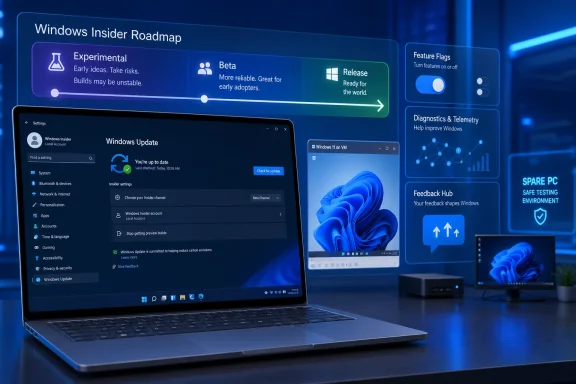
Microsoft is moving Windows 11 testing into a simpler Insider model in 2026, shifting the old Canary, Dev, Beta, and Release Preview maze toward Experimental and Beta tracks that users can join from Windows Update on a supported test PC. The change is practical, not cosmetic. It makes early Windows testing easier to understand, but it also makes the decision to install preview builds feel more casual than it should. The Insider Program remains a bargain with a catch: you get tomorrow’s Windows today, and you become part of Microsoft’s quality-control system in the process.
For years, the Windows Insider Program was supposed to be a ladder. Canary was the far edge, Dev was the experimental middle, Beta was the safer preview lane, and Release Preview was the final dress rehearsal before general availability. In theory, every rung had a distinct audience and risk profile.
In practice, the ladder often looked more like a fire escape. Features appeared in one channel, skipped another, rolled out to a subset of devices, then vanished behind server-side switches. A user could be on the “right” channel and still not see the feature they joined to test. An administrator could read the release notes and still struggle to answer the only question that mattered: what exactly is this machine testing?
The 2026 Insider overhaul is Microsoft’s attempt to make that bargain legible again. Experimental now absorbs much of the old edge-of-the-map work previously associated with Canary and Dev, while Beta becomes the place for builds and fixes closer to mainstream Windows. Release Preview still exists in the broader ecosystem as the most conservative staging area, but the center of gravity is now clearly Experimental versus Beta.
That simplification matters because Windows 11 is no longer a static operating system released in neat, old-fashioned waves. It is an update service with AI features, inbox app changes, shell experiments, driver policy shifts, and cloud-dependent controls arriving on overlapping schedules. The Insider Program is where that operating model becomes visible before it lands on ordinary PCs.
That distinction should shape where you install these builds. Experimental belongs on hardware or virtual machines you can afford to break. It is the right place for enthusiasts who want to see what Microsoft is trying, developers who need to anticipate platform movement, and IT pros who want early warning about changes to the shell, settings, policies, drivers, and app behavior.
Beta is less chaotic, but it is not a production promise. It is still preview software. A Beta build can still have broken search behavior, odd Explorer regressions, driver incompatibilities, battery drain, installation failures, or enterprise management surprises. The word “Beta” should not lull anyone into treating it as a cheap path to a better daily-driver Windows.
The better mental model is this: Experimental is a lab bench, Beta is a rehearsal room, and production Windows is the stage. You can learn a lot in the lab and rehearsal room. You should not run payroll, exams, medical scheduling, retail terminals, or a family member’s only laptop from either one.
A spare laptop is still the cleanest Insider machine. It gives you real hardware behavior: Wi-Fi quirks, touchpad issues, graphics driver problems, sleep states, firmware interactions, Bluetooth weirdness, and battery drain all show up in ways that a VM cannot fully reproduce. For people testing Windows as users actually experience it, physical hardware remains the gold standard.
Virtual machines are better for repeatability. VMware Workstation Pro, Oracle VirtualBox, Hyper-V, and other tools make it easier to snapshot a system before a risky update, roll back after a broken build, and keep multiple preview tracks available without dedicating multiple devices. The catch is that Windows 11’s hardware requirements still matter, so TPM, Secure Boot, memory, CPU, and storage configuration cannot be treated as afterthoughts.
Dual-booting sits somewhere in the middle, and it is the option most likely to punish impatience. It lets Windows run directly on hardware while preserving a separate stable installation, but bootloaders, BitLocker, recovery partitions, and disk resizing can turn a casual experiment into a weekend project. If you do dual-boot, you should know how to recover both installations before you begin.
On Windows 11, the path is straightforward: Settings, Windows Update, Windows Insider Program, then Get started. From there, Windows asks you to link an account, choose an Insider channel, accept the warnings, and restart. If your PC has not yet received Microsoft’s refreshed Insider experience, you may still see the older channel names for a while during the transition.
The other setting that often catches people is diagnostic data. Insider builds require optional diagnostic data because Microsoft is not merely giving users early access; it is collecting telemetry to understand whether the build works. If Windows prompts you to turn on additional diagnostics, that is not a side quest. It is part of the bargain.
This is where the enthusiast and privacy-minded user may pause. Insider participation means more observation than a normal stable Windows installation. That does not make the program sinister, but it does mean the program is not simply a “get new features early” switch. It is a testing relationship.
A clean ISO gives testers a known starting point. That matters when bugs appear. If a feature fails after three years of accumulated app installs, registry edits, driver updates, and OEM utilities, it is hard to know whether Windows is broken or the machine is haunted. If the same bug appears in a clean VM from a fresh ISO, the signal is much stronger.
For sysadmins and developers, ISOs also make documentation and repeat testing possible. You can build a lab image, apply the same configuration, install the same management agent, and compare behavior across builds. That is far more useful than clicking “check for updates” on a mystery machine and hoping today’s configuration matches last week’s.
The practical path is simple enough. Download the current Windows 11 installation media or Insider Preview ISO from Microsoft, install it on a spare PC or VM, activate it properly, update it fully, then enroll it in the desired Insider channel. Do not begin with a machine whose recovery story you have not already rehearsed.
That created a strange Insider culture. Microsoft would announce a feature, only some testers would receive it, and the rest would search forums for commands, registry edits, or tools to force it on. The result was an unofficial second testing program layered on top of the official one. The most committed testers were often not testing the build Microsoft had actually delivered to them.
Feature flags acknowledge that frustration. If Experimental users can enable certain new experiences directly from Windows Insider settings, the program becomes more honest. Testers can choose to try the rougher edge, Microsoft can gather clearer feedback, and the difference between “not available yet” and “available but disabled” becomes less maddening.
It also shifts responsibility back onto the user. A feature flag is a tempting switch, and tempting switches are where bugs breed. If you turn on three experimental features at once and the Start menu misbehaves, you may have produced a bug report that is technically true but diagnostically muddy. The serious tester changes one variable at a time.
That workflow is not glamorous, but it is the difference between yelling into the wind and filing a signal. Feedback Hub lets users search for existing reports, upvote them, add comments, submit new feedback, and attach enough context to make the problem reproducible. A thousand vague posts about “Explorer is broken” are less useful than a few dozen structured reports showing the same crash path.
The upvote mechanism also matters. If you find a report that matches your bug, adding weight to that item is often better than creating a duplicate. Microsoft’s engineers need clusters, not confetti. The more precise the cluster, the more likely it becomes a fix rather than forum folklore.
This is where WindowsForum readers can punch above their weight. Enthusiasts and IT pros tend to notice patterns casual users miss: broken policy interactions, driver regressions, event-log clues, installation edge cases, accessibility regressions, and update loops. The Insider Program is at its best when those observations make it back to Microsoft in a form engineers can act on.
The new approach should reduce some of that friction. If Experimental, Beta, and Release Preview builds line up closely enough under the same core version, users may be able to switch without the old clean-install penalty. That is a meaningful improvement for testers who want to move toward stability after trying early features.
But the escape hatch is not magic. If your device is on a build number that is ahead of the public or Beta track, Windows cannot simply downgrade itself in place. At that point, leaving the Insider Program may mean waiting until production catches up or reinstalling Windows from scratch. The settings UI can simplify the decision, but it cannot rewrite the servicing laws of Windows.
Unenrolling a device is therefore something to plan before you enroll it. If this PC must return to normal service by Friday, do not put it on a branch that may strand it beyond Friday. Preview builds are easiest to enjoy when the machine has no deadline.
That matters because modern Windows changes are not limited to the kernel or Start menu. File Explorer integration, account prompts, default app behavior, Copilot surfaces, security baselines, printer policy, driver models, Settings migration, and update UX all affect support desks. A feature that looks minor in a consumer changelog can become a training, compliance, or help-desk issue in a managed fleet.
A disciplined Insider lab should mirror the business just enough to be useful. Include at least one standard user profile, one managed device, one VPN scenario, one printer scenario if printing still matters, one line-of-business app stack, and one security configuration that resembles production. The point is not to test every PC. The point is to find the category of problem before it finds you.
The worst enterprise use of Insider builds is executive novelty. The best is quiet validation. If an IT team can say, “We saw this behavior in Beta six weeks ago, documented it, and prepared guidance,” the program has paid for itself.
But the modern bargain is more complicated because many Windows features are no longer purely local. A build may contain code that depends on server-side rollout. A feature may appear for one account and not another. AI-backed components may depend on region, hardware, subscription state, language, or cloud availability. The old habit of treating a build number as the whole story no longer works.
That is why the channel simplification is useful but incomplete. Experimental and Beta tell you roughly where you are in Microsoft’s development pipeline. They do not guarantee that your PC will receive every announced feature on day one. They do not guarantee that a feature you see today will survive unchanged. They do not even guarantee that two machines on the same build will behave identically.
The serious enthusiast learns to document the conditions. Build number, channel, region, account type, hardware, enabled feature flags, update history, and whether the installation is clean or upgraded all matter. The Windows Insider Program rewards curiosity, but it rewards careful curiosity most.
The risk hides behind that simplicity. Preview builds can fail to install. They can break features you rely on. They can introduce performance regressions that are hard to diagnose. They can require a reinstall to exit cleanly. They can also consume time in the most annoying way possible: not through catastrophe, but through small recurring papercuts.
There is also the support boundary. If you install a preview build, you are stepping outside the normal consumer comfort zone. Your OEM may not care that a touchpad driver behaves badly on a build the public does not have. Your workplace help desk may rightly refuse to troubleshoot a personal Insider experiment. Your family may not appreciate your explanation of why the shared PC is now “contributing telemetry to the future of Windows.”
That does not mean you should avoid the program. It means you should respect it. The Insider Program is a workshop, not a showroom.
The practical guardrails are not complicated, but they are worth stating plainly:
Microsoft’s Insider reset is a welcome correction to a program that had become too clever for ordinary testers and too ambiguous for professionals trying to read its signals. Experimental and Beta will not make preview Windows risk-free, and feature flags will not eliminate the strangeness of staged rollouts, but the new model gives users a cleaner vocabulary for deciding how close to the edge they want to stand. For Windows 11, that clarity arrives at the right moment: the operating system is changing faster, more visibly, and more unevenly than the old channel map could comfortably explain.
Source: PCMag Australia Become an Insider: How to Check Out Early Versions of Windows 11
 Microsoft Finally Admits the Insider Map Was Too Hard to Read
For years, the Windows Insider Program was supposed to be a ladder. Canary was the far edge, Dev was the experimental middle, Beta was the safer preview lane, and Release Preview was the final dress rehearsal before general availability. In theory, every rung had a distinct audience and risk profile.In practice, the ladder often looked more like a fire escape. Features appeared in one channel, skipped another, rolled out to a subset of devices, then vanished behind server-side switches. A user could be on the “right” channel and still not see the feature they joined to test. An administrator could read the release notes and still struggle to answer the only question that mattered: what exactly is this machine testing?
The 2026 Insider overhaul is Microsoft’s attempt to make that bargain legible again. Experimental now absorbs much of the old edge-of-the-map work previously associated with Canary and Dev, while Beta becomes the place for builds and fixes closer to mainstream Windows. Release Preview still exists in the broader ecosystem as the most conservative staging area, but the center of gravity is now clearly Experimental versus Beta.
That simplification matters because Windows 11 is no longer a static operating system released in neat, old-fashioned waves. It is an update service with AI features, inbox app changes, shell experiments, driver policy shifts, and cloud-dependent controls arriving on overlapping schedules. The Insider Program is where that operating model becomes visible before it lands on ordinary PCs.
The New Choice Is Not “Early” Versus “Safe”
The easiest way to explain the new setup is also the most dangerous: Experimental is early, Beta is safer. That is broadly true, but it undersells the real distinction. Experimental is where Microsoft can test ideas that may change shape, ship much later, or never ship at all. Beta is where Microsoft is trying to validate changes that are closer to the version of Windows normal users will eventually receive.That distinction should shape where you install these builds. Experimental belongs on hardware or virtual machines you can afford to break. It is the right place for enthusiasts who want to see what Microsoft is trying, developers who need to anticipate platform movement, and IT pros who want early warning about changes to the shell, settings, policies, drivers, and app behavior.
Beta is less chaotic, but it is not a production promise. It is still preview software. A Beta build can still have broken search behavior, odd Explorer regressions, driver incompatibilities, battery drain, installation failures, or enterprise management surprises. The word “Beta” should not lull anyone into treating it as a cheap path to a better daily-driver Windows.
The better mental model is this: Experimental is a lab bench, Beta is a rehearsal room, and production Windows is the stage. You can learn a lot in the lab and rehearsal room. You should not run payroll, exams, medical scheduling, retail terminals, or a family member’s only laptop from either one.
The Test Machine Is the Real Price of Admission
Joining the Insider Program is free, but safe participation is not. The real cost is a spare PC, a virtual machine, or at least the time and storage to build a rollback plan. Anyone who installs preview Windows on their only working system is accepting a level of risk that Microsoft’s clean settings pages do not fully communicate.A spare laptop is still the cleanest Insider machine. It gives you real hardware behavior: Wi-Fi quirks, touchpad issues, graphics driver problems, sleep states, firmware interactions, Bluetooth weirdness, and battery drain all show up in ways that a VM cannot fully reproduce. For people testing Windows as users actually experience it, physical hardware remains the gold standard.
Virtual machines are better for repeatability. VMware Workstation Pro, Oracle VirtualBox, Hyper-V, and other tools make it easier to snapshot a system before a risky update, roll back after a broken build, and keep multiple preview tracks available without dedicating multiple devices. The catch is that Windows 11’s hardware requirements still matter, so TPM, Secure Boot, memory, CPU, and storage configuration cannot be treated as afterthoughts.
Dual-booting sits somewhere in the middle, and it is the option most likely to punish impatience. It lets Windows run directly on hardware while preserving a separate stable installation, but bootloaders, BitLocker, recovery partitions, and disk resizing can turn a casual experiment into a weekend project. If you do dual-boot, you should know how to recover both installations before you begin.
Microsoft Account First, Preview Build Second
The Insider Program starts with identity. You need a Microsoft account registered with the program before Windows Update will offer Insider builds through the Settings app. That account becomes the link between your device, your selected channel, and Microsoft’s feedback machinery.On Windows 11, the path is straightforward: Settings, Windows Update, Windows Insider Program, then Get started. From there, Windows asks you to link an account, choose an Insider channel, accept the warnings, and restart. If your PC has not yet received Microsoft’s refreshed Insider experience, you may still see the older channel names for a while during the transition.
The other setting that often catches people is diagnostic data. Insider builds require optional diagnostic data because Microsoft is not merely giving users early access; it is collecting telemetry to understand whether the build works. If Windows prompts you to turn on additional diagnostics, that is not a side quest. It is part of the bargain.
This is where the enthusiast and privacy-minded user may pause. Insider participation means more observation than a normal stable Windows installation. That does not make the program sinister, but it does mean the program is not simply a “get new features early” switch. It is a testing relationship.
The ISO Still Matters in an Update-First World
Most users will enter the Insider Program from an existing Windows 11 installation, but ISO images remain important. They are the clean-install path, the virtual-machine path, and often the recovery path when an Insider device becomes too tangled to trust. Microsoft’s promise of more regular ISO availability for preview builds is therefore more than a convenience.A clean ISO gives testers a known starting point. That matters when bugs appear. If a feature fails after three years of accumulated app installs, registry edits, driver updates, and OEM utilities, it is hard to know whether Windows is broken or the machine is haunted. If the same bug appears in a clean VM from a fresh ISO, the signal is much stronger.
For sysadmins and developers, ISOs also make documentation and repeat testing possible. You can build a lab image, apply the same configuration, install the same management agent, and compare behavior across builds. That is far more useful than clicking “check for updates” on a mystery machine and hoping today’s configuration matches last week’s.
The practical path is simple enough. Download the current Windows 11 installation media or Insider Preview ISO from Microsoft, install it on a spare PC or VM, activate it properly, update it fully, then enroll it in the desired Insider channel. Do not begin with a machine whose recovery story you have not already rehearsed.
Feature Flags Are Microsoft’s Quiet Concession to Insider Frustration
The most interesting part of the Insider overhaul is not the renamed channels. It is the move toward user-visible feature flags in the Experimental experience. For years, Windows watchers have relied on hidden toggles, staged rollouts, and third-party utilities to discover what a build could do but did not yet expose.That created a strange Insider culture. Microsoft would announce a feature, only some testers would receive it, and the rest would search forums for commands, registry edits, or tools to force it on. The result was an unofficial second testing program layered on top of the official one. The most committed testers were often not testing the build Microsoft had actually delivered to them.
Feature flags acknowledge that frustration. If Experimental users can enable certain new experiences directly from Windows Insider settings, the program becomes more honest. Testers can choose to try the rougher edge, Microsoft can gather clearer feedback, and the difference between “not available yet” and “available but disabled” becomes less maddening.
It also shifts responsibility back onto the user. A feature flag is a tempting switch, and tempting switches are where bugs breed. If you turn on three experimental features at once and the Start menu misbehaves, you may have produced a bug report that is technically true but diagnostically muddy. The serious tester changes one variable at a time.
Feedback Hub Is Still the Part Too Many Testers Skip
The Insider Program is often treated like a preview buffet. Users join, grab the feature they want, complain on social media when it breaks, and move on. Microsoft would prefer those complaints arrive through Feedback Hub, where they can be categorized, upvoted, attached to diagnostic data, and correlated with other reports.That workflow is not glamorous, but it is the difference between yelling into the wind and filing a signal. Feedback Hub lets users search for existing reports, upvote them, add comments, submit new feedback, and attach enough context to make the problem reproducible. A thousand vague posts about “Explorer is broken” are less useful than a few dozen structured reports showing the same crash path.
The upvote mechanism also matters. If you find a report that matches your bug, adding weight to that item is often better than creating a duplicate. Microsoft’s engineers need clusters, not confetti. The more precise the cluster, the more likely it becomes a fix rather than forum folklore.
This is where WindowsForum readers can punch above their weight. Enthusiasts and IT pros tend to notice patterns casual users miss: broken policy interactions, driver regressions, event-log clues, installation edge cases, accessibility regressions, and update loops. The Insider Program is at its best when those observations make it back to Microsoft in a form engineers can act on.
Channel Switching Is Easier, But Escape Still Has Rules
One of the most welcome promises in the new model is easier movement between channels when devices are on the same Windows core version. Historically, moving from a more experimental build to a safer channel could require waiting for the stable branch to catch up or wiping the device entirely. That made “just try it” a surprisingly sticky decision.The new approach should reduce some of that friction. If Experimental, Beta, and Release Preview builds line up closely enough under the same core version, users may be able to switch without the old clean-install penalty. That is a meaningful improvement for testers who want to move toward stability after trying early features.
But the escape hatch is not magic. If your device is on a build number that is ahead of the public or Beta track, Windows cannot simply downgrade itself in place. At that point, leaving the Insider Program may mean waiting until production catches up or reinstalling Windows from scratch. The settings UI can simplify the decision, but it cannot rewrite the servicing laws of Windows.
Unenrolling a device is therefore something to plan before you enroll it. If this PC must return to normal service by Friday, do not put it on a branch that may strand it beyond Friday. Preview builds are easiest to enjoy when the machine has no deadline.
The Enterprise Lesson Is Visibility, Not Early Adoption
For businesses, the Insider Program is not a recommendation to run preview Windows broadly. It is a radar system. A small lab of Insider devices can tell an IT department what Microsoft is preparing before the change arrives through regular servicing, annual feature updates, or Microsoft 365-adjacent experiences.That matters because modern Windows changes are not limited to the kernel or Start menu. File Explorer integration, account prompts, default app behavior, Copilot surfaces, security baselines, printer policy, driver models, Settings migration, and update UX all affect support desks. A feature that looks minor in a consumer changelog can become a training, compliance, or help-desk issue in a managed fleet.
A disciplined Insider lab should mirror the business just enough to be useful. Include at least one standard user profile, one managed device, one VPN scenario, one printer scenario if printing still matters, one line-of-business app stack, and one security configuration that resembles production. The point is not to test every PC. The point is to find the category of problem before it finds you.
The worst enterprise use of Insider builds is executive novelty. The best is quiet validation. If an IT team can say, “We saw this behavior in Beta six weeks ago, documented it, and prepared guidance,” the program has paid for itself.
The Enthusiast Bargain Has Changed, Not Disappeared
For Windows enthusiasts, the Insider Program has always offered a particular thrill: seeing the operating system in motion before the public does. New Settings pages, shell experiments, hidden visual updates, revised inbox apps, and early platform work all make Windows feel less finished and more alive. That is the fun of it.But the modern bargain is more complicated because many Windows features are no longer purely local. A build may contain code that depends on server-side rollout. A feature may appear for one account and not another. AI-backed components may depend on region, hardware, subscription state, language, or cloud availability. The old habit of treating a build number as the whole story no longer works.
That is why the channel simplification is useful but incomplete. Experimental and Beta tell you roughly where you are in Microsoft’s development pipeline. They do not guarantee that your PC will receive every announced feature on day one. They do not guarantee that a feature you see today will survive unchanged. They do not even guarantee that two machines on the same build will behave identically.
The serious enthusiast learns to document the conditions. Build number, channel, region, account type, hardware, enabled feature flags, update history, and whether the installation is clean or upgraded all matter. The Windows Insider Program rewards curiosity, but it rewards careful curiosity most.
The Small Print Is Where the Risk Lives
The installation steps are easy enough to summarize: register a Microsoft account, prepare a supported Windows 11 test environment, enroll through Windows Update, choose Experimental or Beta, restart, check for updates, and install the preview build. The simplicity is intentional. Microsoft wants more testers, clearer channels, and more feedback.The risk hides behind that simplicity. Preview builds can fail to install. They can break features you rely on. They can introduce performance regressions that are hard to diagnose. They can require a reinstall to exit cleanly. They can also consume time in the most annoying way possible: not through catastrophe, but through small recurring papercuts.
There is also the support boundary. If you install a preview build, you are stepping outside the normal consumer comfort zone. Your OEM may not care that a touchpad driver behaves badly on a build the public does not have. Your workplace help desk may rightly refuse to troubleshoot a personal Insider experiment. Your family may not appreciate your explanation of why the shared PC is now “contributing telemetry to the future of Windows.”
That does not mean you should avoid the program. It means you should respect it. The Insider Program is a workshop, not a showroom.
The Safest Way to Chase Tomorrow’s Start Menu
The right Insider strategy depends on what you want from the program. If you want to see the newest Windows ideas as soon as Microsoft exposes them, use Experimental on a spare machine or VM and expect churn. If you want a preview of changes more likely to land soon, use Beta and still keep your expectations modest.The practical guardrails are not complicated, but they are worth stating plainly:
- Use a spare PC or virtual machine unless you are fully prepared to reinstall your main system.
- Choose Experimental only when you are comfortable testing unfinished features that may change, disappear, or break unexpectedly.
- Choose Beta when you want a more stable preview path, but do not mistake it for production Windows.
- Keep notes on build numbers, enabled feature flags, hardware, and account conditions before reporting bugs.
- Use Feedback Hub instead of relying only on forum posts or social media complaints.
- Plan your exit before joining, because leaving an advanced build may still require waiting or reinstalling.
Microsoft’s Insider reset is a welcome correction to a program that had become too clever for ordinary testers and too ambiguous for professionals trying to read its signals. Experimental and Beta will not make preview Windows risk-free, and feature flags will not eliminate the strangeness of staged rollouts, but the new model gives users a cleaner vocabulary for deciding how close to the edge they want to stand. For Windows 11, that clarity arrives at the right moment: the operating system is changing faster, more visibly, and more unevenly than the old channel map could comfortably explain.
Source: PCMag Australia Become an Insider: How to Check Out Early Versions of Windows 11
