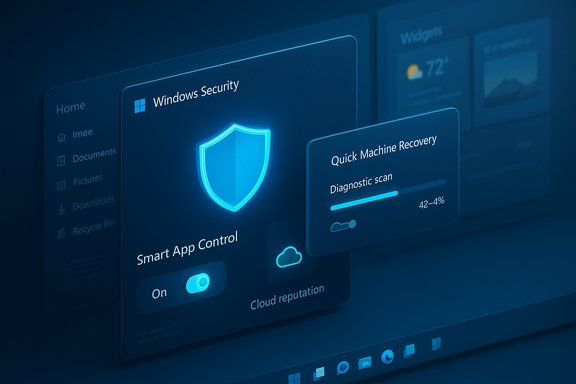
Microsoft has shipped Windows 11 Insider Preview Build 26220.7070 (packaged as KB5070300) to the Dev and Beta channels, an incremental but meaningful update that tightens recovery workflows, refines the Widgets user interface, and removes a handful of practical friction points for testers and IT teams while leaving several features staged behind server-side and hardware gates.
Microsoft’s servicing strategy for recent Windows 11 releases increasingly uses small enablement packages and staged feature gates rather than monolithic OS rebuilds. That means a single binary can contain multiple potential experiences that are turned on selectively for subsets of machines. Build 26220.7070 continues that model: the package arrives as a cumulative preview that may expose different features depending on a device’s entitlement, the Insider toggles enabled in Settings, and Microsoft’s server-side rollout decisions.
This flight is notable not because it introduces a single headline consumer feature, but because it improves three practical areas that affect reliability and daily ergonomics: Quick Machine Recovery (QMR) usability in both Settings and the Windows Recovery Environment (WinRE), a modest but important redesign of the Widgets experience (default dashboard selection and numbered alert badges), and a usability change that lets administrators and testers flip Smart App Control (SAC) without reinstalling Windows. The build also contains selective File Explorer adjustments and a set of quality fixes plus outstanding known issues Insiders should weigh before installing.
At the same time, the Widgets tweaks and Copilot-era experiments show Microsoft is still trying to find the right balance between curated discovery and utility-first designs. The Widgets feature has oscillated between news-first and utility-first for years; these changes push it modestly toward usability without fundamentally resolving the deeper ecosystem shortfall.
Recommendations:
Windows 11 remains an iterative platform. Expect more targeted fixes and staged feature flips in the coming weeks; Insiders and IT administrators should continue to test cautiously, back up systems before applying preview updates, and verify feature behavior in their specific environments before relying on new integrations for production workflows.
Source: Neowin Microsoft improving recovery, redesigning widgets UI with new Windows 11 build 26220.7070
 Background
Microsoft’s servicing strategy for recent Windows 11 releases increasingly uses small enablement packages and staged feature gates rather than monolithic OS rebuilds. That means a single binary can contain multiple potential experiences that are turned on selectively for subsets of machines. Build 26220.7070 continues that model: the package arrives as a cumulative preview that may expose different features depending on a device’s entitlement, the Insider toggles enabled in Settings, and Microsoft’s server-side rollout decisions.This flight is notable not because it introduces a single headline consumer feature, but because it improves three practical areas that affect reliability and daily ergonomics: Quick Machine Recovery (QMR) usability in both Settings and the Windows Recovery Environment (WinRE), a modest but important redesign of the Widgets experience (default dashboard selection and numbered alert badges), and a usability change that lets administrators and testers flip Smart App Control (SAC) without reinstalling Windows. The build also contains selective File Explorer adjustments and a set of quality fixes plus outstanding known issues Insiders should weigh before installing.
What’s new — at a glance
- Build: Windows 11 Insider Preview Build 26220.7070 (delivered as KB5070300).
- Channels: Rolling out to Dev and Beta Insider channels (parity window continues while Microsoft ships this 25H2-preview line).
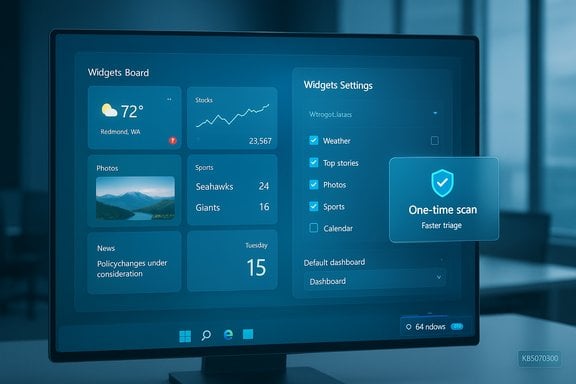
- Widgets UI: New full-page Widgets Settings for selecting a default dashboard, and numbered badges on dashboard icons to indicate alert counts.
- Quick Machine Recovery (QMR): Streamlined behavior that runs a one-time scan by default (when relevant toggles are enabled) and surfaces alternate recovery options faster in Settings and WinRE.
- Smart App Control (SAC): New toggle allows SAC to be turned off and on without requiring a clean OS reinstall.
- File Explorer: Partial re-enabling of the “people” icons in the Activity column for some Insiders; StorageProvider API integration and certain recommended-files surfaces temporarily disabled for additional validation.
- Quality fixes: Multiple fixes for Task View glitches, taskbar auto-hide, Settings hangs, and other targeted bugs.
- Known issues: Start may not open on click for some Insiders, system tray app visibility inconsistencies, copy-progress visual glitches in dark mode, and a camera eligibility misreporting problem on some devices.
Widgets: a quieter, more predictable glance surface
What changed
The Widgets host is receiving modest UX changes designed to make glanceable information more predictable and less noisy:- A full-page Widgets Settings experience where users can reorder dashboards and choose a preferred dashboard to be the default.
- Numbered badges on the Widgets Board navigation bar to indicate the number of alerts or unread items per dashboard.
- When live weather content is present, opening the Widget Board will now target the first dashboard in the navigation bar (the new default) rather than the most recently used dashboard, making the behavior more consistent.
Why it matters
Widgets were always meant to be a quick, glanceable surface. When the panel behaves unpredictably or buries alerts behind a news feed, the feature’s value diminishes. The new settings page and badges do three practical things:- Reduce cognitive load — users can set a consistent landing dashboard rather than hunting for alerts.
- Improve discoverability — numbered badges provide an at-a-glance indication of newly arrived tokens of interest.
- Promote personalization — dashboard ordering lets users emphasize productivity widgets (calendar, tasks, alarms) over discovery feeds.
Caveats and risk
- The Widgets ecosystem is still sparse relative to modern widget marketplaces, and many items duplicate built-in app functions. The UI changes improve surface-level ergonomics but don’t fix the deeper problem of limited third‑party developer adoption.
- The Widgets experience remains server-side gated: not every device that installs the build will see the changes immediately. For power users and admins, that means the only reliable way to confirm exposure is to check the Widgets Settings and whether the navigation bar badges appear.
- Putting widgets and live content in more places (including prior work on lock-screen widgets) raises privacy considerations — administrators should evaluate lock-screen exposure policies for shared or kiosk devices.
Quick Machine Recovery: faster triage, fewer loops
The change
Quick Machine Recovery (QMR) has been streamlined both in Settings and in the Windows Recovery Environment (WinRE). On systems where Quick Machine Recovery and Automatically check for solutions are both enabled, QMR will now run a one-time scan by default instead of executing repeated looping scans. If an immediate fix isn’t available, QMR will more quickly surface alternative recovery actions — for example, repair attempts, refresh options, or guidance to external recovery media.Practical impact
- Users no longer sit through repeated, potentially confusing scans that give the impression the system is “still working on it” without progress. The flow favors faster triage and clearer next steps.
- For consumer scenarios, this reduces time-to-repair and can minimize helpdesk volume by steering users toward appropriate options earlier.
- For enterprise and imaging teams, the change reduces unpredictable recovery behaviors during automated or technician-assisted repair.
Enterprise implications and recommendations
- Organizations should review their recovery policies and test QMR behavior on representative hardware, especially pre-enrolled fleet images. QMR’s default behavior may differ between Home, Pro, and Enterprise SKUs.
- If QMR is undesirable (for privacy, compliance, or bandwidth reasons), administrators should evaluate Group Policy and MDM settings that control WinRE and cloud remediation options.
- Make sure WinRE boot media and imaging workflows remain validated: even with improved cloud-assisted recovery, offline recovery paths (bootable media, network-based system restore) are still essential for disconnected scenarios.
Smart App Control: practical toggle, meaningful policy impact
What changed
Smart App Control (SAC) now has an on/off toggle exposed in Windows Security > App & Browser Control that does not require a clean install to change. Historically, disabling SAC required a reinstall, which was a major pain for testers and for organizations that needed to validate application compatibility.Benefits
- Major reduction in friction for compatibility testing and app deployment pilots.
- Quicker recovery from false positives without resorting to reimaging.
- Simpler demonstration and teaching scenarios that require toggling app control behavior.
Security trade-offs
- Because SAC state affects the OS attack surface, turning it off should be considered a security event. Endpoint protection policies and telemetry pipelines must account for SAC toggles to maintain compliance posture.
- Enterprises with strict app-whitelisting requirements should manage the SAC toggle centrally where possible and log changes.
File Explorer: selective re-enables and temporary rollbacks
What’s happening
This build selectively re-enables people icons under the Activity column in File Explorer Home for some Insiders while temporarily disabling StorageProvider API integration for third-party cloud providers and turning off some recommended-files surfaces (frequently used / recent downloads). These are pragmatic, risk-reduction moves: Microsoft appears to be pulling or staging high-risk integrations while it finishes validation.What it means for users and developers
- Cloud-storage vendors and enterprise sync tools that were planning to rely on the newest StorageProvider integrations should pause production rollouts until the APIs are re-enabled broadly.
- Users who depend on cloud provider thumbnails or File Explorer integrated sync may see reduced functionality temporarily.
- Developer-documentation and API stability signals will be important; vendors should track the Windows developer portal for the definitive timeline.
Quality fixes and outstanding issues
Notable fixes
The package contains a variety of targeted fixes addressing recurring user pain points:- Task View opening unexpectedly when interacting with the desktop has been addressed for many users.
- File Explorer taskbar icon behaviors (Shift+Click, middle click patterns) have been refined.
- Taskbar auto-hide toggling off unexpectedly has been corrected in certain scenarios.
- Settings hangs on particular pages have been mitigated.
Known issues to watch
- The Start menu may not open on click for some Insiders (keyboard invocation with the Windows key still works).
- Some apps may not appear in the system tray for affected Insiders.
- Copy progress dialogs can produce visual glitches in dark mode.
- A camera-eligibility misreporting issue affects certain Recall/Camera flows.
Deployment guidance — practical steps for Insiders and IT teams
- Confirm prerequisites:
- Verify current OS build and update status via Settings > Windows Update.
- Ensure backups and BitLocker recovery keys are saved before applying preview packages.
- For Insiders:
- Use the “Get the latest updates as they are available” toggle to increase the chance of seeing staged features.
- File feedback via the Feedback Hub for UI regressions or missing dashboard behavior.
- For IT and test labs:
- Test QMR and WinRE flows on target hardware — confirm whether QMR’s one-time scan behavior aligns with your support scripts.
- Validate SAC toggle behavior under your EDR and endpoint management policies.
- Pause reliance on StorageProvider API features in production until the API rollout stabilizes.
- For organizations with privacy constraints:
- Reevaluate lock-screen Widgets exposure and apply Group Policy or MDM controls if lock-screen visibility of glanceable items is unacceptable on shared or public devices.
Strengths in this build
- Practical reliability improvements: Streamlining QMR is a thoughtful usability win that reduces time wasted during recovery sessions and should reduce helpdesk tickets.
- Reduced friction for testing and deployment: The SAC toggle eliminates a long-standing pain point for app compatibility testing and demonstration scenarios.
- Small-but-meaningful UI polish: Widgets settings and badges solve real-world annoyances for users who rely on glanceable information and alerts.
- Measured, risk-aware approach: Selective re-enables and temporary rollbacks (File Explorer cloud integrations) show Microsoft prioritizing stability while continuing to test new experiences.
Risks and unresolved concerns
- Staged rollouts create inconsistent experiences. Users on identical builds may see different capabilities depending on server flags and regional gating. That makes troubleshooting and public communication harder.
- Privacy surface area increases. More glanceable content and lock-screen widget experiments reintroduce pre-sign-in exposure concerns. Administrators must configure lock-screen widget policies where appropriate.
- Developer ecosystem remains fragile for widgets. UI improvements won’t produce more third-party widgets by themselves. Microsoft must strengthen developer tooling and incentives to expand the widget catalog.
- Feature gating complexity. Many Copilot and AI-driven experiences remain hardware- or license-gated (Copilot+ PCs or Microsoft 365 entitlements), which fragments the platform experience and complicates documentation and support.
Analysts’ take: what this signals about Microsoft’s priorities
This build is emblematic of Microsoft’s posture in the current Windows lifecycle: incremental polish, larger investments in resiliency and discoverability, and careful, data-driven experimentation. The company is balancing rapid iteration (multiple Insider channels, server-side flags) with risk management (staging or pulling higher-risk APIs). The focus on recovery and predictability suggests a shift away from purely cosmetic updates toward pragmatic improvements that materially affect device reliability and manageability.At the same time, the Widgets tweaks and Copilot-era experiments show Microsoft is still trying to find the right balance between curated discovery and utility-first designs. The Widgets feature has oscillated between news-first and utility-first for years; these changes push it modestly toward usability without fundamentally resolving the deeper ecosystem shortfall.
Final verdict and recommendations
Build 26220.7070 is a sensible, low-disruption update for Insiders who value faster recovery workflows and prefer a tidier Widgets experience. For most consumers and power users the changes are incremental but welcome; for IT teams the SAC toggle and QMR adjustments remove pain points and suggest smoother testing and support cycles.Recommendations:
- Insiders who test system reliability and recovery workflows should install and validate QMR and WinRE flows in a controlled lab before broad deployment.
- Administrators should treat SAC toggles as policy events and ensure logging, telemetry, and endpoint protection policies reflect the ability to toggle app control.
- Developers and cloud storage vendors should watch StorageProvider API re‑enables closely and avoid depending on the current transient integration state for production rollouts.
- Users who value a predictable Widgets panel should explore the new Widgets Settings and set a default dashboard once visible.
Windows 11 remains an iterative platform. Expect more targeted fixes and staged feature flips in the coming weeks; Insiders and IT administrators should continue to test cautiously, back up systems before applying preview updates, and verify feature behavior in their specific environments before relying on new integrations for production workflows.
Source: Neowin Microsoft improving recovery, redesigning widgets UI with new Windows 11 build 26220.7070