Windows 11 Insider Build 26220 Expands Cross‑Device Resume and New Features

  • Thread Author
Microsoft’s latest Insider preview, delivered as Windows 11 Build 26220.7271 (KB5070307), expands the OS’s cross-device resume capabilities — allowing more Android phones and apps to hand off activities to a PC — while also introducing point-in-time restore, Fluid Dictation in Voice Typing, early testing of a Click‑to‑Do top bar, and an expanded Xbox Full Screen Experience across more Windows 11 devices.

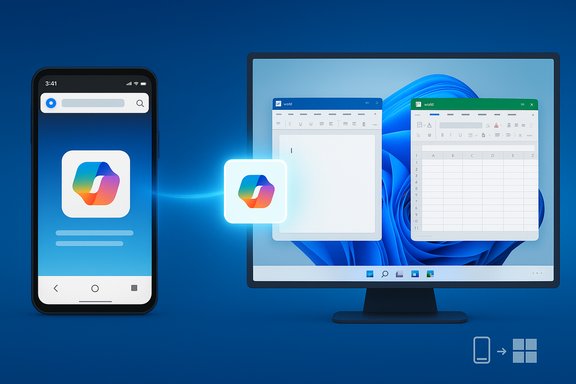
Phone connects to a large translucent screen, displaying Word, Excel, and PowerPoint apps.Background​

Microsoft has been steadily building a continuity layer between Android phones and Windows PCs under the Phone Link/Link to Windows umbrella. What began as notification mirroring, SMS replying and photo transfer has gradually evolved into an activity‑handoff model — Cross‑Device Resume — that aims to let you pick up an app activity on your PC that you started on your phone. This is analogous to Apple’s Handoff, but implemented across Android and Windows with partnerships and a developer Continuity SDK. Microsoft’s official Insider announcement for KB5070307 confirms the rollout of several features — including the expanded Cross‑Device Resume scenarios, Click‑to‑Do testing, point‑in‑time restore, and voice‑typing improvements — and explicitly documents which experiences are being gradually rolled out to Insiders who opt in to the faster toggle.

What KB5070307 (Build 26220.7271) adds — quick summary​

  • Expanded Cross‑Device Resume support: resume browsing from vivo Browser to the PC’s default browser, and resume Microsoft 365 Copilot online files from Honor, Huawei, Oppo, Samsung and vivo phones to desktop Word/Excel/PowerPoint or the browser (offline phone‑stored files not yet supported).
  • Click‑to‑Do top bar: Microsoft has started early testing of a lightweight command bar intended to speed common tasks.
  • Point‑in‑time restore: a new recovery option for rolling the OS back to a previous known good state.
  • Fluid Dictation in Voice Typing: on‑device small language models will clean up punctuation and filler words in near real‑time for supported devices.
  • Xbox Full Screen Experience (FSE): broader availability across more Windows 11 devices, prioritizing controller‑first, distraction‑free gaming.
These changes are being gradually rolled out; toggling Insider options and being on the Dev or Beta channels does not guarantee immediate access because Microsoft often gates features server‑side. Community testing and user reports have previously highlighted how staged rollouts can make availability inconsistent across accounts and regions.

Cross‑Device Resume: what it is, and what changed in KB5070307​

How Cross‑Device Resume works (under the hood)​

Cross‑Device Resume is implemented as a continuity handshake between an Android phone (running Link to Windows) and a Windows 11 PC (Phone Link components and a system service that surfaces “Resume” alerts). When a supported activity occurs on the phone — for example, playing music in Spotify, browsing in vivo Browser, or viewing an online M365 Copilot file — the phone can emit a small activity descriptor to Windows. Windows then maps that descriptor to a corresponding desktop handler:
  • If a native desktop app is installed (e.g., Spotify, Word, Excel, PowerPoint), Windows opens the native app to the matching activity/state.
  • If no native handler exists, Windows opens the corresponding URL in the PC’s default browser as a fallback.
Microsoft’s developer documentation (Continuity/Continuity SDK) clarifies that this is not Android app emulation on the PC — the phone remains the authoritative runtime in many cases, and Windows receives activity metadata to recreate or continue the user’s context. The Continuity SDK is a Limited Access Feature: partners must be approved to interoperate with Link to Windows and must follow onboarding requirements. iOS is not currently supported for integration with the Continuity SDK.

What KB5070307 actually expands​

The most visible change in Build 26220.7271 is a broader partner set for resume scenarios. After Spotify was the first widely public example, KB5070307 adds:
  • vivo Browser → resume browsing activity to the PC’s default browser (vivo phones).
  • M365 Copilot app → resume online Word/Excel/PowerPoint files from Honor, Huawei, Oppo, Samsung and vivo phones; desktop Office apps will open files if installed, otherwise the PC will fall back to the browser. (Note: offline files stored locally on the phone are not supported yet.
Community threads and testing notes show that the behavior surfaces as a taskbar “Resume” alert; clicking it brings up the appropriate handler on the PC. This aligns with previously observed Phone Link behavior and the Cross‑Device Resume system process visible in Task Manager on flighting devices.

Developer and OEM constraints: why this won’t work for every app or phone​

Limited Access & developer onboarding​

The Continuity SDK requires partner onboarding: apps must meet scenario requirements, declare metadata, and obtain approval from Microsoft to interoperate with Link to Windows. That means developers can’t opt in unilaterally; they must apply for access and meet technical prerequisites (minimum Android SDKs and Link to Windows versions). Microsoft explicitly treats Cross‑Device Resume as a Limited Access Feature, which shapes which apps and vendors appear first.

OEM dependency and Link to Windows versions​

A number of resume experiences rely on tight OEM cooperation. Samsung, vivo, Honor, Huawei and Oppo have been named in rollout messaging because their Link to Windows integration (or preinstalled vendor clients) supports the necessary APIs and metadata flow. Phones running older Android releases or lacking an updated Link to Windows package will not support the new resume scenarios. Community testing and forums repeatedly show differences across OEMs and OS versions.

iOS remains out of scope for now​

The Continuity SDK documentation notes that iOS is not yet supported for integration. That’s an important practical limitation for users who maintain iPhone/Windows workflows — Apple’s Handoff remains a Mac/iOS feature set without equivalent Windows‑iPhone parity today.

Click‑to‑Do, Fluid Dictation, and point‑in‑time restore — why they matter​

Click‑to‑Do: a new micro‑command surface​

The Click‑to‑Do top bar is an experimental, lightweight command bar intended to accelerate common tasks. Early testing suggests Microsoft is exploring a compact, quick-access surface for commands without launching full apps. Because this is in early testing and gated by device and market, the experience and availability will vary.

Fluid Dictation: on‑device AI for better voice typing​

Fluid Dictation brings on‑device small language models to voice typing on capable Windows devices (Copilot+ / NPU‑equipped machines). The feature automatically corrects punctuation, grammar and filler words as you dictate — an accessibility and productivity improvement for users who prefer voice input or rely on dictation for hands‑free workflows. Because processing is on device, Microsoft positions this as a faster and more private alternative to cloud transcription.

Point‑in‑time restore: faster, safer recovery​

Point‑in‑time restore adds a more granular rollback option to Windows Recovery flows, allowing admins and users to restore a device to a prior known good state, including apps, settings and user files. This is a meaningful step for IT resiliency and consumer troubleshooting because it reduces the friction of full reinstallation or long repair sequences. Enterprises should evaluate the strategy and how it integrates with existing backup and imaging workflows.

Strengths: where Microsoft is getting this right​

  • Integrated continuity model — Mapping mobile activities to desktop handlers (native apps first, browser fallback second) preserves user workflows and delivers a predictable UX. This reduces friction for users who switch between phone and PC frequently.
  • OEM partnerships accelerate practical availability — Working with device makers like Samsung, vivo, Honor and others yields deeper integrations that are harder to accomplish with a generic platform-only approach. That partnership model yields higher‑quality experiences on supported devices.
  • Developer control and privacy — The Continuity SDK’s limited‑access model and on‑device dictation approach give Microsoft a gate to manage privacy, abuse, and quality before broad public exposure. Fluid Dictation’s on‑device model is a privacy plus when compared to always‑cloud transcription.

Risks and caveats: security, enterprise and user concerns​

  • Server‑gated rollout and inconsistent availability. Staged enabling means even Insiders with the right build may not see features; enterprises testing feature pipelines must account for unpredictability.
  • Data flow and privacy surface expansion. Cross‑device resume increases the number of surfaces where activity metadata and context are transmitted. Enterprises handling regulated data should evaluate telemetry, encryption and retention of activity descriptors. Microsoft’s guidance and community testing indicate policy and MDM controls will need updates to manage exposure.
  • Limited app coverage and developer access friction. The Continuity SDK’s limited access model means many apps won’t ever support resume unless their developers prioritize integration and secure approval. That can produce user confusion if expected apps don’t behave as advertised.
  • Dependency on vendor implementations. OEM cooperation is essential; differences in Link to Windows packaging and Android vendor customizations mean behavior will be uneven across devices and regions. Community reports repeatedly highlight uneven behavior and intermittent disconnects caused by aggressive battery management on phones.

Enterprise implications and recommended governance​

  • Pilot in a controlled ring: select a small group of users to test Cross‑Device Resume and Click‑to‑Do scenarios before broader deployment. Capture feedback and logs to evaluate edge cases.
  • Update MDM/Group Policy: review existing policies for Phone Link, Link to Windows, and any new controls Microsoft surfaces for Cross‑Device Resume. Implement blocking or allow‑lists for sensitive endpoints where necessary.
  • Verify compliance: ensure activity metadata flows conform to your organization’s data handling and retention rules. For regulated industries, avoid exposing sensitive workloads to cross‑device handoff until validated.
  • Educate users: provide short internal guidance explaining how Resume works, how to disable it, and what data types are not supported (for example, KB5070307 explicitly notes that offline, locally stored phone files are not supported in the M365 Copilot resume flow).

Practical guidance: enabling, disabling and troubleshooting Resume​

  • To check the feature: navigate to Start > Settings > Apps > Resume (or Settings > Bluetooth & devices > Mobile devices depending on build variations) and verify Cross‑Device Resume or “Instantly access your mobile devices” toggles. Community guides provide registry and Group Policy workarounds for admins who want to centrally control the feature.
  • Troubleshooting checklist:
  • Ensure Link to Windows on the phone and Phone Link on the PC are up to date.
  • Sign in with the same Microsoft account on both endpoints where required.
  • Exempt Link to Windows from aggressive battery optimizations.
  • Use 5 GHz Wi‑Fi and keep both devices on the same local network to minimize latency for app streaming.
  • If Resume doesn’t appear, confirm you’re enrolled in the Dev/Beta Insider channels and have the “get latest updates as they are available” toggle on — features are still server‑gated.
  • If CrossDeviceResume.exe or similar system processes appear in Task Manager and cause concerns, Microsoft documentation and Q&A threads clarify these are part of Phone Link/Resume components and can be disabled by turning off Resume in Settings. Deleting system binaries is not recommended.

What users should expect next​

Expect a measured, vendor‑partnered expansion of resume scenarios: additional OEMs and apps will join gradually, but full parity across all major apps and phones will take time because of the Continuity SDK’s limited access policy and the need for partner integration work. Microsoft is prioritizing scenarios that map well to desktop handlers (Office suite, music players, common browser flows) while limiting exposure for offline or sensitive local phone data. Third‑party reporting and community testbeds indicate the feature has matured from demo to practical testing, but the staged rollout, dependency on Link to Windows versions, and requirement for developer onboarding will keep adoption incremental.

Verdict: incremental progress with real utility — but governance required​

KB5070307 is an evolutionary rather than revolutionary update. The addition of vivo Browser and expanded M365 Copilot resume scenarios demonstrates Microsoft’s pragmatic approach: partner first, scale later. That gives early users real productivity wins — continuing an in‑progress document or picking up Spotify playback seamlessly — but it also introduces governance and privacy considerations that must be addressed before broad enterprise adoption.
  • For enthusiasts and early adopters, the experience is compelling: faster context switching, fewer transfers, and deeper integration between phone and PC.
  • For IT and security teams, the update is a call to update policies, pilot carefully, and validate data flows before enabling wide usage.

Final recommendations​

  • If you’re an Insider and want to try the new Resume experiences, install KB5070307, opt into the faster Insider toggle if you want early access, and pair a supported phone with Link to Windows. Follow the troubleshooting steps above if resume alerts don’t appear.
  • If you manage Windows devices in an organization, pilot the feature in a test ring, evaluate privacy implications, and prepare MDM controls to disable Resume where appropriate. Document workflows that might unintentionally expose sensitive content via cross‑device descriptors.
  • Developers interested in integrating with Cross‑Device Resume should review the Continuity SDK and apply for Limited Access approval; expect Microsoft to require screenshots, manifest metadata, and a clear UX description as part of onboarding. iOS integrations are not supported today, which narrows cross‑platform parity.

KB5070307 shows Microsoft continuing to stitch mobile and desktop experiences closer together, prioritizing partner‑led scenarios that deliver visible productivity wins. The technical groundwork — the Continuity SDK, Link to Windows, and Phone Link plumbing — is in place, but the real test will be how quickly developers and OEMs adopt the model and how well IT administrators can govern the new cross‑device surfaces. Until then, users should enjoy the convenience where available and treat the feature as an opt‑in productivity booster rather than a universal one‑click solution.
Source: Windows Report Microsoft Expands Cross-Device Resume to More Android Phones & Apps With KB5070307
 

Microsoft’s latest Insider update moves Windows 11 from tentative “phone companion” features toward a genuine continuity layer for Android phones, expanding the debut “resume” handoff beyond music and into real browsing and productivity workflows — and doing so by mapping phone activity to native Windows handlers rather than emulating Android UIs on the desktop.

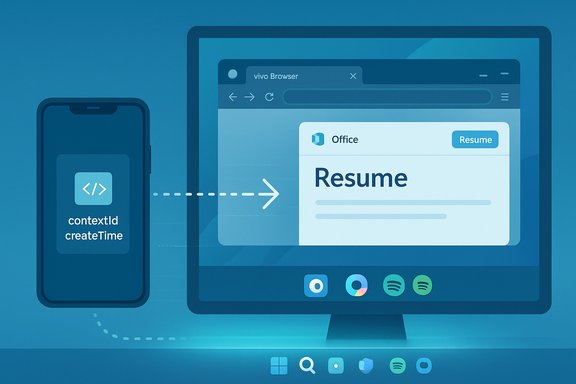
Phone-to-PC app transfer visualization showing a colorful app icon moving from mobile to Windows.Background / Overview​

For years Apple’s Handoff has set the expectation that a task started on one device should be pick‑up‑able on another with a single tap. Microsoft’s Phone Link (formerly Your Phone) has incrementally closed that gap, evolving from notification and photo mirroring into a broader continuity platform. The Windows 11 Insider Preview Build 26220.7271 (KB5070307) marks a substantial step: Microsoft is testing an expanded Cross‑Device Resume capability that can bring browsing sessions and Microsoft 365 Copilot file contexts from supported Android phones to a Windows 11 desktop. The new resume flow deliberately treats the phone as the authoritative runtime while transferring a compact metadata descriptor (an AppContext) to Windows. Windows then attempts to “continue” the activity using the best available desktop target — a native app if installed, or a web fallback otherwise — producing a more natural, native Windows continuity experience rather than streaming or emulating Android screens. This design choice underpins the security, performance, and developer model for the feature. Community testing and forum reporting also show the feature is rolling out in a staged, toggle‑controlled fashion to Insiders, and that Microsoft is gating availability both server‑side and by device/OEM partnerships to keep the experience predictable.

What changed in Build 26220.7271​

Expanded resume targets​

The Insider release notes call out two practical expansions to resume capability:
  • Browser handoff for vivo phones: a browsing context opened in vivo Browser on a paired phone can be resumed in the PC’s default browser.
  • Microsoft 365 Copilot file resume for major OEMs: Honor, Huawei, Oppo, Samsung, and vivo phones running the Copilot mobile apps can surface Word, Excel, and PowerPoint contexts that open on the PC — launching in the desktop app if installed, or in the default web browser otherwise. Offline files stored locally on the phone are explicitly not currently supported.
These are not hypothetical bullet points: Microsoft’s blog post lists them as active, gated changes in the patch (Build 26220.7271 / KB5070307). The expansion moves continuity from single‑app media resume (Spotify) to productive, document‑driven handoffs.

Other notable items in the same build​

The update also contains unrelated but notable features: a new point‑in‑time restore option, Fluid Dictation for on‑device voice typing, UI refinements in File Explorer, and early testing of a Click‑to‑Do top bar — all part of Microsoft’s broader productivity and AI‑first push for Windows 11. These additions suggest the resume work is a piece of a larger strategy to make the PC the center of a cross‑device workflow.

How Cross‑Device Resume actually works (technical breakdown)​

AppContext: the metadata handshake​

At the core of resume is the Continuity SDK and the structured payload called an AppContext. Rather than shipping entire app states or streaming UI, Android apps that integrate the Continuity SDK publish a compact descriptor — fields like contextId, title, intentUri or weblink, preview bytes, and a short lifetime (defaulting to minutes). That AppContext is delivered to Windows via the Link to Windows (LTW) companion and Phone Link pairing. Windows consumes the descriptor, finds an appropriate handler, and surfaces a resume affordance in the shell. Key developer and platform facts verified in Microsoft’s docs:
  • Resume is a Limited Access Feature (LAF): developers must request access to the Continuity SDK to interoperate with Link to Windows. This is an explicit gate intended to protect the system surface and reduce abuse.
  • Minimum Android prerequisites include API level 24 and specific Link to Windows versions; Windows side requires Windows 11. AppContext lifetime is short (default maximum five minutes for ongoing scenarios).

Mapping to desktop handlers​

When Windows receives an AppContext, it follows an order of preference:
  • If a native desktop app is installed and supports the intent/handler, Windows opens it to the corresponding state.
  • If no native handler exists, Windows opens the weblink endpoint in the default browser as a fallback.
  • If neither path is available, Windows will prompt to install the Store app (one‑click install flows are part of the UX).
This approach preserves native desktop experiences (e.g., Word/Excel/PowerPoint) while maintaining a reliable fallback for web‑centric apps. It also reduces the need for Microsoft to emulate Android UIs on the PC.

Required components and pairing​

Cross‑Device Resume depends on the established Phone Link / Link to Windows stack. Pairing your phone and PC and running the companion apps remains a prerequisite, and some scenarios require that you are signed into the same service account across devices (Spotify is a notable early example). The Link to Windows app on Android acts as the bridge that receives AppContext payloads and forwards them to the PC.

What the user‑facing experience looks like​

  • A small taskbar notification or resume badge appears when a supported activity is detected on the linked phone.
  • Clicking the notification opens the native app (if available) or a web page in the default browser.
  • If the desktop companion app isn’t installed, Windows may prompt to download it from the Microsoft Store before resuming.
  • The AppContext is time‑bounded — stale contexts expire to reduce noise.

Verified claims and cross‑references​

To ensure the feature description is accurate, the following cross‑checks were made:
  • Microsoft’s official Windows Insider blog explicitly lists the resume expansions (vivo browser and M365 Copilot file resume) in Build 26220.7271.
  • Independent reporting (WindowsReport, Windows Central, Android Police) and community testing confirm the same behavior and note the staged rollout and Spotify’s earlier role as the inaugural scenario.
  • Microsoft Learn provides the developer‑level Continuity SDK documentation, including the AppContext schema, LAF gating, and prerequisites — the technical foundation that maps to the user experience described by Microsoft and testers.
Where coverage diverges (for example, precise OEM rollout timing, or whether a specific phone model will surface the feature immediately), those facts remain staged and account‑gated — a reality of Microsoft’s gradual server‑side rollouts. Readers should treat availability as region and account dependent until Microsoft flips the global gate.

Practical implications for users and enterprises​

Immediate user benefits​

  • Less friction moving from mobile to desktop: start reading a web page or working on a Copilot file on your phone and continue on the PC with a single click.
  • Native editing/resume: documents open in Word/Excel/PPT on the PC if the apps are present, preserving desktop features and local productivity workflows.

Enterprise and admin considerations​

  • Enterprises should evaluate the security posture before enabling cross‑device features widely. The continuity pipeline depends on LTW, Phone Link, and (in some flows) cloud mediation; admins will want controls to opt devices out or limit resume to managed endpoints. Microsoft’s LAF gating and AppContext lifetime controls are positive design choices but do not remove the need for MDM/Group Policy oversight.

Privacy and data handling​

  • AppContext transfers metadata. Microsoft’s docs and community analysis note that some cloud processing may be used for reliability; enterprises and privacy‑sensitive users should ask precise questions about what metadata is retained, where it’s processed, and retention timeframes. Microsoft’s documentation provides high‑level guidance, but real‑world transparency and admin controls will be essential for trust.

Developer and OEM perspective​

  • Microsoft treats Cross‑Device Resume as a platform API that third‑party apps may adopt, but it’s gated as a Limited Access Feature. That means early integrations will come from larger partners and OEMs first, with broader developer access after vetting. This is why Microsoft’s early partners (Spotify, and now certain OEM browsers and Copilot apps) surface first.
  • For app makers, the Continuity SDK integration requires adding metadata publication, deep link or weblink handlers, and validation steps. For OEMs, bundling Link to Windows or shipping the right LTW versions shortens the path to availability. Microsoft’s developer docs list prerequisites (Android API levels, LTW versions) and the validation steps to enable AppContext publishing.

How to try it today (step‑by‑step)​

  • Join the Windows Insider Program and enroll a test PC in the Dev or Beta channel where Build 26220.7271 (or later) is available.
  • On the Android phone, ensure you have the latest Link to Windows (LTW) and the relevant OEM apps (vivo Browser or Copilot mobile apps) installed and updated.
  • Pair the phone and PC through Phone Link / Link to Windows (usually via the QR‑pair or Microsoft account flows).
  • Trigger a supported activity on the phone (play a Spotify track, open a page in vivo Browser, or open a file in M365 Copilot) and watch for the “Resume” taskbar alert on Windows.
  • Click the alert to continue the task on the PC. If a desktop app isn’t installed, follow the one‑click install prompt.

Strengths, risks, and trade‑offs​

Strengths​

  • Native experience: resuming into desktop Office apps preserves full editing power and performance compared with streaming.
  • Scoped security model: LAF gating and a short AppContext lifetime reduce attack surface compared with open mirroring.
  • OEM partner strategy: working with device makers lets Microsoft ship consistent UX on devices that preinstall LTW.

Risks and limitations​

  • Fragmentation and rollout inconsistency: staged server gating and OEM variation will mean users on similar builds may or may not see features at the same time. This will complicate helpdesk guidance and expectation management.
  • Privacy questions: cloud mediation for reliability introduces questions about metadata handling and retention that Microsoft must address with clear disclosures and controls.
  • Offline file gap: the current absence of resume for offline files stored locally on phones is a productivity limitation for users who rely on device‑resident documents without OneDrive/web equivalents. Microsoft documents this limitation in the build notes.

Comparison with Apple’s Handoff — similar goal, different constraints​

Apple’s tight hardware/software control makes Handoff comparatively simple to implement at scale: device identities, system permissions, and app ecosystems are aligned. Microsoft must knit together a wildly diverse Android ecosystem (many OEMs, Android versions, and manufacturer UI layers) with a Windows desktop landscape that includes both Store and Win32 apps.
Microsoft’s approach — transferring structured metadata and mapping to native handlers — is pragmatic for this heterogenous world: it avoids the brittleness of full UI streaming, reduces dependency on emulation layers, and lets the desktop deliver the full native app experience when available. The trade‑off is the need for developer integration and OEM cooperation, which will drive a staged, partner‑first rollout.

What to watch next​

  • General availability timing: Microsoft is rolling these features through Insiders with server gating; expect a broader rollout only after telemetry and partner testing confirm stability.
  • Developer access expansion: watch whether Microsoft opens the Continuity SDK beyond Limited Access Feature status for broader third‑party adoption. Wider adoption will accelerate the usefulness of resume across more apps.
  • Privacy controls and admin policies: enterprises will evaluate fine‑grained policy controls (per‑app or per‑category) and visibility into AppContext telemetry. Clear admin tooling will be decisive for corporate adoption.

Conclusion​

The Build 26220.7271 experiment represents more than a new notification type: it’s the operationalization of a continuity platform for Windows that respects desktop app primacy while acknowledging the phone as the dominant context origin. By shipping resume as a metadata‑handshake with OS‑level affordances, Microsoft has chosen a path that scales across the fragmented Android landscape and prioritizes native desktop experiences. That said, the real test will be ubiquity and control. For cross‑device workflows to move from curious demo to everyday utility, Microsoft must expand developer access, clarify privacy handling, and smooth rollout friction across OEMs and regions. If it succeeds, Windows 11’s Android continuity story will stop being a collection of clever workarounds and become a core reason mixed‑ecosystem users choose Windows as their productivity hub.


Source: Moneycontrol https://www.moneycontrol.com/techno...cross-device-continuity-article-13693864.html
 

Microsoft’s latest Windows 11 Insider Preview is quietly turning the taskbar into a handoff hub for Android phones, letting certain devices push active browser tabs and cloud Office files to a paired PC so you can “resume” work with a single click — but the feature is gated, fragile today, and raises important questions for developers, admins, and privacy-conscious users.

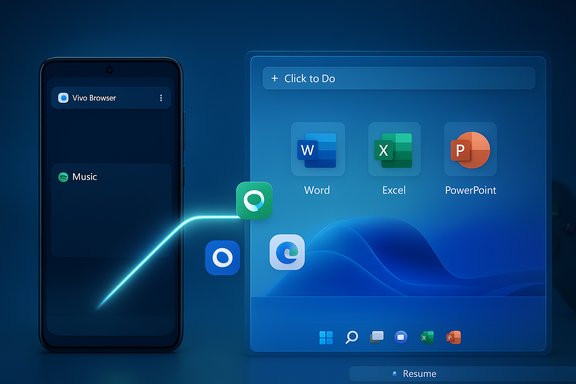
Blue-toned illustration of a mobile app sending a resume to a desktop browser window.Background / Overview​

Microsoft has long experimented with cross-device continuity: what began as notification mirroring and photo transfer in Phone Link has evolved into a metadata-driven handoff that resumes activities started on an Android phone on a Windows 11 desktop. The most recent public step is Windows 11 Insider Preview Build 26220.7271 (KB5070307), which expands the scenarios where a phone can tell a PC “here’s what the user was doing — reopen it for them” and the PC surfaces a small taskbar resume alert. Under the hood, the system is not streaming or emulating your phone. Instead, Android partner apps that have integrated Microsoft’s Continuity SDK send compact metadata packets (called AppContext) to Link to Windows on the phone, which forwards them to Windows. Windows maps that metadata to a desktop handler: open the native app if present, or fall back to a web link in the browser. The approach minimizes runtime complexity on the PC and preserves desktop fidelity for productivity apps. Microsoft’s developer documentation lays out the schema and the onboarding requirements in detail. This article explains how the feature works, what’s included in Build 26220.7271, the limitations and risks, how to test and enable it, developer and OEM requirements, and what to expect as Microsoft attempts to create a Windows equivalent of Apple’s Handoff — with crucial caveats about fragmentation, reliability, and data handling.

What changed in Build 26220.7271​

The new resume targets (practical summary)​

Build 26220.7271 expands the earlier, limited resume scenarios in these concrete ways:
  • vivo Browser → PC browser: Active browsing sessions in the vivo Browser can now be handed off to the PC’s default browser and re-opened by clicking the taskbar resume alert.
  • M365 Copilot (Android) → Word/Excel/PowerPoint on PC: The M365 Copilot mobile app on certain OEM phones can surface online Word, Excel, and PowerPoint documents and push a resume context to the PC. If the corresponding desktop Office apps are installed the file opens in that native app; otherwise the system opens the online document in the browser. Offline/local phone files are not supported.
These are in addition to the earlier Spotify scenario that Microsoft tested first for audio resume. The build also contains unrelated features (point-in-time restore, Fluid Dictation improvements, Click-to-Do testing) that reflect Microsoft’s broader productivity push.

What this doesn’t do​

  • It does not mirror or run Android UIs on Windows. The phone remains the authoritative runtime in most flows; Windows receives metadata and chooses the best local handler.
  • It does not support local/offline files on the phone because the resume pipeline requires an addressable URI or web link the PC can open. Microsoft’s documentation explicitly states this limitation.

How Cross‑Device Resume actually works (technical breakdown)​

The continuity handshake​

At a high level the flow is:
  • A partner Android app integrates Microsoft’s Continuity SDK and registers appropriate metadata in its manifest.
  • When the user is actively engaging with content (web page, online Office file, media), the app creates an AppContext payload that describes the activity (contextId, creation time, app ID, type) and optionally includes a preview image, title, an intent URI, or a web link.
  • The phone’s Link to Windows background companion receives and forwards AppContext packets to Windows via the Cross Device Experience Host (CDEH). If the PC is provisioned and linked, Windows surfaces a resume alert on the taskbar.
  • Clicking the resume alert causes Windows to try these handlers in order: launch a native desktop app via a registered URI/protocol, open the weblink in the default browser, or fall back to prompting store installation. AppContext lifetime is intentionally short for ongoing scenarios (the docs recommend a minimum of ~5 minutes for certain uses).

The AppContext schema — what matters​

The Continuity SDK defines required and optional fields. The must-have items for a valid resume context include:
  • contextId — a unique identifier for the AppContext.
  • createTime / lastUpdatedTime — timestamps so Windows can validate freshness.
  • type — the kind of context (e.g., resume activity).
  • intentUri / weblink — how Windows should resume the activity (deep link or browser URL). Optional fields can improve UX: preview thumbnail, title, extras.
Developers are warned not to place secrets or access tokens in AppContext payloads; AppContext is meant to be metadata only. Microsoft’s samples and guidance emphasize avoiding sensitive data and recommend validation steps and minimum lifetimes.

Limited Access and gating​

Cross‑Device Resume is a Limited Access Feature (LAF). Apps and OEMs must apply and be approved by Microsoft to interoperate with Link to Windows, and they must meet version and platform prerequisites (minimum Android SDK levels, LTW build numbers, and Windows 11 minimum versions). This gating explains why only a handful of OEMs and apps are available initially.

Which phones and apps are supported today​

Current partner rollouts in the preview include:
  • Phones: Samsung, Honor, Huawei, Oppo, vivo. Notably absent: Google Pixel, Xiaomi, Motorola. Microsoft’s documentation and the release notes confirm the partner set but do not explain omissions.
  • Apps / experiences:
  • M365 Copilot (Android) — resume of online Word/Excel/PowerPoint documents to desktop Office or the browser.
  • vivo Browser — resume of a browsing session to the PC default browser for vivo phones.
  • Spotify — earlier audio resume testbed; still part of the resume story.
Cross‑reference: Microsoft’s Insider blog lists the resume expansions for KB5070307, and multiple independent outlets reproduce the OEM and app lists when summarizing the build.

Hands‑on reliability and the real‑world experience​

What you need to make it work​

To see resume alerts on the PC you must:
  • Install Windows 11 Insider Preview Build 26220.7271 (Dev or Beta channel).
  • Pair the phone using Settings > Bluetooth & devices > Mobile devices and enable “Allow this PC to access your mobile devices.”
  • Install and permit Link to Windows to run in the background on the Android phone and sign into the same Microsoft account where required.
  • Ensure the partner app has correctly integrated the Continuity SDK and is approved (LAF) — only approved apps will surface resume contexts.
A step-by-step checklist appears in the Insider notes and community testing threads for Insiders who want to try the feature now.

Why it often fails in practice​

Community testing, including my own attempts and broad Insider feedback, highlights multiple failure points:
  • Background restrictions on Android: if Link to Windows is suspended or battery-optimized out, AppContext packets won’t be delivered. The resume pipeline requires LTW to be allowed to run continuously.
  • Server‑side gating: Microsoft gates availability account- and region-side, so being on the same build doesn’t guarantee the feature.
  • OEM / app partial support: only apps and OEMs that completed the LAF integration are supported; a seemingly compatible phone may not surface the feature until its OEM completes an LTW integration step.
  • Short AppContext lifetime: for ongoing scenarios the AppContext lifetime must be managed carefully by the app; if it’s too short the resume context will expire before transmission. Microsoft recommends particular lifetime practices.
All of these add up to a user experience that can be inconsistent: sometimes the resume card appears and works; often it doesn’t, even when following the recommended steps. That inconsistency is a major reason the functionality still feels experimental.

Step‑by‑step: enable and test Cross‑Device Resume (Insider PCs)​

  • Join Windows Insider and enroll a test PC in Dev or Beta where Build 26220.7271 is available.
  • On the PC, go to Settings > Bluetooth & devices > Mobile devices and enable “Allow this PC to access your mobile devices.” Pair the phone.
  • On the phone, install/update Link to Windows and grant background execution and pairing permissions. Verify LTW is running and paired to the PC.
  • Ensure the partner app (vivo Browser, M365 Copilot, Spotify) is installed, signed in, and has the Continuity SDK integrated. Trigger a supported activity (open an online Office file in Copilot, open a page in vivo Browser, or play a Spotify track).
  • Watch for the resume card on the Windows 11 taskbar; click it to continue the activity on the PC. If no native desktop app exists, Windows should open the associated web link.

Developer and OEM requirements — what it takes to integrate​

For apps and OEMs the barrier to participation includes:
  • Implementing the Continuity SDK and declaring metadata in the Android manifest.
  • Respecting the AppContext schema and not embedding sensitive credentials in payloads.
  • Requesting Limited Access Feature approval from Microsoft (email process documented in the SDK pages), and meeting LTW and Android version prerequisites.
  • Validating integration using the onContextRequestReceived and AppContextManager lifecycle callbacks and ensuring robust background behavior to cope with battery optimizers.
The integration is technically straightforward for a seasoned Android developer, but operational friction arises from the LAF approval and the OEM bundling / LTW version alignment. That explains the early concentration of support in OEMs willing to collaborate closely with Microsoft.

Security, privacy, and enterprise considerations​

Data handling model​

AppContext transports metadata about an activity, not the activity content itself. Microsoft documents that some転processing through cloud services is used to ensure reliable transfer, and they state that the data handled by the API is processed according to Microsoft’s services and privacy policies. Apps are explicitly advised not to send secrets in the AppContext. Still, administrators should ask where metadata is processed, how long it is retained, and whether cloud mediation can be disabled in managed environments.

Attack surface and mitigations​

  • Limited Access Feature gating reduces the chance of abuse by requiring onboarding.
  • Short AppContext lifetimes and unique context IDs limit replay opportunities.
  • Admin controls: enterprises should expect Group Policy or MDM controls to allow/disallow Resume and Link to Windows pairing in sensitive environments. Microsoft’s docs and early guidance encourage admins to treat cross-device features as opt-in for managed fleets.

Practical privacy guidance​

  • Disable or restrict cross-device resume in corporate profiles until the organization validates the flow end-to-end.
  • Educate users to avoid sending sensitive or regulated content through unsupported app flows — local files on phones are explicitly not handed off today for technical reasons.

Comparison with Apple’s Handoff — strengths and weaknesses​

Apple’s Handoff benefits from a controlled hardware and software ecosystem, enabling tight, reliable continuity across iPhone, iPad, and Mac. Microsoft’s approach is fundamentally different:
  • Strengths of Microsoft’s model:
  • Works across the dominant mobile platform globally (Android) and aims to resume activities into native Windows apps, preserving desktop power.
  • Uses a lightweight metadata model that avoids full session streaming and reduces resource and privacy risk when designed correctly.
  • Weaknesses / practical limitations:
  • Android fragmentation means OEM-level cooperation is required. The LAF gate plus differing LTW builds produces inconsistent availability.
  • iOS is currently unsupported for Continuity SDK integration, removing a large segment of potential cross-platform users. Microsoft documents this omission explicitly.
  • Server-side gates and background app constraints on Android make the user experience less predictable than Apple’s integrated Handoff. Community testing shows intermittent success.
In short, Microsoft’s design is sound and pragmatic for Windows, but it cannot match Apple’s reliability until fragmentation and onboarding friction shrink.

Where Microsoft needs to improve​

  • Expand OEM participation: the absence of Xiaomi, Motorola, and Google’s Pixel in the early partner list is notable. Microsoft does not publicly explain the omissions; expect negotiations and LTW version alignment to determine future availability.
  • Simplify developer onboarding: LAF reduces abuse but adds friction. A clear staged program for indie developers and small vendors would accelerate adoption.
  • Improve robustness against Android background optimization: recommend clearer guidance and OS-level exceptions for LTW to reduce missed AppContext deliveries.
  • Increase transparency on data flows: administrators and privacy-minded users will want definitive answers on which metadata is stored or proxied through Microsoft, retention windows, and controls for disabling cloud mediation.

Practical recommendations (for users, developers, and IT)​

  • For early adopters: use a spare PC and phone and join the Insider Dev/Beta channels to test. Expect flaky behavior and report back to Microsoft with logs and repro steps.
  • For app developers: evaluate whether your app’s activity can be represented as safe metadata and apply for LAF access if you need resume support; follow the AppContext schema and test lifetime settings thoroughly.
  • For IT admins: treat Cross‑Device Resume as an optional, potentially risky capability for managed fleets; draft policy to control Link to Windows, disallowing pairing for sensitive devices until formal guidance and controls are available.

Final analysis — why this matters and what to watch next​

Microsoft’s cross-device resume work is a strategically important attempt to make Windows the center of a multi-device workflow, particularly for users bridging Android phones and PCs. The underlying design (metadata-based AppContext, desktop-first handler mapping) is technically sound: it preserves native desktop capabilities while avoiding the complexity of full Android containerization on Windows. Microsoft Learn and the Windows Insider announcement clearly describe the architecture and the gating model. However, execution matters. Today the experience is gated, OEM-dependent, and inconsistent in real-world testing. The worst-case outcome is a feature that feels like "promised convenience" but never coalesces into reliable behavior for most users — which would be a missed opportunity for Windows productivity. The best-case outcome is faster onboarding for OEMs and developers, clearer enterprise controls, and broader device support so resume becomes a trustworthy convenience rather than a curiosity.
Key signals to watch in the coming months:
  • Microsoft’s global gate flip — when server-side restrictions are relaxed and the feature appears broadly for approved devices.
  • OEM expansion — Xiaomi, Motorola, and Pixel support would be a clear sign of momentum.
  • Developer adoption beyond first-party and large partners: more third-party apps integrating the Continuity SDK would validate the LAF model’s balance of security and openness.
In the short term, Cross‑Device Resume is an intriguing and well-architected experiment that brings Windows closer to a modern, multi-device workflow — but it remains a developer- and OEM-driven effort that needs better tooling, clearer privacy controls, and wider partner adoption before it can rival the seamlessness people expect from a true ecosystem play.
Microsoft’s taskbar resume alerts are a meaningful step toward that goal: they show what’s possible when metadata, deep links, and OS integration are aligned. The next chapters will be written by OEMs consenting to tight LTW integration, developers building thoughtful AppContext payloads, and Microsoft hardening the pipeline for enterprise-grade reliability and privacy.

Source: Windows Latest Microsoft is using Windows 11 taskbar to resume your Android activities
 

Back
Top