
Microsoft released Windows 11 Insider Experimental Preview Build 26300.8758 on June 26, 2026, adding a dedicated Taskbar Size setting, polishing taskbar-size transitions, improving File Explorer cloud-file previews and Details pane organization, and fixing OneDrive and deletion-dialog bugs for testers in the Experimental channel. The headline feature is small, but the signal is not: Microsoft is still unwinding some of Windows 11’s most stubborn launch-era rigidity. The company is not simply adding another Settings toggle; it is conceding that discoverability, muscle memory, and everyday ergonomics matter as much as visual cleanliness. For Windows users who have spent nearly five years arguing with the Windows 11 taskbar, this build is another sign that the redesign is becoming less of a doctrine and more of a negotiation.
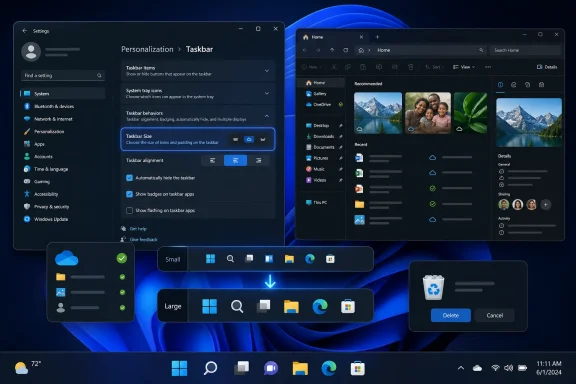
The dedicated Taskbar Size setting is the kind of change that looks almost too modest to deserve attention. Windows 11 already began testing smaller taskbar behavior in earlier Experimental builds, but the control lived behind less obvious wording and behavior. Build 26300.8758 pulls the feature into clearer view, giving the taskbar’s physical footprint a named setting rather than burying it inside a more ambiguous “smaller taskbar buttons” path.
That distinction matters because Settings is now the policy surface of Windows. Microsoft has spent years moving controls out of Control Panel, legacy dialogs, registry hacks, right-click affordances, and undocumented tweaks into a cleaner but often deeper Settings app. A feature that exists but cannot be found is, for many users, functionally absent.
The new Taskbar Size setting suggests Microsoft has accepted that taskbar scaling is not a niche cosmetic preference. On small laptops, handheld PCs, compact tablets, ultrawide monitors, multi-display workstations, and remote-desktop sessions, the taskbar is not a decoration. It is rented screen space, and users notice every pixel of rent.
The irony is that Windows spent decades teaching users that the taskbar was theirs to shape. Windows 11 launched by treating it more like a fixed design object, centered, bottom-aligned, and restrained. Microsoft has been slowly backing away from that position ever since, not with a dramatic apology, but with a sequence of practical reversals.
For casual users, some of those omissions were invisible. For power users, sysadmins, accessibility-focused users, and people with unusual display setups, they were not. The complaint was never simply “make it look like Windows 10.” It was that Windows 11 narrowed a piece of UI that had historically adapted to the user’s workflow.
The smaller taskbar work that appeared earlier in the Experimental channel began to correct that. Microsoft tested compact taskbar behavior that reduced both icon size and taskbar height, rather than merely shrinking buttons inside the same physical bar. That made the feature more meaningful, because the point of a smaller taskbar is not aesthetic minimalism; it is reclaiming vertical space.
Build 26300.8758 does not invent that direction, but it makes it more legible. The new setting turns a half-discoverable capability into something users can reason about. That is the difference between a lab feature and a product feature.
The company is also refining transitions between taskbar sizes. Animation polish may sound trivial, but in shell design it often marks the moment when a feature is becoming stable enough to survive broader testing. Rough transitions tell users they are interacting with an experiment. Smooth transitions tell users the shell expects them to change this setting more than once.
But Experimental is not random. It is where Microsoft can test the Windows shell’s more politically sensitive changes without promising them to everyone. Taskbar size is exactly that kind of change: seemingly simple, deeply entangled with muscle memory, accessibility, enterprise consistency, and the fragile choreography of Start, Search, Widgets, Copilot entry points, notifications, flyouts, and system tray elements.
The taskbar is not one component. It is the visual front end for much of the Windows session. Changing its size can affect icon density, overflow behavior, touch targets, tray alignment, notification badges, search presentation, multi-monitor layouts, tablet behavior, and how apps visually anchor themselves to the desktop.
That complexity helps explain why Windows 11’s taskbar recovery has been slow. It also explains why users have been impatient. From the outside, “make the taskbar smaller” sounds like a weekend fix. Inside Windows, it is a shell-wide compatibility problem with a thousand edge cases.
Experimental builds let Microsoft expose those edge cases early. Insiders get the thrill and risk of the new shell behavior; Microsoft gets telemetry, Feedback Hub reports, and an escape hatch if the feature collides with real-world configurations. It is less romantic than the old Windows power-user era, but it is how modern Windows changes without detonating the installed base.
The default Windows 11 taskbar is comfortable. It has generous spacing, clear targets, and a modern look. On a 27-inch monitor, the cost is modest. On a 13-inch laptop, a handheld gaming PC, a virtual machine window, or a remote session squeezed into a browser tab, the cost is more obvious.
A dedicated size setting gives Microsoft a way to serve both constituencies without declaring either one wrong. Users who prefer a larger, calmer interface can keep it. Users who want a denser desktop can shrink it. That is the right compromise for a general-purpose operating system that runs everywhere from tablets to trading desks.
This is also where Windows differs from more tightly controlled platforms. Microsoft cannot assume one canonical posture, one display class, one input mode, or one user expectation. Windows is a productivity OS, a gaming OS, a kiosk OS, a corporate endpoint, a development box, a lab instrument controller, and a family PC. The taskbar has to survive all of those identities.
The dedicated setting acknowledges that density is not a defect. For some users, it is efficiency. For others, especially those with accessibility needs, the default or larger-feeling interface remains preferable. The win is not that Microsoft picked a size; it is that Microsoft is making size a first-class choice again.
That may sound pedantic, but it is central to whether settings get used. A well-named control reduces the gap between a user’s problem and the place they go to solve it. A poorly named one turns personalization into archaeology.
This has been a recurring Windows 11 tension. Microsoft has cleaned up much of the user interface, but the cleanup sometimes produces longer paths, fewer visible affordances, and settings pages that feel curated around Microsoft’s mental model rather than the user’s. The company is improving, but the Settings app remains a place where many features are technically present before they are practically discoverable.
Taskbar size is a useful case study because it is a visible, immediate setting. A user changes it and sees the result. If Microsoft can make that control obvious, understandable, and reversible, it builds trust in the broader personalization model. If users feel they need registry edits or third-party tools for basic shell behavior, that trust erodes.
The dedicated setting also helps administrators and support staff. It is easier to document “Taskbar Size” than to explain that a button-size setting may or may not reduce the bar height depending on build, rollout state, or policy. Plain labels reduce help-desk friction.
The Details pane now has more reliable thumbnail previews for cloud files. That matters because OneDrive and other cloud-backed storage locations are no longer exotic add-ons. They are part of the default Windows experience, especially for Microsoft account users and organizations standardized on Microsoft 365.
Thumbnail reliability sounds like polish until it fails during actual work. A designer scanning images, a lawyer checking document versions, a student sorting lecture files, or an admin reviewing exported logs does not want to open every file just to confirm identity. Preview fidelity is a productivity feature.
Microsoft also says the Details pane has been reorganized so file properties are easier to find and review at a glance. Again, this is not glamorous. But File Explorer lives or dies by glanceability. If metadata requires too much hunting, users stop trusting the pane and fall back to Properties dialogs, column customization, or third-party file managers.
The File Explorer work in this build fits a broader pattern. Microsoft has been modernizing Explorer in layers: tabs, redesigned panes, cloud integration, performance work, context-menu changes, gallery experiences, and visual updates. Each layer introduces new interaction costs. Builds like this are where Microsoft tries to sand them down.
Most users should not run File Explorer elevated all day. But administrators, troubleshooters, developers, and power users sometimes launch elevated Explorer sessions to access protected directories, inspect system files, or perform maintenance. When cloud storage shortcuts fail in that context, the shell feels inconsistent.
The deeper issue is identity. OneDrive is tied to user context, sync state, account tokens, and shell namespace integration. Administrative Explorer is operating with a different privilege posture. When those models collide, shortcuts that seem simple to the user can become fragile behind the scenes.
Fixing the OneDrive shortcut in admin mode is therefore more than a convenience patch. It is Microsoft reducing the visible seam between the consumer-cloud Windows experience and the administrative Windows experience. That seam matters because Windows is still the operating system where personal productivity and systems management often happen on the same machine.
For enterprises, such fixes can be disproportionately valuable. A small shell bug that affects elevated workflows can become a support article, a workaround script, or a recurring annoyance in IT departments. Removing it reduces operational drag.
When a user permanently deletes a file, the confirmation prompt is supposed to create a final moment of certainty. Showing an internal Recycle Bin name undermines that certainty. It forces the user to infer whether Windows is deleting the intended item or something else entirely.
That is not just a cosmetic defect. In regulated environments, shared machines, legal workflows, and administrative cleanup tasks, file identity matters. A dialog that displays the wrong name can slow work, cause hesitation, or contribute to mistakes.
The fix also illustrates why File Explorer remains difficult to modernize. The shell sits atop old abstractions, compatibility layers, namespace extensions, cloud providers, virtual folders, and legacy assumptions. Internal names leak when those layers fail to translate cleanly back into user language.
Microsoft’s job is to keep that machinery invisible. Users do not care how the Recycle Bin internally tracks deleted objects. They care that Windows tells them, accurately, what is about to happen.
Dark mode began as a visual preference and, for some users, an accessibility necessity. Over time it has become a broader ambience setting. Apps, wallpapers, accent colors, contrast, brightness, and now sounds all contribute to whether the system feels like one environment or a pile of mismatched surfaces.
Sound design in operating systems is tricky because users notice it most when it is wrong. A system alert that feels too bright, sharp, or intrusive in a dark visual environment can break the illusion of calm. Microsoft appears to be nudging Windows toward a more adaptive sensory palette.
The risk is overreach. Windows users are not always asking for the OS to be atmospheric. Many simply want it to be quiet. But if Microsoft can make sounds less jarring without making them precious, this is the sort of polish that improves daily use invisibly.
The company’s challenge is consistency. Windows still contains old dialogs, old sounds, old icons, old context menus, and old control surfaces sitting beside new ones. Dark-mode sound refinements are welcome, but they also remind us how uneven the full Windows sensory experience remains.
Enablement packages can make version transitions feel almost suspiciously small. If a device already has the underlying components, the “update” that turns on a new release can be tiny compared with a traditional feature update. That is efficient, especially for organizations that manage bandwidth, maintenance windows, and update compliance at scale.
But the approach also shifts user perception. If an update is only a small switch, users may reasonably ask why features are held back, staggered, or inconsistently present across similar machines. Controlled rollout technology provides Microsoft with safety, but it also makes Windows feel probabilistic: two users on the same build may not see the same feature at the same time.
Build 26300.8758 follows that pattern. The taskbar setting is present in the release notes, but Microsoft’s rollout model means not every Insider necessarily receives every feature immediately. That is sensible engineering. It is also frustrating communication.
For IT pros, the lesson is familiar: build number alone is no longer the whole story. Feature availability can depend on rollout waves, feature flags, channel state, policy, hardware, region, account type, and Microsoft’s own telemetry-driven pacing. The version string tells you where you are; it does not always tell you what you have.
Now Microsoft is reintroducing agency piece by piece. Taskbar labels returned in modern form. Never-combine options returned. Taskbar positioning is being tested again. Smaller taskbar behavior is in flight. Start menu customization is expanding. The pattern is hard to miss: the shell is becoming more configurable after first becoming less so.
That does not mean Microsoft is simply restoring Windows 10. The Windows 11 shell remains different in structure, design language, and implementation. Some old behaviors may never return exactly as they were. Others will return with new constraints because the modern shell has different dependencies.
But the direction is important. Microsoft appears to be learning that removing long-standing affordances creates an unpaid debt. The debt may not show up in adoption charts immediately, but it accumulates in forum threads, support tickets, enterprise hesitation, third-party tweak tools, and a general sense that Windows is less respectful of expert users than it used to be.
The dedicated Taskbar Size setting is therefore symbolic. It is not the biggest feature in Windows 11. It is a visible admission that customization belongs in the product, not in the registry, not in unsupported utilities, and not in nostalgia.
The more Microsoft changes the Windows shell through controlled rollouts and Insider-tested refinements, the more administrators need predictable policy surfaces. A user-facing setting is only half the story. Enterprises will want to know whether it can be managed, defaulted, blocked, documented, and supported across device classes.
Taskbar density can affect training materials, screenshots, help-desk scripts, remote support, accessibility accommodations, and kiosk-like deployments. In a tightly controlled environment, visual consistency is not vanity; it reduces confusion. In a flexible environment, giving users the ability to adjust taskbar size may reduce friction for people working on small displays or high-DPI setups.
The key is whether Microsoft treats this as a consumer personalization flourish or a manageable shell capability. Windows history suggests both outcomes are possible. Some settings become policy-friendly. Others remain user-only conveniences that enterprises must work around.
The Experimental channel is the right place to identify those needs before broader release. Microsoft should expect feedback not only on whether the setting looks good, but on how it behaves across managed accounts, multi-monitor desktops, remote sessions, accessibility scaling, and deployment baselines.
The taskbar is where that relationship is most visible. It is the strip of Windows that users touch constantly, and it is where Microsoft’s design ambitions collide with habits built over decades. A dedicated size setting will not satisfy everyone, but it reduces one source of friction.
The broader question is whether Microsoft can keep adding flexibility without making Windows feel incoherent. Too few options and power users revolt. Too many options and the system becomes another maze of toggles. The art is not maximal customization; it is making the important choices obvious and the dangerous choices manageable.
Build 26300.8758 is a small but healthy move in that direction. The setting is understandable. The animation polish suggests product intent. The File Explorer fixes address real workflow bugs. The dark-mode sound work shows Microsoft still cares about fit and finish, even if many users will never consciously notice it.
This is what Windows 11 should have been doing all along: modernizing without pretending that user control was legacy clutter.
 Microsoft Turns a Hidden Compromise Into a Real Setting
The dedicated Taskbar Size setting is the kind of change that looks almost too modest to deserve attention. Windows 11 already began testing smaller taskbar behavior in earlier Experimental builds, but the control lived behind less obvious wording and behavior. Build 26300.8758 pulls the feature into clearer view, giving the taskbar’s physical footprint a named setting rather than burying it inside a more ambiguous “smaller taskbar buttons” path.That distinction matters because Settings is now the policy surface of Windows. Microsoft has spent years moving controls out of Control Panel, legacy dialogs, registry hacks, right-click affordances, and undocumented tweaks into a cleaner but often deeper Settings app. A feature that exists but cannot be found is, for many users, functionally absent.
The new Taskbar Size setting suggests Microsoft has accepted that taskbar scaling is not a niche cosmetic preference. On small laptops, handheld PCs, compact tablets, ultrawide monitors, multi-display workstations, and remote-desktop sessions, the taskbar is not a decoration. It is rented screen space, and users notice every pixel of rent.
The irony is that Windows spent decades teaching users that the taskbar was theirs to shape. Windows 11 launched by treating it more like a fixed design object, centered, bottom-aligned, and restrained. Microsoft has been slowly backing away from that position ever since, not with a dramatic apology, but with a sequence of practical reversals.
The Windows 11 Taskbar Is Still Paying Off Its Launch Debt
When Windows 11 arrived in 2021, its taskbar was one of the clearest examples of Microsoft’s design-first reset. The centered icons, simplified tray, and cleaner animations looked coherent in screenshots. But the redesign also removed or delayed capabilities many users had internalized: easy relocation, richer right-click behavior, taskbar labels, never-combine controls, and size flexibility.For casual users, some of those omissions were invisible. For power users, sysadmins, accessibility-focused users, and people with unusual display setups, they were not. The complaint was never simply “make it look like Windows 10.” It was that Windows 11 narrowed a piece of UI that had historically adapted to the user’s workflow.
The smaller taskbar work that appeared earlier in the Experimental channel began to correct that. Microsoft tested compact taskbar behavior that reduced both icon size and taskbar height, rather than merely shrinking buttons inside the same physical bar. That made the feature more meaningful, because the point of a smaller taskbar is not aesthetic minimalism; it is reclaiming vertical space.
Build 26300.8758 does not invent that direction, but it makes it more legible. The new setting turns a half-discoverable capability into something users can reason about. That is the difference between a lab feature and a product feature.
The company is also refining transitions between taskbar sizes. Animation polish may sound trivial, but in shell design it often marks the moment when a feature is becoming stable enough to survive broader testing. Rough transitions tell users they are interacting with an experiment. Smooth transitions tell users the shell expects them to change this setting more than once.
The Experimental Channel Is Becoming Microsoft’s UX Courtroom
The build lands in Microsoft’s newer Insider structure, where the Experimental channel now carries concepts that may not necessarily ship in their current form. That warning is important. Microsoft is explicit that features in these builds can change, disappear, or reappear later in altered form.But Experimental is not random. It is where Microsoft can test the Windows shell’s more politically sensitive changes without promising them to everyone. Taskbar size is exactly that kind of change: seemingly simple, deeply entangled with muscle memory, accessibility, enterprise consistency, and the fragile choreography of Start, Search, Widgets, Copilot entry points, notifications, flyouts, and system tray elements.
The taskbar is not one component. It is the visual front end for much of the Windows session. Changing its size can affect icon density, overflow behavior, touch targets, tray alignment, notification badges, search presentation, multi-monitor layouts, tablet behavior, and how apps visually anchor themselves to the desktop.
That complexity helps explain why Windows 11’s taskbar recovery has been slow. It also explains why users have been impatient. From the outside, “make the taskbar smaller” sounds like a weekend fix. Inside Windows, it is a shell-wide compatibility problem with a thousand edge cases.
Experimental builds let Microsoft expose those edge cases early. Insiders get the thrill and risk of the new shell behavior; Microsoft gets telemetry, Feedback Hub reports, and an escape hatch if the feature collides with real-world configurations. It is less romantic than the old Windows power-user era, but it is how modern Windows changes without detonating the installed base.
A Smaller Taskbar Is Really a Screen-Space Argument
Microsoft’s public language around the taskbar size work focuses on personalization and ease of use. That is safe, accurate, and incomplete. The deeper issue is that Windows 11 has been trying to reconcile a touch-era visual language with desktop-era productivity expectations.The default Windows 11 taskbar is comfortable. It has generous spacing, clear targets, and a modern look. On a 27-inch monitor, the cost is modest. On a 13-inch laptop, a handheld gaming PC, a virtual machine window, or a remote session squeezed into a browser tab, the cost is more obvious.
A dedicated size setting gives Microsoft a way to serve both constituencies without declaring either one wrong. Users who prefer a larger, calmer interface can keep it. Users who want a denser desktop can shrink it. That is the right compromise for a general-purpose operating system that runs everywhere from tablets to trading desks.
This is also where Windows differs from more tightly controlled platforms. Microsoft cannot assume one canonical posture, one display class, one input mode, or one user expectation. Windows is a productivity OS, a gaming OS, a kiosk OS, a corporate endpoint, a development box, a lab instrument controller, and a family PC. The taskbar has to survive all of those identities.
The dedicated setting acknowledges that density is not a defect. For some users, it is efficiency. For others, especially those with accessibility needs, the default or larger-feeling interface remains preferable. The win is not that Microsoft picked a size; it is that Microsoft is making size a first-class choice again.
Discoverability Is the Feature Microsoft Usually Underrates
The move from “Show smaller taskbar buttons” to a dedicated Taskbar Size setting is also a lesson in naming. Windows has long suffered from features hidden behind labels that describe implementation rather than intent. Users do not necessarily want “smaller taskbar buttons.” They want a smaller taskbar.That may sound pedantic, but it is central to whether settings get used. A well-named control reduces the gap between a user’s problem and the place they go to solve it. A poorly named one turns personalization into archaeology.
This has been a recurring Windows 11 tension. Microsoft has cleaned up much of the user interface, but the cleanup sometimes produces longer paths, fewer visible affordances, and settings pages that feel curated around Microsoft’s mental model rather than the user’s. The company is improving, but the Settings app remains a place where many features are technically present before they are practically discoverable.
Taskbar size is a useful case study because it is a visible, immediate setting. A user changes it and sees the result. If Microsoft can make that control obvious, understandable, and reversible, it builds trust in the broader personalization model. If users feel they need registry edits or third-party tools for basic shell behavior, that trust erodes.
The dedicated setting also helps administrators and support staff. It is easier to document “Taskbar Size” than to explain that a button-size setting may or may not reduce the bar height depending on build, rollout state, or policy. Plain labels reduce help-desk friction.
File Explorer Gets the Kind of Fixes Users Notice Only When They Fail
Build 26300.8758 is not only a taskbar build. File Explorer gets several repairs that speak to a different Windows problem: the modern shell is increasingly cloud-aware, but users still expect local-file reliability. When those two worlds grind against each other, the result is usually small, annoying, and productivity-killing.The Details pane now has more reliable thumbnail previews for cloud files. That matters because OneDrive and other cloud-backed storage locations are no longer exotic add-ons. They are part of the default Windows experience, especially for Microsoft account users and organizations standardized on Microsoft 365.
Thumbnail reliability sounds like polish until it fails during actual work. A designer scanning images, a lawyer checking document versions, a student sorting lecture files, or an admin reviewing exported logs does not want to open every file just to confirm identity. Preview fidelity is a productivity feature.
Microsoft also says the Details pane has been reorganized so file properties are easier to find and review at a glance. Again, this is not glamorous. But File Explorer lives or dies by glanceability. If metadata requires too much hunting, users stop trusting the pane and fall back to Properties dialogs, column customization, or third-party file managers.
The File Explorer work in this build fits a broader pattern. Microsoft has been modernizing Explorer in layers: tabs, redesigned panes, cloud integration, performance work, context-menu changes, gallery experiences, and visual updates. Each layer introduces new interaction costs. Builds like this are where Microsoft tries to sand them down.
The OneDrive Admin-Mode Fix Exposes a Windows Identity Split
One of the more practical fixes in the build addresses a bug where the OneDrive shortcut in File Explorer stopped working when Explorer was run in administrative mode. That is a classic Windows edge case, but it is not obscure for IT pros. Admin elevation, split tokens, and shell behavior have been rubbing against each other since User Account Control became a normal part of Windows life.Most users should not run File Explorer elevated all day. But administrators, troubleshooters, developers, and power users sometimes launch elevated Explorer sessions to access protected directories, inspect system files, or perform maintenance. When cloud storage shortcuts fail in that context, the shell feels inconsistent.
The deeper issue is identity. OneDrive is tied to user context, sync state, account tokens, and shell namespace integration. Administrative Explorer is operating with a different privilege posture. When those models collide, shortcuts that seem simple to the user can become fragile behind the scenes.
Fixing the OneDrive shortcut in admin mode is therefore more than a convenience patch. It is Microsoft reducing the visible seam between the consumer-cloud Windows experience and the administrative Windows experience. That seam matters because Windows is still the operating system where personal productivity and systems management often happen on the same machine.
For enterprises, such fixes can be disproportionately valuable. A small shell bug that affects elevated workflows can become a support article, a workaround script, or a recurring annoyance in IT departments. Removing it reduces operational drag.
The Recycle Bin Bug Is Funny Until It Hits a Real File
The permanent-deletion dialog fix is the kind of bug that reads almost comically specific: in some cases, the confirmation dialog displayed an internal Recycle Bin file name instead of the original file name when permanently deleting a file. But deletion dialogs are one of the few places where Windows cannot afford ambiguity.When a user permanently deletes a file, the confirmation prompt is supposed to create a final moment of certainty. Showing an internal Recycle Bin name undermines that certainty. It forces the user to infer whether Windows is deleting the intended item or something else entirely.
That is not just a cosmetic defect. In regulated environments, shared machines, legal workflows, and administrative cleanup tasks, file identity matters. A dialog that displays the wrong name can slow work, cause hesitation, or contribute to mistakes.
The fix also illustrates why File Explorer remains difficult to modernize. The shell sits atop old abstractions, compatibility layers, namespace extensions, cloud providers, virtual folders, and legacy assumptions. Internal names leak when those layers fail to translate cleanly back into user language.
Microsoft’s job is to keep that machinery invisible. Users do not care how the Recycle Bin internally tracks deleted objects. They care that Windows tells them, accurately, what is about to happen.
Dark Mode Sounds Are a Small Clue About Microsoft’s Sensory Ambitions
The build also improves system sounds when Windows is used in dark mode. Microsoft has not provided much detail, and this is easy to dismiss as decorative. But it fits a subtle theme in modern Windows design: the operating system is no longer only trying to look coherent; it is trying to feel coherent.Dark mode began as a visual preference and, for some users, an accessibility necessity. Over time it has become a broader ambience setting. Apps, wallpapers, accent colors, contrast, brightness, and now sounds all contribute to whether the system feels like one environment or a pile of mismatched surfaces.
Sound design in operating systems is tricky because users notice it most when it is wrong. A system alert that feels too bright, sharp, or intrusive in a dark visual environment can break the illusion of calm. Microsoft appears to be nudging Windows toward a more adaptive sensory palette.
The risk is overreach. Windows users are not always asking for the OS to be atmospheric. Many simply want it to be quiet. But if Microsoft can make sounds less jarring without making them precious, this is the sort of polish that improves daily use invisibly.
The company’s challenge is consistency. Windows still contains old dialogs, old sounds, old icons, old context menus, and old control surfaces sitting beside new ones. Dark-mode sound refinements are welcome, but they also remind us how uneven the full Windows sensory experience remains.
Enablement Packages Make Tiny Downloads Carry Bigger Expectations
The build notes say the update is based on Windows 11 version 26H2 via an enablement package. That detail is easy to skip, but it matters for how Windows is now developed and delivered. The modern Windows release is increasingly less about giant monolithic upgrades and more about staged capabilities already present in the codebase, activated when Microsoft is ready.Enablement packages can make version transitions feel almost suspiciously small. If a device already has the underlying components, the “update” that turns on a new release can be tiny compared with a traditional feature update. That is efficient, especially for organizations that manage bandwidth, maintenance windows, and update compliance at scale.
But the approach also shifts user perception. If an update is only a small switch, users may reasonably ask why features are held back, staggered, or inconsistently present across similar machines. Controlled rollout technology provides Microsoft with safety, but it also makes Windows feel probabilistic: two users on the same build may not see the same feature at the same time.
Build 26300.8758 follows that pattern. The taskbar setting is present in the release notes, but Microsoft’s rollout model means not every Insider necessarily receives every feature immediately. That is sensible engineering. It is also frustrating communication.
For IT pros, the lesson is familiar: build number alone is no longer the whole story. Feature availability can depend on rollout waves, feature flags, channel state, policy, hardware, region, account type, and Microsoft’s own telemetry-driven pacing. The version string tells you where you are; it does not always tell you what you have.
Microsoft Is Quietly Rewriting the Windows 11 Social Contract
The original Windows 11 taskbar controversy was partly about features and partly about trust. Microsoft made a strong design bet and asked users to accept fewer choices in exchange for a cleaner system. Many users accepted the look but rejected the loss of agency.Now Microsoft is reintroducing agency piece by piece. Taskbar labels returned in modern form. Never-combine options returned. Taskbar positioning is being tested again. Smaller taskbar behavior is in flight. Start menu customization is expanding. The pattern is hard to miss: the shell is becoming more configurable after first becoming less so.
That does not mean Microsoft is simply restoring Windows 10. The Windows 11 shell remains different in structure, design language, and implementation. Some old behaviors may never return exactly as they were. Others will return with new constraints because the modern shell has different dependencies.
But the direction is important. Microsoft appears to be learning that removing long-standing affordances creates an unpaid debt. The debt may not show up in adoption charts immediately, but it accumulates in forum threads, support tickets, enterprise hesitation, third-party tweak tools, and a general sense that Windows is less respectful of expert users than it used to be.
The dedicated Taskbar Size setting is therefore symbolic. It is not the biggest feature in Windows 11. It is a visible admission that customization belongs in the product, not in the registry, not in unsupported utilities, and not in nostalgia.
Enterprises Will Care Less About the Toggle Than the Trajectory
For enterprise administrators, a taskbar-size setting may not be urgent. Many organizations standardize taskbar layouts, pin core apps, suppress consumer experiences, and care more about patch reliability than personalization. But the trajectory behind the setting still matters.The more Microsoft changes the Windows shell through controlled rollouts and Insider-tested refinements, the more administrators need predictable policy surfaces. A user-facing setting is only half the story. Enterprises will want to know whether it can be managed, defaulted, blocked, documented, and supported across device classes.
Taskbar density can affect training materials, screenshots, help-desk scripts, remote support, accessibility accommodations, and kiosk-like deployments. In a tightly controlled environment, visual consistency is not vanity; it reduces confusion. In a flexible environment, giving users the ability to adjust taskbar size may reduce friction for people working on small displays or high-DPI setups.
The key is whether Microsoft treats this as a consumer personalization flourish or a manageable shell capability. Windows history suggests both outcomes are possible. Some settings become policy-friendly. Others remain user-only conveniences that enterprises must work around.
The Experimental channel is the right place to identify those needs before broader release. Microsoft should expect feedback not only on whether the setting looks good, but on how it behaves across managed accounts, multi-monitor desktops, remote sessions, accessibility scaling, and deployment baselines.
The Real Test Is Whether Windows Stops Fighting Its Best Users
Windows enthusiasts can be unreasonable, but they are also early warning systems. They notice when a workflow takes one more click, when a setting moves without explanation, when a shell component loses a capability, or when a preview build quietly repairs something Microsoft once seemed determined to simplify away.The taskbar is where that relationship is most visible. It is the strip of Windows that users touch constantly, and it is where Microsoft’s design ambitions collide with habits built over decades. A dedicated size setting will not satisfy everyone, but it reduces one source of friction.
The broader question is whether Microsoft can keep adding flexibility without making Windows feel incoherent. Too few options and power users revolt. Too many options and the system becomes another maze of toggles. The art is not maximal customization; it is making the important choices obvious and the dangerous choices manageable.
Build 26300.8758 is a small but healthy move in that direction. The setting is understandable. The animation polish suggests product intent. The File Explorer fixes address real workflow bugs. The dark-mode sound work shows Microsoft still cares about fit and finish, even if many users will never consciously notice it.
This is what Windows 11 should have been doing all along: modernizing without pretending that user control was legacy clutter.
The Build’s Smallest Changes Say the Most About Where Windows Is Going
The practical read for Insiders and IT watchers is straightforward, but the implications are broader than the changelog. Build 26300.8758 is not a revolution; it is another step in Microsoft’s gradual retreat from rigid shell minimalism toward a more negotiated Windows 11.- The dedicated Taskbar Size setting makes taskbar scaling easier to find and understand than the earlier smaller-button wording.
- The feature is still part of the Experimental channel, so availability, behavior, and final release timing remain subject to Microsoft’s rollout and feedback process.
- File Explorer’s cloud-thumbnail and Details pane improvements are aimed at everyday productivity, especially for users living inside OneDrive-backed workflows.
- The OneDrive administrative-mode fix matters most to power users and IT pros who regularly cross the boundary between normal and elevated shell sessions.
- The permanent-deletion dialog fix restores user confidence at a moment when Windows needs to identify files clearly and accurately.
- The dark-mode sound improvements are minor on paper but consistent with Microsoft’s push toward a more cohesive Windows experience.
References
- Primary source: Windows Report
Published: 2026-06-26T19:10:19.849062
Loading…
windowsreport.com - Official source: learn.microsoft.com
Experimental Preview Build 26300.8493 - Windows Insider Program
Release notes for Experimental Preview Build 26300.8493learn.microsoft.com - Related coverage: geeksforgeeks.org
Loading…
www.geeksforgeeks.org - Related coverage: windowscentral.com
Loading…
www.windowscentral.com - Official source: support.microsoft.com
Customize the Taskbar in Windows | Microsoft Support
Learn how to use the taskbar features in Windows. Hide the taskbar, pin an app, change the location, and more with taskbar settings.support.microsoft.com - Related coverage: notebookcheck.net
Windows 11 Insider Build 26300.8553 finally lets you customize the Start menu - Notebookcheck News
Windows 11 Insider Preview Build 26300.8553 brings a modular Start menu with Small, Large, and Automatic size presets and new privacy tools to the Experimental channel. www.notebookcheck.net
- Related coverage: bleepingcomputer.com
Microsoft testing adjustable taskbar, Start menu in Windows 11
Microsoft has finally brought back the resizable taskbar and Start menu to Windows 11 in the latest preview version rolling out to Insiders in the Experimental channel.www.bleepingcomputer.com
- Related coverage: digitalcitizen.life
Loading…
www.digitalcitizen.life - Official source: blogs.windows.com
Announcing new builds for 26 June 2026, retail launch of new WIP improvements
Hello Windows Insiders, We have new releases today with builds across Beta and Experimental, and are excited to begin rolling out the new Windows Insider experience to retail Windows 11 builds this week! New Windows Insider Program changesblogs.windows.com - Related coverage: windowsforum.com
Windows 11 Insider Tests Movable, Smaller Taskbar (Experimental Build 26300)
Microsoft began testing a movable and smaller Windows 11 taskbar on May 15, 2026, in Windows 11 Insider Preview Build 26300.8493 for the Experimental channel, restoring customization options that Windows users lost when Windows 11 replaced the old taskbar in 2021. The change is not merely... windowsforum.com
- Related coverage: pcgamer.com
- Related coverage: publichealth.wvu.edu
</rdf:Alt> </dc:title> <dc:description> <rdf:Alt> <rdf:li xml:lang="x-default"/> </rdf:Alt> </dc:description> <dc:creator> <rdf:Seq> <rdf:li>Klishis
</rdf:Alt> </dc:description> <dc:creator> <rdf:Seq> <rdf:li>Klishis, Michellepublichealth.wvu.edu