Microsoft released two Windows 11 Insider experimental builds on June 19, 2026: Build 28120.2315 for the Experimental 26H1 branch and Build 29613.1000 for the Future Platforms branch, with the latter carrying the more visible audio Settings redesign. The changes are small in the way plumbing is small: easy to overlook until it fails, then suddenly central to the whole experience. Microsoft is not announcing a new sound stack or a flashy media feature here. It is doing something more revealing — admitting that Windows 11’s modern audio surface still has too many seams.
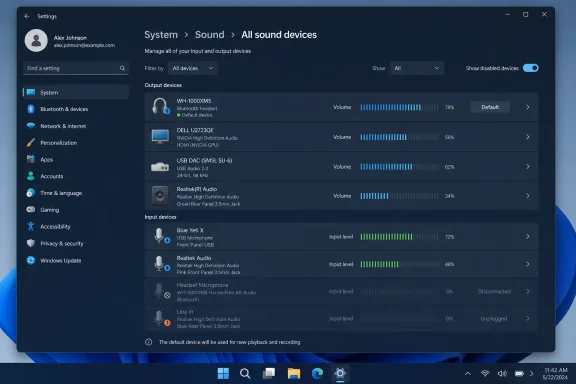
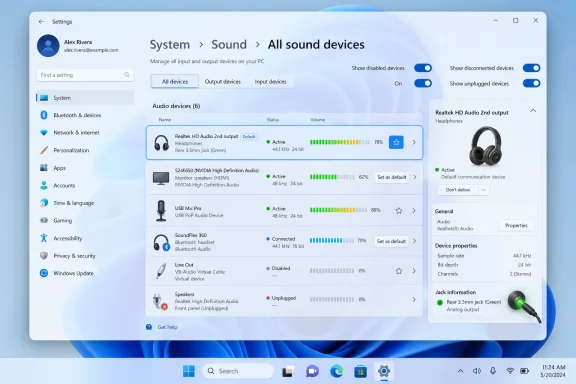
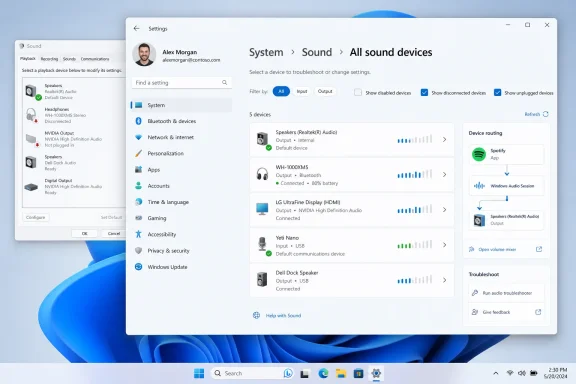
The headline feature in Build 29613.1000 is not glamorous. The “All sound devices” page under Settings > System > Sound now lets users change default devices directly from that view, shows a small live volume meter next to each device, adds filtering for input and output devices, and introduces toggles to hide or show disabled, disconnected, and unplugged hardware.
That sounds like housekeeping, and in a sense it is. But Windows audio management has always lived at the intersection of the old Control Panel, the newer Settings app, OEM driver panels, conferencing software, browser permissions, Bluetooth profiles, USB audio devices, HDMI displays, and whatever gaming headset utility decided to install itself this week. A “minor” change to where default devices are selected can remove several needless clicks from a daily workflow.
Windows 11 has spent years trying to finish the migration away from legacy Control Panel pages without breaking the workflows power users depend on. Audio has been one of the slowest pieces of that migration because it is both consumer-facing and deeply technical. Everyone expects sound to “just work,” but the moment it does not, users need surprisingly rich diagnostics.
That is what makes the new volume meters interesting. A device list that merely names hardware is a passive inventory. A device list that shows whether audio is actively flowing becomes a troubleshooting surface.
A live meter collapses part of that uncertainty. If audio is visibly playing through the wrong device, the problem is routing. If no meter moves at all, the problem may sit higher in the application, session, driver, or service chain. If the correct device shows activity but the user hears nothing, the investigation shifts toward volume, mute state, physical connection, endpoint selection, or hardware failure.
This is not just a convenience feature for enthusiasts with three DACs and a capture card. It matters for ordinary hybrid workers, classrooms, kiosks, streamers, accessibility users, and anyone whose audio topology changes throughout the day. A laptop docked in the morning, undocked at lunch, connected to Bluetooth earbuds for a call, and then plugged into a conference-room display is not an edge case anymore. It is modern Windows.
The page redesign also tacitly recognizes that “all devices” is often too much information. Disabled, disconnected, and unplugged devices can be useful when diagnosing a problem, but they can also turn Settings into a graveyard of stale endpoints. Letting users hide or show those categories gives the interface a basic but important distinction: normal operation versus repair mode.
That difference should temper expectations. The Future Platforms build is where Microsoft can test interface changes and long-horizon platform assumptions without promising a near-term delivery vehicle. The 26H1 build sounds closer to practical stabilization work, even though the naming itself is still experimental and should not be read like a normal consumer release schedule.
For WindowsForum readers, the useful takeaway is that these are not equivalent drops with different build numbers. One is exercising the audio Settings experience. The other is touching reliability in a lower layer that users may never notice unless it regresses.
That distinction matters because Windows audio failures tend to be blamed on whatever the user last touched. If a Settings page changes, users notice the UI. If the inbox HD Audio driver becomes more reliable, users may simply experience fewer cases where audio disappears, stutters, or behaves inconsistently after updates. The latter is less marketable, but it is arguably more important.
The inbox audio driver is the baseline. It is the component Windows can rely on when vendor software is absent, outdated, removed, or incompatible. In managed environments, that baseline can be the difference between a machine that works acceptably after deployment and one that immediately needs an OEM package, a remediation script, or a rollback.
Audio reliability also has an outsized emotional effect. A display glitch may be annoying, a cosmetic bug may be shrugged off, but broken audio tends to stop work immediately. It disrupts meetings, accessibility tools, media playback, training sessions, remote support, and telehealth appointments. For many users, sound is not entertainment; it is infrastructure.
The risk, as always with Insider builds, is that reliability improvements are difficult to evaluate from release notes alone. A driver change that fixes one hardware combination can expose timing problems in another. That is why this build belongs on test devices, not on the one laptop an employee needs for a Monday board presentation.
That may sound like a tiny accessibility polish item, but responsiveness is central to trust. If a user changes caption color, size, background, or contrast and nothing visibly happens, the interface forces them to guess whether the setting applied. For users who depend on captions, that delay is not merely inelegant. It makes personalization harder and can turn a simple setting change into trial and error.
The sample caption string is equally pragmatic. Settings pages are strongest when they show consequences, not just options. A caption style menu without a live or sample preview asks users to imagine readability; a preview lets them judge it.
This is part of a broader Windows 11 accessibility pattern: Microsoft has been trying to make assistive features feel less like legacy add-ons and more like native, configurable parts of the operating system. That work is uneven, and Insider builds often expose how unfinished the edges still are. But the direction is right. Accessibility settings should not require faith.
Windows has to present all of that without terrifying normal users or hiding the things administrators and enthusiasts need. Historically, it has solved the problem by scattering controls across several places. Quick Settings handles fast output changes. Settings handles the modern device view. The old Control Panel sound dialog still appears when deeper endpoint management is needed. Device Manager remains the blunt instrument for driver-level inspection.
The new “All sound devices” changes are an attempt to make one of those surfaces more self-sufficient. Default-device selection belongs where devices are listed. Activity indicators belong where users compare endpoints. Filters belong where the page can become crowded.
The question is whether Microsoft will go far enough. Windows still needs clearer language around default output, default input, default communications device, per-app routing, spatial audio, enhancements, exclusive mode, and driver-provided options. The operating system exposes all of those concepts, but it does not always explain the hierarchy in a way that matches how users think.
The legacy Sound control panel endures because it is dense, predictable, and familiar to people who fix Windows for a living. It exposes devices in a compact list, shows activity meters, allows default assignment, and opens properties with tabs that long-time users know by muscle memory. It is not beautiful, but it is efficient.
Windows 11’s Settings app has the opposite problem. It is more approachable and visually consistent, but too often spreads expert tasks across multiple screens. The modern design language can make simple operations pleasant while making comparative diagnostics slower.
Build 29613.1000 appears to borrow the right lesson from the old world: a device list should be actionable. If Microsoft wants Settings to become the primary control surface, it cannot merely replicate the old functions in prettier typography. It has to reduce the number of context switches users make when something breaks.
The better question is what testers should verify. Multi-device audio setups are where the value is. A laptop with only internal speakers and a built-in microphone will not reveal much. A docked machine with USB speakers, a Bluetooth headset, an HDMI monitor, a webcam microphone, and a conferencing app will.
Testers should pay attention to whether the new device page reflects real-time audio accurately, whether hidden disconnected devices stay hidden, whether default changes persist after reboot or reconnection, and whether input/output filtering makes the page easier to use. They should also test boring transitions: sleep and resume, dock and undock, Bluetooth reconnect, driver reinstall, Teams or Zoom handoff, browser playback, and game audio.
For Build 28120.2315, the HD Audio driver reliability note deserves regression testing more than celebration. If audio has been flaky on a test machine, this is a build worth trying. If audio has been stable, testers should still verify that the update does not introduce new latency, endpoint disappearance, volume reset, or wake-from-sleep weirdness.
A better Settings page can help first-line support. If users can see which device is active, set a default from the same page, and hide irrelevant disconnected endpoints, support scripts become easier to write and explain. “Open All sound devices and look for the meter” is a cleaner instruction than walking someone through three different panels.
The inbox driver improvement may matter even more in provisioning. Clean Windows installs, Autopilot deployments, recovery scenarios, and post-update states all benefit from a dependable baseline audio path. Organizations with standardized hardware will still prefer vendor-tested driver packages, but the inbox driver remains a safety net.
There is also a security and manageability angle. The fewer third-party driver utilities an organization needs, the smaller the maintenance surface. Audio software packages are not always just drivers; they may include services, tray apps, update mechanisms, telemetry components, and enhancement layers. A stronger built-in path gives IT departments more room to say no to unnecessary extras.
The company’s challenge is that every change must respect decades of software expectations. Professional audio tools, games, conferencing platforms, browsers, screen readers, Bluetooth devices, capture utilities, and OEM enhancements all lean on Windows audio behavior in different ways. Even a small change to defaults or device visibility can create surprising consequences.
That is why the Settings work is valuable but also incomplete. A better page does not fix every routing bug. A live meter does not resolve every driver conflict. Jack information does not magically standardize OEM reporting. But each of these additions reduces ambiguity, and ambiguity is the enemy of troubleshooting.
The most encouraging part of Build 29613.1000 is that Microsoft appears to be designing for the moment when audio is broken, not just the moment when everything works. Good operating systems do not merely provide settings. They help users form a correct theory of what is happening.
 Microsoft Is Still Rebuilding the Control Panel One Device Page at a Time
The headline feature in Build 29613.1000 is not glamorous. The “All sound devices” page under Settings > System > Sound now lets users change default devices directly from that view, shows a small live volume meter next to each device, adds filtering for input and output devices, and introduces toggles to hide or show disabled, disconnected, and unplugged hardware.That sounds like housekeeping, and in a sense it is. But Windows audio management has always lived at the intersection of the old Control Panel, the newer Settings app, OEM driver panels, conferencing software, browser permissions, Bluetooth profiles, USB audio devices, HDMI displays, and whatever gaming headset utility decided to install itself this week. A “minor” change to where default devices are selected can remove several needless clicks from a daily workflow.
Windows 11 has spent years trying to finish the migration away from legacy Control Panel pages without breaking the workflows power users depend on. Audio has been one of the slowest pieces of that migration because it is both consumer-facing and deeply technical. Everyone expects sound to “just work,” but the moment it does not, users need surprisingly rich diagnostics.
That is what makes the new volume meters interesting. A device list that merely names hardware is a passive inventory. A device list that shows whether audio is actively flowing becomes a troubleshooting surface.
The Little Meter Is the Real Feature
The volume meter beside each device may be the smallest visual change in this build, but it is probably the most useful. Anyone who has troubleshot a Windows audio problem knows the ritual: play a YouTube video, open Sound settings, toggle between output devices, check app volume, wonder whether the wrong HDMI monitor stole default status, then finally open the old Sound dialog because it still exposes something the Settings app hides.A live meter collapses part of that uncertainty. If audio is visibly playing through the wrong device, the problem is routing. If no meter moves at all, the problem may sit higher in the application, session, driver, or service chain. If the correct device shows activity but the user hears nothing, the investigation shifts toward volume, mute state, physical connection, endpoint selection, or hardware failure.
This is not just a convenience feature for enthusiasts with three DACs and a capture card. It matters for ordinary hybrid workers, classrooms, kiosks, streamers, accessibility users, and anyone whose audio topology changes throughout the day. A laptop docked in the morning, undocked at lunch, connected to Bluetooth earbuds for a call, and then plugged into a conference-room display is not an edge case anymore. It is modern Windows.
The page redesign also tacitly recognizes that “all devices” is often too much information. Disabled, disconnected, and unplugged devices can be useful when diagnosing a problem, but they can also turn Settings into a graveyard of stale endpoints. Letting users hide or show those categories gives the interface a basic but important distinction: normal operation versus repair mode.
Future Platforms Gets the UI Work While 26H1 Gets the Plumbing
The split between the two builds is telling. Build 29613.1000, in the Future Platforms branch formerly associated with Canary-style work, gets the visible Settings changes. Build 28120.2315, in the Experimental 26H1 branch, gets a smaller changelog: improved caption style responsiveness and better reliability for the inbox HD Audio driver.That difference should temper expectations. The Future Platforms build is where Microsoft can test interface changes and long-horizon platform assumptions without promising a near-term delivery vehicle. The 26H1 build sounds closer to practical stabilization work, even though the naming itself is still experimental and should not be read like a normal consumer release schedule.
For WindowsForum readers, the useful takeaway is that these are not equivalent drops with different build numbers. One is exercising the audio Settings experience. The other is touching reliability in a lower layer that users may never notice unless it regresses.
That distinction matters because Windows audio failures tend to be blamed on whatever the user last touched. If a Settings page changes, users notice the UI. If the inbox HD Audio driver becomes more reliable, users may simply experience fewer cases where audio disappears, stutters, or behaves inconsistently after updates. The latter is less marketable, but it is arguably more important.
The Inbox Driver Fix Is Boring Until It Saves a Help Desk Ticket
Microsoft’s note that Build 28120.2315 improves the reliability of the inbox HD Audio driver is brief, and deliberately so. The company does not describe a specific bug class in the supplied changelog, nor does it identify affected hardware. That makes it hard to judge scope, but not hard to understand why it matters.The inbox audio driver is the baseline. It is the component Windows can rely on when vendor software is absent, outdated, removed, or incompatible. In managed environments, that baseline can be the difference between a machine that works acceptably after deployment and one that immediately needs an OEM package, a remediation script, or a rollback.
Audio reliability also has an outsized emotional effect. A display glitch may be annoying, a cosmetic bug may be shrugged off, but broken audio tends to stop work immediately. It disrupts meetings, accessibility tools, media playback, training sessions, remote support, and telehealth appointments. For many users, sound is not entertainment; it is infrastructure.
The risk, as always with Insider builds, is that reliability improvements are difficult to evaluate from release notes alone. A driver change that fixes one hardware combination can expose timing problems in another. That is why this build belongs on test devices, not on the one laptop an employee needs for a Monday board presentation.
Accessibility Fixes Show the Same Theme: Feedback Must Become Instant
The caption improvement in Build 28120.2315 follows the same design philosophy as the audio meter: feedback should be immediate. Microsoft says caption style changes now redraw captions immediately, and if no current caption is visible, Windows displays a sample caption string.That may sound like a tiny accessibility polish item, but responsiveness is central to trust. If a user changes caption color, size, background, or contrast and nothing visibly happens, the interface forces them to guess whether the setting applied. For users who depend on captions, that delay is not merely inelegant. It makes personalization harder and can turn a simple setting change into trial and error.
The sample caption string is equally pragmatic. Settings pages are strongest when they show consequences, not just options. A caption style menu without a live or sample preview asks users to imagine readability; a preview lets them judge it.
This is part of a broader Windows 11 accessibility pattern: Microsoft has been trying to make assistive features feel less like legacy add-ons and more like native, configurable parts of the operating system. That work is uneven, and Insider builds often expose how unfinished the edges still are. But the direction is right. Accessibility settings should not require faith.
Windows Audio Has Become a Device-Routing Problem
The deeper story behind these builds is that PC audio is no longer a simple speaker-versus-headphones choice. A typical Windows 11 machine may expose laptop speakers, a headset microphone, a Bluetooth hands-free profile, a Bluetooth stereo profile, a USB microphone, HDMI audio through one or more monitors, a webcam microphone, a dock audio endpoint, virtual devices from streaming tools, and communication defaults that differ from media defaults.Windows has to present all of that without terrifying normal users or hiding the things administrators and enthusiasts need. Historically, it has solved the problem by scattering controls across several places. Quick Settings handles fast output changes. Settings handles the modern device view. The old Control Panel sound dialog still appears when deeper endpoint management is needed. Device Manager remains the blunt instrument for driver-level inspection.
The new “All sound devices” changes are an attempt to make one of those surfaces more self-sufficient. Default-device selection belongs where devices are listed. Activity indicators belong where users compare endpoints. Filters belong where the page can become crowded.
The question is whether Microsoft will go far enough. Windows still needs clearer language around default output, default input, default communications device, per-app routing, spatial audio, enhancements, exclusive mode, and driver-provided options. The operating system exposes all of those concepts, but it does not always explain the hierarchy in a way that matches how users think.
The Old Control Panel Still Haunts the New Settings App
Every Settings improvement invites the same uncomfortable comparison: can the modern app finally replace the old dialog? For audio, the answer remains “not entirely,” though this build narrows the gap.The legacy Sound control panel endures because it is dense, predictable, and familiar to people who fix Windows for a living. It exposes devices in a compact list, shows activity meters, allows default assignment, and opens properties with tabs that long-time users know by muscle memory. It is not beautiful, but it is efficient.
Windows 11’s Settings app has the opposite problem. It is more approachable and visually consistent, but too often spreads expert tasks across multiple screens. The modern design language can make simple operations pleasant while making comparative diagnostics slower.
Build 29613.1000 appears to borrow the right lesson from the old world: a device list should be actionable. If Microsoft wants Settings to become the primary control surface, it cannot merely replicate the old functions in prettier typography. It has to reduce the number of context switches users make when something breaks.
Insiders Should Treat This as a Diagnostic Build, Not a Feature Party
The temptation with any Insider changelog is to ask when the feature reaches everyone. That is the wrong first question here. These builds sit in experimental channels, and Microsoft’s naming makes clear that this is not a standard retail rollout.The better question is what testers should verify. Multi-device audio setups are where the value is. A laptop with only internal speakers and a built-in microphone will not reveal much. A docked machine with USB speakers, a Bluetooth headset, an HDMI monitor, a webcam microphone, and a conferencing app will.
Testers should pay attention to whether the new device page reflects real-time audio accurately, whether hidden disconnected devices stay hidden, whether default changes persist after reboot or reconnection, and whether input/output filtering makes the page easier to use. They should also test boring transitions: sleep and resume, dock and undock, Bluetooth reconnect, driver reinstall, Teams or Zoom handoff, browser playback, and game audio.
For Build 28120.2315, the HD Audio driver reliability note deserves regression testing more than celebration. If audio has been flaky on a test machine, this is a build worth trying. If audio has been stable, testers should still verify that the update does not introduce new latency, endpoint disappearance, volume reset, or wake-from-sleep weirdness.
Enterprise IT Will Care Less About the UI and More About the Failure Rate
Administrators are not likely to rush toward an experimental build because the sound device page got nicer. They will, however, care if these changes eventually reduce tickets. Audio problems are among the most frustrating support categories because they are common, hardware-dependent, and often hard to reproduce remotely.A better Settings page can help first-line support. If users can see which device is active, set a default from the same page, and hide irrelevant disconnected endpoints, support scripts become easier to write and explain. “Open All sound devices and look for the meter” is a cleaner instruction than walking someone through three different panels.
The inbox driver improvement may matter even more in provisioning. Clean Windows installs, Autopilot deployments, recovery scenarios, and post-update states all benefit from a dependable baseline audio path. Organizations with standardized hardware will still prefer vendor-tested driver packages, but the inbox driver remains a safety net.
There is also a security and manageability angle. The fewer third-party driver utilities an organization needs, the smaller the maintenance surface. Audio software packages are not always just drivers; they may include services, tray apps, update mechanisms, telemetry components, and enhancement layers. A stronger built-in path gives IT departments more room to say no to unnecessary extras.
Microsoft’s Slow Audio Cleanup Is Finally Becoming Coherent
Viewed in isolation, these builds are modest. Viewed as part of Windows 11’s longer audio cleanup, they make more sense. Microsoft has been gradually modernizing volume controls, per-app routing, Bluetooth audio features, accessibility audio experiences, and Settings pages. The work has arrived in fragments because Windows audio itself is fragmented.The company’s challenge is that every change must respect decades of software expectations. Professional audio tools, games, conferencing platforms, browsers, screen readers, Bluetooth devices, capture utilities, and OEM enhancements all lean on Windows audio behavior in different ways. Even a small change to defaults or device visibility can create surprising consequences.
That is why the Settings work is valuable but also incomplete. A better page does not fix every routing bug. A live meter does not resolve every driver conflict. Jack information does not magically standardize OEM reporting. But each of these additions reduces ambiguity, and ambiguity is the enemy of troubleshooting.
The most encouraging part of Build 29613.1000 is that Microsoft appears to be designing for the moment when audio is broken, not just the moment when everything works. Good operating systems do not merely provide settings. They help users form a correct theory of what is happening.
The Practical Meaning of This Experimental Audio Pass
For anyone outside the Insider program, these builds are not a reason to alter a production machine. For testers, though, they are a useful signal of where Microsoft is investing: less in flashy media branding, more in reducing friction around device state, defaults, and reliability.- Build 29613.1000 adds more useful controls to the modern “All sound devices” page, including default-device selection and live activity meters.
- The new input/output filtering and visibility toggles should make crowded audio setups easier to inspect without permanently hiding diagnostic information.
- Build 28120.2315 is the quieter but potentially more important update for some machines, because it targets inbox HD Audio driver reliability.
- The caption style change in Build 28120.2315 improves accessibility feedback by making visual changes redraw immediately and showing a sample when no caption is active.
- These are experimental builds, so they belong on test hardware where audio routing, sleep, docking, Bluetooth, conferencing, and driver behavior can be exercised deliberately.
References
- Primary source: Neowin
Published: Fri, 19 Jun 2026 18:22:30 GMT
Windows 11 gets new audio improvements in the latest builds - Neowin
Today's builds from what used to be the Canary Channel pack a few audio-related improvements, including a better driver and enhanced settings. www.neowin.net
- Related coverage: pcworld.com
Windows 11's lackluster volume mixer is getting a serious upgrade | PCWorld
A Windows Insider Build shows a vastly improved volume mixer in quick settings, with access to output devices and individual app volume.www.pcworld.com - Official source: support.microsoft.com
Change caption settings | Microsoft Support
Learn how to change closed caption settings in Windows.support.microsoft.com - Related coverage: howtogeek.com
How to Reset All Audio Settings in Windows 11
Fix issues and improve sound quality. www.howtogeek.com
- Related coverage: makeuseof.com
How to Change Caption Settings in Windows 11
Captions are an important accessibility tool for the hard of hearing, and Windows 11 makes it easy to enable and modify them. www.makeuseof.com
- Related coverage: windowscentral.com
How to manage sound settings on Windows 11 | Windows Central
On Windows 11, you can customize various settings to customize the sound experience whether you have one or multiple output devices, and in this guide, I’ll show you how.www.windowscentral.com
- Official source: learn.microsoft.com
Windows 11 audio volume slider ignore default audio device - Microsoft Q&A
Hi, I am using Windows 11 with 2 audio sources, switching between the two daily (Speakers and Headphones). Today I noticed that I can't change the volume of anything that is not my speakers via the volume control. To be precise I can't control my…learn.microsoft.com - Official source: techcommunity.microsoft.com
Windows 11 Insider Audio Issue | Microsoft Community Hub
Hi, I recently got a new 1440p 200Hz monitor and after the installation I completely lost all of my audio devices and got the "no devices installed" on my... techcommunity.microsoft.com
- Official source: blogs.windows.com
Announcing Windows 11 Insider Preview Build 26120.6682 (Beta Channel)
Hello Windows Insiders, today we are releasing Windows 11 Insider Preview Build 26120.6682 (KB5065782) to the Beta Channel for Windows Insiders on Windows 11, version 24H2. Changes in Beta Channel bblogs.windows.com - Related coverage: windowsreport.com
- Related coverage: revsystems.com
- Official source: download.microsoft.com
- Related coverage: sightforsurrey.org.uk
- Official source: news.microsoft.com