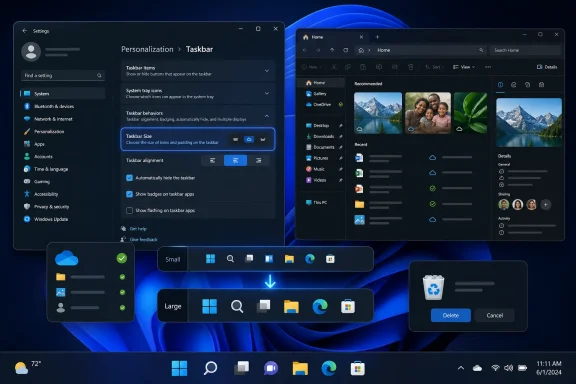
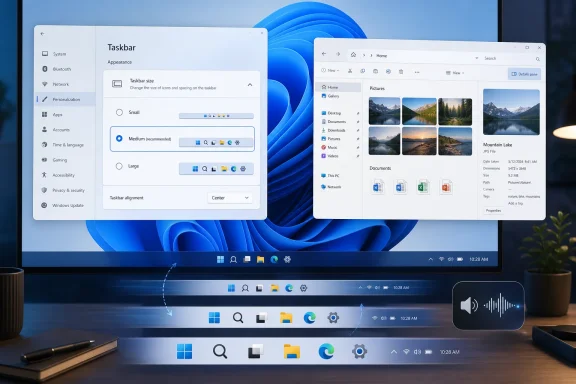
Microsoft is rolling out Windows 11 Insider build 26300.8758 in the Experimental channel and build 26220.8754 in the Beta channel on June 26, 2026, with a redesigned Taskbar Size setting, File Explorer fixes, dark-mode sound tweaks, and new smart-card removal policy support for remote sessions. The headline feature is not a flashy AI assistant or a new subscription hook, but a small Settings-page correction to one of Windows 11’s longest-running irritations. Microsoft is still rebuilding trust with users who remember exactly what the Windows 11 taskbar took away. This build matters because it shows the company slowly conceding that discoverability, not just design purity, is part of usability.
Windows 11’s taskbar has spent nearly five years as a case study in how a cleaner interface can feel like a downgrade. The original Windows 11 design centered icons, removed familiar placement options, simplified right-click behavior, and forced users to accept a taskbar that looked modern but behaved less flexibly than its Windows 10 predecessor. Microsoft has been putting pieces back ever since.
The new build does not magically restore every classic taskbar behavior, and it should not be oversold as a return to the old shell. What it does is create a dedicated Taskbar Size setting, rather than burying taskbar scaling behind a less obvious control such as smaller buttons. That distinction sounds minor until you remember how much of modern Windows frustration comes from users knowing a feature exists but not knowing where Microsoft hid it this year.
This is Microsoft turning an experimental feature into a more legible product decision. The company had already been testing smaller taskbar behavior in recent Insider builds, but this update reframes the feature as a first-class customization option. That is the difference between a tweak for enthusiasts and a setting ordinary users might actually find.
For WindowsForum readers, the practical impact is simple: Microsoft is continuing to rebuild taskbar customization in public, channel by channel, with the Beta channel now getting a clearer version of the control. The Experimental channel remains the place where wilder shell work shows up first, but Beta is where the company’s intent starts to look more deliberate.
A dedicated Taskbar Size control tells users what the setting does in plain language. It also avoids the awkwardness of making one setting do too much. When a control is labeled around smaller taskbar buttons, many users reasonably assume it affects icons, spacing, or pinned apps, not necessarily the full height of the taskbar itself. Microsoft’s new wording reduces that ambiguity.
That is especially important on laptops, ultrawides, tablets, and multi-monitor desktops where vertical space and pointer targets matter differently. A smaller taskbar can make a compact laptop feel less cramped, while a larger or default taskbar may remain better for touch, accessibility, or users who prefer bigger click targets. The point is not that one size wins; the point is that Windows should stop pretending one size is enough.
Microsoft says it has also refined transitions between taskbar sizes for a smoother experience. That detail is easy to skip, but it matters because shell polish is where Insider features often separate themselves from registry hacks. If resizing feels janky, delayed, or visually broken, users will experience it as another half-finished Windows experiment rather than a restored capability.
The taskbar has become a proxy war over Windows 11’s design philosophy. Every returned option is a reminder that Microsoft’s 2021 simplification went too far for a vocal slice of its base. This build does not apologize for that decision, but it does quietly walk part of it back.
That split is revealing. Beta is where Microsoft appears to be grooming improvements that could plausibly move toward a broader Windows 11 release. Experimental is where the company can test plumbing, policy, and shell reliability without pretending every piece is ready for mainstream users.
The new smart card removal policy support in build 26300.8758 is a good example. Administrators can now configure Azure Virtual Desktop and Windows 365 sessions that use Microsoft Entra ID authentication to disconnect automatically when a redirected smart card is removed. That is not the sort of change that makes social media screenshots, but for regulated environments it is exactly the kind of control that determines whether cloud-hosted Windows desktops can meet security rules.
Microsoft’s remote desktop future depends on these details. Windows 365 and Azure Virtual Desktop are pitched as flexible, cloud-connected workspaces, but enterprise security teams still judge them by old-world requirements: session control, credential handling, auditability, and predictable lock behavior. Smart card removal enforcement is one of those boring features that becomes very exciting when a compliance auditor asks how a session is terminated after a physical credential disappears.
The contrast between the two builds tells us where Windows 11 is right now. The consumer shell is being made more forgiving. The enterprise shell is being made more enforceable. Both tracks are necessary if Microsoft wants Windows 11 to feel less like a mandatory migration and more like a platform being repaired in place.
In build 26220.8754, Microsoft says it improved the reliability of thumbnail previews for cloud files in the Details pane. It has also reorganized that pane so file properties are easier to find and review at a glance. That may sound like routine fit-and-finish, but File Explorer reliability around OneDrive-backed content has become a daily quality-of-life issue for users whose documents live partly on disk and partly in the cloud.
The company also fixed an issue where the OneDrive shortcut in File Explorer could stop working when File Explorer was run in administrative mode. That is exactly the kind of bug that disproportionately hits IT pros, power users, and troubleshooters. Most people do not run Explorer elevated; the people who do are often already in the middle of fixing something.
Another fix addresses a confirmation dialog that could display an internal Recycle Bin file name instead of the original file name when permanently deleting a file. That is not just cosmetic. Delete confirmations are moments where clarity matters, and showing an internal file name undermines confidence at the precise second the user is being asked to confirm an irreversible action.
The Experimental build also includes the OneDrive elevated-Explorer fix, which suggests Microsoft sees it as broadly relevant rather than isolated to one channel. File Explorer remains one of the highest-stakes parts of Windows because it is where local storage, cloud sync, permissions, search, previews, and user trust all collide. A broken Explorer feature is rarely perceived as “just an app bug”; to most users, it means Windows itself is misbehaving.
Dark mode began as a visual preference, but over time it has become an ecosystem signal. Users expect the whole operating system to adapt: Settings, File Explorer, dialogs, notifications, app surfaces, and increasingly the sensory cues around the interface. If light and dark mode have different visual moods, it is not absurd for system sounds to follow that distinction.
The harder truth is that Windows still contains layers from many eras. There are redesigned Settings pages beside ancient dialogs, modern icons beside legacy control panels, and polished animations beside abrupt shell transitions. Sound design sits in that same uneasy space. It can make Windows feel coherent, or it can remind users that they are navigating a renovated building where some hallways still have 1990s wiring.
Microsoft has been trying to make Windows 11 feel calmer and more refined than Windows 10. The challenge is that refinement is not delivered by one feature. It arrives through dozens of small alignments: visual density, animation timing, sound cues, dark-mode consistency, and settings language that makes sense without a support article.
In that context, dark-mode sound improvements are not the main story, but they belong to the same story. Microsoft is sanding down the places where Windows 11 still feels like a design system layered on top of a much older operating system. Sometimes that work looks like a taskbar setting. Sometimes it sounds like a quieter alert.
That matters because Windows testing has become harder to parse. Features arrive in one channel, vanish behind controlled rollouts, reappear under different labels, and sometimes ship months later in cumulative updates or enablement packages. Enthusiasts can follow that dance; normal users cannot. Even many admins struggle to map Insider announcements to deployment timelines.
The upside is that Microsoft can test more safely. A taskbar resizing feature can appear in Experimental, get refined, move toward Beta, and still be withheld from broad release if telemetry or feedback looks bad. The downside is that every Insider announcement now requires translation. A feature “rolling out” does not mean every Insider gets it today, and an Insider feature existing does not mean it will land in production unchanged.
This is why the redesigned Taskbar Size setting is interesting beyond its pixels. It suggests Microsoft is not only testing behavior, but also testing how to present that behavior. A feature can be technically functional and still fail if users cannot understand it. The Settings app has become the front door for Windows customization, and Microsoft is gradually realizing that the labels on that door matter.
For WindowsForum readers running Insider builds, the usual caution applies even when the changelog looks small. Shell changes can ripple into Explorer reliability, system tray behavior, multi-monitor layouts, third-party utilities, and accessibility tools. A build with “not much” in the notes can still change the part of Windows users touch hundreds of times a day.
For consumers, the tray is where battery status, Wi-Fi, volume, background apps, cloud sync, VPNs, chat clients, and update nags congregate. For administrators, it is often where endpoint security agents, device management tools, backup clients, remote support utilities, and compliance indicators make themselves visible. When the tray fails to load correctly, users may not know whether a service is running, whether an agent is healthy, or whether Windows simply forgot to draw the icon.
The tray has also become more complicated as Windows 11 has reworked quick settings, notification surfaces, overflow behavior, and icon visibility. Microsoft wants a cleaner taskbar, but the Windows ecosystem still depends on background software exposing status somewhere. The system tray is the compromise between minimalist design and the messy reality of PC software.
Reliability work here pairs naturally with the taskbar size changes. A taskbar that can resize or eventually move must still host the tray predictably. If the shell becomes more flexible but the tray becomes less dependable, users will blame the new customization rather than the underlying bug.
That is why these smaller fixes should not be dismissed as filler. Taskbar customization is only useful if the taskbar remains trustworthy. The Windows desktop is not a canvas; it is infrastructure.
Microsoft’s early Windows 11 posture treated simplification as a virtue unto itself. The interface would be cleaner, calmer, more centered, and more consistent. That was not a foolish goal, but it collided with Windows’ actual user base: people with twenty years of workflows, corporate images, muscle memory, accessibility needs, and third-party tools built around the old shell.
The company now seems to be making a more mature distinction. It can keep Windows 11’s visual identity while restoring options that never should have been treated as legacy baggage. A dedicated Taskbar Size setting fits that model: it does not abandon the Windows 11 design language, but it gives users a visible lever.
There is a lesson here for every major platform vendor. Removing options is easy to justify when the design team controls the demo machine. It is harder to defend when the product runs across classrooms, trading desks, factory floors, home offices, accessibility setups, and admin workstations. Windows is not a sealed appliance. It is a habitat.
The best version of Windows 11 is not the one that recreates Windows 10 pixel for pixel. It is the one that understands why people missed those capabilities and reintroduces them in a way that fits the modern shell. This build is a small step in that direction.
Smart card removal policies have long been part of the security posture in environments where possession of a credential must map tightly to session access. If a user removes the card, the machine should lock, disconnect, or otherwise protect the session. Extending that behavior to remote cloud sessions matters because the session itself may outlive the local device context.
This is the kind of feature that makes cloud desktops more palatable in regulated industries. Healthcare, government, defense-adjacent contractors, financial services, and other compliance-heavy organizations do not adopt remote Windows environments simply because Microsoft says they are secure. They need policy controls that mirror existing procedures.
The detail that this applies to sessions using Microsoft Entra ID authentication is also important. Microsoft has spent years moving identity gravity away from traditional Active Directory-only assumptions and toward Entra-backed cloud identity. Every policy gap in that world becomes a migration objection. Every closed gap makes the cloud model feel less like a compromise.
Admins should still treat this as preview functionality. Insider builds are not production guidance, and policy behavior needs validation against real session brokers, redirection settings, card middleware, conditional access policies, and endpoint configurations. But directionally, Microsoft is aligning the cloud PC story with the physical-security expectations enterprises already have.
That pace frustrates enthusiasts because the missing features were obvious from day one. Taskbar size, taskbar position, richer context menus, ungrouping behavior, and clearer customization should not have required a half-decade rethink. The Windows community said as much loudly and repeatedly.
But the slow pace also reflects the reality of Windows engineering. The Windows 11 shell is not the Windows 10 shell with a coat of paint. Reintroducing older behaviors into a redesigned interface touches layout, animation, accessibility, touch behavior, multiple displays, system tray logic, Start menu placement, search surfaces, and third-party assumptions. Microsoft could rush the return and create a worse mess.
That does not absolve the original decision. It does explain why each small Insider change deserves more attention than its changelog length suggests. The taskbar is one of Windows’ load-bearing structures. When Microsoft changes it, it is not changing a preference panel; it is changing how hundreds of millions of people orient themselves on a PC.
The redesigned Taskbar Size setting is therefore both practical and symbolic. Practically, it should make customization easier to discover. Symbolically, it is Microsoft admitting that Windows 11’s future includes more knobs, not fewer.
That is arguably what Windows 11 needs most. The operating system has had enough headline features that arrived before the foundations felt settled. Users are less impressed by novelty when File Explorer misbehaves, taskbar icons fail to load, or basic customization requires forum spelunking.
The Beta build’s taskbar setting is the most visible concession to everyday users. The File Explorer fixes address the credibility of cloud-backed storage inside the local shell. The dark-mode sound work contributes to the long effort to make Windows 11 feel like one coherent product. The Experimental build’s smart-card policy work reminds enterprises that Microsoft still sees Windows as a managed endpoint platform, not just a consumer desktop.
None of this guarantees that the features will ship exactly as tested. Insider builds are staging grounds, and Microsoft’s controlled rollouts mean even testers may see different behavior. But the direction is clear enough: Windows 11 is being retrofitted with the flexibility it tried to leave behind.
That is a healthier posture than pretending the 2021 design reset was flawless. The company does not need to abandon Windows 11’s design language to respect Windows users’ habits. It needs to keep doing the unglamorous work of making the modern shell capable.
That kind of language is what Settings needs more of. Windows has accumulated decades of controls whose wording reflects engineering history rather than user goals. Microsoft has spent years migrating Control Panel surfaces into Settings, but migration alone is not modernization. A modern Settings page should make the right action obvious.
The taskbar is a good place to prove that philosophy because everyone uses it. A power setting can be obscure. A storage policy can hide in administrative tooling. A taskbar setting lives at the center of the Windows experience, and if users cannot find it, they will conclude Microsoft does not want them to have it.
This is also why enthusiasts should resist dismissing the change as mere UI housekeeping. Discoverability is a feature. A hidden option helps only the users who already know the secret. A visible option changes the relationship between the product and the person using it.
If Microsoft continues down this path, the Windows 11 shell could become both cleaner and more capable. That was always the promise. It just took a long detour through unnecessary subtraction.
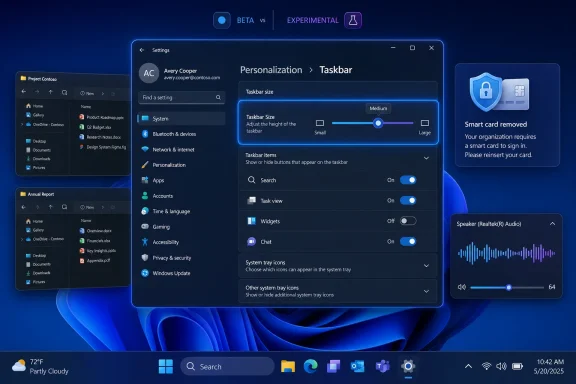 Microsoft Moves the Taskbar Argument Back Into Settings
Windows 11’s taskbar has spent nearly five years as a case study in how a cleaner interface can feel like a downgrade. The original Windows 11 design centered icons, removed familiar placement options, simplified right-click behavior, and forced users to accept a taskbar that looked modern but behaved less flexibly than its Windows 10 predecessor. Microsoft has been putting pieces back ever since.The new build does not magically restore every classic taskbar behavior, and it should not be oversold as a return to the old shell. What it does is create a dedicated Taskbar Size setting, rather than burying taskbar scaling behind a less obvious control such as smaller buttons. That distinction sounds minor until you remember how much of modern Windows frustration comes from users knowing a feature exists but not knowing where Microsoft hid it this year.
This is Microsoft turning an experimental feature into a more legible product decision. The company had already been testing smaller taskbar behavior in recent Insider builds, but this update reframes the feature as a first-class customization option. That is the difference between a tweak for enthusiasts and a setting ordinary users might actually find.
For WindowsForum readers, the practical impact is simple: Microsoft is continuing to rebuild taskbar customization in public, channel by channel, with the Beta channel now getting a clearer version of the control. The Experimental channel remains the place where wilder shell work shows up first, but Beta is where the company’s intent starts to look more deliberate.
The Taskbar Size Setting Is a Small Admission With a Long Shadow
The reason this particular setting resonates is not that changing taskbar size is technically revolutionary. Windows users had taskbar flexibility for decades. The reason it matters is that Windows 11 launched by treating some of those old affordances as clutter, only to discover that “clutter” was often another word for muscle memory.A dedicated Taskbar Size control tells users what the setting does in plain language. It also avoids the awkwardness of making one setting do too much. When a control is labeled around smaller taskbar buttons, many users reasonably assume it affects icons, spacing, or pinned apps, not necessarily the full height of the taskbar itself. Microsoft’s new wording reduces that ambiguity.
That is especially important on laptops, ultrawides, tablets, and multi-monitor desktops where vertical space and pointer targets matter differently. A smaller taskbar can make a compact laptop feel less cramped, while a larger or default taskbar may remain better for touch, accessibility, or users who prefer bigger click targets. The point is not that one size wins; the point is that Windows should stop pretending one size is enough.
Microsoft says it has also refined transitions between taskbar sizes for a smoother experience. That detail is easy to skip, but it matters because shell polish is where Insider features often separate themselves from registry hacks. If resizing feels janky, delayed, or visually broken, users will experience it as another half-finished Windows experiment rather than a restored capability.
The taskbar has become a proxy war over Windows 11’s design philosophy. Every returned option is a reminder that Microsoft’s 2021 simplification went too far for a vocal slice of its base. This build does not apologize for that decision, but it does quietly walk part of it back.
Beta Gets the User-Facing Polish, Experimental Gets the Admin Edge
The two builds are not identical in emphasis. Build 26220.8754 in the Beta channel carries the more consumer-visible taskbar settings change, along with File Explorer fixes and dark-mode sound improvements. Build 26300.8758 in the Experimental channel has taskbar reliability work and a more enterprise-oriented security policy addition.That split is revealing. Beta is where Microsoft appears to be grooming improvements that could plausibly move toward a broader Windows 11 release. Experimental is where the company can test plumbing, policy, and shell reliability without pretending every piece is ready for mainstream users.
The new smart card removal policy support in build 26300.8758 is a good example. Administrators can now configure Azure Virtual Desktop and Windows 365 sessions that use Microsoft Entra ID authentication to disconnect automatically when a redirected smart card is removed. That is not the sort of change that makes social media screenshots, but for regulated environments it is exactly the kind of control that determines whether cloud-hosted Windows desktops can meet security rules.
Microsoft’s remote desktop future depends on these details. Windows 365 and Azure Virtual Desktop are pitched as flexible, cloud-connected workspaces, but enterprise security teams still judge them by old-world requirements: session control, credential handling, auditability, and predictable lock behavior. Smart card removal enforcement is one of those boring features that becomes very exciting when a compliance auditor asks how a session is terminated after a physical credential disappears.
The contrast between the two builds tells us where Windows 11 is right now. The consumer shell is being made more forgiving. The enterprise shell is being made more enforceable. Both tracks are necessary if Microsoft wants Windows 11 to feel less like a mandatory migration and more like a platform being repaired in place.
File Explorer Fixes Show the Cloud Is Still a Shell Problem
The File Explorer changes in these builds are less dramatic than the taskbar update, but they point to a persistent Windows 11 problem: the shell is now expected to be both a local file manager and a cloud document portal. That combination has never been as seamless as Microsoft’s marketing suggests.In build 26220.8754, Microsoft says it improved the reliability of thumbnail previews for cloud files in the Details pane. It has also reorganized that pane so file properties are easier to find and review at a glance. That may sound like routine fit-and-finish, but File Explorer reliability around OneDrive-backed content has become a daily quality-of-life issue for users whose documents live partly on disk and partly in the cloud.
The company also fixed an issue where the OneDrive shortcut in File Explorer could stop working when File Explorer was run in administrative mode. That is exactly the kind of bug that disproportionately hits IT pros, power users, and troubleshooters. Most people do not run Explorer elevated; the people who do are often already in the middle of fixing something.
Another fix addresses a confirmation dialog that could display an internal Recycle Bin file name instead of the original file name when permanently deleting a file. That is not just cosmetic. Delete confirmations are moments where clarity matters, and showing an internal file name undermines confidence at the precise second the user is being asked to confirm an irreversible action.
The Experimental build also includes the OneDrive elevated-Explorer fix, which suggests Microsoft sees it as broadly relevant rather than isolated to one channel. File Explorer remains one of the highest-stakes parts of Windows because it is where local storage, cloud sync, permissions, search, previews, and user trust all collide. A broken Explorer feature is rarely perceived as “just an app bug”; to most users, it means Windows itself is misbehaving.
Dark Mode Sounds Are a Reminder That Windows Is Still Unevenly Modern
Both builds include improved system sounds when using Windows in dark mode. That is the kind of changelog line that invites jokes because it sounds almost parodically subtle. Yet it also highlights how deep Microsoft’s attempt to modernize Windows has become.Dark mode began as a visual preference, but over time it has become an ecosystem signal. Users expect the whole operating system to adapt: Settings, File Explorer, dialogs, notifications, app surfaces, and increasingly the sensory cues around the interface. If light and dark mode have different visual moods, it is not absurd for system sounds to follow that distinction.
The harder truth is that Windows still contains layers from many eras. There are redesigned Settings pages beside ancient dialogs, modern icons beside legacy control panels, and polished animations beside abrupt shell transitions. Sound design sits in that same uneasy space. It can make Windows feel coherent, or it can remind users that they are navigating a renovated building where some hallways still have 1990s wiring.
Microsoft has been trying to make Windows 11 feel calmer and more refined than Windows 10. The challenge is that refinement is not delivered by one feature. It arrives through dozens of small alignments: visual density, animation timing, sound cues, dark-mode consistency, and settings language that makes sense without a support article.
In that context, dark-mode sound improvements are not the main story, but they belong to the same story. Microsoft is sanding down the places where Windows 11 still feels like a design system layered on top of a much older operating system. Sometimes that work looks like a taskbar setting. Sometimes it sounds like a quieter alert.
The Insider Program Is Becoming a Product Narrative, Not Just a Test Ring
The naming around these builds is also part of the story. Microsoft’s Experimental channel, formerly Dev in practical terms for many Insiders, is now more clearly positioned as the company’s forward-looking test bed. Beta remains closer to the mainstream Windows 11 line, with build numbers that reflect Windows 11 version 25H2 work.That matters because Windows testing has become harder to parse. Features arrive in one channel, vanish behind controlled rollouts, reappear under different labels, and sometimes ship months later in cumulative updates or enablement packages. Enthusiasts can follow that dance; normal users cannot. Even many admins struggle to map Insider announcements to deployment timelines.
The upside is that Microsoft can test more safely. A taskbar resizing feature can appear in Experimental, get refined, move toward Beta, and still be withheld from broad release if telemetry or feedback looks bad. The downside is that every Insider announcement now requires translation. A feature “rolling out” does not mean every Insider gets it today, and an Insider feature existing does not mean it will land in production unchanged.
This is why the redesigned Taskbar Size setting is interesting beyond its pixels. It suggests Microsoft is not only testing behavior, but also testing how to present that behavior. A feature can be technically functional and still fail if users cannot understand it. The Settings app has become the front door for Windows customization, and Microsoft is gradually realizing that the labels on that door matter.
For WindowsForum readers running Insider builds, the usual caution applies even when the changelog looks small. Shell changes can ripple into Explorer reliability, system tray behavior, multi-monitor layouts, third-party utilities, and accessibility tools. A build with “not much” in the notes can still change the part of Windows users touch hundreds of times a day.
The System Tray Reliability Fix May Matter More Than It Looks
Build 26300.8758 includes improved reliability when loading the system tray area of the taskbar. That is a modest sentence doing a lot of work. The system tray is not glamorous, but it is one of the most operationally important pieces of the Windows desktop.For consumers, the tray is where battery status, Wi-Fi, volume, background apps, cloud sync, VPNs, chat clients, and update nags congregate. For administrators, it is often where endpoint security agents, device management tools, backup clients, remote support utilities, and compliance indicators make themselves visible. When the tray fails to load correctly, users may not know whether a service is running, whether an agent is healthy, or whether Windows simply forgot to draw the icon.
The tray has also become more complicated as Windows 11 has reworked quick settings, notification surfaces, overflow behavior, and icon visibility. Microsoft wants a cleaner taskbar, but the Windows ecosystem still depends on background software exposing status somewhere. The system tray is the compromise between minimalist design and the messy reality of PC software.
Reliability work here pairs naturally with the taskbar size changes. A taskbar that can resize or eventually move must still host the tray predictably. If the shell becomes more flexible but the tray becomes less dependable, users will blame the new customization rather than the underlying bug.
That is why these smaller fixes should not be dismissed as filler. Taskbar customization is only useful if the taskbar remains trustworthy. The Windows desktop is not a canvas; it is infrastructure.
Microsoft Is Relearning That Personalization Is Not Decoration
The broader pattern across recent Windows 11 Insider work is personalization with operational consequences. Taskbar size, taskbar position, Start menu layout, widget noise, badge behavior, and dark-mode polish are not just aesthetic preferences. They shape how quickly users can get to apps, interpret status, manage attention, and recover from mistakes.Microsoft’s early Windows 11 posture treated simplification as a virtue unto itself. The interface would be cleaner, calmer, more centered, and more consistent. That was not a foolish goal, but it collided with Windows’ actual user base: people with twenty years of workflows, corporate images, muscle memory, accessibility needs, and third-party tools built around the old shell.
The company now seems to be making a more mature distinction. It can keep Windows 11’s visual identity while restoring options that never should have been treated as legacy baggage. A dedicated Taskbar Size setting fits that model: it does not abandon the Windows 11 design language, but it gives users a visible lever.
There is a lesson here for every major platform vendor. Removing options is easy to justify when the design team controls the demo machine. It is harder to defend when the product runs across classrooms, trading desks, factory floors, home offices, accessibility setups, and admin workstations. Windows is not a sealed appliance. It is a habitat.
The best version of Windows 11 is not the one that recreates Windows 10 pixel for pixel. It is the one that understands why people missed those capabilities and reintroduces them in a way that fits the modern shell. This build is a small step in that direction.
Enterprises Will Watch the Policy Change, Not the Pretty Setting
For enterprise IT, the smart card removal policy may be the more consequential change in the Experimental build. The ability to disconnect Microsoft Entra-authenticated Azure Virtual Desktop and Windows 365 sessions when a redirected smart card is removed closes a gap between traditional physical desktop expectations and cloud PC behavior.Smart card removal policies have long been part of the security posture in environments where possession of a credential must map tightly to session access. If a user removes the card, the machine should lock, disconnect, or otherwise protect the session. Extending that behavior to remote cloud sessions matters because the session itself may outlive the local device context.
This is the kind of feature that makes cloud desktops more palatable in regulated industries. Healthcare, government, defense-adjacent contractors, financial services, and other compliance-heavy organizations do not adopt remote Windows environments simply because Microsoft says they are secure. They need policy controls that mirror existing procedures.
The detail that this applies to sessions using Microsoft Entra ID authentication is also important. Microsoft has spent years moving identity gravity away from traditional Active Directory-only assumptions and toward Entra-backed cloud identity. Every policy gap in that world becomes a migration objection. Every closed gap makes the cloud model feel less like a compromise.
Admins should still treat this as preview functionality. Insider builds are not production guidance, and policy behavior needs validation against real session brokers, redirection settings, card middleware, conditional access policies, and endpoint configurations. But directionally, Microsoft is aligning the cloud PC story with the physical-security expectations enterprises already have.
The Real Story Is the Pace of Reversal
Windows 11’s taskbar story is not a single U-turn. It is a slow-motion reversal spread across years of Insider builds, cumulative updates, and feedback loops. Microsoft removed too much, absorbed the complaints, and has been selectively restoring what users proved they still needed.That pace frustrates enthusiasts because the missing features were obvious from day one. Taskbar size, taskbar position, richer context menus, ungrouping behavior, and clearer customization should not have required a half-decade rethink. The Windows community said as much loudly and repeatedly.
But the slow pace also reflects the reality of Windows engineering. The Windows 11 shell is not the Windows 10 shell with a coat of paint. Reintroducing older behaviors into a redesigned interface touches layout, animation, accessibility, touch behavior, multiple displays, system tray logic, Start menu placement, search surfaces, and third-party assumptions. Microsoft could rush the return and create a worse mess.
That does not absolve the original decision. It does explain why each small Insider change deserves more attention than its changelog length suggests. The taskbar is one of Windows’ load-bearing structures. When Microsoft changes it, it is not changing a preference panel; it is changing how hundreds of millions of people orient themselves on a PC.
The redesigned Taskbar Size setting is therefore both practical and symbolic. Practically, it should make customization easier to discover. Symbolically, it is Microsoft admitting that Windows 11’s future includes more knobs, not fewer.
The Build Notes Say Little Because the Strategy Says Plenty
The changelogs for these builds are short, but that brevity should not be mistaken for insignificance. Microsoft is working through a refinement phase in which the shell, cloud integration, and remote-session security are all being tightened rather than reinvented in one dramatic release.That is arguably what Windows 11 needs most. The operating system has had enough headline features that arrived before the foundations felt settled. Users are less impressed by novelty when File Explorer misbehaves, taskbar icons fail to load, or basic customization requires forum spelunking.
The Beta build’s taskbar setting is the most visible concession to everyday users. The File Explorer fixes address the credibility of cloud-backed storage inside the local shell. The dark-mode sound work contributes to the long effort to make Windows 11 feel like one coherent product. The Experimental build’s smart-card policy work reminds enterprises that Microsoft still sees Windows as a managed endpoint platform, not just a consumer desktop.
None of this guarantees that the features will ship exactly as tested. Insider builds are staging grounds, and Microsoft’s controlled rollouts mean even testers may see different behavior. But the direction is clear enough: Windows 11 is being retrofitted with the flexibility it tried to leave behind.
That is a healthier posture than pretending the 2021 design reset was flawless. The company does not need to abandon Windows 11’s design language to respect Windows users’ habits. It needs to keep doing the unglamorous work of making the modern shell capable.
The Taskbar Finally Gets a Setting That Says What Users Mean
The most concrete lesson from these builds is that names matter. A setting called Taskbar Size is not just cleaner than a setting about smaller taskbar buttons; it matches the user’s intent. People do not think, “I want to alter button scale semantics.” They think, “I want a smaller taskbar.”That kind of language is what Settings needs more of. Windows has accumulated decades of controls whose wording reflects engineering history rather than user goals. Microsoft has spent years migrating Control Panel surfaces into Settings, but migration alone is not modernization. A modern Settings page should make the right action obvious.
The taskbar is a good place to prove that philosophy because everyone uses it. A power setting can be obscure. A storage policy can hide in administrative tooling. A taskbar setting lives at the center of the Windows experience, and if users cannot find it, they will conclude Microsoft does not want them to have it.
This is also why enthusiasts should resist dismissing the change as mere UI housekeeping. Discoverability is a feature. A hidden option helps only the users who already know the secret. A visible option changes the relationship between the product and the person using it.
If Microsoft continues down this path, the Windows 11 shell could become both cleaner and more capable. That was always the promise. It just took a long detour through unnecessary subtraction.
The June 26 Builds Turn a Changelog Footnote Into a Windows 11 Signal
These are the points Windows users and administrators should take from the June 26 Insider builds before treating them as either a breakthrough or a nothingburger.- The Beta channel build 26220.8754 introduces a dedicated Taskbar Size setting that should make taskbar scaling easier to discover and understand.
- The Experimental channel build 26300.8758 adds smart card removal policy support for certain Azure Virtual Desktop and Windows 365 sessions using Microsoft Entra ID authentication.
- Both builds include File Explorer fixes, including a repair for the OneDrive shortcut failing when Explorer runs in administrative mode.
- Microsoft is continuing to polish Windows 11’s sensory and visual consistency, including improved system sounds when dark mode is enabled.
- The system tray reliability work in the Experimental build matters because taskbar customization is only useful if the tray remains dependable.
- These are Insider builds, so availability, behavior, and timing for general Windows 11 users remain subject to Microsoft’s rollout decisions.
References
- Primary source: Neowin
Published: 2026-06-26T18:10:11.762742
Windows 11 is getting redesigned taskbar settings in new build - Neowin
Microsoft is giving Windows 11 redesigned taskbar settings, and the changes are already available for testing in the latest build. www.neowin.net
- Official source: blogs.windows.com
Announcing new builds for 26 June 2026, retail launch of new WIP improvements
Hello Windows Insiders, We have new releases today with builds across Beta and Experimental, and are excited to begin rolling out the new Windows Insider experience to retail Windows 11 builds this week! New Windows Insider Program changesblogs.windows.com - Official source: learn.microsoft.com
Windows 11 Insider Beta Preview Build 26220.8680 - Windows Insider Program | Microsoft Learn
Release notes for Windows 11 Insider Beta Preview Build 26220.8680learn.microsoft.com - Related coverage: windowscentral.com
I tested Windows 11’s return of taskbar positioning and resizing, and it’s not the classic Windows 10 experience | Windows Central
Windows 11 finally brings back classic Taskbar features, but the experience still falls short of Windows 10.www.windowscentral.com - Related coverage: thurrott.com
Microsoft Starts Testing Taskbar Icon Scaling on Windows 11
Windows Insiders on the Dev and Beta Channel can now choose to have the taskbar always show smaller icons or make them automatically scale down when the taskbar is full.www.thurrott.com - Related coverage: fdaytalk.com
Windows 11 Finally Lets You Resize the Start Menu
Windows 11 build 26300.8553 adds a modular Start menu with section toggles, resize options, and profile hiding. See every change in the May 2026 Insider builds.www.fdaytalk.com
- Related coverage: windowsnews.ai
Windows 11 Insider Build Finally Lets You Move Taskbar to Any Edge After 5 Years - Windows News
Windows 11 Insider build 26200.1405 brings movable taskbar, adjustable height, and new Start menu controls. Experimental channel testers can finally dock...windowsnews.ai - Related coverage: techgenyz.com
Windows 11 Taskbar Update: Move It Anywhere You Want Now
Windows 11 taskbar can now move to any screen edge in the latest Insider Preview. Here's everything new in the Start menu, compact taskbar, and Search update.techgenyz.com