

Microsoft’s early‑2026 Insider previews are shaping into a practical, mostly incremental refresh for Windows 11 — one that emphasizes device polish, enterprise manageability, and selective AI accessibility rather than sweeping UI overhauls or headline-grabbing features.
Microsoft has entered 2026 by accelerating Windows Insider flights across Canary, Dev and Beta channels while splitting platform work across build families. The company is using an enablement‑style model: shared cumulative binaries are delivered while server‑side toggles, device entitlements and channel membership determine which features appear for which devices. That makes the story for the first quarter of 2026 less about a single “big release” and more about a sequence of preview builds that gradually surface capabilities to Insiders and — later — to commercial releases.
The most visible outcomes so far are:
Source: FilmoGaz Windows 11 Launches New Feature Updates for 2026
 Background
Microsoft has entered 2026 by accelerating Windows Insider flights across Canary, Dev and Beta channels while splitting platform work across build families. The company is using an enablement‑style model: shared cumulative binaries are delivered while server‑side toggles, device entitlements and channel membership determine which features appear for which devices. That makes the story for the first quarter of 2026 less about a single “big release” and more about a sequence of preview builds that gradually surface capabilities to Insiders and — later — to commercial releases.The most visible outcomes so far are:
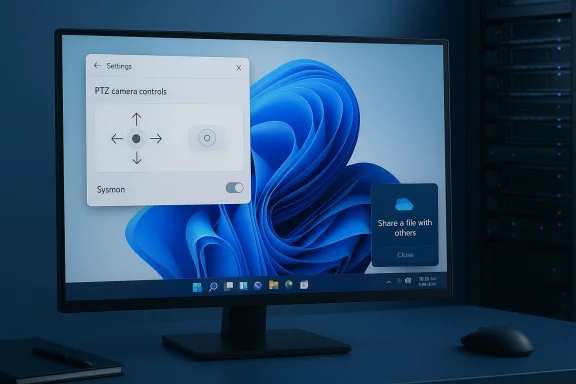
- A move to expose advanced telemetry and defender tooling (Sysmon) as a first‑party, optional Windows feature.
- UX polishing across Settings and personalization (modernized account dialogs, WebP wallpaper support).
- Practical device features such as direct pan/tilt camera controls in Settings for supported cameras.
- Expanded AI accessibility in Narrator that allows image descriptions beyond Copilot+ hardware.
- Minor Share UI improvements to streamline OneDrive link sharing.
What arrived in the preview builds
Built‑in Sysmon: bringing a veteran defender tool into Windows
- What Microsoft changed: Sysmon (System Monitor) — previously a standalone Sysinternals download — now appears as an optional inbox feature in Insider builds. It is disabled by default and must be explicitly enabled. After enabling the optional feature you finalize setup with the traditional Sysmon installer command.
- How to enable (verified steps):
- Settings → System → Optional features → More Windows features → check Sysmon, or
- From an elevated shell:
- Dism /Online /Enable-Feature /FeatureName:Sysmon
- Then run: sysmon -i
Microsoft’s Insider announcements and community breakdowns list the same paths; the command and post‑install step match Sysinternals’ expected install flow. - Why this matters:
- Operational simplicity: Teams that standardize endpoint telemetry in enterprise fleets can provision Sysmon as part of Windows image and servicing rather than using a separate download pipeline.
- Servicing alignment: Getting Sysmon via Windows Update reduces friction for patching and compatibility testing across a fleet.
- Integration: Events continue to be written to the familiar Sysmon event channel (Applications and Services Logs → Microsoft → Windows → Sysmon → Operational), preserving integration with SIEM/collector tooling.
- Caveats & risks:
- Compatibility: Microsoft requires uninstalling any previously installed Sysmon from Sysinternals before enabling the built‑in variant to avoid driver/service conflicts. Test this path on a representative pilot group first.
- Event volume: Sysmon can produce high‑volume logs when enabled with detailed rule sets. Administrators must architect ingestion, retention and cost controls to avoid event floods or storage issues.
- Configuration portability: The built‑in feature maintains the XML configuration model, but organizations should validate that existing tuning and filters behave identically under the in‑box implementation. Community reporting suggests parity, but this is a point to verify during rollouts.
Camera pan & tilt controls in Settings
- What Microsoft changed: For cameras that expose PTZ (pan/tilt/zoom) capabilities, Windows now surfaces pan and tilt controls directly in the Settings app (Settings → Devices & drivers → Cameras → Basic settings). This appears in Dev and Beta preview builds and is gated by hardware/driver support.
- Practical implications:
- End users and helpdesk staff will find basic mechanical camera controls in a single, OS‑level location rather than in scattered vendor apps.
- Useful for conference cameras, room systems and higher‑end USB/POE webcams that implement UVC/ONVIF/PTZ extensions; integrated laptop webcams without motors will show no controls.
- Deployment notes:
- Ensure camera firmware/drivers are up to date and that the device advertises PTZ capabilities.
- Test the new controls on representative hardware; vendor utilities may still provide more advanced presets and automation.
- Risks and limitations:
- Driver support is key: if a camera vendor hasn’t implemented the appropriate UVC extensions, Windows won’t present the controls.
- Expect fragmentation: some conference room systems (Teams Rooms, Neat, Webex) already offer their own PTZ UX; Windows’ controls are a convenience layer rather than a replacement for vendor‑specific capabilities.
Settings UI modernization: “Change account type” and account dialogs
- What Microsoft changed: Dialogs under Settings → Accounts → Other users — notably the “Add account” and “Change account type” dialogs — have been refreshed using the modern WinUI framework and now properly support light/dark themes. The change was documented in Beta/Dev release notes and appears in the 26220/26300 build families.
- User impact:
- Visual consistency across the Settings app and better dark mode support.
- Functional behavior is unchanged; this is primarily a UX realignment.
- Notes:
- The rollout is staged (Controlled Feature Rollout); some Insiders may see the new dialogs before others depending on Microsoft’s server‑side toggles. If you rely on screenshots or training materials, validate workflow visuals before publishing documentation across a large environment.
WebP as desktop backgrounds
- What Microsoft changed: Windows 11 now supports WebP images as desktop backgrounds via Settings → Personalization → Desktop Background and via the File Explorer “Set as desktop background” flow in supported preview builds. This removes an old friction point for users who collect web‑sourced wallpapers.
- Why it matters:
- WebP is widely used on the web because of efficient compression; removing the conversion step simplifies personalization and theme packaging.
- The change is user‑facing but low risk.
- Caveats:
- Video wallpaper capability remains experimental and gated in separate feature flags; while community tools have exposed early traces, Microsoft’s official support for native video wallpapers is not broadly available at the time of these previews. Proceed cautiously with experiments.
Narrator: AI image descriptions expanded
- What Microsoft changed: The Narrator screen reader’s Copilot‑powered image description feature — initially limited to Copilot+ PCs with on‑device AI — has been expanded in preview builds so Narrator can now work with Copilot on all Windows 11 devices to generate richer image descriptions. On devices without on‑device NPU support, the image is shared to Copilot in the cloud only after user confirmation. Shortcuts include Narrator key + Ctrl + D for a focused image and Narrator key + Ctrl + S for full screen descriptions.
- Accessibility impact:
- This is one of the most significant practical uses of AI for accessibility: blind and low‑vision users can hear meaningful, contextual descriptions of graphs, photos and complex visual content.
- The privacy model is explicit: the image is shared only when the user initiates the description, and the feature is not available in some regions (notably the EEA at the time of the preview).
- Risks:
- Cloud processing changes the trust model — organizations and individuals should review whether images containing sensitive information are appropriate to describe via cloud AI.
- Administrators should evaluate policy for managed devices (for example, whether the Copilot app is permitted) and consider DLP implications. Microsoft has added policies to allow targeted uninstall of Copilot in managed environments, but that is not a substitute for a formal governance review.
OneDrive share: “Share using” when copying links
- What Microsoft changed: The Windows Share UI has been refined so that when a user right‑clicks a OneDrive cloud file and chooses Copy link, the subsequent share flow can surface a “Share using” list of installed apps to quickly dispatch the link (e.g., mail client, chat apps). This was added in Canary flight 28020.1611 and is being rolled out to Microsoft‑account‑signed Insiders outside some regions initially.
- Benefits:
- Removes a copy/paste step in common workflows, improving productivity for users who share cloud links frequently.
- Security considerations:
- The convenience increases the chance of accidental oversharing. Users must remain attentive to the OneDrive link permission model (Anyone vs. Specific people, expiry, password protection).
- Admins should confirm that tenant DLP and sharing policies apply to links sent via the Share UI and that audit trails capture the activity as needed.
The channel and build landscape — quick reference
Microsoft pushed many preview builds in early 2026. The most relevant entries include:- Dev channel: 26300.7760 (KB5077202), 26300.7733, 26300.7674 — Dev is being advanced to the 26300 series as the 26H2 platform path.
- Beta channel: 26220.7755 (KB5077201), 26220.7752 (KB5074177), 26220.7670, 26220.7653, 26220.7535 — Beta continues servicing the 25H2 enablement package and related polish.
- Canary channel: 28020.1546, 28020.1495, 28020.1611 — Canary is exercising platform‑level experiments and some targeted UX tweaks (e.g., Share polish).
Operational guidance: pilot and validate before broad enablement
If you manage Windows devices, apply the following practical path for piloting these preview changes.- Define goals and scope.
- Target a small pilot group (5–20 machines) covering typical hardware: laptops (integrated webcams), conference room systems, and managed desktops.
- Select the channel carefully.
- Use Beta for conservative testing of 25H2 enablement bits; use Dev or Canary only on non‑critical lab machines that can accept instability.
- Test Sysmon enabling flow.
- Validate the DISM enable and sysmon -i sequence; confirm event channel location and that existing Sysmon configs import and behave identically. Monitor collector ingestion rates.
- Validate Narrator behavior and privacy flow.
- Test both on Copilot+ and non‑Copilot devices. Confirm the “share only after user consent” path and determine whether cloud processing is acceptable for your user base.
- Check camera support matrix.
- Identify which camera models advertise PTZ/advanced controls and validate that Windows surfaces pan/tilt options. Update drivers/firmware as needed.
- Review OneDrive sharing & DLP integration.
- Test the “Share using” flow with tenant policies applied; check audit logs and link permission behaviors across different recipient posting workflows.
- Track rollout flags and user experience.
- Use Feedback Hub and Flight Hub notes to cross‑check when Microsoft expands staged rollouts; keep a rollback plan for devices that unexpectedly receive a feature you don’t want enabled fleet‑wide.
Security, privacy and compliance — a closer look
- Sysmon as inbox feature reduces deployment friction but raises new questions about lifecycle and governance. When Sysmon is included in Windows Update, patching/rollback cadence changes from ad‑hoc to platform‑managed; security teams must revise update validation processes and SIEM mappings. Also confirm driver signing and update policies for the built‑in Sysmon driver to avoid unexpected regressions.
- Narrator’s cloud‑assisted descriptions introduce explicit privacy trade‑offs. While Microsoft documents that images are uploaded only after user prompts, organizations processing regulated data should document acceptable usage scenarios and consider whether to restrict the feature via policy on managed machines. Microsoft’s policy controls around the Copilot app provide a partial governance mechanism but do not fully replace a formal DLP strategy.
- OneDrive link sharing via the Share UI is a usability win but increases the surface for accidental oversharing. Admins should validate tenant sharing defaults (Anyone vs. Specific people), educate users on link types, and verify that company DLP and CASB solutions log and, if necessary, block high‑risk shares.
- Regional differences: Several preview capabilities are region‑gated (for example, the Narrator Copilot integration and copy‑link Share flows have known EEA exclusions), so test the behavior using accounts from targeted regions to see what your end users will actually experience.
Strengths and where Microsoft is getting this right
- Practicality over spectacle: These preview updates focus on atomic improvements that reduce friction (WebP wallpaper support, direct camera controls, share UX refinements) and on operational efficiency (Sysmon inbox). That’s an engineering‑first approach that aligns with enterprise needs for reliability and manageability.
- Accessibility leadership: Expanding AI‑driven Narrator descriptions to more devices is a high‑impact use of AI. By preserving user consent and continuing on‑device processing for Copilot+ hardware, Microsoft is balancing usefulness with privacy controls.
- Built‑in defensive telemetry: Making Sysmon an optional inbox feature reduces third‑party distribution friction for defenders and helps standardize high‑fidelity endpoint logs across environments — important for incident response and threat hunting.
Weaknesses, open questions and risks
- Staged rollouts complicate documentation and admin planning. Because Microsoft flips server toggles after delivering a build, two identical devices can present different UX at the same time. This undermines predictable screenshots and training materials and forces pilots rather than broad rollouts.
- Cloud dependency for accessibility features: The necessity to send images to Copilot for richer descriptions on non‑Copilot devices is functionally useful but introduces edge cases for data governance and regulatory compliance. Enterprises must document acceptable usage and consider limiting the feature where necessary.
- Driver and vendor fragmentation: OS‑level pan/tilt controls are only as good as vendor driver support. Expect a mixed experience across webcams and conference hardware until vendors uniformly adopt compatible standards.
- Event volume and telemetry cost: Sysmon, when enabled with aggressive rules, will increase event ingestion to SIEMs. Organizations must estimate the storage and processing costs and rethink sampling/filtering strategies before a broad rollout.
Quick reference — useful commands and shortcuts (verified)
- Enable built‑in Sysmon (elevated):
- Dism /Online /Enable-Feature /FeatureName:Sysmon
- sysmon -i
These steps are the official enablement path in the Insider notes and match community documentation. - Narrator image description shortcuts:
- Narrator key + Ctrl + D — describe the focused image.
- Narrator key + Ctrl + S — describe the full screen.
The UI will present an explicit confirmation flow before sending an image to Copilot (if cloud processing is required). - Where to look in Settings:
- Camera pan/tilt: Settings → Devices & drivers → Cameras → Basic settings (present only if the camera advertises PTZ).
- WebP wallpaper: Settings → Personalization → Desktop Background (WebP images now accepted where the staged rollout is active).
Looking ahead: what to expect in 2026
Microsoft’s early‑year previews indicate a pattern: continued platform investments, feature flag rollouts, and incremental accessibility and manageability enhancements. Expect:- More platform features to be surfaced as in‑box optional components (outcomes similar to Sysmon).
- Further Copilot/Copilot+ parity refinements, with Microsoft balancing on‑device AI for capable hardware and cloud fallbacks for others.
- Additional personalization and UX polish (themed dialogs, emoji updates, and incremental File Explorer/Taskbar fixes).
- Continued gating by region, hardware capability, and account type.
Conclusion
The first wave of Windows 11 previews in 2026 is notable less for dramatic new consumer features and more for being an operationally minded set of improvements: defender tooling (Sysmon) moving in‑box, accessibility broadened with AI‑driven Narrator descriptions, small but meaningful personalization updates (WebP wallpaper), and practical device controls (camera pan/tilt) that strip away vendor fragmentation for common tasks. These are welcome changes for admins, accessibility advocates and power users — provided they are introduced with careful pilots, clear privacy rules and SIEM readiness. Microsoft’s enablement‑first rollout model means visibility will be staged; treat these Insider flights as a testing ground for policy and process, not as a one‑click path to immediate enterprise adoption.Source: FilmoGaz Windows 11 Launches New Feature Updates for 2026
