

Microsoft has pushed a targeted Windows 11 Insider preview to the Beta channel today: Windows 11 Insider Preview Build 26220.7653 (KB5074157), a 25H2‑track Preview Quality Update that modernizes account dialogs, speeds Copilot suggestions in Click to Do on Copilot+ devices, adds WebP wallpaper support, and bundles a broad set of stability fixes while preserving a handful of known issues Insiders should expect.
Windows 11’s 25H2 engineering stream is currently being shipped as a series of enablement-style preview updates in the 26220.xxxx build family. Microsoft has been using that approach for 25H2: the platform binaries are delivered broadly and specific features are gated by server-side flags, entitlements, or hardware checks (the Controlled Feature Rollout model). That means installing the same KB can produce different visible behavior across devices and accounts. The 26220 family represents the 25H2 preview line and is now being offered into the Beta channel as a recommended Beta update while Dev temporarily runs the same 25H2 line — creating a short window for Dev Insiders who want to stabilize on 25H2 to switch to Beta without a clean reinstall. This particular release — KB5074157 for build 26220.7653 — is documented as a Beta‑channel Preview Quality Update and follows the pattern of: (a) gated feature rollouts for early exposure, and (b) a set of fixes that improve day‑to‑day reliability. The update notes explicitly separate items that are being gradually rolled out to Insiders who opt into the “get the latest updates as they are available” toggle from items that are more broadly available to the channel at large.
Insiders and IT pilots should proceed methodically: verify build numbers, back up devices, validate multi‑monitor and tray‑dependent workflows, and treat Copilot surfaces as a systems change that merits DLP and telemetry review. For anyone tracking the Windows 11 25H2 story, this release reinforces two ongoing themes: Microsoft is deepening Copilot integration across the shell while tuning Windows 11 for specific hardware classes (handheld gaming PCs and Copilot+ devices). The result is a faster, more capable Windows experience in eligible scenarios — but also a more fragmented preview landscape that requires disciplined testing and clear operational guardrails.
If you installed the update, confirm your winver output shows Build 26220.7653 and note any differences from Microsoft’s published behavior on your device; file bugs and telemetry through Feedback Hub (WIN + F) under the relevant category (Settings, Accounts, Click to Do, Gaming) so Microsoft can prioritize fixes in upcoming preview updates.
Source: Thurrott.com Beta Channel Gets a New 25H2 Preview Build
 Background / Overview
Windows 11’s 25H2 engineering stream is currently being shipped as a series of enablement-style preview updates in the 26220.xxxx build family. Microsoft has been using that approach for 25H2: the platform binaries are delivered broadly and specific features are gated by server-side flags, entitlements, or hardware checks (the Controlled Feature Rollout model). That means installing the same KB can produce different visible behavior across devices and accounts. The 26220 family represents the 25H2 preview line and is now being offered into the Beta channel as a recommended Beta update while Dev temporarily runs the same 25H2 line — creating a short window for Dev Insiders who want to stabilize on 25H2 to switch to Beta without a clean reinstall. This particular release — KB5074157 for build 26220.7653 — is documented as a Beta‑channel Preview Quality Update and follows the pattern of: (a) gated feature rollouts for early exposure, and (b) a set of fixes that improve day‑to‑day reliability. The update notes explicitly separate items that are being gradually rolled out to Insiders who opt into the “get the latest updates as they are available” toggle from items that are more broadly available to the channel at large. What’s new in Build 26220.7653 (KB5074157)
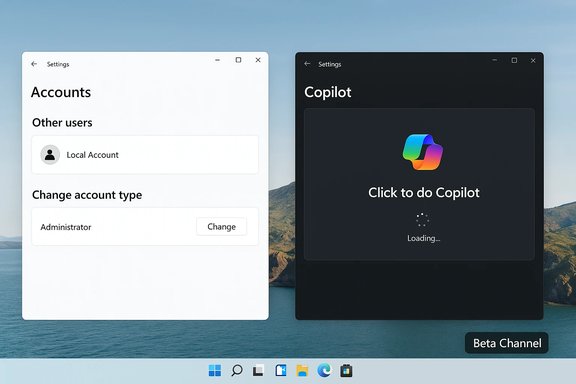
The authoring of this update yields three headline user-facing changes plus a long list of targeted quality fixes and documented known issues. The most visible items called out in Microsoft’s Beta announcement are:- Account settings UI modernization — several dialogs under Settings > Accounts > Other users (notably the “Account info” and “Change account type” dialogs) have been rebuilt with the modern WinUI 3 look and feel and now correctly honor Light and Dark Theme modes. This is a UI consistency and accessibility improvement intended to reduce visual jank across different theme configurations.
- Click to Do improvements (Copilot+ PCs only) — the Copilot prompt suggestions that appear in the Click to Do overlay now load instantly for supported Copilot+ devices. Microsoft notes this instant‑load behavior is being staged and is not yet enabled in the European Economic Area (EEA) or China. This is an on‑device and entitlement‑gated experience aimed at reducing latency for small language model prompts.
- Desktop background: WebP support — you can now choose a .webp raster image as your Desktop background from Settings > Personalization > Desktop Background. That adds a modern, space‑efficient image format to the set of supported wallpapers without requiring external converter tools.
Deep dive: the headline features and why they matter
Account settings UI modernization (WinUI 3)
- What changed: The legacy dialog surfaces under Settings > Accounts > Other users (Add account, Change account type, Account info) have been reworked with the modern WinUI 3 controls and theming. The dialogs now respect Dark and Light modes, appear visually consistent with other Settings pages, and reduce jarring theme swaps or legacy control rendering.
- Why it matters: This is low‑risk, high‑return polish. For day‑to‑day users and IT technicians alike, consistent UI reduces support noise — fewer “why is this page different” tickets and better accessibility behavior for assistive technologies that rely on consistent control patterns.
- Enterprise implications and cautions:
- Accessibility teams should validate Narrator and keyboard focus in these new dialogs; modern controls normally improve accessibility, but changes can expose gaps in localized strings or screen‑reader hints.
- Localization and QA: Insiders historically see UI localization lag on some preview features; organizations piloting this build should verify language packs used in their deployments.
Click to Do improvements (Copilot prompt suggestions load instantly)
- What changed: The Click to Do context overlay, which surfaces Copilot actions and suggestions for selected text or images, now loads Copilot prompt suggestions instantly on eligible Copilot+ PCs. The instant behavior is gated by region (EEA/China excluded initially) and device entitlement.
- Why it matters: Reduced latency materially changes user experience for quick tasks (summaries, translations, table extraction). When suggestions appear instantly, Click to Do becomes a close, lightweight alternative to launching a full Copilot session.
- Privacy, technical, and enterprise considerations:
- On‑device vs. cloud: Copilot behavior is a hybrid. On Copilot+ PCs with sufficient NPU capacity (Microsoft’s Copilot+ certification typically targets devices with a high TOPS NPU), many prompts can be handled locally, improving both latency and privacy posture. Non‑Copilot devices will often fall back to cloud processing. This mixed model requires admins to reexamine DLP, firewall, and telemetry rules when enabling Copilot surfaces broadly.
- Regional exclusions: the EEA exclusion is noteworthy for compliance teams operating in GDPR jurisdictions. Verify whether your lab devices are in a region that will receive the instant prompts before relying on them for demos or user training.
WebP desktop background support
- What changed: .webp images are now supported as desktop backgrounds. WebP provides efficient compression and often smaller file sizes than JPG or PNG at comparable quality.
- Why it matters: This is primarily a user convenience feature but is also useful in deployment contexts where image payload sizes matter (for example, large OS images with corporate branding or centralized wallpaper deployments).
- Compatibility note: Some third‑party wallpaper managers and enterprise imaging tooling may assume only JPG/PNG/BMP are supported. Validate any automation that sets wallpapers via scripts or group policies to ensure it handles WebP files correctly.
Fixes included in the preview (practical highlights)
This build bundles a number of reliability fixes. The most operationally relevant items Microsoft calls out include:- Taskbar/system tray: fixes for autohide invocation timing and Start/Notification/Quick Settings not opening on click in some cases.
- Start menu: memory leak fixes and RTL (Arabic/Hebrew) Start placement fixes when icons are not centered.
- Bluetooth: resolution for missing battery level reporting on some devices.
- Settings: fixes for crashes when interacting with audio devices and a correction to keyboard character repeat delay display.
- Explorer/login: fixes addressing explorer.exe hangs tied to startup apps and a login password icon blanking issue.
Known issues you should test for before installing
Microsoft explicitly calls out several active known issues in this preview. These are important to validate in your test ring:- Xbox Full Screen Experience (FSE) — some apps may behave unexpectedly in FSE, especially titles or utilities that assume fixed window sizes or spawn additional windows. FSE remains a focused, controller-first shell and is still being tuned for additional PC form factors.
- Taskbar & System Tray — a subset of Insiders may find apps do not appear in the system tray as expected. This can impact background apps that rely on tray presence for UX.
- Display & Secondary Monitor — a new known issue affecting some Insiders causes secondary monitors to show black screens after the update. This is flagged prominently and should be validated by multi‑monitor users and IT pilots before broad rollout.
- Click to Do — the M365 Copilot prompt box on selected images may not function if the Microsoft 365 Copilot app is not running; Microsoft is investigating. This affects workflows that rely on image‑based Copilot actions.
How this fits into the broader 25H2 roadmap and Dev/Beta parity
This preview is another step in Microsoft’s gradual staging of 25H2. The company has repeatedly used enablement packages and the Controlled Feature Rollout model to ship the same binary while gating features by entitlement and telemetry. That same operational pattern explains why Dev and Beta have sometimes received identical 25H2 builds and why there is a limited parity window where Dev Insiders can move to Beta without performing a full OS reinstall. The Flight Hub and previous Insider posts document the enablement/package model and the temporary Dev→Beta alignment. Practical implications of parity:- If you are in Dev and want to remain on 25H2 with a more stable cadence, consider switching to Beta while the parity window remains open.
- Confirm the on‑device build with winver or Settings → About before switching channels; switching backward after Dev diverges can require a clean reinstall.
- For managed fleets: continue to treat Dev/Beta as preview only. Use dedicated pilot rings and do not expose production users to these builds.
A critical appraisal — strengths, weaknesses, and risks
Strengths
- Incremental polish where it matters. Modernizing dialogs (WinUI 3) and fixing memory leaks in Start offers immediate, low‑risk payoff to user experience and reliability.
- Reduced Copilot latency on Copilot+ devices. Instant Click to Do suggestions materially improve in‑context productivity on devices with the required on‑device hardware and entitlements. This supports Microsoft’s dual on‑device/cloud Copilot strategy: lower latency and improved privacy where hardware allows.
- Better image format support (WebP). Small but practical: WebP wallpapers reduce storage and distribution overhead for device images and corporate wallpaper configurations.
Risks and weaknesses
- Fragmented experience because of CFR and hardware gating. Identically configured devices can behave differently, complicating troubleshooting, helpdesk scripts, and reproducible QA. This fragmentation remains the largest operational headache for pilots and IT teams.
- New display and tray regressions remain active. The presence of a black‑screen secondary monitor bug and intermittent system‑tray problems means this build is not yet universally safe for multi‑monitor or tray‑dependent production machines. These are not theoretical — Microsoft lists them as active known issues.
- Privacy and compliance uncertainty for Copilot surfaces. Although on‑device models mitigate some privacy concerns, many Copilot flows still fall back to cloud processing; enterprises must validate DLP, telemetry, and external network flows before enabling Copilot or Click to Do widely. Treat Copilot integration as a change to your data flow map, not merely a UI update.
- Regional rollout and entitlement complexity. The EEA/China exclusion for instant Click to Do behavior highlights that region and licensing can materially change what a user sees; that complicates global change management and training.
Recommendations — how to approach KB5074157 safely
For Insiders, enthusiasts, and IT pilots, the following stepwise plan balances early access with operational caution:- Confirm the build and KB after install: run winver or open Settings → System → About to verify Build 26220.7653 (KB5074157). This is the authoritative on‑device source.
- Use test devices or a dedicated pilot ring: do not push Beta channel preview builds to production users. Create a small ring that reflects the diversity of hardware and display configurations in your environment.
- Backup first: capture an image or create a full system backup before upgrading pilot machines (Point‑in‑Time Restore tools in other 26220 flights are promising, but backups are still necessary).
- Validate multi‑monitor setups and system tray behaviors: prioritize testers who use multiple displays, background tray apps, or controller gaming (FSE) scenarios.
- Evaluate Copilot features on sanitized data: when testing Click to Do or Copilot Vision, use non‑sensitive documents and confirm DLP/telemetry capture. If your organization requires, block network flows until you fully understand where prompts are processed.
- If you rely on a stable environment today: delay Beta install until the display/tray issues are resolved or until the build moves out of preview.
Practical steps: get the build and toggle behavior
- To receive this build: enroll a test PC in the Windows Insider Beta Channel, open Settings → Windows Update → Windows Insider Program, and check for updates. If you want faster staged features, enable Settings → Windows Update → Get the latest updates as they are available. Confirm the KB and build in Settings after the update completes.
- If you are in Dev and prefer to stay on 25H2: confirm the Dev/Beta parity window is still open and switch channels while the same 25H2 builds are being offered to both channels. Always confirm the post‑switch build number to ensure the change took effect without requiring a reinstall.
Final assessment
Build 26220.7653 (KB5074157) in the Beta channel is a pragmatic quality flight: small, user‑visible improvements (WinUI 3 dialogs, WebP wallpaper support) and important Copilot UX latency gains for Copilot+ devices are the headline wins. The update also bundles reliability fixes that address a number of recent annoyances, which should reduce daily friction for Insiders who can tolerate preview instability. That said, the preview continues to show the characteristic tradeoffs of Microsoft’s modern rollout model: staged, device‑gated feature exposure and a nontrivial set of active known issues affecting the Xbox Full Screen Experience, system tray visibility, and secondary displays. Those issues make this build appropriate for testing and pilot rings, but not yet for broad production deployment.Insiders and IT pilots should proceed methodically: verify build numbers, back up devices, validate multi‑monitor and tray‑dependent workflows, and treat Copilot surfaces as a systems change that merits DLP and telemetry review. For anyone tracking the Windows 11 25H2 story, this release reinforces two ongoing themes: Microsoft is deepening Copilot integration across the shell while tuning Windows 11 for specific hardware classes (handheld gaming PCs and Copilot+ devices). The result is a faster, more capable Windows experience in eligible scenarios — but also a more fragmented preview landscape that requires disciplined testing and clear operational guardrails.
If you installed the update, confirm your winver output shows Build 26220.7653 and note any differences from Microsoft’s published behavior on your device; file bugs and telemetry through Feedback Hub (WIN + F) under the relevant category (Settings, Accounts, Click to Do, Gaming) so Microsoft can prioritize fixes in upcoming preview updates.
Source: Thurrott.com Beta Channel Gets a New 25H2 Preview Build
