Windows 11 Insider Preview Build 26220.7653 Beta: WinUI dialogs and .webp wallpaper support

  • Thread Author
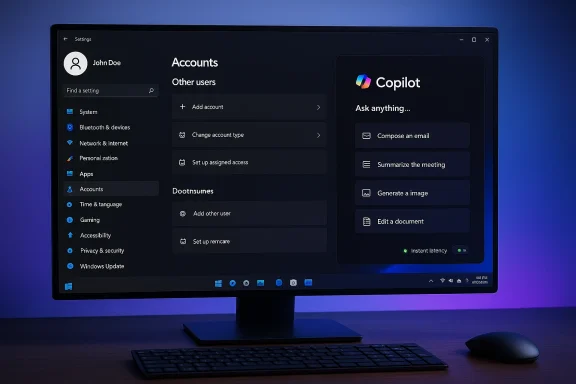
Dark-mode Windows 11 Settings screen on a large monitor, showing Accounts and Copilot panels.
Microsoft began rolling out Windows 11 Insider Preview Build 26220.7653 (KB5074157) to the Beta Channel on January 16, 2026, a focused preview quality update that brings WinUI‑based modernized dialogs for Settings > Accounts > Other users, faster Copilot suggestions in Click to Do on eligible Copilot+ devices, and native support for .webp images as desktop backgrounds — bundled with a broad set of bug fixes and a handful of known issues that Insiders and IT teams should validate before wide deployimplemented.

Background​

Windows 11’s 25H2 preview stream continues to be delivered via the 26220.* enablement-package family. Microsoft distributes the cumulative binaries broadly to Insider devices while gating visible features through server-side toggles and entitlement checks — a model referred to as Controlled Feature Rollout (CFR). The practiand outcome is that installing KB5074157 applies the update to a device’s binaries, but the UI and Copilot behaviors may only appear once Microsoft flips the rollout flags for that device is the same approach Microsoft has used for prior 25H2 and maintenance flights. Why this matters: CFR reduces risk by enabling telemetry-driven ramping, but it creates short-term fragmentation across Insider devices and complicates automated validation, helpdesk documentation rollout planning. IT teams and power users need to test visible changes even after the patch is installed, because the presence or absence of the new UI is determined by entitlements rather than the update binary alone.

What shipped in Build 26220.7653​

Headline user-facing changes​

  • Modernized Account dialogs (WinUI + dark mode) — Several dialogs under Settings > Accounts > Other users (notably Add account and Change account type) were renUI components and now correctly respect Light/Dark theme modes. Visibility depends on device configuration (for example, whether a domain‑joined work or school account is present).
  • Click to Do: Copilot prompt suggestions load instantly (gated) — On eligible Copilot+ hardware, Copilot suggestion tiles that appear in Click toally without observable delay. Microsoft explicitly excludes rollout to Insiders in the EEA and China in the initial stage. The term “instant” is used in official notes and should be understood as qualitative; actual latency will vary by localbility, and network fallback behavior.
  • Desktop background: .webp support — You can now select .webp images as desktop wallpaper from Settings > Personalization > Desktop Background, removing the need for manual conversion for the widely used web format.

Stability and reliability fixes​

The update bundles an extensive list of pragmatic fixes across shell and system components. Key items called out in the official notes include:

Known issues (still active)​

Microsoft documented several active issues Insiders should be aware of:
  • Secondary-monitor black screens or incorrect display behavior for a small subset of configurations.
  • Intermittent system tray app visibility issues for some apps.
  • Xbox Full Screen Experience (FSE) app‑specific quirks remain under validation.
  • Click to Do fallback behaviors may be affected if the Microsoft 365 Copilot app is not running on a device.
Together, the fixes and known issues paint the picture of a quality update rather than a broad feature release: modest UX modernizationcal reliability work and a measured set of unresolved edge cases.

Deep dive: the modernized Account dialogs​

What changed​

The specific dialogs under Settings > Accounts > Other users — such as Add account, Change account type, and *Account mented using WinUI 3**, aligning their spacing, typography, and control affordances with the wider Settings app. The shift replaces legacy XAML/Win32 fragments that visual jank, particularly when switching to dark mode. The new presentation uses a sheet-style, system-modal flow consistent with other modern Settings surfaces.

Why this matters (user and admin impact)​

  • Visual consistency: Small, frequently encountered dialogs now match the rest of Settings, reducing cognitive friction for end users and administrators.
  • Dark‑mode parity: Replacing older fragments eliminates bright pop-up dialogs on dark desktops, improving visual comfort and perceived polish for users who prefer dark themes.
  • Accessibility gains (potential): WinUI controls tend to surface better semantic information for screen readers and offer more predictable keyboard focus management — though verification is required across diverse assistive toolch caveats
  • Automation risk: Any automation, RPA flows, or UI tests that depend on exact dialog class names, control tree locations, or static titles may break. Organizations should revalidate scripts and update selectors where necessary.
  • Localization checks: Preview flights sometimes lag with localized strings. Non‑English language packs should be spot‑checked for truncated or incorrect text.

Click to Do and Copilot caveats​

Microsoft’s note that Copilot prompt suggestions “load instantly” is an eye‑catching claim designed to highlight lower latency for small, contextual prompts rendered by on‑device models or cached assets. But the reality is nuanced:
  • The instant behavior is entitlement and hardware gated — targeted to Copilot+ PCs that include on‑device inference hardware (NPUs or ML accelerators).
  • Regional exclusions are explicllout (EEA and China excluded), reflecting regulatory, privacy, or compliance routing decisions.
  • Instant is a qualitative descriptor. Actual latency will depend on CPU/NPU capability, model size, whether the Copilot app is running locally, and fallback cloud behavior. Microsoft’s notes and independent reporting both emphasize this variability rather than providing a specific latency bound.
Privacy and telemetry considerations: Faster on‑device prompts can improve privacy posture by limiting cloud round-trips for short tasks, but Copilot integrations still entail data flows that organizations should map and evaluate against their DLP and compliance policies. Validate whether prompt processing occurs fully on device and how fallbacks behave when connectivity or entitlements prevent local inference.

.webp wallpaper support: practical, low‑risk modernization​

Accepting .webp images as desktop backgrounds is a small but practical modernization step. Benefits include:
  • Smaller wallpaper file sizes for equivalent visual fidelity, which helps for managed fleets that distribute background images.
  • Fewer user steps when saving images from the web: no conversion required.
This change is unlikely to produceut administrators distributing corporate wallpapers at scale should confirm their imaging and provisioning tooling recognizes .webp assets.

Testing checklist for Insiders and IT professionals​

  1. Enable the Beta Channel and the “Get the latest updates as soon as they are available” toggler chance of seeing the CFR‑gated experiences).
  2. Create a full system snapshot or restore point before installing preview updates.
  3. Validate Account dialog flows:
    • Add a Microsoft and a work/school account via Settings > Accounts > Other users.
    • Change an account type and confirm dialog appearance, keyboard navigation, and screen-reader announcements.
  4. Re‑run RPA and UI automation that touch accoe selectors where needed.
  5. Test Click to Do/Copilot:
    • Check prompt suggestion latency with Copilot app running and when it is not.
    • For Copilot+ hardware, measure prompt latency and observe fallback behavior.
  6. Multi‑monitor validation:
    • Exdocking, high‑refresh/variable‑resolution scenarios, and gaming full‑screen transitions to spot the black‑screen regression.
  7. System tray and taskbar workflows:
    • Verify apps appear in the system tray askbar autohide behavior at the screen edge.
  8. Localization and accessibility:
    • Validate non‑English language packs and run assistive technology smoke tests (Narrator, NVDA, JAWS).
  9. Telemetry and privacy mapping:
    • Confirm whether Copilot behaviors send data to cloud services under your organizational entitlements; update DLP policies accordingly.
  10. If needed, use rollback procedures or pilot rings rather than broad distribution for production fleets.

Critical analysis: strengths, limitations, and risks​

Strengths​

  • Consistency and polish: Replacing legacy dialog fragments with Wionsistency and aligns micro‑interactions with the modern Settings experience, which improves perceived quality for end users.
  • Low‑risk, high‑value fixes: The batch of stability improvements addresses high‑frequency pain points (Start memory leak, autohide behavior, Settings crashes). These are the sorts of fixes that meaningfully improve day‑to‑day reliability.
  • Modern format support: .webp wallpaper support is a pragmatic win that modernizes media handling with minimal exposure.
  • Measured rollout approach: CFR lets Microsoft collect telemetry and iterate quickly on localized issues before broad exposure, reducing systemic risk for the majority of devices.

Limitations and risks​

  • Fragmented visibility: Because features are gated server‑side, Insiders and admins see inconsistent UI across devices even after installing the same KB, complicating helpdesk guidance and reproducibility for automation.
  • Automation fragility: UI automation and RPA systems that depend on legacy dialog structures will probably break and need updates, which carries nontrivial engineering cost in enterprise environments.
  • **Known hardware/graphics regrescondary‑monitor black‑screen issue and intermittent system‑tray visibility problems are nontrivial for multi‑monitor and gaming setups; these make the preview unsuitable for mission‑critical workstations until fixed.
  • Copilot entitlements and privacy: The “instant” Copilot improvements are gated by hardware and regional entitlements, and the precise privacy/telemetry behavior depends on whether inference truly occurs locally; organizations must therefore treat Copilot changes as potential operational and compliance surface area.
  • Qualitative claims: Microsoft’s use of adjectives like instant or faster are useful for product messaging but should be validated empirically on representative hardware. The vendor note does not define specific latenct these as marketing‑grade descriptors until measured.

Deployment guidance and recommendations​

  • For enthusiasts and testers: Install KB5074157 in the Beta Channel if you want to validate the changes and are preview instability. Turn on the Get the latest updates as soon as they are available toggle to increase the chance of seeing gated features. Record reproduction steps and give structured Feedback Hub reports for regressions.
  • For enterprise IT:
    • Do not deploy tion fleets. Use a dedicated pilot ring or lab hardware to validate RPA scripts, assistive technology, multi‑monitor setups, and Copilot integrations before any broad rollout.
    • Update UI automation selectors and RPA logic in a staged manner. Maintain a documented rollback path for devices participating in Insider channels.
    • Evaluate Copilot telemetry flows and update DLP and compliance rules where necessary; confirm whether prompt processing is local for your Copilot+ hardware and the exact fallback behavior.
  • For OEMs and independent software vendors: Test application compatibility against both the new WinUI dialogs and legacy dialogs to surface regressions early, and verify internationalization strings across languages.

Verdict​

Build 26220.7653 (KB5074157) is a classic example of incremental UX modernization paired with targeted reliability work. The WinUI rework for account dialogs and .webp wallpaper support are low‑risk, user‑visible polish items that collectively improve theme consistency and modernize the platform in small but meaningful ways. The Copilot/Click to Do speedup is strategically important because it demonstrates Microsoft’s continued emphasis on low-latency, on-device AI experiences — but the feature is entitlement‑gated and regionally restricted, and the claim of “instant” performance is qualitative and hardware‑dependent. For Insiders and Windows enthusiasts, this preview is worth exploring and testing. For enterprise IT, the update is a useful reminder to revalidate UI automation and test multi‑monitor and Copilot scenarios before adopting new preview builds broadly. The controlled feature rollout strategy reduces company‑wide risk but raises short‑term complexity for testing and support teams.

Windows 11’s continuous modernization continues to be a series of incremental, pragmatic moves rather than headline‑grabbing changes. Build 26220.7653 is firmly in that pattern: small, necessary refinements that make the OS more consistent and better behaved—provided organizations and power users respect the preview caveats and revalidate the automation and compliance surfaces affected by the changes.
Source: Neowin https://www.neowin.net/news/windows...zed-dialogs-and-fixes-in-new-build-262207653/
 

Windows Insiders received a cothepact but consequential preview package this month: KB5074157 (Build 26220.7653), a cumulative preview that briimages a string of reliability fixes to the shell and Settings while surfacing a handful of visible polish items — most notably WinUI-based Account dialogs, native .webp wallpaper support, and faster Copilot prompt suggestions in Click to Do.

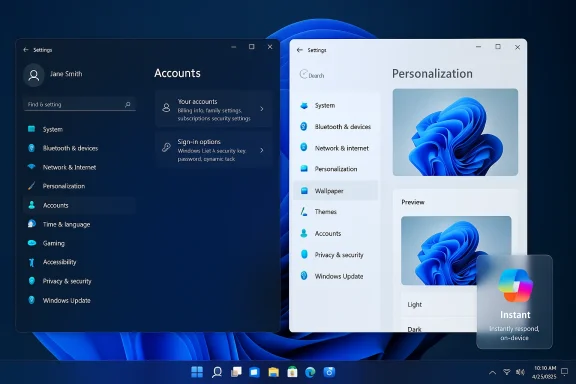
Overlapping Windows 11 Settings: dark Accounts on the left and light Personalization on the right.Background​

Microsoft delivered KB5074157 as an Insider preview tied to the Windows 11 25H2 development stream. The package is distributed as an enablement-style cumulative (the 26220.xxxx build family) where the binary is broadly pushed to devices but user-visible features are gated and ramped via server-side flags and entitlement checks — a process Microsoft calls Controlled Feature Rollout (CFR). That means installing the KB updates the system binary every new UI or Copilot surface until Microsoft enables it for your machine. The January roll-out has an operational quirk worth noting: Microsoft published the package to the Beta Channel on January 16 and later matched the same binary to the Dev Channel, creating a short window for channel swi reinstall. The company warns that once Dev advances to a higher build number, that window will close. This timing nuance has practical implications for Insiders and IT teams planning pilot adoptions.

What KB5074157 Delivers — Quick Overviews three types of changes: small visible features, a broad set of reliability fixes across shell surfaces, and a defined set of known i test for.​

  • Visible user-facing additions
  • Modernized dialogs for Settings > Accounts > Other users rebuilt on WinUI 3 and honoring Light/Dark theme s.
  • Native support for .webp images as desktop ngs > Personalization > Desktop Background.
  • Click to Do (Copilot) prompt suggestions load instantly on entitled Copilot+ devices (initial rollout excludeblogs.windows.
  • Reliability fixes (high-impact areas)
  • Taskbar autohide invocation issues resolvedotification Center/Quick Settings failing to open on mouse click.
  • Memory-leak mitigation for Start menu explorer.exe hangs at first login in certain startup app configurations.
  • Bluetooth battery reporting restored for affected adapters and Settings app crash fixes tied to audio device interactions.
  • Known issues
  • Secondary-monitor black screens affecting a small percentage of configurations.
  • Intermittent system-tray app visibility problems and remaining Xbox Full Screen Experience (FSE) quirks.
These items are pragmatically focused: incremental polish and stability work rather than headline feature introductions. Third-party reporting and community forums echo the official notes, confirming both the content and the staged rollout semantics.

Deep Dive: Key Changes Explained​

Modernized Account dialogs (WinUI 3)​

Microsoft reimplemented small but frequently used dialog surfaces in Settings > Accounts > Other users — notably Add account, Change account type, and Account info — using the WinUI 3 framework. The new dialogs adopt modern spacing, typography, and theme-aware controls, and they appear as sheet-style modal flows consistent with other Settings pages. The visible payoff is reduced “visual jank” (no more bright legacy pop-ups on a dark desktop) and better parity for assistively on consistent control semantics. Practical consequences:
  • Better visual consistency reduces helpdesk confusion for end users who expect uniform theme behavior.
  • UI automation, RPA, or accessibility scripts that relied on legacy window classes or control trees may break and require retesting and re-baselining. IT teams should validate automation pipelines before broad deployment.

.webp Wallpaper Support​

Windows 11 now accepts .webp raster images directly as om Settings > Personalization. This change aligns Windows with modern web image formats that offer better compression at comparable visual quality.
Operational benefits:
  • Smaller wallpaper payloads are especially meaningful at scale for MDM-based imagors and users no longer need to maintain parallel JPEG/PNG variants for wallpaper distribution.
Open technical question (flagged as unverified): Microsoft’s public notes confirm WebP is supported as wallpaper, but they do not disclose whether the shell decodes WebP natively for rendering or transcodes to an intermediate bitmap cache first. That internal decode/transcode behavior affects memory, GPU interaction, and caching characteristics; it remains unverified until Microsoft publishes deeper engineering details. IT teams should validate wallpaper behavior on representative hardware.

Click to Do / Copilot prompt latency improvements​

On Copilot+ entitled devices, the Click to Do overlay now shows Copilot prompt suggestions instantly — a responsiveness improvement that matters for short, context-driven prompts (summaries, quick translations, short extractions). Microsoft has gated the initial rollout and excludes certain regions (EEA and China) from the instant-loading behavior. This is an on-device inference optimization on some hardware classes, which has clear UX and privacy implications: quicker local processing reduces latency and may lower cloud exposure for sensitive prompts. Caveats:
  • The term “instant” is qualitative and will vary by CPU/NPU, local model size, and fallback behavior.
  • Enterprises must treat Copilot-enabled surfaces as changes to data flows — evaluate DLP, telemetry, and firewall policies accordingly.

Notable Fixes That are are the load-bearing fixes in KB5074157 that will affect everyday usability for Insiders and testers:​

  • Taskbar autohide: Resolved an issue where the taskbar would appear prematurely when set to autohide, blocking bottom-screen interactions. This fix returns predictable behavior for docked laptop users and multi-monitor setups where the bottom edge is active.
  • Start menu reliability: Memory leak mitigation and fixes for Start/Notification/Quick Settings sometimes not opening on click. These address regressions reported by Insiders that degraded responsiveness and session stability.
  • Bluetooth battery reporting: Restored battery level reporting for Bluetooth devices that had lost this capability after recent Insider builds. This users and IT shops tracking peripheral battery health.
  • Settings crash and audio interactions: Fixed crash interactions in Settings — a regression that could disrupt daily configuration workflows.
  • Login/Lock screen icon issue: Resolved an issue where the password icon could appear blank, improving first-login reliability and visual cues.
  • Explorer.exe first-login hang: Fixed an underlying issue where explorer.exe could hang when certain apps were configured as startup apps, which in some cases prevented the taskbar from appearing. This fix reduces the risk of post-login black screens and missing shell components.
Third-party coverage and community threads reflect the same list of fixes, confirming Microsoft’s published notes and the practical impact Insiders are experiencing.

Known Issues and Risks — Be Explicitly Cautious​

KB5074157 ships with several known problems that make it unsuitable for general production deployment without prior validation:
  • Secondary-monitor black screens: A newly logged issue can cause certain secondary displays to show a black image after updating. Multi-monitor environments must be tested thoroughly.
  • System tray visibility issues: Some apps intermittently fail to appear in the system tray, which can break tray-dependent utilities and background services monitoring.
  • Xbox Full Screen Experience (FSE): The FSE shell still exhibits quirks in specific conditions; Microsoft is keeping this known issue active while investigating. Gamers and users relying on FSE should validate titles and utilities carefully.
  • CFR/entitlement fragmentation: Because features are gated, identical devices may present different UIs or behaviors. This non-deterministic exposure complicates helpdesk procedures, UI tests, and fleet documentation.
Operational takeaways:
  • Avoid deploying preview builds like KB5074157 on critical production machines.
  • When preparing pilot rings, include hardware and regional diversity to surface gating differences.
  • Refresh automation test baselines and RPA scripts before scaling.

Cross-Verification and Unverified Claims​

The key factual claims in this update — the KB number, build number (26220.7653), the WinUI dialogs, WebP wallpaper support, and the listed fixes — are confirmed in Microsoft’s official Windows Insider blog post announcing Build 26220.7653. Independent outlets and community forums (WindowsReport, ElevenForum, ElevenForum mirrors, and Insider subreddits) report the same items and echo the known issues, which provides independent corroboration. Claims to treat as unverified or provisional:
  • Internal implementation details such as whether the shell decodes WebP natively or transcodes to an internal bitmap cache are not documented publicly; any assertions about internal decode paths, cache sizes, or memory footprints are speculative until Microsoft's engineering notes confirm them. Testers should validate behavior on representative hardware.
  • Speculation about why Dev received the Beta-mathort delay is not explained in Microsoft’s public announcement. Community theories exist, but the rationale remains unconfirmed by Microsoft conjecture.

Practical Guidance: How to Test KB5074157 Safely​

For power users, Insiders, and IT professionals who want to evaluate KB5074157, follow a staged, methodical approach.
  • Create a full imagent for each test device before installing the update.
  • Enroll a small pilot pool of devices in the Windows Insider Beta or Dev Channel (asle the toggle “Get the latest updates as soon as they are available” to maximize the chance of seeing gated features.
  • Target a representative mix:
  • Multi-monitor workstations (different GPU/drivers).
  • Laptops with Bluetooth peripherals.
  • Devices with automation/RPA workflows that interact with Settings dialogs.
  • Copilot+ hardware (if available) and non-Copilot devices to comior.
  • Validate critical workflows:
  • Start menu open/close behavior, resource usage, and memory profile during extended sessions.
  • Taskbar autohide behavior and system tray visibility for essential background apps.
  • Bluetooth battery reporting and reconnect behavior after suspend/resume.
  • Settings interactions tied to audio devices and installer scenarios like .appinstaller files.
  • Rebaseline automation:
  • Update UI selectors and element IDs for WinUI-based dialogs and re-run RPA and accessibility tests.
  • Validate keyboard-only navigation and screen reader behavior against the updated dialogs.
  • Monitor telemetry and Feedback Hub:
  • Encourage pilot users to file reproducible Feedback Hub reports with logs and repro steps; Microsoft uses this data to prioritize fixes.

Rollback and Recovery Options​

If you encounter an issue that prevents recovery from within Windows, follow these options in order:
  • Uninstall the preview update from Settings > Windows Update > Update history > Uninstall updates (if available).
  • Use a system image or restore point created prior to installation to revert the device to a known good state.
  • If a device fails to boot, use Windows Recovery Environment to perform a system restore or, if necessary, reset the PC while preserving files (not recommended for managed devices without backups).
  • For managed fleets, maintain a verified recovery image and test rollback paths as part of pilot plan documentation.
Bear in mind that channel switching windows can close once Dev advances; plan migration steps with that constraint in mind if you intend to move devices between channels without reimaging.

What This Means for Enterprises and Power Users​

KB5074157 is emblematic of Microsoft’s current Insider workflow: incremental UI modernization paired with targeted reliability fixes, delivered under a controlled, telemetry-driven rollout model. For enterprises this creates a familiar trade-off:
  • Upside
  • Incremental polish reduces everyday friction (e.g., consistent dark-mode dialogs, fewer Start menu memory leaks).
  • Smaller wallpaper payloads (WebP) can reduce storage and network costs for large-scale deployments.
  • Faster Copilot responses on entitled hardware can materially improve short-form productivity tasks and reduce cloud latency footprints.
  • Downside / Risks
  • Non-deterministic feature exposure complicates helpdesk scripts, training, and automation testing because two identical devices may behave differently due to CFR and entitlements.
  • UI migrations break automation: RPA, test automation, and assistive technology scripts must be revalidated and possibly rewritten.
  • Preview instability in niche scenarios: multi-monitor black screens and tray visibility issues make preview builds a poor choice for production multi-display desks or kiosk-class deployments.
Recommended enterprise approach:
  • Treat KB5074157 as a pilot candidate, not a production roll-out.
  • Build a test matrix that includes region-specific device types and entitlement classes (Copilot+ vs non-Copilot).
  • Update operational runbooks to reflect CFR behavior and include troubleshooting steps for gated feature discrepancies.

Final Analysis and Bottom Line​

KB5074157 (Build 26220.7653) is a pragmatic, quality-focused Insider preview: small wins for polish and day-to-day reliability, plus a few targeted user-facing lifts that align Windows 11’s UI more closely with WinUI and modern web formats. The most valuable outcomes for end users are visual consistency (WinUI dialogs), less friction for wallpaper workflows (.webp), and perceptible Copilot responsiveness improvements on entitled hardware. However, this build also underscores persistent operational complexities: controlled feature rollouts create fragmentation across otherwise identical machines, UI migrations can break automation and accessibility tooling, and a small set of known issues (notably secondary-monitor black screens and tray visibility problems) makes this preview unsuitable for broad production rollouts without a disciplined pilot program. IT teams should proceed with a staged plan: back up, validate automation, test multi-monitor and gaming scenarios, and monitor Feedback Hub and telemetry closely. For Insiders and testers who accept preview risk, KB5074157 is worth installing on non-critical hardware to verify improvements and help Microsoft refine the experience. For anyone managing production fleets, the measurement remains unchanged: pilot first, deploy later.


Source: Windows Report https://windowsreport.com/windows-1...rings-start-menu-taskbar-and-bluetooth-fixes/
 

Microsoft has pushed Windows 11 Insider Preview Build 26220.7653 (KB5074157) to Insiders, matching the Beta-channel preview that landed on January 16, 2026 and now appearing in the Dev Channel as well; the update delivers modest but meaningful UI modernizations, practical feature additions (notably native .webp wallpaper support), faster Copilot prompt responses in Click to Do on entitled devices, and a broad set of reliability fixes — all shipped via the same enablement-style package while Microsoft continues to gate visible experiences through Controlled Feature Rollout.

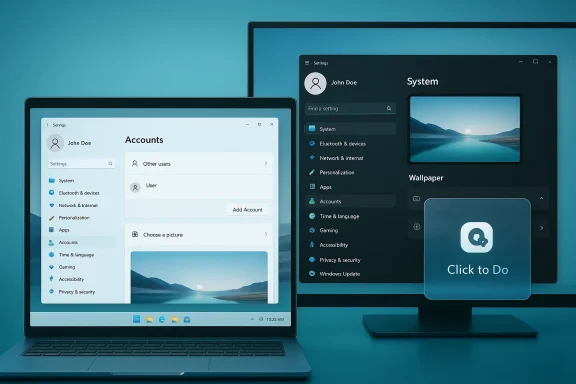
Two screens show Windows settings in light and dark themes with a Click to Do tile.Background / Overview​

Windows 11’s current 25H2 preview stream is being delivered as a family of enablement-style builds in the 26220. series. Rather than exposing every change immediately, Microsoft distributes a common cumulative package to Insider devices while using server-side flags, entitlements, and device checks* to control which users actually see certain features. This Controlled Feature Rollout (CFR) model means that installing KB5074157 updates binaries on the device, but you may not see the new UI or Copilot behaviors until Microsoft flips the rollout switches for your profile or hardware class.
Operationally this release was notable because Microsoft initially published the package to the Beta Channel on January 16, 2026 and then matched the same 26220.7653 binary to the Dev Channel a few days later, creating a short window for Dev Insiders who prefer the Beta stream to switch without performing a clean reinstall. Microsoft warns that window will close once Dev advances to higher-numbered builds. This nuance matters for Insiders and IT pros planning pilot deployments.

What shipped in Build 26220.7653​

This preview is a compact mix of visual polish, feature parity updates, Copilot-era tweaks and a broad set of pragmatic fixes. The key items Microsoft calls out are:
  • Modernized Account dialogs in Settings rebuilt on WinUI and updated for Light/Dark theme parity.
  • Native support for .webp images as desktop wallpapers (Settings > Personalization > Desktop Background).
  • Click to Do: Copilot prompt suggestions now eligible Copilot+ devices (initial rollout excludes the EEA and China). Note: “instant” is a qualitative claim in the notes and depends on device entitlement, NPU availability and network conditions.
  • A broad set of reliability fixes across Taskbar, Start Menu, Settings, Bluetooth battery reporting, Xbox Full Screen Experience (FSE), login/lock-screen icons, Explorer.exe behaviors, and more.
These changes are relatively small individually but collectively improve day‑to‑day polish and stability for a large set of users and administrators.

Modernized Account dialogs (WinUI)​

Microsoft reimplemented several high-frequency dialogs in Settings > Accounts > Other users (examples: Add account, Change account type) using the modern WinUI framework. The update delivers consistent spacing, typography and control patterns, and — importantly — corrects earlier inconsistencies that produced bright legacy dialogs on dark desktops. For accessibility and automationn, modern WinUI controls typically expose more predictable semantic roles; however, the change also means some UI automation or RPA scripts that target legacy element trees may break and will require retesting. Visibility of the updated dialogs can be gated by device configuration (for example, domain-joined work or school accounts).

Click to Do / Copilot prompt improvements​

The Click to Do overlay — used to surface Copilot prompts and contextual suggestions — now loads suggestion tiles instantly on Copilot+ eligible hardware. Microsoft explicitly excludes the European Economic Area and China from the initial rollout; the behavior is entitlement- and device-gated and depends on whether local Copilot processing (on-device NPU) or cloud fallback is in play. Because the improvement is staged, not every Insider will see it right away. Treat the “instant” claim as a qualitative expectation rather than a guaranteed latency number for all hardware.

WebP wallpaper support​

A practical quality-of-life change: Settings > Personalization > Desktop Background now accepts .webp raster images as first-class wallpaper assets. WebP offers better compression and modern image capabilities (lossy/lossless compression, alpha/transparency and animation) compared with older formats; this removes the previous friction of having to convert web-sourced wallpapers to JPG/PNG before setting them as the desktop background.

Reliability and bug fixes​

The cumulative list of fixes in this build is broad and targeted at common friction points:
  • Taskbar and System Tray: fixes for unexpected autohide behavior and click invocation problems.
  • Start Menu: memory leak mitigation and layout fixes for RTL languages (Arabic/Hebrew).
  • Bluetooth: restored battery-level reporting on affected devices.
  • Xbox Full Screen Experience (FSE): corrections for some app/game interactions (Microsoft is keeping FSE known issues active while validating).
  • Login & Lock Screens: fixes for blank password icon displays.
  • Settings app: addressed crashes when interacting with audio devices and corrected keyboard repeat delay misbehavior.
  • Explorer.exe and ms-appinstaller: fixes that reducing installation failures observed in recent Insider flights.
These fixes are the type that reduce helpdesk noise and improve reliability for long-running sessions and multi-monitor environments.

Known issues and important caveats​

No Insider preview is risk-free. Microsoft documents several known issues that remain active in this build:
  • Some apps may still behave oddly in Xbox Full Screen Experience mode; Microsoft is still validating FSE scenarios.
  • System tray icons may be intermittently invisible for some configurations.
  • Black screens or graphics glitches affecting secondary monitors have been reported in a small number of configurations following recent flights.
  • A Click to Do fallback issue: Copilot prompt tiles may not appear when the Copilot app process isn’t running. This remains an outstanding edge-case.
Flagging unverifiable or variable claims: Microsoft states that Copilot prompt suggestions “load instantly” for entitled devices; while this is the officiaency will vary by hardware, region, and whether on-device or cloud inference is used. Insiders and IT teams should treat performance language as an expectation to validate on their target machines rather than an absolute guarantee.

Why this build matters — practical implications​

This flight is a useful example balancing incremental polish and risk management during the Copilot-era evolution of Windows:
  • Small, high-frequency UX consistency fixes (WinUI dialogs, dark mode parity) reduce cognitive friction and accessibility inconsistencies. Those changes are low-risk but deliver high perceived polish.
  • WebP wallpaper support is a small UX win with outsized convenience for users who curate web-sourced backgrounds. It’s a backward-compatible change with no expected management footprint.
  • Copilot tooling is being tuned for latency and entitlement: faster Click to Do responses on Copilot+ hardware indicate Microsoft’s dual-path approach of on‑device acceleration (where hardware permits) and cloud fallback. Enterprises should note this differentiation when assessing privacy and performance tradeoffs.
  • The CFR delivery model means the binary you install may not produce identical visible behavior across devices; features could be gated by account type, device class, or region. This fragmentation matters for testing, documentation, and automatio for Insiders, power users and IT teams
The build is appropriate for Insiders who want to test incremental improvements to 25H2, but organizations should follow a measured approach. Below are practical, prioritized recommendations.

For individual Insiders and enthusiasts​

  • Enable the “Get the latest updates as soon as they are available” toggle if you want to accelerate visibility of staged features. Remember that staged features may still be gated per device/region.
  • Test the new account dialogs and WebP wallpaper support in your language and theme setups (Light and Dark). Note any accessibility regressions and report them via Feedback Hub.
  • If you have a Copilot+ device, try Click to Do flows; compare latency with and without Copilot running to validate the claimed improvements. Log reproducible latency data if you plan to file feedback.

For IT pros, pilot leads and enterprise testers​

  • Validate automation and RPA: rebaseline any UI automatigs > Accounts dialogs, since control hierarchies may have changed with WinUI. Scripts relying on exact window classes may fail.
  • Multi-monitor and perun a focused test plan on common hardware families (GPU drivers, docking stations, secondary displays) to detect the known secondary-monitor and system-tray edge cases documented by Microsoft.
  • Channel planning: if you are on Dev and prefer the more stable 25H2 preview stream, consider switching to Beta now while Dev is matched to the same binary; after Dev advances to higher builds, switching back without a clean install may not be possible. Document rollback and recovery steps for pilot devices.
  • Copilot entitlement mapping: identify which fleet devices are Copilot+ eligible (hardware NPU, OEM settings) and evaluate both the performance and privacy posture of on-device vs. cloud Copilot processing for your organization.

Practical testing checklist (concise, repeatable)​

  • Baseline: capture system image, current driver versions, and a list of installed apps.
  • Install KB5074157 and confirm build number 26220.7653 in Settings > About.
  • Visual checks:
  • Open Settings > Accounts > Other users; document whether dialogs are the new WinUI variants in Light and Dark modes.
  • Set a .webp desktop background via Seton > Desktop Background; verify scaling and multi-monitor behavior.
  • Copilot / Click to Do:
  • On Copilot+ devices, select text or an image and trigger Click to Do; time prompt suggestion load and compare to pre-update baseline. Note whether Copilot process is required to be running.
  • Reliability checks:
  • Enable taskbar autohide and exercise bottom-screen interactions to validate the autohide fix.
  • Open Start menu repeatedly and keep it open while measuring memory usage for signs of the previouslys.windows.
  • Gaming/Full-screen:
  • Test a set of apps and games in Xbox FSE mode; note crashes, black screens or odd rendering. Report findings.
  • Report any new regressions through Feedback Hub with reproducible steps, logs and process dumps where appropriate.

Risk assessment — what could go wrong​

  • Fragmentation: CFR means not all devices will show the same behavior post-update; this complicates validation and documentation for helpdesks.
  • Automation breakage: UI rework for account dialogs can silently break UI tests and RPA. Testing and remediation is required for production automation.
  • Graphics/monitor regressions: secondary-monitor black screens and system tray rendering quirks are still active for a subset of users; organizations with heavy multi-monitor usage should pilot widely before broad rollout.
  • Incomplete localization and staged rollouts: some preview features may not be fully localized or available regionally; don’t assume parity across international offices.

Final analysis and verdict​

Build 26220.7653 (KB5074157) is an archetypal example of Microsoft’s current Windows 11 servicing approach: ship a single cumulative binary, then gradually enable features while shipping a broad set of reliability fixes. The visible user-facing changes are modest — WinUI-based account dialogs, WebP wallpaper support, and reduced Copilot latency in Click to Do — but they reflect two clear priorities: polish (interface consistency and theme parity) and Copilot-era responsiveness (reducing prompt latency on accelerated hardware). For most Insiders and power users this build will feel like a refinement release rather than a disruptive feature update.
For IT teams, the major takeaway is process: expect device- and account-level variance, validate automation and multi-monitor workflows, and treat CFR as a factor in release planning rather than a temporary curiosity. If you manage fleets with Copilot-eligible hardware, add performance and privacy assessment of on-device inference to your pilot plan.
In short: Build 26220.7653 is a sensible, low-risk refinement to the 25H2 preview stream that polishes common surfaces, brings a welcome WebP convenience and continues Microsoft’s incremental, telemetry-driven approach to rolling out Copilot-era improvements. Insiders who like to stay near the cutting edge should try the update with normal precautions; enterprises should pilot deliberately and pay particular attention to UI automation, multi-monitor graphics, and Copilot entitlements.

Conclusion: the update is a solid maintenance-and-polish flight — useful for testers, helpful for everyday users who want WebP wallpapers and fewer visual inconsistencies, and instructive for administrators who must adapt automation and rollout plans to Microsoft’s enablement-plus-CFR delivery model.

Source: thewincentral.com Windows 11 Insider Preview Build 26220
 

Back
Top