

Microsoft has shipped Windows 11 Insider Preview Build 26220.7070 (delivered as KB5070300) to both the Dev and Beta channels, a focused preview that layers incremental UI polish, practical manageability improvements, and a handful of gated experiments atop the 25H2 preview stream.
Microsoft’s Insider servicing model for the 25H2 preview line continues to favor small, enablement-driven packages and controlled feature rollouts. That means a single cumulative package — in this case appearing as Build 26220.7070 / KB5070300 — can contain multiple potential features that Microsoft enables selectively via server-side flags, hardware gates, or account entitlements. As a result, not every device that installs the build will immediately see every change; visibility depends on channel settings and rollout state.
This flight is not a radical redesign or a major platform rework. Instead, it concentrates on three classes of changes:
If deploying this preview to test hardware, ensure data backups and a clear rollback plan are in place, and treat hidden Settings (like Haptic signals) as an early signal of intent rather than an immediate capability to depend upon.
Windows 11 continues to evolve through iterative previews that refine day‑to‑day interactions; this build is emblematic of that strategy — small, useful wins delivered under careful gates rather than sweeping changes — and it’s worth watching closely as the staged features mature and the 25H2 story unfolds.
Source: WinCentral Windows 11 Insider Preview Build 26220.7070 (Dev & Beta Channels)
 Background / Overview
Microsoft’s Insider servicing model for the 25H2 preview line continues to favor small, enablement-driven packages and controlled feature rollouts. That means a single cumulative package — in this case appearing as Build 26220.7070 / KB5070300 — can contain multiple potential features that Microsoft enables selectively via server-side flags, hardware gates, or account entitlements. As a result, not every device that installs the build will immediately see every change; visibility depends on channel settings and rollout state.This flight is not a radical redesign or a major platform rework. Instead, it concentrates on three classes of changes:
- Everyday UX refinements that improve glanceability and predictability (Widgets).
- Operational and security manageability improvements that remove friction for administrators and testers (Smart App Control).
- Reliability and troubleshooting enhancements that shorten recovery interactions (Quick Machine Recovery / WinRE).
What’s included in Build 26220.7070 (KB5070300)
Headline changes — a quick summary
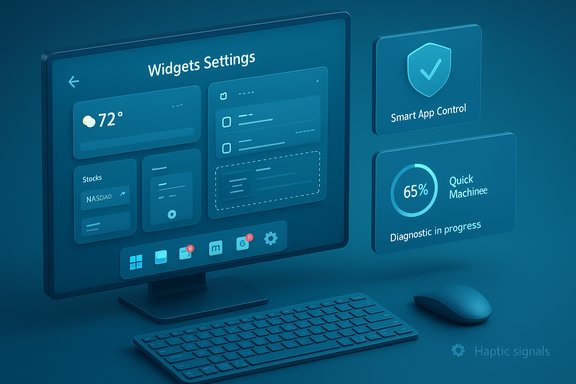
- Widgets: New full-page Widget Board Settings allowing users to choose and reorder their default dashboard, plus numbered badges on dashboard icons to indicate alert counts. Opening the Widgets Board with live weather content will now target the first dashboard in the navigation bar (the new default) rather than the most recently used dashboard.
- Smart App Control (SAC): A significant usability change that permits SAC to be toggled on or off from Windows Security without requiring a clean OS reinstall.
- Quick Machine Recovery (QMR) and WinRE: QMR is streamlined to run a one-time diagnostic scan by default (when paired with the “automatically check for solutions” setting) to avoid repeated looping scans, and WinRE messaging now surfaces alternative recovery options more quickly.
- File Explorer: For some Insiders, the “people” avatars in the Activity column of File Explorer Home are being re-enabled; however, certain StorageProvider API integrations and recommended-file surfaces have been temporarily disabled while Microsoft validates reliability.
- Hidden haptic signals setting: Insider discoveries found a Settings surface labeled Haptic signals with a global toggle and intensity slider — an indication Microsoft is preparing system-level tactile feedback for compatible trackpads and devices. This is currently a hidden, hardware-gated UI stub for many Insiders.
- Quality fixes and known issues: Multiple targeted fixes for Task View, taskbar auto-hide, Settings hangs, and more, balanced by a short list of active known issues (Start not opening on click for some Insiders; system-tray appearance inconsistencies; copy progress visuals in dark mode; camera eligibility reporting).
Widgets: a quieter, more predictable glance surface
What changed
The Widgets host receives modest but practical UX updates aimed at predictability and glanceability:- A full-page Widgets Settings screen (gear icon) lets you reorder dashboards with drag-and-drop and set a prioritized dashboard as the default landing view.
- Dashboard icons in the left navigation bar can show numbered badges which reflect the count of new alerts per dashboard; badges clear when you leave a dashboard.
- When live weather content appears, opening Widgets now defaults to the first dashboard in the navigation bar rather than the most recently used view.
Why this matters
Widgets are designed to be glanceable — micro-moments where quick information is more valuable than long-form browsing. These changes address two persistent annoyances:- Unpredictable landing behavior when the weather or content feed forces a different dashboard.
- No quick way to see on which dashboard alerts or new items live.
Caveats and risks
- Widgets remain heavily staged and server-gated; many Insiders will not immediately see changes even after installing the update. This can create confusion when different devices in the same environment behave differently.
- The Widgets ecosystem still has limited third-party adoption; UI polish helps, but the deeper issue of content quality and developer participation isn’t addressed by this flight.
Smart App Control: removing a major friction point
The old constraint
Smart App Control (SAC) was introduced as a proactive app-execution policy that blocks untrusted apps using on-device heuristics and cloud reputation. Historically, enabling or disabling SAC required a clean installation of Windows or a fresh image because the feature’s initial state was baked into setup. That created significant friction for testers and administrators who wanted to adopt SAC on existing devices.The change in 26220.7070
Build 26220.7070 exposes a toggle under Windows Security > App & Browser Control > Smart App Control that allows SAC to be turned off and on without reinstalling the OS. This makes SAC far more practical for real-world deployment testing and for organizations that wish to trial SAC on live endpoints.Benefits and considerations
- Benefit: Easier adoption and experimentation for security teams; SAC becomes a viable endpoint control for existing devices.
- Consideration: Toggle-driven changes to security posture must be rolled out with telemetry and pilot testing; flipping SAC on a broad fleet without testing may lead to unexpected app blocking for business-critical tools.
Quick Machine Recovery (QMR) and WinRE: less waiting, clearer choices
What was broken
Earlier behaviors could leave users and support technicians waiting through repeated diagnostic scans that looped without surfacing clear next steps. That created long support sessions and frustration.What changed
When both Quick Machine Recovery and Automatically check for solutions are enabled, QMR now performs a single, one-time diagnostic scan by default. If no immediate fix is found, the flow surfaces the most relevant recovery options (driver rollback, system restore, reset options, or guided repair) rather than re-running the scan repeatedly. The user messaging and WinRE wording were updated to be more explicit about choices.Practical impact
Support calls should be shorter and less confusing, with the system guiding users to actionable remediation steps sooner. For IT teams that manage user endpoints, QMR’s change is a welcome operational improvement that reduces mean-time-to-resolution for boot and stability problems.Testing checklist (recommended)
- Enable QMR and “Automatically check for solutions” on a test device.
- Force a benign fault scenario (driver issue or simulated app crash) and observe QMR’s one-time scan behavior.
- Confirm WinRE now surfaces alternate recovery actions without repeated scanning loops.
File Explorer: people icons return; cloud surfaces temporarily paused
What changed
Build 26220.7070 re-enables the people avatars under the Activity column in File Explorer Home for some Insiders, restoring a helpful visual cue that shows who last edited or shared a file. Simultaneously, Microsoft has temporarily disabled certain StorageProvider API integrations and recommended-file surfaces (frequent/recent items) to allow additional validation before re-enablement.Why this is significant
- The reintroduction of people icons improves collaboration visibility at a glance — a small UX boost for users working with shared documents.
- Pulling back cloud-provider integrations is a cautious stability step that reduces risk but also removes some convenience features for early adopters.
Enterprise implications
Cloud storage vendors and IT teams should avoid depending on the transient state of StorageProvider surfaces in preview devices. For production deployments, treat these reintroductions as still-under-test until Microsoft completes validation across providers and OEMs.Haptic signals: system-level tactile feedback (hidden, hardware-gated)
What surfaced in the preview
Insider sleuths discovered a hidden Haptic signals Settings entry in Build 26220.7070 that includes:- A global toggle to enable system-level haptic signals.
- A Signal intensity slider.
- Separate controls for haptic clicks versus event-driven signals (snap/align/drag events).
What this implies
Microsoft is preparing user-facing controls for tactile micro-feedback on compatible devices (precision haptic trackpads, certain mice, or devices with integrated actuators). The platform already exposes haptics APIs, and the Settings plumbing suggests Microsoft will map common UI events (Snap Layouts, alignment guides, drag boundaries) to short, event-driven tactile patterns.Caution — not yet functional everywhere
This Settings surface is largely a stub: it’s hardware-gated and seen only on a subset of devices or via discovery tooling. There is no universal guarantee that the underlying haptic waveforms or drivers are available on all hardware. Treat these UI strings as an indicator of intent rather than a promise of imminent, broad availability.Quality fixes, known issues, and stable behavior
Notable fixes included
- Task View glitches and accidental Task View activations when interacting with the desktop have been addressed.
- Improved behavior for File Explorer taskbar icon middle-click / Shift+Click interactions.
- Fixes for taskbar auto-hide toggles, Settings app hangs, and other targeted regressions.
Known issues still active
- Start menu may not open on click for some Insiders (works via Windows key).
- System tray application visibility inconsistencies for some apps.
- Copy progress visual glitches in dark mode.
- Some Insiders see incorrect camera-eligibility messages for features like Recall.
Security and enterprise impact
Strengths
- The SAC toggle reduces operational friction for security testing and phased deployment of app-execution policies.
- QMR improvements reduce downtime and speed support triage.
- Widgets and File Explorer tweaks improve productivity ergonomics, which can increase end-user satisfaction.
Potential risks
- Staged, server-gated features can create inconsistent behavior across a managed fleet; this complicates help-desk scripts and user guidance.
- SAC toggling can change endpoint behavior in ways that block legitimate apps; permissive allow-lists and enterprise app inventory checks should be in place before enabling SAC at scale.
- Lock-screen and widget changes that expose content pre-sign-in (if applied) can surface privacy concerns on shared or kiosk devices. Administrators should consult policy controls to disable pre-sign-in widget surfaces where appropriate.
How to get the build, test it, and what to watch for
Installation basics
- Enroll the test device in the Windows Insider Program and opt into the Dev or Beta channel as needed.
- Ensure Settings > Windows Update is configured with the toggle Get the latest updates as soon as they are available turned on to increase CFR visibility.
- Check Windows Update for the Insider Preview Quality Update (KB5070300) and install. After installation, inspect Settings and the Widgets host for visible changes; note that many items may be gated.
Test plan suggestions for IT teams
- Security: Enable SAC on a small pilot group and monitor blocked app telemetry for false positives. Document any business-critical app blocks and create allow-lists.
- Recovery: Validate QMR flows on test devices with simulated failures and confirm WinRE options surface as expected.
- Productivity: Have power users reorder Widgets dashboards and verify numbered alert badges behave consistently.
- Cloud integration: Check File Explorer behaviors when accessing cloud storage and document inconsistencies due to StorageProvider gating.
- UX: On hardware that reports haptic actuators, look for the hidden Haptic signals entry and verify whether any tactile feedback is present — treat absence as normal for preview stubs.
Recommendations and best practices
- For consumers and enthusiasts: Install the preview on non-critical devices or VMs. Explore Widgets settings and SAC toggle, but keep backups and system images before experimenting.
- For IT administrators: Pilot the build in a controlled lab, validate business apps, confirm SAC interactions with enterprise allow-lists, and update help-desk guidance to include known UI and Start/menu workarounds.
- For developers and ISVs: If your app integrates with StorageProvider APIs or exposes content in recommended files, monitor the re-enablement timeline and avoid production dependencies on transient preview behaviors.
Critical analysis — strengths, limitations, and what’s missing
Strengths
- The update is pragmatic. Microsoft targets concrete friction points — recovery loops, unpredictable Widgets behavior, and the inability to toggle SAC — which are real pain points for users, support, and admins. The changes are the sort of pragmatic polish that improves daily workflows without introducing large attack surfaces.
- The staged rollout model reduces blast radius: features can be validated against telemetry before broad enablement, limiting regressions for the majority of users.
Limitations and potential downsides
- Staged gating creates fragmentation. Two Insiders on the same build can have very different experiences, complicating troubleshooting and documentation.
- Many improvements are cosmetic or small UX tweaks. While helpful, they don’t address deeper platform needs such as broader third-party widget adoption or semantic improvements to content curation in Discover feeds.
- Hidden feature stubs (like haptic signals) can generate hype without availability; the presence of a Settings entry is not the same as full feature readiness and may raise user expectations prematurely.
What’s missing (and worth watching)
- A clear timeline for when StorageProvider APIs and recommended-file surfaces will be re-enabled.
- Practical developer guidance and SDKs for building Widgets that target the new dashboarded model at scale.
- Confirmation of OEM and driver readiness for system-level haptic feedback across a broad set of devices.
Final verdict
Build 26220.7070 (KB5070300) is a conservative but constructive preview: it prioritizes usability fixes, reduces operational friction, and seeds future platform capabilities while deliberately pulling back riskier integrations for further validation. For enthusiasts, it offers immediately visible improvements in Widgets and a more practical SAC workflow. For enterprise teams, the build’s manageability changes (SAC toggle, QMR improvements) are welcome but must be validated via pilots before broad adoption. The build exemplifies Microsoft’s current approach to evolution — incremental, controlled, and telemetry-driven — which reduces risk but increases the need for careful testing and clear internal communication when preview bits are introduced on managed fleets.If deploying this preview to test hardware, ensure data backups and a clear rollback plan are in place, and treat hidden Settings (like Haptic signals) as an early signal of intent rather than an immediate capability to depend upon.
Windows 11 continues to evolve through iterative previews that refine day‑to‑day interactions; this build is emblematic of that strategy — small, useful wins delivered under careful gates rather than sweeping changes — and it’s worth watching closely as the staged features mature and the 25H2 story unfolds.
Source: WinCentral Windows 11 Insider Preview Build 26220.7070 (Dev & Beta Channels)
