Microsoft is rolling out Windows 11 Insider Preview Build 26220.7535 (KB5072046) to the Dev and Beta Channels, a mid-January flight that packs targeted accessibility upgrades, new enterprise policy controls for Copilot, an expanded developer integration path for cross‑device continuity, a subtle Windows Spotlight icon refresh, multiple bug fixes, and a slate of still‑unresolved issues that make this build useful for testers — but risky for general deployment.
This build is delivered as part of Windows 11, version 25H2 via an enablement package (Build 26220.xxxx) and is being offered to both the Dev and Beta Channels simultaneously. Microsoft continues to use a Controlled Feature Rollout approach: some features are exposed immediately to Insiders who opt into the “get the latest updates as they are available” toggle in Settings > Windows Update, while others are staged gradually to the wider Insider population. Insiders in the Dev Channel currently have a limited window to switch to the Beta Channel before the Dev Channel advances beyond this build; once Dev moves forward, channel switching will be temporarily closed.
This release represents the typical tradeoffs of the Insider program: early access to experiments and management features ahead of broader releases, offset by instability, unfinished localization, and behavior that may be changed or ripped out entirely based on feedback.
User Configuration -> Administrative Templates -> Windows AI -> Remove Microsoft Copilot App.
This is presented as available for Enterprise, Pro, and EDU SKUs.
The move is explicitly positioned to expand the audience for resume capabilities while delivering comparable end‑user continuity. Developers are encouraged to explore onboarding with the new WNS option alongside the existing Link to Windows integration.
Strengths:
Benefits:
Opportunity:
Operational guidance:
However, the risks are real: UI regressions (Start menu, taskbar), Settings crashes, and intermittent peripheral issues make this build unsuitable for general production deployment. Organizations should treat it as a testing and feedback vehicle: validate the features you care about in controlled pilots, document side effects, and coordinate with privacy/compliance teams for any AI features that process user content.
Insiders who prioritize bleeding‑edge access to emerging features — and who are comfortable troubleshooting regressions and filing Feedback Hub reports — will find plenty to explore in Build 26220.7535. For everyone else, waiting for a later build that resolves the active Start menu and Settings regressions is the safer path.
Source: Microsoft - Windows Insiders Blog Announcing Windows 11 Insider Preview Build 26220.7535 (Dev & Beta Channels)
 Background
This build is delivered as part of Windows 11, version 25H2 via an enablement package (Build 26220.xxxx) and is being offered to both the Dev and Beta Channels simultaneously. Microsoft continues to use a Controlled Feature Rollout approach: some features are exposed immediately to Insiders who opt into the “get the latest updates as they are available” toggle in Settings > Windows Update, while others are staged gradually to the wider Insider population. Insiders in the Dev Channel currently have a limited window to switch to the Beta Channel before the Dev Channel advances beyond this build; once Dev moves forward, channel switching will be temporarily closed.This release represents the typical tradeoffs of the Insider program: early access to experiments and management features ahead of broader releases, offset by instability, unfinished localization, and behavior that may be changed or ripped out entirely based on feedback.
What’s new in Build 26220.7535 — the highlights
Accessibility: Copilot-powered image descriptions in Narrator (broader rollout)
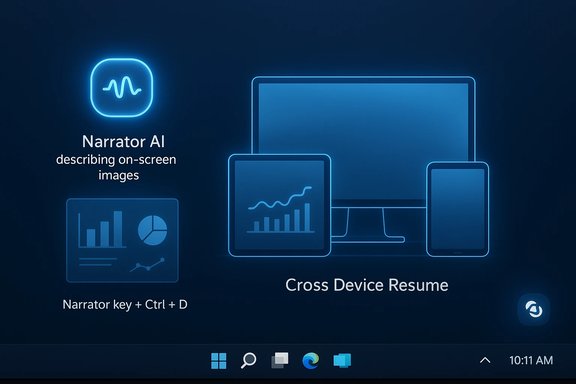
Microsoft is expanding its AI‑driven image description capability in Narrator beyond Copilot+ hardware. Previously focused on Copilot+ PCs with NPUs, Narrator can now call Copilot across all Windows 11 devices to generate richer descriptions of images, charts, and graphs.- Press Narrator key + Ctrl + D to describe the focused image.
- Press Narrator key + Ctrl + S to describe the full screen.
- Copilot opens with the image ready; you control when (and whether) the image is shared for description.
- After the initial description, choose Ask Copilot for follow‑up questions or more detail.
Enterprise control: targeted uninstall policy for the Microsoft Copilot app
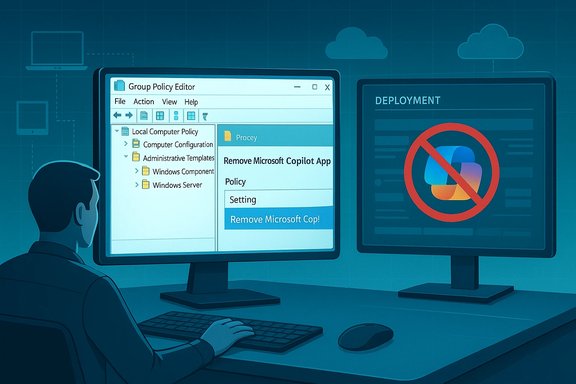
For organizations struggling with consumer Copilot being present on managed devices, the build introduces a new Group Policy setting named RemoveMicrosoftCopilotApp. When enabled, the policy will attempt a one‑time uninstall of the Microsoft Copilot app for devices/users that meet all three conditions:- Microsoft 365 Copilot and Microsoft Copilot are both installed.
- The Microsoft Copilot app was not installed by the user.
- The Microsoft Copilot app has not been launched in the last 28 days.
User Configuration -> Administrative Templates -> Windows AI -> Remove Microsoft Copilot App.
This is presented as available for Enterprise, Pro, and EDU SKUs.
Developer: Cross Device Resume gains a WNS integration path
Microsoft adds a second integration option for Cross Device Resume (XDR) — previously tied to Link to Windows — by enabling an integration path that leverages the Windows Notification System (WNS). That gives developers a broader set of tools to surface “resume” experiences (task handoffs) in Windows, widening scenarios and devices that can participate in seamless continuity.The move is explicitly positioned to expand the audience for resume capabilities while delivering comparable end‑user continuity. Developers are encouraged to explore onboarding with the new WNS option alongside the existing Link to Windows integration.
Visual polish: Windows Spotlight gets an icon refresh (small flight)
A new Windows Spotlight desktop icon was started as a limited flight in late December. The change is cosmetic but signals Microsoft’s continued fine‑tuning of desktop affordances for Spotlight’s background discovery features.Fixes included in this build
Microsoft lists a set of fixes that are being gradually rolled out to Insiders who opt into receiving features early. Key fixes include:- Start menu: a warning dialog truncation issue (when shutting down while other users are signed in) has been corrected.
- File Explorer: a recent crash in explorer.exe triggered by invoking the desktop context menu has been addressed.
- Input: a black flash when inking with a pen in Snipping Tool has been fixed.
- Print: fixes to duplicate print dialogs, inconsistent close‑button color, and truncated text on Printers & Scanners settings pages.
- Windows Update: corrected a hang on the Windows Update settings page during load.
Known issues — what you need to watch for
This build includes several active known issues Insiders should be aware of before upgrading:- Xbox Full Screen Experience (FSE): Some apps that expect fixed sizing or spawn additional windows may misbehave under FSE.
- Taskbar & System Tray:
- The Start menu may fail to open on mouse click for some Insiders (it still opens with the Windows key).
- Notification Center (WIN + N) and Quick Settings (WIN + A) may be affected by the same underlying issue.
- Some apps may not appear in the system tray when expected.
- When the taskbar is set to auto‑hide, it might appear prematurely and block interaction with bottom‑screen content.
- Settings: a new crash when interacting with audio devices is being investigated.
- Bluetooth: battery level reporting for some devices may not show.
- Click to Do / Microsoft 365 Copilot: the Microsoft 365 Copilot prompt on selected images may not function when the Microsoft 365 Copilot app is not running.
Critical analysis — what matters and why
Accessibility gains are meaningful but nuanced
Expanding Narrator’s Copilot integration to “all Windows 11 devices” is a substantive accessibility step. It reduces reliance on hardware‑exclusive Copilot+ branding for key assistive features and can materially improve comprehension of complex visual content for people who are blind or low vision.Strengths:
- Low friction: keyboard shortcuts (Narrator key + Ctrl + D/S) integrate neatly with existing workflows.
- User control: images are only shared after explicit user action; follow‑up prompts enable iterative exploration.
- Potential scale: if rolled out broadly, this raises the baseline accessibility of image content on the web and apps.
- Privacy & telemetry questions: any feature that sends images to an AI model — even on‑device or via Copilot — raises concerns about what data is transmitted, how long it is stored, whether metadata is retained, and how enterprise policies govern it.
- Regional availability: the explicit exclusion of the EEA suggests unresolved compliance considerations; organizations operating in or with users in that region must expect inconsistent behavior.
- Model behavior: automatic descriptions for subtle graphical data (financial charts, medical imagery, sensitive screenshots) risk inaccurate or misleading narrations unless the underlying models are tightly tuned and explicitly validated.
Enterprise policy control is a pragmatic recognition of admin needs
The RemoveMicrosoftCopilotApp policy acknowledges a real pain point for IT: consumer Copilot features and apps appearing on managed machines can conflict with organizational policy or user expectations.Benefits:
- Granular control: an uninstall policy that checks installation origin and recent use balances admin intent with user autonomy.
- Single action removal: the “one‑time uninstall” reduces churn and avoids persistent aggressive suppression that can complicate support.
- Documentation, rollout, and enforcement: the policy is new and appears first in this Insider blog; organizations should not assume full MDM or SCCM parity or immediate discoverability in policy inventories.
- Reinstallation loophole: users can reinstall — which might frustrate admins trying to remove consumer apps from endpoints at scale.
- Overlap with existing tools: AppLocker, PowerShell uninstalls, and Group Policy options already exist to block or remove Copilot; admins must reconcile multiple approaches to avoid policy conflicts.
Cross Device Resume via WNS: wider developer reach — with safeguards
Extending Cross Device Resume to WNS widens the developer ecosystem that can present resume alerts on Windows’ taskbar. This is good for usability: more apps can hand off context and let users continue tasks across devices.Opportunity:
- Broader portability: developers who already use WNS can integrate XDR with less friction.
- Familiar UX: resume taskbar alerts match the mental model users expect for continuity.
- Limited access / approvals: Cross Device Resume and Continuity SDK integrations are subject to a limited access approval process in many cases; not every app can simply opt in.
- Security & identity: resume actions require reliable identity and context; apps that don’t manage authentication or URIs carefully may create confusing or insecure resume experiences.
- Privacy model: resume relies on sharable contexts (URIs, web links); locally stored private files without accessible endpoints are not supported — an important limitation for document handoffs.
Stability concerns make widespread deployment premature
Insider builds like 26220.7535 are explicitly experimental. The known issues — especially Start menu click failure, autohide taskbar misbehavior, Settings crashes, and Bluetooth reporting problems — reinforce a pattern seen across several recent update waves where UI regression risk remains nontrivial.Operational guidance:
- Do not push to broad user populations until fixes for the Start menu and key Settings crashes land.
- IT validation: organizations should test printing, audio device interaction, and any mission‑critical peripheral workflows before approving adoption.
- Rollouts: leverage ringed rollout strategies (pilot → early adopters → broad) to catch issues in controlled cohorts.
Practical guidance for Insiders, developers, and IT admins
For Windows Insiders
- If you want to be first to see controlled rollouts (Narrator expansions, new icons), turn on the “get the latest updates as they are available” toggle in Settings > Windows Update.
- Expect staged availability: not every Insider will see every feature immediately.
- File feedback: use the Feedback Hub (WIN + F) and categorize reports under Accessibility > Narrator, Desktop Environment > Taskbar, or the relevant area.
For developers
- Evaluate Cross Device Resume via the WNS path if your app already uses notification infrastructure; it may be a simpler onboarding route than linking to Link to Windows.
- Check the Continuity SDK and XDR documentation for access limits — some resume APIs require approval or partner onboarding.
- Validate resume flows end‑to‑end: confirming identity, URI handling, and app install fallback behavior (one‑click store install) will improve user success rates.
For IT administrators
- Review the new RemoveMicrosoftCopilotApp policy in a lab. The Group Policy path is:
User Configuration → Administrative Templates → Windows AI → Remove Microsoft Copilot App - Don’t rely solely on this new policy yet; maintain existing AppLocker rules, PowerShell removal processes, and MDM controls as fallbacks during the policy’s early life.
- Pilot the build in a small managed cohort before rolling into broader test rings — particularly if your environment relies on third‑party USB audio, Bluetooth peripherals, or printing infrastructure.
- If Start menu reliability and Settings stability are critical, defer deployment until Microsoft publishes a build that resolves the known Start menu click and audio device crash issues.
Security, privacy, and compliance considerations
- Image descriptions & data flow: although Microsoft emphasizes that the image is only shared after user initiation, admins and privacy teams must confirm how images are processed (on‑device vs cloud), retention policies, and whether any image metadata or intermediate model logs are transmitted to cloud services. Where data residency, enterprise data protection, or regulatory constraints apply (e.g., GDPR/EEA), expect feature exclusions or restricted availability.
- Copilot management: consumer Copilot and Microsoft 365 Copilot serve different audiences and authentication models. Enterprise administrators should verify that group‑level policies and AppLocker rules align with their Copilot management strategy and that any new Group Policy settings do not conflict with existing management stacks.
- Resume & continuity: app resume semantics depend on sharable resources (URIs, web links). Ensure that any continuations do not expose private endpoints, and require appropriate identity validation before resuming authenticated sessions.
How to approach this build — recommended checklist
- Back up key systems and create restore points for any test devices.
- Deploy to a non‑production pilot ring (developers, accessibility testers, power users).
- Validate printer workflows, audio device interactions, taskbar behavior, and the Start menu on both mouse and keyboard activation methods.
- Test Narrator + Copilot image descriptions specifically for real content types your users will encounter — including charts, screenshots, and documents — and have accessibility stakeholders evaluate description quality and privacy posture.
- If you manage Copilot at scale, test the RemoveMicrosoftCopilotApp policy on a subset of devices and compare behavior with existing AppLocker or uninstall scripts.
- Provide feedback via Feedback Hub for critical failures and vote on similar reports to help engineering triage.
Final assessment — who should install Build 26220.7535?
This build is tailored to Insiders, developers, and IT teams who need early access to accessibility improvements, enterprise management tooling, and cross‑device developer features. The benefits are tangible: broader Narrator capabilities, a new uninstall policy for Copilot, and expanded XDR integration paths.However, the risks are real: UI regressions (Start menu, taskbar), Settings crashes, and intermittent peripheral issues make this build unsuitable for general production deployment. Organizations should treat it as a testing and feedback vehicle: validate the features you care about in controlled pilots, document side effects, and coordinate with privacy/compliance teams for any AI features that process user content.
Insiders who prioritize bleeding‑edge access to emerging features — and who are comfortable troubleshooting regressions and filing Feedback Hub reports — will find plenty to explore in Build 26220.7535. For everyone else, waiting for a later build that resolves the active Start menu and Settings regressions is the safer path.
Source: Microsoft - Windows Insiders Blog Announcing Windows 11 Insider Preview Build 26220.7535 (Dev & Beta Channels)