

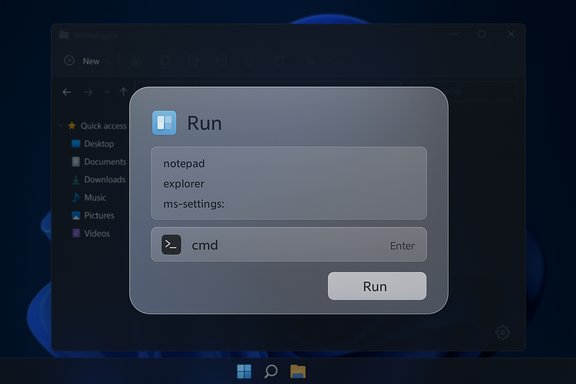
Microsoft’s long-serving Run box is getting a modern makeover in Insider preview builds of Windows 11 — but for now the experience is strictly optional and intended to live alongside the legacy Win32 Run rather than forcibly replace it.
Background / Overview
The Run dialog (Win+R) has been a staple of Windows for decades, prized by power users, admins, and technicians for its speed, predictability, and tiny surface area. Recent preview artifacts show Microsoft is experimenting with a Modern Run implementation that adopts Windows 11’s Fluent/WinUI visual language: a larger, rounded overlay, theme-aware backgrounds (dark/light), inline icons for matches, and a visible recent-commands (MRU) list above the input. Early hands-on reports and community screenshots indicate the modern surface is implemented as a WinUI-style overlay and is surfaced to Insiders as an opt‑in feature.Microsoft’s rollout strategy for this UI change appears deliberately conservative: the classic Run remains the default and the modern variant is exposed behind a toggle in the Settings app (Settings → System → Advanced) when the preview bits and server-side feature flags are present on a device. That gating is consistent with Microsoft’s pattern of shipping new UI code into Insider builds and controlling exposure while telemetry and feedback are collected.
What’s actually new in the Modern Run
Visual and interaction changes
- Fluent-style overlay: The Modern Run appears as a larger, rounded card/overlay rather than the tiny Win32 modal. It uses tone-aware backgrounds and spacing consistent with the rest of Windows 11 visual language.
- Dark mode parity: Preview builds show the new Run adapts to system themes so it no longer produces a jarring Win32 “legacy flash” in dark sessions.
- No classic title bar: The modern surface lacks the classic window chrome and title bar of the Win32 dialog, which reduces visual clutter and footprint.
- Touch and high-DPI improvements: Bigger input area and larger hit targets make the dialog more usable on tablets and 4K displays.
New usability features
- MRU (Most Recently Used) list: A small history of recent Run commands is shown above the input box; choosing an entry is a single click or arrow-key press. This reduces retyping for frequent commands.
- Inline icons and match feedback: When typed text matches an installed app or executable, an inline icon appears to give quick visual confirmation of the target.
- Run affordance: The UI shows a clear “Run” button and key hint (Enter), making the interaction more discoverable to casual users.
Missing or provisional items
- Browse button may be absent: Several preview screenshots and reports show the classic Browse… button missing from the modern overlay. That omission is present in early artifacts but is not confirmed as final — Microsoft could reintroduce it before general availability. Treat the absence of Browse as provisional.
Where to find it and how it’s enabled
The Modern Run is currently appearing only in Insider preview channels and is gated. If the bits have been delivered to a device, the toggle to opt in has been reported under:Settings → System → Advanced → (toggle for Modern Run / Run dialog)
This placement mirrors Microsoft’s usage of an “Advanced” settings surface for developer-forward or preview features and helps restrict accidental exposure on production devices. If the toggle doesn’t appear, the code may be present but server-side flags are not yet enabled for that device.
Practical note for testers: the safe route to try this is on a non-production machine enrolled in the Windows Insider Program (Dev or Beta channel, depending on which ring carries the feature). Community tools like ViVeTool can expose hidden flags, but these are unsupported and should be used only on isolated test devices or VMs.
Performance: is Modern Run slower?
One of the biggest concerns when modernizing tiny, reflexive UI surfaces is latency. Win+R is a muscle-memory gesture for many users, and any perceptible lag can provoke immediate dislike.- Hands-on previews report the new Run feels instant and comparable to the legacy Win32 Run in responsiveness — in the limited testing that has been done it did not introduce the slow, multi-second delays that some modern revamps have suffered.
- That said, Microsoft has had notable failures where WinUI-based elements were slower to render (File Explorer header options and some WinUI 3 surfaces required preloading to hide latency), so the company is well aware of the performance trade-offs and has used preload techniques elsewhere to mitigate visible delays. This plays into the reason the Modern Run is gated in preview: it gives Microsoft the opportunity to optimize startup latency before a broader rollout.
Compatibility, automation and keyboard behavior
A top concern for admins and power users is whether the Modern Run preserves legacy semantics that many scripts, how‑tos, and muscle-memory assume.- Core semantics (Win+R to invoke, type command, Enter to execute) appear preserved in preview builds. Keyboard-first ergonomics — arrow navigation, Enter/Esc handling — are reportedly retained.
- Claims that all legacy behaviors (for example, Ctrl+Shift+Enter to run a command elevated) are preserved come from early previews and reporter notes; these appear to work but are not yet definitively guaranteed across every build or configuration. Treat those specific hotkey guarantees as provisional until Microsoft publishes definitive documentation.
Privacy, history, and enterprise control
Surfacing a Most-Recently-Used list introduces privacy and policy considerations.- Reports suggest some Run history behavior may tie into Windows’ app-launch tracking and Start/Search telemetry. That means MRU entries could be influenced by system-level tracking and potentially surfaced across devices if roaming or telemetry settings are enabled. Administrators should audit related settings before enabling Modern Run for users.
- Microsoft’s opt-in approach and placement under Advanced settings reduces the risk of accidental exposure, but enterprises will want Group Policy / MDM controls to manage the experience at scale. Early coverage flags that dedicated policy templates may not yet exist; organizations should watch official release notes and Insider documentation for admin controls.
- Confirm where MRU data is stored (local vs. roamed).
- Verify default retention period and options to clear history.
- Ensure telemetry/app-launch tracking settings meet organizational policy before enabling MRU for end users.
Accessibility implications
The Modern Run promises larger targets, better contrast, and theme parity — all potentially positive for users who rely on magnification, high-contrast, or keyboard navigation.However, the presence of a polished UI does not guarantee equal accessibility:
- Full screen‑reader behavior, UI Automation semantics, and focus order must be validated in the shipped implementation.
- Any change in Automation IDs, control structure, or timing can break assistive‑tech integrations even if the visual layout is improved.
Risk analysis — strengths and potential pitfalls
Strengths and benefits
- Visual consistency: Eliminates the jarring mismatch between legacy Win32 chrome and modern Fluent UI for a smoother experience.
- Minor productivity gains: MRU and inline icons reduce typing and help avoid launching the wrong item.
- Touch and high-DPI friendliness: Larger hit targets improve usability on tablets and 4K displays.
- Opt-in rollout: Keeps existing workflows untouched by default and enables gradual evaluation in test rings.
Potential pitfalls and risks
- Fragmentation: For a time, documentation and training must reference two Run experiences (classic and modern), increasing support overhead.
- Automation regressions: Hidden timing or focus changes could break scripts or support tools that interact with the Run window.
- Privacy surface: MRU and potential ties to app‑launch telemetry require policy review for shared or managed devices.
- Performance risk: If modern UI rendering creates perceptible latency on low‑end hardware, power users could reject the change; Microsoft’s gating suggests they are aware and optimizing for this.
- Unverified specifics: Some claims in early reports (exact build numbers, permanent removal of Browse button, locked positioning of the UI) remain provisional and should be treated as such until Microsoft’s official notes confirm them.
The “locked to the bottom-left” claim — caution advised
Several hands-on notes in the wild have described the Modern Run as opening near the bottom of the screen or aligned with the taskbar. However, community reporting is inconsistent about exact placement (some screenshots show a centered overlay, others a bottom-anchored card), and Microsoft has not formally documented a fixed position or immovability for the final implementation. Because this detail affects discoverability and multi-monitor workflows, treat any claim that Modern Run cannot be moved as unverified until Microsoft provides a definitive specification or release notes. Testers who depend on window mobility should validate placement behavior on their hardware before adopting the UI.Practical checklist and recommended steps for adopters
- Enroll an isolated test device in Windows Insider Dev or Beta channel (do not use production machines).
- Update to the preview build that contains the Modern Run bits and check Settings → System → Advanced for the opt‑in toggle.
- Validate core behaviors:
- Win+R opens the overlay and it accepts input immediately.
- Keyboard navigation (arrow keys, Enter, Esc) works as expected.
- Elevated-run hotkeys (e.g., Ctrl+Shift+Enter) behave the same — treat this as provisional and test thoroughly.
- Test automation and remote support tools that interact with the Run dialog; verify no changes in focus timing or Automation IDs that break scripts.
- Audit privacy settings: determine whether MRU entries are local-only, how to clear history, and whether app‑launch telemetry influences what appears in history.
- Run accessibility tests with screen readers, magnifiers, and high-contrast modes to validate parity with the classic Run.
- If necessary, document both Run variants in internal how‑tos and helpdesk scripts until the modern UI is either finalized or widely adopted.
How this fits into Microsoft’s broader UI strategy
The Modern Run preview is emblematic of Microsoft’s incremental approach to modernizing legacy surfaces: rather than imposing sweeping replacements, the company tends to ship code into Insider rings, gate exposure with toggles and server-side flags, and iterate based on telemetry and feedback. The coexistence of legacy and modern variants — visible in other areas of Windows 11 — reduces immediate risk but increases the surface area support teams must manage during the transition. The Modern Run is unlikely to replace extensible third‑party launchers (PowerToys Run, Raycast, etc. for power users who need plugin ecosystems and file indexing; instead, it’s positioned as a polished, built-in alternative for the majority of quick command needs.Verdict
The Modern Run preview is a sensible, low‑risk polish: it brings visual parity with Windows 11, helps discoverability with MRU and icons, and is being exposed thoughtfully as an opt‑in feature to protect enterprises and power users. The most important caveats are operational: validate automation, privacy/telemetry implications, and accessibility behavior before enabling it widely.For power users who want the richest launcher capabilities, PowerToys Run, Raycast, and similar third‑party tools will likely remain the best option. For the average user and many admins, Modern Run can be a modest usability win — provided Microsoft preserves the speed and keyboard ergonomics that made the legacy Run indispensable in the first place.
Conclusion
Microsoft’s preview of a Modern Run dialog signals continued refinement of Windows 11’s micro‑surfaces: a move to consistent visuals, added convenience features, and cautious exposure to minimize disruption. The company’s opt‑in approach is the right trade-off for now — it lets Insiders and organizations evaluate the update without forcing a change on every user. The prudent path for administrators is to pilot the Modern Run in controlled rings, validate scripting and accessibility scenarios, and hold off on mass deployment until Microsoft publishes definitive behavior, Group Policy controls, and documentation. The Run box itself remains fast and familiar in its legacy form, and for the time being both worlds will coexist while Microsoft finishes the polish.Source: Windows Latest I tried upcoming modern Windows Run on Windows 11, and it won't replace legacy Run, at least for now
