

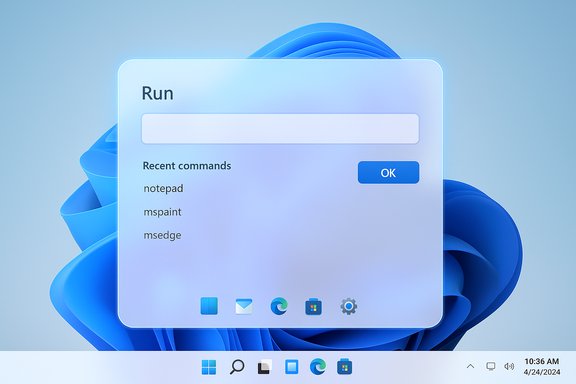
Microsoft appears to be quietly replacing one of Windows’ oldest, most utilitarian UI elements with something that finally fits the visual language of Windows 11 — a modernized Run dialog that behaves like a lightweight launcher while preserving the simple power-user workflow long associated with Win+R. Early images and hands‑on reports show a larger, Fluent‑styled overlay with a recent‑commands list and icons, and the change is being exposed as an optional setting in preview builds rather than forced on everyone.
The Run dialog is one of Windows’ longest‑running utilities. Introduced to the general public era of graphical Windows with the Windows 95 Start menu, Run has been the fastest route for power users to launch tools (for example, typing mspaint, calc, or dxdiag) or jump directly to URIs and file paths using the Win+R shortcut. Over decades its function remained very nearly unchanged while the rest of the OS evolved around it. Run’s simplicity is also its persistence: the dialog records a Most‑Recently‑Used (MRU) list and stores entries in the registry, behavior administrators and users still manage with the same settings and policies that have existed for years. That persistence is why even small visual updates to Run matter: this is a utility many users rely on dozens of times per day.
From an accessibility perspective, the modern dialog needs to pass several checks before it’s a net benefit:
The modern Run is not a revolution — it’s an overdue modernization that brings a familiar workflow into alignment with the rest of Windows 11. For everyday power users and sysadmins, the right next step is to test the preview in a controlled environment, validate elevation and accessibility scenarios, and plan for updates to documentation and training if the modern Run becomes the default in future builds.
Source: The Verge Microsoft finally has a better looking Run dialog for Windows 11
 Background
The Run dialog is one of Windows’ longest‑running utilities. Introduced to the general public era of graphical Windows with the Windows 95 Start menu, Run has been the fastest route for power users to launch tools (for example, typing mspaint, calc, or dxdiag) or jump directly to URIs and file paths using the Win+R shortcut. Over decades its function remained very nearly unchanged while the rest of the OS evolved around it. Run’s simplicity is also its persistence: the dialog records a Most‑Recently‑Used (MRU) list and stores entries in the registry, behavior administrators and users still manage with the same settings and policies that have existed for years. That persistence is why even small visual updates to Run matter: this is a utility many users rely on dozens of times per day. What’s new in the modern Run dialog
Early screenshots and reporting reveal a fairly conservative but meaningful redesign that rethinks Run as a compact launcher rather than a cramped legacy dialog. Key visible changes include:- A larger, more spacious overlay with rounded corners and Fluent styling consistent with Windows 11.
- A prominent input field with roomier text and spacing, making it easier to type and read commands.
- A recent commands / suggestions list that appears above the input box as you open Run or type, similar to modern launcher UX.
- Icons for matched apps and suggestions, improving at‑a‑glance recognition when searching for installed apps or common commands.
- An opt‑in toggle surfaced under Settings → System → Advanced that lets users switch between the classic Run dialog and the new “Modern Run” experience. The new interface is reportedly not enabled by default in the preview bits.
Where this is right now: preview builds and gating
This modern Run dialog has appeared in Windows Insider preview builds, but it’s currently hidden or gated in many images and builds — surfaced by community researchers and screenshots rather than a formal Microsoft announcement. Multiple sites and community threads independently corroborate the same artifact in the preview channel, and the toggle in Settings → System → Advanced has been repeatedly described by those who have seen it. That pattern — a feature baked into a build but released behind server flags and opt‑in controls — is how Microsoft often stages UI changes. Caveats that matter: build numbers cited in early reporting may vary or be misleading because Microsoft sometimes includes UI bits across multiple builds before enabling them, and the presence of imagery does not guarantee a fully functional or finalized experience. Microsoft has not published release notes that formally document the modern Run dialog at the time of these reports. This means the timeline and exact behavior remain provisional.Why Microsoft might be doing this now
Several converging threads explain why Run is finally getting attention:- Microsoft has been actively reducing visual inconsistency across Windows 11 by migrating legacy dialog surfaces to the modern theme and adding broader dark‑mode support. Upgrading Run follows that push for visual coherence.
- Microsoft’s own tooling evolution — notably PowerToys Run evolving into a Command Palette experience — demonstrates internal interest in richer launcher paradigms. PowerToys Run/Command Palette already provides search, calculations, system commands, and fast app launching; the company integrating a more modern Run makes sense given that push.
- Third‑party launchers like Raycast have recently entered the Windows ecosystem, offering advanced launcher, clipboard, and shortcut systems that change power‑user expectations. The presence of competitive alternatives raises the bar for Windows’ built‑in tooling and likely nudges Microsoft to modernize a historically minimal but highly used tool.
Modern Run vs. PowerToys Run / Command Palette / Raycast
- PowerToys Run (and its successor features like Command Palette) is an optional, extensible tool aimed squarely at advanced users and includes plugins (file search, window switching, unit conversion, command plugins) and keyboard‑centric customizations. It is user‑managed and can be extended via community contributions.
- Raycast is a third‑party launcher with deeper feature sets (extensions, clipboard manager, workflows) that aims to be a productivity hub rather than a mere “open app” box. Its arrival on Windows raises expectations for discoverability and power in lightweight launchers.
- The modern Run dialog appears to be focused on core launcher functionality — fast command and app launch with a light MRU and iconography — rather than plugin‑driven extensibility. That makes it a different product than PowerToys Run/Command Palette or Raycast: easier and built‑in, but less extensible.
UX and accessibility implications
A larger input surface, clearer spacing, visible icons, and a recent‑commands panel make the Run workflow more approachable and less error‑prone. For users who rely on visually scanning a small list of app names or on muscle memory for a short list of commands, the improvements should reduce mis‑types and speed recognition.From an accessibility perspective, the modern dialog needs to pass several checks before it’s a net benefit:
- Keyboard navigation and focus behavior must remain predictable (Win+R should open and focus the input immediately; arrow/tab navigation must traverse the suggestion list in a predictable order).
- Screen‑reader semantics must be correct; a visually richer dialog must expose labels and roles programmatically so assistive technologies can read suggestions and icons reliably.
- Contrast and theming must be consistent with system dark mode and high‑contrast modes; earlier dark‑mode work on other dialogs suggests Microsoft is aware of the issue but these surfaces have historically been inconsistent.
Security, privacy, and enterprise considerations
Visual and functional tweaks to a system utility like Run have security‑relevant consequences:- Elevation behavior: Run is often used to launch elevated tools. Any change to the elevation path (for instance if a modern overlay intercepts or modifies the Ctrl+Shift+Enter or other elevation keystrokes) would be significant for administrators and power users. Early accounts suggest elevation behavior is preserved, but this should be validated in testing.
- Command history: Run’s MRU list is stored in the registry and can be controlled via existing privacy settings that let Windows store and show recently opened items. Visual UI changes don’t alter how history is stored, but if Microsoft later introduces cloud‑linked suggestions or telemetry‑driven recommendations, that would raise privacy considerations for administrators and compliance officers. Current reporting does not show any cloud‑sourced suggestions.
- Enterprise policy: Because the modern Run dialog is exposed as an opt‑in toggle in Advanced settings, enterprise admins may want Group Policy / MDM controls to manage the toggle at scale. Microsoft’s Advanced Settings redesign is being documented for preview channels, but dedicated group policy controls for the modern Run option may be added later; organizations should test and track the feature as it moves through preview channels.
Potential benefits
- Visual consistency: A Run box that matches other Fluent UIs reduces visual friction, which matters for polished daily workflows.
- Better discoverability: Icons and recent suggestions can speed app launches and make previously obscure commands easier to use.
- Lower cognitive load: Larger text and spacing reduce errors and help users with visual impairments (if accessibility is implemented correctly).
- Optional opt‑in: Making the feature toggled gives users and admins control, decreasing the risk of breaking workflows by default.
Potential risks and downsides
- Fragmentation and user confusion: Offering both the classic and modern Run could fragment documentation and training materials. Guides that assume a single interface will need updates to cover both experiences.
- Incomplete accessibility or theming: If the modern overlay ships without full accessibility parity or dark‑mode parity, it could worsen experience for some users.
- Preview instability: Because the UI is surfacing in preview builds and may be gated by server flags, early impressions can be inconsistent and misleading; behavior and appearance could change significantly before public release.
- Third‑party competition: Built‑in improvements may reduce the need for third‑party launchers for casual users, but for advanced workflows Raycast or Command Palette will still be more capable. The modern Run won’t replace extensible launchers for power workflows.
How to try it (steps for testers and power users)
If you want to test the modern Run experience in Windows 11 preview builds, the general sequence reported by community researchers is:- Join the Windows Insider Program and opt into the Beta or Dev channel to receive preview builds.
- Update to the latest preview build available in your Insider channel.
- Open Settings → System → Advanced (Advanced settings), and look for a toggle labeled “Run dialog” or “Modern Run” to enable the new UI.
- Test Win+R workflows, including launching apps, using MRU entries, and testing elevation (Ctrl+Shift+Enter where applicable).
- If you rely on screen readers or high‑contrast modes, test those scenarios specifically to identify regressions.
What to watch next
- Official documentation and release notes from Microsoft — when Microsoft decides to document the modern Run dialog it will likely appear in Windows release notes or the Advanced Settings documentation. Those official notes will be the authoritative confirmation of behavior, group policy controls, and accessibility support.
- Insider feedback and accessibility reports — testers and assistive‑tech users will quickly reveal regressions that need to be addressed before broad rollout.
- Behavior parity with PowerToys Run / Command Palette — if Microsoft intends to maintain both built‑in and PowerToys tools, watch how it positions them and whether functionality moves between them (for example, will Microsoft add plugin capabilities to the built‑in Run over time?.
- Telemetry or cloud‑driven suggestions — current reporting shows local MRU and icons only; any shift toward cloud suggestions would change the privacy calculus for enterprises.
Final assessment
This modern Run dialog is a pragmatic, low‑risk update to a low‑surface‑area but high‑impact tool. The changes are primarily visual and ergonomic: larger input, suggestions, and icons deliver immediate usability value without reinventing Run’s behavior. Rolling the feature out as an opt‑in toggle in Advanced Settings demonstrates Microsoft’s caution and recognition that longstanding workflows must be respected. Early reports are consistent across multiple independent outlets and community researchers, which makes the existence of a modern Run artifact credible even as the feature remains unpublished by Microsoft. However, the full benefits hinge on two important follow‑ups: Microsoft must ship the modern Run with complete accessibility and dark‑mode parity, and IT administrators need clear controls for managing exposure in enterprise environments. If those conditions are met, the modern Run will be a welcome polish to a tiny but essential part of the Windows 11 experience. If Microsoft treats the change as a cosmetic veneer without addressing accessibility or policy controls, the update risks adding a new point of fragmentation rather than solving longstanding inconsistencies.The modern Run is not a revolution — it’s an overdue modernization that brings a familiar workflow into alignment with the rest of Windows 11. For everyday power users and sysadmins, the right next step is to test the preview in a controlled environment, validate elevation and accessibility scenarios, and plan for updates to documentation and training if the modern Run becomes the default in future builds.
Source: The Verge Microsoft finally has a better looking Run dialog for Windows 11
