

Windows 11's venerable Run dialog is finally getting a modern makeover, a subtle but meaningful refresh that brings the decades-old Win+R experience into line with Fluent Design and the broader Windows 11 visual language.
For many power users and administrators, the Run dialog (Win+R) is a go-to utility: a lightweight launcher for commands, control panels, and quick shortcuts that has survived nearly unchanged since the Windows 95 era. Recent Windows 11 updates added dark mode support and a few visual refinements, but the core Run experience remained mostly the same — a small, plain dialog with a single text box and the occasional “Browse…” button.
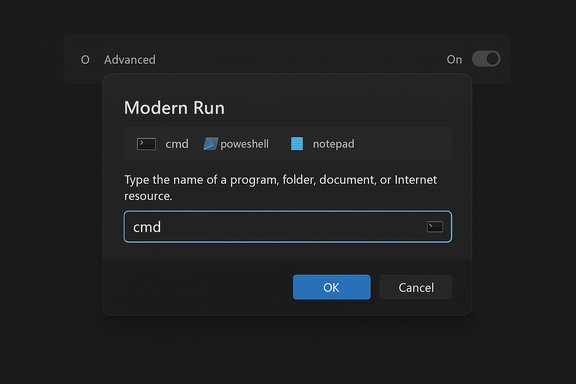
That is starting to change. Community screenshots and reporting from Windows-focused publications show Microsoft experimenting with what some are calling the Modern Run dialog inside preview builds. The new design upsizes the command entry area, surfaces recent commands above the input box, displays matched app icons inline, and appears to remove the legacy "Browse" button in the iterations currently visible in Insider builds. Early coverage suggests Microsoft intends to ship the redesign as an optional experience — hidden behind an Advanced toggle in Settings — at least while it finishes testing.
This article summarizes what the community and outlets have observed, verifies key technical points where possible, and provides an analysis of benefits, integration issues, and security or deployment risks that Windows users and administrators should consider.
Note: the removal of the Browse button has not been formally confirmed by Microsoft; community reports indicate it in current preview artifacts but this remains subject to change.
If you choose to use ViveTool:
Key differences between Modern Run and third-party alternatives:
That said, the risks should not be overlooked. Security-conscious environments, enterprise deployments, and users with complex scripted workflows should treat preview builds—and any manual enabling of hidden features—with care. The community-driven nature of the discovery (screenshots and early-flag reports) means the design will likely iterate before any public release; expect refinements and potential reversals of preview behavior such as the “Browse” button and exact Settings toggle placement.
When small conveniences scale across millions of devices, the cumulative productivity gains are real. The Modern Run redesign is not a headline-grabbing OS overhaul, but it is the kind of thoughtful refinement that, when done well, makes Windows feel noticeably smoother in everyday use.
Source: Neowin Windows 11 is getting a redesigned Run dialog
 Background / Overview
For many power users and administrators, the Run dialog (Win+R) is a go-to utility: a lightweight launcher for commands, control panels, and quick shortcuts that has survived nearly unchanged since the Windows 95 era. Recent Windows 11 updates added dark mode support and a few visual refinements, but the core Run experience remained mostly the same — a small, plain dialog with a single text box and the occasional “Browse…” button.That is starting to change. Community screenshots and reporting from Windows-focused publications show Microsoft experimenting with what some are calling the Modern Run dialog inside preview builds. The new design upsizes the command entry area, surfaces recent commands above the input box, displays matched app icons inline, and appears to remove the legacy "Browse" button in the iterations currently visible in Insider builds. Early coverage suggests Microsoft intends to ship the redesign as an optional experience — hidden behind an Advanced toggle in Settings — at least while it finishes testing.
This article summarizes what the community and outlets have observed, verifies key technical points where possible, and provides an analysis of benefits, integration issues, and security or deployment risks that Windows users and administrators should consider.
What the redesign actually changes
A faster, more discoverable command field
The new Run dialog places a larger, more prominent text entry field front and center. The increase in size improves visibility and touch/pen accessibility, and it aligns the control with other modern Windows input surfaces.- Larger font and input area for easier typing and readability.
- Emphasis on immediate command visibility rather than a compact modal.
Recent commands surfaced above the input
Above the input box is a list of recently-run commands, making it faster to re-run commonly used commands without retyping. For users who rely heavily on sequences like msconfig, regedit, devmgmt.msc, or custom scripts, this is a clear productivity win.- Presents a quick-access history for repetitive workflows.
- Allows keyboard navigation through recent entries using arrow keys.
Icons and match feedback
When the dialog resolves a typed command to a known executable or Store app, the new UI displays the application’s icon inline, improving recognition and reducing guesswork when multiple similarly named items exist.- Visual confirmation reduces accidental launches of wrong executables.
- Consistent with search and launcher affordances elsewhere in Windows 11.
The “Browse” button may be absent in previews
Screenshots circulating in the community show the classic “Browse…” button missing from the new interface. That suggests Microsoft is leaning into typed command workflows and search-style discovery rather than manual file navigation from the dialog. However, this behavior appears to be limited to preview builds and may change before any public release.Note: the removal of the Browse button has not been formally confirmed by Microsoft; community reports indicate it in current preview artifacts but this remains subject to change.
Optional toggle (Modern vs Classic)
One notable design decision reported in preview notes is that the Modern Run is planned as an optional interface. The OS will default to the classic Run dialog, with an Advanced → Modern Run toggle in Settings enabling the modern variant for those who want it. This toggle model mirrors other Windows 11 dual-style rollouts (for example, context menus and Start menu experiments).- Default remains the classic small dialog (preserving existing workflows).
- Power users can opt-in to the Modern Run without being forced into a new model.
Why this matters: usability, consistency, and modern design
Small UI, big UX outcomes
The Run dialog is tiny in footprint but outsized in utility. Modernizing it is meaningful because:- It reduces friction for power users who rely on keyboard workflows.
- It brings legacy UI into theme and accessibility parity with the rest of Windows 11.
- It signals Microsoft’s continued attention to smaller, quality-of-life areas of the OS that were long neglected.
Accessibility and theming
A larger input area, clearer contrast, and dark-mode support make the dialog easier to use for people with visual impairments or motor challenges. Aligning the dialog with Fluent Design principles also helps assistive technologies provide more accurate information and increases compatibility with high-DPI and scaling settings.Consistency across the OS
Windows 11 has been gradually unifying legacy surfaces — File Explorer dialogs, context menus, and now Run — to feel coherent. This redesign helps eliminate the jarring transition between modern UI elements and older modal dialogs, improving perceived polish.Potential risks and practical concerns
1) Security: Run is a high-risk entry point
The Run dialog is frequently used to execute shell commands and launch installers or scripts. Any change that makes it easier to paste-and-run or to auto-suggest commands can be abused by social engineering or malicious pages that instruct users to run a command.- A more invitational Run UI could make "paste-and-run" attacks easier for less experienced users.
- Displaying icons and suggestions might lull some users into trusting an entry visually; attackers can still craft misleading names or leverage similar-sounding commands.
2) Enterprise manageability and group policy concerns
Enterprises often control UI exposure via Group Policy, MDM, or feature flags. If Microsoft ships the Modern Run as an opt-in user preference but toggles availability server-side or via staged rollouts, organizations could face inconsistent deployments across fleets.- There’s a risk of fragmentation if Modern Run is enabled for some users and not others.
- IT teams will want clear Group Policy or MDM controls for enabling or disabling the new dialog at scale.
3) Compatibility with scripts and workflows
Some administrative scripts and third-party utilities expect the classic Run behavior. Although the modern variant appears to be a UI swap rather than a change in command execution, subtle differences in focus, keyboard handling, or multi-line paste behavior could disrupt automated workflows.- Test important scripts and remote support tools against the preview before wide deployment.
- Verify that commands requiring elevated privileges still present appropriate UAC prompts.
4) Feature gating and preview instability
Microsoft frequently ships UI changes in preview builds while gating wider availability behind server flags and staged rollouts. That means early screenshots and hidden features might not reflect the final behavior.- Expect iteration: icons, the presence/absence of Browse, and history behavior may change.
- Preview builds can contain regressions; opt-in testing should be isolated from production endpoints.
How to try the new Run dialog now (and why to be cautious)
Insider preview builds
The Modern Run UI has been observed in Windows Insider preview builds. For enthusiasts and testers:- Join the Windows Insider Program (Dev or Beta channel as appropriate).
- Install the latest preview build that includes UI experiments.
- Look in Settings → Advanced (or in visible feature flags) for a Run toggle.
ViveTool and hidden features — proceed with safeguards
Community tools such as ViveTool allow enabling hidden feature flags in Insider and consumer builds. The ViveTool approach is widely used to surface experimental UI elements, but it carries real risk.If you choose to use ViveTool:
- Back up your system and create a full restore point.
- Understand that feature IDs are ephemeral and may change between builds.
- Use only well-vetted codes from reputable community sources.
- Expect that enabling hidden features can cause instability, UI glitches, or unpredictable behavior.
Comparing Microsoft’s change with third‑party Run replacements
Because the classic Run dialog remained unchanged for decades, a variety of third-party launchers have filled the gap. Examples include application launchers and command palettes that add fuzzy search, plugin systems, and HotKey support.Key differences between Modern Run and third-party alternatives:
- Modern Run is built-in, lightweight, and integrated with system theming.
- Third-party launchers frequently add advanced features: plugin ecosystems, file indexing, clipboard history, and customizable triggers.
- Enterprises that standardize on third-party launchers may need to reassess if Modern Run covers their needs; if not, third-party tools will remain useful.
Expected rollout behavior and what to look for next
Microsoft typically uses staged rollouts and server-side flags to manage UI changes. Expect the following pattern:- Experimental UI appears in Dev/Canary preview builds.
- Community reporting and feedback drives iteration.
- Microsoft bundles the redesign in an optional preview cumulative update.
- Wider availability is staged by channel, with an eventual inclusion in a mainstream feature update or cumulative release.
Strengths: what Microsoft got right
- Respecting legacy workflows: Making Modern Run optional and defaulting to the classic dialog reduces disruption for users who depend on existing behavior.
- Improved discoverability: Surfacing recent commands and icons helps speed up repetitive tasks without introducing heavyweight UI.
- Visual coherence: The design aligns with Windows 11 theming and Fluent Design, improving overall polish and accessibility.
- Usability gains: Larger input areas, clearer contrast, and keyboard-friendly navigation make the dialog more comfortable to use.
Weaknesses and unresolved questions
- Security posture: Any UI that encourages text entry and paste-and-run behavior needs additional guardrails against social-engineering attacks. Microsoft could consider contextual warnings when pasting commands or tighter integration with SmartScreen/UAC for unknown commands.
- Enterprise controls: The lack of a clearly documented enterprise control path for opt-in/opt-out creates uncertainty for IT managers.
- Feature parity: Removing the Browse button (if that decision sticks) may annoy users who still rely on graphical selection of executables — especially when running legacy tools not discoverable by name.
- Inconsistency risk: Staged rollouts and server-gated features can lead to a fragmented experience across mixed fleets.
Recommendations for users and IT admins
For individual users:- Try the preview only on a test machine or VM.
- Use the Modern Run for convenience, but continue to validate scripts and shortcuts you rely on.
- Be cautious when pasting commands from web pages into any launcher.
- Include a test group of users in Insider preview trials if you want early insight.
- Evaluate whether Group Policy or MDM controls are required and watch for Microsoft to publish management guidance.
- Update documentation and remote support procedures if the Modern Run changes how commands appear or are executed.
- Consider blocking or monitoring use of the Run dialog in high-security environments where arbitrary command execution must be restricted.
Final verdict: a modest change with outsized value
The Run dialog redesign is a classic example of a small surface area change that can meaningfully improve day-to-day user experience. It modernizes a legacy utility, aligns it with Windows 11 aesthetics, and introduces practical improvements like history and icon feedback. Microsoft’s choice to make the new interface optional is prudent — preserving the classic behavior for compatibility while offering a cleaner experience for those who want it.That said, the risks should not be overlooked. Security-conscious environments, enterprise deployments, and users with complex scripted workflows should treat preview builds—and any manual enabling of hidden features—with care. The community-driven nature of the discovery (screenshots and early-flag reports) means the design will likely iterate before any public release; expect refinements and potential reversals of preview behavior such as the “Browse” button and exact Settings toggle placement.
When small conveniences scale across millions of devices, the cumulative productivity gains are real. The Modern Run redesign is not a headline-grabbing OS overhaul, but it is the kind of thoughtful refinement that, when done well, makes Windows feel noticeably smoother in everyday use.
Source: Neowin Windows 11 is getting a redesigned Run dialog
