

Microsoft is quietly modernizing one of Windows’ most enduring power‑user tools: the Run dialog (Win+R) is receiving a Fluent‑style visual refresh and a handful of functional tweaks in recent Insider previews, turning a decades‑old compact box into a roomier, more discoverable launcher that aligns with Windows 11’s design language.
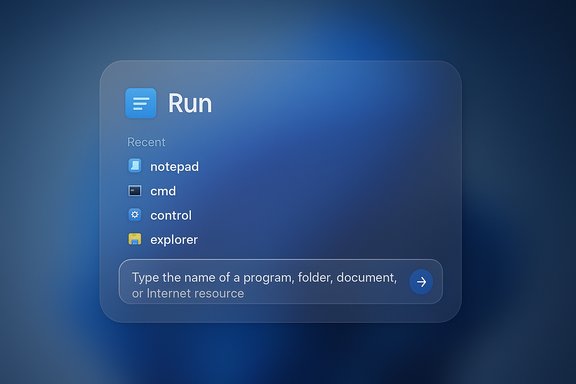
The Run dialog has been a staple of Windows since the mid‑1990s: a tiny, no‑nonsense input field where experienced users type program names, control panel applets, shell commands, or file paths and press Enter. That low‑profile mindset favored speed and predictability over visual polish, and until recently the Run box often stood out as a small, bright relic within modern desktop sessions — particularly in dark mode. Recent Insider activity shows Microsoft addressing that visual inconsistency and experimenting with new affordances for discoverability and touch friendliness. What’s appeared in screenshots and preview artifacts is being described by Microsoft (in UI metadata) and by observers as the “Modern Run” interface: a larger overlay, a prominent input field, a visible list of recent commands above the text box, and inline app icons next to recognized results. The redesign is optional and appears to be gated behind an experimental toggle in Settings, meaning classic behavior remains available for those who prefer it.
Mitigations:
Mitigations:
Microsoft appears to be preserving the classic experience as the default and making the Modern Run optional behind a toggle, which mitigates forced change. However, enterprises should plan for visual divergence across fleets while staged rollouts remain in effect.
At the same time, the visible history and greater prominence of the UI introduce legitimate privacy and social‑engineering considerations that organizations and knowing users should address proactively. Until Microsoft releases definitive documentation, build numbers, and admin controls for the Modern Run, treat rollout reports as preview‑level signals rather than finalized design commitments. In short: the Modern Run reflects careful user experience housekeeping — polishing a tiny but frequently used tool — and while it’s not revolutionary, it’s precisely the kind of thoughtful refinement that elevates day‑to‑day computing. The remaining questions are operational: when the redesign will reach broad audiences, how Microsoft finalizes accessibility and privacy controls, and whether any legacy affordances are preserved. For now, Insiders and admins should monitor preview channels, validate the UI in controlled pilots, and prepare guidance for users who depend on Run‑based workflows.
Source: Windows Report Windows 11’s Run Dialog Box is Getting a Long-Awaited Modern UI Refresh
 Background / Overview
The Run dialog has been a staple of Windows since the mid‑1990s: a tiny, no‑nonsense input field where experienced users type program names, control panel applets, shell commands, or file paths and press Enter. That low‑profile mindset favored speed and predictability over visual polish, and until recently the Run box often stood out as a small, bright relic within modern desktop sessions — particularly in dark mode. Recent Insider activity shows Microsoft addressing that visual inconsistency and experimenting with new affordances for discoverability and touch friendliness. What’s appeared in screenshots and preview artifacts is being described by Microsoft (in UI metadata) and by observers as the “Modern Run” interface: a larger overlay, a prominent input field, a visible list of recent commands above the text box, and inline app icons next to recognized results. The redesign is optional and appears to be gated behind an experimental toggle in Settings, meaning classic behavior remains available for those who prefer it. What’s actually changing
Visual and layout changes
- The Run overlay is noticeably larger than the traditional compact modal, with a bigger text entry area and more generous spacing. This improves touch and pen targeting and reduces mis‑clicks.
- Rounded corners, softened shadows, and tone‑aware backgrounds bring the dialog into closer visual alignment with Windows 11’s Fluent Design surface.
New discovery features
- A recent commands list sits above the input field, turning Run into a quasi‑history launcher. This makes it faster to re‑invoke recent commands without retyping, and mirrors affordances found in Start and Search.
- Iconized results appear inline when the typed text resolves to known executables or Store apps, helping users visually confirm the target before pressing Enter.
Settings and rollout behavior
- Early reports indicate the Modern Run experience is optional — a toggle labeled “Run Dialog” (or “Modern Run”) is reportedly available under Settings → System → Advanced in preview builds, allowing users to switch between classic and modern modes. This mirrors Microsoft’s cautious approach to rolling out UI changes.
- The UI surfaced in Developer/Beta channel previews and is currently hidden/gated by server‑side flags; in some preview builds the UI is visible only in screenshots and not fully functional. That pattern is consistent with Microsoft’s staged feature activation strategy.
Dark mode context
- Microsoft recently extended dark‑theme support to a number of legacy dialogs — including the traditional Run box — as a precursor to this redesign. The modern variant has not yet been widely shown in dark mode screenshots, so how it renders in dark theme remains to be fully confirmed.
Verification and what’s uncertain
Several reputable outlets and community postings have independently reported the Modern Run UI and the optional toggle behavior, confirming the existence of preview artifacts. Windows Central and How‑To‑Geek published hands‑on summaries and screenshots describing the size, history list, and iconized results. However, some numerically specific claims circulating in social posts and less formal writeups — for example, an explicit build number attribution such as Build 26534 — are not consistently confirmed across major reporting outlets. At the time of writing, mainstream coverage documents the UI in “latest preview builds” and Dev/Beta channel screenshots but does not universally corroborate a single build number; therefore the claim that the Modern Run is unique to Build 26534 should be treated as unverified until Microsoft or multiple Insider release notes confirm that exact build identifier. Readers are advised to treat precise build claims as provisional.Why Microsoft is doing this now
The Modern Run dialog is part of a broader, incremental effort to reduce visual inconsistencies in Windows 11. Over the last year Microsoft has methodically extended dark theme support and Fluent visuals to legacy surfaces — File Explorer dialogs, system confirmation prompts, copy/move dialogs, and now Run — because those mismatches create jarring “flash” effects and dilute the perceived polish of the OS. Updating small, high‑frequency surfaces like the Run dialog signals a move from large platform initiatives toward quality‑of‑life refinements that benefit day‑to‑day ergonomics. This approach also aligns with Microsoft’s rollout model: introduce the underlying code into preview builds, gate exposure with server‑side flags, collect telemetry and Insider feedback, then enable broadly once stability and accessibility are validated. The result is reduced risk for regressions and a way to iterate before a public announcement.The benefits: what users gain
- Faster repetition of common commands. A visible history makes re‑running frequently used commands (msconfig, regedit, devmgmt.msc, custom scripts) quicker and less error‑prone.
- Visual confirmation via icons. Inline icons reduce accidental launches of similarly‑named executables and improve recognition for Store/UWP apps.
- Improved accessibility and touch friendliness. A larger input target eases use on tablets and touch‑first devices and helps users who rely on larger visual targets.
- Theming consistency. Eliminating bright, legacy dialogs during dark‑theme sessions removes the jarring “flash” and produces a smoother visual experience.
Risks, trade‑offs, and enterprise considerations
While the refresh brings clear usability benefits, there are practical and security tradeoffs organizations and power users should consider.1) Privacy and sensitive command exposure
A visible recent commands list is a usability win, but it raises privacy concerns on shared or audited machines. Run history can surface sensitive commands, network paths containing internal hostnames, or one‑off administrative commands. In environments with shared workstations or where screens may be observed, exposing a list of recent entries could inadvertently reveal privileged operations.Mitigations:
- Ensure group policies governing activity history and telemetry are configured per organizational policy.
- Educate users that Run history can store sensitive entries and to clear history if required.
These practical steps are necessary because the redesigned UI makes recent commands visually accessible in a way the classic compact dialog did not.
2) Attack surface and social‑engineering concerns
The Run dialog is a frequent vector in social‑engineering scenarios where users are tricked into pasting or executing commands. Making the dialog more prominent and visually similar to Start/Search could increase temptation for less experienced users to accept instructions posted in web forums or chat. That said, the underlying execution semantics do not change — Run still executes the same commands — but the visibility and discoverability trade off convenience with a slightly higher chance of accidental misuse.Mitigations:
- Maintain endpoint protection and application allow‑listing.
- Use user education and runbook procedures for executing admin tasks.
- Where appropriate, restrict the ability to run arbitrary elevated commands via AppLocker or similar device management policies.
3) Compatibility with automation and existing workflows
Some power users rely on the compact modal’s exact behavior for keyboard ergonomics and muscle memory. If Microsoft removes or relocates legacy affordances (for example, the classic “Browse…” button reported missing in some preview images), certain workflows — particularly those that invoke Run as part of scripted demos or training materials — may need minor adjustments.Microsoft appears to be preserving the classic experience as the default and making the Modern Run optional behind a toggle, which mitigates forced change. However, enterprises should plan for visual divergence across fleets while staged rollouts remain in effect.
4) Administrative control and staged rollout headaches
Server‑side gating and phased enablement mean two identical devices can display different UI behaviors if one has the Modern Run flag flipped and the other does not. This inconsistency complicates helpdesk troubleshooting and user training during the rollout period. Admins should document expected variations and use Insider rings or pilot groups to validate the new UI in a controlled manner.How to test and what to expect in Insider previews
- Join a supported Insider channel (Dev/Beta/Release Preview) appropriate for the UI preview you want to see.
- Install the optional preview package containing the updated binaries (note: installing the package may be necessary but not sufficient because server‑side gating can still block visual activation).
- If the Modern Run is hidden, expect it to be gated behind an internal flag or accessible through feature‑tools used by enthusiasts (ViVeTool is commonly used to toggle hidden flags but is unsupported for production machines). Use caution and avoid using such tools on production systems.
Accessibility and developer notes
- Keyboard navigation and focus management must remain pristine. The Run dialog is heavily keyboard‑driven, and any modernized UI must preserve quick Enter/Tab/arrow behavior for power users. Early previews suggest arrow key navigation through the recent entries will be possible, but final behavior should be validated against accessibility APIs and screen readers.
- Screen reader labeling and focus hints need to be explicit: the recent commands list should be exposed as a listbox to assistive technologies, and inline icons must include accessible names. Insider feedback channels and accessibility testing will be crucial before a broad rollout.
Practical advice for Windows admins and power users
- Treat preview UI changes as optional and test in a controlled pilot ring before exposing to broad user populations. Microsoft’s staged activation strategy means features appear at different times even on identical builds — plan for that.
- Review and update internal documentation or training materials that reference Run dialog workflows; include screenshots of both classic and modern dialogs so staff are not confused during the transition.
- For high‑security environments, review policies around storing activity history and consider disabling “Let Windows track app launches to improve Start and Search results” if it affects Run history retention. (Community reports indicate this toggle can influence Run history behavior.
- Avoid using third‑party toggles or unsupported tools on production devices to enable hidden flags; instead use controlled Insider channels and Microsoft’s supported preview mechanisms.
What remains to be seen
- How the Modern Run will render in dark mode at scale. Classic Run has received dark theme support already in Insider builds, but we’ve not yet seen many confirmed public screenshots of the modern variant in dark theme.
- Whether Microsoft will retain the classic Browse… button in the final release. Some preview artifacts show that control missing; others suggest it may reappear after feedback. That behavior impacts workflows that open File Explorer via Run rather than typing paths.
- Exact rollout timing and the build numbers associated with a public release. Because server‑side flags are in play and Microsoft hasn’t officially announced the Modern Run, expect a staggered adoption with broad availability announced in a future release note. Until Microsoft confirms build identifiers and a timeline, reports tying the UI to a single build should be considered provisional.
Final assessment — incremental polish with important caveats
The Modern Run dialog is a small but meaningful example of Microsoft’s push to reconcile legacy Windows surfaces with Windows 11’s Fluent aesthetics and modern expectations. For many users the changes are purely positive: improved discoverability, clearer visual feedback, and a more consistent theme across workflows. Optionality — shipping the feature as opt‑in while retaining the classic dialog by default — is the right move for preserving power‑user workflows and minimizing disruption.At the same time, the visible history and greater prominence of the UI introduce legitimate privacy and social‑engineering considerations that organizations and knowing users should address proactively. Until Microsoft releases definitive documentation, build numbers, and admin controls for the Modern Run, treat rollout reports as preview‑level signals rather than finalized design commitments. In short: the Modern Run reflects careful user experience housekeeping — polishing a tiny but frequently used tool — and while it’s not revolutionary, it’s precisely the kind of thoughtful refinement that elevates day‑to‑day computing. The remaining questions are operational: when the redesign will reach broad audiences, how Microsoft finalizes accessibility and privacy controls, and whether any legacy affordances are preserved. For now, Insiders and admins should monitor preview channels, validate the UI in controlled pilots, and prepare guidance for users who depend on Run‑based workflows.
Source: Windows Report Windows 11’s Run Dialog Box is Getting a Long-Awaited Modern UI Refresh
