

Microsoft is quietly testing a modernized Run dialog (Win+R) in Windows 11 that replaces the decades‑old compact prompt with a roomier, Fluent‑styled overlay that surfaces recent commands, shows app icons for matched results, and — importantly — is being rolled out as an opt‑in experience in Insider preview channels.
The Run dialog is one of Windows’ longest‑serving utilities: a minimal, single‑line launcher that power users and administrators have relied on since the shell days preceding Windows 95. Its old Win32 implementation survived into the Windows 11 era largely unchanged, creating a visual mismatch with Fluent‑style surfaces and modern WinUI elements. Recent preview activity shows Microsoft is deliberately closing that gap by rebuilding Run as a modern overlay — sometimes described in community postings and early reports as the Modern Run interface. Microsoft has not published an official feature announcement for this change, but community researchers and Insider screenshots identified by X account PhantomOfEarth have revealed what the new surface looks like in preview builds. Several independent outlets and forum threads corroborate the core elements of the redesign and its opt‑in nature.
Microsoft’s incremental approach — shipping binaries into preview builds and toggling exposure server‑side while collecting telemetry and Feedback Hub reports — is the standard pattern for small UX experiments, and it reduces risk by letting the company iterate before enabling the experience broadly. Expect more public documentation and a formal release note if and when Microsoft widens the rollout.
Accessibility specifics to watch for:
Considerations for power users:
At the same time, there are legitimate caveats:
The Run dialog’s makeover is emblematic of the kind of incremental polish that keeps a mature OS feeling modern: small, practical refinements that remove friction without reinventing how people work. The Modern Run’s success will depend less on visuals and more on whether Microsoft preserves the speed, accessibility, and administrative controls that made the old Run indispensable — and whether the company communicates the rollout and management options clearly to the millions of users and organizations that depend on Win+R every day.
Source: BetaNews Microsoft is preparing to give the Windows 11 Run dialog a much-needed makeover
 Background / Overview
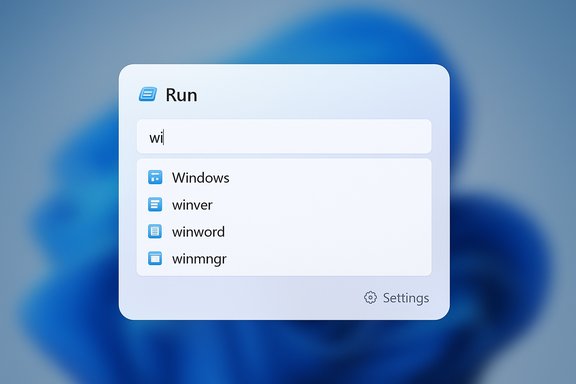
The Run dialog is one of Windows’ longest‑serving utilities: a minimal, single‑line launcher that power users and administrators have relied on since the shell days preceding Windows 95. Its old Win32 implementation survived into the Windows 11 era largely unchanged, creating a visual mismatch with Fluent‑style surfaces and modern WinUI elements. Recent preview activity shows Microsoft is deliberately closing that gap by rebuilding Run as a modern overlay — sometimes described in community postings and early reports as the Modern Run interface. Microsoft has not published an official feature announcement for this change, but community researchers and Insider screenshots identified by X account PhantomOfEarth have revealed what the new surface looks like in preview builds. Several independent outlets and forum threads corroborate the core elements of the redesign and its opt‑in nature. What Microsoft is changing (feature breakdown)
A larger, more tactile overlay
The modern Run dialog abandons the tiny, compact modal for a larger overlay with increased padding, a more prominent text entry field, and Fluent‑style visual treatment (rounded corners, softer shadows, tone‑aware backgrounds). This visual parity reduces the jarring switch between modern UIs and legacy dialogs and improves touch and high‑DPI usability.Recent commands history above the input
A visible list of recently executed Run entries appears above the text box, turning the dialog into a lightweight, history‑aware launcher. That means repetitive workflows — for example, relaunching regedit, services.msc, or custom scripts — become a single‑keystroke affair without retyping. The new history list also supports keyboard navigation (arrow keys) in early previews.Inline icons and match feedback
When typed text resolves to a known executable or a Store app, the modern Run interface displays an inline icon for quick visual confirmation. This small UX detail reduces ambiguity when multiple similarly named entries exist and aligns Run with other launcher affordances in Windows 11.The old “Browse…” button may be absent in previews
Screenshots circulating among Insiders appear to omit the classic Browse… button that previously allowed manual file navigation from Run. That behavior is visible in some preview artifacts but not universally confirmed; Microsoft may restore or rework that affordance before public release. Treat this as provisional.Opt‑in toggle in Settings
Microsoft appears to expose the Modern Run as an optional experience beneath Settings → System → Advanced, via a toggle labeled for the Run dialog (described in previews as “Use the modern Run dialog when pressing Win+R”). The default remains the classic dialog while the modern experience is gated behind this switch in current preview builds.Why this matters: practical benefits
- Visual consistency: Replacing the legacy Win32 surface with a WinUI/Fluent look eliminates a persistent “flash” of legacy chrome and makes Windows 11 feel more cohesive.
- Faster re‑entry: Surfaced history speeds repetitive command workflows and reduces friction for administrators and developers who rely on quick command invocation.
- Better recognition: Inline icons and resolve feedback lower the cognitive load when multiple options match a typed string.
- Improved accessibility and touch: Larger hit targets, clearer typography, and tone‑aware theming improve readability and make the dialog friendlier for tablet and high‑DPI scenarios.
Technical rollout and verification: what is known and what isn’t
Multiple community posts and tech outlets have observed the Modern Run visuals in Dev/Beta channel builds and in preview screenshots. Coverage from independent outlets confirms the feature is present in preview artifacts and that Microsoft is gating exposure via server‑side flags and an Advanced toggle in Settings. At the same time, some specific claims that surfaced in social posts — notably an attribution to a single build number (Build 26534) — are not consistently corroborated across mainstream reporting and should be treated as provisional. Insiders have seen the UI in varying builds and may encounter server‑side flagging differences, so the exact build that first carried the artifacts may vary or be subject to change.Microsoft’s incremental approach — shipping binaries into preview builds and toggling exposure server‑side while collecting telemetry and Feedback Hub reports — is the standard pattern for small UX experiments, and it reduces risk by letting the company iterate before enabling the experience broadly. Expect more public documentation and a formal release note if and when Microsoft widens the rollout.
Accessibility, keyboard behavior, and developer considerations
Power users depend on the Run dialog’s low latency, immediate focus, and predictable keyboard flow. Any modernized surface must preserve these behaviors or risk being rejected by the community that uses Run competitively. Early reports indicate the Modern Run supports keyboard navigation through recent entries and intends to preserve Enter/Tab semantics, but final behavior must be validated against assistive technologies and keyboard‑only workflows.Accessibility specifics to watch for:
- Clear screen‑reader announcements (the recent list should be exposed as a listbox).
- Conserved focus timing so Win+R opens with immediate keyboard focus in the input box.
- Logical tab order and predictable arrow key behavior through suggestions.
- High‑contrast and dark‑mode parity to avoid regressions for users who rely on those modes.
Security, privacy and enterprise risks
Modernizing Run brings concrete benefits, but it also raises new questions that administrators and security teams must consider.Visible history exposes sensitive commands
A persistent recent commands list is a convenience but can reveal sensitive operations, network paths, or one‑off administrative commands on shared or audited workstations. Organizations that manage desktops in regulated environments will want the ability to disable history or clear it centrally.Increased social‑engineering risk
Run is a frequent vector for “paste‑and‑run” instructions posted on forums or chat. Making the dialog more prominent or similar in appearance to Start/Search could lower the perceived risk for inexperienced users and increase susceptibility to malicious guidance. Training and policy controls remain essential.Telemetry and data handling questions
Any new history feature raises questions about local vs. cloud storage and telemetry. Microsoft’s modern UI work often ties into broader indexing and search signals; administrators should verify whether Run history is stored locally only and whether it is influenced by settings such as “Let Windows track app launches to improve Start and Search results.” Clarify telemetry behavior and available Group Policy/MDM controls before enabling the feature at scale.Fragmentation risks for managed fleets
Staged rollouts and server‑side feature flags can create a fractured user experience across identical builds — some users may see Modern Run while others retain the classic dialog. That fragmentation complicates support, documentation, and training unless Microsoft provides clear group policy templates or MDM controls to force a uniform experience.How to see or try the Modern Run now (cautious steps)
The Modern Run is visible in Windows Insider preview builds and, in some cases, behind server flags. For testers who want to experiment, follow a cautious process:- Join the Windows Insider Program (Dev or Beta channel) and run preview builds on a non‑production device.
- Check Settings → System → Advanced for a toggle labeled for the Run dialog; enable it if present.
- If the toggle isn’t present, community tools such as ViVeTool have historically been used to flip hidden feature flags, but those tools are unsupported by Microsoft and risk system instability — use them only on test machines.
- Validate accessibility behavior (screen readers, keyboard workflows) and test key scripts or admin processes that depend on Win+R.
Power‑user perspective: alternatives and overlap
Third‑party quick‑launchers (Everything, Flow Launcher) and Microsoft PowerToys’ Command Palette provide more feature‑rich alternatives to Run, such as fuzzy search, plugin support, and multi‑action workflows. The Modern Run’s design borrows the idea of history and inline icons from these tools, but it remains targeted at the classic Run use case: instant, one‑line command execution with minimal friction. Power users who depend on advanced filtering, plugin extensibility, or command palette features will likely still favor third‑party launchers, but the Modern Run reduces the gap for lighter workflows.Considerations for power users:
- The Modern Run is likely to remain simpler than PowerToys Command Palette by design.
- Watch for subtle changes in paste behavior, focus timing, or multi‑line handling that could affect scripted workflows.
- Keep third‑party tools updated and verify they remain compatible with any new focus or hotkey behavior Microsoft introduces.
Recommendations for IT admins and security teams
- Pilot the Modern Run in a controlled test ring before broad rollout; include help‑desk staff to evaluate support documentation changes.
- Request or monitor Group Policy/MDM options from Microsoft for disabling the history feature or forcing classic Run for locked‑down environments.
- Update security awareness guidance to address paste‑and‑run threats and the visibility of sensitive commands in Run history.
- Verify telemetry, storage, and retention semantics for Run history and align them with compliance needs (local‑only storage, opt‑out, or enterprise disablement).
- Include accessibility testing (screen reader support, keyboard navigation) in pilot acceptance criteria.
Strengths, caveats, and the final assessment
The Modern Run dialog is not a sweeping platform change, but it is a meaningful polish item with outsized practical impact for daily workflows. Its principal strengths are visual parity, immediate productivity gains through surfaced history, and improved discoverability for less experienced users. These are concrete, testable gains that fit the broader effort to reduce legacy UI inconsistencies across Windows 11.At the same time, there are legitimate caveats:
- Privacy and security trade‑offs from surfaced history must be addressed with transparent controls and administrative options.
- Muscle‑memory and performance: the dialog must remain instantaneous and preserve keyboard ergonomics or risk alienating core users.
- Rollout fragmentation could create support overhead unless Microsoft provides clear enterprise controls.
Quick checklist: what to watch next
- Whether Microsoft confirms the Modern Run in official Insider release notes and documents the Settings toggle.
- Any published Group Policy/MDM templates that control Run history or the Modern Run toggle.
- Accessibility fixes and reported regressions from Feedback Hub as the feature reaches broader Insider audiences.
- Clarification on the storage and telemetry model for Run history (local only vs. cloud‑indexed).
- Final UX decisions on the presence or absence of the Browse… button and how multi‑path/paste behavior is handled.
The Run dialog’s makeover is emblematic of the kind of incremental polish that keeps a mature OS feeling modern: small, practical refinements that remove friction without reinventing how people work. The Modern Run’s success will depend less on visuals and more on whether Microsoft preserves the speed, accessibility, and administrative controls that made the old Run indispensable — and whether the company communicates the rollout and management options clearly to the millions of users and organizations that depend on Win+R every day.
Source: BetaNews Microsoft is preparing to give the Windows 11 Run dialog a much-needed makeover
