

Microsoft released Windows 11 Insider Release Preview builds 26100.8728 and 26200.8728 on June 12, 2026, for testers running Windows 11 version 24H2 and the upcoming 25H2 release, delivering touchpad controls, File Explorer fixes, networking repairs, and shell reliability improvements. This is not the kind of preview build that sells a new Windows era from a keynote stage. It is more revealing than that: a maintenance-heavy release that shows where Windows 11 still rubs against daily use. Microsoft is polishing the parts of the operating system that users touch constantly and enterprises quietly depend on, which makes this build less glamorous than a feature drop but potentially more important.
The Release Preview Channel has always occupied an awkward place in the Windows Insider program. It is not supposed to be the playground for raw ideas, nor is it the place where Microsoft tests the most experimental interface changes. Its value is supposed to be practical: give users and administrators an early look at the updates likely to arrive broadly, with enough time to catch the regressions that matter.
Builds 26100.8728 and 26200.8728 fit that mission almost too neatly. The update spans two tracks at once, covering the currently shipping 24H2 platform and the 25H2 release Microsoft is preparing for wider availability. That pairing matters because it suggests Microsoft is continuing to keep 25H2 close to the 24H2 servicing base rather than treating it as a dramatic architectural break.
That is good news for IT departments tired of Windows version upgrades masquerading as migration projects. It also means the details matter more than the branding. If 25H2 is going to feel like a safer, steadier evolution of 24H2, then builds like this are where Microsoft has to prove it.
The headline items are modest: a new pressable-touchpad option, more predictable File Explorer behavior, better Start menu refreshes, and a bundle of enterprise networking fixes. But together they point to a Windows team still wrestling with the same hard truth: Windows 11’s user experience is only as good as its least reliable surface.
That is not a revolutionary feature. It will not change anyone’s mind about Windows 11, and it will not show up in a glossy product video. But it addresses the kind of annoyance that makes a machine feel less personal than it should.
Modern Windows laptops have become increasingly dependent on large, buttonless precision touchpads. That design works well when the software correctly interprets intent, and it becomes maddening when it does not. A user who repeatedly triggers the wrong click does not think about input abstraction layers or OEM firmware; they think the laptop is fighting them.
Microsoft’s decision to expose more control here is a quiet admission that one-size-fits-all gestures and click zones are not enough. Hand size, device size, touchpad placement, and muscle memory all vary. A setting that lets users tune the right-click area is small, but it is small in the way good operating-system work often is: it removes a needless paper cut.
It also reflects a broader pattern in Windows 11’s maturity curve. The OS spent its early life arguing for a new design language. Now Microsoft is spending more time sanding down the defaults that made the new design feel rigid.
That collection may sound scattered, but it is really one story. Windows 11’s shell is a web of surfaces that must appear calm even when the system underneath is syncing files, refreshing app entries, loading shell extensions, changing desktops, and repainting translucent UI effects. When any one of those handoffs breaks, the user experiences it as Windows being flaky.
File Explorer is especially unforgiving because it is not merely a file manager. It is a launcher, a OneDrive front end, a network browser, a shell extension host, and, for many users, the place where Windows either feels trustworthy or does not. A frozen Explorer window or a misbehaving Home view makes the whole system feel suspect.
The OneDrive angle is particularly important. Microsoft has pushed cloud-backed file experiences deeply into Windows, but the integration has often felt like two products negotiating in public. Explorer Home is supposed to give users a convenient, current view of their files; during synchronization, that promise becomes harder to keep.
This build’s File Explorer changes are not about adding another pane or reinventing the navigation model. They are about making the existing model stop betraying the user at precisely the moments when Windows is doing background work. That is less exciting than a new feature, but it is exactly what a mature desktop OS needs.
Windows 11 wants to look modern, animated, and layered. It also wants to remain compatible with decades of shell extensions, background utilities, enterprise agents, file sync clients, context menu handlers, and notification systems. That is a difficult combination.
Acrylic blur is a good symbol of the problem. When it works, it gives Windows 11 the depth and softness Microsoft has been chasing since Fluent Design became the company’s UI vocabulary. When it fails, users see visual glitches in highly visible places such as Start, Settings, and the lock screen.
The same is true of taskbar notification badges. Users may not consciously admire them when they work, but they notice immediately when counts are stale or icons become blank gray placeholders. These are tiny reliability signals that shape confidence in the desktop.
There is also a lesson for power users who install shell extensions freely. Microsoft can improve launch reliability when shell extensions are present, but the Windows shell remains a crowded intersection. Every file utility, archive manager, sync provider, and security product wants a place in the experience, and Explorer has to survive all of them.
In that environment, networking reliability is not a convenience. It is the difference between a productive development machine and a troubleshooting session that burns the afternoon. WSL has become one of Microsoft’s most important developer bridges, but its value depends on behaving predictably in enterprise network conditions.
Mirrored networking was introduced to make WSL networking behave more like the Windows host, reducing some of the friction that came with NAT-based setups. But VPNs are where idealized networking models often meet reality. Corporate clients may modify routing tables, enforce DNS rules, inspect traffic, or apply split-tunnel policies that do not map neatly onto developer expectations.
By improving WSL under mirrored networking with VPN connections, Microsoft is addressing the exact overlap where Windows has been trying hardest to win back developers. The company does not need WSL to be interesting in a demo anymore. It needs WSL to be boring at 9:15 a.m. when a developer pulls code over a corporate VPN before a stand-up meeting.
This is also where Windows 11 competes less with Linux as an ideology and more with macOS as a workstation experience. Developers will tolerate complexity when they choose it. They are less forgiving when the platform adds accidental complexity to tasks that should be routine.
Enterprise Windows environments rarely resemble Microsoft’s cleanest architectural diagrams. They include old domain controllers, legacy applications, file shares with institutional history, scripts that call Windows networking APIs, and authentication paths nobody wants to touch because they still work. Until they do not.
Fixes in this area matter because identity and network access failures often look random to users and catastrophic to help desks. A machine that cannot maintain a secure channel, reach a share, or authenticate consistently can create symptoms far removed from the underlying bug. Users report missing drives, failed logons, broken apps, and intermittent access.
The mention of older domain controllers is particularly telling. Microsoft can push the Windows ecosystem forward, but it cannot pretend every organization modernizes on Redmond’s preferred timeline. The Windows client has to keep functioning in mixed estates where server versions, security policies, and application dependencies vary wildly.
Null session connectivity is another reminder that Windows compatibility has long shadows. Unauthenticated network access is not something security teams celebrate, yet real-world environments sometimes depend on legacy behaviors during migrations, discovery, monitoring, or older application workflows. Microsoft’s challenge is to tighten security without breaking the operational assumptions still embedded in business networks.
This is the sort of infrastructure change that most users will never see, and that is partly the point. Secure Boot only becomes visible to ordinary users when it breaks something: a firmware update, a bootloader, a recovery environment, or a dual-boot configuration. The rest of the time, it sits below the OS as part of the trust chain that helps keep unsigned or malicious boot components from taking control before Windows loads.
Certificate updates in that layer are delicate. Move too slowly, and the ecosystem carries old trust anchors longer than it should. Move too aggressively, and Microsoft risks boot failures on machines with firmware quirks, unusual configurations, or insufficiently tested update paths.
The phrase high-confidence device targeting is doing a lot of work here. Microsoft appears to be narrowing the blast radius by using update-success history and device eligibility data before sending certificate updates automatically. That is a pragmatic approach to platform security in a hardware ecosystem Microsoft does not fully control.
For administrators, the signal is clear. Secure Boot servicing is becoming more data-driven and more integrated into the normal Windows quality-update pipeline. That may reduce manual intervention over time, but it also means firmware posture, update compliance, and device health telemetry are becoming more intertwined.
This is good interface hygiene. Privacy controls should not require users to infer whether a setting matters in a disabled state. If a toggle renders other controls irrelevant, the interface should say so visually and behaviorally.
Windows has not always been great at this. The Settings app has improved over the years, but it still contains layers of legacy assumptions, enterprise policy interactions, and consumer-facing explanations that sometimes collide. Users often encounter controls that appear active even when another setting, policy, or permission makes them meaningless.
Graying out dependent location options is not just a cosmetic fix. It helps establish a clearer contract: if location is off, related overrides are not secretly doing something in the background. That matters in an era when users are more sensitive to telemetry, permissions, and device tracking than they were when Windows 10 launched.
For IT administrators, it also reduces support ambiguity. A user looking at disabled location services and still seeing adjacent editable controls may assume a policy is broken or that Windows is behaving inconsistently. A grayed-out interface does not solve every policy dispute, but it cuts down on needless confusion.
Handwriting recognition has always depended on context. A recognizer that works well for one language can stumble when users mix scripts, abbreviations, product names, code snippets, or English terms into otherwise Japanese input. Improving English character recognition inside Japanese handwriting is therefore less about checking a localization box and more about matching how people actually write.
This fits alongside the touchpad and location changes as part of a quieter accessibility and usability theme. Not every accessibility improvement is branded as accessibility. Sometimes it is simply the OS becoming more tolerant of different bodies, languages, workflows, and expectations.
Windows remains a global platform, and global platforms fail when they assume too much about input. Keyboard, pen, touchpad, speech, and handwriting all need to converge without forcing the user to think about which subsystem is currently in charge. That is easy to describe and hard to execute.
The improvement also underscores why Insider testing matters outside the English-speaking power-user bubble. Release Preview builds can surface issues that only appear at scale across language packs, input methods, OEM hardware, and region-specific defaults. The more Windows leans on AI-assisted and predictive input, the more these foundational recognition fixes matter.
Third-party credential providers are common in managed environments. They may support multifactor authentication, smart cards, identity federation, privileged access workflows, or vendor-specific security requirements. Microsoft can promote Windows Hello and Entra ID all it wants, but the real enterprise endpoint is often a negotiated stack of Microsoft and non-Microsoft identity components.
When the login screen misbehaves in that world, the failure is immediate and visible. Users cannot get to the desktop. Help desks get flooded. Security teams face pressure to weaken controls or roll back updates. Administrators start treating Windows updates as a threat to authentication continuity.
That is why credential-provider reliability belongs in the same conversation as File Explorer and Start menu fixes. It is part of Windows 11’s lived reliability. A system is not stable merely because it avoids blue screens; it is stable when the daily path from lock screen to work does not become a gamble.
Microsoft’s work here also hints at the limits of first-party integration as a strategy. Windows must remain hospitable to external security vendors and identity providers, even when Microsoft would prefer customers to live deeper inside its own stack. The platform wins when it can carry that complexity without exposing it to users.
This is a classic Windows problem: the system completed the installation, but the shell did not convincingly acknowledge it. To a user, that distinction is meaningless. If an app installs and Start does not show it, Windows looks confused.
The fix matters because Start is still the symbolic center of Windows, even for users who launch everything from search, the taskbar, PowerToys Run, or a terminal. It is the place people expect the OS to reflect what is installed. When it lags behind reality, the whole system feels less coherent.
The multiple-shortcut-folder detail is also revealing. Windows applications remain messier than app-store-era design would prefer. Installers still create program groups, uninstallers, documentation shortcuts, helper tools, configuration utilities, and legacy entries. The Start menu has to map that old model into a modern interface without losing track of state.
This is where Windows 11’s simplification project keeps meeting Windows’ compatibility inheritance. Microsoft can streamline the Start menu visually, but it cannot wish away Win32 installation behaviors. The right answer is not to scold old installers; it is to make the shell better at reflecting their changes.
Taskbar notification badge refinements belong in the same bucket. Users increasingly rely on small shell signals to understand what needs attention. If counts and badges lag, Windows trains users not to trust them. Once that trust is lost, the feature becomes decoration.
Gradual rollout lets Microsoft reduce risk. If a change causes trouble, the company can halt or adjust deployment before every eligible device receives it. For a platform with Windows’ scale and hardware diversity, that approach is defensible.
But it also creates a recurring problem for enthusiasts and administrators. A build number no longer tells the whole story. Users compare screenshots, registry states, feature flags, and Settings pages, only to discover that the update is installed but the advertised capability has not yet been enabled.
That ambiguity is especially frustrating in Release Preview, where testers expect a closer approximation of what mainstream users will receive. The channel is not supposed to feel mysterious. Yet feature gating means that even careful testers may struggle to verify whether a bug is fixed, a feature is absent, or a rollout simply has not reached their device.
Microsoft has tried to explain this model for years, but the tradeoff remains. Controlled Feature Rollout protects the fleet, while weakening the old certainty that installing a build equals receiving its features. In 2026, Windows servicing is less a single package than a staged negotiation between code, policy, telemetry, and eligibility.
For users, that could be welcome. Windows 11 has spent years carrying the baggage of hardware requirements, UI rewrites, taskbar regressions, performance debates, and the slow migration of settings from Control Panel to Settings. A calmer feature update may be exactly what the platform needs.
For enterprises, continuity is more than comfort. It affects validation plans, app compatibility testing, deployment rings, help-desk scripts, and user training. If 25H2 behaves like a measured enablement-style step rather than a disruptive platform reset, organizations can treat it with less dread.
There is a political angle inside Microsoft, too. Windows now competes for attention with Copilot, Azure, Microsoft 365, and AI services that receive far more executive oxygen. A maintenance-heavy Windows release can look unambitious from the outside. But for the people who depend on Windows every day, ambition often means making the old things work better.
The danger is that Microsoft mistakes quiet servicing for a complete strategy. Reliability is necessary, but it is not sufficient. Windows 11 still has unresolved tensions around ads, account nudges, default apps, Settings fragmentation, and the uneasy blending of local computing with cloud services. A better touchpad setting will not settle those debates.
Still, builds like this one are the foundation on which any larger Windows story has to rest. If the shell is unstable, if File Explorer misbehaves, if enterprise networking regresses, if Start cannot reliably show installed apps, then grand platform narratives collapse under ordinary use.
 Microsoft’s Release Preview Channel Is Doing Its Real Job
The Release Preview Channel has always occupied an awkward place in the Windows Insider program. It is not supposed to be the playground for raw ideas, nor is it the place where Microsoft tests the most experimental interface changes. Its value is supposed to be practical: give users and administrators an early look at the updates likely to arrive broadly, with enough time to catch the regressions that matter.Builds 26100.8728 and 26200.8728 fit that mission almost too neatly. The update spans two tracks at once, covering the currently shipping 24H2 platform and the 25H2 release Microsoft is preparing for wider availability. That pairing matters because it suggests Microsoft is continuing to keep 25H2 close to the 24H2 servicing base rather than treating it as a dramatic architectural break.
That is good news for IT departments tired of Windows version upgrades masquerading as migration projects. It also means the details matter more than the branding. If 25H2 is going to feel like a safer, steadier evolution of 24H2, then builds like this are where Microsoft has to prove it.
The headline items are modest: a new pressable-touchpad option, more predictable File Explorer behavior, better Start menu refreshes, and a bundle of enterprise networking fixes. But together they point to a Windows team still wrestling with the same hard truth: Windows 11’s user experience is only as good as its least reliable surface.
The Touchpad Setting Is Small Because the Friction Was Small
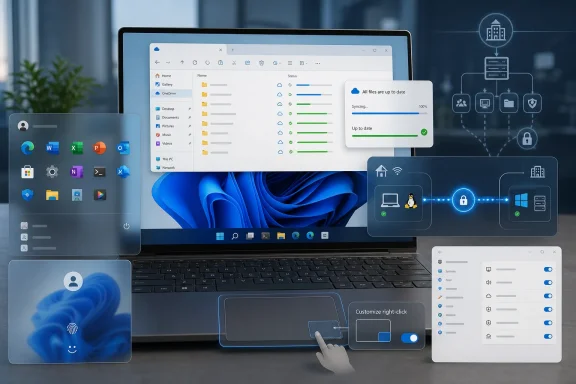
The new touchpad option is almost comically specific. On compatible devices with pressable touchpads, users can adjust the size of the bottom-right area used for right-clicking. Some systems may also expose a custom option if the device manufacturer supplies additional controls.That is not a revolutionary feature. It will not change anyone’s mind about Windows 11, and it will not show up in a glossy product video. But it addresses the kind of annoyance that makes a machine feel less personal than it should.
Modern Windows laptops have become increasingly dependent on large, buttonless precision touchpads. That design works well when the software correctly interprets intent, and it becomes maddening when it does not. A user who repeatedly triggers the wrong click does not think about input abstraction layers or OEM firmware; they think the laptop is fighting them.
Microsoft’s decision to expose more control here is a quiet admission that one-size-fits-all gestures and click zones are not enough. Hand size, device size, touchpad placement, and muscle memory all vary. A setting that lets users tune the right-click area is small, but it is small in the way good operating-system work often is: it removes a needless paper cut.
It also reflects a broader pattern in Windows 11’s maturity curve. The OS spent its early life arguing for a new design language. Now Microsoft is spending more time sanding down the defaults that made the new design feel rigid.
File Explorer Remains Windows’ Most Important App
File Explorer gets another round of reliability work, including improvements to Home navigation during OneDrive synchronization and better explorer.exe stability when switching among multiple virtual desktops. Microsoft also says it has reduced blank gray taskbar icons and improved reliability around acrylic blur effects in Start, Settings, and the lock screen.That collection may sound scattered, but it is really one story. Windows 11’s shell is a web of surfaces that must appear calm even when the system underneath is syncing files, refreshing app entries, loading shell extensions, changing desktops, and repainting translucent UI effects. When any one of those handoffs breaks, the user experiences it as Windows being flaky.
File Explorer is especially unforgiving because it is not merely a file manager. It is a launcher, a OneDrive front end, a network browser, a shell extension host, and, for many users, the place where Windows either feels trustworthy or does not. A frozen Explorer window or a misbehaving Home view makes the whole system feel suspect.
The OneDrive angle is particularly important. Microsoft has pushed cloud-backed file experiences deeply into Windows, but the integration has often felt like two products negotiating in public. Explorer Home is supposed to give users a convenient, current view of their files; during synchronization, that promise becomes harder to keep.
This build’s File Explorer changes are not about adding another pane or reinventing the navigation model. They are about making the existing model stop betraying the user at precisely the moments when Windows is doing background work. That is less exciting than a new feature, but it is exactly what a mature desktop OS needs.
The Shell Is Where Windows 11’s Cosmetic Ambitions Meet Reality
The shell fixes in this release deserve more attention than they will probably get. Microsoft says explorer.exe stability has improved across several scenarios, including virtual desktop switching, shell extension interactions, taskbar icon rendering, and acrylic blur effects. Those are not isolated quirks; they are pressure points created by Windows 11’s design and compatibility bargain.Windows 11 wants to look modern, animated, and layered. It also wants to remain compatible with decades of shell extensions, background utilities, enterprise agents, file sync clients, context menu handlers, and notification systems. That is a difficult combination.
Acrylic blur is a good symbol of the problem. When it works, it gives Windows 11 the depth and softness Microsoft has been chasing since Fluent Design became the company’s UI vocabulary. When it fails, users see visual glitches in highly visible places such as Start, Settings, and the lock screen.
The same is true of taskbar notification badges. Users may not consciously admire them when they work, but they notice immediately when counts are stale or icons become blank gray placeholders. These are tiny reliability signals that shape confidence in the desktop.
There is also a lesson for power users who install shell extensions freely. Microsoft can improve launch reliability when shell extensions are present, but the Windows shell remains a crowded intersection. Every file utility, archive manager, sync provider, and security product wants a place in the experience, and Explorer has to survive all of them.
WSL Gets a Fix for the World Developers Actually Use
One of the more practical changes in this build improves Windows Subsystem for Linux when mirrored networking mode is used alongside VPN connections. That sounds niche until you consider the modern developer workstation. WSL is often running inside a Windows laptop that is also connected to corporate VPN, cloud services, local containers, and private repositories.In that environment, networking reliability is not a convenience. It is the difference between a productive development machine and a troubleshooting session that burns the afternoon. WSL has become one of Microsoft’s most important developer bridges, but its value depends on behaving predictably in enterprise network conditions.
Mirrored networking was introduced to make WSL networking behave more like the Windows host, reducing some of the friction that came with NAT-based setups. But VPNs are where idealized networking models often meet reality. Corporate clients may modify routing tables, enforce DNS rules, inspect traffic, or apply split-tunnel policies that do not map neatly onto developer expectations.
By improving WSL under mirrored networking with VPN connections, Microsoft is addressing the exact overlap where Windows has been trying hardest to win back developers. The company does not need WSL to be interesting in a demo anymore. It needs WSL to be boring at 9:15 a.m. when a developer pulls code over a corporate VPN before a stand-up meeting.
This is also where Windows 11 competes less with Linux as an ideology and more with macOS as a workstation experience. Developers will tolerate complexity when they choose it. They are less forgiving when the platform adds accidental complexity to tasks that should be routine.
Enterprise Networking Fixes Show the Other Half of the Audience
The Release Preview notes also include fixes for Netlogon secure channel connections between domain controllers, member server connectivity with older domain controllers, shared network resources, the NetUseAdd function, and null session network connections. That list will not thrill consumers, but it will get attention from administrators who have learned to read between the lines of Windows servicing notes.Enterprise Windows environments rarely resemble Microsoft’s cleanest architectural diagrams. They include old domain controllers, legacy applications, file shares with institutional history, scripts that call Windows networking APIs, and authentication paths nobody wants to touch because they still work. Until they do not.
Fixes in this area matter because identity and network access failures often look random to users and catastrophic to help desks. A machine that cannot maintain a secure channel, reach a share, or authenticate consistently can create symptoms far removed from the underlying bug. Users report missing drives, failed logons, broken apps, and intermittent access.
The mention of older domain controllers is particularly telling. Microsoft can push the Windows ecosystem forward, but it cannot pretend every organization modernizes on Redmond’s preferred timeline. The Windows client has to keep functioning in mixed estates where server versions, security policies, and application dependencies vary wildly.
Null session connectivity is another reminder that Windows compatibility has long shadows. Unauthenticated network access is not something security teams celebrate, yet real-world environments sometimes depend on legacy behaviors during migrations, discovery, monitoring, or older application workflows. Microsoft’s challenge is to tighten security without breaking the operational assumptions still embedded in business networks.
Secure Boot Certificate Targeting Is the Quiet Security Story
The update also adds more high-confidence device targeting data for Secure Boot certificate updates through Windows quality updates. In plainer English, Microsoft is trying to better identify devices that are eligible to receive updated Secure Boot certificates automatically after they have demonstrated a reliable update history.This is the sort of infrastructure change that most users will never see, and that is partly the point. Secure Boot only becomes visible to ordinary users when it breaks something: a firmware update, a bootloader, a recovery environment, or a dual-boot configuration. The rest of the time, it sits below the OS as part of the trust chain that helps keep unsigned or malicious boot components from taking control before Windows loads.
Certificate updates in that layer are delicate. Move too slowly, and the ecosystem carries old trust anchors longer than it should. Move too aggressively, and Microsoft risks boot failures on machines with firmware quirks, unusual configurations, or insufficiently tested update paths.
The phrase high-confidence device targeting is doing a lot of work here. Microsoft appears to be narrowing the blast radius by using update-success history and device eligibility data before sending certificate updates automatically. That is a pragmatic approach to platform security in a hardware ecosystem Microsoft does not fully control.
For administrators, the signal is clear. Secure Boot servicing is becoming more data-driven and more integrated into the normal Windows quality-update pipeline. That may reduce manual intervention over time, but it also means firmware posture, update compliance, and device health telemetry are becoming more intertwined.
Location Settings Get Less Ambiguous, Which Is a Privacy Win
The location settings change is one of the simplest improvements in the build. When Location Services are turned off under Settings, related options such as Default Location and Allow Location Override now become unavailable and appear grayed out. Microsoft says the goal is to prevent confusion because those subordinate settings have no effect when location services are disabled.This is good interface hygiene. Privacy controls should not require users to infer whether a setting matters in a disabled state. If a toggle renders other controls irrelevant, the interface should say so visually and behaviorally.
Windows has not always been great at this. The Settings app has improved over the years, but it still contains layers of legacy assumptions, enterprise policy interactions, and consumer-facing explanations that sometimes collide. Users often encounter controls that appear active even when another setting, policy, or permission makes them meaningless.
Graying out dependent location options is not just a cosmetic fix. It helps establish a clearer contract: if location is off, related overrides are not secretly doing something in the background. That matters in an era when users are more sensitive to telemetry, permissions, and device tracking than they were when Windows 10 launched.
For IT administrators, it also reduces support ambiguity. A user looking at disabled location services and still seeing adjacent editable controls may assume a policy is broken or that Windows is behaving inconsistently. A grayed-out interface does not solve every policy dispute, but it cuts down on needless confusion.
Japanese Handwriting Improvements Point to a Broader Accessibility Theme
Microsoft says the build improves Japanese handwriting recognition by enhancing support for English character recognition during handwriting input. That is a compact note, but it speaks to a real multilingual use case. Many Japanese users move fluidly between Japanese and English text, especially in technical, academic, business, and creative contexts.Handwriting recognition has always depended on context. A recognizer that works well for one language can stumble when users mix scripts, abbreviations, product names, code snippets, or English terms into otherwise Japanese input. Improving English character recognition inside Japanese handwriting is therefore less about checking a localization box and more about matching how people actually write.
This fits alongside the touchpad and location changes as part of a quieter accessibility and usability theme. Not every accessibility improvement is branded as accessibility. Sometimes it is simply the OS becoming more tolerant of different bodies, languages, workflows, and expectations.
Windows remains a global platform, and global platforms fail when they assume too much about input. Keyboard, pen, touchpad, speech, and handwriting all need to converge without forcing the user to think about which subsystem is currently in charge. That is easy to describe and hard to execute.
The improvement also underscores why Insider testing matters outside the English-speaking power-user bubble. Release Preview builds can surface issues that only appear at scale across language packs, input methods, OEM hardware, and region-specific defaults. The more Windows leans on AI-assisted and predictive input, the more these foundational recognition fixes matter.
Login Reliability Is an Enterprise Feature Wearing a Consumer Face
The update improves login and lock screen reliability when organizations use third-party credential providers. That is another note that sounds narrowly administrative until it fails. Authentication is the front door to the entire Windows experience, and a fragile front door makes every other improvement irrelevant.Third-party credential providers are common in managed environments. They may support multifactor authentication, smart cards, identity federation, privileged access workflows, or vendor-specific security requirements. Microsoft can promote Windows Hello and Entra ID all it wants, but the real enterprise endpoint is often a negotiated stack of Microsoft and non-Microsoft identity components.
When the login screen misbehaves in that world, the failure is immediate and visible. Users cannot get to the desktop. Help desks get flooded. Security teams face pressure to weaken controls or roll back updates. Administrators start treating Windows updates as a threat to authentication continuity.
That is why credential-provider reliability belongs in the same conversation as File Explorer and Start menu fixes. It is part of Windows 11’s lived reliability. A system is not stable merely because it avoids blue screens; it is stable when the daily path from lock screen to work does not become a gamble.
Microsoft’s work here also hints at the limits of first-party integration as a strategy. Windows must remain hospitable to external security vendors and identity providers, even when Microsoft would prefer customers to live deeper inside its own stack. The platform wins when it can carry that complexity without exposing it to users.
The Start Menu Fix Is About Trust, Not Just Shortcuts
The Start menu now updates more accurately when applications are installed or removed, reducing cases where users had to sign out or restart before newly installed apps appeared correctly. Microsoft says the improvement is especially noticeable for apps that create folders containing multiple shortcuts.This is a classic Windows problem: the system completed the installation, but the shell did not convincingly acknowledge it. To a user, that distinction is meaningless. If an app installs and Start does not show it, Windows looks confused.
The fix matters because Start is still the symbolic center of Windows, even for users who launch everything from search, the taskbar, PowerToys Run, or a terminal. It is the place people expect the OS to reflect what is installed. When it lags behind reality, the whole system feels less coherent.
The multiple-shortcut-folder detail is also revealing. Windows applications remain messier than app-store-era design would prefer. Installers still create program groups, uninstallers, documentation shortcuts, helper tools, configuration utilities, and legacy entries. The Start menu has to map that old model into a modern interface without losing track of state.
This is where Windows 11’s simplification project keeps meeting Windows’ compatibility inheritance. Microsoft can streamline the Start menu visually, but it cannot wish away Win32 installation behaviors. The right answer is not to scold old installers; it is to make the shell better at reflecting their changes.
Taskbar notification badge refinements belong in the same bucket. Users increasingly rely on small shell signals to understand what needs attention. If counts and badges lag, Windows trains users not to trust them. Once that trust is lost, the feature becomes decoration.
Gradual Rollouts Keep Microsoft Safe and Users Suspicious
As with many Release Preview updates, not every feature arrives for every tester at the same moment. Microsoft continues to use gradual rollouts for some changes, meaning two machines on the same build may not expose the same experience immediately. That is sensible engineering and awkward communication.Gradual rollout lets Microsoft reduce risk. If a change causes trouble, the company can halt or adjust deployment before every eligible device receives it. For a platform with Windows’ scale and hardware diversity, that approach is defensible.
But it also creates a recurring problem for enthusiasts and administrators. A build number no longer tells the whole story. Users compare screenshots, registry states, feature flags, and Settings pages, only to discover that the update is installed but the advertised capability has not yet been enabled.
That ambiguity is especially frustrating in Release Preview, where testers expect a closer approximation of what mainstream users will receive. The channel is not supposed to feel mysterious. Yet feature gating means that even careful testers may struggle to verify whether a bug is fixed, a feature is absent, or a rollout simply has not reached their device.
Microsoft has tried to explain this model for years, but the tradeoff remains. Controlled Feature Rollout protects the fleet, while weakening the old certainty that installing a build equals receiving its features. In 2026, Windows servicing is less a single package than a staged negotiation between code, policy, telemetry, and eligibility.
25H2 Looks More Like a Servicing Story Than a Spectacle
The most strategic part of this release is that it applies to both Windows 11 version 24H2 and 25H2. Microsoft is effectively showing that the next named version is being refined through the same servicing motion as the current one. That does not mean 25H2 will be trivial, but it does suggest continuity is the point.For users, that could be welcome. Windows 11 has spent years carrying the baggage of hardware requirements, UI rewrites, taskbar regressions, performance debates, and the slow migration of settings from Control Panel to Settings. A calmer feature update may be exactly what the platform needs.
For enterprises, continuity is more than comfort. It affects validation plans, app compatibility testing, deployment rings, help-desk scripts, and user training. If 25H2 behaves like a measured enablement-style step rather than a disruptive platform reset, organizations can treat it with less dread.
There is a political angle inside Microsoft, too. Windows now competes for attention with Copilot, Azure, Microsoft 365, and AI services that receive far more executive oxygen. A maintenance-heavy Windows release can look unambitious from the outside. But for the people who depend on Windows every day, ambition often means making the old things work better.
The danger is that Microsoft mistakes quiet servicing for a complete strategy. Reliability is necessary, but it is not sufficient. Windows 11 still has unresolved tensions around ads, account nudges, default apps, Settings fragmentation, and the uneasy blending of local computing with cloud services. A better touchpad setting will not settle those debates.
Still, builds like this one are the foundation on which any larger Windows story has to rest. If the shell is unstable, if File Explorer misbehaves, if enterprise networking regresses, if Start cannot reliably show installed apps, then grand platform narratives collapse under ordinary use.
The Most Revealing Fixes Are the Ones Microsoft Hopes You Never Notice
This build’s lesson is not that Windows 11 suddenly becomes a different operating system. It is that Microsoft is spending Release Preview capital on the unglamorous reliability layer that determines whether users believe the OS is improving. The most concrete changes are not flashy, but they are the kind that reduce support tickets and daily irritation.- Windows 11 builds 26100.8728 and 26200.8728 are now in the Release Preview Channel for version 24H2 and version 25H2 testers.
- Compatible pressable touchpads gain a setting to adjust the bottom-right right-click region, with some OEMs able to expose additional custom controls.
- File Explorer, explorer.exe, the taskbar, Start, Settings, and the lock screen receive stability or visual reliability fixes aimed at everyday shell rough edges.
- WSL users working with mirrored networking and VPN connections should see improved reliability in development and corporate network scenarios.
- Enterprise environments benefit from fixes touching Netlogon, older domain controller communication, shared resources, NetUseAdd, null sessions, third-party credential providers, and Secure Boot certificate targeting.
- Some improvements are rolling out gradually, so installing the build does not guarantee every advertised feature appears immediately on every device.
References
- Primary source: Windows Report
Published: 2026-06-14T11:10:19.483681
Loading…
windowsreport.com - Related coverage: windowscentral.com

Windows Insiders get first crack at a less annoying Windows 11 update process | Windows Central
Microsoft is laying the groundwork to bundle driver, .NET, and firmware updates together so you only have to reboot your PC once a month.www.windowscentral.com - Official source: learn.microsoft.com
Release Preview Build 26100.8728/26200.8728 - Windows Insider Program | Microsoft Learn
release notes for release preview build 26100.8728/26200.8728learn.microsoft.com - Official source: blogs.windows.com
Announcing new builds for 12 June 2026
Hello Windows Insiders, We have a number of releases today with new builds across Beta, Experimental and Release Preview. Release notes for inbox Windows 11 apps Windows 11 inbox apps are now getting their own release notes sectioblogs.windows.com - Related coverage: elevenforum.com
KB5095093 Windows 11 Insider Release Preview build 26100.8728 (24H2) and 26200.8728 (25H2) - June 12 | Windows 11 Forum
Windows Insider Blog: These release notes are for Windows 11 Builds 26100.8728 and 26200.8728 in the Release Preview Channel on Windows 11, versions 24H2...www.elevenforum.com