

Microsoft’s latest preview cumulative, KB5070311 (OS builds 26200.7309 and 26100.7309), delivers a focused set of feature updates and user-experience polish for Windows 11—with the headline being a wider rollout of the Full Screen Experience (FSE) to more handheld Windows 11 devices, plus input and settings improvements that target creators, mobile workflows, and gaming scenarios. This release is a preview-level quality update that mixes new UI capabilities, device-specific optimizations, and several bug fixes (and one known issue affecting File Explorer in dark mode). The changes are documented in Microsoft’s preview notes for the December preview release.
Microsoft published KB5070311 as an optional Preview update for the Windows 11 servicing streams that include both the 25H2 and 24H2 families; the update’s manifest lists the OS builds as 26200.7309 (25H2) and 26100.7309 (24H2). The release is distributed as a staged rollout (gradual and normal phases), meaning feature visibility and timing can vary by device, OEM, and market. The update bundles a number of user-facing features and fixes grouped under Gaming, Input, Keyboard, Mobile Devices, File Explorer, OneDrive, and Recovery. Important context for readers:
If you notice the issue:
Strengths:
KB5070311’s blend of gaming-first features, device-integration improvements, and input polish points to how Windows 11 will continue to evolve: incremental, gated rollouts that rely on OEM collaboration, platform-level affordances for new peripherals, and cautious experimentation with alternative session postures like FSE to address emerging hardware categories such as handheld gaming PCs. The preview is worth watching closely—especially for handheld owners, developers of pen-enabled apps, and creators who will benefit most from tighter phone integrations.
Source: Windows Report KB5070311 Preview Expands Full Screen Experience (FSE) to More Windows 11 Handhelds
 Background / Overview
Microsoft published KB5070311 as an optional Preview update for the Windows 11 servicing streams that include both the 25H2 and 24H2 families; the update’s manifest lists the OS builds as 26200.7309 (25H2) and 26100.7309 (24H2). The release is distributed as a staged rollout (gradual and normal phases), meaning feature visibility and timing can vary by device, OEM, and market. The update bundles a number of user-facing features and fixes grouped under Gaming, Input, Keyboard, Mobile Devices, File Explorer, OneDrive, and Recovery. Important context for readers:- KB5070311 is a preview (non-security, quality/feature) update and is optional for most users; preview builds are intended for testing before changes reach broader production channels.
- Several features in the notes are gated—either by OEM entitlements, Windows Insider program participation, or server-side flags—so not every machine on the same build will necessarily show all options immediately.
What’s new in KB5070311 — Quick inventory
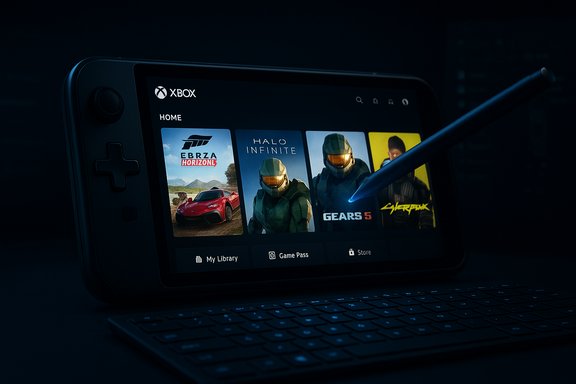
The update touches multiple subsystems. Here are the headline items users will care about:- Full Screen Experience (FSE) expanded: FSE, previously delivered as an out-of-box experience on ASUS ROG Xbox Ally devices, is now available on more Windows 11 handheld devices and is being previewed more broadly via Windows Insider channels. FSE provides a console-style launcher driven by the Xbox PC app, reduces background desktop load for gaming, and supports entry points such as Task View, Game Bar, or an “enter on startup” option.
- Haptic feedback for Pens: Pens that support haptic feedback can now give tactile responses for UI interactions—examples include micro-vibrations when hovering over a close button or while snapping/resizing windows. This extends input affordances and makes pen interactions more discoverable.
- Keyboard backlight improvements (HID-compliant keyboards): Backlight performance and power handling have been tuned for HID-compliant keyboards to improve visibility while reducing unnecessary battery drain.
- Mobile Devices page in Settings: A new “Mobile Devices” page under Settings > Bluetooth & Devices lets users link phones for connected-camera scenarios and direct file access from File Explorer—functionality long requested by creators and mobile-first users. Availability may vary by device and market.
- OneDrive UI tweak: OneDrive’s settings now include an updated icon placement under Settings > Accounts > Homepage.
- Quick Machine Recovery (QMR) behavior change: QMR now performs smarter one-time scans when both auto-check and QMR are enabled and will recommend a recovery path if an instant fix isn’t available—designed to reduce guesswork during recovery workflows.
- File Explorer dark-mode and context-menu polish: Dialogs and progress indicators have been restyled to better respect dark theme, and Microsoft is rolling out a simplified context menu in phased waves. A known issue remains: File Explorer may briefly flash a white screen in dark mode for some users; Microsoft is investigating and has documented a workaround status.
Deep dive: Full Screen Experience (FSE)
What FSE actually is (and isn’t)
FSE is best understood as a session posture or alternate shell layered on top of Windows 11 rather than a separate operating system. When a session starts with FSE enabled:- The designated “home app” (default: Xbox PC app) becomes the primary full-screen launcher.
- Many Explorer shell ornaments (wallpaper, some taskbar chrome) and non-essential startup/background tasks are deferred or suppressed while FSE is active.
- Game Bar and Task View are adapted for controller-first use, with large tiles and streamlined navigation optimized for thumb controls.
Expected user-facing benefits
- Faster “pick up and play”: Handhelds can boot or switch into a focused gaming posture that removes desktop distractions and surfaces a big-tile game library.
- Potential runtime gains: By delaying desktop services and startup tasks, some devices reclaim system memory and reduce idle CPU wakeups—tests and reviews have commonly reported directional memory savings (often cited around 1–2 GB on tuned handhelds), though results are device- and configuration-dependent.
- Unified controller-first navigation: Xbox-centered discovery and Game Pass integration become front and center, which helps users who primarily use a controller.
Rollout mechanics and OEM gating
- The plumbing for FSE has been folded into Windows 11 preview builds, but visibility is gated by OEM entitlements and server-side flags. That means simply installing the preview build does not guarantee the toggle will appear on every device; OEMs control when their models are enabled (to allow driver/firmware validation and vendor-specific tuning).
- Microsoft and OEMs are deliberately staging the rollout to limit exposure while telemetry and feedback are gathered—this reduces the risk of wide compatibility breakages on hardware with specific driver quirks. Early non-ASUS enabled devices have included MSI’s Claw family and selected Lenovo/AYANEO models on staged timelines.
Where FSE helps most — and its limits
- FSE’s design pays dividends on memory-limited, thermally constrained handheld APUs where reclaimed RAM and reduced background wakeups can translate into steadier minimum FPS and better battery life in sustained sessions.
- On full-size desktops and work-focused laptops, the benefit is smaller: most desktop users value multitasking and full Explorer features, so FSE’s advantages are less compelling on those form factors. Microsoft is previewing FSE on these form factors via Windows Insider channels to gather broader feedback.
Risk profile and compatibility considerations
- Because FSE alters session startup behavior, edge cases can expose driver or overlay conflicts (GPU overlays from vendors, anti-cheat hooks, third-party utilities). Users who rely on specialized software or vendor utilities should wait for their OEM to publish validated enablement paths.
- Community “hacks” that forcibly enable FSE on unsupported devices exist, but they increase risk: firmware or driver mismatches can create performance regressions or stability issues. The recommended route is to use the official, OEM-validated path.
Input and hardware UX: Haptic Pens and Keyboard Backlight
Haptic pens: what this means
KB5070311 adds OS-level support that allows pens capable of haptic feedback to surface tactile responses for UI interactions. This is a subtle but meaningful enhancement for pen-first workflows:- It improves discoverability of pen interactions (micro-vibrations when hovering or snapping windows can signal actionable UI affordances).
- It can enhance accessibility for users who rely on tactile confirmation.
- The effectiveness depends on hardware vendors implementing the haptic actuator APIs and exposing appropriate firmware/driver support.
Keyboard backlight improvements
The update optimizes backlight controls on HID-compliant keyboards to balance visibility and battery use. For mobile users this is a practical win: the backlight now adjusts behavior to reduce unnecessary power draw while keeping keys readable in low light.- This is a firmware/driver-light change and should be largely transparent; users with OEM keyboard utilities should ensure their drivers are updated to gain the full benefit.
Mobile device integration and OneDrive tweak
Mobile Devices page: functional implications
Adding a dedicated Mobile Devices page under Settings > Bluetooth & Devices signals Microsoft’s continued push to bridge phones and Windows desktops in native settings. The new page enables:- Linking phones for connected-camera mode, letting a phone act as a webcam from Windows without complex third-party setup.
- Direct file access to device storage from File Explorer, simplifying common creator workflows for media ingestion.
- Centralized management for paired mobile devices—useful for creators who move large assets between phone and PC frequently.
OneDrive icon placement
A small but meaningful UI change: the OneDrive icon appears in a revised location under Settings > Accounts > Homepage. These micro-polish changes often help reduce friction when users locate cloud sync settings, but they are cosmetic improvements rather than functional changes.Recovery and reliability: Quick Machine Recovery (QMR)
KB5070311 adjusts QMR behavior so that when both auto-check and QMR are enabled, QMR will perform a smarter one-time scan and recommend the most appropriate recovery path if an immediate fix isn’t available. The stated goal is to reduce confusion during recovery scenarios by suggesting the next best step rather than leaving users guessing. Practical implications and privacy considerations:- QMR’s scanning and recommendation flows may interact with cloud connectivity (when remediation options depend on online resources). Users should be aware that some recovery actions can involve network communication and may surface telemetry or diagnostic uploads—reviewing privacy and telemetry settings is prudent.
- The update aims to streamline recovery choices, but users with mission-critical systems should continue to maintain separate recovery media and verified backups before relying solely on QMR.
Known issue — File Explorer white flash in dark mode
Microsoft lists a known issue where File Explorer may briefly flash a white screen when used in dark mode under certain actions (navigating Home/Gallery, creating new tabs, toggling the Details pane, etc.. This can be jarring and undermines dark-theme polish; Microsoft states it is investigating and will provide updates.If you notice the issue:
- Consider delaying non-essential preview updates on your primary production machine until a fix is shipped.
- Use the Feedback Hub to file reproducible steps if you can trigger the white flash consistently—Microsoft uses that telemetry to prioritize fixes.
Verification and cross-references
The facts summarized above are drawn from Microsoft’s official preview release notes for KB5070311 and corroborated by independent tech reporting and hands-on coverage. The Microsoft support article explicitly lists the builds (26200.7309 and 26100.7309) and the feature bullets referenced in this analysis. Independent reporting by outlets covering Windows updates and hands-on testing confirm both the nature of FSE (a session-layer, Xbox PC app-driven launcher) and the staged OEM gating that controls when devices receive the feature. Where the press reported measurable memory savings, those figures are presented as test results from specific hardware configurations and are not guaranteed across all devices. Cautionary note: vendor-specific timelines and OEM enablement windows vary. When outlets reported concrete device availability dates, those were tied to OEM announcements or staged previews; users should confirm their device’s support page or OEM channel for exact timing.Practical guidance — how to approach KB5070311
If you’re considering installing KB5070311, follow a cautious, tested approach—especially on production machines:- If you use a handheld primarily for gaming and want to try FSE, verify your OEM has published support for the device and follow their recommended path. Enabling FSE on unsupported hardware can produce compatibility issues.
- If you rely on specialized drivers or third-party anti-cheat/overlay tools, wait for OEM or vendor-driver updates that declare support for FSE sessions.
- For creators who want the new Mobile Devices page and connected-camera capabilities, confirm phone-side apps and drivers are updated and your File Explorer integration works in your typical media workflow before relying on it in a critical project.
- Back up your device or create recovery media before installing preview updates. Even with QMR improvements, having an offline restore option is best practice.
- If you are an Insiders participant, provide structured feedback via Feedback Hub and include traces or repro steps for any regressions; staged rollouts depend on community telemetry to find and fix issues quickly.
How to enable Full Screen Experience (official path)
On a supported device and with official OEM enablement, FSE is exposed in Settings. The safe steps are:- Update Windows to the build that includes the FSE plumbing (insider or supported preview build as appropriate).
- Update the Xbox PC app via the Microsoft Store so it includes the handheld UI.
- Open Settings > Gaming > Full screen experience.
- Choose your preferred home app (Xbox is the default).
- Optionally toggle “Enter full screen experience on startup.”
- Use Task View, Game Bar, or the Win + F11 shortcut to enter or exit FSE during a session.
Recommendations and what Microsoft/OEMs should prioritize
- Prioritize clear OEM enablement documentation and firmware driver bundles that explicitly call out FSE compatibility, to reduce user confusion and prevent early breakage reports.
- Provide measurable telemetry guidance (anonymized) that clarifies expected memory/load improvements on representative hardware classes so users get realistic expectations.
- Publish compatibility checks or a lightweight diagnostic that confirms critical overlays and anti-cheat tools are compatible before enabling FSE automatically.
- Expand pen haptics documentation and sample APIs for OEMs and developers so the ecosystem can ship meaningful experiences (apps that adopt haptics for pen UI affordances).
Final analysis — strengths, risks, and the path forward
KB5070311 is an iterative but meaningful update that advances three strategic areas for Windows 11: gaming UX on handhelds, tighter phone-to-PC integration for creators, and incremental input-device innovations.Strengths:
- FSE represents a pragmatic UI experiment: by offering a console-like shell without splitting Windows into a separate OS, Microsoft gives users the option of a focused, controller-first UX while preserving compatibility and third-party storefront diversity.
- Input and device polish: haptic pen support and keyboard backlight optimizations address real-world usability and battery-life trade-offs.
- Creator-friendly moves: the Mobile Devices page simplifies common phone-to-PC media workflows and reduces friction for content creators.
- Gated, staged rollout increases confusion: users seeing different behavior on similar builds can be frustrated; OEM coordination and clearer timelines would help.
- Performance claims are device-dependent: memory and framerate gains are real on tuned handhelds but are not guaranteed everywhere; marketing-style universal claims should be avoided.
- Compatibility edge cases: overlays, vendor utilities, and anti-cheat hooks could clash with FSE session policies; this is why OEM gating is essential but also a source of user frustration when visibility is delayed.
KB5070311’s blend of gaming-first features, device-integration improvements, and input polish points to how Windows 11 will continue to evolve: incremental, gated rollouts that rely on OEM collaboration, platform-level affordances for new peripherals, and cautious experimentation with alternative session postures like FSE to address emerging hardware categories such as handheld gaming PCs. The preview is worth watching closely—especially for handheld owners, developers of pen-enabled apps, and creators who will benefit most from tighter phone integrations.
Source: Windows Report KB5070311 Preview Expands Full Screen Experience (FSE) to More Windows 11 Handhelds
