

Microsoft’s Release Preview package KB5070311 quietly continues the Settings app migration work while adding a small-but-useful Device Card and folding legacy keyboard controls into the Accessibility pages — a modest update on paper that matters for discoverability, accessibility, and enterprise troubleshooting in Windows 11 users and managed fleets.
Microsoft is delivering KB5070311 as a Release Preview flight for Windows 11 (targeting both 24H2 and 25H2 tracks), using the same pattern it has followed for recent preview releases: ship the cumulative package to Insiders, then enable features progressively via server-side gating and device entitlements. That means the binary you install may contain code for several features, but whether an individual device sees them depends on account, hardware, region, and Microsoft’s staged rollout. This update blends three categories of work:
For IT administrators and technical support teams, the update requires modest but concrete follow-up:
KB5070311’s modest headline — new keyboard controls in Settings and a Device Card — masks real utility. It is a solid, low-risk user experience refinement that continues the long, incremental march toward a single, discoverable Settings experience and demonstrates how small adjustments to where Windows puts controls can reduce friction for millions of users and the teams that support them.
Source: Windows Report Microsoft Rolls Out New Keyboard Controls and Device Card in Windows 11 Settings with KB5070311
 Background
Microsoft is delivering KB5070311 as a Release Preview flight for Windows 11 (targeting both 24H2 and 25H2 tracks), using the same pattern it has followed for recent preview releases: ship the cumulative package to Insiders, then enable features progressively via server-side gating and device entitlements. That means the binary you install may contain code for several features, but whether an individual device sees them depends on account, hardware, region, and Microsoft’s staged rollout. This update blends three categories of work:- Visible UX changes and Settings reorganizations that improve discoverability.
- Incremental polish (dark-mode fixes in File Explorer, Widgets tweaks, OneDrive icon refresh).
- Reliability fixes, including an LSASS-related stability repair and small recovery behavior improvements.
What KB5070311 changes in Settings
Keyboard controls: Control Panel → Settings (Accessibility)
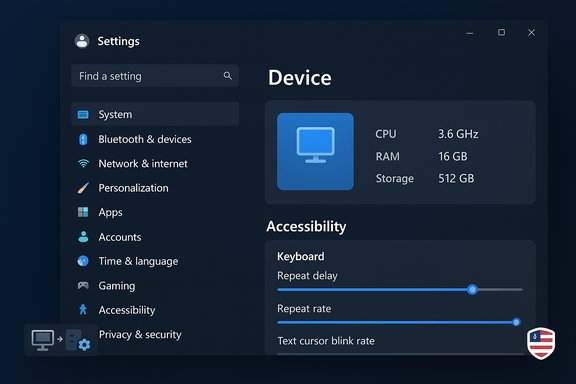
KB5070311 migrates the classic keyboard character repeat controls and cursor blink settings out of the legacy Control Panel into the modern Settings app. The practical mapping is:- Repeat delay and repeat rate are now located at Settings > Accessibility > Keyboard.
- Cursor blink rate has been moved to Settings > Accessibility > Text cursor.
Device Card on Settings home: quick hardware at-a-glance
KB5070311 also introduces a Device Card on the Settings home page that surfaces essential hardware details and PC usage information — CPU, RAM, storage highlights and quick links to deeper diagnostics such as the About page or Storage settings. The Device Card is intended as a one-stop glance for non-technical users and first-level support to quickly assess a machine without drilling through multiple pages. Important availability notes:- Initially the Device Card appears only when signed in with a Microsoft account.
- Microsoft scoped the card to the United States in the first exposure and has signaled it will expand availability later. This region/account gating is consistent with Microsoft’s staged delivery strategy for UI experiments.
About page and layout updates
The Settings > About page is also reorganized to group device details and related options together. The layout now emphasizes clickable tiles and direct links to storage and system information, making it faster to jump from a spec to a troubleshooting page. This is a visual and navigational change rather than a functional change to how Windows reports system information.Deeper technical and reliability changes included in the same flight
KB5070311 is not just UI tweaks. The package also contains several reliability fixes and incremental feature refinements:- A non‑security stability fix addressing an LSASS access‑violation that could destabilize credential services and sign‑in flows. This is a substantive reliability patch that administrators should validate in test rings before broad deployment.
- Fixes addressing Settings reliability when accessing certain pages (for example, a reported issue where Settings could become unresponsive when navigating to Network & Internet was corrected in the same flight). This kind of fix reduces frustrating hangs and improves overall system manageability.
- Other polish: Drag Tray improvements (multi-file sharing, smarter target suggestions and a supported toggle to disable it), File Explorer dark-mode coverage, Widgets defaults and badges, OneDrive and pen haptics refinements. Many of these are governed by staged rollout and hardware/region gating.
Why these moves matter (user, accessibility, and admin perspectives)
For everyday users
- Discoverability: Moving keyboard repeat and cursor blink controls into Settings > Accessibility makes them far easier for users to find. No more Control Panel detours.
- Faster troubleshooting: The Device Card surfaces key device specs and links that reduce the number of clicks needed to find storage, driver, and OS version information.
- Polish: Consistent dark-mode dialogs and Explorer fixes reduce jarring visual inconsistencies, improving perceived quality.
For users who rely on accessibility
- Centralized input controls: Accessibility pages now host more of the input options (keyboard repeat, text cursor), which logically groups assistive settings and reduces cognitive overhead for users and support teams.
- Better placement for education: Trainers and accessibility advocates can point to a single section in Settings for multiple accommodations.
For IT admins and support teams
- Documentation and automation impact: Group Policy Objects (GPOs), MDM profiles, scripts, and troubleshooting documentation that reference Control Panel locations need auditing and updates. The Settings API and MDM/ADMX mappings should be validated so automation doesn’t break when users migrate to devices with the new UI enabled.
- Staged rollout variability: Because Microsoft gates UI features by account, region, and hardware, support desks will encounter heterogeneous behavior across the fleet. Plan pilot rings that mirror production diversity (MSA vs Entra ID accounts, region distributions, Copilot+ vs non‑Copilot hardware).
- Validation of reliability fixes: The LSASS stability repair is important to validate on systems that handle credential providers, smart card logons and domain join scenarios — sign‑in regressions are high impact.
Risks, caveats, and things to watch
- Rollout inconsistency: Features might be present on some machines and absent on others even though the same KB is installed. This makes troubleshooting and standardization harder for help desks. Microsoft’s staged model intentionally generates this variability to protect broader releases, but it increases short‑term support overhead.
- Policy mapping gaps: Enterprises that enforced settings via legacy Control Panel automation (scripts or third‑party tools that poke into cp‑style paths) will need to map these operations to Settings equivalents. If there’s no MDM/ADMX equivalent for a migrated control, organizations must either continue using legacy methods or implement new policies to reach parity.
- Privacy and account gating: The Device Card’s visibility when signed in with a Microsoft account raises privacy and disclosure considerations. Organizations using local or Entra‑joined accounts should confirm whether the Device Card is presented in managed environments and whether it surfaces telemetry or usage data they’d prefer not to expose. Initial rollout is U.S.-only and MSA‑bound, but behavior can change. Treat that scope as provisional.
- Power/performance for Copilot+ experiences: Although not directly part of the keyboard and Device Card changes, KB5070311 ships other Copilot+ related updates (Windows Studio Effects on additional cameras, agent-driven Settings) that rely on device NPUs and OEM drivers. On-device AI can increase thermal and power draw; verify battery and thermal impact on laptop fleets before enabling these features broadly.
Practical guidance: how to validate and roll KB5070311 in your environment
- Inventory and pilot: Identify representative hardware (business laptops, Copilot+ devices, desktops, docked laptops) and pilot the update on those systems. Include devices that use local accounts, Microsoft accounts, and Entra ID to capture account-based gating differences.
- Update documentation: Replace Control Panel paths in internal KB with Settings navigations (for example, update "Control Panel > Keyboard" references to "Settings > Accessibility > Keyboard" and add the Text cursor location for blink rate).
- Test automation: Run your provisioning and automation scripts in a staged environment. Verify that any PowerShell, WMI, or registry-based configuration now maps correctly to the Settings endpoints or MDM controls.
- Validate sign-on flows: Because KB5070311 contains an LSASS stability fix, validate authentication scenarios including Windows Hello for Business, Smart Card/ECC logons, and any custom credential providers. Confirm no regressions in domain-joined environments.
- Monitor telemetry and user reports: Expect heterogenous behavior due to staged rollouts. Track incidents tied to Settings differences (e.g., users who can’t find repeat-rate controls) and gather telemetry on battery/thermal impact if enabling Copilot+ features.
Step-by-step: where to find the migrated controls (end-user instructions)
- Open Settings (Win + I).
- Go to Accessibility.
- Select Keyboard to find Keyboard character repeat delay and Repeat rate sliders.
- For Cursor blink rate, open Accessibility → Text cursor, then adjust the blink rate options.
Analysis: design intent, strengths, and missed opportunities
Strengths
- Better accessibility grouping: Consolidating input-related settings into Accessibility is coherent and user-centric. It reduces the cross‑surface hopping users previously needed to do when configuring assistive options.
- Quick hardware visibility: The Device Card is an ergonomic win for casual users and help desks — it lowers the cognitive cost of basic system triage and speeds common flows like checking storage or RAM.
- Small, practical polish: Dark-mode fixes, OneDrive icon updates, and a supported toggle for drag-to-share (Drag Tray) are incremental but customer‑visible improvements that make Windows feel more cohesive. These are the kinds of changes that increase user satisfaction without requiring retraining.
Risks and missed opportunities
- Enterprise mapping friction: Microsoft’s pace of migrating controls is steady but not synchronous with enterprise tooling. Enterprises need clearer MDM/ADMX parallels for every Control Panel migration so admins can programmatically reach the new controls. The lack of a one-for-one published mapping increases support cost.
- Staged rollouts create support noise: Rolling out UI changes by account, region, or device entitlement intentionally reduces blast risk but creates a patchwork UX that multiplies support cases. Microsoft should provide clearer rollout maps and detection scripts to help IT triage whether a missing control is a policy limitation, staged flag, or a local issue.
- Unclear telemetry/telemetry handling for device card and Copilot features: Because some AI features remain tied to cloud services or account entitlements, organizations must validate data handling guarantees and DLP implications before enabling broader exposure on managed systems. Treat account-gated UI additions as touched by privacy policy until Microsoft clarifies telemetry behavior.
Cross‑verification and verification gaps
Key claims (keyboard controls moved into Settings; Device Card appears on Settings home and is account- and region-gated; About page redesigned; LSASS fix present in the flight) are corroborated across multiple independent sources, including Microsoft’s Release Preview / Insider blog posts and several third‑party coverage and community tests. The Windows Insider blog records the general intent and staged rollout model for these builds, while hands‑on reporting and community threads confirm the Settings navigation paths and initial gating behavior. Caveats and unverifiable items:- Exact global rollout timing and when the Device Card will appear outside the U.S. remain controlled by Microsoft’s server-side flags; there is no definitive public schedule as of the Release Preview notes. Treat availability outside the announced scope as provisional and verify on target devices.
- Some Copilot+ capabilities (for example, extended Studio Effects on external cameras) depend on OEM drivers and NPU capability, and behavior will vary by vendor and driver versions. Administrators should confirm driver delivery timelines with OEMs.
Final verdict and recommendation
KB5070311 is representative of a mature engineering cadence: incremental polish, improved discoverability via Settings, and targeted reliability fixes. The migration of keyboard controls into Settings and the addition of a Device Card are quality‑of‑life improvements that pay dividends in support time and accessibility. For most individual users and enthusiasts, these changes are welcome and low risk.For IT administrators and technical support teams, the update requires modest but concrete follow-up:
- Update documentation and training to the new Settings paths.
- Pilot widely across account types and regions to capture staged-gating behavior.
- Validate authentication flows and driver dependencies, especially where Copilot+ features or NPU-based effects are involved.
KB5070311’s modest headline — new keyboard controls in Settings and a Device Card — masks real utility. It is a solid, low-risk user experience refinement that continues the long, incremental march toward a single, discoverable Settings experience and demonstrates how small adjustments to where Windows puts controls can reduce friction for millions of users and the teams that support them.
Source: Windows Report Microsoft Rolls Out New Keyboard Controls and Device Card in Windows 11 Settings with KB5070311
