

Microsoft has released the optional February 2026 preview for Windows 11—KB5077241—a non‑security cumulative that begins shipping new productivity and security‑adjacent features in preview form today and is slated for broader rollout on Patch Tuesday, March 10, 2026. This update bundles a mix of small but visible UI improvements (WebP desktop backgrounds, Emoji 16 glyphs), practical utilities (a taskbar‑accessible network speed test), and significant under‑the‑hood additions for IT and security teams—most notably a packaged, optional inbox version of Sysmon for native event capture and logging. Microsoft’s official release notes describe gradual and normal rollout phases, device targeting for Secure Boot certificate updates, and a set of reliability and performance fixes that span File Explorer, printing, resume‑from‑sleep performance, and more.
Windows updates in early 2026 have been a mixed bag. January’s Patch Tuesday cycle introduced several high‑impact stability problems that prompted emergency out‑of‑band fixes and, in some severe cases, widespread advice to uninstall specific updates. Those incidents—documented by multiple outlets—heightened scrutiny around Microsoft’s update quality and the risks of installing optional or preview packages on production machines. KB5077241 arrives in that context: as a preview, it’s optional and intended to let users and admins test features before the stable channel rollout, but the caution around updates remains salient.
Microsoft’s official page for KB5077241 provides the canonical feature list and guidance on rollout behavior; the Windows Insider blog and multiple independent outlets corroborate the feature set and offer practical notes on enabling certain elements early for eager users. That combination gives us both the authoritative changelog and community operational insight into what KB5077241 means for everyday users and IT environments.
Independent coverage from reputable Windows outlets and community forums confirms the feature list and provides practical tips (for example, ViveTool IDs and manual enablement steps reported by Pureinfotech), but those enablement techniques are unofficial and carry risk—especially for managed devices. Use them only in test environments.
Given the recent update instability earlier in 2026, the prudent path is staged adoption: pilot, measure, and only expand once you verify that your environment and tooling (SIEMs, MDMs, imaging processes) behave as expected. Microsoft’s documentation and community reporting provide a clear picture of what to expect, but real‑world validation remains the single most reliable mitigation.
Install KB5077241 in a controlled way if you need the new features or want to validate readiness before the March 10, 2026 general rollout; otherwise, wait for the stable channel release and the broader patch‑cycle signals that typically follow a preview.
<!-- End of article -->
Source: bgr.com Windows 11 February 2026 Update Is Now Available With 3 New Features - BGR
 Background and context
Windows updates in early 2026 have been a mixed bag. January’s Patch Tuesday cycle introduced several high‑impact stability problems that prompted emergency out‑of‑band fixes and, in some severe cases, widespread advice to uninstall specific updates. Those incidents—documented by multiple outlets—heightened scrutiny around Microsoft’s update quality and the risks of installing optional or preview packages on production machines. KB5077241 arrives in that context: as a preview, it’s optional and intended to let users and admins test features before the stable channel rollout, but the caution around updates remains salient.Microsoft’s official page for KB5077241 provides the canonical feature list and guidance on rollout behavior; the Windows Insider blog and multiple independent outlets corroborate the feature set and offer practical notes on enabling certain elements early for eager users. That combination gives us both the authoritative changelog and community operational insight into what KB5077241 means for everyday users and IT environments.
What’s included in KB5077241 (high‑level)
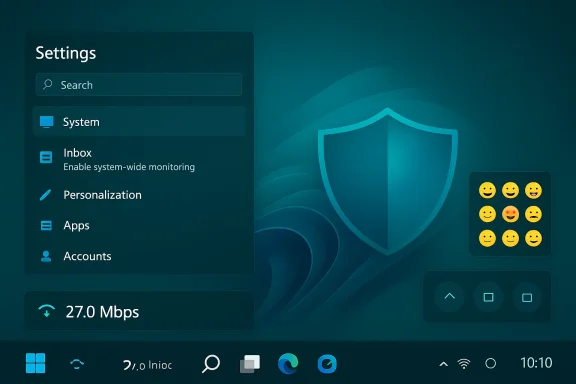
The February 24, 2026 preview (reported as OS builds 26200.7922 and 26100.7922) is explicitly a non‑security update that Microsoft positions as improving “functionality, performance, and reliability.” The most notable additions that will interest everyday users and IT pros are:- Built‑in Sysmon (System Monitor) as an optional inbox feature — native event capture integrated with Windows Event Log (disabled by default).
- Taskbar‑accessible network speed test — launches from the network icon or Quick Settings and opens a browser‑based measurement tool for Ethernet, Wi‑Fi, and cellular links.
- Emoji 16.0 glyphs — a small, curated set of new emoji added to the Win + . panel.
- Support for WebP images as desktop wallpapers — set directly from Settings or File Explorer without conversion.
- Camera pan and tilt controls in Settings for supported webcams.
- Quick Machine Recovery (QMR) behavior changes — QMR now enables automatically on Windows 11 Pro devices that are not domain‑joined or MDM‑enrolled, expanding recovery protections to a broader class of devices.
- RSAT support on Windows 11 Arm64 — Remote Server Administration Tools are now available as optional features on Arm64 builds.
Why some of these changes matter (user and admin impact)
Built‑in Sysmon: a security and operations inflection point
Sysmon has been a staple of advanced Windows monitoring for years—an external Sysinternals utility that produces rich, high‑fidelity telemetry used by SOCs and incident responders. Packaging Sysmon inside Windows as an optional feature shifts how organizations will provision endpoint telemetry.- For defenders, the upside is obvious: easier deployment and consistent Event Log integration without a separate download or MSI. That lowers friction for broad telemetry coverage.
- For operators, it changes lifecycle and conflict considerations: Microsoft explicitly says the inbox Sysmon is off by default and recommends uninstalling any previously installed Sysmon before enabling the built‑in feature. Admins must treat this as a policy decision—enable where you want the logs, ensure configuration files and parsing rules align with SIEM ingestion, and account for additional event volume and storage.
- Log volume and retention policies may need revisiting; Sysmon events can be chatty, especially with network and process tracking enabled.
- Endpoint configuration management (Group Policy, Intune) will need to include Sysmon configuration or explicit steps to push custom config files.
- For compliance environments, Sysmon’s presence and configuration are governance considerations—what you capture and how long you store it matter.
Taskbar speed test: small feature, big convenience
A one‑click network test in the system tray is a modest but sensible quality‑of‑life improvement. It’s particularly useful for help desks troubleshooting intermittent connectivity and for users comparing Wi‑Fi vs. Ethernet performance. Because Microsoft launches the test in the browser, the measuring engine can evolve independently of the OS, but admins should note that the test exposes a browser session to the measurement server and that enterprises might prefer dedicated on‑prem tools for formal diagnostics.WebP wallpapers, Emoji 16, and visual polish
These are consumer‑facing enhancements that improve modern format support and user delight. WebP as a native wallpaper format reduces conversion steps for creators; Emoji 16 brings a small cultural update to chats and messages. They’re low risk and straightforward wins.Quick Machine Recovery (QMR) and backup flows
By enabling QMR more broadly on Pro devices that aren’t domain‑joined, Microsoft is trying to shrink the gap between Home and Pro for recovery resilience. That benefits consumers and small businesses but raises questions for managed environments—domain‑joined and MDM‑managed devices remain unchanged. The new “first sign‑in restore” for Windows Backup in organization scenarios also helps streamline device refresh workflows.Risks, edge cases, and what to test before wide deployment
Microsoft’s KB explicitly states it is beginning a gradual rollout for some features; not every device will show every change immediately. That makes the preview optional route sensible for testing. However, given Windows Update’s rocky start to 2026, administrators should be conservative:- Test Sysmon behavior in a lab: Validate event schema, ensure that SIEM parsers cope with new event IDs, and measure ingestion and storage impact under representative workloads. If you already run Sysmon from Sysinternals, test the uninstall/reinstall path Microsoft documents before enabling the inbox feature.
- Verify Secure Boot and BitLocker interactions: KB5077241 includes mechanisms to expand eligibility for updated Secure Boot certificates—this is part of Microsoft’s work to replace expiring certificates starting June 2026. This cross‑team change touches firmware, BitLocker, and device firmware updates. Admins should read the Secure Boot guidance and test on hardware representative of their estate. Microsoft also notes updates will be phased and use device health signals to control certificate delivery. Do not assume automatic firmware changes; plan tests and rollbacks.
- Test printing and resume behavior on high‑volume or critical devices: The update claims spooler performance improvements and resume‑from‑sleep fixes, but these are precisely the kinds of fixes that can mask new edge regressions depending on drivers and third‑party print management.
- Backup and recovery validation: With Quick Machine Recovery and the first sign‑in restore changes, validate both the backup and restore flows end‑to‑end on devices with unique configurations (encrypted drives, custom profiles, corporate policies).
- Snapshot or image system baselines where feasible (Hyper‑V, MDT, or other imaging).
- Use Windows Update Rollback or uninstall the LCU when appropriate—note that the combined SSU+LCU package has removal nuances; Microsoft documents the supported uninstall paths.
Deployment guidance: a recommended test and rollout plan
- Identify a representative pilot cohort: include consumer‑like devices, Pro machines, and at least one device per major hardware vendor (Intel/AMD/Arm + major OEMs).
- Baseline telemetry: capture pre‑update performance counters—disk, CPU, event log growth, network throughput, and print spooler behavior.
- Install KB5077241 in lab and pilot groups using controlled methods (WSUS, Intune preview rings, or manual MSU deployment). Microsoft has made MSU packages available for direct download and notes combined package behavior—WindowsLatest reports direct download links and approximate package size for planning.
- Enable Sysmon in a controlled subset only after validating configs. Use a staged configuration: start with process creation and network connection logging, then ramp additional rules.
- Monitor for regressions for at least one business cycle (5–7 days) before expanding the cohort.
- Maintain a rollback checklist: uninstall paths, driver rollbacks, and a communications plan for user‑facing changes (e.g., how to use the new speed test or camera pan/tilt).
Practical how‑tos (quick reference)
Enable built‑in Sysmon (two supported methods)
Microsoft documents two ways to enable the inbox Sysmon: through Settings and via DISM/PowerShell. Follow lab testing procedures before enabling broadly.- Settings: Settings > System > Optional features > More Windows features > select Sysmon.
- PowerShell / DISM:
- Run: Dism /Online /Enable-Feature /FeatureName:Sysmon
- Finish setup: sysmon -i (ensure you have an appropriate config file).
Note: If you previously installed Sysmon from Sysinternals, uninstall the older package before enabling the inbox feature.
Run the taskbar network speed test
- Right‑click the network icon in the system tray or open Quick Settings (Wi‑Fi or Cellular Quick Settings) and select the speed test icon. The test launches in the default browser and runs download/upload/latency measurements against Microsoft’s measurement endpoint. This is a convenience tool; for formal diagnostics, retain enterprise network testing tools.
Set a WebP image as desktop wallpaper
- Right‑click a .webp image in File Explorer and select Set as desktop background, or go to Settings > Personalization > Background and choose the WebP file. This removes the previous need to convert WebP to a supported bitmap format.
Security and privacy considerations
- Telemetry and event capture: Sysmon’s detailed capture can collect process arguments, network addresses, and file hashes—information some compliance regimes restrict. Organizations should ensure that log collection and retention are documented in privacy impact assessments and mapped to retention policies.
- Secure Boot certificate replacement: Microsoft is rolling targeting data for updated Secure Boot certificates to device families in advance of expiration in June 2026. This is a preventative operational change, but because it touches firmware validation, admins should test BitLocker and device imaging workflows thoroughly. Microsoft’s rollout is phased and uses update signals; still, any certificate/firmware change demands a careful pilot.
- Third‑party security tooling: Endpoint detection platforms and third‑party AV vendors should be consulted—Sysmon event names and IDs may change or be sourced from new OS channels. Verify vendor support and parsing.
Quality and reliability: what Microsoft says vs. real‑world signals
Microsoft’s KB for KB5077241 lists no known issues at the time of the preview and calls out the gradual rollout model for some features. That’s consistent with how Microsoft ships feature work today—gradual, targeted, and controlled. However, the January 2026 Patch Tuesday cycle produced notable regressions requiring emergency OOB updates and, in some reporting, widespread uninstall recommendations. That history means early adopters should temper enthusiasm with discipline: treat KB5077241 as a preview, validate in controlled pilots, and avoid mass rollout in environments where uptime is critical before confirming behavior.Independent coverage from reputable Windows outlets and community forums confirms the feature list and provides practical tips (for example, ViveTool IDs and manual enablement steps reported by Pureinfotech), but those enablement techniques are unofficial and carry risk—especially for managed devices. Use them only in test environments.
Bottom line: who should install KB5077241 now?
- Consumers and enthusiasts who want early access to visual improvements, the network speed test, and WebP wallpaper support can install the optional preview on personal machines—but do so knowing it’s a preview and keeping backups.
- IT teams and security operations should test the update in a lab and pilot rings first, focusing on Sysmon configuration, Secure Boot certificate behavior, BitLocker interactions, and print/driver scenarios. Treat the inbox Sysmon as a policy and architecture change rather than a cosmetic feature.
- Organizations with strict compliance or regulated data should be cautious about enabling Sysmon globally without a governance plan for log retention and access control.
Final assessment: incremental features, material security implications
KB5077241 is an exemplar of Microsoft’s now‑typical update mix: small consumer conveniences bundled with operationally meaningful platform changes. The addition of an inbox Sysmon and Secure Boot certificate targeting are the two items that materially affect enterprise operations and security posture. The taskbar speed test, WebP wallpaper support, and Emoji 16 are user‑facing polish—useful, low risk, and likely to be positively received.Given the recent update instability earlier in 2026, the prudent path is staged adoption: pilot, measure, and only expand once you verify that your environment and tooling (SIEMs, MDMs, imaging processes) behave as expected. Microsoft’s documentation and community reporting provide a clear picture of what to expect, but real‑world validation remains the single most reliable mitigation.
Install KB5077241 in a controlled way if you need the new features or want to validate readiness before the March 10, 2026 general rollout; otherwise, wait for the stable channel release and the broader patch‑cycle signals that typically follow a preview.
<!-- End of article -->
Source: bgr.com Windows 11 February 2026 Update Is Now Available With 3 New Features - BGR
