

Microsoft’s February preview update for Windows 11, KB5077241, quietly bundles a short list of practical, low-risk improvements alongside one platform-level change that deserves special attention from enterprise defenders: a taskbar‑accessible internet speed test and native System Monitor (Sysmon) support, plus a raft of responsiveness fixes aimed at making everyday Windows feel snappier. (support.microsoft.com)
KB5077241 is an optional, non‑security preview cumulative for Windows 11 versions 24H2 and 25H2, appearing as OS Builds 26100.7922 (24H2) and 26200.7922 (25H2). Microsoft published the package on February 24, 2026; because it is a preview release, it will not install automatically for most users unless explicitly selected from the Optional updates area in Settings → Windows Update. (support.microsoft.com)
This preview is deliberately modest in surface area: it focuses on quality‑of‑life improvements (taskbar and Settings polish, emoji and wallpaper support, camera controls) and a handful of under‑the‑hood engineering fixes (wake‑from‑sleep reliability, display resume performance). The notable exceptions are a one‑click speed‑test launcher in the taskbar and the arrival of Sysmon as an optional, inbox feature — a packaging change with operational consequences for IT teams. Independent coverage and hands‑on reporting confirm the same list of practical additions and the nature of the taskbar test as a browser‑launched measurement, not a new native networking engine. (windowscentral.com)
Independent tech outlets also confirm the same practical architecture and behavior: Microsoft’s KB statement plus Windows Central, Tom’s Hardware, Tom’s Guide and PC Gamer all converge on the key facts: build numbers, release date, the speed‑test launcher behavior, and Sysmon inbox packaging. That cross‑validation supports the accuracy of the KB and reduces the likelihood of surprise discrepancies for early adopters. (support.microsoft.com)
If you manage Windows endpoints, KB5077241 is worth piloting now: it gives you a low‑risk path to test the inbox Sysmon and to observe the promised responsiveness gains. For general users who prefer stability, waiting for the broader March Patch Tuesday rollout (when preview content typically makes the monthly LCU) is a reasonable approach. Either way, this update marks a practical, incremental step toward smoothing some of Windows 11’s rough edges while aligning endpoint telemetry with Microsoft’s servicing model. (support.microsoft.com)
Source: Notebookcheck Microsoft KB5077241: Windows 11 update adds native taskbar speed test and Sysmon support
 Background / Overview
KB5077241 is an optional, non‑security preview cumulative for Windows 11 versions 24H2 and 25H2, appearing as OS Builds 26100.7922 (24H2) and 26200.7922 (25H2). Microsoft published the package on February 24, 2026; because it is a preview release, it will not install automatically for most users unless explicitly selected from the Optional updates area in Settings → Windows Update. (support.microsoft.com)This preview is deliberately modest in surface area: it focuses on quality‑of‑life improvements (taskbar and Settings polish, emoji and wallpaper support, camera controls) and a handful of under‑the‑hood engineering fixes (wake‑from‑sleep reliability, display resume performance). The notable exceptions are a one‑click speed‑test launcher in the taskbar and the arrival of Sysmon as an optional, inbox feature — a packaging change with operational consequences for IT teams. Independent coverage and hands‑on reporting confirm the same list of practical additions and the nature of the taskbar test as a browser‑launched measurement, not a new native networking engine. (windowscentral.com)
What’s in KB5077241 — headline features
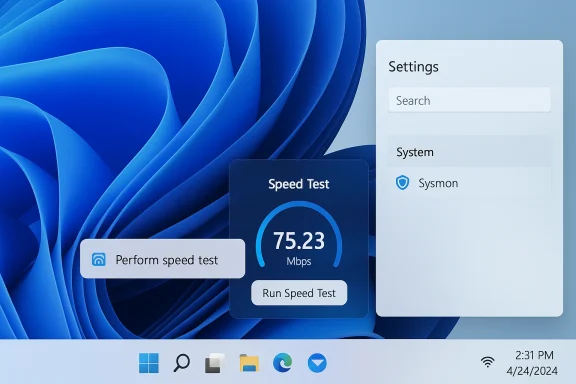
- Built‑in network speed test in the taskbar: A new “Perform speed test” option appears in Wi‑Fi/Cellular Quick Settings and on the network icon context menu. Selecting it launches the speed test in the default browser and reports latency, download and upload values. Microsoft’s notes and independent outlets make clear this is a launcher to a web‑hosted measurement (Bing’s embedded widget, which surfaces Speedtest/Ookla) rather than a kernel or OS‑level probe. (support.microsoft.com)
- Built‑in Sysmon (System Monitor): Microsoft now packages Sysmon functionality natively as an optional Windows feature. The built‑in Sysmon is disabled by default; administrators or power users must enable it via Settings or DISM and finish configuration with the familiar sysmon command. Existing Sysmon installations from Sysinternals should be uninstalled before enabling the inbox version. This change moves a critical telemetry tool into the Windows servicing pipeline. (support.microsoft.com)
- Responsiveness and reliability fixes: Improvements to wake‑from‑sleep behavior, sign‑in screen reliability, display resume speed under heavy load, and general taskbar and File Explorer polish. Microsoft lists these explicitly in the KB and independent reviews highlight the perceived UI responsiveness gains. (support.microsoft.com)
- Other visible additions:
- Emoji 16.0 glyphs in the emoji panel.
- WebP (.webp) desktop background support.
- Camera pan/tilt controls in Settings for supported webcams.
- RSAT support for Windows 11 Arm64 and Quick Machine Recovery adjustments for some non‑managed Pro devices. (support.microsoft.com)
Deep dive: the taskbar speed test — what it is, what it isn’t
How it works
The taskbar shortcut surfaces a “Perform speed test” control in both the network icon’s right‑click menu and the Wi‑Fi/Cellular quick settings. When invoked, Windows opens your default browser to a Bing‑hosted speed test page that reports latency, download, and upload metrics — in practice the same streamlined Speedtest UI many users have seen on the web. In short: it’s a convenience launcher, not an in‑OS diagnostic engine. (support.microsoft.com)Why Microsoft shipped it this way
Using a web widget as the measurement backend keeps the OS change lightweight and flexible. Microsoft can alter the web flow, switch backends, or update presentation without pushing new OS binaries. That minimizes update risk and speeds shipping, which matches the preview’s overall intent: useful, low‑impact features that improve everyday workflows without invasive platform changes. (tomshardware.com)Practical benefits
- One‑click availability for casual troubleshooting — particularly useful during gaming or videoconferencing when you need a quick baseline.
- Works for Ethernet, Wi‑Fi and cellular where available, and is available through the standard system UX most users already know. (support.microsoft.com)
Limitations and privacy considerations
- The measurement runs in the browser; results rely on the chosen web backend (recent reporting shows Bing’s widget funnels to Speedtest/Ookla). That means:
- The measurement methodology and servers are controlled outside of Windows itself.
- Data is visible to the web provider and governed by the provider’s policies rather than being strictly local telemetry.
- This is not a substitute for deeper native diagnostics (packet capture, kernel‑level throughput probes) that IT teams use for in‑depth troubleshooting.
- For users who want a fully offline or local measurement — or to avoid third‑party backend dependencies — this feature will not replace existing native tooling. (tomshardware.com)
Deep dive: native Sysmon — operational significance and guidance
Why Sysmon matters
Sysmon (System Monitor) from the Sysinternals suite has been a staple of Windows endpoint visibility for years. It produces high‑fidelity, structured events (process creation, network connections, DLL loads, image loads, driver loads, etc.) to the Windows Event Log and is a cornerstone of modern detection engineering and incident response. Packaging Sysmon as an optional inbox feature changes how organizations can deliver and support it. (support.microsoft.com)What Microsoft added and how to enable it
Microsoft’s KB explains that built‑in Sysmon is off by default. Administrators or users can enable it by:- Settings: Settings → System → Optional features → More Windows features → select Sysmon and install.
- Command line: Run DISM to enable the feature:
- DISM /Online /Enable‑Feature /FeatureName:Sysmon
- After enabling, run: sysmon -i
Operational implications
- Simpler distribution and lifecycle: Sysmon in the servicing pipeline means it can be included in images, pushed through Windows Update management channels, and supported by Microsoft’s servicing model. That reduces reliance on third‑party installers and some deployment friction.
- Testing and validation are still essential: Even though the feature is now inboxed, detection rules, filters and collector pipelines should be validated against the built‑in implementation and configuration. Differences in versions or default configs could alter event IDs, fields, or telemetry rates that SIEM and EDR pipelines expect.
- Data volume and performance tradeoffs: Sysmon can generate large event volumes if configured to record many event types. Administrators must:
- Use curated Sysmon XML configs (filtering events, excluding noise).
- Monitor local disk and event log consumption.
- Evaluate CPU and memory overhead on endpoint classes that are resource constrained.
- Governance and privacy: Because Sysmon logs detailed host activity, organizations should document retention, access controls, and compliance alignment (PII risk, cross‑jurisdictional telemetry). Built‑in distribution does not change these responsibilities. (support.microsoft.com)
Recommendations for IT teams (short checklist)
- Pilot the inbox Sysmon on a limited ring and compare events and volumes against your current Sysmon deployment.
- Validate existing detection rules and SIEM ingestion against the inbox implementation.
- Use a conservative, vetted Sysmon configuration (community configs such as the SwiftOnSecurity profile are useful starting points but must be reviewed).
- Implement log rotation and retention policies to avoid local overflow.
- Document the switch plan and rollback steps (especially if an existing Sysinternals Sysmon is installed). (support.microsoft.com)
Performance and reliability fixes — what to expect
KB5077241 explicitly calls out a range of reliability and performance improvements focused on display resume and wake‑from‑sleep behavior. Microsoft says the update improves “the time for a PC to resume from sleep, especially when the system is under heavy load,” and fixes sign‑in screen reliability and some credential dialog issues. Independent reviews note the update’s emphasis on feel — snappier lock/unlock, faster Settings responsiveness and smoother taskbar animations — rather than large architectural changes. For users who have complained about slow resumes or stuttering UI, the preview may show measurable improvements. (support.microsoft.com)Other visible changes and small wins
- Emoji 16.0: A curated selection of new emoji glyphs now appears in the emoji panel (Win + .). Useful for consistency across apps and communications. (support.microsoft.com)
- WebP wallpaper support: You can set .webp files as desktop backgrounds directly — a small convenience for creators and users who prefer more efficient image formats. (support.microsoft.com)
- Camera pan/tilt (PTZ) controls: For supported hardware, the Settings app exposes virtual pan and tilt options under Bluetooth & devices → Cameras. This gives manual control where AI framing previously took precedence. (support.microsoft.com)
- RSAT for Arm64: Remote Server Administration Tools are now supported on Windows 11 Arm64, which matters to organizations standardizing management across diverse endpoint architectures. (support.microsoft.com)
How to get KB5077241 and how to enable the taskbar speed test / Sysmon
Installing the preview update
- Open Settings → Windows Update and check Optional updates or the preview/optional updates prompt. Because KB5077241 is a non‑security preview, it will be listed as optional and will not auto‑install for most consumers until Microsoft includes it in the next Patch Tuesday update. You can also install via DISM using the MSU packages from Microsoft Update Catalog for offline or enterprise scenarios. (support.microsoft.com)
Enabling Sysmon (step‑by‑step)
- If you previously installed Sysmon from Sysinternals, uninstall it first. (support.microsoft.com)
- Settings route:
- Settings → System → Optional features → More Windows features → check Sysmon → Install.
- Command line route:
- Elevated Command Prompt: DISM /Online /Enable‑Feature /FeatureName:Sysmon
- After install, run: sysmon -i (and apply your Sysmon XML configuration). (support.microsoft.com)
Running the taskbar speed test
- Right‑click the network icon in the system tray or open Wi‑Fi/Cellular quick settings and choose Perform speed test. Your default browser will open to the Bing speed‑test widget. Because it is browser‑hosted, any browser‑level privacy extensions or blockers may affect the experience. (support.microsoft.com)
Deployment and risk assessment — what admins should watch
- Controlled rollout: Microsoft typically gates new experiences through controlled rollouts (phased flags). You may not see features immediately even after installing the update; device eligibility and feature flagging control availability. Plan pilots and validate in your ring before broad rollout. (support.microsoft.com)
- Sysmon configuration drift: Bringing Sysmon into the inbox reduces deployment friction but creates a versioning and configuration governance requirement. Make sure instrumentation and detection engineering teams coordinate on which XML rules to ship with images or through SCCM/Intune.
- Log and storage planning: Expect higher event volumes if Sysmon is enabled widely. Adjust event forwarding, SIEM quotas, and retention to avoid overload. Conduct a capacity plan and sample workload tests during your pilot. (support.microsoft.com)
- Third‑party backend reliance for speed test: Because the taskbar speed test is a browser‑hosted widget, it relies on third‑party servers. This is fine for quick checks, but do not treat results as authoritative for network forensic work. Use native tools and server‑side measurements for forensic accuracy. (tomshardware.com)
- Secure Boot certificate timeline: KB5077241’s release notes reiterate Microsoft’s guidance on Secure Boot certificate expiration starting June 2026. IT should review the provided guidance and plan certificate updates to avoid potential boot interruptions. This item is separate from the preview’s features but is an important operational callout in the KB. (support.microsoft.com)
Community reaction and independent verification
Early hands‑on reports and forum summaries echo Microsoft’s public notes: the taskbar speed test is convenient but browser‑hosted, and Sysmon is now an optional inbox feature that must be enabled deliberately. Community threads we reviewed emphasize the operational importance of a native Sysmon — not because the telemetry changes, but because supportability and deployment become simpler and more standardized when the capability is part of the OS servicing model.Independent tech outlets also confirm the same practical architecture and behavior: Microsoft’s KB statement plus Windows Central, Tom’s Hardware, Tom’s Guide and PC Gamer all converge on the key facts: build numbers, release date, the speed‑test launcher behavior, and Sysmon inbox packaging. That cross‑validation supports the accuracy of the KB and reduces the likelihood of surprise discrepancies for early adopters. (support.microsoft.com)
Recommendations — what to do next
For home users and enthusiasts:- Try the preview in a single device if you want the new emojis, WebP wallpaper support and the one‑click speed test. Expect the speed test to open in your browser; use it for quick checks or convenience. (support.microsoft.com)
- Schedule a controlled pilot of KB5077241 in your internal Release or Canary ring. Validate the inbox Sysmon against your detection rules and pipeline. (support.microsoft.com)
- If you enable Sysmon at scale, use a vetted XML configuration and throttle event types to balance fidelity and cost. Monitor disk and event log capacity during the pilot.
- Update documentation and deployment runbooks to reflect the inbox Sysmon option (and the uninstall requirement for prior Sysinternals installations). (support.microsoft.com)
- Review Secure Boot certificate guidance and ensure your device inventory is prepared for the June 2026 certificate rotation window. (support.microsoft.com)
Bottom line
KB5077241 is a tidy preview that does exactly what preview updates should: ship a few practical conveniences and quality fixes that improve day‑to‑day interactions, while delivering one quietly consequential platform shift — Sysmon as a supported, inbox feature. The taskbar speed test is a genuine usability win for quick checks, but it is a browser‑launched shortcut rather than a new native networking probe, and organizations should not treat it as a forensic tool. The Sysmon inboxing simplifies distribution and lifecycle management but raises familiar operational needs — configuration, validation, log management, and governance — that defenders must treat as part of their standard operating procedures. (support.microsoft.com)If you manage Windows endpoints, KB5077241 is worth piloting now: it gives you a low‑risk path to test the inbox Sysmon and to observe the promised responsiveness gains. For general users who prefer stability, waiting for the broader March Patch Tuesday rollout (when preview content typically makes the monthly LCU) is a reasonable approach. Either way, this update marks a practical, incremental step toward smoothing some of Windows 11’s rough edges while aligning endpoint telemetry with Microsoft’s servicing model. (support.microsoft.com)
Source: Notebookcheck Microsoft KB5077241: Windows 11 update adds native taskbar speed test and Sysmon support
