

Microsoft's latest Release Preview Channel rollup, KB5077241, quietly brings a practical mix of polish, new management hooks, and a handful of user-facing conveniences to Windows 11 versions 24H2 and 25H2 with build numbers 26100.7918 and 26200.7918. The package doesn’t reshape the platform, but it does tidy long‑standing rough edges in File Explorer and the taskbar, introduces a handful of convenience features — like Emoji 16.0 glyphs and a taskbar-initiated network speed test — and, importantly for IT and security teams, adds built‑in Sysmon functionality and expanded Microsoft Entra ID support for cloud-only identities. If you manage Windows PCs or just follow Insider releases closely, this update is worth reading about because it signals Microsoft’s priorities as it prepares to push non‑security updates broadly this month.
Microsoft is using the Release Preview Channel to stage this cumulative update before a wider rollout, continuing the Controlled Feature Rollout model that lets the company enable features gradually across different hardware, tenants, and regions. KB5077241 targets both the 24H2 (build 26100) and 25H2 (build 26200) servicing lines, packaging the same set of incremental improvements for both release tracks. The update blends small consumer-facing changes with enterprise-focused capabilities — a pattern Microsoft has favored as Windows 11 evolves into a platform for managed endpoints and cloud-first identity models.
This build is not a major feature release. Instead, it is best understood as a “quality plus” rollup: stability and reliability fixes, a few small productivity features, and additions that matter more to IT pros and security teams than to everyday users. That mix is useful: small wins accumulate, and the new management and identity features are the sort of changes that reduce friction in enterprise deployments.
Quick Machine Recovery’s automatic activation on eligible Pro devices is pragmatic: more devices can self‑recover without IT intervention, reducing help‑desk workload. However, that convenience has to be balanced against organizational policies around device control and data retention.
Two noteworthy signals:
However, the weaknesses warrant attention. Built‑in telemetry without clear governance can create privacy and cost issues. Enabling QMR automatically on Pro devices increases the attack surface for certain data recovery scenarios unless managed carefully. And history shows cumulative updates occasionally carry regressions on specific hardware or driver combinations.
Recommendations:
This KB5077241 rollup doesn’t rewrite Windows 11’s roadmap, but it refines it in practical ways. Small usability improvements reduce help‑desk friction, and the enterprise features add meaningful operational value. For organizations adopting cloud-native identity and standardized endpoint telemetry, the update lowers barriers — provided teams treat the new telemetry capabilities with the same governance and testing discipline used for any infrastructure change.
Source: Neowin Windows 11 24H2 and 25H2 get new camera settings, File Explorer fixes and more in new builds
 Background / Overview
Microsoft is using the Release Preview Channel to stage this cumulative update before a wider rollout, continuing the Controlled Feature Rollout model that lets the company enable features gradually across different hardware, tenants, and regions. KB5077241 targets both the 24H2 (build 26100) and 25H2 (build 26200) servicing lines, packaging the same set of incremental improvements for both release tracks. The update blends small consumer-facing changes with enterprise-focused capabilities — a pattern Microsoft has favored as Windows 11 evolves into a platform for managed endpoints and cloud-first identity models.This build is not a major feature release. Instead, it is best understood as a “quality plus” rollup: stability and reliability fixes, a few small productivity features, and additions that matter more to IT pros and security teams than to everyday users. That mix is useful: small wins accumulate, and the new management and identity features are the sort of changes that reduce friction in enterprise deployments.
What’s new — the feature breakdown
Below is a clear, scannable list of the key items included in the update. These are the practical changes you’ll notice first, followed by the management and security features that have heavier operational implications.Consumer and productivity improvements
- Emoji 16.0 (curated subset) — A small, carefully selected set of Emoji 16.0 glyphs has been added to the emoji panel. Microsoft’s approach is intentionally conservative: a single pick from each major emoji category, rather than the full Unicode rollout, to limit risk and ensure gradual integration with the system font and picker.
- Taskbar network speed test — You can now run a network speed test directly from the taskbar. The option appears in Wi‑Fi or Cellular Quick Settings and the network icon’s context menu; it opens a browser‑based test and evaluates Ethernet, Wi‑Fi, and Cellular paths. This is meant as a quick diagnostic shortcut for users and help desks.
- Camera pan/tilt controls in Settings — For webcams and advanced cameras that expose PTZ capabilities, basic pan and tilt controls are now accessible in Settings under Bluetooth & devices > Cameras. This reduces reliance on vendor utilities for minor webcam adjustments.
- Set .webp as desktop background — Windows now supports using .webp images as the desktop wallpaper via Settings or File Explorer contextual actions.
- Widgets: full‑page Widget Settings — The Widgets app now opens its Settings as a full‑page view rather than a dialog for a more cohesive experience.
- File Explorer command bar: Extract all for non‑ZIP archives — When browsing folders that contain non‑ZIP archive formats, the File Explorer command bar gains an Extract all option to simplify archive handling.
Reliability and performance fixes
- Taskbar and system tray behavior — When the taskbar is set to uncombined, windows from apps with many open instances behave more sensibly when space is scarce; only the windows that don’t fit are moved to overflow, rather than entire sets. This reduces confusing gaps in the overflow UI.
- Display and resume improvements — Display-related changes aim to speed resume-from-sleep on heavily loaded systems and improve resume reliability for docked laptops with closed lids when AC power is connected.
- Storage settings UI and scanning performance — Dialogs in Storage Settings have been modernized and scanning performance for temporary files improved.
- Print service and large print jobs — Changes to the Windows print service target smoother performance and guardrails against slowdowns during high-volume printing.
- Login, lock screen, Nearby Sharing, and projecting — Small reliability improvements across core user flows: login screen robustness, better behavior when sending large files via Nearby Sharing, and improved reliability of the project pane (Win+P).
Identity, security, and management features
- Microsoft Entra ID group and role SID resolution — Windows can now translate Entra cloud group and role SIDs to readable names. That enables Entra-only groups to appear correctly in file permissions, local group membership listings, and access control dialogues without the need for on-premises AD synchronization.
- Quick Machine Recovery (QMR) behavior — QMR will now automatically enable for Windows Pro devices that are not domain‑joined and not registered in enterprise endpoint management, placing them on par with Windows Home devices for local recovery scenarios. Domain-joined and enterprise-managed devices remain under administrative control, with QMR off by default unless explicitly enabled by the organization.
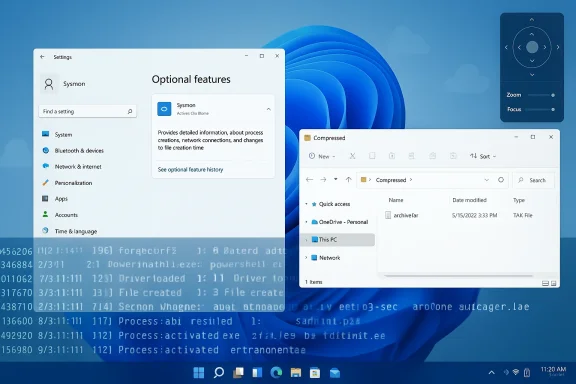
- Built‑in Sysmon functionality — Perhaps the most consequential addition for security teams: a native Sysmon capability is now available as a Windows feature. When enabled, it writes the Sysmon‑style telemetry into the Windows Event Log and supports custom configuration files to filter monitored events. It’s disabled by default and must be enabled explicitly through Settings or DISM, followed by installation of the Sysmon service (sysmon -i).
Why the new features matter
Practical end‑user benefits
Small changes compound into a smoother, less fragmented user experience. The taskbar speed test removes a common help‑desk instruction (“open a browser and run a speed test”); camera pan/tilt in Settings cuts down the number of vendor utilities users must install; and the extract option in File Explorer reduces the need for third‑party archive tools. These are incremental quality‑of‑life wins that reduce user friction.Enterprise and security implications
The Entra SID resolution and the built‑in Sysmon capability show a clear focus on cloud identity and telemetry integration. Entra SID resolution eliminates a long-standing pain point for organizations adopting cloud-only groups: administrators can now grant file permissions and troubleshoot local access issues without shadowing identities in Active Directory. Built‑in Sysmon lowers the bar for standardized endpoint telemetry, offering a Microsoft‑managed path to capture process creation, network connections, and other system events within the Windows Event Log ecosystem.Quick Machine Recovery’s automatic activation on eligible Pro devices is pragmatic: more devices can self‑recover without IT intervention, reducing help‑desk workload. However, that convenience has to be balanced against organizational policies around device control and data retention.
Technical specifics and enabling key features
Below are the relevant locations and commands for administrators and power users who want to evaluate or enable the new functionality.How to enable built‑in Sysmon
Built‑in Sysmon is shipped as an optional Windows feature and is disabled by default. To enable it:- Open Settings > System > Optional features > More Windows features and check Sysmon, then proceed with the UI prompts.
- Or, in an elevated command prompt or PowerShell, run:
- Dism /Online /Enable-Feature /FeatureName:Sysmon
- Complete the installation by launching Sysmon with a configuration:
- sysmon -i (run from an elevated command prompt)
- If you previously installed Sysmon from Microsoft’s site, uninstall that installation before enabling the built‑in feature to avoid conflicts.
- The built‑in Sysmon writes events to the Windows Event Log, enabling compatibility with existing SIEM integrations that consume Windows event channels.
- You must provide a Sysmon configuration file to control which events are captured. Out-of-the-box behavior is minimal; production deployments should use a vetted configuration appropriate for workload and compliance needs.
Quick Machine Recovery behavior for Windows Pro
- QMR turns on automatically for Windows Pro devices that are not domain‑joined and not managed by enterprise endpoint configuration.
- If your organization uses management tools or domain‑joins devices, QMR remains off unless an administrator explicitly enables it via policy or management tooling.
Camera pan/tilt controls location
- Settings > Bluetooth & devices > Cameras > Select your camera > Basic settings
- The controls are only available for cameras exposing PTZ interfaces via standard drivers. Not all webcams will gain additional functionality.
Operational considerations and risks
New capabilities always carry tradeoffs. Below are the practical risks and recommended mitigations IT teams should evaluate before broad deployment.Privacy and data protection (Sysmon)
Sysmon captures detailed system telemetry including process trees, network connections, and driver loads. In managed environments, enabling Sysmon without planning can create unexpected data exposure or retention that conflicts with privacy policies.- Risk: Excessive telemetry collection can capture personal data or create large volumes of logs that increase storage and processing costs.
- Mitigation: Define a narrow Sysmon configuration tailored to threat detection goals. Architect log rotation, retention, and consent considerations before enabling at scale.
Compatibility and support (Entra SID resolution)
Translating cloud SIDs into human-readable names is useful, but any bugs here could cause misleading permission displays or break scripts expecting specific local SID behavior.- Risk: Incomplete resolution or edge cases could lead to incorrect access troubleshooting or automation failures.
- Mitigation: Test Entra SID resolution in a lab environment with typical cloud-only groups before enabling broadly. Validate PowerShell and admin scripts that enumerate local groups and ACLs.
Recovery and user expectations (QMR)
Automatically enabling Quick Machine Recovery on unjoined Pro devices improves availability for end users, but it can also alter expected device lifecycle behaviors.- Risk: Organizations that rely on tightly controlled update and recovery flows may see devices recover in ways that bypass intended configuration states.
- Mitigation: Use management tooling to confirm QMR state across managed devices. For company‑owned unmanaged Pro devices, consider policies or configuration scripts if your environment requires QMR to remain off.
Update reliability
While this rollup focuses on fixes and low-risk features, recent months have shown that even cumulative updates can trigger install errors or post‑update regressions on some hardware configurations.- Risk: Some cumulative updates have caused installation failures or functional regressions on specific OEM hardware or driver stacks.
- Mitigation: Follow a staged deployment: test in a representative pilot group, monitor telemetry for regression indicators, and keep rollback/uninstall procedures ready. When feasible, isolate mission‑critical systems from early releases until the update proves stable in your environment.
Deployment guidance and testing checklist
If you manage a fleet of Windows 11 devices, use this practical checklist to validate KB5077241 before a broad roll‑out.- Pilot group selection
- Choose a cross-section of hardware models (laptops, desktops, docked devices) and configurations (domain‑joined, workgroup, Azure/Entra joined).
- Feature verification
- Confirm the taskbar network speed test appears in Quick Settings and network icon context menu.
- Validate camera pan/tilt controls for supported webcams.
- Set a .webp image as wallpaper to test the new background support.
- Exercise the File Explorer Extract all command in various archive types.
- Sysmon trial
- Deploy Sysmon in audit mode with a narrow configuration to a small security lab group; verify event formats, forwarding, and SIEM ingestion.
- Validate log volume, retention behavior, and ensure sensitive data handling meets policy.
- Identity checks
- Test Entra ID group and role SID resolution by assigning a cloud-only group to a local resource and confirming ACL presentation.
- Validate scripts and automation that interpret local groups to ensure compatibility.
- Recovery behavior
- For Windows Pro non‑joined devices, note Quick Machine Recovery defaults and validate the end‑to‑end recovery process.
- Stability monitoring
- Monitor Windows Update health, device boot behavior, and connectivity after the update. Keep an eye for known symptoms like sleep/resume faults or driver conflicts.
What this release signals about Microsoft’s priorities
KB5077241 shows Microsoft continuing to dual-track Windows development: incremental user-facing polish alongside enterprise-grade identity and telemetry tooling. There’s an explicit emphasis on cloud-first identity support, tighter integration of security telemetry into platform logging, and smoothing the everyday usability problems that generate support tickets.Two noteworthy signals:
- Cloud identity is primary. Entra SID resolution indicates Microsoft is treating cloud-only groups as first-class citizens on endpoints, reducing the friction for organizations that skip hybrid identity models.
- Platform telemetry as a managed service. Offering Sysmon natively simplifies deployments for organizations standardizing on Windows event channels for detection. Microsoft is lowering the operational threshold for telemetry collection — a benefit to defenders, but an organizational responsibility for data governance.
Final analysis — strengths, weaknesses, and recommendations
This release is a pragmatic step forward. The strengths are obvious: user convenience improvements that materially reduce friction for common tasks, and enterprise‑focused features that help organizations modernize identity and telemetry. The built‑in Sysmon and Entra SID resolution are the most consequential items, improving defenders’ ability to collect and interpret endpoint signals while making cloud identity more usable for local access controls.However, the weaknesses warrant attention. Built‑in telemetry without clear governance can create privacy and cost issues. Enabling QMR automatically on Pro devices increases the attack surface for certain data recovery scenarios unless managed carefully. And history shows cumulative updates occasionally carry regressions on specific hardware or driver combinations.
Recommendations:
- Pilot the update across representative hardware and user personas before broad deployment.
- For built‑in Sysmon, create and approve a configuration policy that balances detection needs with privacy and storage budgets.
- Validate Entra SID resolution with automation and administrative scripts to catch any parsing or presentation regressions early.
- Keep rollback processes and update‑blocking procedures ready for mission‑critical devices while telemetry from early adopters is assessed.
This KB5077241 rollup doesn’t rewrite Windows 11’s roadmap, but it refines it in practical ways. Small usability improvements reduce help‑desk friction, and the enterprise features add meaningful operational value. For organizations adopting cloud-native identity and standardized endpoint telemetry, the update lowers barriers — provided teams treat the new telemetry capabilities with the same governance and testing discipline used for any infrastructure change.
Source: Neowin Windows 11 24H2 and 25H2 get new camera settings, File Explorer fixes and more in new builds
