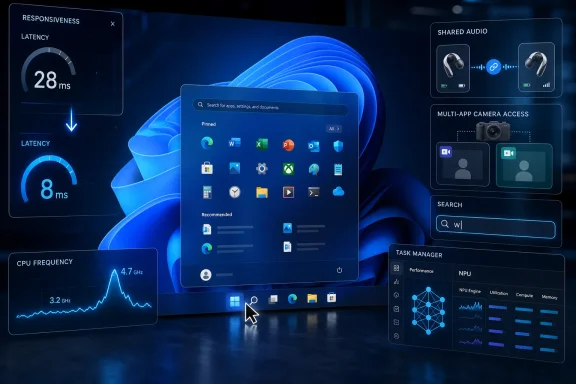
Microsoft’s June 2026 Windows 11 update, identified in reports as KB5094126, is rolling out with a performance change that temporarily raises CPU clocks during app launches and core shell actions such as Start, Search, and Action Center. That sounds like a small scheduler tweak, and technically it is. But it lands in a much larger argument about Windows 11: Microsoft is trying to make the operating system feel faster not by rewriting the desktop, but by making short moments of waiting disappear. For older PCs that barely cleared Windows 11’s hardware bar, that may matter more than another headline AI feature.
Windows 11’s reputation problem has never been only about benchmark charts. Plenty of machines that can run it adequately on paper still feel oddly hesitant in the places users touch most often: opening Start, invoking Search, expanding a flyout, launching a small app, or waiting for the shell to acknowledge a click. Those pauses are small enough to escape traditional performance testing, but large enough to make an expensive PC feel cheap.
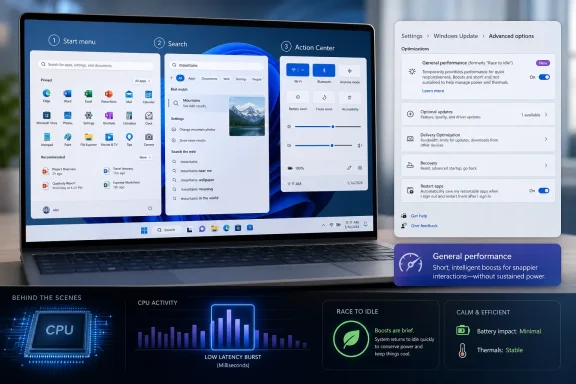
The new Low Latency Profile is aimed squarely at that class of annoyance. Instead of permanently running the processor harder, Windows gives the CPU a short burst of urgency when it sees an interactive task. In plain terms, the system tries to get out of its own way for the first second or two after you ask it to do something.
That is not the same as making Windows universally faster. It will not turn a slow SSD into a fast one, fix a bloated startup folder, or make a large game platform skip its own update checks. What it can do is reduce the delay between intent and visible response, which is often the difference between an operating system that feels polished and one that feels like it is thinking about your request.
That distinction matters. For years, Windows has been tuned around a brutal compromise: battery life, thermals, background services, security features, legacy compatibility, and the expectations of users who want everything to appear instantly. The more Windows tries to be conservative in the background, the more obvious it becomes when the foreground does not get priority quickly enough.
The profile is not a new “turbo mode” button for enthusiasts. It is not a gaming feature in the usual sense. It is closer to a scheduling and power-management nudge that says: when the user performs a high-priority shell action, spend a little more power now to avoid wasting the user’s patience.
That is why the feature can be both modest and meaningful. A faster Start menu will not show up as a revolutionary score in Cinebench, but it will affect the thing millions of people do dozens of times a day. The old desktop truth still applies: perceived performance is performance.
On faster hardware, a short CPU-frequency burst may shave time from interactions that already felt quick. On older or lower-power hardware, the same burst can make a click feel acknowledged instead of ignored. That is why this feature is being framed as a quality-of-life improvement rather than a raw performance upgrade.
There is also a quiet admission here. Windows 11’s hardware requirements were sold partly as a way to create a more modern, reliable baseline. Yet the lived experience on the lower end of that baseline has often been uneven. If Microsoft has to add targeted responsiveness boosts to make the shell feel better, it suggests the baseline alone did not solve the responsiveness problem.
That does not make the update cynical. It makes it practical. Microsoft cannot replace every aging laptop in the field, and enterprise customers do not refresh fleets because the Start menu feels a little lazy. If the company can improve perceived speed through smarter burst behavior, it should.
A heavy application launch is a different beast. Steam, Adobe apps, development tools, game launchers, and modern games often spend time on network checks, DRM, plug-in scans, shader compilation, service startup, or storage-heavy initialization. A brief CPU boost cannot eliminate bottlenecks that live outside the shell or beyond the first seconds of process creation.
That distinction will matter because “Windows feels faster” is the kind of claim that invites disappointment. Some users will install the update, open a large game client, and see no dramatic difference. Others will hit the Windows key, type a search, open Settings, and immediately understand what changed.
The best reading is that Microsoft is optimizing the front door of Windows. It is making the interaction layer less sluggish, not promising that every room in the house has been renovated.
Still, the battery question deserves more than a shrug. Short boosts are not free, and Windows laptops already vary wildly in how well they manage standby, background activity, and thermal constraints. A system that is already hot, power-limited, or running on an aggressive vendor power profile may not behave like Microsoft’s ideal test machine.
The good news is that bursty performance can be more efficient than sluggish performance. If the CPU wakes, finishes the foreground task quickly, and returns to a lower state, the net effect may be acceptable or even favorable compared with dragging out the same work at lower responsiveness. But that is something reviewers and administrators will need to validate across real hardware.
For IT departments, the question is not whether a single click costs more power. It is whether the aggregate behavior changes battery expectations, fan noise, thermal complaints, or help-desk tickets. Those answers will arrive from fleet telemetry long before they arrive from marketing copy.
The Windows shell is not just decoration. It is the contract between the user and the machine. If Start lags, Search hesitates, or Action Center stutters, the whole operating system feels worse, even if the kernel, browser, and GPU driver are doing heroic work underneath.
That is why the Low Latency Profile feels like a rare concession to everyday annoyance. It does not ask users to learn a new workflow. It does not put another panel in Settings. It does not require a subscription, an account migration, or a cloud service. It simply tries to make the old actions respond faster.
There is a lesson here Microsoft should not miss. Windows users are not opposed to progress, but they notice when progress arrives in the form of more layers, more prompts, and more background services. A small improvement to responsiveness may earn more goodwill than a splashier feature that makes the desktop feel busier.
This is the familiar software industry move of compensating for complexity with hardware-aware cleverness. Sometimes that is exactly the right answer. Modern CPUs are designed to ramp up and down quickly, and leaving performance on the table during user interactions would be foolish.
But tuning is not a substitute for discipline. If Windows keeps accumulating background components, cloud hooks, web-backed panels, AI features, and visually rich shell elements, Microsoft may find itself chasing latency with ever more elaborate mitigations. The better long-term answer is both: smarter scheduling and leaner front-end code.
That balance will define whether this update is remembered as a turning point or a patch over a deeper problem. A snappier Start menu is welcome. A Start menu that needs fewer tricks to be snappy would be better.
But the most important test is subjective in a defensible way. Does the machine feel like it responds when clicked? Does Search appear quickly enough that typing feels natural? Does Start open without that tiny dead-air moment that makes people press the key twice?
Those questions are hard to reduce to a single benchmark, yet they are central to operating-system quality. Apple has long understood this at the product level. Linux desktop environments, when well-tuned, can feel startlingly immediate on old hardware. Windows, with its immense compatibility burden, has often had to fight harder for the same impression.
If Microsoft’s June update makes Windows 11 feel less hesitant, that is a win even if the stopwatch gains vary. The desktop is a sensory product as much as a technical one.
The update should not require users to do anything after installation if the feature is enabled for their device. That simplicity is helpful, but it also means administrators may have limited visibility into exactly when the feature becomes active across a fleet. Gradual rollout behavior can complicate troubleshooting when one user sees a snappier shell and another, on the same build, does not.
There is also the support angle. Users may hear that the update makes apps launch faster and assume it will solve every slow-start complaint. Help desks should be ready to separate shell latency from application initialization, storage problems, profile bloat, and network dependencies.
The cleanest enterprise message is restrained: this update may improve responsiveness for Windows shell interactions and some app launches, especially on constrained hardware, but it is not a replacement for normal performance hygiene. Disk health, startup load, memory pressure, driver quality, and endpoint tooling still matter.
Reports indicate that the feature may be regionally or gradually rolled out. That means the presence of the KB alone may not guarantee identical behavior on every PC at the same time. Microsoft often stages features behind enablement mechanisms, which is sensible for risk control but frustrating for users trying to verify what they have.
The naming adds another wrinkle. Low Latency Profile sounds like a user-facing mode, but for now it appears to be mostly invisible. There is no obvious consumer switch that says “make Start faster,” and perhaps there should not be. The best performance features are often the ones users never have to manage.
Still, Microsoft would help itself by documenting the feature more clearly. If Windows is going to manipulate CPU behavior in response to shell interactions, users and administrators deserve plain-language details about expected impact, power behavior, rollout status, and known limitations.
That matters because Windows 11 has too often felt like an operating system arguing with its own priorities. It wants to be secure, modern, cloud-connected, AI-ready, visually refined, enterprise-manageable, and backwards-compatible. Users, meanwhile, still want the Start menu to open instantly.
Low Latency Profile is not a grand reinvention. It is a targeted admission that responsiveness is a feature. For old PCs, that admission may be especially welcome because the machines most likely to benefit are also the ones least likely to be rescued by brute-force hardware.
If Microsoft keeps pulling on this thread, Windows 11 could become meaningfully better without requiring users to change much. That is the kind of improvement the platform needs more of: fewer slogans, fewer interruptions, and more attention to the millisecond-scale irritations that shape daily trust.
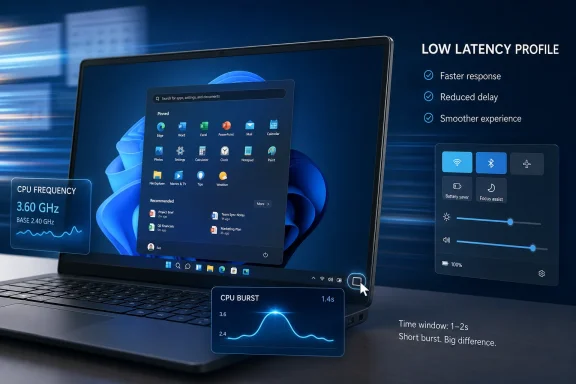 Microsoft Finally Attacks the Half-Second Problem
Windows 11’s reputation problem has never been only about benchmark charts. Plenty of machines that can run it adequately on paper still feel oddly hesitant in the places users touch most often: opening Start, invoking Search, expanding a flyout, launching a small app, or waiting for the shell to acknowledge a click. Those pauses are small enough to escape traditional performance testing, but large enough to make an expensive PC feel cheap.The new Low Latency Profile is aimed squarely at that class of annoyance. Instead of permanently running the processor harder, Windows gives the CPU a short burst of urgency when it sees an interactive task. In plain terms, the system tries to get out of its own way for the first second or two after you ask it to do something.
That is not the same as making Windows universally faster. It will not turn a slow SSD into a fast one, fix a bloated startup folder, or make a large game platform skip its own update checks. What it can do is reduce the delay between intent and visible response, which is often the difference between an operating system that feels polished and one that feels like it is thinking about your request.
The Trick Is Less Magical Than the Marketing
Low Latency Profile appears to work by briefly pushing CPU frequency higher during short, foreground interactions. This is the kind of performance behavior modern operating systems already lean on in different forms: when the user clicks, taps, types, or opens a UI surface, the system favors responsiveness over background thrift. Microsoft’s version is notable because it is arriving as an explicit Windows 11 performance story.That distinction matters. For years, Windows has been tuned around a brutal compromise: battery life, thermals, background services, security features, legacy compatibility, and the expectations of users who want everything to appear instantly. The more Windows tries to be conservative in the background, the more obvious it becomes when the foreground does not get priority quickly enough.
The profile is not a new “turbo mode” button for enthusiasts. It is not a gaming feature in the usual sense. It is closer to a scheduling and power-management nudge that says: when the user performs a high-priority shell action, spend a little more power now to avoid wasting the user’s patience.
That is why the feature can be both modest and meaningful. A faster Start menu will not show up as a revolutionary score in Cinebench, but it will affect the thing millions of people do dozens of times a day. The old desktop truth still applies: perceived performance is performance.
Older PCs Stand to Gain Because They Have Less Slack
The most interesting audience for this update is not the owner of a new Core Ultra laptop or a high-end Ryzen desktop. It is the user on a supported but aging machine, where Windows 11 meets the requirements but rarely feels graceful. These are the PCs where a shell animation, a search pane, and a background process can collide just enough to create visible friction.On faster hardware, a short CPU-frequency burst may shave time from interactions that already felt quick. On older or lower-power hardware, the same burst can make a click feel acknowledged instead of ignored. That is why this feature is being framed as a quality-of-life improvement rather than a raw performance upgrade.
There is also a quiet admission here. Windows 11’s hardware requirements were sold partly as a way to create a more modern, reliable baseline. Yet the lived experience on the lower end of that baseline has often been uneven. If Microsoft has to add targeted responsiveness boosts to make the shell feel better, it suggests the baseline alone did not solve the responsiveness problem.
That does not make the update cynical. It makes it practical. Microsoft cannot replace every aging laptop in the field, and enterprise customers do not refresh fleets because the Start menu feels a little lazy. If the company can improve perceived speed through smarter burst behavior, it should.
This Is Not a Free Upgrade for Every Workload
The most important caveat is that Low Latency Profile should not be confused with broader application acceleration. The reports around the update point to app launches and core shell experiences, but the largest gains are likely to be visible where Windows itself controls the interaction path. Start, Search, Action Center, context surfaces, and small in-box apps are the natural targets.A heavy application launch is a different beast. Steam, Adobe apps, development tools, game launchers, and modern games often spend time on network checks, DRM, plug-in scans, shader compilation, service startup, or storage-heavy initialization. A brief CPU boost cannot eliminate bottlenecks that live outside the shell or beyond the first seconds of process creation.
That distinction will matter because “Windows feels faster” is the kind of claim that invites disappointment. Some users will install the update, open a large game client, and see no dramatic difference. Others will hit the Windows key, type a search, open Settings, and immediately understand what changed.
The best reading is that Microsoft is optimizing the front door of Windows. It is making the interaction layer less sluggish, not promising that every room in the house has been renovated.
Battery Life Is the Suspended Question
Microsoft’s reported description emphasizes that CPU clocks drop back quickly after the burst. That is the right design, because a responsiveness feature that drains laptop batteries would simply move irritation from one place to another. The whole point is to spend a tiny amount of energy at the moment it buys the most user-visible benefit.Still, the battery question deserves more than a shrug. Short boosts are not free, and Windows laptops already vary wildly in how well they manage standby, background activity, and thermal constraints. A system that is already hot, power-limited, or running on an aggressive vendor power profile may not behave like Microsoft’s ideal test machine.
The good news is that bursty performance can be more efficient than sluggish performance. If the CPU wakes, finishes the foreground task quickly, and returns to a lower state, the net effect may be acceptable or even favorable compared with dragging out the same work at lower responsiveness. But that is something reviewers and administrators will need to validate across real hardware.
For IT departments, the question is not whether a single click costs more power. It is whether the aggregate behavior changes battery expectations, fan noise, thermal complaints, or help-desk tickets. Those answers will arrive from fleet telemetry long before they arrive from marketing copy.
The Shell Is Where Windows 11 Most Needed Humility
This update is striking because it focuses on a mundane part of Windows that users actually judge. Microsoft has spent the Windows 11 era talking about design, security, Copilot, AI integration, developer features, and hybrid work. Those are important stories, but they do not excuse a Start menu that occasionally feels heavier than it should.The Windows shell is not just decoration. It is the contract between the user and the machine. If Start lags, Search hesitates, or Action Center stutters, the whole operating system feels worse, even if the kernel, browser, and GPU driver are doing heroic work underneath.
That is why the Low Latency Profile feels like a rare concession to everyday annoyance. It does not ask users to learn a new workflow. It does not put another panel in Settings. It does not require a subscription, an account migration, or a cloud service. It simply tries to make the old actions respond faster.
There is a lesson here Microsoft should not miss. Windows users are not opposed to progress, but they notice when progress arrives in the form of more layers, more prompts, and more background services. A small improvement to responsiveness may earn more goodwill than a splashier feature that makes the desktop feel busier.
The Update Also Exposes the Limits of Tuning
There is a less flattering interpretation: if Windows needs a CPU burst to open its own shell surfaces quickly, maybe those surfaces are too heavy. Windows 11’s interface stack has long carried complaints about latency, inconsistency, and the cost of modern UI layers. A faster governor can hide some of that, but it does not answer every architectural criticism.This is the familiar software industry move of compensating for complexity with hardware-aware cleverness. Sometimes that is exactly the right answer. Modern CPUs are designed to ramp up and down quickly, and leaving performance on the table during user interactions would be foolish.
But tuning is not a substitute for discipline. If Windows keeps accumulating background components, cloud hooks, web-backed panels, AI features, and visually rich shell elements, Microsoft may find itself chasing latency with ever more elaborate mitigations. The better long-term answer is both: smarter scheduling and leaner front-end code.
That balance will define whether this update is remembered as a turning point or a patch over a deeper problem. A snappier Start menu is welcome. A Start menu that needs fewer tricks to be snappy would be better.
Enthusiasts Will Measure It, But Normal Users Will Feel It
The Windows enthusiast community will inevitably test Low Latency Profile with monitoring tools, frame-by-frame captures, and before-and-after comparisons. That scrutiny is useful, especially because the feature is rolling out gradually and may not behave identically on every system. Users will want to know whether it is enabled, whether it can be forced on, and whether it interacts badly with particular drivers or storage setups.But the most important test is subjective in a defensible way. Does the machine feel like it responds when clicked? Does Search appear quickly enough that typing feels natural? Does Start open without that tiny dead-air moment that makes people press the key twice?
Those questions are hard to reduce to a single benchmark, yet they are central to operating-system quality. Apple has long understood this at the product level. Linux desktop environments, when well-tuned, can feel startlingly immediate on old hardware. Windows, with its immense compatibility burden, has often had to fight harder for the same impression.
If Microsoft’s June update makes Windows 11 feel less hesitant, that is a win even if the stopwatch gains vary. The desktop is a sensory product as much as a technical one.
Administrators Should Treat This as a Behavior Change, Not a Miracle Patch
For managed environments, the practical advice is to evaluate the update the same way any meaningful Windows performance change should be evaluated: test it on representative hardware. That means low-end laptops, older desktops, machines with vendor power utilities, systems running endpoint protection, and devices with heavy logon scripts or shell customizations.The update should not require users to do anything after installation if the feature is enabled for their device. That simplicity is helpful, but it also means administrators may have limited visibility into exactly when the feature becomes active across a fleet. Gradual rollout behavior can complicate troubleshooting when one user sees a snappier shell and another, on the same build, does not.
There is also the support angle. Users may hear that the update makes apps launch faster and assume it will solve every slow-start complaint. Help desks should be ready to separate shell latency from application initialization, storage problems, profile bloat, and network dependencies.
The cleanest enterprise message is restrained: this update may improve responsiveness for Windows shell interactions and some app launches, especially on constrained hardware, but it is not a replacement for normal performance hygiene. Disk health, startup load, memory pressure, driver quality, and endpoint tooling still matter.
Microsoft’s Rollout Language Leaves Room for Ambiguity
One reason the story has spread quickly is that Microsoft’s public wording is broader than the technical details most users can see. “Accelerates app launch and core shell experiences” is accurate enough, but it is not the same as a full explanation of scope, triggers, exclusions, or administrative controls. That gap creates room for overstatement.Reports indicate that the feature may be regionally or gradually rolled out. That means the presence of the KB alone may not guarantee identical behavior on every PC at the same time. Microsoft often stages features behind enablement mechanisms, which is sensible for risk control but frustrating for users trying to verify what they have.
The naming adds another wrinkle. Low Latency Profile sounds like a user-facing mode, but for now it appears to be mostly invisible. There is no obvious consumer switch that says “make Start faster,” and perhaps there should not be. The best performance features are often the ones users never have to manage.
Still, Microsoft would help itself by documenting the feature more clearly. If Windows is going to manipulate CPU behavior in response to shell interactions, users and administrators deserve plain-language details about expected impact, power behavior, rollout status, and known limitations.
A Small Speed Boost Carries a Bigger Windows Message
The most concrete reading of this update is simple: install the June Windows 11 update, and some everyday interactions may feel faster. The more important reading is cultural. Microsoft appears to be spending engineering effort on the parts of Windows that users complain about in ordinary language, not just the parts that look good in keynote demos.That matters because Windows 11 has too often felt like an operating system arguing with its own priorities. It wants to be secure, modern, cloud-connected, AI-ready, visually refined, enterprise-manageable, and backwards-compatible. Users, meanwhile, still want the Start menu to open instantly.
Low Latency Profile is not a grand reinvention. It is a targeted admission that responsiveness is a feature. For old PCs, that admission may be especially welcome because the machines most likely to benefit are also the ones least likely to be rescued by brute-force hardware.
If Microsoft keeps pulling on this thread, Windows 11 could become meaningfully better without requiring users to change much. That is the kind of improvement the platform needs more of: fewer slogans, fewer interruptions, and more attention to the millisecond-scale irritations that shape daily trust.
The June Patch Is Worth Installing, But Expectations Need Tuning
The practical read for WindowsForum readers is neither hype nor dismissal. This is a worthwhile update because it targets a real pain point, but it should be judged by the right standard. It is about responsiveness, not universal acceleration.- The June 2026 Windows 11 update reportedly brings Low Latency Profile into broader rollout through KB5094126 after earlier preview testing.
- The feature is designed to make app launches and shell surfaces such as Start, Search, and Action Center respond more quickly.
- The biggest visible gains are likely on older, lower-power, or marginal Windows 11 PCs where short bursts of CPU performance can hide latency.
- Large applications, game launchers, and games may not benefit much because their delays often come from storage, network checks, services, or their own startup routines.
- Laptop users should watch real-world battery life and thermals, even though the CPU boost is intended to be brief.
- IT administrators should test across representative hardware before treating the update as a fleet-wide cure for slow Windows complaints.
References
- Primary source: TweakTown
Published: Wed, 10 Jun 2026 14:17:06 GMT
Microsoft rolls out update that makes Windows feel snappier on old PCs
Microsoft has rolled out a new update that is designed to make Windows 11 feel a lot more snappier, which is beneficial for users on older machines. www.tweaktown.com
- Related coverage: windowscentral.com
Here are the 6 biggest features and improvements coming to Windows 11 in the June 2026 update on Tuesday | Windows Central
Microsoft's June 2026 Windows 11 update boosts responsiveness, adds Shared Audio, expands NPU metrics, and improves OOBE.www.windowscentral.com - Related coverage: windowslatest.com
Windows 11's CPU performance boost released today, enable it using these steps
Learn how to check and enable Windows 11’s new Low Latency Profile (June 2026 update) to speed up your Start menu, Search, and Action Center. www.windowslatest.com
- Related coverage: winbuzzer.com
Windows 11 Tests Low Latency Profile to Speed Up App Launches and Context Menu Actions
Microsoft is testing a Low Latency Profile in Windows 11 that briefly maxes the CPU on key actions, with potential 40% faster app launches and snappier menus. winbuzzer.com
- Related coverage: digitbin.com
Windows 11 Low Latency Profile: Faster App Launches in June 2026
Windows 11 Low Latency Profile boosts CPU to max frequency for 1 to 3 seconds when you launch apps or open the Start menu. It rolls out in June 2026.www.digitbin.com - Related coverage: windowsforum.com
KB5089573 Optional Preview: Secure Boot Prep, AI Updates, and EFI Error 0x800f0922
Microsoft released KB5089573 on May 26, 2026, as the optional non-security preview update for Windows 11 version 25H2 and 24H2, moving supported systems to OS builds 26200.8524 and 26100.8524 while also documenting a lingering installation failure tied to May’s earlier KB5089549 update. The... windowsforum.com
- Related coverage: pureinfotech.com
How to check if Low Latency Profile is active on Windows 11 - Pureinfotech
Learn how to check if Windows 11 Low Latency Profile is active using HWiNFO, CPU spikes, and shell behavior tests on supported updates. pureinfotech.com
- Related coverage: digitalcitizen.life
Windows 11 gets a new Low Latency Profile to make Start menu and app launches feel faster
Windows 11 is getting a new performance feature called Low Latency Profile, designed to make everyday actions feel quicker by briefly pushing the CPU harder during latency sensitive moments. The feature is part of the optional Windows 11 update KB5089573, also listed as Build 26200.8524 or...www.digitalcitizen.life
- Related coverage: pcworld.com
Microsoft's new CPU trick might finally fix Windows 11's app stutters | PCWorld
Microsoft is testing a CPU trick in Windows 11 that cuts app launch times by up to 40% and speeds up the Start menu by up to 70%.www.pcworld.com - Related coverage: games.gg
Windows 11 Low Latency Profile: Up to 70% Faster Load Times | GAMES.GG
Microsoft's rumored Windows 11 Low Latency Profile promises up to 70% faster interface loads and 40% quicker app launches by briefly maxing out your CPU.games.gg - Related coverage: fdaytalk.com
How to Check If Low Latency Profile Is Active on Windows 11
Learn how to check if Low Latency Profile is active on Windows 11 using HWiNFO and Task Manager. Watch for CPU spikes on Start menu, Search, Notification Centerwww.fdaytalk.com - Related coverage: techradar.com
Microsoft's rumored 'Low Latency Profile' CPU trick could make Windows 11's menus and apps load up to 70% faster | TechRadar
A brief turbo mode for apps and menuswww.techradar.com - Related coverage: tomshardware.com
Microsoft staunchly defends its new 'Low Latency Profile' for Windows 11 after community backlash — says every other OS already boosts CPU speeds for quicker load times | Tom's Hardware
The quest to fix Windows 11 is a bumpy one.www.tomshardware.com - Related coverage: bmccprodstroac.blob.core.windows.net