

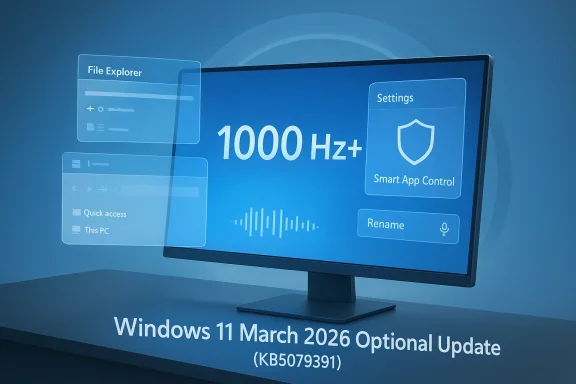
Microsoft’s March 2026 non-security update cycle for Windows 11 25H2 and 24H2 is a good reminder that “optional” patches are no longer just a cleanup pass. KB5079391 brings a mix of quality fixes, UI refinements, accessibility upgrades, and some surprisingly meaningful platform changes, including support for monitors reporting refresh rates above 1000 Hz. It also expands File Explorer polish, lets users re-enable Smart App Control without a clean install, and keeps Microsoft’s gradual rollout model in full swing. (support.microsoft.com)
At first glance, this looks like another routine monthly preview package. In practice, it shows how Windows 11 now evolves through a constant stream of small, cumulative changes rather than giant version jumps, with Microsoft blending consumer-facing features, enterprise controls, and under-the-hood reliability fixes into the same servicing pipeline. The result is a more capable operating system, but also a more fragmented experience depending on hardware, feature flags, and rollout timing. (support.microsoft.com)
Windows 11’s servicing model has become increasingly layered over the past two years. Microsoft now pushes many improvements through optional preview updates first, then folds the mature changes into the next mandatory cumulative release. That pattern is visible in the current 25H2 and 24H2 branches, which share the same core system lineage and receive almost identical monthly servicing, even when the marketing label differs.
That matters because the distinction between “new Windows version” and “new Windows experience” is getting blurrier. A feature can be announced in one preview, partially rolled out later, then refined again in a follow-up cumulative package. Microsoft’s own release notes explicitly describe “gradual rollout” versus “normal rollout,” which means two machines on the same build can still behave differently for a while. (support.microsoft.com)
This month’s update also sits in a broader security and platform transition. Microsoft is preparing for Secure Boot certificate expiration starting in June 2026, and the same update train includes new recovery and certificate-management work. So while the headline items are flashy—refresh-rate support, accessibility gains, and UI changes—the deeper story is that Windows 11’s maintenance cadence is being used to prepare the platform for next-year hardware and security shifts. (support.microsoft.com)
Another important backdrop is Microsoft’s increasing emphasis on default security behavior. Over the last several months, File Explorer began blocking preview for internet-downloaded files by default to reduce NTLM-hash exposure risks, and Smart App Control has become a more visible part of the Windows Security story. The March update does not invent those policies, but it does refine how users can interact with them, which is often where the biggest real-world friction appears.
Finally, this is also a sign that Microsoft is still investing heavily in the details that power users notice most. The March update is not just about major features. It is about smoother sleep/resume behavior, more dependable printing, better File Explorer navigation, safer app control, and accessibility tools that feel more integrated into the OS than ever before. That’s classic “continuous innovation” Windows: less dramatic, but more persistent. (support.microsoft.com)
There is also a branding effect. Microsoft can point to support for these displays as proof that Windows remains the most flexible desktop platform for hardware experimentation. That matters in the enthusiast and OEM ecosystem, where “works on day one” is often the deciding factor for adopting new panel technologies. (support.microsoft.com)
The interesting nuance is that Microsoft’s change is not presented as a splashy feature launch. It is buried under display reliability improvements, which suggests the company sees it less as a consumer feature and more as a foundational capability. That is usually how important platform shifts begin: quietly, in release notes, before they become marketing bullet points. That pattern is familiar in Windows. (support.microsoft.com)
For enterprises, the change is mostly invisible. For consumers and enthusiasts, it is a reminder that Windows still has to keep pace with hardware manufacturers that continually push boundaries on refresh rate, latency, and variable refresh behavior. That future may be niche today, but Windows has to be ready before it becomes common. (support.microsoft.com)
This is a classic example of Microsoft trying to tighten security without making the platform feel hostile. The trick is not to roll back the protection. It is to improve the workflow around trusted files so users can still preview documents and archives efficiently after they intentionally unblock them.
The addition of Voice Typing during renaming is small but meaningful, especially for accessibility and hands-busy workflows. It may not matter to most users, but it fits the larger Windows 11 pattern of making core shell tasks more multimodal. The same is true for sorting permissions entries, which is the sort of quality-of-life enhancement that admins and advanced users quietly appreciate. (support.microsoft.com)
Enterprises will care about the permission and reliability improvements, while consumers will notice the reduced friction with downloads and renaming. If the theme of Windows 11 in 2026 is “less annoying, more consistent,” File Explorer is one of the main places where that promise has to be delivered. (support.microsoft.com)
That matters especially for home users and small businesses, where a clean reinstall is not a realistic way to change a security posture. The new behavior lowers the barrier to experimentation and lets users re-evaluate whether the feature is helping or hindering their workflow. That is a better product design choice, even if it sounds mundane on paper.
It also suggests Microsoft is gaining confidence in SAC as a mature part of Windows Security. Features that remain fragile or experimental usually come with restrictive setup paths. Features that become easier to toggle are usually ones Microsoft wants people to actually use.
The risk, of course, is configuration drift. The more easily users can toggle protections, the more important it becomes for organizations to set clear expectations and enforce policy through management tools. Microsoft is improving flexibility here, but flexibility always demands discipline on the admin side.
The Copilot-backed workflow is also telling. Microsoft wants accessibility to feel integrated with its AI stack rather than bolted on as a separate utility. On Copilot+ PCs, the on-device path is faster and more private; on other Windows 11 devices, the experience is still available, but with the cloud-assisted Copilot flow. That split reflects Microsoft’s broader strategy of using AI to scale accessibility features across the hardware base. (support.microsoft.com)
This is not the first time Microsoft has improved Narrator’s image understanding, but the latest expansion matters because it broadens the audience. A feature that only helps one class of devices is useful; a feature that reaches the whole platform is much more consequential. That is especially true for assistive tech, where consistency matters.
For businesses, accessibility improvements can reduce support burden and improve compliance. For consumers, they make Windows feel more humane and less like a system that only works well for power users. That distinction is easy to overlook, but it is one of the strongest reasons Microsoft keeps investing here. (support.microsoft.com)
The Microsoft 365 Family upgrade option is also a reminder that Settings now doubles as a commerce and subscription surface. Users can move to a different Microsoft 365 plan directly from Accounts, which streamlines upselling but also risks making Settings feel more promotional than utilitarian. That tension has become increasingly familiar across consumer operating systems. (support.microsoft.com)
The improved dialog design in Other users is less dramatic, but still important. Consistency and dark-mode support matter because the windowed utility screens are exactly where Windows often feels least modern. Fixing that mismatch improves perceived quality across the whole platform. (support.microsoft.com)
The broader implication is that Microsoft is still treating Settings as a strategic surface rather than a static replacement. Every month it gets a little more coherent, and every month that coherence nudges users away from legacy system dialogs. That slow migration is easy to miss, but it is central to Windows 11’s identity. (support.microsoft.com)
The Windows Hello fingerprint improvements are especially important for devices that rely on biometric sign-in daily. Even small reliability gains can reduce login friction across thousands of endpoints, which is exactly the kind of problem enterprises notice immediately. When sign-in works better, support tickets fall, and confidence rises. (support.microsoft.com)
Voice Access improvements are equally meaningful from an accessibility perspective. Better number recognition may look trivial in a release note, but it affects dictation, form entry, and command-driven workflows. These small correctness gains accumulate quickly when a feature is used all day. (support.microsoft.com)
Printing and sleep/resume improvements also matter more than they seem. When a PC wakes slower than expected or a print spooler drags under load, it affects the rhythm of work. Microsoft’s focus on these issues suggests it still understands that performance is not only about benchmarks; it is also about not getting in the user’s way. (support.microsoft.com)
The improved Windows Update settings responsiveness and more reliable update download behavior also matter in managed environments, where delays and broken settings pages quickly become tickets. Microsoft is not just changing features here; it is reducing operational overhead. (support.microsoft.com)
Remote Desktop’s updated recognition of DisableSeamlessLanguageBar is the sort of technical detail that only certain administrators will care about, but those are exactly the people who notice when command-line tools lag behind the UI. Keeping PowerShell aligned with feature behavior is one of the quiet obligations of a mature Windows platform. (support.microsoft.com)
The most important thing to watch is how these features behave once they reach broader audiences. If Smart App Control becomes easier to manage, if File Explorer stays trustworthy while becoming less restrictive, and if the accessibility features remain fast and accurate across device classes, then this update will age well. If not, it will join the long list of “good on paper, uneven in practice” Windows changes.
Watch for these developments next:
Source: Neowin Windows 11 25H2/24H2 get 1000 Hz+ refresh rate support, File Explorer improvements, and more
At first glance, this looks like another routine monthly preview package. In practice, it shows how Windows 11 now evolves through a constant stream of small, cumulative changes rather than giant version jumps, with Microsoft blending consumer-facing features, enterprise controls, and under-the-hood reliability fixes into the same servicing pipeline. The result is a more capable operating system, but also a more fragmented experience depending on hardware, feature flags, and rollout timing. (support.microsoft.com)
 Background
Windows 11’s servicing model has become increasingly layered over the past two years. Microsoft now pushes many improvements through optional preview updates first, then folds the mature changes into the next mandatory cumulative release. That pattern is visible in the current 25H2 and 24H2 branches, which share the same core system lineage and receive almost identical monthly servicing, even when the marketing label differs.That matters because the distinction between “new Windows version” and “new Windows experience” is getting blurrier. A feature can be announced in one preview, partially rolled out later, then refined again in a follow-up cumulative package. Microsoft’s own release notes explicitly describe “gradual rollout” versus “normal rollout,” which means two machines on the same build can still behave differently for a while. (support.microsoft.com)
This month’s update also sits in a broader security and platform transition. Microsoft is preparing for Secure Boot certificate expiration starting in June 2026, and the same update train includes new recovery and certificate-management work. So while the headline items are flashy—refresh-rate support, accessibility gains, and UI changes—the deeper story is that Windows 11’s maintenance cadence is being used to prepare the platform for next-year hardware and security shifts. (support.microsoft.com)
Another important backdrop is Microsoft’s increasing emphasis on default security behavior. Over the last several months, File Explorer began blocking preview for internet-downloaded files by default to reduce NTLM-hash exposure risks, and Smart App Control has become a more visible part of the Windows Security story. The March update does not invent those policies, but it does refine how users can interact with them, which is often where the biggest real-world friction appears.
Finally, this is also a sign that Microsoft is still investing heavily in the details that power users notice most. The March update is not just about major features. It is about smoother sleep/resume behavior, more dependable printing, better File Explorer navigation, safer app control, and accessibility tools that feel more integrated into the OS than ever before. That’s classic “continuous innovation” Windows: less dramatic, but more persistent. (support.microsoft.com)
The 1000 Hz+ Display Milestone
The most eye-catching technical addition is support for refresh rates higher than 1000 Hz. That sounds outrageous to mainstream users, and in daily productivity it probably is. But the feature is a signal that Microsoft is preparing Windows for a future where ultra-high-refresh panels, low-latency gaming monitors, and specialized display pipelines may demand more headroom than today’s desktop hardware typically requires. (support.microsoft.com)Why this matters
In practical terms, most people will never own a 1000 Hz display, and many will never need one. But operating systems often need to get ahead of the hardware curve, not follow it. By allowing monitors to report beyond that threshold, Windows avoids becoming the bottleneck when next-generation panels arrive in niche gaming, simulation, and professional environments. (support.microsoft.com)There is also a branding effect. Microsoft can point to support for these displays as proof that Windows remains the most flexible desktop platform for hardware experimentation. That matters in the enthusiast and OEM ecosystem, where “works on day one” is often the deciding factor for adopting new panel technologies. (support.microsoft.com)
The interesting nuance is that Microsoft’s change is not presented as a splashy feature launch. It is buried under display reliability improvements, which suggests the company sees it less as a consumer feature and more as a foundational capability. That is usually how important platform shifts begin: quietly, in release notes, before they become marketing bullet points. That pattern is familiar in Windows. (support.microsoft.com)
- It future-proofs Windows for extreme high-refresh hardware.
- It helps OEMs and monitor makers validate new panel classes.
- It reinforces Windows as the default PC platform for enthusiast displays.
- It is likely irrelevant to most office users today.
- It may become more important as gaming and simulation hardware advances.
The real-world limitation
The catch is obvious: a high reported refresh rate does not automatically mean a better experience. Panel response time, driver behavior, cable bandwidth, power management, and GPU output constraints still matter far more than a spec sheet headline. So while this update is technically significant, it should be viewed as infrastructure, not magic. (support.microsoft.com)For enterprises, the change is mostly invisible. For consumers and enthusiasts, it is a reminder that Windows still has to keep pace with hardware manufacturers that continually push boundaries on refresh rate, latency, and variable refresh behavior. That future may be niche today, but Windows has to be ready before it becomes common. (support.microsoft.com)
File Explorer Keeps Getting Smarter
File Explorer remains one of Microsoft’s favorite places to refine the Windows experience because it sits at the intersection of productivity, security, and daily user muscle memory. This update adds multiple small but useful improvements: better reliability when unblocking files downloaded from the internet for preview, voice typing support during file renaming, and the ability to sort permission entries in Advanced Security Settings by principal. (support.microsoft.com)A calmer relationship with downloaded files
The preview-unblock improvement is especially notable because it responds to a security change Microsoft introduced last year. After a Windows update, File Explorer started disabling preview for internet-marked files by default to reduce the risk of credential leakage through malicious file contents. That was the right security move, but it created a usability pain point for legitimate downloads. This month’s patch eases that friction.This is a classic example of Microsoft trying to tighten security without making the platform feel hostile. The trick is not to roll back the protection. It is to improve the workflow around trusted files so users can still preview documents and archives efficiently after they intentionally unblock them.
The addition of Voice Typing during renaming is small but meaningful, especially for accessibility and hands-busy workflows. It may not matter to most users, but it fits the larger Windows 11 pattern of making core shell tasks more multimodal. The same is true for sorting permissions entries, which is the sort of quality-of-life enhancement that admins and advanced users quietly appreciate. (support.microsoft.com)
- Better handling of internet-downloaded files
- Voice typing during rename operations
- More usable advanced permission dialogs
- Improved network page reliability in Explorer
- Cleaner command bar behavior in archive browsing
Why Explorer matters more than it seems
File Explorer is not just a file browser; it is a trust interface. Every time Microsoft changes how it handles downloads, archives, security blocks, or preview panes, it affects how users judge whether Windows feels safe and competent. These updates don’t make headlines like Copilot, but they influence day-to-day confidence much more directly.Enterprises will care about the permission and reliability improvements, while consumers will notice the reduced friction with downloads and renaming. If the theme of Windows 11 in 2026 is “less annoying, more consistent,” File Explorer is one of the main places where that promise has to be delivered. (support.microsoft.com)
Smart App Control Becomes Less Permanent
One of the most user-friendly changes in this update is that Smart App Control can now be turned on or off without a clean installation. That is a significant operational improvement, because the old model effectively made SAC feel like a one-way door for many users. Microsoft first documented the change in the January 2026 preview cycle, and now it is rolling out more broadly.Why this is a big deal
Smart App Control sits at the crossroads of security and convenience. When enabled, it helps block untrusted or potentially harmful apps, which is exactly what Microsoft wants in a world of increasingly noisy download channels. But if the setting is too rigid, users and admins treat it as an obstacle instead of a protection layer. This update makes SAC feel more like a policy you can manage and less like a commitment you can never revisit.That matters especially for home users and small businesses, where a clean reinstall is not a realistic way to change a security posture. The new behavior lowers the barrier to experimentation and lets users re-evaluate whether the feature is helping or hindering their workflow. That is a better product design choice, even if it sounds mundane on paper.
It also suggests Microsoft is gaining confidence in SAC as a mature part of Windows Security. Features that remain fragile or experimental usually come with restrictive setup paths. Features that become easier to toggle are usually ones Microsoft wants people to actually use.
- SAC can now be enabled or disabled more flexibly
- No clean install is required to change the setting
- The feature remains focused on blocking untrusted apps
- The change reduces long-term lock-in for users
- It supports a more practical security posture
The enterprise angle
For IT teams, this is more than a convenience feature. It makes security posture adjustments less destructive, which is important in environments where imaging, device refreshes, and support tickets have real cost. Being able to adjust SAC without wiping a machine can save time, reduce friction, and make policy rollout less intimidating.The risk, of course, is configuration drift. The more easily users can toggle protections, the more important it becomes for organizations to set clear expectations and enforce policy through management tools. Microsoft is improving flexibility here, but flexibility always demands discipline on the admin side.
Accessibility Moves Forward
Microsoft is also pushing accessibility forward with a more capable Narrator experience. The update expands rich image descriptions from Copilot+ PCs to all Windows 11 devices through Copilot integration, letting users invoke image descriptions with keyboard shortcuts and customize prompts before sharing the image. On Copilot+ hardware, the descriptions remain instant and on-device. (support.microsoft.com)From basic alt text to richer context
This is one of those features that sounds niche until you consider how much visual information the modern PC presents. Images, graphs, charts, UI screenshots, and embedded media are everywhere, and alt text is often incomplete or missing. A more intelligent image-description system can make a real difference for blind and low-vision users navigating everyday work.The Copilot-backed workflow is also telling. Microsoft wants accessibility to feel integrated with its AI stack rather than bolted on as a separate utility. On Copilot+ PCs, the on-device path is faster and more private; on other Windows 11 devices, the experience is still available, but with the cloud-assisted Copilot flow. That split reflects Microsoft’s broader strategy of using AI to scale accessibility features across the hardware base. (support.microsoft.com)
This is not the first time Microsoft has improved Narrator’s image understanding, but the latest expansion matters because it broadens the audience. A feature that only helps one class of devices is useful; a feature that reaches the whole platform is much more consequential. That is especially true for assistive tech, where consistency matters.
Beyond the headline
Microsoft also notes improvements to Natural Voices in Narrator and more reliable setup for those voices. Taken together, these changes show a broader push to make accessibility tools less mechanical and more natural to use. The OS is not just announcing features; it is refining the emotional texture of interacting with them. (support.microsoft.com)For businesses, accessibility improvements can reduce support burden and improve compliance. For consumers, they make Windows feel more humane and less like a system that only works well for power users. That distinction is easy to overlook, but it is one of the strongest reasons Microsoft keeps investing here. (support.microsoft.com)
Settings, Identity, and Device Management
The Settings app continues to absorb more of the old Control Panel-era experience, and this update adds more refinement. Microsoft improved the About page structure, simplified the device information card on the Settings home page, and made it easier to reach related device components such as storage settings. It also improved the reliability of opening Settings Home and downloading required updates from Advanced settings prompts. (support.microsoft.com)A more coherent Settings journey
This is part of a long-running Windows 11 effort: make the settings hierarchy more coherent, more visual, and less fragmented. The new device information card is not flashy, but it helps users see key specs more quickly and moves the interface closer to a “summary-first” model. That is useful for both casual users and support teams walking someone through a troubleshooting call. (support.microsoft.com)The Microsoft 365 Family upgrade option is also a reminder that Settings now doubles as a commerce and subscription surface. Users can move to a different Microsoft 365 plan directly from Accounts, which streamlines upselling but also risks making Settings feel more promotional than utilitarian. That tension has become increasingly familiar across consumer operating systems. (support.microsoft.com)
The improved dialog design in Other users is less dramatic, but still important. Consistency and dark-mode support matter because the windowed utility screens are exactly where Windows often feels least modern. Fixing that mismatch improves perceived quality across the whole platform. (support.microsoft.com)
- More structured About page layout
- Faster access to storage-related settings
- More reliable Settings Home performance
- Better dialog design and dark-mode consistency
- Easier Microsoft 365 plan management
Enterprise versus consumer implications
For enterprises, these updates reduce support friction when users are trying to identify hardware, storage, or account state. For consumers, the changes make it easier to understand the PC without hunting through nested pages. Both groups benefit, but they benefit in different ways: admins want predictability, while consumers want clarity. (support.microsoft.com)The broader implication is that Microsoft is still treating Settings as a strategic surface rather than a static replacement. Every month it gets a little more coherent, and every month that coherence nudges users away from legacy system dialogs. That slow migration is easy to miss, but it is central to Windows 11’s identity. (support.microsoft.com)
Reliability Fixes That Matter More Than They Look
The update also includes a long list of reliability fixes that may not sound glamorous but can affect real-world satisfaction. These include better taskbar component loading in Safe Mode, improved Voice Access number handling, better Start menu policy application, stronger Remote Desktop command support, more reliable short MIDI message handling, and the removal of an extraneous sfc /scannow error message. (support.microsoft.com)Why stability updates are strategic
Windows users often judge the OS less by headline features than by how often it interrupts them. A broken Start menu policy, a flaky Safe Mode taskbar, or an unreliable fingerprint reader can create more frustration than a missing new feature. Microsoft knows this, which is why these “boring” fixes often have an outsized effect on perceived polish. (support.microsoft.com)The Windows Hello fingerprint improvements are especially important for devices that rely on biometric sign-in daily. Even small reliability gains can reduce login friction across thousands of endpoints, which is exactly the kind of problem enterprises notice immediately. When sign-in works better, support tickets fall, and confidence rises. (support.microsoft.com)
Voice Access improvements are equally meaningful from an accessibility perspective. Better number recognition may look trivial in a release note, but it affects dictation, form entry, and command-driven workflows. These small correctness gains accumulate quickly when a feature is used all day. (support.microsoft.com)
The quieter wins
The System File Checker message cleanup is a perfect example of a fix that improves trust without changing functionality. If a diagnostic tool throws unexplained errors, users assume the system is unhealthy even when it is not. Removing that false signal is a small but welcome piece of maintenance engineering. (support.microsoft.com)Printing and sleep/resume improvements also matter more than they seem. When a PC wakes slower than expected or a print spooler drags under load, it affects the rhythm of work. Microsoft’s focus on these issues suggests it still understands that performance is not only about benchmarks; it is also about not getting in the user’s way. (support.microsoft.com)
Enterprise and Developer Impact
For IT departments, this month’s update is about manageability as much as usability. The refreshed Application Control for Business tagging logic should make policy assignment more reliable, while the new RSAT support on Windows 11 Arm64 devices broadens the administrative toolkit for a growing class of endpoints. Those are the kinds of changes that help standardize hybrid fleets. (support.microsoft.com)Why RSAT on Arm64 matters
Arm64 hardware has moved from curiosity to credible enterprise option, especially as businesses look for battery life, portability, and on-device efficiency. Adding RSAT support means admins can more easily use familiar management tools on those devices without falling back to x64 hardware just to administer servers and policies. That improves platform parity, which is exactly what enterprises want. (support.microsoft.com)The improved Windows Update settings responsiveness and more reliable update download behavior also matter in managed environments, where delays and broken settings pages quickly become tickets. Microsoft is not just changing features here; it is reducing operational overhead. (support.microsoft.com)
Remote Desktop’s updated recognition of DisableSeamlessLanguageBar is the sort of technical detail that only certain administrators will care about, but those are exactly the people who notice when command-line tools lag behind the UI. Keeping PowerShell aligned with feature behavior is one of the quiet obligations of a mature Windows platform. (support.microsoft.com)
- More dependable application tagging for policy enforcement
- RSAT support expands on Arm64
- Better Windows Update responsiveness
- More complete PowerShell behavior for Remote Desktop
- Improved printer-service throughput under load
A subtle platform message
These changes imply Microsoft wants Windows 11 to be increasingly agnostic about architecture, workflow, and management layer. Whether the machine is x64, Arm64, consumer, or enterprise-managed, the core promise is supposed to be the same: modern UI, modern security, and modern supportability. That is a hard promise to keep, but updates like this suggest Microsoft is still pushing in that direction. (support.microsoft.com)Strengths and Opportunities
This update is strongest when seen as a package of small but strategically aligned improvements. It does not try to reinvent Windows 11. Instead, it smooths the rough edges that people encounter every day, and that is often where the most durable value lives.- 1000 Hz+ display support future-proofs Windows for next-generation panels. (support.microsoft.com)
- Smart App Control is easier to manage without reinstalling Windows.
- File Explorer gets more usable for downloads, renaming, and permissions work. (support.microsoft.com)
- Narrator image descriptions improve accessibility across more devices. (support.microsoft.com)
- Settings becomes clearer and less fragmented. (support.microsoft.com)
- RSAT on Arm64 strengthens the enterprise story. (support.microsoft.com)
- Reliability fixes reduce daily friction in sign-in, printing, sleep, and diagnostics. (support.microsoft.com)
Risks and Concerns
The flip side of continuous innovation is complexity. When features roll out gradually, vary by device, and depend on hidden eligibility rules, users can easily end up confused about why they do or do not see a change. Microsoft’s update model is flexible, but it can also feel opaque.- Gradual rollout means not every device gets the same experience at the same time. (support.microsoft.com)
- Feature fragmentation can frustrate enthusiasts who expect immediate parity. (support.microsoft.com)
- Security-versus-usability tradeoffs still require judgment calls, especially in File Explorer.
- Promotional surfaces in Settings may feel intrusive to some users. (support.microsoft.com)
- High-end hardware support like 1000 Hz displays may look niche or performative to mainstream buyers. (support.microsoft.com)
- Policy flexibility can create governance challenges for enterprises if controls are not enforced consistently.
- UI polish fixes do not eliminate the larger challenge of making Windows feel coherent across all surfaces. (support.microsoft.com)
Looking Ahead
The next few update cycles will tell us whether this month’s changes are isolated refinements or part of a larger pattern. Microsoft has already laid groundwork for Secure Boot certificate transitions, AI-driven accessibility improvements, and more adaptable security controls. The question is whether the company can keep layering these changes without making Windows feel harder to understand. (support.microsoft.com)The most important thing to watch is how these features behave once they reach broader audiences. If Smart App Control becomes easier to manage, if File Explorer stays trustworthy while becoming less restrictive, and if the accessibility features remain fast and accurate across device classes, then this update will age well. If not, it will join the long list of “good on paper, uneven in practice” Windows changes.
Watch for these developments next:
- Wider rollout of the 1000 Hz+ display capability to compatible hardware. (support.microsoft.com)
- Whether Smart App Control becomes easier to recommend to everyday users.
- Expansion of Narrator image-description features beyond Copilot+ workflows. (support.microsoft.com)
- Additional File Explorer security/usability tuning in future previews.
- More refinements to Settings as Microsoft keeps migrating legacy control surfaces. (support.microsoft.com)
Source: Neowin Windows 11 25H2/24H2 get 1000 Hz+ refresh rate support, File Explorer improvements, and more
