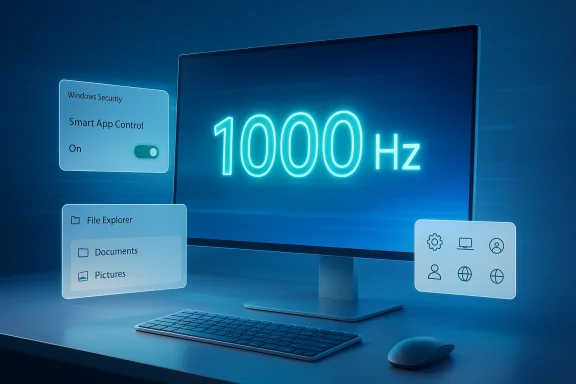
Microsoft’s latest March 2026 non-security update for Windows 11 is a classic “quality-of-life” release, but it is also a good signal of where Windows is heading: higher-end display support, tighter system security, and a slow but steady cleanup of rough edges in everyday workflows. The update spans Windows 11 versions 26H1, 25H2, and 24H2, and it rolls out a mix of visible changes and under-the-hood fixes that matter differently to gamers, creators, enterprise admins, and accessibility users. Some of the biggest talking points are refresh-rate support above 1000 Hz, File Explorer improvements, and the ability to re-enable Smart App Control without performing a clean install. Microsoft’s own update history confirms that the March 26, 2026 preview applies to Windows 11 versions 25H2 and 24H2, while the 26H1 cadence remains distinct for select new devices. (support.microsoft.com)
This is not a flashy release in the way a major feature version update is flashy. Instead, it continues Microsoft’s modern Windows servicing model: frequent optional previews, gradual rollouts, and a long tail of incremental refinements that accumulate into a noticeably different operating system over time. That model matters because many of these improvements are not tied to a single headline feature; they arrive in layers, often first in preview branches and then in broader cumulative updates. Microsoft’s February 24, 2026 preview for 25H2 and 24H2 explicitly describes the package as a non-security update meant to improve functionality, performance, and reliability, which is exactly the kind of language used for these monthly releases. (support.microsoft.com)
What makes this update interesting is the spread of target audiences. High-refresh displays are obviously a premium niche today, but support for refresh rates above 1000 Hz is a statement of intent about Windows’ willingness to keep pace with bleeding-edge hardware. File Explorer changes are more mundane, yet they affect almost every Windows user, especially now that Microsoft has hardened downloaded-file preview behavior for security reasons. Smart App Control is the most important policy shift of the lot, because it makes a previously one-way security setting more practical for real-world users and administrators. Microsoft first documented the SAC change in January 2026, and the February documentation shows that the feature was initially rolled out in stages. (support.microsoft.com)
The update also reflects a broader tension in Windows 11 development. Microsoft wants the platform to feel modern, secure, and AI-aware, but it still has to serve legacy workflows, enterprise deployment realities, and hardware that ranges from inexpensive laptops to enthusiast desktops and Copilot+ PCs. That is why a single release can mention Narrator image descriptions, printer baselines, Start menu policy behavior, Voice Access number recognition, and Safe Mode taskbar reliability in the same breath. It is a reminder that Windows is no longer updated through dramatic monolithic jumps; it is continuously shaped through a steady stream of targeted corrections and feature nips and tucks. (support.microsoft.com)
One of the more revealing parts of this update is how Microsoft packages the change log. The company separates features that are being rolled out gradually from those available to all users after install, which means not every device will see the same experience on day one. That gradual approach is sensible for a platform as diverse as Windows, but it also creates a growing gap between what Microsoft says is “in” the OS and what a typical user actually sees after patching. For IT departments, that means testing matters more than ever. For enthusiasts, it means forum threads will continue to be filled with “I have the update, but I don’t see the feature yet” posts. (support.microsoft.com)
For gamers, the immediate upside is not magical frame-rate growth. Instead, it is confidence that Windows can accurately surface the capabilities of future displays and related hardware. That confidence has a downstream effect on manufacturers, streamers, and reviewers, because the OS’s reported mode becomes part of the story consumers use when deciding whether a monitor is truly worth buying. In a market where “higher” often sells, accurately supporting the high end is a competitive advantage.
That is why this update should be read as infrastructure work rather than a promise of universal benefit. The system can now report more extreme values, but the real test is whether the surrounding ecosystem can make those values useful, stable, and visible to software that actually cares. In other words, this is not a consumer feature in the narrow sense; it is a platform readiness move.
The March update does not reverse that policy. Instead, it makes the “unblock” path more reliable, which is an important distinction. Microsoft’s security documentation is clear that if you trust the file, you can remove the internet security block through the file’s properties, but it warns that doing so changes the security posture. The new update appears to make that unblocking process smoother, which is the sort of compromise Windows often has to strike: preserve a security control while reducing the annoyance cost of legitimate work. (support.microsoft.com)
The Principal sort option in Advanced Security Settings is a similarly practical enhancement. On enterprise-managed systems and shared folders, permissions lists can become dense and hard to interpret. Being able to sort entries more intelligently is not glamorous, but it is exactly the kind of thing that shortens troubleshooting time for administrators who spend too much of their lives untangling ACLs.
That matters because security features fail in the real world when they are perceived as irreversible or too disruptive. Users often want to test a setting, troubleshoot an app, or temporarily disable protection for a specific task. If re-enabling the control is painful, the feature may be left off permanently. Microsoft appears to have recognized that a more reversible SAC is a more credible SAC.
There is also a competitive angle. Microsoft has spent years trying to make Windows’ built-in security stack strong enough that users do not need to bolt on so many external controls. Making SAC more manageable helps that narrative. It says, in effect, that Microsoft wants security to be present, useful, and recoverable rather than merely strict.
This is not just a feature about describing pictures. It is a sign that Microsoft wants Windows to infer intent and context more intelligently. For blind and low-vision users, the value of faster, richer descriptions is obvious. For Microsoft, the opportunity is to make Copilot feel less like a separate chatbot and more like a utility layer woven into the OS. That is a strategic design choice, not merely a UI tweak.
For users who rely on speech, these changes matter at least as much as a flashy new UI. They also reveal a broader pattern in Windows 11: the most meaningful accessibility improvements are often the ones that remove repeated points of failure rather than add dramatic new capabilities. A system is more usable when it fails less often in the same old places.
That effort is also useful for supportability. If the OS makes it easier to identify hardware details, firmware-related issues, and storage state, users and admins can troubleshoot more quickly. That is especially relevant in mixed-device environments where support teams need fast answers, not scavenger hunts.
That integration is good for user retention and good for conversion, which is likely no accident. Microsoft has an obvious incentive to make its subscription paths smoother, but the company has to do so without making the OS feel pushy. The improved dialog design is a quiet attempt to make those moments feel less jarring and more native.
The Start menu policy fix is especially important in large environments because the Start menu is one of the most visible parts of the desktop, yet it is often controlled centrally. When desktopAppLink is involved, small configuration inconsistencies can cascade into user-facing confusion. A more reliable policy path reduces noise and support tickets.
For administrators, the lesson is simple: these releases are not just about features; they are about keeping the deployment substrate coherent. If the baseline shifts, scripting, driver trust, and connection logic all need to be checked. That is why preview updates deserve real attention even when they seem optional.
Similarly, safe mode taskbar reliability is one of those details that only matters when everything has already gone wrong. Safe mode is supposed to be a dependable recovery environment, and if its UI components fail to load, that weakens the rescue path. The same logic applies to Windows RE stability on ARM64 systems. Recovery environments are not glamorous, but they are critical.
That matters because users rarely blame firmware, driver, or monitor metadata when a feature acts oddly. They blame Windows. So every time Microsoft tightens the reporting chain, it reduces the chance that a hardware quirk becomes a Windows reputation problem.
That said, most casual users will install the update and never know the feature list by name. That is not a criticism; it is exactly how good maintenance updates should work. The best patch is often the one that disappears into the background after improving things.
It also means Microsoft is trying to make Windows easier to govern over time. More reliable policy application, better security control reversibility, and improved baseline support all reduce operational drag. That is the kind of incremental progress that matters most in large fleets.
Another thing to watch is whether the display and accessibility changes stay niche or begin to shape the mainstream perception of Windows 11. If Microsoft can continue improving high-end hardware support while making core features easier to use, the operating system will look less like a bundle of compromises and more like a platform steadily converging on consistency.
Source: Neowin Windows 11 25H2/24H2 get 1000 Hz+ refresh rate support, File Explorer improvements, and more
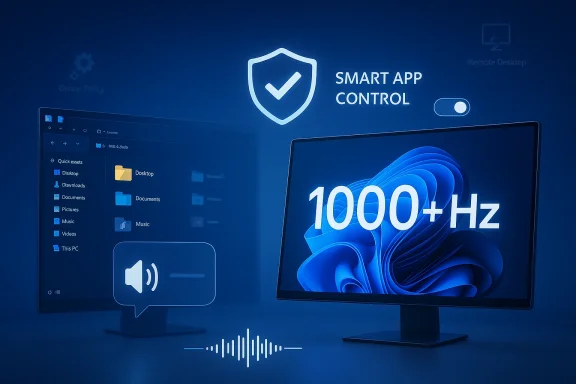 Overview
This is not a flashy release in the way a major feature version update is flashy. Instead, it continues Microsoft’s modern Windows servicing model: frequent optional previews, gradual rollouts, and a long tail of incremental refinements that accumulate into a noticeably different operating system over time. That model matters because many of these improvements are not tied to a single headline feature; they arrive in layers, often first in preview branches and then in broader cumulative updates. Microsoft’s February 24, 2026 preview for 25H2 and 24H2 explicitly describes the package as a non-security update meant to improve functionality, performance, and reliability, which is exactly the kind of language used for these monthly releases. (support.microsoft.com)What makes this update interesting is the spread of target audiences. High-refresh displays are obviously a premium niche today, but support for refresh rates above 1000 Hz is a statement of intent about Windows’ willingness to keep pace with bleeding-edge hardware. File Explorer changes are more mundane, yet they affect almost every Windows user, especially now that Microsoft has hardened downloaded-file preview behavior for security reasons. Smart App Control is the most important policy shift of the lot, because it makes a previously one-way security setting more practical for real-world users and administrators. Microsoft first documented the SAC change in January 2026, and the February documentation shows that the feature was initially rolled out in stages. (support.microsoft.com)
The update also reflects a broader tension in Windows 11 development. Microsoft wants the platform to feel modern, secure, and AI-aware, but it still has to serve legacy workflows, enterprise deployment realities, and hardware that ranges from inexpensive laptops to enthusiast desktops and Copilot+ PCs. That is why a single release can mention Narrator image descriptions, printer baselines, Start menu policy behavior, Voice Access number recognition, and Safe Mode taskbar reliability in the same breath. It is a reminder that Windows is no longer updated through dramatic monolithic jumps; it is continuously shaped through a steady stream of targeted corrections and feature nips and tucks. (support.microsoft.com)
One of the more revealing parts of this update is how Microsoft packages the change log. The company separates features that are being rolled out gradually from those available to all users after install, which means not every device will see the same experience on day one. That gradual approach is sensible for a platform as diverse as Windows, but it also creates a growing gap between what Microsoft says is “in” the OS and what a typical user actually sees after patching. For IT departments, that means testing matters more than ever. For enthusiasts, it means forum threads will continue to be filled with “I have the update, but I don’t see the feature yet” posts. (support.microsoft.com)
Why 1000 Hz+ Display Support Matters
Support for monitors reporting refresh rates higher than 1000 Hz will sound absurd to many mainstream users, and in practical terms it still is. Most people do not own displays that can even begin to approach that territory, and most software will not benefit meaningfully from such extremes today. But the significance is less about what people are using right now and more about what Windows is prepared to recognize without friction. Microsoft is making sure the operating system itself is not the bottleneck when the panel, driver stack, and GPU ecosystem move forward. (support.microsoft.com)A signal to the enthusiast and esports market
This kind of support is a clear wink to the enthusiast display market and to competitive gaming hardware makers. When a platform can report extreme refresh rates accurately, it reduces the odds of weird display negotiation problems, driver edge cases, or control-panel limitations that make hardware look less capable than it is. That matters even if only a sliver of users ever sees a panel near those numbers, because signal integrity at the top end often improves consistency at the lower end too. Microsoft has long supported dynamic refresh features on Windows 11, and it already documents refresh-rate handling in terms of what the display and system support, not some arbitrary software ceiling.For gamers, the immediate upside is not magical frame-rate growth. Instead, it is confidence that Windows can accurately surface the capabilities of future displays and related hardware. That confidence has a downstream effect on manufacturers, streamers, and reviewers, because the OS’s reported mode becomes part of the story consumers use when deciding whether a monitor is truly worth buying. In a market where “higher” often sells, accurately supporting the high end is a competitive advantage.
The practical limits still matter
Of course, a support note does not mean every app or cable configuration will behave beautifully at impossible refresh rates. Display capability is a chain, and the chain is only as strong as the weakest link. A monitor can advertise a mode, a GPU can expose it, and Windows can accept it, but the user still needs the right connection standards, firmware, and driver behavior for the experience to be stable.That is why this update should be read as infrastructure work rather than a promise of universal benefit. The system can now report more extreme values, but the real test is whether the surrounding ecosystem can make those values useful, stable, and visible to software that actually cares. In other words, this is not a consumer feature in the narrow sense; it is a platform readiness move.
File Explorer Gets More Useful, and More Secure
The File Explorer changes are smaller on paper but more consequential in everyday use. Microsoft says the update improves the ability to unblock files downloaded from the internet so they can be previewed in File Explorer, allows Voice Typing to be used while renaming files, and adds sorting by Principal in the Advanced Security Settings window. Those may sound like minor paper cuts, but File Explorer is one of the most frequently used surfaces in Windows, which makes even tiny usability gains matter. (support.microsoft.com)Security has changed the File Explorer experience
The bigger context here is Microsoft’s October 2025 security change, which automatically disables previewing of downloaded files marked with the Mark of the Web. Microsoft explained that the change was intended to reduce the risk of NTLM hash leakage through file preview behavior involving external references. In plain English, previewing some downloaded files could expose credentials, so Microsoft deliberately made File Explorer more cautious. That made the preview pane safer, but it also made some users feel like a familiar workflow had been taken away. (support.microsoft.com)The March update does not reverse that policy. Instead, it makes the “unblock” path more reliable, which is an important distinction. Microsoft’s security documentation is clear that if you trust the file, you can remove the internet security block through the file’s properties, but it warns that doing so changes the security posture. The new update appears to make that unblocking process smoother, which is the sort of compromise Windows often has to strike: preserve a security control while reducing the annoyance cost of legitimate work. (support.microsoft.com)
Why rename and security tweaks matter to real users
The addition of Voice Typing during file renaming is easy to dismiss until you imagine who benefits from it. Users with mobility issues, accessibility needs, or just hands-free workflows often do a surprising amount of file management. Allowing speech input directly in a rename field is a small change that can remove a repeated friction point across thousands of daily interactions. It also aligns with Microsoft’s broader accessibility push across Narrator, Voice Access, and other assistive features. (support.microsoft.com)The Principal sort option in Advanced Security Settings is a similarly practical enhancement. On enterprise-managed systems and shared folders, permissions lists can become dense and hard to interpret. Being able to sort entries more intelligently is not glamorous, but it is exactly the kind of thing that shortens troubleshooting time for administrators who spend too much of their lives untangling ACLs.
- Better handling of downloaded-file preview is the most security-sensitive change.
- Voice Typing in rename flows improves accessibility and convenience.
- Principal sorting helps admins work through permission lists faster.
- The update tries to preserve safety while reducing friction.
- This is a refinement release, not a redesign.
Smart App Control Becomes Much More Practical
Among all the changes in this release, Smart App Control may be the most strategically important. Microsoft now allows users to turn SAC on or off without needing to clean-install Windows 11. That is a meaningful policy shift because the old model made SAC harder to experiment with, harder to recover from, and more awkward to manage on devices where the initial trust state had already changed. Microsoft documented this behavior in January 2026 and then reinforced it in the March update stream. (support.microsoft.com)What SAC is trying to solve
Smart App Control is one of Microsoft’s more opinionated security features. It is designed to block untrusted or potentially harmful apps, particularly in scenarios where signature trust and reputation signals can reduce the chance of users launching dangerous software. Microsoft’s own FAQ notes that it originally enabled SAC only on clean installs of Windows 11, and that if users turned it off, getting it back usually required a reset path. The new flexibility is therefore a significant usability improvement.That matters because security features fail in the real world when they are perceived as irreversible or too disruptive. Users often want to test a setting, troubleshoot an app, or temporarily disable protection for a specific task. If re-enabling the control is painful, the feature may be left off permanently. Microsoft appears to have recognized that a more reversible SAC is a more credible SAC.
Enterprise and consumer implications diverge
For consumers, this is mainly about peace of mind. If a user experiments with SAC and later decides they want the protection back, they no longer need to treat the setting like a permanent fork in the road. For enterprises, the effect is subtler but more important: administrators gain a better way to standardize posture after pilots, migrations, or support interventions. That makes SAC easier to consider in endpoint baselines, even if some organizations will still prefer their own application control tooling.There is also a competitive angle. Microsoft has spent years trying to make Windows’ built-in security stack strong enough that users do not need to bolt on so many external controls. Making SAC more manageable helps that narrative. It says, in effect, that Microsoft wants security to be present, useful, and recoverable rather than merely strict.
Accessibility and Input Keep Improving
The update includes a batch of accessibility and input refinements that may not dominate headlines but do reflect Microsoft’s current priorities. Narrator gets richer image descriptions on Copilot+ PCs and now works with Copilot on all Windows 11 devices. Voice Access gets better number detection, and Narrator’s natural voice experience is said to be more reliable. These changes are useful not just because they improve convenience, but because they show Microsoft continuing to invest in human-computer interaction as a first-class area of Windows development. (support.microsoft.com)Narrator and Copilot are getting closer together
The Narrator change is particularly interesting because it blends on-device accessibility with cloud-assisted intelligence. On Copilot+ PCs, Microsoft says image descriptions can be generated instantly on-device, while the user can also ask Copilot for more detail. On non-Copilot+ Windows 11 devices, Narrator now works with Copilot to help describe the focused image or full screen. That creates a tiered capability model, but it also normalizes the idea that accessibility and AI should cooperate rather than compete. (support.microsoft.com)This is not just a feature about describing pictures. It is a sign that Microsoft wants Windows to infer intent and context more intelligently. For blind and low-vision users, the value of faster, richer descriptions is obvious. For Microsoft, the opportunity is to make Copilot feel less like a separate chatbot and more like a utility layer woven into the OS. That is a strategic design choice, not merely a UI tweak.
Voice Access and typing reliability
Voice Access and voice typing continue to mature in the background. Microsoft’s update notes say number detection is improved in English and that the “wait before acting” setting in voice typing can help adapt command timing to different speaking patterns. Those details sound small, but speech input depends on accuracy, latency, and confidence. If Windows gets those wrong, users abandon the feature quickly. If it gets them right, the interaction becomes routine. (support.microsoft.com)For users who rely on speech, these changes matter at least as much as a flashy new UI. They also reveal a broader pattern in Windows 11: the most meaningful accessibility improvements are often the ones that remove repeated points of failure rather than add dramatic new capabilities. A system is more usable when it fails less often in the same old places.
- Narrator is getting more capable and more integrated.
- Copilot+ PCs still get the most immediate on-device benefits.
- Voice features are improving in accuracy and reliability.
- These updates reinforce accessibility as a core Windows priority.
- The change is as much about confidence as it is about features.
Settings, Accounts, and System Information Feel More Polished
Microsoft is also continuing to reshape the Settings app into something more structured and less cluttered. The About page now presents clearer device specifications and easier navigation to related components, including quick access to Storage settings. The device information card on the Settings Home page is likewise being simplified to make core specs easier to scan, while the Settings app’s home-opening reliability has also been improved. These are not headline features, but they are part of a bigger effort to make Settings feel like a genuine control center instead of a collection of leftovers from older Windows eras. (support.microsoft.com)The Settings app is still under construction
Windows Settings has been migrating functionality away from Control Panel for years, but the transition has not always been elegant. Microsoft has often had to balance modern design language, legacy compatibility, and administrative depth. The result is that some pages feel polished while others feel like compromises. A more structured About page suggests Microsoft is trying to reduce that inconsistency by making device specs and storage pathways easier to reach without forcing users to hunt.That effort is also useful for supportability. If the OS makes it easier to identify hardware details, firmware-related issues, and storage state, users and admins can troubleshoot more quickly. That is especially relevant in mixed-device environments where support teams need fast answers, not scavenger hunts.
Account and subscription changes
The update also brings account-related refinements, including the ability for Microsoft 365 Family subscribers to upgrade to a different Microsoft 365 plan from Settings > Accounts. Microsoft is also changing the design of dialog boxes under Accounts > Other users to better match the modern Windows look and to support dark mode. Those are modest changes, but they show how Microsoft increasingly treats account management as part of the OS experience rather than a separate web-first workflow. (support.microsoft.com)That integration is good for user retention and good for conversion, which is likely no accident. Microsoft has an obvious incentive to make its subscription paths smoother, but the company has to do so without making the OS feel pushy. The improved dialog design is a quiet attempt to make those moments feel less jarring and more native.
Enterprise Fixes Are Quietly Important
The business-oriented fixes in this update are easy to overlook, but they are among the most consequential for organizations that depend on Windows at scale. Microsoft says the update improves Application ID tagging in Application Control for Business policies, adds recognition for DisableSeamlessLanguageBar in the Set-RDSessionCollectionConfiguration PowerShell command, and improves the reliability of applying Start menu layouts through Group Policy when desktopAppLink is present in JSON. Those are not consumer headlines, but they matter a great deal to IT shops that live and die by consistency. (support.microsoft.com)Policy, remote desktop, and predictability
Policy behavior is the lifeblood of enterprise Windows management. When Group Policy layouts misbehave or application control tagging gets sloppy, admins lose confidence in the deployment stack. The same is true for Remote Desktop collection settings, where even one unrecognized parameter can create confusion in automated scripts or rollout pipelines. Fixes like these help stabilize the management layer that businesses depend on every day.The Start menu policy fix is especially important in large environments because the Start menu is one of the most visible parts of the desktop, yet it is often controlled centrally. When desktopAppLink is involved, small configuration inconsistencies can cascade into user-facing confusion. A more reliable policy path reduces noise and support tickets.
Baselines and compatibility still matter
The update also notes a new downlevel baseline for printer connections, moving to Windows 10 version 1607 and Windows Server 2016 build 14393. That sounds obscure, but it reflects the reality that enterprise interoperability still depends on minimum supported versions. Microsoft is continually adjusting where it draws the line for legacy compatibility, and printer infrastructure remains one of those perennial areas where old assumptions linger longer than anyone wants. (support.microsoft.com)For administrators, the lesson is simple: these releases are not just about features; they are about keeping the deployment substrate coherent. If the baseline shifts, scripting, driver trust, and connection logic all need to be checked. That is why preview updates deserve real attention even when they seem optional.
- Better policy tagging helps application control decisions.
- Remote Desktop command recognition reduces automation friction.
- Start menu policy reliability improves desktop consistency.
- Printer baseline changes may affect legacy environments.
- Enterprise value often hides in the least glamorous lines of the changelog.
Reliability Fixes Shape the Daily Experience
A large portion of this update is devoted to reliability improvements, and that is not a throwaway category. Microsoft says the update improves safe mode taskbar component loading, Voice Access number handling, Windows Hello fingerprint reliability on certain devices, the stability of Windows Recovery Environment on ARM64 devices running x64 apps, and even the false error some users see when runningsfc /scannow. In many cases, these fixes matter because they affect troubleshooting itself. If the repair tools are flaky, the whole support experience degrades. (support.microsoft.com)Small bugs, large consequences
The System File Checker fix is a perfect example. On its face, removing an extraneous error message sounds trivial. Butsfc /scannow is one of the tools people reach for when something feels fundamentally wrong with Windows. An error message in that context can spook users, confuse support technicians, and create false assumptions about system health. Cleaning up that kind of noise is valuable because it preserves trust in a core diagnostic workflow.Similarly, safe mode taskbar reliability is one of those details that only matters when everything has already gone wrong. Safe mode is supposed to be a dependable recovery environment, and if its UI components fail to load, that weakens the rescue path. The same logic applies to Windows RE stability on ARM64 systems. Recovery environments are not glamorous, but they are critical.
Hardware and firmware polish
The display fixes are also worth noting beyond the headline 1000 Hz support. Microsoft says HDR reliability has improved for displays with non-compliant DisplayID 2.0 blocks, auto rotation reliability is better after sleep, and WMI monitor APIs report a more accurate size for DisplayID monitors. These are the sorts of fixes that help make Windows feel less fragile on modern hardware stacks. They are not about adding capability so much as reducing misreporting and edge-case failures. (support.microsoft.com)That matters because users rarely blame firmware, driver, or monitor metadata when a feature acts oddly. They blame Windows. So every time Microsoft tightens the reporting chain, it reduces the chance that a hardware quirk becomes a Windows reputation problem.
What This Means for Gamers, Creators, and IT
The update’s impact will be uneven, which is normal for Windows. Gamers are the most obvious beneficiaries of the display changes, though most will care more about stability and compatibility than about literal 1000 Hz operation. Creators will appreciate the File Explorer and system-info polish, especially if their work involves downloaded assets, fast renaming, or permission-heavy folder structures. IT administrators get the widest functional spread, because the release touches SAC, Group Policy, Remote Desktop, printer baselines, and diagnostic tooling all at once. (support.microsoft.com)Consumer impact
For consumers, the most tangible wins are likely to be subtle. File Explorer previews should be less annoying to manage, voice input should feel a bit more dependable, and system settings should be easier to navigate. SAC becoming reversible without a clean install is likely the biggest “aha” moment for power users who have previously treated it as too permanent to test.That said, most casual users will install the update and never know the feature list by name. That is not a criticism; it is exactly how good maintenance updates should work. The best patch is often the one that disappears into the background after improving things.
Enterprise impact
For enterprises, the story is different. The update is a reminder that Windows’ monthly servicing cadence is not just about security patches. It is also how Microsoft changes behavior in policy, management, accessibility, and deployment pathways. That means administrators need a habit of testing preview releases, reading change logs closely, and watching for side effects in their own environments.It also means Microsoft is trying to make Windows easier to govern over time. More reliable policy application, better security control reversibility, and improved baseline support all reduce operational drag. That is the kind of incremental progress that matters most in large fleets.
Strengths and Opportunities
Microsoft’s March 2026 Windows 11 update has a few clear strengths: it respects modern hardware trajectories, smooths out security workflows, and improves everyday usability without forcing a disruptive interface overhaul. It also shows that Windows 11’s servicing model can still deliver meaningful quality gains between major version releases. That balance between innovation and continuity is one of the platform’s most valuable assets right now.- High-end display readiness keeps Windows aligned with future hardware.
- Smart App Control flexibility lowers the barrier to adopting stronger security.
- File Explorer reliability improves one of Windows’ most-used tools.
- Accessibility gains reinforce Windows as a more inclusive platform.
- Enterprise policy fixes reduce management friction.
- Settings polish makes the OS easier to understand and support.
- Recovery and diagnostic improvements strengthen trust in core repair tools.
Risks and Concerns
The main concern is that Windows is becoming a patchwork of gradual rollouts, staged availability, and feature gating that can make the experience feel inconsistent across devices. That is manageable in theory, but in practice it can frustrate users who read release notes and cannot find the corresponding feature. There is also the perennial risk that a security improvement adds friction in another part of the workflow, especially around file preview and app control.- Gradual rollouts can make feature availability feel unpredictable.
- Security changes may still frustrate users who rely on preview workflows.
- Extreme hardware support may outpace real-world software usefulness.
- Policy updates can create surprises in managed enterprise environments.
- Accessibility features still depend heavily on device class and cloud integration.
- Optional previews increase testing burden for IT teams.
- Too many quiet changes can make it harder for users to know what actually changed.
Looking Ahead
The most important thing to watch is whether Microsoft continues to turn one-way or awkward Windows behaviors into reversible, administrable choices. Smart App Control is the best example in this release, but it is unlikely to be the last. Microsoft has a strong incentive to make security and usability feel less mutually exclusive, and the company is clearly using monthly updates to move in that direction.Another thing to watch is whether the display and accessibility changes stay niche or begin to shape the mainstream perception of Windows 11. If Microsoft can continue improving high-end hardware support while making core features easier to use, the operating system will look less like a bundle of compromises and more like a platform steadily converging on consistency.
- Watch for whether the SAC re-enable flow reaches more devices quickly.
- Watch for broader rollout of the Narrator and Copilot image-description experience.
- Watch for reports of monitor detection issues on unusual display setups.
- Watch for enterprise feedback on Start menu policy and Remote Desktop changes.
- Watch for whether File Explorer preview behavior feels smoother without weakening security.
Source: Neowin Windows 11 25H2/24H2 get 1000 Hz+ refresh rate support, File Explorer improvements, and more