

Microsoft spent the second half of May 2026 testing a cluster of Windows 11 Insider features across Experimental and Beta builds, including new accessibility tools, Start menu controls, Windows Search refinements, and printer-installation changes. The headline is not that Windows 11 suddenly became a different operating system. It is that Microsoft is now polishing the parts of Windows 11 that users have complained about since launch while quietly modernizing the plumbing underneath.
That makes this a more consequential Insider month than the feature list first suggests. Screen tint, HID Braille support, Voice Isolation for Voice Access, Start menu sizing, substring search, and Windows Ready Print are not the sort of additions that sell a new PC by themselves. But taken together, they show Microsoft trying to make Windows 11 feel less like a fixed design statement and more like an operating system that can bend around real users, real offices, and real hardware.
The May Insider drops arrived during a confusing transitional moment for the Windows Insider Program itself. Microsoft has been reshaping its channel structure around Beta, Experimental, 26H1, and future platform work, while continuing to flight builds that may or may not line up cleanly with the next public Windows release.
That context matters because these features should not be read as a single finished release plan. Insider builds are test beds, and Microsoft routinely moves features between channels, changes names, delays rollouts, or abandons experiments before they reach stable builds. The real pattern is not “this is Windows 11 in June.” It is “this is what Microsoft thinks Windows 11 still needs.”
And the answer, apparently, is less friction. Less friction for users whose eyes hurt after staring at a display all day. Less friction for blind and deaf-blind users trying to set up Windows independently. Less friction for people who use voice control in noisy rooms. Less friction for administrators and home users trying to install printers without detonating a driver problem.
That is not glamorous work. It is also the work Windows 11 needed years ago.
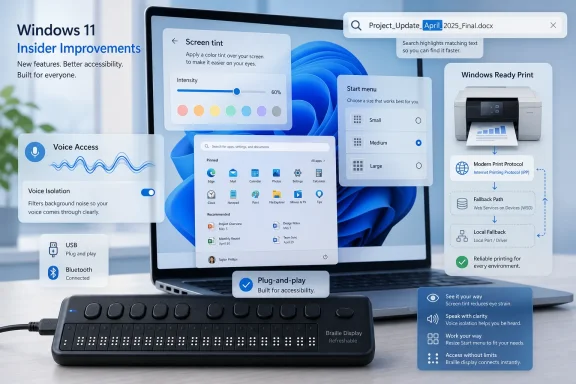
Screen tint is a good example. Windows already has Night Light, color filters, contrast themes, and display calibration tools, but Screen tint fills a different gap: it applies a system-wide color overlay intended to soften display intensity throughout the day. It is not simply “less blue light at night.” It is a broader attempt to make the screen less harsh for users who struggle with brightness, saturation, visual fatigue, or sensitivity.
That distinction is important because accessibility features often get misread as niche settings for a small user group. In practice, they frequently become mainstream quality-of-life improvements. Captions, magnification, reduced motion, text scaling, and dictation all started as accommodations for specific needs and then became useful to everyone trapped in bad lighting, loud rooms, aging eyesight, or long workdays.
Screen tint also reflects a more mature understanding of display comfort. Modern laptops are brighter, higher contrast, and more color-saturated than the average office monitor of a decade ago. That is great for streaming video and HDR demos, but less great when the device is a spreadsheet terminal for eight hours. A tint slider may sound minor until it is the difference between ending the day with a headache and ending it without one.
There is one trade-off: Screen tint and Color Filters do not run together. That makes technical sense, since both alter the color output pipeline, but it also means some users may have to choose between two accessibility accommodations. Microsoft should be careful here. Accessibility features become more powerful when they compose cleanly rather than forcing users into either-or decisions.
Historically, assistive hardware on Windows has too often felt like a separate ecosystem bolted onto the operating system after the fact. Users had to download components, pick drivers, configure compatibility, and hope the device behaved correctly over USB or Bluetooth. That is a lot to ask from anyone; it is especially burdensome when the hardware is the very tool someone needs to access the computer in the first place.
HID Braille support changes the setup model. If a supported Braille display follows the standard, Windows can recognize it more like a keyboard or mouse. USB connection becomes immediate, and Bluetooth pairing moves into the normal Windows device workflow rather than a specialized Narrator maze.
The most meaningful part is support during the out-of-box experience. If a deaf-blind user can connect a compatible Braille display and complete Windows setup independently from the first screen, that is not a convenience feature. That is a statement about whether the PC is genuinely usable out of the box.
This is the sort of change that deserves more attention than another round of icon spacing debates. A platform’s accessibility maturity is measured less by how many toggles it has and more by whether the first-run experience assumes disabled users are first-class users. On that measure, this Insider work points in the right direction.
The new Voice Isolation feature tries to solve that by allowing Voice Access to focus on the user’s voice while filtering nearby voices and background noise. Microsoft is testing multiple recognition modes, including a more aggressive voice-isolation option, a background-noise-only reduction mode, and a raw microphone mode with no extra filtering.
That choice is smart. Voice processing is not one-size-fits-all. A user in a quiet room may prefer raw input. A user in a shared office may need filtering. A user with atypical speech patterns may find that aggressive processing helps or hurts depending on the model. The important thing is that Microsoft is exposing the trade-off rather than pretending there is a universal best answer.
The local-processing claim is also important. Voice control is intimate computing. It captures commands, habits, pauses, corrections, and sometimes accidental speech. Microsoft saying the processing happens on-device is the right default for an accessibility feature, especially at a time when users are understandably wary of every microphone-adjacent feature becoming an AI data pipeline.
Still, this will need real-world testing beyond Microsoft’s demos and Insider machines. Noise cancellation can be magical when tuned well and maddening when it clips quiet speech, accents, breathing patterns, or assistive vocal techniques. The verdict here is promising, not final.
The May build’s Start improvements are not a full Windows 10 revival. Users are not getting live tiles back. They are not getting the old freeform layout. The new options are more modest: choose a small, large, or automatic Start size; show or hide major sections; rename and refine the old Recommended area as Recent; hide the name and profile picture from the Start entry point; and manage these choices from a redesigned settings page.
That is still progress. The original Windows 11 Start menu suffered from a classic Microsoft mistake: it assumed that visual simplicity and user simplicity were the same thing. They are not. A clean Start menu that wastes space, exposes unwanted recommendations, and refuses basic layout preferences can feel less simple than a busier menu that behaves the way the user expects.
Renaming Recommended to Recent also matters more than it sounds. “Recommended” has always carried a whiff of algorithmic intrusion, even when the section mostly contained recently opened files. “Recent” is plainer, more honest, and less likely to make users wonder what else Microsoft is trying to promote. Language is product design, especially in Windows, where suspicion accumulates quickly.
The profile-hiding toggle is similarly revealing. It does not fully hide account information once users open the account manager, but it reduces what is visible from the main Start surface. That is a small privacy improvement for shared spaces, classrooms, screenshots, and presentations. It also acknowledges that not every Windows surface needs to display identity all the time.
This is the kind of feature that exposes the gap between how software engineers model data and how people remember their own work. Users remember fragments. They remember “April,” “status,” “invoice,” “draft,” “blue,” or a client name buried in the middle of a compound filename. They do not always remember the exact prefix.
Substring search is not a revolution. It is a belated correction. But it is also the kind of correction that can make Windows feel more competent dozens of times a week.
The larger question is whether Microsoft can make Windows Search reliable enough that users trust it again. For years, Windows Search has been caught between local indexing, web suggestions, Start menu results, cloud content, and enterprise policy controls. A better matching algorithm helps, but trust comes from consistency: when users search for a local file, Windows should find the local file quickly, without making the experience feel like an ad slot or a Bing detour.
If Microsoft treats substring matching as part of a broader recommitment to local-first usefulness, this could be meaningful. If it remains a small patch on an overloaded search surface, users will notice the improvement but not change their habits.
Microsoft’s new setting, “Default install printers using Windows Ready Print,” is part of a broader shift toward a modern print stack based on Internet Printing Protocol rather than traditional vendor-specific drivers. When enabled, Windows can install compatible printers through the modern path. When disabled, systems can still fall back to older methods, including manufacturer drivers and legacy print technologies.
For home users, the promise is obvious: fewer driver downloads, fewer mystery utilities, fewer vendor setup packages that look like they were designed in 2009. For IT departments, the stakes are bigger. Printer drivers have long been a reliability and security headache, and print infrastructure became even more sensitive after years of high-profile spooler vulnerabilities and emergency mitigations.
The appeal of Windows Ready Print is not that Microsoft has invented printing nirvana. It is that Microsoft is trying to reduce the number of third-party moving parts required to make a common office device function. In security terms, fewer opaque drivers mean less attack surface. In support terms, a more standard installation path means fewer weird one-off failures.
The catch is compatibility. Printers age slowly, especially in offices, schools, warehouses, clinics, and local government. Many organizations keep printers for far longer than they keep laptops. Microsoft can push the modern print stack forward, but administrators will still need escape hatches for legacy hardware that refuses to join the future.
That is why the toggle matters. A hard break would be cleaner architecturally and disastrous operationally. A default modern path with controlled fallback is the right compromise, provided Microsoft documents the behavior clearly and gives administrators predictable policy control.
A loading animation is not a feature in the grand sense. Nobody upgrades an operating system for a spinner. But inconsistent system animations contribute to the subtle feeling that Windows is assembled from eras rather than designed as a whole. Every time a user moves from a fluent modern panel to an old dialog to a mismatched setup screen, the illusion breaks.
Microsoft has spent years trying to make Windows 11 visually coherent while carrying decades of compatibility. That is a brutal design problem. The company cannot simply delete the old plumbing, because businesses depend on it. But it also cannot pretend visual consistency is irrelevant, because users compare Windows against phones, tablets, browsers, and web apps that iterate much faster.
So yes, the spinner matters a little. Not because the donut itself is profound, but because consistency is cumulative. The operating system feels modern not when one big surface gets redesigned, but when hundreds of small seams stop catching the eye.
That makes the Windows roadmap harder for normal users to parse. There is the Windows version they are running, the version Insiders are testing, the version tied to specific hardware enablement, and the feature platform that may eventually feed public releases. Microsoft has reasons for this complexity, especially as Windows stretches across x86, Arm, AI PC hardware, and OEM launch schedules. But reasons do not make the branding easier.
For enthusiasts, the complexity is part of the hobby. For IT pros, it is a planning burden. Which features are destined for broad availability? Which are hardware-specific? Which are experiments? Which are controlled feature rollouts hidden behind server-side enablement? The answer is often “wait and see,” which is not satisfying when administrators need to make deployment decisions.
This is where Microsoft’s Insider communication has improved but still struggles. The company is more explicit than it used to be about build channels, feature availability, and rollback limitations. But Windows now has so many overlapping release concepts that even accurate communication can feel foggy.
The May features are therefore best read as directional signals, not promises. Accessibility, Start menu personalization, print modernization, and search refinement are clearly active priorities. The exact route to stable builds remains the usual Windows maze.
That is a healthier design posture than the Windows 11 launch-era insistence that the new defaults were simply the future and users would adapt. Good defaults matter, but Windows has never thrived as a one-true-way platform. Its strength has always been breadth: different hardware, different workflows, different accessibility needs, different enterprise constraints, different levels of tolerance for Microsoft’s design experiments.
The danger is that Microsoft sometimes mistakes “more toggles” for “more agency.” A setting hidden four panels deep is not the same as a coherent user choice. A feature that works only on supported hardware, only in one Insider branch, only after a staged rollout, and only if it does not conflict with another accessibility mode is not yet a solved problem.
But the direction is better. The May builds suggest Microsoft is listening to the right categories of complaint: not just “make it prettier,” but “make it less painful to use.”
That makes this a more consequential Insider month than the feature list first suggests. Screen tint, HID Braille support, Voice Isolation for Voice Access, Start menu sizing, substring search, and Windows Ready Print are not the sort of additions that sell a new PC by themselves. But taken together, they show Microsoft trying to make Windows 11 feel less like a fixed design statement and more like an operating system that can bend around real users, real offices, and real hardware.
 Microsoft’s May Builds Were More About Friction Than Flash
The May Insider drops arrived during a confusing transitional moment for the Windows Insider Program itself. Microsoft has been reshaping its channel structure around Beta, Experimental, 26H1, and future platform work, while continuing to flight builds that may or may not line up cleanly with the next public Windows release.That context matters because these features should not be read as a single finished release plan. Insider builds are test beds, and Microsoft routinely moves features between channels, changes names, delays rollouts, or abandons experiments before they reach stable builds. The real pattern is not “this is Windows 11 in June.” It is “this is what Microsoft thinks Windows 11 still needs.”
And the answer, apparently, is less friction. Less friction for users whose eyes hurt after staring at a display all day. Less friction for blind and deaf-blind users trying to set up Windows independently. Less friction for people who use voice control in noisy rooms. Less friction for administrators and home users trying to install printers without detonating a driver problem.
That is not glamorous work. It is also the work Windows 11 needed years ago.
Accessibility Is No Longer a Side Quest
The most important May additions are not the Start menu tweaks, even if those will get the most screenshots. The accessibility changes are where Microsoft’s priorities look most serious.Screen tint is a good example. Windows already has Night Light, color filters, contrast themes, and display calibration tools, but Screen tint fills a different gap: it applies a system-wide color overlay intended to soften display intensity throughout the day. It is not simply “less blue light at night.” It is a broader attempt to make the screen less harsh for users who struggle with brightness, saturation, visual fatigue, or sensitivity.
That distinction is important because accessibility features often get misread as niche settings for a small user group. In practice, they frequently become mainstream quality-of-life improvements. Captions, magnification, reduced motion, text scaling, and dictation all started as accommodations for specific needs and then became useful to everyone trapped in bad lighting, loud rooms, aging eyesight, or long workdays.
Screen tint also reflects a more mature understanding of display comfort. Modern laptops are brighter, higher contrast, and more color-saturated than the average office monitor of a decade ago. That is great for streaming video and HDR demos, but less great when the device is a spreadsheet terminal for eight hours. A tint slider may sound minor until it is the difference between ending the day with a headache and ending it without one.
There is one trade-off: Screen tint and Color Filters do not run together. That makes technical sense, since both alter the color output pipeline, but it also means some users may have to choose between two accessibility accommodations. Microsoft should be careful here. Accessibility features become more powerful when they compose cleanly rather than forcing users into either-or decisions.
Braille Plug-and-Play Is the Kind of Windows Modernization That Actually Matters
The improved Narrator support for HID-based refreshable Braille displays may be the strongest feature in the May batch. It is not visually dramatic, and most users will never touch it. But for those who need it, the difference between manual driver hunting and plug-and-play setup is enormous.Historically, assistive hardware on Windows has too often felt like a separate ecosystem bolted onto the operating system after the fact. Users had to download components, pick drivers, configure compatibility, and hope the device behaved correctly over USB or Bluetooth. That is a lot to ask from anyone; it is especially burdensome when the hardware is the very tool someone needs to access the computer in the first place.
HID Braille support changes the setup model. If a supported Braille display follows the standard, Windows can recognize it more like a keyboard or mouse. USB connection becomes immediate, and Bluetooth pairing moves into the normal Windows device workflow rather than a specialized Narrator maze.
The most meaningful part is support during the out-of-box experience. If a deaf-blind user can connect a compatible Braille display and complete Windows setup independently from the first screen, that is not a convenience feature. That is a statement about whether the PC is genuinely usable out of the box.
This is the sort of change that deserves more attention than another round of icon spacing debates. A platform’s accessibility maturity is measured less by how many toggles it has and more by whether the first-run experience assumes disabled users are first-class users. On that measure, this Insider work points in the right direction.
Voice Access Gets More Realistic About the Rooms People Actually Work In
Voice Access has always had an obvious enemy: the world is noisy. Offices have other people in them. Homes have kids, TVs, appliances, pets, and conversations bleeding across rooms. Even a good microphone can struggle when the operating system is trying to decide which voice should count as a command.The new Voice Isolation feature tries to solve that by allowing Voice Access to focus on the user’s voice while filtering nearby voices and background noise. Microsoft is testing multiple recognition modes, including a more aggressive voice-isolation option, a background-noise-only reduction mode, and a raw microphone mode with no extra filtering.
That choice is smart. Voice processing is not one-size-fits-all. A user in a quiet room may prefer raw input. A user in a shared office may need filtering. A user with atypical speech patterns may find that aggressive processing helps or hurts depending on the model. The important thing is that Microsoft is exposing the trade-off rather than pretending there is a universal best answer.
The local-processing claim is also important. Voice control is intimate computing. It captures commands, habits, pauses, corrections, and sometimes accidental speech. Microsoft saying the processing happens on-device is the right default for an accessibility feature, especially at a time when users are understandably wary of every microphone-adjacent feature becoming an AI data pipeline.
Still, this will need real-world testing beyond Microsoft’s demos and Insider machines. Noise cancellation can be magical when tuned well and maddening when it clips quiet speech, accents, breathing patterns, or assistive vocal techniques. The verdict here is promising, not final.
The Start Menu Is Still Paying Off Windows 11’s Original Design Debt
The Start menu changes will generate the most everyday discussion because the Start menu is where Windows users project their deepest feelings about control. Microsoft changed the Start experience sharply in Windows 11, taking away several long-standing customization options and offering a cleaner but more rigid design. Years later, the company is still returning pieces of that control.The May build’s Start improvements are not a full Windows 10 revival. Users are not getting live tiles back. They are not getting the old freeform layout. The new options are more modest: choose a small, large, or automatic Start size; show or hide major sections; rename and refine the old Recommended area as Recent; hide the name and profile picture from the Start entry point; and manage these choices from a redesigned settings page.
That is still progress. The original Windows 11 Start menu suffered from a classic Microsoft mistake: it assumed that visual simplicity and user simplicity were the same thing. They are not. A clean Start menu that wastes space, exposes unwanted recommendations, and refuses basic layout preferences can feel less simple than a busier menu that behaves the way the user expects.
Renaming Recommended to Recent also matters more than it sounds. “Recommended” has always carried a whiff of algorithmic intrusion, even when the section mostly contained recently opened files. “Recent” is plainer, more honest, and less likely to make users wonder what else Microsoft is trying to promote. Language is product design, especially in Windows, where suspicion accumulates quickly.
The profile-hiding toggle is similarly revealing. It does not fully hide account information once users open the account manager, but it reduces what is visible from the main Start surface. That is a small privacy improvement for shared spaces, classrooms, screenshots, and presentations. It also acknowledges that not every Windows surface needs to display identity all the time.
Search Finally Learns One of the Oldest Tricks in the Book
Windows Search gaining substring matching sounds almost embarrassingly basic, which is precisely why it matters. If a file is named “MeetingNotesApril,” users should not need to remember the beginning of the filename to find it. Typing “April” should work.This is the kind of feature that exposes the gap between how software engineers model data and how people remember their own work. Users remember fragments. They remember “April,” “status,” “invoice,” “draft,” “blue,” or a client name buried in the middle of a compound filename. They do not always remember the exact prefix.
Substring search is not a revolution. It is a belated correction. But it is also the kind of correction that can make Windows feel more competent dozens of times a week.
The larger question is whether Microsoft can make Windows Search reliable enough that users trust it again. For years, Windows Search has been caught between local indexing, web suggestions, Start menu results, cloud content, and enterprise policy controls. A better matching algorithm helps, but trust comes from consistency: when users search for a local file, Windows should find the local file quickly, without making the experience feel like an ad slot or a Bing detour.
If Microsoft treats substring matching as part of a broader recommitment to local-first usefulness, this could be meaningful. If it remains a small patch on an overloaded search surface, users will notice the improvement but not change their habits.
Windows Ready Print Is the Quiet Enterprise Story
Windows Ready Print may be the least exciting phrase in the May feature set, but it could become one of the most important. Printing is the undead problem of desktop computing: supposedly solved, never actually dead, and always capable of ruining an otherwise normal workday.Microsoft’s new setting, “Default install printers using Windows Ready Print,” is part of a broader shift toward a modern print stack based on Internet Printing Protocol rather than traditional vendor-specific drivers. When enabled, Windows can install compatible printers through the modern path. When disabled, systems can still fall back to older methods, including manufacturer drivers and legacy print technologies.
For home users, the promise is obvious: fewer driver downloads, fewer mystery utilities, fewer vendor setup packages that look like they were designed in 2009. For IT departments, the stakes are bigger. Printer drivers have long been a reliability and security headache, and print infrastructure became even more sensitive after years of high-profile spooler vulnerabilities and emergency mitigations.
The appeal of Windows Ready Print is not that Microsoft has invented printing nirvana. It is that Microsoft is trying to reduce the number of third-party moving parts required to make a common office device function. In security terms, fewer opaque drivers mean less attack surface. In support terms, a more standard installation path means fewer weird one-off failures.
The catch is compatibility. Printers age slowly, especially in offices, schools, warehouses, clinics, and local government. Many organizations keep printers for far longer than they keep laptops. Microsoft can push the modern print stack forward, but administrators will still need escape hatches for legacy hardware that refuses to join the future.
That is why the toggle matters. A hard break would be cleaner architecturally and disastrous operationally. A default modern path with controlled fallback is the right compromise, provided Microsoft documents the behavior clearly and gives administrators predictable policy control.
The Spinner Change Says More About Windows Than It Should
The new unified “donut” spinner replacing the old loading dots across boot, logon, restart, shutdown, and Windows Update flows is cosmetically small. It is also a reminder that Windows still contains layers of visual history sitting awkwardly on top of one another.A loading animation is not a feature in the grand sense. Nobody upgrades an operating system for a spinner. But inconsistent system animations contribute to the subtle feeling that Windows is assembled from eras rather than designed as a whole. Every time a user moves from a fluent modern panel to an old dialog to a mismatched setup screen, the illusion breaks.
Microsoft has spent years trying to make Windows 11 visually coherent while carrying decades of compatibility. That is a brutal design problem. The company cannot simply delete the old plumbing, because businesses depend on it. But it also cannot pretend visual consistency is irrelevant, because users compare Windows against phones, tablets, browsers, and web apps that iterate much faster.
So yes, the spinner matters a little. Not because the donut itself is profound, but because consistency is cumulative. The operating system feels modern not when one big surface gets redesigned, but when hundreds of small seams stop catching the eye.
26H1 Complicates the Story Microsoft Wants to Tell
The Insider build numbers in May also point to a messier platform story. Microsoft is testing work across 25H2, 26H1, and future platform branches, with 26H1 positioned as a targeted release tied to new device innovations, including next-generation Snapdragon-based PCs.That makes the Windows roadmap harder for normal users to parse. There is the Windows version they are running, the version Insiders are testing, the version tied to specific hardware enablement, and the feature platform that may eventually feed public releases. Microsoft has reasons for this complexity, especially as Windows stretches across x86, Arm, AI PC hardware, and OEM launch schedules. But reasons do not make the branding easier.
For enthusiasts, the complexity is part of the hobby. For IT pros, it is a planning burden. Which features are destined for broad availability? Which are hardware-specific? Which are experiments? Which are controlled feature rollouts hidden behind server-side enablement? The answer is often “wait and see,” which is not satisfying when administrators need to make deployment decisions.
This is where Microsoft’s Insider communication has improved but still struggles. The company is more explicit than it used to be about build channels, feature availability, and rollback limitations. But Windows now has so many overlapping release concepts that even accurate communication can feel foggy.
The May features are therefore best read as directional signals, not promises. Accessibility, Start menu personalization, print modernization, and search refinement are clearly active priorities. The exact route to stable builds remains the usual Windows maze.
The Real Verdict Is That Windows 11 Is Becoming More Negotiable
The through-line in these May changes is negotiation. Microsoft is letting users negotiate the visual intensity of the display. It is letting Braille hardware negotiate setup without driver rituals. It is letting Voice Access negotiate noisy environments. It is letting users negotiate what Start shows and how large it should be. It is letting Windows negotiate printer setup through a modern path before falling back to the old world.That is a healthier design posture than the Windows 11 launch-era insistence that the new defaults were simply the future and users would adapt. Good defaults matter, but Windows has never thrived as a one-true-way platform. Its strength has always been breadth: different hardware, different workflows, different accessibility needs, different enterprise constraints, different levels of tolerance for Microsoft’s design experiments.
The danger is that Microsoft sometimes mistakes “more toggles” for “more agency.” A setting hidden four panels deep is not the same as a coherent user choice. A feature that works only on supported hardware, only in one Insider branch, only after a staged rollout, and only if it does not conflict with another accessibility mode is not yet a solved problem.
But the direction is better. The May builds suggest Microsoft is listening to the right categories of complaint: not just “make it prettier,” but “make it less painful to use.”
The May Insider Builds Reward the Patient Windows User
The practical takeaways from this round are concrete, even if the release timing remains uncertain. Insiders get to test them now; everyone else should watch for which pieces graduate into stable Windows 11 builds over the coming months.- Screen tint is a meaningful accessibility addition because it targets daytime display comfort rather than duplicating Night Light’s blue-light reduction role.
- HID Braille plug-and-play support is one of the most important changes because it can make Windows setup and Narrator use more independent from the first screen.
- Voice Isolation for Voice Access could significantly improve speech control in shared or noisy spaces, but its real value will depend on how well it handles diverse voices and microphones.
- Start menu sizing and section controls show Microsoft continuing to unwind some of Windows 11’s original rigidity without fully returning to the Windows 10 model.
- Substring matching in Windows Search is basic but overdue, and it will matter if Microsoft keeps search focused on fast, trustworthy local results.
- Windows Ready Print is a quiet modernization effort that could reduce driver pain for users and lower support risk for administrators, assuming legacy fallback remains predictable.
References
- Primary source: Windows Central
Published: Tue, 02 Jun 2026 13:59:50 GMT
I dug into the Windows 11 features insiders got in May 2026 and here’s what matters most | Windows Central
May 2026 brought a wave of Windows 11 improvements, focusing on accessibility, productivity, personalization, and system modernization.www.windowscentral.com - Official source: blogs.windows.com
Announcing new builds for 1 May 2026 and extending ISO support
Hello Windows Insiders, Today we are expanding the rollout of the new Windows Insider experience improvements to Canary Channel 28000 series devices, which will begin to move to Experimental (26H1). As a rblogs.windows.com
