

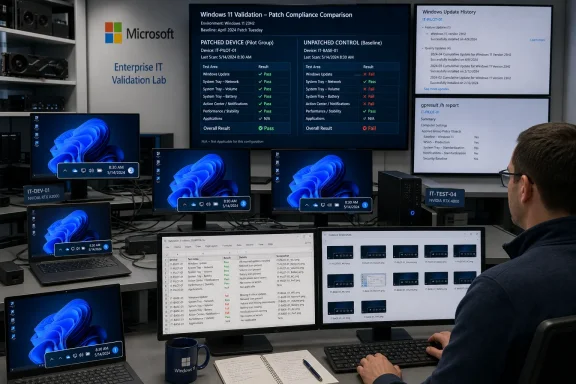
Do not block the August Windows 11 production ring solely because of scattered missing-clock or system-tray reports. Instead, run a repeatable acceptance test across representative hardware, user-policy, display, and management cohorts, comparing patched devices with an unpatched control before changing deployment plans.
The July 14, 2026 r/sysadmin Patch Tuesday megathread is useful as an early-warning input, but community reports alone do not establish an affected build, edition, device family, display configuration, management platform, or universal reproduction sequence. Do not attribute a report to a specific cumulative update unless your records or a published advisory establish that connection.
WindowsForum users have reported several clock and notification-area symptoms over time. These include a missing clock or system-tray cluster after KB5101650, removal of seconds from the Windows 10 Calendar flyout, feedback-driven changes to Windows 11 clock behavior, and confusing alerts associated with KB5046633. Those are distinct observations. “The clock disappeared” does not reveal whether the clock alone, the Calendar flyout, or the entire notification area failed.
Before making a servicing decision, check Microsoft’s Windows Message Center and the Windows 11 version 25H2 release-health page. Compare any advisory, mitigation, known issue, safeguard hold, or resolution with the builds and configurations in your evidence.
Select devices using rules administrators can apply consistently:
Open Settings > Windows Update > Update history and record the most recent quality update shown under the relevant category. Do not assume every device in a deployment ring received the same update.
Record the management stack, signed-in account type, applicable policy cohort, and whether the device is patched or is the unpatched control.
Before opening applications or changing displays, inspect and record the independent state of:
Record whether the symptom appeared, disappeared, or remained unchanged after unlocking. Note whether it affected one indicator or the entire cluster.
Repeat the check in the device’s normal alternate state, such as docked and undocked, when that state is included in your test plan. Use a precise result such as “clock absent on secondary external display after unlock.”
Press Ctrl + Shift + Esc to open Task Manager. Locate Windows Explorer, right-click it, and select Restart.
If Windows Explorer is not listed, select Run new task, enter
Record one result:
Preserve the resulting HTML file with the test record. If HTML output is unavailable, capture the summary:
Run the command in the user session being tested. Output collected under a different administrator account does not show the same user-policy context.
Create a temporary standard local account. An administrator may be required to complete this action. Sign in to initialize the profile, then repeat the first-sign-in, lock/unlock, display, reboot, and Explorer-restart checks.
Interpret the comparison as follows:
Define an overall pass as all expected tray indicators appearing through first sign-in, reboot, lock/unlock, and the device’s normal display configurations.
Screenshots should supplement the record, not replace it. Capture the complete taskbar when possible and label each image with the device, account, build, display, and test stage.
The deployment decision should reflect repeatability and scope, not the number of online reports. A patched-versus-control difference strengthens the association with the update, but causation still requires corroboration or authoritative confirmation.
For a reproducible failure, preserve the CSV,
If the update is not offered for removal, do not force an unsupported removal method. Preserve the evidence, escalate through normal support channels, and continue monitoring Microsoft’s servicing documentation.
 Why local validation matters before August
The July 14, 2026 r/sysadmin Patch Tuesday megathread is useful as an early-warning input, but community reports alone do not establish an affected build, edition, device family, display configuration, management platform, or universal reproduction sequence. Do not attribute a report to a specific cumulative update unless your records or a published advisory establish that connection.WindowsForum users have reported several clock and notification-area symptoms over time. These include a missing clock or system-tray cluster after KB5101650, removal of seconds from the Windows 10 Calendar flyout, feedback-driven changes to Windows 11 clock behavior, and confusing alerts associated with KB5046633. Those are distinct observations. “The clock disappeared” does not reveal whether the clock alone, the Calendar flyout, or the entire notification area failed.
Before making a servicing decision, check Microsoft’s Windows Message Center and the Windows 11 version 25H2 release-health page. Compare any advisory, mitigation, known issue, safeguard hold, or resolution with the builds and configurations in your evidence.
Build a small but representative validation ring
Include at least one patched Windows 11 device and one comparable unpatched control. “Comparable” means the same device family where possible, with the same display arrangement, management state, policy cohort, and user type.Select devices using rules administrators can apply consistently:
- Include the top deployed laptop and desktop families.
- Include every graphics vendor present in production.
- Include each display, dock, or adapter setup used by a defined fleet segment under your organization’s normal sampling threshold.
- Include locally managed, Group Policy-managed, MDM-managed, and co-managed devices where those categories exist.
- Include users subject to different taskbar or notification-area policies.
- Include both an established user profile and a new local profile.
Requirements before starting
Prepare the following before running the procedure:- A Windows 11 test device.
- A comparable unpatched control.
- Permission to create and sign in with a temporary local account. Creating that account may require an administrator.
- Authorization to access Windows Update history.
- Authorization to run
gpresultand preserve its output. - A location approved for storing CSV records, screenshots, policy output, and device details.
Run the pre-August tray acceptance test
- Record the Windows version and installed update.
Open Settings > Windows Update > Update history and record the most recent quality update shown under the relevant category. Do not assume every device in a deployment ring received the same update.
- Record the test context.
Record the management stack, signed-in account type, applicable policy cohort, and whether the device is patched or is the unpatched control.
- Test the first sign-in state.
Before opening applications or changing displays, inspect and record the independent state of:
- Clock and date.
- Network indicator.
- Volume indicator.
- Battery indicator, when applicable.
- Notification indicator.
- Test lock and unlock behavior.
Record whether the symptom appeared, disappeared, or remained unchanged after unlocking. Note whether it affected one indicator or the entire cluster.
- Test the active display topology.
Repeat the check in the device’s normal alternate state, such as docked and undocked, when that state is included in your test plan. Use a precise result such as “clock absent on secondary external display after unlock.”
- Test a normal reboot cycle.
- Restart Windows Explorer as a diagnostic.
Press Ctrl + Shift + Esc to open Task Manager. Locate Windows Explorer, right-click it, and select Restart.
If Windows Explorer is not listed, select Run new task, enter
explorer.exe, and press Enter.Record one result:
- All indicators returned.
- Only some indicators returned.
- Restart had no effect.
- Indicators returned temporarily and disappeared again.
- Capture effective user policy.
gpresult /h "%USERPROFILE%\Desktop\gpresult.html" /fPreserve the resulting HTML file with the test record. If HTML output is unavailable, capture the summary:
gpresult /r > "%USERPROFILE%\Desktop\gpresult.txt"Run the command in the user session being tested. Output collected under a different administrator account does not show the same user-policy context.
- Test a new local profile.
Create a temporary standard local account. An administrator may be required to complete this action. Sign in to initialize the profile, then repeat the first-sign-in, lock/unlock, display, reboot, and Explorer-restart checks.
Interpret the comparison as follows:
- New profile passes and original profile fails: compare per-user configuration, policy, and profile state.
- Both profiles fail identically: compare device-wide update, management, graphics, and display variables.
- Managed account fails and unmanaged local account passes: compare effective policy and management assignments.
- Patched device fails while its comparable control passes: reproduce the result before changing deployment.
- Return to the original user and verify persistence.
Use a consistent evidence record
Capture the same fields in the same order for every device:TestDateTime,DeviceName,PatchedStatus,InstalledUpdate,OSBuild,Edition,Version,Manufacturer,Model,GraphicsVendor,DisplayTopology,PrimaryDisplay,DockAdapter,ManagementStack,UserType,PolicyCohort,FirstSignIn,PostReboot,LockUnlock,PrimaryDisplayResult,SecondaryDisplayResult,Clock,Network,Volume,Battery,Notifications,ExplorerRestart,NewLocalProfile,GPResultFilename,OverallPassFail,NotesDefine an overall pass as all expected tray indicators appearing through first sign-in, reboot, lock/unlock, and the device’s normal display configurations.
Screenshots should supplement the record, not replace it. Capture the complete taskbar when possible and label each image with the device, account, build, display, and test stage.
Decide whether to narrow or hold the next ring
Apply a consistent decision matrix:| Evidence | Operational decision |
|---|---|
| One unreproduced report or one profile-only failure | Continue the limited ring and investigate the affected profile |
| Failure limited to one dock, display setup, or policy cohort | Narrow the ring to exclude that cohort while testing a matched control |
| Repeatable patched-device failure while comparable controls pass | Stop expansion and escalate with the complete evidence package |
| Multiple device families fail after reboot and with both established and new profiles | Hold the next ring pending Microsoft guidance or a controlled comparison |
| Explorer restart restores the tray and the problem does not recur | Record and monitor; do not treat the workaround as permanent resolution |
| Microsoft publishes a matching known issue or safeguard | Follow the documented scope and mitigation, then adjust the ring accordingly |
For a reproducible failure, preserve the CSV,
gpresult output, screenshots, installed-update and OS-build details, and the before-and-after control comparison. Then check Message Center and the Windows 11 25H2 release-health page before pausing the entire rollout or narrowing the ring. Submit that package through your normal Microsoft support, endpoint-management, or security escalation channel.Roll back only as a controlled comparison
Uninstalling a cumulative update changes the device’s security state. Use rollback only on a designated test device, follow organizational security policy, and do not use it as the first response to an unverified UI complaint.- Open Settings > Windows Update > Update history > Uninstall updates.
- Locate the relevant recently installed update.
- Select Uninstall and confirm.
- Restart when prompted.
- Verify the resulting OS build and update history.
- Repeat the complete tray acceptance test without changing policies, displays, docks, drivers, or profiles.
- Compare the result with the preserved pre-uninstall evidence.
If the update is not offered for removal, do not force an unsupported removal method. Preserve the evidence, escalate through normal support channels, and continue monitoring Microsoft’s servicing documentation.
Frequently Asked Questions
Does restarting Windows Explorer fix the missing clock?
It may restore the taskbar or notification area temporarily, making it useful as a diagnostic and short-term workaround. Record what returned and whether the symptom recurs after lock, unlock, sign-in, or reboot.When should the ring be narrowed instead of held?
Narrow the ring when failures consistently follow one defined cohort, such as a particular dock, display topology, policy assignment, or device family, while comparable devices outside that cohort pass. Hold expansion when failures cross cohorts or when no safe exclusion rule can be defined.Is a new local profile required on every device?
No. Use it on affected devices and selected controls. Its purpose is to separate an established user context from a newly initialized one without changing several device-wide variables at once.What should be sent with an escalation?
Send the CSV record, screenshots,gpresult output, OS build, installed-update details, device and graphics information, display and dock configuration, reproduction sequence, Explorer-restart result, new-profile result, and matched control comparison. Include links or identifiers for any Microsoft advisory that appears to match the observed scope.References
- Primary source: learn.microsoft.com
- Independent coverage: reddit.com

Reddit - Please wait for verification
www.reddit.com
- Primary source: WindowsForum
KB5101650 Missing Clock? Fix Windows 11 Tray Policies | Windows Forum
If the clock, notification area, or network/volume/battery cluster disappeared after installing Windows 11 update KB5101650, first document the symptom and...windowsforum.com