

Pilot Windows 11 Multi-App Camera policy on eligible Windows 11 26H1 hardware, but do not upgrade an established Windows 11 24H2 or 25H2 fleet solely to get it. The meaningful change in Release Preview Build 28000.2333, released June 12, 2026, is centralized administration: IT can now standardize whether a device uses shared camera access or a stability-oriented camera mode instead of leaving behavior to individual troubleshooting decisions.
Multi-App Camera allows more than one application to access a camera stream at the same time. That is useful for controlled scenarios such as a conferencing client and an approved capture, accessibility, or monitoring workflow operating on the same device.
The enterprise development is the policy, not merely the capability. Microsoft has added the Configure Camera Options Group Policy setting at:
That makes camera behavior a device standard that can be deployed, tested, reverted, and documented.
However, Microsoft describes Windows 11 version 26H1 as a targeted release for specific silicon, including Qualcomm Snapdragon X2 Series devices, and recommends that other customers remain on the default Windows core version. Treat 26H1 as a hardware-aligned pilot destination, not a fleet-wide feature upgrade.
There is an important qualification: the underlying ConfigureCameraOptions policy is documented for Windows 11 version 24H2, build 26100, and later. It is device-scoped and supported on Pro, Enterprise, Education, IoT Enterprise, and IoT Enterprise LTSC. That means organizations already using 24H2 or a later supported release should evaluate policy deployment there before planning an operating system migration.
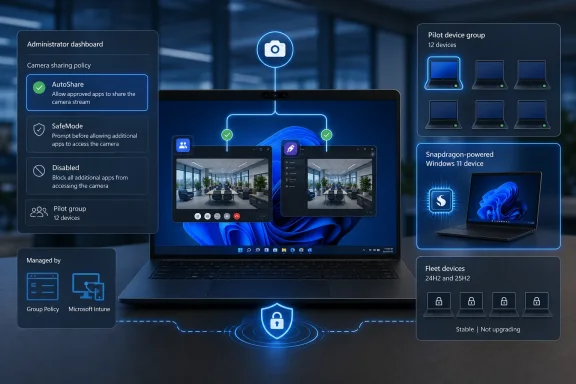
AutoShare is the productivity choice. It is the setting to pilot when users have a documented requirement to run multiple approved camera-consuming applications together.
SafeMode is a troubleshooting and compatibility choice. Microsoft describes it as auto-share with applicable OEM and independent hardware vendor plugins bypassed and camera acceleration disabled. It may help isolate a problem involving the camera stack, but it is not a universal performance improvement and should not be presented as one.
Disabled is the baseline. It does not mean that the camera hardware is disabled. It means this particular policy is not selecting AutoShare or SafeMode.
Include devices that meet all of the following criteria:
The documented ConfigureCameraOptions policy selects camera modes. It does not document a per-application allowlist, per-app consent rules, or camera-access auditing. Before broad rollout, security and workplace-privacy owners should decide which applications are permitted in the intended workflow and how users will recognize unexpected simultaneous camera use.
Practical guardrails include:
The practical next move is to create two narrowly scoped pilot rings: AutoShare for validated dual-camera workflows and SafeMode for camera compatibility investigation. Expand only after those pilots demonstrate that the policy improves a defined business scenario without creating support, privacy, or hardware-specific regressions.
 Why the 26H1 policy matters without making 26H1 mandatory
Multi-App Camera allows more than one application to access a camera stream at the same time. That is useful for controlled scenarios such as a conferencing client and an approved capture, accessibility, or monitoring workflow operating on the same device.The enterprise development is the policy, not merely the capability. Microsoft has added the Configure Camera Options Group Policy setting at:
Computer Configuration > Administrative Templates > Windows Components > Camera > Configure Camera OptionsThat makes camera behavior a device standard that can be deployed, tested, reverted, and documented.
However, Microsoft describes Windows 11 version 26H1 as a targeted release for specific silicon, including Qualcomm Snapdragon X2 Series devices, and recommends that other customers remain on the default Windows core version. Treat 26H1 as a hardware-aligned pilot destination, not a fleet-wide feature upgrade.
There is an important qualification: the underlying ConfigureCameraOptions policy is documented for Windows 11 version 24H2, build 26100, and later. It is device-scoped and supported on Pro, Enterprise, Education, IoT Enterprise, and IoT Enterprise LTSC. That means organizations already using 24H2 or a later supported release should evaluate policy deployment there before planning an operating system migration.
What the policy actually sets
The policy is an integer setting named ConfigureCameraOptions. Its values are simple and should be treated as deployment states, not as broad camera-security controls:| Value | Mode | Practical result |
|---|---|---|
0 | Disabled, the default | Windows does not force either policy-managed camera mode. |
1 | AutoShare | Multiple applications may access the camera simultaneously. |
2 | SafeMode | The camera is auto-shared while operating without applicable OEM or IHV camera plugins and acceleration. |
SafeMode is a troubleshooting and compatibility choice. Microsoft describes it as auto-share with applicable OEM and independent hardware vendor plugins bypassed and camera acceleration disabled. It may help isolate a problem involving the camera stack, but it is not a universal performance improvement and should not be presented as one.
Disabled is the baseline. It does not mean that the camera hardware is disabled. It means this particular policy is not selecting AutoShare or SafeMode.
Which devices should enter the first pilot
Start with a small, deliberately selected device group rather than an organizational unit containing every laptop.Include devices that meet all of the following criteria:
- Windows 11 Pro, Enterprise, Education, IoT Enterprise, or IoT Enterprise LTSC.
- Windows 11 version 24H2, build 26100, or later.
- A camera-dependent business scenario where simultaneous access has a defined purpose.
- A known camera model and current device-management path.
- Users or support staff who can perform a repeatable functional test.
- The device is eligible for the targeted 26H1 hardware release, such as supported Qualcomm Snapdragon X2 Series hardware.
Configure the setting through Group Policy
Use Group Policy where devices are managed through domain policy or where a local policy test is appropriate. The Group Policy control is specifically called out in Windows 11 Insider Release Preview Build 28000.2333.- Open the Group Policy object that applies to the pilot devices. This is a computer policy, not a user policy.
- Go to:
Computer Configuration > Administrative Templates > Windows Components > Camera - Open Configure Camera Options.
- Enable the policy and select the required camera mode:
- Select AutoShare for policy value
1. - Select SafeMode for policy value
2.
- Select AutoShare for policy value
- Apply the Group Policy object only to the pilot device group.
- Allow normal policy processing, then test the assigned camera workflow on each pilot hardware class.
- To roll back, return the setting to the default disabled state or remove the policy assignment from the pilot scope. Confirm that no competing device-management profile continues to set the same policy.
Deploy the policy with Microsoft Intune
For Intune-managed devices, use a Windows custom device configuration profile when the setting is not exposed through the interface you normally use.- In the Microsoft Intune admin center, go to Devices > Manage devices > Configuration > Create > New policy.
- Select Windows 10 and later as the platform.
- Select Custom as the profile type.
- Create a device-targeted custom setting with these values:
- Name:
ConfigureCameraOptions - AutoShare - OMA-URI:
./Device/Vendor/MSFT/Policy/Config/Camera/ConfigureCameraOptions - Data type:
Integer - Value:
1
- Name:
- For a SafeMode pilot, create a separate profile or separate test assignment using the same OMA-URI and data type, but set the value to
2. - Assign the profile to a small device group. Do not assign both the AutoShare and SafeMode profiles to the same devices.
- Review the profile’s per-device deployment status before treating the pilot as active.
- Test with two approved applications that are expected to access the same camera simultaneously.
0 or remove the custom setting from the applicable devices. The documented default for ConfigureCameraOptions is 0, Disabled. Make the rollback change in the same management plane that set the policy; otherwise, another Group Policy object or Intune profile may reapply it.Verify deployment and behavior separately
A successful policy deployment is not the same as a successful camera workflow. Verify both.Verify policy delivery
- Confirm that the test device is on Windows 11 version 24H2 build 26100 or later.
- Confirm that the device received the intended Group Policy object or Intune configuration profile.
- Confirm the selected state is singular:
- AutoShare is
1. - SafeMode is
2. - Disabled is
0.
- AutoShare is
- Record the device model, camera hardware, operating system version, assigned value, and test result. This record is essential if a hardware-specific pattern emerges.
Verify the user scenario
- Close all applications that could already be using the camera.
- Open the first approved application and begin its normal camera workflow.
- Open the second approved application and attempt to select the same camera.
- Confirm that both applications receive the expected stream and that the user experience is acceptable.
- Repeat the test after normal sign-in and application startup conditions, not only in an administrator’s test session.
- If testing SafeMode, compare the same workflow against AutoShare or the disabled baseline. SafeMode is meant to simplify the camera path; it is not automatically the preferred operational setting.
Treat concurrent camera access as a privacy and governance decision
AutoShare changes concurrency. It should not be mistaken for an app approval system, a consent-management system, or an audit system.The documented ConfigureCameraOptions policy selects camera modes. It does not document a per-application allowlist, per-app consent rules, or camera-access auditing. Before broad rollout, security and workplace-privacy owners should decide which applications are permitted in the intended workflow and how users will recognize unexpected simultaneous camera use.
Practical guardrails include:
- Pilot only with approved, business-required applications.
- Keep the assignment device-scoped and limited to devices with a defined use case.
- Document who owns the application combination and the support path for failures.
- Avoid making AutoShare a default for every knowledge-worker device simply because it is available.
- Use SafeMode as a diagnostic or compatibility branch when camera behavior appears tied to OEM or IHV extensions.
Frequently Asked Questions
Does this require Windows 11 26H1?
No. Microsoft documents ConfigureCameraOptions for Windows 11 version 24H2, build 26100, and later on supported editions. The new Group Policy exposure was announced in 26H1 Release Preview Build 28000.2333.Should we upgrade 24H2 devices to 26H1 for AutoShare?
Not solely for this feature. Validate the device-scoped policy on the operating system version already deployed. Microsoft positions 26H1 as a targeted release for specific silicon rather than a general fleet destination.Is SafeMode the safest setting for privacy?
Not necessarily. SafeMode is documented as auto-share without applicable OEM or IHV plugins and acceleration. It still enables auto-sharing; it is primarily a camera-stack stability and troubleshooting option.Can AutoShare replace camera-access governance?
No. AutoShare enables simultaneous application access. Organizations still need application approval, user communication, privacy review, and operational monitoring appropriate to their environment.The practical next move is to create two narrowly scoped pilot rings: AutoShare for validated dual-camera workflows and SafeMode for camera compatibility investigation. Expand only after those pilots demonstrate that the policy improves a defined business scenario without creating support, privacy, or hardware-specific regressions.
References
- Primary source: learn.microsoft.com
Release Preview Build 28000.2333 - Windows Insider Program | Microsoft Learn
release notes for release preview build 28000.2333learn.microsoft.com - Independent coverage: blogs.windows.com
Announcing Windows 11 Insider Preview Build 28000 (Canary Channel)
Hello Windows Insiders, today we are releasing Windows 11 Insider Preview Build 28000 to the Canary Channel. What’s new in Build 28000 [General] This ublogs.windows.com - Independent coverage: support.microsoft.com
June 27, 2023—KB5027303 (OS Build 22621.1928) Preview | Microsoft Support
June 27, 2023—KB5027303 (OS Build 22621.1928) Previewsupport.microsoft.com - Primary source: WindowsForum
Windows 11 26H1 Multi-App Camera Gets Group Policy in Build 28000.2333 | Windows Forum
Verdict: pilot Windows 11 26H1 Multi-App Camera on eligible new hardware, but do not migrate an existing Windows 11 24H2 or 25H2 kiosk fleet solely to...windowsforum.com