

Windows 11 has come a long way, but users — from casual desktop consumers to power users and IT professionals — still find themselves relying on third‑party tools to fill basic gaps in the operating system experience. A recent MakeUseOf roundup argues that several of these omissions are no longer optional: things like a dual‑pane File Explorer, real desktop widgets, a fully featured PDF editor, a more capable clipboard, a truly flexible taskbar, and the ability to change the default search engine are essential, not boutique. That argument is compelling and reflects a broader, long‑running conversation in the Windows community about where Microsoft should invest engineering attention next.
Windows has always been judged by the company it keeps — the ecosystem of apps and utilities that users rely on to bridge gaps in the core OS. Over the last decade Microsoft has shifted to shipping a smaller set of polished experiences and letting first‑party incubators (PowerToys) or third‑party apps shoulder the rest. That’s efficient, but it can leave everyday workflows fragmented.
The MakeUseOf piece highlights six practical areas where the OS still falls short: dual‑pane file management, desktop widgets that live on the desktop, richer clipboard history, a built‑in PDF editor, a customizable taskbar, and control over the search engine used by the Start/taskbar search. Those aren’t stylistic gripes — they’re repeated, measurable productivity losses for millions of users.
When you need to move files between folders you usually:
Microsoft can and should approach these improvements pragmatically: incubate, test with Insiders, and only promote features into the OS once compatibility and security are proven. For users, the current ecosystem offers capable third‑party alternatives today — but the real win would be making these features first‑class, stable, and native so they work out of the box for everyone. The conversation isn’t about nostalgia; it’s about closing practical productivity gaps in an operating system that millions use every day.
Source: MakeUseOf It’s about time Microsoft added these missing features to Windows
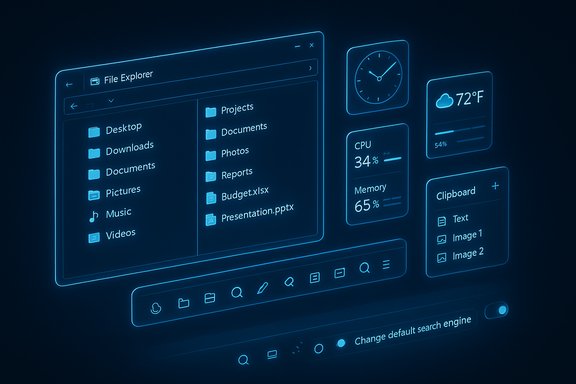 Background: why these “missing” features matter
Windows has always been judged by the company it keeps — the ecosystem of apps and utilities that users rely on to bridge gaps in the core OS. Over the last decade Microsoft has shifted to shipping a smaller set of polished experiences and letting first‑party incubators (PowerToys) or third‑party apps shoulder the rest. That’s efficient, but it can leave everyday workflows fragmented.The MakeUseOf piece highlights six practical areas where the OS still falls short: dual‑pane file management, desktop widgets that live on the desktop, richer clipboard history, a built‑in PDF editor, a customizable taskbar, and control over the search engine used by the Start/taskbar search. Those aren’t stylistic gripes — they’re repeated, measurable productivity losses for millions of users.
Dual‑pane File Explorer: the single most practical omission
The problem
Copying and organizing files across folders is one of the most frequent desktop tasks. Windows File Explorer added tabs and some modern conveniences, but it still lacks a native, side‑by‑side dual‑pane view (two independent folder panels in the same window) that power users have used for decades in classic file managers.When you need to move files between folders you usually:
- Open two Explorer windows,
- Snap them to each side of the screen,
- Then fight with scroll positions and window focus while dragging files.
Why Microsoft hasn’t shipped it (yet)
There are multiple engineering reasons Microsoft may be reluctant to overhaul File Explorer:- Compatibility: File Explorer must support a huge range of legacy shell extensions, context‑menu handlers, and OEM customizations. Big UI changes risk breaking those extensions.
- Prioritization: Microsoft has focused visible engineering on system‑level features — security, telemetry, AI/Copilot, and cloud integration — leaving some desktop ergonomics to PowerToys or the community.
- Fragmentation: A dual‑pane UX requires careful design around drag‑and‑drop semantics, keyboard shortcuts, and integration with OneDrive/SharePoint; it’s not a trivial surface to retrofit.
What users want (and how Microsoft could deliver)
A first‑class dual‑pane Explorer would include:- Two independent folder panes inside a single window (resizable).
- Keyboard shortcuts to move/copy items between panes (e.g., F6 / Shift+F6 style) and to synchronize paths.
- Drag‑and‑drop with clear affordances and undoable operations.
- Optional “synchronized browse” mode to mirror navigation between panes.
- Built‑in filters and tags for faster comparison and batch operations.
Desktop widgets: bring true, placeable widgets back to the desktop
The current state
Windows 11 has a Widgets panel, but it’s not the same as desktop widgets: it lives behind a taskbar button and occupies a side panel rather than existing as freely placeable components on the desktop surface. The MakeUseOf article nails the user expectation: widgets should be glanceable, positionable, and persistent — like smartphone widgets or legacy desktop gadgets (and yes, Rainmeter and old Vista gadgets still have fans).Why the Widgets panel feels constrained
Microsoft’s Widgets design is more like a curated feed (news, weather, calendar snippets) than a set of resizable desktop tiles. That design helps Microsoft integrate live content and ads, but it sacrifices:- Free positioning (widgets locked to a panel),
- Desktop layering (overlapping or always‑on‑top widgets),
- Third‑party widget ecosystems that can place widgets directly on the desktop.
The user benefit of true desktop widgets
Proper desktop widgets would:- Speed up glance tasks (calendar, timers, live system metrics),
- Support user‑created widgets or community widgets (weather, stock tickers, system monitors),
- Reduce reliance on separate apps or web pages for quick checks.
Clipboard history: useful, but limited
What Windows already does
Windows’ built‑in clipboard history (Win + V) is genuinely useful: it stores up to 25 items, supports text/HTML/bitmap formats and lets you pin entries. However, it clears unpinned items on reboot, and the UI lacks search, folders, reordering, and larger storage capacity. These limits are documented by Microsoft and repeated across independent coverage. Key technical facts:- Clipboard history capacity: 25 items (older items are evicted automatically).
- Item size limit: individual items have size constraints (text, HTML, bitmap up to a few MB).
- Persistence: non‑pinned items are cleared on restart unless you enable sync across devices.
Why the built‑in clipboard falls short for power users
Power users switch contexts constantly and often need:- Search across clipboard history,
- Categorization or folders,
- Persistent history across reboots (with encryption),
- More than 25 items and larger item handling,
- Fine‑grained privacy controls.
How Microsoft could improve it
A stronger native clipboard should include:- Search and tagging in the Win + V panel,
- Configurable capacity (50–100 items), optionally persisted locally or to cloud with explicit encryption,
- Reordering and simple folders or “collections”,
- A resizable clipboard pane and a preview that supports long text and rich content.
Built‑in PDF editing: why Edge alone isn’t enough
The current capabilities
Microsoft Edge ships with a capable PDF viewer: you can open PDFs, annotate (highlight, draw), fill simple forms, and sign documents. But Edge is not a full PDF editor. It lacks robust page manipulation (reorder, insert, delete), smooth form‑creation and advanced PDF production tools found in dedicated editors. Independent product comparisons show Edge is suitable for light editing and annotation but not for document composition or complex workflows.The gap users feel
Common PDF workflows that still require third‑party tools:- Rearranging pages, splitting/merging PDFs,
- Inserting or extracting pages across documents,
- Creating complex fillable forms and programmatic form‑field editing,
- OCR and dependable text editing without conversion to Word,
- Certificate‑level signing and audit trails.
What Microsoft could ship
A usable, built‑in PDF editor would offer:- Organize pages (reorder/insert/delete),
- Merge/split tools,
- Form creation (drag‑and‑drop fields) with robust saving,
- Secure signing options and certificate integration,
- Basic OCR and text corrections (or an official integration with Office apps).
Taskbar customization: restore flexibility without fragmenting UX
Where Windows 11 stands today
Windows 11 reimagined the taskbar: centered icons, integrated widgets, and a tighter visual language. But the OS removed a number of classic customizations — most notably the ability to move the taskbar to the top or sides, resize it easily, or pin arbitrary files/folders directly to it. Longstanding community requests to return these options continue to appear in feedback channels and Windows commentary. Multiple guides and articles confirm that, as of current Windows 11 releases, moving the taskbar to the top or sides is not supported natively, and workarounds require registry edits or third‑party utilities (StartAllBack, ExplorerPatcher).Why the taskbar matters
The taskbar is the primary context for launching, monitoring, and switching apps. People want:- Vertical taskbars (for wide displays),
- Larger or smaller icons for different workflows,
- Pinning folders/files and quick‑action slots,
- Per–monitor fine‑grained control (especially for multi‑monitor setups).
The balance Microsoft must strike
Microsoft’s design goals (consistency, accessibility, modern visuals) sometimes conflict with power users’ desire for control. The practical compromise is to offer options:- Keep a curated default UI for mainstream users.
- Provide an “advanced customization” panel for power users (officially supported, less likely to break with updates).
- Allow Microsoft‑vetted third‑party UI extension points so quality tools don’t rely on brittle hacks.
Default search engine: the system‑wide constraint
The user complaint
When you type a query into the Windows search box or Start menu and choose to search the web, the query is routed to Bing and (often) opened in Microsoft Edge. For users who prefer Google, DuckDuckGo, or other engines, this is frustrating; changing the Windows search engine is not a supported setting in Windows itself. Workarounds exist (redirectors and utilities like MSEdgeRedirect, EdgeDeflector, and browser protocol hooks), but Microsoft has closed or disrupted some of these over time — and the default remains Bing in the system search experience.Why Microsoft locks the search pipeline
Integrated search is a strategic product feature tied to Microsoft’s advertising, assistant (Copilot), and services strategies. From Microsoft’s perspective, integrating Bing tightly ensures consistent results, richer AI experiences, and better telemetry for improving enterprise features.The practical case for choice
Users expect to control defaults — the default browser and the default search engine are fundamental. Allowing a clearly surfaced switch in Settings for the web search provider would align Windows with user expectations, reduce friction, and avoid the arms race of hacks and redirectors that make the experience brittle.Risks, tradeoffs, and a pragmatic roadmap for Microsoft
Security and privacy
Adding features like persistent clipboard sync, desktop widgets, or PDF editing raises privacy and security concerns. Any persistent clipboard must be encrypted in transit and at rest if cloud sync is offered. Widgets that render third‑party content must be sandboxed. A built‑in PDF editor that handles signing must integrate with certificate stores and support modern cryptographic standards.Compatibility risks
Large UI changes to File Explorer or the taskbar risk breaking legacy shell extensions and corporate tooling. Microsoft must provide migration guides, compatibility shims, and enterprise policy controls.Incremental, testable rollout approach
A pragmatic roadmap:- Incubate features in PowerToys (dual‑pane Explorer, advanced clipboard manager UI) to iterate quickly with power users.
- Roll out opt‑in Insider builds for early feedback and compatibility testing.
- Add enterprise toggles and Group Policy controls for admins.
- Promote mature features into the OS in a staged release, with clear migration documentation.
Conclusion: practical, high‑value changes that should be core OS features
The MakeUseOf list is not a wish list of gadgetry — it’s a request for basic, productivity‑focused capabilities that users expect on modern desktops: a dual‑pane File Explorer for efficient file management, desktop widgets that live on and around the desktop, a clipboard that supports search and persistence (with privacy safeguards), a real PDF editor for document workflows, taskbar customization that respects individual workflows, and the ability to choose your default search engine for system searches. Those changes would reduce reliance on third‑party tools, simplify onboarding for new users, and restore a measure of user control.Microsoft can and should approach these improvements pragmatically: incubate, test with Insiders, and only promote features into the OS once compatibility and security are proven. For users, the current ecosystem offers capable third‑party alternatives today — but the real win would be making these features first‑class, stable, and native so they work out of the box for everyone. The conversation isn’t about nostalgia; it’s about closing practical productivity gaps in an operating system that millions use every day.
Source: MakeUseOf It’s about time Microsoft added these missing features to Windows
