

October’s Windows 11 refreshes weren’t a single headline — they were a steady series of practical fixes and small UX wins that, taken together, make daily use noticeably better for many users while also underscoring Microsoft’s direction for the platform.
Microsoft used October 2025 to push a set of gradual, staged updates that polish long‑running pain points in Windows 11: the Start menu and taskbar, dark mode coverage, update clarity and reliability, the Out‑Of‑Box Experience (OOBE), and the Copilot assistant. Those changes arrived through a mix of Release Preview/optional preview packages and PowerToys releases, and many are still being enabled server‑side or gated by Insider channels. The timing matters: October also marked the official end of standard support for Windows 10 on October 14, 2025, which increases the practical importance of these Windows 11 improvements for users planning a move to the newer OS. This feature examines the five most visible and useful October additions, explains how they work in practice, and highlights caveats administrators and power users should watch for.
Those improvements are collectively significant: they reduce friction for everyday tasks and clarify Microsoft’s platform priorities — user polish allied to cloud identity and AI services. The tradeoffs are real: staged rollouts create inconsistent experiences, the OOBE direction curtails offline or privacy‑first setups, and Copilot’s deeper integration requires close attention to privacy and governance. For users and admins who plan ahead, though, these changes are net wins: when the staged activations complete, Windows 11 will feel a little more polished, a little smarter, and a lot more coherent.
Source: Neowin 5 cool features and useful changes Microsoft added to Windows 11 in October 2025
 Background / Overview
Microsoft used October 2025 to push a set of gradual, staged updates that polish long‑running pain points in Windows 11: the Start menu and taskbar, dark mode coverage, update clarity and reliability, the Out‑Of‑Box Experience (OOBE), and the Copilot assistant. Those changes arrived through a mix of Release Preview/optional preview packages and PowerToys releases, and many are still being enabled server‑side or gated by Insider channels. The timing matters: October also marked the official end of standard support for Windows 10 on October 14, 2025, which increases the practical importance of these Windows 11 improvements for users planning a move to the newer OS. This feature examines the five most visible and useful October additions, explains how they work in practice, and highlights caveats administrators and power users should watch for.Taskbar and Start menu: a much‑needed usability course correction
What changed
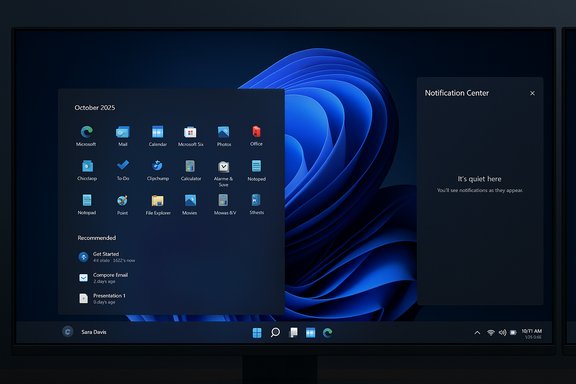
Microsoft delivered one of the clearest Windows 11 quality‑of‑life wins: the Start menu was redesigned into a single, vertically scrollable surface with multiple views (Category, Grid, List), and several taskbar behaviors that power‑users missed were restored or improved. On multi‑monitor systems the Notification Center and calendar flyout can now be opened from any display, the calendar flyout regained a larger clock (with the option to show seconds), and battery indicators in the system tray and on the lock screen were updated to show clearer states and optional percentage displays. These changes were packaged in the October preview updates (notably the KB5067036 preview) and are being enabled gradually for devices that receive the binaries.Why it matters
- The single‑canvas Start removes an awkward two‑level flow and reduces clicks for people with large app libraries. Category view surfaces apps by intent rather than name, which helps users who think in tasks instead of specific applications.
- Restoring notification and calendar interactivity on secondary displays is a simple but practical productivity improvement for multi‑monitor setups — it eliminates the need to shuffle the cursor to the primary screen just to check notifications or time.
- A readable battery indicator and optional percentage are small visual fixes with outsized daily value, especially for mobile users and those monitoring battery health.
How to get it today
- Check Windows Update for the optional preview (look for the October non‑security preview entries).
- If you’re an Insider, ensure you’re in the Release Preview (or appropriate Dev/Beta) ring and check the announced build numbers tied to KB5067036 family; feature activation may still be server‑side.
Strengths and risks
- Strength: The changes reduce friction and restore behaviors many users expect from a modern desktop OS.
- Risk: Server‑side gating and staggered rollouts mean inconsistent experiences across otherwise identical machines — a support headache for admins who must explain varied UIs to users.
Dark mode expansion — plus a PowerToys Light Switch
What changed
Microsoft continued a long‑overdue effort to make dark mode consistent across legacy and modern UI surfaces. October Insider builds extended dark theme support to classic File Explorer dialogs — copy/move dialogs, File Explorer Properties, confirmation and error prompts — and even the Run dialog, removing jarring white “flashbang” moments during routine workflows. At the same time, PowerToys hit version 0.95 and introduced a first‑party Light Switch module to automatically toggle system and app themes on a schedule or with sunrise/sunset — plus a keyboard shortcut for manual switching. The initial PowerToys release of Light Switch had a bug that inadvertently enabled the feature by default for some users; the team issued a hotfix (v0.95.1) to correct that.Practical benefits
- More consistent dark UI reduces eye strain for users who keep dark mode active and improves visual continuity during long tasks such as large file copies, content editing, or late‑night development.
- PowerToys’ Light Switch is useful for users who want automatic theme transitions without waiting for a full system feature — it supports fixed hours and location‑based sunrise/sunset logic, and can target System, Apps, or both.
Caveats and risks
- The Light Switch module introduced an unexpected user experience glitch when it shipped enabled by mistake; users should update to the latest PowerToys (0.95.1 or newer) and verify settings. This episode is a reminder that user‑space tooling (even first‑party) can change system behavior in ways that surprise people.
- The dark mode theme decisions (color accents, progress bar hues, transfer chart accents) are still being iterated; some color choices may reduce contrast or change perceived emphasis in specific workflows.
Windows Update: clearer naming and fewer annoying failures
What changed
Two related improvements made Windows Update easier to understand and less irritating. First, Microsoft simplified update titles in Settings and Update history (titles like “Security Update,” “Preview Update,” “Driver Update”) so users see the core purpose at a glance rather than long, technical strings. Second, the October preview packages included a fix for the “Update and shut down” flow that previously could leave the system restarting instead of powering off, and Microsoft addressed Windows Update installation failures that showed the error code 0x800f0983. Those fixes appear in the October preview releases and are reflected in the release notes for the KB5067036 preview package.Why this matters
- For casual users and less technical staff, simplified titles reduce confusion about what an update does and why it’s being offered.
- Fixing the “Update and shut down” behavior and the 0x800f0983 installation error removes two of the more visible update‑day frustrations that interrupt productivity.
Practical advice
- Expect the new simplified titles to appear in Settings → Windows Update and Update History; enterprise tooling that relies on exact legacy titles (e.g., WSUS catalog automation) will not see the title change in server feeds — Microsoft kept backward compatibility in managed delivery channels.
- If you experienced 0x800f0983 while installing updates, apply the October preview or the subsequent cumulative updates that include its fix, then confirm behaviors on a test machine before wide deployment.
Strengths and risks
- Strength: Better UX for updates and fewer unexpected reboots make patching less disruptive.
- Risk: Any change to update presentation or to update semantics can confuse helpdesk scripts and documentation; organizations should retest their update communications and automation.
OOBE: a constrained concession on profile names, and a tightening around local accounts
What changed
October’s Insider builds enacted two related but philosophically different OOBE moves. Microsoft blocked several widely circulated tricks that let users create a local (offline) account during Out‑Of‑Box Experience — notably the oobe\bypassnro script and a one‑line command that invoked a Cloud Experience Host URI (start ms‑cxh:localonly). Microsoft’s stated rationale: those shortcuts sometimes allowed users to skip critical setup screens and left devices incompletely configured. At the same time, Microsoft added a narrow, supported command‑line helper that lets you set the default user profile folder name during OOBE: from the OOBE command prompt use cd oobe then run SetDefaultUserFolder.cmd <Name>. This helper is limited (16 Unicode characters max, special characters sanitized) and requires completing setup using the Microsoft Account path — it’s a convenience, not a restoration of offline account flows.The benefit
- The SetDefaultUserFolder helper directly addresses a long‑running annoyance: when you sign in with a Microsoft Account during setup, Windows traditionally auto‑generates a C:\Users folder name from your email address (often the first five characters), producing awkward profile folder names. The helper lets advanced users pick a cleaner name during the setup sequence.
The catch
- Microsoft’s push to neutralize in‑OOBE local‑account shortcuts is a clear policy direction: the consumer install flow is moving to an “account‑first” model that favors cloud‑linked identities and feature enablement.
- The SetDefaultUserFolder fix is awkwardly implemented for typical consumers — it requires Shift+F10 in OOBE and command‑line steps most users won’t discover or execute. That limits its usefulness to enthusiasts, technicians, and imaging experts.
Security and privacy considerations
- For privacy‑minded or offline users, the move to enforce Microsoft Account sign‑in during OOBE increases friction and reduces first‑run anonymity. Organizations or users that require offline, local‑account provisioning will need supported alternatives (custom unattended images, provisioning packages, or enterprise deployment tools).
- The change is functionally reasonable from Microsoft’s supportability perspective — device registration, key escrow, and recovery workflows are simplified when a device is linked to an identity — but it is a tradeoff that affects user choice.
Copilot: better system integration, voice wake word, and limited local file actions
What changed
Copilot’s October updates made the assistant more tightly integrated with system settings and local workflows. Copilot can now offer links into Settings and recommend configuration changes (for example, linking directly to Display settings if you say your screen is too dim). The voice wake word “Hey Copilot” — an opt‑in, on‑device wake word spotter — rolled out more broadly, letting users begin hands‑free conversations with Copilot when the PC is unlocked. Microsoft also expanded Copilot’s ability to perform actions with local files (extracting data from documents, summarizing local content) in limited, permissioned ways, and introduced “Copilot Actions” that can execute small, user‑authorized tasks. These changes have been documented by Microsoft and observed across Insider and preview channel reporting.How the wake word works
- “Hey Copilot” is opt‑in and off by default; enabling it requires going into Copilot settings and permitting voice activation.
- The wake word detection uses an on‑device spotter (a short memory buffer) so the system only listens for the phrase locally; actual Copilot Voice conversations require network connectivity and cloud processing for responses. You must have the Copilot app running and the PC unlocked for the wake word to respond.
Local file access: convenience with guardrails
- Copilot’s expanded local file capabilities are permissioned: Copilot Actions and some local file operations require explicit user commands and, for certain features, may only run with consent or when files are stored in connected cloud accounts (OneDrive). Microsoft has been conservative in gating these features by hardware, licensing, or regional availability for the initial rollouts.
Strengths and risks
- Strength: Copilot’s tight link to Settings and ability to steer users to the correct control panels reduces friction for non‑technical users and speeds common fixes.
- Risk: Wake‑word convenience comes with privacy questions. Although the invocation detection runs locally, Copilot sends subsequent audio and data to cloud services to generate answers — that data movement, and the scopes for local file access, should be evaluated in enterprise and privacy‑sensitive contexts.
- Administrators should review Copilot entitlements and data governance policies before enabling broader deployments.
A few broader takeaways and guidance
What Microsoft’s signal means
Microsoft’s October push is a mix of polish and policy. The company is clearly addressing long‑standing UX complaints (Start, taskbar, dark mode) while also nudging the platform toward an account‑centric and AI‑enhanced model (OOBE enforcement, Copilot expansion). These two threads can conflict: improvements that assume a Microsoft Account or cloud services are now more prevalent, and that’s intentional.For home users
- Install the October preview or wait for the general cumulative release depending on your tolerance for staged rollouts and potential feature gating. If you want immediate improvements to Start and taskbar, the Release Preview/optional packages are the path, but don’t be surprised if the new Start doesn’t appear right away.
- Upgrade PowerToys to the latest 0.95.1 (or newer) if you use Light Switch; verify that Light Switch is off if you prefer a stable theme.
For IT pros and admins
- Test the October preview builds (KB5067036 family) in a controlled environment before broad rollout — feature activation is gated and behaviors may differ across devices and regions.
- Update internal documentation and support scripts to account for simplified Windows Update titles and the fixed Update + shutdown behavior.
- Review OOBE provisioning workflows: Microsoft’s removal of local OOBE bypasses means imaging and unattended provisioning must rely on supported deployment tools (Autopilot, provisioning packages, or custom images). Plan for the new SetDefaultUserFolder helper only as a niche workaround — it’s not a general replacement for offline account provisioning.
- Review Copilot data governance and user permission policies before enabling expanded local file actions and the wake‑word feature in managed environments.
What to watch next
- Staged activation: Microsoft’s server‑side gating means some features will be unevenly available through late 2025 — watch release notes and Insider blog posts for activation updates.
- Enterprise controls for Copilot: as Copilot gains system integration, expect Microsoft to offer more admin controls (privacy boundaries, logging, entitlements) for enterprise deployments.
- Dark mode parity: Microsoft’s theming work continues; test legacy tools and in‑house apps for any contrast regressions as dark mode spreads into legacy dialog surfaces.
Conclusion
October 2025’s Windows 11 changes are not blockbuster feature announcements; they are disciplined, practical fixes and incremental feature deployments that clean up the daily experience. The redesigned Start and restored taskbar behaviors remove persistent friction, dark mode coverage and PowerToys Light Switch improve comfort and personalization, Windows Update becomes easier to read and less disruptive, OOBE gains a small but welcome profile‑naming concession while local‑account bypasses are closed, and Copilot grows more useful — and more entwined with system settings and local files.Those improvements are collectively significant: they reduce friction for everyday tasks and clarify Microsoft’s platform priorities — user polish allied to cloud identity and AI services. The tradeoffs are real: staged rollouts create inconsistent experiences, the OOBE direction curtails offline or privacy‑first setups, and Copilot’s deeper integration requires close attention to privacy and governance. For users and admins who plan ahead, though, these changes are net wins: when the staged activations complete, Windows 11 will feel a little more polished, a little smarter, and a lot more coherent.
Source: Neowin 5 cool features and useful changes Microsoft added to Windows 11 in October 2025
