Windows 11 KB5067036 Regression Causes Ghost Task Manager Processes

  • Thread Author
Microsoft’s October preview for Windows 11 (KB5067036) has introduced a puzzling regression: closing Task Manager with the window Close (X) button sometimes does not terminate taskmgr.exe, leaving behind “ghost” Task Manager processes that accumulate with each reopen and can degrade system performance on affected PCs.

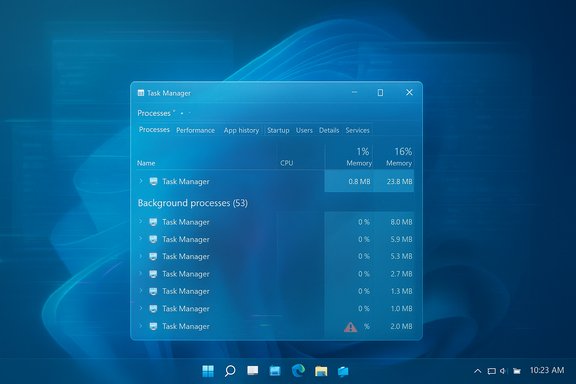
Windows Task Manager windows layered over a blue Windows desktop.Background​

Microsoft released the optional preview update identified as KB5067036 on October 28, 2025, delivering OS builds 26200.7019 and 26100.7019 for Windows 11 versions 25H2 and 24H2. The package was presented as a preview (non-security) cumulative update that bundles visible user-experience changes — a redesigned Start menu, updated taskbar battery icons, File Explorer recommendations, Copilot-related improvements — alongside a number of reliability fixes, including an internal change to Task Manager’s process grouping logic.
Within days of the staged rollout, independent testers and community members reproduced a reproducible lifecycle regression: when Task Manager is closed using the top-right X control, the UI disappears but the underlying process (taskmgr.exe) sometimes continues running. Reopening Task Manager spawns a new visible instance while prior instances remain resident. Repeating this open→close cycle creates multiple running taskmgr.exe processes.

What’s happening (clear symptoms)​

  • Open Task Manager with Ctrl+Shift+Esc (or via the Quick Link menu).
  • Click the top-right Close (X) button.
  • Reopen Task Manager.
  • If affected, you will see additional “Task Manager” entries in the Processes tab and multiple taskmgr.exe entries in the Details tab.
Practically, each orphaned Task Manager process commonly consumes roughly 20–30 MB of memory and often shows negligible CPU (typically 0–2% when it polls), but dozens of such processes add up. Community stress tests that repeatedly opened and closed Task Manager recorded aggregated memory use that scaled into the gigabytes in extreme cases — a contrived scenario but one that proves the problem is real and measurable.
This is not a cosmetic duplication: the orphaned processes are reported by PowerShell (Get-Process), tasklist, Process Explorer, and the Task Manager Details view. A system reboot clears the orphaned instances; they are not persistent across restarts.

Scope: who’s affected and why it matters​

  • Impacted OS versions: Windows 11 24H2 and 25H2 machines that have installed the optional KB5067036 preview.
  • Not every device with the update exhibits the problem. The regression appears in a subset of systems, consistent with a staged rollout and the variety of hardware/software permutations in the wild.
  • Typical consumer impact: low when only a couple of orphaned instances exist. The trouble scales when Task Manager is opened frequently or when a device sees long uptimes with repeated use.
  • Enterprise impact: in managed environments where engineers and IT staff repeatedly open Task Manager for diagnostics, the bug can accumulate background processes and contribute to memory pressure, slower performance, and battery drain on mobile devices.
Why this is important: Task Manager is a diagnostic tool that system administrators and power users rely on to find and kill misbehaving processes. A regression that turns Task Manager itself into a source of background load undermines troubleshooting workflows and can mislead diagnostic efforts if not recognized.

Verified technical details and current vendor posture​

  • The KB entry for KB5067036 lists the update release date (October 28, 2025) and the OS builds it delivers (26200.7019 and 26100.7019). It also lists the set of improvements and reliability fixes included in the preview. The release notes mention fixes related to Task Manager’s process grouping behavior.
  • Community and independent outlets reproduced the orphaned-taskmgr behavior and reported per-instance footprints around 20–30 MB and small CPU usage. Those reproductions used standard tools (Task Manager, tasklist, Get-Process, Process Explorer).
  • Vendor acknowledgement: Microsoft’s official KB release notes initially did not list the duplicate Task Manager behavior as a known issue. Some outlets report that Microsoft provided a statement describing the symptom and advising on mitigations; other coverage noted that an explicit known‑issue acknowledgement on the KB or Release Health dashboard had not yet appeared at the time of early reports. In short: the change to Task Manager internals is documented in the KB, the symptom has been widely reproduced, and Microsoft’s public notifications around a formal known‑issue acknowledgement were, at the time the reports circulated, incomplete or evolving.
(Readers should check Microsoft’s release notes and the Windows Release Health dashboard for the most current vendor statements and any out‑of‑band patch releases.

Reproduction checklist and quick verification​

  • Press Windows+R, type winver, and check your OS build. Look for 26100.7019 or 26200.7019 if you installed KB5067036.
  • Press Ctrl+Shift+Esc to launch Task Manager.
  • Click the Close (X) button.
  • Reopen Task Manager and inspect Processes → Background processes. Alternatively, open an elevated PowerShell or Command Prompt and run:
  • PowerShell: Get-Process -Name taskmgr
  • Command Prompt: tasklist /FI "IMAGENAME eq taskmgr.exe"
  • If you see more than one taskmgr.exe after a close/reopen cycle, the device exhibits the orphaning behavior.

Immediate mitigations and safe workarounds​

Until Microsoft publishes a definitive patch, the following mitigations will remove orphaned instances or avoid creating them:
  • Use Task Manager’s End task or End process menu item instead of clicking the window Close (X) button. Ending the running process avoids leaving a ghosted instance.
  • Use a single command to terminate all Task Manager processes at once:
  • Open an elevated Command Prompt or PowerShell and run:
  • taskkill /im taskmgr.exe /f
  • PowerShell alternative:
  • Get-Process -Name taskmgr | Stop-Process -Force
  • Rebooting clears all orphaned taskmgr.exe instances and is a safe short-term remedy.
  • If you do not require preview features, avoid installing optional preview updates on production or critical devices. Preview updates can be useful for early access, but they are staged and may include regressions.
  • For managed environments, defer KB5067036 in WSUS, Microsoft Endpoint Configuration Manager, or use Group Policy/Intune to pause optional preview channels until the issue is resolved.
Caveat: Do not attempt to use aggressive process-monitoring scripts that automatically kill taskmgr.exe on a schedule — that risks interfering with legitimate diagnostics and may complicate troubleshooting. Use the command-line kill only when you have confirmed orphaned instances exist.

Step-by-step instructions: kill all Task Manager instances​

  • Open Start, type cmd, right-click Command Prompt, and choose Run as administrator.
  • At the prompt, type:
  • taskkill /im taskmgr.exe /f
  • Press Enter. All active taskmgr.exe processes will be forcibly terminated.
Alternative (PowerShell):
  • Open Start, type PowerShell, Run as administrator.
  • Enter:
  • Get-Process -Name taskmgr | Stop-Process -Force
This is safe for reclaiming leaked resources; it terminates Task Manager and any orphaned instances immediately. A reboot is another simple way to reset process state.

Recommended guidance for users and administrators​

  • Home users: If you installed KB5067036 and notice duplicate Task Manager processes, apply the command-line fix above or reboot periodically. If you do not need preview features, skip optional updates and wait for the next cumulative preview or final release that resolves the regression.
  • Power users / enthusiasts: Report a reproducible Feedback Hub entry. Attach a short screen recording showing the open→Close (X)→ reopen sequence plus a winver screenshot with the build number. Community repros help prioritize vendor triage.
  • Enterprise admins: Block or delay optional preview updates on production endpoints. Use targeted pilot rings (test/dev) to expose regressions. If your support team uses Task Manager heavily, consider temporarily restricting KB5067036 to pilot machines until a vendor patch is confirmed.
  • Support teams: When investigating unexplained memory pressure, include Get-Process -Name taskmgr in triage scripts to detect duplicate Task Manager processes as part of post-update diagnostics.

Technical analysis: likely causes and QA lessons​

The timing and symptoms suggest a narrow regression introduced while altering Task Manager’s process-grouping logic. When UI code that manages process lifecycle or window messages is modified, it's possible to inadvertently change how the process is asked to exit. A few plausible technical failure modes:
  • The close (WM_CLOSE/WM_DESTROY) handler may be returning early or failing to call ExitProcess due to altered process-grouping state.
  • A newly-added background thread or reference may keep the process alive after the main window is destroyed, preventing clean-up.
  • A race condition in process lifecycle code may have been introduced, where the UI is closed but the core process isn't signaled to terminate.
These are hypotheses consistent with the pattern (visible window disappears; process remains). Only an engineering post‑mortem from the vendor will verify the root cause.
Quality assurance and rollout considerations:
  • Preview channel updates exist to catch regressions, but staged rollouts and device heterogeneity mean bugs still reach early adopters. This case underlines the importance of thorough regression testing for diagnostic utilities like Task Manager.
  • Task Manager is a critical diagnostic tool; regressions in such components have outsized user impact. Prioritizing tests that exercise lifecycle behavior and the interaction between UI and process termination would reduce risks.
  • When visible fixes change internals (process grouping), a safety‑first approach (feature gating, telemetry-focused pilots) helps reduce collateral regressions on production systems.

Risk assessment: performance, security, and operational impact​

  • Performance: The immediate risk is modest for casual users but meaningful in diagnostic-heavy workflows. A few orphaned instances are trivial; dozens create cumulative memory and CPU usage, potentially degrading performance and battery life.
  • Security: There’s no indication this is a security vulnerability or that the bug enables privilege escalation. The issue is a functional regression leaving legitimate OS processes running.
  • Operational risk: For IT teams, the regression may complicate incident response. If Task Manager’s output is no longer reliably a single process, investigations that rely on it could misinterpret results unless teams are aware of this regression.
Overall, the regression is low-severity from a security perspective but medium-severity from an operational and usability perspective for some user cohorts.

Historic context and precedent​

Task Manager has been the subject of rare regressions after servicing updates in the past. Preview updates that touch diagnostic components sometimes cause lifecycle or display anomalies; Microsoft has previously patched similar regressions in subsequent servicing releases. That track record suggests that, once confirmed in vendor telemetry, such regressions are typically resolved via a follow-up update or out‑of‑band patch.

What users should watch for next​

  • A formal known‑issue acknowledgement (KIA) on the KB or Windows Release Health dashboard describing the Task Manager duplication symptom and listing recommended mitigations.
  • A follow-up preview or out‑of‑band fix that patches the lifecycle regression and removes the need for the manual workarounds.
  • Any signs that the issue is being included in the next cumulative update or preview patch; enterprises should watch for update metadata that lists a Task Manager fix or lists a code‑level rollback for the process‑grouping change.

Final assessment and editorial take​

This regression is an instructive example of how tightly coupled UI changes and process‑lifecycle logic can produce surprising side effects. The practical impact for most users will be small, but for power users, IT staff, and people who keep long uptimes or open Task Manager frequently, the cumulative resource consumption can become noticeable.
Actionable takeaways:
  • If you rely on preview updates for early features, be prepared to tolerate and triage regressions or run previews only in test rings.
  • If you saw duplicate Task Manager processes after October 28, 2025, use the command-line taskkill or Task Manager End task to reclaim resources and consider deferring KB5067036 on production systems until a confirmed fix is released.
  • Support teams should add a quick process-check for taskmgr.exe to their post-update triage checklist and escalate reproducible diagnostics to vendor support with attached traces.
The immediate pain point — a tool meant to help you diagnose problems becoming a source of them — is fixable, but it’s a reminder that even the most core utilities need careful end-to-end lifecycle testing. Users and administrators who follow the mitigations above can contain the issue while waiting for a permanent vendor correction.

Source: thewincentral.com Microsoft confirms Task Manager issue impacting performance with latest Windows 11 update - WinCentral
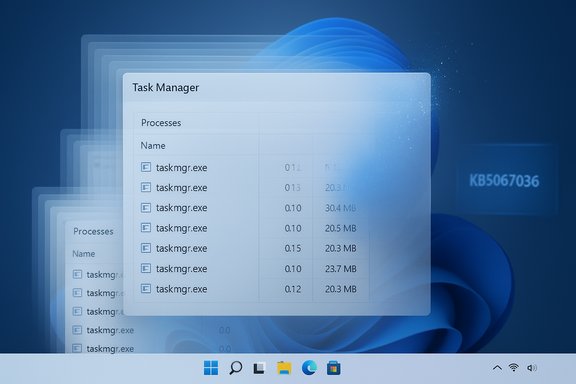
 

Microsoft has confirmed that an October preview update for Windows 11 can leave Task Manager running in the background after you close its window, producing duplicate taskmgr.exe processes that accumulate over time and can degrade device performance.

Windows Task Manager open on a blue Windows desktop, showing processes and memory usage.Background / Overview​

On October 28, 2025 Microsoft published an optional, non‑security preview cumulative update for Windows 11 identified as KB5067036 (delivering OS builds 26200.7019 and 26100.7019 for 25H2 and 24H2 respectively). The package was pushed as a staged preview and included a visible redesign of the Start menu alongside a series of UI and reliability tweaks—most notably changes to Task Manager’s process‑grouping behavior.
Within days of the rollout multiple independent testers and technical outlets reproduced a reproducible and consistent anomaly: when Task Manager is closed using the window’s Close (X) button, the underlying process does not always terminate. Reopening Task Manager in that state spawns a new visible instance while the previous process remains resident in memory. Repeating this open/close cycle produces multiple, lingering instances of taskmgr.exe that persist until explicitly terminated or the system is rebooted.
Microsoft has acknowledged the symptom in its servicing notes and flagged the behavior as a known issue tied to KB5067036. The vendor says the lingering instances “consume system resources and potentially degrade device performance,” and that an engineering fix is in progress.

What exactly is happening (symptoms and reproduction)​

The bug is straightforward to reproduce on affected devices and follows a simple pattern:
  • Open Task Manager (Ctrl+Shift+Esc, Win+X → Task Manager, or Taskbar → Task Manager).
  • Close Task Manager using the top‑right Close (X) button.
  • Reopen Task Manager.
  • Look at Processes → Background processes or Details and you may see more than one Task Manager / taskmgr.exe entry.
  • Repeat open → close to observe the count increasing.
Key technical symptoms reported by testers:
  • Orphaned taskmgr.exe processes are real OS processes (they appear in Process Explorer, tasklist output and PowerShell Get‑Process queries), not just UI duplicates.
  • Per‑instance memory usage in independent stress tests typically ranges in the low tens of megabytes (commonly ~20–30 MB per orphaned instance). CPU usage per instance is usually low (often 0–2%), but aggregated use can become significant if dozens or hundreds of orphaned processes accumulate.
  • The orphaned processes are cleared by a full reboot; they are not persistent across restarts.
  • The bug is observed after installing the October preview (KB5067036) and is reproducible on a subset—rather than all—of updated devices, consistent with staged rollouts and device variability.
Independent testers have demonstrated extreme artificial cases (opening and closing Task Manager hundreds of times) that produced correspondingly large counts of resident taskmgr.exe instances; those stress tests illustrate the potential resource impact, even though such scenarios are unlikely for most users during normal daily use.

Why this matters: the practical impact​

On its face the issue is not a security vulnerability—Task Manager remains a signed Microsoft process running with expected privileges. The problem is a lifecycle/regression bug: the component that should tear down the Task Manager process when the window closes is not reliably completing that teardown.
Why this is relevant:
  • Resource leakage at scale: Each orphaned taskmgr.exe consumes modest memory and periodic CPU while polling counters. On devices with limited RAM or battery‑constrained laptops, dozens of orphaned instances can translate into noticeable slowdowns and reduced battery life.
  • Help‑desk confusion: Task Manager is the primary diagnostic tool users turn to when apps misbehave. When Task Manager itself becomes the cause of background resource consumption, it complicates troubleshooting and increases support noise.
  • Enterprise risk: If preview updates are deployed broadly (for testing or early adopters) in corporate environments, unnoticed regressions can produce measurable degradation across endpoints—especially VDI images, long‑uptime servers with interactive sessions, or managed devices where reboots are infrequent.
  • Trust and update governance: Preview updates exist to discover regressions before full release. However, regressions in core lifecycle paths (opening/closing a system utility) erode confidence in staged rollouts and raise questions about test coverage in complex UI interactions.

Confirmed scope and limitations​

  • The bug is tied to the October 28, 2025 preview update KB5067036. Affected OS builds are reported as 26200.7019 and 26100.7019.
  • Not every device that installed KB5067036 exhibits the issue. Reports show variability across hardware models, driver combinations, and staged rollout cohorts. This suggests the bug is triggered by specific runtime conditions rather than being universal.
  • Measured per‑process memory and CPU numbers come from independent community testing and media stress tests; while these tests are useful for bounding impact they are not Microsoft’s global telemetry and should be treated as representative lab measurements, not absolute metrics for all devices.
  • A full reboot clears the orphaned instances. Terminating processes manually (via End Task or command‑line) will also reclaim resources without rebooting.

Short‑term mitigation and user workarounds​

If you are affected, there are simple, immediate mitigations that reclaim resources and contain the issue until Microsoft ships a fix:
  • Use Task Manager itself to end orphaned instances:
  • Open Task Manager.
  • Switch to Processes or Details.
  • Locate each additional “Task Manager” or taskmgr.exe entry.
  • Right‑click and choose End task (or End process tree).
  • Use the command line (one command to kill all Task Manager processes):
  • Open an elevated Command Prompt or PowerShell and run:
  • taskkill /im taskmgr.exe /f
  • Or in PowerShell:
  • Stop‑Process -Name taskmgr -Force
  • Reboot the device: a restart clears all orphaned taskmgr.exe instances and returns the system to a clean state.
  • Defer or uninstall the preview update:
  • Because KB5067036 is an optional preview, you can defer installation on production machines.
  • If the update is already installed and the device is impacted, you can uninstall the preview via Settings → Windows Update → Update history → Uninstall updates (or via DISM/WSUS in managed environments). Note that uninstallation should be planned and tested in managed environments before broad rollback.
  • Avoid closing Task Manager with the X button temporarily: when available, use the Task Manager File → Exit or the End task method (right‑click) to ensure the process terminates cleanly—this is a partial and situational workaround rather than a permanent fix.

Detection and monitoring for IT administrators​

Administrators and power users should add simple detection scripts and monitoring to locate affected systems quickly.
  • Quick PowerShell check to count active Task Manager processes:
  • Open PowerShell (normal or elevated).
  • Run:
  • (Get‑Process taskmgr -ErrorAction SilentlyContinue).Count
  • Any count greater than 1 indicates duplicate running instances.
  • Get a process list across devices with PowerShell remoting / Intune / WMI and alert when multiple taskmgr.exe instances are present.
  • On endpoints managed by monitoring tools, add a rule to flag systems where total memory consumption of all taskmgr.exe instances exceeds a threshold (for example 100 MB) or where the taskmgr.exe process count greater than 1 persists for a period longer than your operational baseline.
  • Ticketing playbook: include the quick kill command (taskkill /im taskmgr.exe /f) and a note that a reboot will clear the condition until Microsoft releases the fix.

Recommended actions (consumer and enterprise guidance)​

For consumers:
  • If you are a casual user, avoid installing optional preview updates unless you want early features and are comfortable with potential regressions.
  • Run the command taskkill /im taskmgr.exe /f when you notice multiple Task Manager entries, or simply reboot.
For IT professionals and administrators:
  • Immediately defer optional preview updates on production systems. Preserve preview testing for a controlled lab or pilot cohort.
  • Deploy a detection script (PowerShell) and a remediation action (Stop‑Process /taskkill) as a short‑term remediation in your endpoint management tooling.
  • Communicate to help‑desk teams and frontline support staff the exact symptom (Task Manager duplicates in Processes/Details) and the quick commands to clear it.
  • For long‑uptime or sensitive endpoints (VDI pools, kiosks, medical/industrial machines), enforce policy that prevents optional previews from being installed automatically.
  • Monitor Microsoft’s Release Health and KB support pages for the vendor’s patch and apply the fix in a controlled ring before full deployment.

What likely caused the regression (technical analysis)​

The observed behavior is characteristic of a teardown lifecycle regression rather than a UI duplication. Task Manager runs a mix of UI threads and background sampling threads that poll performance counters and COM objects. The most plausible technical explanations include:
  • A background thread or COM object reference that is not released on window close, preventing the process from exiting.
  • A race condition introduced by recent changes to process‑grouping logic (an explicit change noted in the KB’s notes) that altered the shutdown handshake between UI and background threads.
  • A handle leak or unclosed object that keeps the process alive even after its visible window is destroyed.
These are plausible root causes based on symptomology (process remains, memory is stable per instance, CPU shows periodic small spikes). Microsoft’s engineering team will need internal telemetry and trace repros to confirm the exact root cause. Until Microsoft publishes a root‑cause postmortem or engineering note, the teardown hypothesis should be considered a well‑fitted but unconfirmed explanation.

Bigger picture: what this says about Windows servicing and testing​

This regression highlights perennial challenges in modern OS servicing:
  • Complex interactions: Small changes in one UI area (process grouping) can ripple into lifecycle paths and create hard‑to‑catch edge cases.
  • Staged rollouts help, but don’t eliminate surprises: Preview updates exist precisely to catch regressions before general release, but unpredictable hardware/driver mixes in early adopter pools still surface problems.
  • Testing coverage limits: UI lifecycle tests must exercise the full open/close lifecycle across multiple Windows configurations; automated UI tests are tough to make exhaustive in a platform as broad as Windows.
  • Communication matters: Rapid, clear messaging about known issues and mitigations reduces customer anxiety and support load. Microsoft’s addition of a known‑issue entry and the shared workarounds are appropriate steps; the timeline of the public acknowledgment vs. community reports demonstrates how quickly such issues propagate in the wild.
For enterprise teams this incident is a reminder to treat optional previews as test packages—not production fixes—and to maintain robust rollback and remediation playbooks.

Risks, limitations and unverifiable claims​

  • Reported stress tests (for example opening and closing Task Manager 500 times to create 500 orphaned instances) are real demonstrations of the bug’s potential—but they are extreme lab scenarios that do not reflect typical user behavior. Use those results to understand the theoretical maximum resource impact, not to infer universal device failure.
  • Per‑instance memory/CPU figures reported in community tests are helpful heuristics but may vary across CPU architectures, background configuration, and telemetry settings. Treat those numbers as experimental measurements rather than vendor‑guaranteed metrics.
  • The precise root cause and the timeline for Microsoft’s fix are not published in engineering detail; the teardown hypothesis is technically plausible but remains unconfirmed until Microsoft releases an official diagnostic.
  • The fraction of devices affected is unknown publicly. Community reports and staged rollouts indicate the issue affects a subset of devices, not necessarily the majority.

How this will likely be resolved (expected vendor behavior)​

Given the visibility and reproducibility of the bug, the expected remediation path is:
  • Microsoft engineering identifies and confirms the root cause from customer telemetry and internal reproductions.
  • A fix is implemented and validated in their servicing branches.
  • The fix is pushed either as an out‑of‑band patch or incorporated into the next servicing update (possibly a cumulative preview or a Patch Tuesday release).
  • Microsoft updates the KB/Release Health notes with the fix and a remediation confirmation.
  • IT admins are advised to apply the update across pilot rings before broad deployment.
Historically Microsoft has patched similar Task Manager regressions in the servicing stream once confirmed; that precedent suggests a timely remediation is likely, though exact timelines will depend on root‑cause complexity and servicing branch constraints.

Final assessment and practical advice​

This Task Manager regression is an instructive and non‑trivial example of how even well‑scoped UI and process grouping changes can produce lifecycle regressions that are noisy and user‑facing. For most users the impact is minor and transient: a reboot clears the condition and per‑process resource footprints are modest. For administrators, help‑desk teams, and users running long‑uptime systems or resource‑constrained devices, the risk is real and actionable steps should be taken.
Immediate practical guidance:
  • Defer optional preview updates on production devices.
  • Use taskkill /im taskmgr.exe /f or Stop‑Process to clear orphaned processes without rebooting.
  • Add detection and remediation scripts to endpoint management tooling.
  • Communicate clear instructions to support staff so the issue can be resolved quickly if reported.
The incident reaffirms that preview updates exist to surface exactly these kinds of regressions; the responsible approach is disciplined testing, conservative deployment, and pragmatic remediation until Microsoft’s permanent fix arrives.

Source: Inbox.lv A New Major Bug Discovered in Windows
 

Back
Top