

Windows 11’s quiet, incremental upgrades have a habit of being overshadowed by flashy headlines — and right now the headline magnet is Copilot. But the single most consequential feature added to the OS in recent updates isn’t an AI assistant at all: it’s passkeys — a modern, cryptographic, and phishing‑resistant replacement for passwords that Windows now surfaces natively in Settings and ties to Windows Hello. This change makes everyday sign‑in both safer and dramatically easier for millions of users, and it deserves attention as the practical security upgrade that will affect people’s daily lives far more than another AI widget on the taskbar.
Passwords are still the primary way people authenticate online, and they remain the weakest link in modern security. They’re easily phished, stolen in breaches, reused across sites, and generally difficult for humans to manage safely. The push to eliminate passwords has been underway for years; passkeys — a standardized, FIDO2/WebAuthn‑based approach — are now the industry’s practical solution to move authentication away from what users know and toward what users have and are (devices + biometrics). Major platforms including Apple, Google, and Microsoft have formalized support for passkeys because they provide real, measurable improvements over passwords in both security and convenience.
Copilot may change how you write emails or compose documents, but passkeys change who can sign into your accounts. For day‑to‑day safety and the prevention of account takeovers, passkeys are the more consequential feature. Users and IT teams should prioritize learning how passkeys work, enabling Windows Hello, and adopting passkeys where services support them. The path to a passwordless future is now far more practical, and Windows 11’s native support makes that future accessible to a very large audience without waiting for a separate app or plug‑in to do the heavy lifting.
By focusing on passkeys and their real user benefits — convenience without compromise — Windows 11’s quiet authentication improvements deserve more attention than the flashier Copilot placements. For users who want a tangible improvement in safety and daily convenience, switching to passkeys where available is one of the easiest and most effective steps to take today.
Source: MakeUseOf The best new feature in Windows 11 isn’t Copilot
 Background
Passwords are still the primary way people authenticate online, and they remain the weakest link in modern security. They’re easily phished, stolen in breaches, reused across sites, and generally difficult for humans to manage safely. The push to eliminate passwords has been underway for years; passkeys — a standardized, FIDO2/WebAuthn‑based approach — are now the industry’s practical solution to move authentication away from what users know and toward what users have and are (devices + biometrics). Major platforms including Apple, Google, and Microsoft have formalized support for passkeys because they provide real, measurable improvements over passwords in both security and convenience. What are passkeys — in plain terms?
- Passkeys are credentials built on public‑key cryptography: when you register a passkey, your device creates a private key (kept on the device) and a matching public key (stored with the website or service). Authentication is done by proving possession of the private key and an on‑device user verification (typically a biometric or PIN). Because the private key never leaves the device and the credential is bound to the specific service origin, passkeys avoid the failure modes that plague passwords.
- They are phishing‑resistant: a passkey created for example.com will not authenticate on evil.example‑spoof.com, and the browser/OS ensures the credential is only offered to the origin that originally registered it. This property prevents classic credential‑harvesting attacks and proxy phishing flows that rely on stolen passwords or OTPs.
- They are user‑friendly: instead of memorizing complex strings, you tap a fingerprint, look at the camera, or type a short, memorable PIN to unlock the private key on your device. That step replaces dozens of habit‑breaking practices like password reuse, Post‑it notes, and repeated resets.
How Microsoft integrated passkeys into Windows 11
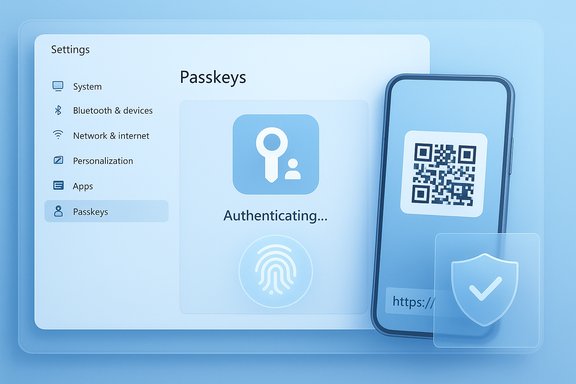
Microsoft’s Windows 11 implementation makes passkeys easy to create, manage, and — optionally — sync across devices under a Microsoft account.- Native management: Starting in Windows 11, version 22H2 with KB5030310, Windows provides a native passkey management surface in Settings (Settings > Accounts > Passkeys). The interface lists stored passkeys, allows deletion where permitted, and integrates with Windows Hello for biometric/PIN verification.
- Windows Hello as the unlock: When a passkey is saved to a Windows device, it’s protected by the device’s Windows Hello unlock (face, fingerprint, or PIN). Using a passkey to sign in simply invokes Windows Hello to confirm the user, then the OS performs the cryptographic exchange with the service. That flow keeps biometric data local — only the cryptographic proof is used.
- Cross‑device choices: Windows allows the user to save a passkey locally to the Windows device, to a companion phone/tablet (by scanning a QR code), to a linked Android device in proximity, or to a FIDO2 security key. Recent work also makes syncing via Microsoft Password Manager (Edge) possible for Microsoft Accounts, improving cross‑device usability.
Why this matters more than another AI widget
Copilot and other AI features deliver convenience and creative assistance, and they are interesting. But passkeys tackle a security problem that affects everyone daily: account takeover. Passkeys remove the repeated daily friction of password creation, reset, and reuse — and they stop entire classes of attacks (credential phishing, credential stuffing). For the average user the benefit multiplies: fewer help‑desk password resets, fewer secondary authentication steps, and far less risk of account compromise. The net effect is reduced friction plus materially better security — a rare combination.How to create and use a passkey on Windows 11 (practical steps)
- Visit a website or app that supports passkeys and choose the option to create or add a passkey (often labeled “Create a passkey” or “Sign in with passkey”).
- When prompted, choose where to save it: “This Windows device” or “Use another device” (phone/tablet/security key).
- If you choose “This Windows device,” confirm using Windows Hello (face, fingerprint, or PIN). Windows creates the keypair and stores the private key locally; the service stores only the public key.
- To sign in later, select “Sign in with passkey” on the site. If the passkey is stored locally, you'll be prompted to verify via Windows Hello and sign in without typing. If the passkey is saved to a phone or cloud provider, the OS will guide you to the listed device and verification steps.
- No passwords to type, steal, or reuse.
- Biometric or PIN verification provides user presence and adds a second factor in practice.
- The credential is domain‑bound and cannot be phished to a fake site.
- Set up Windows Hello (if not already enabled).
- When offered a passkey during account setup, accept it and make a habit of using the passkey option.
- Keep at least one recovery method or secondary passkey (to a security key or trusted device) available for account recovery.
Security analysis — strengths
- Phishing resistance: Because passkeys are bound to the registration origin and rely on a private key that never leaves the authenticator, they block the standard credential‑harvesting and replay attacks that make passwords dangerous. This property is widely recognized by standards bodies and security organizations.
- Hardware protection with TPM: On Windows devices that provide a TPM, private keys or associated encryption keys can be protected so that keys are bound to device hardware and hardware‑backed cryptography can be used to prevent extraction. That makes on‑device passkeys more resilient against a compromised OS or disk theft.
- Better assurance for regulated environments: Public guidance (for example from NIST and the FIDO Alliance) now recognizes that passkeys, when implemented correctly, meet higher assurance levels for phishing‑resistant authentication. That enables organizations to move away from fragile, user‑facing password+OTP patterns.
- User experience that increases adoption: Security solutions that are inconvenient fail. Passkeys are convenient — a biometric tap replaces an arcane password string — so they have much higher adoption potential than stronger-but-arduous alternatives. Microsoft’s settings integration reflects this principle.
Potential risks and important caveats
Passkeys are not magic; they introduce new trade‑offs and operational considerations you must understand.- Syncing and cloud backup are sensitive design choices. Local, device‑bound passkeys are the most conservative option for security. Cloud sync (for example, storing passkeys encrypted in a Microsoft account via Edge’s password manager) greatly improves cross‑device usability but moves part of the trust picture into cloud infrastructure and backup keys. Microsoft and other vendors design these systems with end‑to‑end encryption and PIN gating, but users and administrators should treat syncing as a higher‑impact choice and follow vendor guidance for recovery and PIN protection.
- Device loss and recovery: Losing a device still creates an account recovery problem. Passkeys require a robust, user‑friendly recovery path — either a secondary passkey stored on a security key, a trusted device, or a secure cloud backup — otherwise users can be locked out. Enterprises must plan recovery flows and communicate them.
- TPM and upgrade hazards: Keys bound to a device TPM can be invalidated by major OS upgrades, firmware changes, or misconfigured virtualization policies. Administrators should test upgrade paths carefully and document pre‑flight steps (for example, handling Credential Guard scenarios) to avoid unintentionally invalidating passkeys during migration.
- Not universally supported yet: While major sites and platforms are moving quickly to add passkey support, not every website supports passkeys yet. Passwords will coexist for the foreseeable future. Users should adopt passkeys where available but maintain secure password hygiene and backups for legacy services.
- Malware and session theft: Passkeys mitigate credential theft, but they don’t eliminate all attack vectors. If an attacker gains full control of a logged‑in session or manages to control your device with active session tokens, they can still abuse that session. Defense in depth (secure endpoints, anti‑malware, and browser security) remains essential.
Enterprise considerations and the admin angle
For IT teams, passkeys are a structural change that must be planned and piloted.- Identity architecture: Enterprises should inventory applications and classify those that can move to passkeys quickly vs. those requiring transitional strategies. Align passkey adoption with identity assurance policies and regulatory requirements.
- Recovery and account lifecycle: Define recovery workflows (hardware token fallback, help‑desk procedures, delegated admin flows) and update onboarding/offboarding scripts to account for passkey lifecycles and device deprovisioning.
- Third‑party password manager integration: Microsoft’s new passkey APIs allow third‑party managers (1Password, Bitwarden, etc. to integrate with the Windows passkey UX. Enterprises should evaluate vendor integrations to support cross‑platform operations and to provide safe syncing/backups.
- Education and rollout: Because passkeys change user behavior, preparation and training are essential. Start with pilot groups, collect telemetry on failures and recovery incidents, and tune policies before a broad rollout.
Ecosystem readiness and adoption — who already supports passkeys?
- Browsers: Chromium‑based browsers, Safari, and others support WebAuthn/passkeys. Microsoft’s Edge is actively building passkey saving and sync functionality into its Password Manager to make passkeys practical across Windows devices.
- Websites & services: Large services (social platforms, cloud providers, and many mainstream sites) have added passkey support in 2023–2025. Momentum is accelerating, but full coverage will take time. When major services support passkeys, the user experience improves dramatically because users encounter passkey prompts in places they use every day.
- Standardization: The FIDO Alliance and W3C WebAuthn standards underpin passkeys; this industry alignment is crucial for interoperability and long‑term viability. Regulators and standards bodies now reference passkeys in guidance, which helps enterprise adoption in regulated sectors.
Practical recommendations — what readers should do now
- Enable Windows Hello: If your device supports it, configure Windows Hello (face or fingerprint) — it’s the gateway to using passkeys on Windows.
- Use passkeys where offered: When a site supports a passkey, choose that option. For most people it will be faster and safer than creating another password.
- Keep a recovery plan: Add at least one backup authentication method (hardware security key, trusted device) and understand your cloud sync/recovery mechanism if you enable it. Treat the cloud backup PIN and recovery credentials as sensitive.
- For businesses: Pilot passkey adoption with a subset of apps and user groups. Define recovery policies and test device upgrades to make sure TPM‑bound credentials are not accidentally invalidated. Train help‑desk staff in the new workflows.
Where passkeys still fall short (and what to watch for)
- Edge cases with older hardware: Devices lacking TPM or certain secure elements will need careful handling and may rely on software fallbacks or external security keys. Organizations running legacy endpoints should inventory affected machines.
- Migration complexity: Moving an entire user base from passwords to passkeys is a program, not a switch. Expect to support mixed enrollment for a long time.
- Reliance on third‑party sync providers: If you opt for cloud sync, you rely on the provider’s encryption and recovery model. That’s often an acceptable trade for most users, but it’s a different threat model than local device‑only storage. Evaluate vendor controls and logging.
- Malware and host compromise: While passkeys block remote credential collection, they don’t negate threats from a fully compromised device. Endpoint security is still required to prevent session hijacking and lateral attacks.
Final verdict — practical, high‑impact, and ready for mainstream use
Passkeys are not a niche security feature. They are a real, standards‑based, practical replacement for passwords that Windows 11 now supports natively with clear UX integration through Windows Hello and device management in Settings. The result is a daily sign‑in experience that is both more secure and more convenient — the rare win that moves security forward without demanding heroic user behavior.Copilot may change how you write emails or compose documents, but passkeys change who can sign into your accounts. For day‑to‑day safety and the prevention of account takeovers, passkeys are the more consequential feature. Users and IT teams should prioritize learning how passkeys work, enabling Windows Hello, and adopting passkeys where services support them. The path to a passwordless future is now far more practical, and Windows 11’s native support makes that future accessible to a very large audience without waiting for a separate app or plug‑in to do the heavy lifting.
By focusing on passkeys and their real user benefits — convenience without compromise — Windows 11’s quiet authentication improvements deserve more attention than the flashier Copilot placements. For users who want a tangible improvement in safety and daily convenience, switching to passkeys where available is one of the easiest and most effective steps to take today.
Source: MakeUseOf The best new feature in Windows 11 isn’t Copilot
