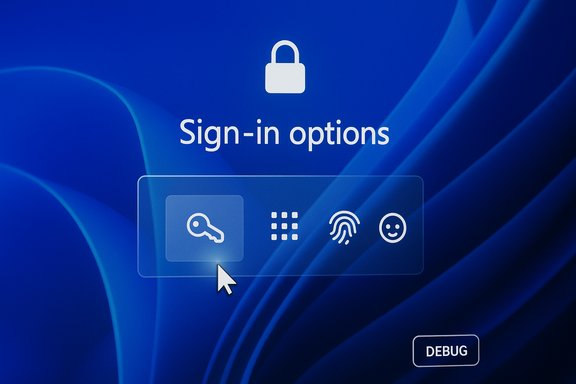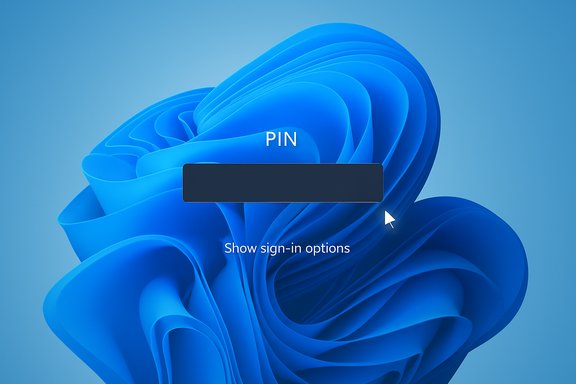
Microsoft has confirmed a Windows 11 bug that makes the small password sign‑in icon invisible on the lock screen’s “Sign‑in options,” and the company’s temporary fix is effectively: hover where the icon should be and click the invisible placeholder to reveal the password box.
Background / Overview
Windows 11’s sign‑in experience is driven by Windows Hello and multiple credential providers. When more than one sign‑in method is available (for example PIN, fingerprint, security key and password), the lock screen shows a primary input area (commonly the PIN box) plus a “Show sign‑in options” control that reveals icons for the alternate methods — including the password key icon that opens the password field. The bug introduced in an August 2025 preview update prevents that password icon from rendering visually while leaving the underlying control active. Hovering over the blank spot reveals the click target; selecting it opens the password text box and allows normal sign‑in. This is a UI rendering regression rather than an authentication failure: the credential provider remains functional, but the visual cue that users rely on is missing. That subtle distinction is important because it governs the severity of the impact (usability and accessibility hit versus a broken authentication stack). Microsoft has documented the symptom and provided the hover/click workaround in its release‑health documentation.What changed and when
The update that introduced the problem
The issue traces back to the August 29, 2025 non‑security preview update identified as KB5064081. Microsoft’s release notes and subsequent Known Issues entries tie the invisible password icon to that preview and to subsequent cumulative updates that carried the same rendering change.Subsequent updates and how Microsoft tracked it
Microsoft has listed the missing password icon as a known issue across multiple update pages published after August, including preview and cumulative KB entries released in September, October and November 2025 (examples include KB5065789, KB5067036, KB5066835, KB5070773 and KB5068861). In those pages Microsoft repeats the symptom and — in some entries — notes that the workaround is to hover/click the invisible control; other entries note the company is working on a resolution. The presence of the Known Issue entry in the November 11, 2025 cumulative update documentation shows the problem was still being tracked publicly at least through that release cycle.Affected builds and KB list (practical reference)
Microsoft’s KB pages reference the affected servicing packages and builds. Reported packages and builds include, but are not strictly limited to:- KB5064081 — August 29, 2025 preview (origin of the regression).
- KB5065789 — September 29, 2025 preview (Builds 26200.6725 / 26100.6725).
- KB5067036 — October 28, 2025 preview (Builds 26200.7019 / 26100.7019).
- KB5066835 — October 14, 2025 cumulative (Builds 26200.6899 / 26100.6899).
- KB5070773 — October 20, 2025 out‑of‑band release (Builds 26200.6901 / 26100.6901).
- KB5068221 — September 22, 2025 out‑of‑band (Build 26100.6588).
- KB5065426 — September 9, 2025 security release (Build 26100.6584).
- KB5068861 — November 11, 2025 cumulative (Builds 26200.7171 / 26100.7171).
Why this matters — usability, accessibility and enterprise risk
This bug is superficially small — a missing icon — but it has outsized consequences for usability and accessibility.- For casual users who always sign in with PIN or biometric Windows Hello, the problem is likely an annoyance at worst. The PIN input remains accessible by default.
- For users who frequently switch to password (for example when PIN is forgotten, corporate passwords are rotated, or multi‑user devices are in play), the invisible icon removes the visual affordance that enables switching. That can create confusion, delays and support calls.
- For people relying on assistive technology, screen magnification, or limited‑precision pointing devices, a missing visual target is a real accessibility regression. The workaround — hover and click an invisible placeholder — can be effectively impossible for some users, and Microsoft’s guidance to “hover over the space where the icon should appear” is not an accessible fix.
- For corporate environments and IT administrators, any update that degrades discoverability or recovery workflows increases helpdesk load and erodes trust in the staging process. The same servicing wave that carried this UI regression also included higher‑impact regressions for recovery (WinRE) and, in some cases, gaming performance on affected systems — demonstrating how a single servicing pass can create multiple, interacting operational headaches.
Microsoft’s guidance and the temporary workaround
Microsoft’s public guidance is explicit and simple: hovering over the spot where the password icon should appear reveals the underlying clickable control; select that placeholder to open the password field and sign in. This is the company’s recommended temporary workaround until a remediation is released. The same wording appears across multiple Known Issues entries on Microsoft’s support pages. Practical steps (user‑facing):- On the lock screen, choose Show sign‑in options if necessary.
- Move the mouse cursor (or use touch) around the area immediately below the primary PIN input where the password key normally appears.
- When the cursor changes or you believe you’re over the invisible control, click/tap to open the password field.
- Enter your account password and sign in normally.
Broader servicing problems in the same update wave
This servicing cycle saw other documented regressions that illustrate how optional preview releases and complex cumulative packages can produce multiple issues at once.- WinRE (Windows Recovery Environment) input failure: The October cumulative (KB5066835) reportedly broke USB keyboard and mouse input inside WinRE on some systems. Microsoft acknowledged the problem and issued an out‑of‑band cumulative (KB5070773 on October 20, 2025) to restore WinRE USB input functionality. That fix was delivered as an urgent patch because a non‑functional recovery environment impairs ability to repair or reset devices.
- Gaming performance regressions: After the October cumulative, community testing and vendor telemetry indicated degraded game performance on a subset of systems. NVIDIA responded by publishing a rapid hotfix—GeForce Hotfix Display Driver 581.94 (released November 19, 2025)—explicitly noting it addresses “lower performance may be observed in some games after updating to Windows 11 October 2025 KB5066835.” Independent testing showed substantial recovery in many scenarios after the hotfix, though outcomes varied by title and system configuration.
Practical advice: what end users should do now
- Use the Microsoft workaround now: hover and click the blank space under the PIN box to reveal the password field. It works and is the documented temporary fix.
- If you rely primarily on passwords, make the password the only active sign‑in method temporarily: Settings → Accounts → Sign‑in options → Manage sign‑in methods. Removing secondary Windows Hello methods will cause Windows to show the password field directly, eliminating the invisible icon scenario. Note: this reduces convenience and may reduce security if you remove PIN/biometrics.
- If you’re an administrator for many devices, pause deployment of optional preview updates (the August 29 preview was the originating change) until tested in a controlled ring. Use Windows Update for Business or your patch management tools to stage updates across pilot groups first.
- Keep systems up to date for fixes: Microsoft has been shipping follow‑up packages in this wave; check Windows Update and apply the latest cumulative and Servicing Stack Updates (SSUs) after staging. Several KB pages instruct users to “Check for updates” and restart devices as part of the recommended mitigation path.
- For gamers seeing reduced FPS after the October cumulative, consult your GPU vendor. NVIDIA’s hotfix 581.94 (November 19, 2025) was published specifically to address lower performance tied to KB5066835; if you have an NVIDIA GPU and observe regressions, try that hotfix and follow vendor guidance. Always prefer a staged driver install if you depend on stable gameplay performance.
Guidance for IT administrators and power users
- Test updates in a representative pilot ring. This update wave shows how optional/preview and cumulative updates can introduce regressions that affect certificates, DRM, WinRE and UI elements. A disciplined ring deployment model remains the most effective mitigation for rollout risk.
- Build and maintain offline recovery media. Because WinRE was affected by a later regression, ensure you have bootable recovery USBs and documented recovery procedures for endpoints that may require offline repair. Microsoft’s emergency out‑of‑band patch for WinRE demonstrates the operational cost when recovery images are damaged.
- Track Windows Release Health / Known Issues for each KB you deploy. Microsoft is reasonably transparent in publishing Known Issue entries, even when fixes are pending; those pages often include suggested mitigations. Use those KB pages to inform deployment schedules.
- Where user experience or accessibility is critical, consider avoiding optional preview updates entirely on production devices until fixes are validated. The KB5064081 preview is a textbook example of a non‑security update introducing a UI regression with real user impact.
Why this happened: a measured technical analysis
From the public evidence the missing password icon is a classic UI rendering regression: the control’s logic and event handlers remain present and responsive, but the visual element failed to render. That suggests a change in the sign‑in UI pipeline — potentially a style, theme, resource loading or control composition change — caused the glyph or icon surface to be drawn invisibly or off‑screen while leaving the clickable hitbox intact. Community analysis and Microsoft’s own wording point to a rendering or composition problem rather than an authentication or credential provider failure. Rendering regressions like this often arise when a compositing or theming change is rolled out with insufficient visual regression tests. The symptom being limited to multi‑sign‑in scenarios (only surfaces when more than one method exists) points to the UI path that chooses and renders the set of sign‑in option icons. When a single sign‑in method exists, Windows shows the password field by default and avoids the icon list entirely — which is why users who only use a password never see this bug.Strengths in Microsoft’s response — and weakness
There are clear positives in how Microsoft handled the incident:- Microsoft publicly documented the issue as a Known Issue within their Windows release health KBs and provided a direct, if imperfect, temporary workaround. That transparency helps administrators triage and plan.
- For higher‑severity regressions in the same wave (e.g., WinRE), Microsoft shipped an out‑of‑band cumulative patch (KB5070773) to restore recovery functionality. That shows the company will accelerate fixes when core device availability or recovery is at risk.
- The hover/click workaround is an accessibility shortfall. It places the burden of discovery on users rather than providing an accessible, temporary UI or an automated fallback for those who need the password field.
- Multiple regressions surfacing in the same servicing wave (sign‑in UI, WinRE input, game performance) indicate gaps in test coverage for interactions across the Safe OS, UI composition layers, and low‑level kernel/driver interactions — precisely the domains most sensitive to servicing changes.
What should Microsoft do next (reasonable expectations)
- Prioritize an accessibility‑first fix: a permanent update should not only restore the icon visually but ensure assistive technologies and keyboard navigation present a clear, discoverable pathway to the password field. The current workaround is insufficient for many users.
- Expand visual regression testing for sign‑in UI flows, including permutations with multiple credential providers and different themes/scale settings. Automated visual diffs for sign‑in surfaces could catch invisible glyphs before release.
- Continue transparent KB updates with clear “fixed in” entries and build numbers so administrators can map fixes to package levels and plan remediation. The presence of Known Issue notes across multiple KBs helps, but a consolidated “fixed in” line reduces confusion.
Caveats and unverifiable claims
Some online commentary ties these regressions to internal Microsoft staffing changes or layoffs affecting QA capacity. That attribution is speculative unless Microsoft publishes internal staffing or process changes tied to testing outcomes; it should be treated as opinion rather than proven cause. Public KBs and vendor hotfixes show the problems were identified and acted upon, but they do not provide root‑cause statements about engineering resourcing. Any claim about layoffs directly causing this specific bug is therefore unverified. Microsoft also does not publish a public count of affected devices for this specific password‑icon issue; therefore any claim about the absolute scale of impact is uncertain. The symptom is likely underreported because many users simply continue to use a PIN and never encounter the missing icon.Final assessment
This incident is a reminder that even small UI regressions can create tangible accessibility and usability problems — and that complex servicing packages can surface multiple independent regressions in the same release window. Microsoft’s public documentation and temporary workaround are correct and practical, and for higher‑severity problems the company has demonstrated it will ship out‑of‑band fixes. That said, the hover/click guidance is not an adequate long‑term accessibility solution and underlines the need for improved visual regression testing and broader device recovery safeguards across Windows servicing channels. For now, users who need the password field should hover/click where the icon normally appears, consider temporarily adjusting sign‑in methods to make the password visible by default, and follow Microsoft’s update guidance to receive fixes as they are published. Administrators should stage updates, maintain recovery media, and track Microsoft’s Known Issues pages for “fixed in” annotations before broad deployment.Conclusion
The missing password icon is a low‑level UI failure with disproportionate usability impact. The workaround works, fixes are being tracked publicly, and allied vendors have issued mitigations for related problems in the same wave. The enduring lesson is procedural: test widely, stage updates, and treat optional preview builds as what they are — previews that can change behavior in unexpected ways.
Source: Windows Latest Windows 11 bug “hides” your password sign-in button and Microsoft’s fix is… hover and click the right spot