

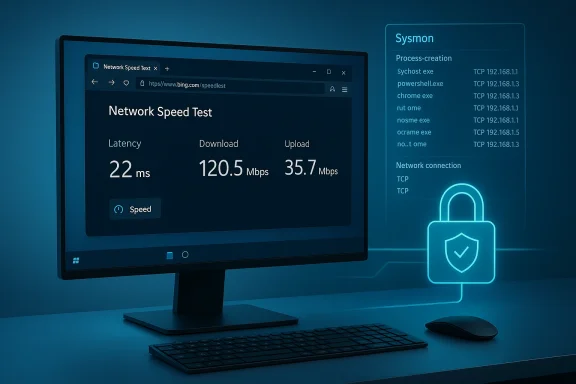
Microsoft’s latest Windows 11 patch cycle has landed with a mix of relief and skepticism: for many users this update finally delivers tangible quality-of-life gains — a built-in network speed test, improved BitLocker/device-encryption behavior, and the inclusion of Windows’ Sysmon monitoring as an optional feature — yet for others it reopens old wounds about stability, breakages, and forced rollouts. The net result is the kind of split reaction that has defined the Windows update experience for the last few years: genuine progress tempered by lingering trust issues and legitimate caution.
Background / Overview
Windows updates have moved away from being monolithic events and toward an ongoing cadence of cumulative fixes, optional previews, and phased feature rollouts. Microsoft’s messaging emphasizes security and iterative improvements, but the reality of complex hardware and driver ecosystems means even well-intended patches can ripple into unexpected regressions. That tension — between the need for continuous security hygiene and the risk of breaking production systems — frames the mixed user response to the current set of Windows 11 updates.In practical terms, the latest releases show two parallel narratives. On one side there are small but meaningful user-facing changes that improve diagnostics and control. On the other side there are recurring incidents — from boot loops and blue screens (BSODs) to app regressions and removal of features in error — that reinforce a cautious posture among power users and IT teams. Both narratives are true simultaneously, and both matter for anyone deciding when and how to install updates.
What’s actually new — the concrete changes you’ll notice
Network speed test in the taskbar: a quick diagnostic shortcut
One of the most visible additions is a network speed test tied directly into the taskbar’s network icon and Quick Settings. The goal is simple: let users run a quick broadband check without hunting for third‑party sites or launchers. When invoked the test opens in your default browser and reports latency, download, and upload numbers — effectively a shortcut to an online speed test (Microsoft routes this through a Bing-hosted interface). This is a convenience feature rather than an offline diagnostic tool, but it reduces friction for casual troubleshooting.Why it matters: most home users and helpdesk support workflows begin with a speed check to rule out ISP issues. Turning that into a one‑click option in the taskbar reduces the cognitive load for nontechnical users and makes basic triage faster for IT staff. That said, it’s not a replacement for deep network diagnostics; it’s a shortcut not a replacement.
BitLocker / device encryption changes: more automatic, but also more complex
Microsoft has continued to tighten the way device encryption and BitLocker behave across Windows 11 editions. On certain new installs and devices, device encryption (BitLocker-like protection) can now be enabled by default and recovery keys are more tightly managed — often tied to a user’s Microsoft account, work account, or Entra ID. The aim is to raise the baseline for disk confidentiality across the ecosystem. While this improves default security posture for many users, it also changes administration workflows and — in some corner cases — causes friction for power users who rely on manual key control.Key detail: the automatic encryption behavior most often applies to clean installs or devices that ship with the new build preinstalled; upgrades do not always flip on encryption automatically. Nevertheless, system administrators and users who run PowerShell BitLocker commands should test their scripts against the new behavior because some PowerShell patterns (for example temporary suspend commands) have reported failures after certain updates. Treat encryption changes as both a security gain and an operational change that needs verification.
Sysmon (System Monitor) as a built‑in, optional capability
For advanced users and security teams, Microsoft has made Sysmon available as a built-in optional feature in newer Windows 11 builds. Sysmon provides high‑fidelity system telemetry: process creations, network connections, driver loads, and more, all logged to the Windows Event Log for downstream analysis. It remains disabled by default and must be enabled and configured intentionally; it’s not a replacement for SIEM tools but it reduces deployment friction for organizations that want native Windows telemetry without grabbing additional binaries.This inclusion is an explicit nod to enterprise defenders: shipping Sysmon natively simplifies compliance and incident response workflows, but administrators must plan how to collect, filter, and store that telemetry to avoid log overload. Enable carefully, define filters, and forward to your SIEM if you run one.
Why reactions are mixed — trust, regressions, and the memory of past breakages
The long tail of patch regressions: boot loops, BSODs, removed apps
Historically recent update cycles have produced a nontrivial number of regressions: preview updates that caused boot loops, cumulative patches that triggered SECURE_KERNEL_ERROR BSODs, and, in at least one notable case, a patch that accidentally removed the Copilot app from some systems. These are not theoretical risks — they happened, were visible in community threads and media coverage, and led Microsoft to deploy Known Issue Rollbacks (KIR) and emergency out‑of‑band fixes. That record matters when users evaluate whether to install a new update.Concrete examples:
- The optional preview KB5043145 was pulled after reports of repeated reboots and blue screens; Microsoft deployed automatic rollbacks for many consumer systems.
- March/April 2025 cumulative updates (KB5053598, KB5053656, KB5055523 among others) were linked to SECURE_KERNEL_ERROR BSODs on some 24H2 systems; Microsoft acknowledged the issue and used KIR to mitigate impact while working on fixes.
Why many users are nevertheless positive about this release
At the same time, feedback from a sizable portion of the user base and multiple reviewers suggests the latest feature‑set feels like a return to substance over spectacle. The new taskbar speed test is small but immediately useful, Sysmon inclusion removes an operational hurdle for defenders, and BitLocker improvements push the platform toward stronger defaults. Reviewers have described the release as one of the more meaningful quality-of-life updates in recent cycles. These are not headline-grabbing features, but they move the needle on everyday reliability and observability — the kind of things that matter when devices are used for work and school.Technical analysis — where the benefits come from, and where the risks still live
Benefits: tighter security posture, easier diagnostics, improved observability
- Security defaults: Automatic device encryption on eligible systems raises the floor for data protection across new devices, reducing the number of unencrypted drives in the wild. This is a major win for endpoint security and regulatory compliance in many environments.
- Better observability: Built-in Sysmon simplifies getting telemetry into SIEM workflows. For organizations that historically hesitated to deploy Sysmon because of deployment logistics or signing/trust concerns, this is a practical improvement.
- Faster triage: Bringing a speed test into the taskbar lowers the barrier for initial network troubleshooting, which reduces time-to‑resolution for helpdesk staff and less technical users.
Risks: driver and kernel fragility, administration surprises, and rollout complexity
- Kernel-level regressions remain dangerous. The SECURE_KERNEL_ERROR BSOD patterns associated with some prior updates underline that kernel or driver interactions still produce high-severity failures. Kernel regressions typically affect booting and can lead to data recovery workflows or emergency rollbacks. These issues are distinct from UI bugs — they are system‑level failures with real operational cost.
- Driver and hardware diversity multiplies test surface. Windows runs on billions of distinct hardware and driver combinations. A well-intentioned change that touches driver-facing code paths or security primitives can expose corners that missed earlier testing. This is why Microsoft uses staged rollouts and KIR, but the fundamental test surface remains gigantic.
- Operational change friction. BitLocker/device-encryption behavior changes can break scripts and documented procedures used by administrators (for instance, Suspend-BitLocker commands that previously worked may behave differently after certain updates). Organizations must validate administrative workflows against the new builds before broad rollout.
How Microsoft responds: Known Issue Rollback (KIR) and emergency fixes
Microsoft’s primary mitigation strategy for non‑security regression is the Known Issue Rollback (KIR) system: rather than uninstalling an entire update, KIR flips a runtime flag to revert only the problematic change while leaving security fixes in place. For retail consumers, KIR is pushed automatically via Windows Update; enterprises receive KIR as policy templates for Group Policy or Intune deployment so IT can control remediation across managed fleets. This approach reduces the collateral damage of a bad patch, but it’s not a panacea — KIR only applies to non‑security changes and must be applied thoughtfully in managed environments.When regressions are severe (for example, broken Recovery Environment or input device failures in WinRE), Microsoft has occasionally issued out‑of‑band emergency updates to correct the damage quickly. These updates are rare but demonstrate that the company can respond rapidly when the issue risks device recovery or data integrity.
What Windows users should do — practical, prioritized advice
Whether you’re a home user, power user, or IT administrator, follow a risk‑aware process to decide when and how to install updates.- Back up first. Create a restore point, enforce file backups, or image critical machines before applying system updates. If you depend on your PC for work, a full disk image gives the fastest recovery path.
- For home users: consider applying optional preview features selectively. If a new convenience option (speed test, camera pan/tilt controls) matters to you, install but monitor community feedback for 24–48 hours. If you prioritize stability, wait for the cumulative patch that follows the preview.
- For power users: read the Windows release health page and KB notes before applying updates to critical devices; check for KIR announcements or active safeguard holds. Use test machines to validate driver interactions and PowerShell workflows (e.g., BitLocker suspend/resume commands) prior to mass deployment.
- For IT admins: use a phased deployment strategy. Validate updates in your lab, push to pilot groups, and only expand to broader groups when telemetry is stable. If a regression appears, leverage KIR Group Policy packages and follow Microsoft’s documented guidance for KIR deployment.
How to spot when Microsoft is “listening” versus when you should hold back
Microsoft’s development cadence increasingly reflects feedback loops: release preview channels, staged rollouts, and visible Known Issue Rollbacks demonstrate responsiveness. When updates address user pain points (waking-from-sleep fixes, UI consistency, accessible diagnostics) and reviewers praise the practical impact, that’s a sign Microsoft is aligning the roadmap to real needs. But the presence of emergency rollbacks or repeated kernel-level regressions are objective signs that a patch carried risk into production.Practical heuristic:
- If a release is described primarily as “quality improvements” and the initial community response is positive, it’s reasonably safe to move forward after a short observation window.
- If reports of boot loops, BSODs, or removed apps appear within hours of rollout, pause and consult Microsoft’s Windows release health dashboard and community forums for mitigation steps and KIR announcements.
Strengths, limitations, and the broader strategic picture
Notable strengths of the current update strategy
- Incremental security gains: Default device encryption on clean installs and improved telemetry options make Windows a more secure baseline platform for the next generation of endpoints.
- User‑focused small wins: Taskbar shortcuts and camera controls are exactly the kind of lightweight friction reducers that improve everyday computing. They may not be dramatic, but they are useful.
- Defensive tooling: Built-in Sysmon reduces deployment friction for defenders and supports more consistent event collection architecture.
Persistent limitations and risks
- Testing at scale remains imperfect. Even with Insider channels, Microsoft cannot perfectly emulate every OEM driver + hardware combination. This creates a persistent risk that a small percentage of systems will break when a change reaches the wider population.
- Operational surprises for administrators. Changes to encryption defaults and management APIs can alter scripted workflows and SRE runbooks. These are avoidable with testing but still represent real cost.
- Perception problem. Repeated regressions erode trust even when the majority of users are unaffected. Rebuilding that trust requires consistently low‑regression releases over multiple cycles. Community threads and forum reports show trust is still fragile.
Final assessment and recommendation
The latest Windows 11 update cycle represents a pragmatic mix: useful, incremental features and meaningful security improvements packaged alongside the unavoidable risk that some updates will trigger regressions on specific hardware or configurations. For most users, the update is worth exploring — especially on test or secondary systems — and for helpdesk workflows the convenience features will be welcome. For organizations with strict uptime requirements or for individuals who can’t tolerate even short disruptions, the conservative approach remains prudent: validate, stage, and deploy.In short:
- If you value immediate convenience and enhanced default security on new devices, this update brings real, verifiable value.
- If you depend on a stable workstation for critical work, test first and wait for the KIR window or the following cumulative patch if you want to avoid risk.
Quick checklist: what to do right now
- Back up important files and create a system image before applying updates.
- Check the Windows release health page and KB article for the update to review known issues and mitigations.
- If you are an admin, stage the update to pilot groups and prepare KIR policy steps for managed devices.
- If you run BitLocker automation or power-user scripts, validate Suspend/Resume and recovery key behaviors in a test environment prior to broad deployment.
- Give the community a 24–72 hour window to surface major regressions before applying to production systems, and monitor official Windows Update channels for KIR notices.
Source: thewincentral.com Windows 11 Update Gets Mixed Reactions from Users
