

Windows 11’s Photos app has quietly graduated from a simple image viewer into a capable, AI-assisted photo workstation—and many Windows users still don’t realize just how far it’s come.
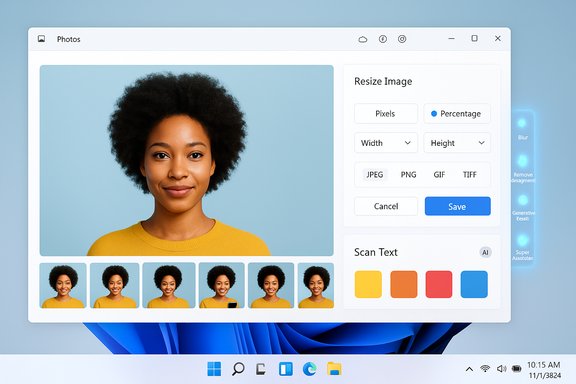
The Photos app that ships with Windows 11 has received a steady stream of updates that add real editing and productivity features traditionally reserved for third‑party tools. Recent releases have introduced pixel-accurate resizing, a filmstrip browsing mode, Optical Character Recognition (OCR) for extracting text from images, AI-powered background editing, generative erase (inpainting), and even a Super Resolution upscaling pipeline—features that together turn Photos into a practical all‑in‑one hub for many everyday image tasks. These additions are rolling out incrementally, sometimes gated by app version, Windows update channel (Insider vs stable), or specific hardware like Copilot+ devices that include NPUs.
Microsoft’s approach has been iterative: add a capability, surface it in the Photos UI and in File Explorer quick actions, then refine based on telemetry and Insider feedback. That means the experience you see can vary depending on app build, Windows update level, and whether the feature is experimental or fully supported. Treat this article as both a practical how‑to for the features that are widely available and a careful guide to the limits and privacy considerations that still matter.
Recommended actions for readers:
Photos is already useful; with a careful eye on privacy settings and version updates, it’s becoming indispensable for people who need fast, reliable image work without the complexity of heavyweight software.
Source: How-To Geek Windows 11’s Photos app does more than you realize
 Background / Overview
The Photos app that ships with Windows 11 has received a steady stream of updates that add real editing and productivity features traditionally reserved for third‑party tools. Recent releases have introduced pixel-accurate resizing, a filmstrip browsing mode, Optical Character Recognition (OCR) for extracting text from images, AI-powered background editing, generative erase (inpainting), and even a Super Resolution upscaling pipeline—features that together turn Photos into a practical all‑in‑one hub for many everyday image tasks. These additions are rolling out incrementally, sometimes gated by app version, Windows update channel (Insider vs stable), or specific hardware like Copilot+ devices that include NPUs.Microsoft’s approach has been iterative: add a capability, surface it in the Photos UI and in File Explorer quick actions, then refine based on telemetry and Insider feedback. That means the experience you see can vary depending on app build, Windows update level, and whether the feature is experimental or fully supported. Treat this article as both a practical how‑to for the features that are widely available and a careful guide to the limits and privacy considerations that still matter.
What’s new and why it matters
Windows 11’s Photos app now addresses three common friction points for creators and editors:- Quick image resizing without leaving the app.
- Fast browsing through large folders with a filmstrip.
- Extracting, editing, and sanitizing images using AI features previously only in premium apps.
Resize images to any dimension you want
What it does
Photos offers a built‑in Resize Image tool that supports resizing by pixels or percentage, preserves aspect ratio automatically, and lets you choose output file type and save options (overwrite or save as new copy). For quick editorial work—blog images, CMS thumbnails, or email attachments—this eliminates a context switch to Paint or an external resizer.How to use it (quick steps)
- Open the image in Photos.
- Click the three‑dot menu in the top‑right and choose Resize Image.
- Pick Pixels (enter a width; height follows) or Percentage (scale down or up).
- Optionally change the file type and choose whether to replace the original or save a copy.
- Click Save.
Strengths and practical tips
- Aspect‑ratio preservation avoids stretched or squashed results when you resize by one dimension.
- Use the pixel width for CMS templates that require exact pixel widths (for example, 1200 px for hero images).
- For batch jobs, Microsoft PowerToys’ Image Resizer still offers bulk resizing, but Photos is faster for single images.
Caveats
- Photos isn’t a batch processor—if you need to resize dozens or hundreds of files at once, leverage PowerToys or File Explorer’s context menu extensions.
- Very large upscales will be constrained by quality; if you need high‑quality enlargements, use Photos’ Super Resolution (see later) when available on your device.
Find the right image using Filmstrip View
What it does
The Filmstrip View adds a horizontal strip of thumbnails beneath the main viewer so you can visually scan a folder without opening File Explorer. It’s particularly useful for folders with hundreds of images where previewing each file from the Photos viewer would otherwise be slow and disruptive.How to use it
- Toggle the filmstrip icon (bottom‑left of the Photos window) or press F (depending on app version) to show or hide the filmstrip.
- Scroll through thumbnails and click the one you want—Photos will open it in the viewer instantly.
Strengths and practical tips
- The filmstrip improves flow: you can crop, resize, or run an edit, then move to the next file without leaving the app.
- It’s useful for quick selection during curation tasks (selecting best shots, preparing galleries).
Caveats
- Filmstrip behavior and shortcuts can vary by Photos app version; if you don’t see it, update the app via Microsoft Store.
Extract text from images easily (OCR)
What it does
Photos now includes OCR (Scan Text) that detects and extracts textual content from images so you can copy/paste it into documents. This is a major productivity boost for digitizing notes, capturing text from screenshots, and reusing content from images without retyping. The feature surface is a Scan Text icon in the viewer’s bottom toolbar—when Photos detects readable text, the icon appears and scanning is available.How to use it
- Open an image in Photos and look for the Scan Text button near the bottom center of the window.
- Click it; Photos will analyze and highlight detected text.
- Select portions or press Ctrl+A to copy all text, then paste it where needed.
Verification and rollout notes
- OCR behavior has been visible in multiple insider and store versions of Photos, but Microsoft has sometimes gated, disabled, or reworked the feature during previews. Users in some builds may need to enable experimental flags or update their app to see OCR. A registry tweak has been documented and circulated for enabling an experimental OCR toggle, but that is an advanced hack and not recommended for casual users because it uses undocumented registry entries and may be unstable.
Strengths and practical tips
- Works well on clean, high‑contrast text (printed documents, clear screenshots).
- Supports many languages in the Photos and other Windows OCR tools; for structured data (tables), Snipping Tool’s “Copy as table” or PowerToys Text Extractor may give better results.
Limitations and warnings
- Recognizing handwritten or skewed/blurry text remains error‑prone; OCR accuracy drops on angled or poorly lit photos.
- Because OCR has been experimental in some builds, it can be removed or changed; do not rely on a specific UI element remaining in a future update. If you need guaranteed OCR now, use OneNote, Snipping Tool, or PowerToys Text Extractor as alternatives.
Edit, blur, or remove backgrounds
What it does
Photos includes an automatic Background tool with three main options: Blur, Remove, or Replace (with a solid color). The app detects the subject, separates it from the background, and gives you sliders and save options to fine‑tune results. This is handy for portrait shots, product photos, or thumbnails where you want the subject to stand out.How to use it
- Open the photo and enter Edit mode.
- Select the Background tab/tool.
- Let Photos detect the subject, then pick Blur, Remove, or Replace Background.
- Adjust Blur Intensity or color, preview, and save.
Strengths and practical tips
- For quick social or presentation images, a one‑click subject cutout and a color replacement (e.g., white or black) is faster than loading a full editor.
- The remove/replace operations are excellent for preparing thumbnails, ID photos, and e‑commerce images.
Caveats and technical notes
- Replace with another image is not supported in Photos; replace currently means choosing a solid background color.
- The underlying background removal pipeline in some quick flows may hand off to Paint’s removal pipeline or be executed via a hybrid local/cloud model depending on system capabilities. Edge cases (hair, fine edges) can show artifacts and may need manual cleanup in a dedicated editor.
Hide specific areas with Generative Erase (inpainting)
What it does
The Generative Erase feature lets you brush over unwanted elements (photobombers, license plates, logos) and have Photos attempt a contextually aware fill using AI inpainting. It’s similar to Magic Eraser and content‑aware fill tools found in other ecosystems.How to use it
- Open the image, enter Edit → Generative Erase, set brush size, paint over the area, and apply.
- If Auto Apply is enabled, changes appear instantly; otherwise preview then apply.
Strengths and practical tips
- Quick removal of simple, isolated distractions works very well.
- Use a layered approach: duplicate the file, run erase on the copy, and if the result needs refinement, perform manual cloning or edge blending in a secondary editor.
Limitations and risks
- Inpainting is still imperfect. Complex backgrounds, repeating patterns, or structured geometry (fences, tiles) can produce artifacts or mismatched fills.
- Some erase flows may use cloud resources depending on hardware and Microsoft runtime policies—assume hybrid processing unless you’re on a Copilot+ NPU machine that explicitly runs the model locally. This has privacy implications for sensitive images.
Super Resolution: AI upscaling
What it does
Photos’ Super Resolution leverages neural models to upscale images with improved perceived detail, enabling larger prints or tighter crops from low‑res sources. Initial reports show upscales of multiple times the original resolution using AI to infer plausible detail. Availability has been tied to the Windows 11 24H2 update and Copilot+ devices that provide dedicated NPU acceleration.Strengths and practical tips
- When available, use Super Resolution for archival photos, small-artifact scans, or to salvage low-res captures.
- Prefer local NPU‑accelerated execution (Copilot+ PCs) for speed and privacy.
Caveats
- Quality varies by source image; heavy noise or extreme compression limit what even the smartest AI can do.
- Not all devices will run Super Resolution locally—some may route the work through cloud services, which matters for privacy‑sensitive content.
Privacy, processing locality, and governance
Where is the data processed?
Microsoft’s implementation is hybrid. Some AI operations are executed locally (especially on Copilot+ machines with NPUs), while others may call cloud services depending on device capability, app version, or Microsoft’s runtime policies. Microsoft has added settings and privacy surfaces that show which apps used generative AI capabilities recently, but the per‑action locality guarantee is not comprehensively documented. Until Microsoft publishes explicit per‑action guarantees, assume that cloud processing is possible for some flows.Practical privacy advice
- Don’t run images with highly sensitive personal data (medical records, unredacted IDs, confidential documents) through quick AI flows unless you confirm on‑device processing.
- Use local, offline editors for regulatory or compliance requirements.
- Check the Photos app and Windows privacy settings for any “Generative AI usage” surfaces and toggle off external model access where available.
Reliability, versions, and troubleshooting
Why some features aren’t visible
Because Photos’ advanced features have been rolled out gradually and sometimes as experiments, you may not see every feature in your installation. App version, Windows build (stable vs Insider), and device capabilities all matter. If a button doesn’t appear:- Update the Photos app from the Microsoft Store.
- Make sure your Windows 11 build is reasonably current.
- Check whether the feature is labeled as experimental or Insider‑only in release notes.
A note about registry hacks and experimental flags
There have been community-discovered registry tweaks that enable hidden Photos features like OCR. Those tweaks demonstrate what Microsoft is testing but are not supported, may be unstable, and can be reversed by app updates. They should be treated as curiosity rather than a supported configuration for production workflows.Practical workflows and quick recipes
Resize + OCR for content creators
- Resize an image to the CMS width in Photos (three‑dot → Resize Image).
- Run Scan Text to extract captions or slide text and paste into your editor.
- Use Filmstrip View to pick alternate thumbnails quickly.
Clean a photo for social posting
- Enter Edit → Background and blur or replace background color for a clean portrait.
- Use Generative Erase to remove distractions. If the background is complex, do a duplicate and refine in an image editor.
Salvage an old photo
- Try Super Resolution (if available on your machine) to upscale.
- Correct tones, crop, and export at the new resolution.
Strengths, risks, and editorial assessment
Notable strengths
- Photos brings convenience: many routine tasks are now one or two clicks away without leaving Windows.
- Accessibility: OCR and quick edits lower the barrier for users who don’t want to learn complex editors.
- Integration: File Explorer quick actions and the filmstrip create cohesive workflows for casual creators and professionals alike.
Potential risks and limitations
- Inconsistent availability: Features appear behind app versions, Insider previews, or hardware gating, which complicates a unified cross‑device workflow.
- Privacy ambiguity: Because some AI edits can be cloud‑processed, users handling sensitive images must remain cautious. The hybrid processing model is not fully documented per action.
- Quality limits: Generative erase and AI upscaling are impressive but imperfect, especially on complex textures or highly degraded photos; manual editing may still be necessary.
Final verdict and recommendations
Windows 11’s Photos app has matured into a surprisingly capable image companion that closes the gap between a simple viewer and a lightweight editor. For everyday users, content creators, and small teams, Photos reduces friction: resizing, light retouching, background handling, and text extraction are all accessible without additional installs.Recommended actions for readers:
- Keep Photos updated via the Microsoft Store and watch Insider notes to see when features land for general use.
- Use OCR and AI features for non‑sensitive content unless you confirm on‑device execution. For regulated content, prefer offline tools.
- For bulk processing or professional retouching, pair Photos with PowerToys or a full editor (Affinty Photo, Photoshop) depending on needs.
Photos is already useful; with a careful eye on privacy settings and version updates, it’s becoming indispensable for people who need fast, reliable image work without the complexity of heavyweight software.
Source: How-To Geek Windows 11’s Photos app does more than you realize
