Resizing a photo in Windows’ built‑in Photos app is a two‑click habit once you know where the controls live — and for many everyday tasks (email attachments, blog images, quick social posts) Photos now covers everything you need without installing extra software. This deep dive explains the exact steps, when to use the Photos app vs. PowerToys or a dedicated editor, how to preserve quality and metadata, and what to watch for when features are gated by app version or device capabilities.
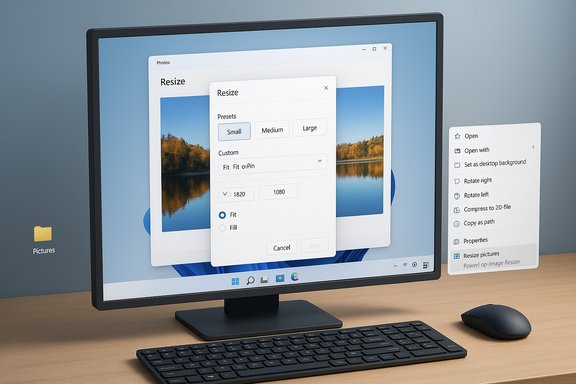
The Photos app that ships with Windows 11 has evolved beyond a passive viewer into a lightweight editing hub: basic edits, cropping, simple retouches and — importantly for this piece — a built‑in Resize workflow that supports presets and custom dimensions. This built‑in Resize command is intended for single images and small batches, while Microsoft PowerToys’ Image Resizer remains the recommended tool for bulk jobs and advanced presets. Practical documentation and mainstream how‑to guides confirm the Photos Resize flow (three‑dot menu → Resize → preset or Define custom dimensions → Save resized copy). Photos’ newer capabilities (OCR, filmstrip browsing, AI‑assisted edits) broaden its value for casual creators, but these features are rolled out incrementally and sometimes vary by app build, Windows update channel, or device hardware. Expect slight differences in UI text and availability depending on whether you’re on a stable release, Insider preview or on a device with specialized neural hardware.
For larger batches or for consistent preset management (custom presets, filename templates, choose output formats and encoders), Microsoft PowerToys Image Resizer is the faster, more configurable option. PowerToys adds a File Explorer right‑click action — Resize pictures — and supports:
Source: Windows Report How to Resize an Image in Photos App on Windows Quickly
 Background and overview
The Photos app that ships with Windows 11 has evolved beyond a passive viewer into a lightweight editing hub: basic edits, cropping, simple retouches and — importantly for this piece — a built‑in Resize workflow that supports presets and custom dimensions. This built‑in Resize command is intended for single images and small batches, while Microsoft PowerToys’ Image Resizer remains the recommended tool for bulk jobs and advanced presets. Practical documentation and mainstream how‑to guides confirm the Photos Resize flow (three‑dot menu → Resize → preset or Define custom dimensions → Save resized copy). Photos’ newer capabilities (OCR, filmstrip browsing, AI‑assisted edits) broaden its value for casual creators, but these features are rolled out incrementally and sometimes vary by app build, Windows update channel, or device hardware. Expect slight differences in UI text and availability depending on whether you’re on a stable release, Insider preview or on a device with specialized neural hardware.Quick: How to resize an image in Photos (single image)
Follow this concise, step‑by‑step routine to resize an image in Photos in under a minute.- Open the image with Photos: right‑click the file in File Explorer and choose Open with → Photos (or launch Photos and open the file).
- Click the three‑dot menu (top right) and select Resize.
- Choose a preset size (Small, Medium, Large) or click Define custom dimensions to enter exact width and height in pixels. Maintain aspect ratio is the default option to prevent stretching.
- If you entered a custom size, choose Fit, Fill, or Stretch when offered (see “Fit vs Fill vs Stretch” below).
- Click Save resized copy, pick a destination folder, and Photos writes the resized file without overwriting your original unless you choose to replace it.
Fit vs Fill vs Stretch — pick the right mode
- Fit — preserves the image’s aspect ratio and scales it so the whole image fits inside the target box; this avoids cropping but may leave empty margins.
- Fill — scales and crops as needed so the target box is completely filled; use this when the canvas must be exact (social thumbnails).
- Stretch — forces the image to the exact width and height without preserving aspect ratio; avoid for photographs unless deliberate distortion is acceptable.
Batch resizing: Photos vs PowerToys
Photos supports selecting multiple images and running the same Resize workflow across them (Ctrl‑click to select multiples; three dots → Resize → Save resized copies). This is adequate for small groups (a handful of images).For larger batches or for consistent preset management (custom presets, filename templates, choose output formats and encoders), Microsoft PowerToys Image Resizer is the faster, more configurable option. PowerToys adds a File Explorer right‑click action — Resize pictures — and supports:
- Custom presets with Fill/Fit/Stretch options
- Dimension units in pixels, percent, inches or centimeters
- Encoding and quality options (PNG, JPEG, TIFF) and filename templates
- Drag‑and‑drop resizing and subdirectory output patterns
When to use which tool
- Use Photos when: you need a single quick resize, minor adjustments, or want to preserve a simple non‑destructive workflow inside the Photos UI.
- Use PowerToys Image Resizer when: you have tens or hundreds of images, need consistent filename rules, or want advanced encoding and preset management.
How to keep image quality while resizing
Resizing can reduce perceived quality if handled poorly. These practical rules help preserve clarity:- Prefer downscaling from higher‑resolution sources rather than upscaling tiny images. Upsizing magnifies compression and noise; AI upscaling can help but is not a miracle fix.
- Keep the aspect ratio locked unless you have a design requirement for stretching. Aspect ratio preservation avoids distortion.
- Save critical graphic elements (logos, text overlays) as PNG to keep edges sharp; photographs are typically best saved as JPEG with higher quality settings.
- If file size matters (web uploads), balance JPEG quality (70–85) with visual inspection. PowerToys lets you adjust encoder quality during batch operations; Photos offers simpler output controls.
Resize for social media — practical dimensions and tips
Social platforms use specific display sizes and aspect ratios. Editing with those targets removes guesswork and avoids auto‑cropping by platforms.- Instagram square post: 1080 × 1080 px (good default for square content).
- Instagram feed portrait: 1080 × 1350 px.
- YouTube thumbnail: 1280 × 720 px (minimum 640 px wide; recommended 1280×720).
- Twitter / X shared image: 1200 × 675 px for a 16:9 layout.
Preserve metadata, originals and workflows
Photos defaults to saving a resized copy (Save resized copy) which preserves the original unless you intentionally overwrite it. That behavior is safer for production workflows. When working on collections:- Always use Save resized copy to retain the original’s metadata and editability.
- If you need to strip metadata (for privacy or web), use a dedicated exporter or batch tool (PowerToys, IrfanView, or dedicated EXIF tools). PowerToys and third‑party tools allow control over metadata retention during batch conversion.
Troubleshooting: Resize option missing or UI glitches
A few users report the Resize dialog or certain Photo features may be missing, behave inconsistently, or display buggy UI in specific themes or Insider builds. If Resize isn’t visible or the dialog looks broken:- Update Photos from the Microsoft Store.
- Make sure Windows is reasonably current (some features appear first in Insider channels).
- Restart Photos and, if needed, restart Explorer or sign out and back in.
- If you’re on an Insider build and see experimental UI, expect occasional bugs; consider switching to a stable channel for production work.
Advanced workflows and alternatives
For power users and professionals, Photos and PowerToys complement other tools rather than replace them.- Use PowerToys Image Resizer for scripted, bulk, or preset‑driven resizing tasks; it supports filename templating and encoder options.
- Use IrfanView or ImageMagick for advanced batch conversion, format support (RAW), and scripting; IrfanView offers a compact GUI and powerful batch conversion.
- Use Photoshop, Affinity Photo, or GIMP when you need non‑destructive layers, lossless upscaling workflows, or advanced resampling algorithms. These tools provide best‑in‑class interpolation and professional export control.
When to automate: a short recipe
- Install PowerToys (GitHub or Microsoft distribution).
- Open File Explorer, select multiple images, right‑click → Resize pictures.
- Choose or create a preset (e.g., 1200 px width Fit, output JPEG at 85% quality).
- Resize; files are written to the same folder (or a configured output folder) with new filenames.
Privacy & AI‑powered features: what to watch for
Photos has gained features beyond simple resizing — OCR (Scan Text), generative erase, and even on‑device Super Resolution upscaling—capabilities that may execute locally or in the cloud depending on device and app version. That hybrid execution model has important privacy implications:- Some AI operations run on‑device when the hardware supports it (Copilot+ devices with NPUs), while others may route work to cloud services. Microsoft’s rollout has not published per‑action locality guarantees, so assume cloud processing is possible for certain edits unless you verify otherwise.
- Do not run highly sensitive images (medical, identity documents, confidential paperwork) through AI flows unless you can confirm on‑device processing or have reviewed organizational policies.
Practical tips and best practices
- For consistent web presentation, resize images to the target display width (e.g., 1200 px for blog hero images) and export at a sensible JPEG quality (70–85) to balance size and detail.
- For logos and screenshots with sharp text, prefer PNG to preserve crisp edges.
- When preparing a gallery, batch‑resize with PowerToys and keep originals in a separate “_originals” folder to avoid accidental overwrites.
- Use Fit for responsive web images where preserving the subject is critical; use Fill for strict social thumbnails.
- If you need pixel‑perfect dimensions for CMS templates, enter exact pixel values in Photos’ Define custom dimensions or use PowerToys for bulk consistency.
Strengths, limitations, and critical analysis
Photos’ Resize workflow is a pragmatic win for casual users and content creators who want one‑click operations in a familiar UI. It reduces context switching and is perfectly suited for social media prep, email attachments, or quick blog updates. The strengths include:- Simplicity and speed — few steps from open to save.
- Non‑destructive defaults — options to Save resized copy preserve originals.
- Integrated small‑batch support — easy selection and resize inside Photos for quick edits.
- Batch and preset management — Photos is not a replacement for bulk workflows; PowerToys is better for sustained batch tasks.
- Version and device fragmentation — advanced features (OCR, Super Resolution) are rolled out unevenly; users may see different options depending on app build and hardware. This fragmentation complicates predictable, cross‑device workflows.
- Potential cloud processing for AI features — until Microsoft provides per‑action locality guarantees, privacy‑sensitive users must assume some AI edits might be processed off‑device. Use local tools for regulated content.
- Intermittent UI bugs — community reports show occasional dialog glitches in certain builds or themes; expect occasional instability in preview channels.
Quick reference: exact steps and keyboard shortcuts
- Right‑click image in File Explorer → Open with → Photos.
- Three dots (top right) → Resize.
- Choose preset or Define custom dimensions → enter values.
- Choose Fit / Fill / Stretch if presented → Save resized copy.
Conclusion
For most Windows users, the Photos app now provides a fast, reliable path to resize images for email, web and social media without extra installs. PowerToys fills the gap for power users who need predictable batch processing, presets, and filename control. Keep Photos and PowerToys updated, verify where AI processing runs if privacy matters, and prefer PNG for sharp graphics and JPEG for photographic images when balancing quality and file size. When you need scale, precision, or professional upscaling, pair Photos with PowerToys or a dedicated editor that gives you full control over resampling, metadata and batch behavior.Source: Windows Report How to Resize an Image in Photos App on Windows Quickly