Resize Images in Windows 11: Photos Quick Resize vs PowerToys Bulk Tool

  • Thread Author
Resizing a photo in Windows’ built‑in Photos app is a two‑click habit once you know where the controls live — and for many everyday tasks (email attachments, blog images, quick social posts) Photos now covers everything you need without installing extra software. This deep dive explains the exact steps, when to use the Photos app vs. PowerToys or a dedicated editor, how to preserve quality and metadata, and what to watch for when features are gated by app version or device capabilities.

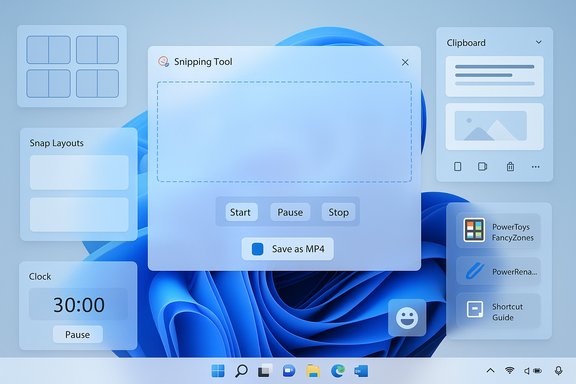
A desktop monitor on a wooden desk displays a resize dialog over a Windows wallpaper.Background and overview​

The Photos app that ships with Windows 11 has evolved beyond a passive viewer into a lightweight editing hub: basic edits, cropping, simple retouches and — importantly for this piece — a built‑in Resize workflow that supports presets and custom dimensions. This built‑in Resize command is intended for single images and small batches, while Microsoft PowerToys’ Image Resizer remains the recommended tool for bulk jobs and advanced presets. Practical documentation and mainstream how‑to guides confirm the Photos Resize flow (three‑dot menu → Resize → preset or Define custom dimensions → Save resized copy). Photos’ newer capabilities (OCR, filmstrip browsing, AI‑assisted edits) broaden its value for casual creators, but these features are rolled out incrementally and sometimes vary by app build, Windows update channel, or device hardware. Expect slight differences in UI text and availability depending on whether you’re on a stable release, Insider preview or on a device with specialized neural hardware.

Quick: How to resize an image in Photos (single image)​

Follow this concise, step‑by‑step routine to resize an image in Photos in under a minute.
  • Open the image with Photos: right‑click the file in File Explorer and choose Open with → Photos (or launch Photos and open the file).
  • Click the three‑dot menu (top right) and select Resize.
  • Choose a preset size (Small, Medium, Large) or click Define custom dimensions to enter exact width and height in pixels. Maintain aspect ratio is the default option to prevent stretching.
  • If you entered a custom size, choose Fit, Fill, or Stretch when offered (see “Fit vs Fill vs Stretch” below).
  • Click Save resized copy, pick a destination folder, and Photos writes the resized file without overwriting your original unless you choose to replace it.
This same workflow is described in multiple contemporary guides, confirming that the Photos UI uses the three‑dot menu and a Resize dialog with presets and a custom mode.

Fit vs Fill vs Stretch — pick the right mode​

  • Fit — preserves the image’s aspect ratio and scales it so the whole image fits inside the target box; this avoids cropping but may leave empty margins.
  • Fill — scales and crops as needed so the target box is completely filled; use this when the canvas must be exact (social thumbnails).
  • Stretch — forces the image to the exact width and height without preserving aspect ratio; avoid for photographs unless deliberate distortion is acceptable.

Batch resizing: Photos vs PowerToys​

Photos supports selecting multiple images and running the same Resize workflow across them (Ctrl‑click to select multiples; three dots → Resize → Save resized copies). This is adequate for small groups (a handful of images).
For larger batches or for consistent preset management (custom presets, filename templates, choose output formats and encoders), Microsoft PowerToys Image Resizer is the faster, more configurable option. PowerToys adds a File Explorer right‑click action — Resize pictures — and supports:
  • Custom presets with Fill/Fit/Stretch options
  • Dimension units in pixels, percent, inches or centimeters
  • Encoding and quality options (PNG, JPEG, TIFF) and filename templates
  • Drag‑and‑drop resizing and subdirectory output patterns
PowerToys’ Image Resizer is open‑source and documented on the PowerToys wiki; it’s explicitly built as a shell extension for bulk processing.

When to use which tool​

  • Use Photos when: you need a single quick resize, minor adjustments, or want to preserve a simple non‑destructive workflow inside the Photos UI.
  • Use PowerToys Image Resizer when: you have tens or hundreds of images, need consistent filename rules, or want advanced encoding and preset management.

How to keep image quality while resizing​

Resizing can reduce perceived quality if handled poorly. These practical rules help preserve clarity:
  • Prefer downscaling from higher‑resolution sources rather than upscaling tiny images. Upsizing magnifies compression and noise; AI upscaling can help but is not a miracle fix.
  • Keep the aspect ratio locked unless you have a design requirement for stretching. Aspect ratio preservation avoids distortion.
  • Save critical graphic elements (logos, text overlays) as PNG to keep edges sharp; photographs are typically best saved as JPEG with higher quality settings.
  • If file size matters (web uploads), balance JPEG quality (70–85) with visual inspection. PowerToys lets you adjust encoder quality during batch operations; Photos offers simpler output controls.

Resize for social media — practical dimensions and tips​

Social platforms use specific display sizes and aspect ratios. Editing with those targets removes guesswork and avoids auto‑cropping by platforms.
  • Instagram square post: 1080 × 1080 px (good default for square content).
  • Instagram feed portrait: 1080 × 1350 px.
  • YouTube thumbnail: 1280 × 720 px (minimum 640 px wide; recommended 1280×720).
  • Twitter / X shared image: 1200 × 675 px for a 16:9 layout.
To match these sizes in Photos: open Resize → Define custom dimensions → enter the target width and height; enable Maintain aspect ratio where appropriate, or use Fill/ Fit depending on cropping needs. Multiple how‑to guides confirm these common presets and workflows for preparing social images in Photos.

Preserve metadata, originals and workflows​

Photos defaults to saving a resized copy (Save resized copy) which preserves the original unless you intentionally overwrite it. That behavior is safer for production workflows. When working on collections:
  • Always use Save resized copy to retain the original’s metadata and editability.
  • If you need to strip metadata (for privacy or web), use a dedicated exporter or batch tool (PowerToys, IrfanView, or dedicated EXIF tools). PowerToys and third‑party tools allow control over metadata retention during batch conversion.

Troubleshooting: Resize option missing or UI glitches​

A few users report the Resize dialog or certain Photo features may be missing, behave inconsistently, or display buggy UI in specific themes or Insider builds. If Resize isn’t visible or the dialog looks broken:
  • Update Photos from the Microsoft Store.
  • Make sure Windows is reasonably current (some features appear first in Insider channels).
  • Restart Photos and, if needed, restart Explorer or sign out and back in.
  • If you’re on an Insider build and see experimental UI, expect occasional bugs; consider switching to a stable channel for production work.

Advanced workflows and alternatives​

For power users and professionals, Photos and PowerToys complement other tools rather than replace them.
  • Use PowerToys Image Resizer for scripted, bulk, or preset‑driven resizing tasks; it supports filename templating and encoder options.
  • Use IrfanView or ImageMagick for advanced batch conversion, format support (RAW), and scripting; IrfanView offers a compact GUI and powerful batch conversion.
  • Use Photoshop, Affinity Photo, or GIMP when you need non‑destructive layers, lossless upscaling workflows, or advanced resampling algorithms. These tools provide best‑in‑class interpolation and professional export control.

When to automate: a short recipe​

  • Install PowerToys (GitHub or Microsoft distribution).
  • Open File Explorer, select multiple images, right‑click → Resize pictures.
  • Choose or create a preset (e.g., 1200 px width Fit, output JPEG at 85% quality).
  • Resize; files are written to the same folder (or a configured output folder) with new filenames.

Privacy & AI‑powered features: what to watch for​

Photos has gained features beyond simple resizing — OCR (Scan Text), generative erase, and even on‑device Super Resolution upscaling—capabilities that may execute locally or in the cloud depending on device and app version. That hybrid execution model has important privacy implications:
  • Some AI operations run on‑device when the hardware supports it (Copilot+ devices with NPUs), while others may route work to cloud services. Microsoft’s rollout has not published per‑action locality guarantees, so assume cloud processing is possible for certain edits unless you verify otherwise.
  • Do not run highly sensitive images (medical, identity documents, confidential paperwork) through AI flows unless you can confirm on‑device processing or have reviewed organizational policies.
Because these AI features and their processing locality are evolving, treat claims about exact hardware or OS prerequisites (for example, specific Windows 11 updates or Copilot+ device requirements) as conditional unless confirmed on your device. The Photos app’s feature set and availability can change across app versions and distribution channels.

Practical tips and best practices​

  • For consistent web presentation, resize images to the target display width (e.g., 1200 px for blog hero images) and export at a sensible JPEG quality (70–85) to balance size and detail.
  • For logos and screenshots with sharp text, prefer PNG to preserve crisp edges.
  • When preparing a gallery, batch‑resize with PowerToys and keep originals in a separate “_originals” folder to avoid accidental overwrites.
  • Use Fit for responsive web images where preserving the subject is critical; use Fill for strict social thumbnails.
  • If you need pixel‑perfect dimensions for CMS templates, enter exact pixel values in Photos’ Define custom dimensions or use PowerToys for bulk consistency.

Strengths, limitations, and critical analysis​

Photos’ Resize workflow is a pragmatic win for casual users and content creators who want one‑click operations in a familiar UI. It reduces context switching and is perfectly suited for social media prep, email attachments, or quick blog updates. The strengths include:
  • Simplicity and speed — few steps from open to save.
  • Non‑destructive defaults — options to Save resized copy preserve originals.
  • Integrated small‑batch support — easy selection and resize inside Photos for quick edits.
However, there are meaningful limitations and risks:
  • Batch and preset management — Photos is not a replacement for bulk workflows; PowerToys is better for sustained batch tasks.
  • Version and device fragmentation — advanced features (OCR, Super Resolution) are rolled out unevenly; users may see different options depending on app build and hardware. This fragmentation complicates predictable, cross‑device workflows.
  • Potential cloud processing for AI features — until Microsoft provides per‑action locality guarantees, privacy‑sensitive users must assume some AI edits might be processed off‑device. Use local tools for regulated content.
  • Intermittent UI bugs — community reports show occasional dialog glitches in certain builds or themes; expect occasional instability in preview channels.
Overall, Photos is a useful everyday tool but not a direct substitute for professional editors or automation tools when scale, precise control, or regulatory compliance matter.

Quick reference: exact steps and keyboard shortcuts​

  • Right‑click image in File Explorer → Open with → Photos.
  • Three dots (top right) → Resize.
  • Choose preset or Define custom dimensions → enter values.
  • Choose Fit / Fill / Stretch if presented → Save resized copy.
PowerToys (bulk): select files in File Explorer → right‑click → Resize pictures (Image Resizer) → choose preset or custom → Resize.

Conclusion​

For most Windows users, the Photos app now provides a fast, reliable path to resize images for email, web and social media without extra installs. PowerToys fills the gap for power users who need predictable batch processing, presets, and filename control. Keep Photos and PowerToys updated, verify where AI processing runs if privacy matters, and prefer PNG for sharp graphics and JPEG for photographic images when balancing quality and file size. When you need scale, precision, or professional upscaling, pair Photos with PowerToys or a dedicated editor that gives you full control over resampling, metadata and batch behavior.

Source: Windows Report How to Resize an Image in Photos App on Windows Quickly
 

Windows 11 quietly ships a toolkit of productivity features that most users never discover — and one of the most useful recent additions is the ability to record your screen directly from the built‑in Snipping Tool, removing the need for a separate recorder for quick tutorials and walkthroughs. Beyond that single change, Windows 11 contains a raft of under‑the‑radar utilities — from Snap Layouts and virtual desktops to clipboard history, Focus Sessions, and Microsoft PowerToys — that, when combined, can materially speed up everyday work and creative tasks. This piece explains how those features work, gives step‑by‑step usage tips, and evaluates the strengths, limits, and privacy or workflow risks to be aware of before you change your setup.

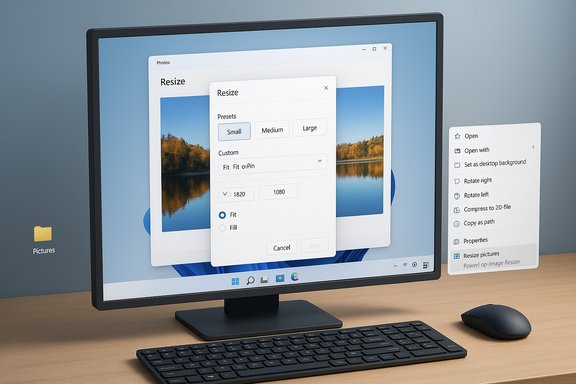
Blue desktop featuring a Snipping Tool dialog and several floating UI panels.Background​

Windows 11 has iterated steadily since its launch, moving many productivity experiments from the Insider channel into mainstream releases. Microsoft’s incremental approach pushed capabilities into small app updates (Snipping Tool, Clock/Focus, Quick Settings) and into optional utilities (PowerToys) rather than bundling everything into a single monolithic update. The result is a platform where a handful of small, often overlooked features combine to produce big workflow gains — if you know where to look.
This article focuses on the practical value of these tools and gives verified, actionable instructions so you can start using them today. Where features include limitations, regional gating, or known bugs, those are flagged and described so you can make an informed choice.

Overview: Quick list of hidden productivity wins​

  • Record your screen with Snipping Tool — native video capture without third‑party apps.
  • Snap Layouts & Snap Groups — fast, reliable window arrangements and saved groups.
  • Clipboard history and cloud sync (Win+V) — multi‑item clipboard with pinning and optional sync.
  • Focus Sessions in the Clock app — Pomodoro‑style timers, Do Not Disturb integration, and task/Spotify integration.
  • Virtual Desktops (Task View / Win+Tab) — separate workspaces for distinct projects.
  • Customize Quick Settings (Win+A) — one‑click access to the controls you use most.
  • PowerToys — advanced utilities like FancyZones, PowerRename, Text Extractor and a Shortcut Guide that elevate Windows for power users.
  • Voice typing (Win+H) — system‑wide dictation with auto‑punctuation and live transcription.
  • Emoji & symbol picker (Win+. — fast insertion of emoji, GIFs, and symbols across apps.
Each item below includes how to access it, practical tips for integration into daily workflows, and cautionary notes where appropriate.

Record your screen with Snipping Tool​

What changed​

The Snipping Tool in Windows 11 has been expanded from simple screenshots to include a basic screen recording mode. It supports region selection, start/pause/stop controls, and saves recordings as MP4. For many short tutorials, bug reports, or demo clips you no longer need a third‑party screen recorder.

How to use it (quick steps)​

  • Open the Snipping Tool from Start or press Windows and type “Snipping Tool” and press Enter.
  • Click the camera/video icon (switch to the screen recording mode).
  • Click New (or press Ctrl+N once the recording mode is active).
  • Draw a rectangle around the area you want to record (you can choose full screen).
  • Click Start after the three‑second countdown; use Pause or Stop when finished.
  • The recording opens in the Snipping Tool preview — click Save to store as MP4, or copy/paste the file as needed.

Benefits​

  • No extra app installation for short recordings.
  • Ability to record a selected region (unlike the Xbox Game Bar’s fullscreen bias).
  • MP4 output is widely compatible for email, LMS uploads, or editing.

Caveats and limitations​

  • Editing capabilities are minimal — there’s no trimming or annotation tools built into the recorder.
  • Audio capture options have varied across builds and systems; some users report missing microphone/system audio toggles until specific app updates or OS versions are installed.
  • There is not (yet) a reliable global hotkey that starts recording without opening the app first; workflow automation still requires extra scripting or third‑party utilities.
Use Snipping Tool for quick, small clips — for long recordings, multi‑track audio capture, presenter overlays, or advanced editing, continue to rely on dedicated software.

Snap Layouts and Snap Groups: arrange windows in seconds​

What it is​

Snap Layouts lets you place windows into predefined arrangements (two‑column, three‑column, grid, etc. by hovering over a window’s maximize button or pressing Win+Z. Once assembled, a collection of snapped windows becomes a Snap Group, which Windows remembers for quick recovery.

How to use​

  • Hover over the maximize button or press Win+Z to pick a layout.
  • After snapping a window, Snap Assist shows thumbnails of open apps to fill remaining slots.
  • To return to the same arrangement later, hover a pinned app on the taskbar to reveal the Snap Group.

Practical tips​

  • Use Snap Layouts when preparing for meetings (slides + notes + chat) or for focused research (doc + browser + PDF reader).
  • Combine with virtual desktops: keep a set of Snap Groups on a dedicated desktop for specific projects.

Known issues​

  • Some apps that control their own window sizing may not participate in layouts.
  • On multi‑monitor setups or with dynamic wallpapers, switching desktops or layouts might briefly slow visual updates; use simple wallpapers if you depend on instantaneous switching.

Clipboard history and cloud clipboard (Win+V)​

What it does​

Press Win+V to open the clipboard history — Windows stores recent copied text, images, and screenshots. You can pin items to keep them across restarts. Optional cloud sync lets you access clipboard items across devices signed into the same Microsoft account.

How to enable and use​

  • Open Settings > System > Clipboard.
  • Toggle Clipboard history on and optionally enable Sync across devices.
  • Press Win+V to paste an entry from history or pin frequently used snippets.

Workflow value​

  • Save repeated typing by pinning frequently used phrases, code snippets, or template text.
  • Use clipboard cloud sync to transfer copy/paste items to another PC instantly (note: cross‑device clipboard functionality has evolved and may require the latest OS build and the same account on both devices).

Privacy and security considerations​

  • Cloud syncing means clipboard contents are uploaded to Microsoft services — sensitive information should not be pinned or synced. Treat the clipboard like a shared short‑term buffer and avoid copying passwords, secrets, or confidential data unless you disable sync or use local-only history.
  • Regularly clear clipboard history if multiple people use your machine.

Focus Sessions in the Clock app​

What it is​

Focus Sessions bundles a Pomodoro‑style timer, Do Not Disturb rules, integration with Microsoft To Do tasks, and optional Spotify playlist playback into a single experience designed to reduce interruptions.

How to start​

  • Open the Clock app → Focus Sessions, set a duration, select a task, link Spotify (optional), and click Start.
  • You can also begin a Focus session from the Notification Center.

Strengths​

  • Native Do Not Disturb behavior is applied system‑wide so notifications are suppressed while you work.
  • Task integration means you can attach the timer to a single TODO and track progress.

Risks and real‑world quirks​

  • Spotify integration can be flaky in some builds or regions; expect occasional linking issues.
  • Focus Sessions changes system notification behavior globally; if you monitor urgent alerts (on‑call duties, critical monitoring tools), configure exceptions so you don’t miss high‑priority messages.

Virtual Desktops: keep work isolated and tidy​

Core usage​

  • Press Win+Tab or click the Task View icon to create and manage desktops.
  • Create a new desktop with the New desktop button or press Win+Ctrl+D.
  • Switch quickly using Win+Ctrl+Left/Right Arrow.

Practical setups​

  • Desktop 1: email and communication.
  • Desktop 2: focused development or editing environment.
  • Desktop 3: meetings and browser research.

Tips​

  • Assign different wallpapers per virtual desktop to make switching easier on the eyes.
  • Drag windows between desktops from Task View for quick reorganization.

Performance note​

Large numbers of open desktops with resource‑heavy apps can add overhead; close unused apps or desktops to keep things snappy.

Quick Settings: edit the controls that matter (Win+A)​

What you can do​

The Quick Settings panel groups common toggles (Wi‑Fi, Bluetooth, Battery Saver, Focus, Night Light). Click the pencil Edit icon to add, remove, or reorder quick actions.

Why it helps​

  • Customize the panel to surface the 8–12 controls you touch every day and avoid digging into Settings.
  • Adding Accessibility, Nearby Sharing, or Mobile Hotspot makes switching contexts faster.

Pro tips​

  • Use Quick Settings for single‑click toggles during presentations (turn off notifications, enable battery saver, toggle camera/mic).
  • Group control changes into a single workflow: edit once, use forever.

PowerToys: power features for power users​

Overview​

Microsoft PowerToys is a free, open‑source utility suite that fills gaps for power users. Notable modules:
  • FancyZones — advanced window zoning/layouts.
  • PowerRename — batch rename files with regex support.
  • PowerToys Run — fast launcher (Alt+Space).
  • Text Extractor — copy text from images/screens.
  • Shortcut Guide — hold the Windows key for an overlay of available shortcuts.

Why install it​

PowerToys fills the space between basic OS functionality and heavy third‑party tools. FancyZones is especially helpful for custom multi‑window workflows and can complement Snap Layouts with fine‑grained control.

Considerations​

  • PowerToys is actively developed and changes frequently; keep the app updated and test new utilities in a controlled environment before applying across managed devices.
  • Some PowerToys features require elevated permissions or background services; review corporate policies if installing in an enterprise environment.

Voice typing: Win+H — dictation across apps​

What to expect​

Press Win+H to open the voice typing panel. Windows uses cloud speech models for higher accuracy and supports auto‑punctuation and voice commands for editing.

Use cases​

  • Rapid note capture during meetings.
  • Drafting emails or long documents when you need to give your hands a break.
  • Accessibility support for users who cannot type.

Limitations and troubleshooting​

  • Internet connection improves accuracy (cloud models do the heavy lifting).
  • Microphone selection and OS privacy settings can block access; check Settings → Privacy & Security → Microphone if voice typing fails.
  • Punctuation recognition can vary by language and build; toggle auto‑punctuation if it misbehaves.

Emoji, GIFs and symbols: Win+. for quick expression​

How it helps​

Press Win+. (period) to open the emoji and GIF picker — insert emoji, kaomoji, symbols, or GIFs into any text field. This small shortcut speeds chat communication and document annotation.

Caveats​

  • Occasionally regional bugs or update regressions affect search or new emoji availability; if emoji search misbehaves after a cumulative update, confirm updates or search for hotfixes.
  • If enterprise policies hide UI components, admin settings could remove the picker.

Combine features: sample workflow recipes​

Recipe 1 — Create a 2‑minute help clip and share it​

  • Snap layout your app and notes with Snap Layouts.
  • Open Snipping Tool, switch to screen recording, and record the specific region.
  • Stop and save the MP4.
  • Use PowerRename to standardize file names if recording many clips.
  • Paste the clip into a Teams chat or upload to your knowledge base.

Recipe 2 — Deep focus writing session​

  • Create a focused virtual desktop for writing.
  • Start a Focus Session (Clock app) for a 25‑minute block and link a To‑Do item.
  • Start Voice typing (Win+H) if drafting orally; otherwise use the keyboard.
  • Pin commonly used citations in Clipboard history (Win+V).
  • At session end, use Quick Settings to re‑enable notifications.

Recipe 3 — Rapid code review triage​

  • FancyZones to set a three‑column layout: code, console, PR checklist.
  • Use PowerToys Run (Alt+Space) to open files and run quick searches.
  • Use PowerRename to batch fixed filenames if multiple artifacts require renaming.
  • Clip snippets to Clipboard history and paste into review comments.

Critical analysis: strengths, risks, and real‑world tradeoffs​

Strengths​

  • Low friction: Most features are built into Windows 11 or available as lightweight, supported extras (PowerToys).
  • Composability: These tools are designed to work together — Snap Layouts plus virtual desktops plus clipboard history produce a surprisingly polished multitasking experience.
  • Cost and accessibility: Built into the OS or free, making them instantly accessible without extra licensing.

Risks and limitations​

  • Fragmented feature availability: Some functionality (Snipping Tool audio options, clipboard cross‑device sync, Spotify focus integration) depends on specific OS builds, app versions, and regional rollouts. Expect inconsistencies across machines until all updates propagate.
  • Privacy considerations: Clipboard cloud sync uploads copied data; users must treat the clipboard as an insecure temporary buffer for sensitive data unless sync is disabled.
  • Enterprise compatibility: PowerToys and some Quick Settings changes may be constrained by corporate policy or Group Policy; administrators should vet tools before broad deployment.
  • Feature depth vs. third‑party apps: Built‑in features favor quick tasks and simplicity. For advanced audio mixing, detailed editing, or professional screen capture, dedicated apps still offer far more control.

Troubleshooting patterns​

  • If Snipping Tool recording lacks audio or options, check the app version via the Microsoft Store and update; reset or repair the app via Settings if settings are missing.
  • When Snap Layouts or Quick Settings don’t appear, verify Multitasking and Quick Settings toggles in Settings > System or Taskbar settings, and remove any third‑party window management tools that may conflict.
  • Voice typing or Focus Sessions issues often resolve after verifying microphone permissions, Microsoft account sign‑in status, and performing a Windows Update.

Practical rollout advice for individuals and IT teams​

  • Individuals: Start small. Enable clipboard history and pin three to five frequently used snippets. Try Snipping Tool recording for a week and use it for short “how to” clips to see if it reduces your reliance on heavier tools.
  • Teams and IT admins: Test PowerToys and clipboard sync on a small pilot group. Draft guidance for clipboard best practices and update security policies to include warnings about syncing sensitive data.
  • Documentation creators and educators: Use the Snipping Tool recorder for fast lesson captures, paired with FancyZones to make consistent layout screenshots.

Conclusion​

Windows 11’s quieter updates — a screen recorder tucked into Snipping Tool, clipboard history with cloud sync, Focus Sessions, editable Quick Settings, and the growing PowerToys suite — together modernize the OS into a more productive workspace without the need to adopt many new third‑party utilities. While each feature has tradeoffs (limited editing for Snipping Tool, sync and privacy concerns for clipboard sharing, occasional integration bugs), the payoff for most users is immediate: less switching, fewer plugins, and faster execution for routine tasks.
Adopt these tools deliberately: start with one or two (for example, Snap Layouts + clipboard history) and observe the gains. Treat cloud‑based clipboard syncing cautiously for anything confidential, and keep PowerToys on your radar if you need deeper control over window behavior or bulk file operations. With a little setup and a few new habits, those hidden Windows 11 tricks will likely transform the way you work day‑to‑day.

Source: Analytics Insight Hidden Windows 11 Tricks That Will Transform Your Workflow
 

Back
Top