

Microsoft’s latest Windows 11 preview drops a handful of small, practical features — most notably a one‑click, taskbar‑launched internet speed test — while a separate February cumulative update, KB5077181, both fixes a high‑profile NVIDIA black‑screen problem and stirs fresh debate about update reliability across diverse hardware.
Windows 11 is no longer just a yearly feature drop; Microsoft now ships steady, incremental improvements through preview servicing and cumulative updates that mix convenience changes, security patches, and enterprise tooling. The newest Release Preview servicing wave exposes features that were long requested by users — a taskbar speed test, basic pan/tilt controls for webcams, WebP wallpaper support, and in‑box Sysmon for enterprise telemetry — and folds those into the 24H2 and 25H2 build families (builds in the 26100 and 26200 series).
At the same time, the February cumulative security rollup that many systems are receiving — identified as KB5077181 in Windows Update history — bundles a number of fixes and feature flags, including an explicit fix for black‑screen and stability issues introduced by the January rollup (KB5074109). But KB5077181 has not been universally smooth: some users report installation errors and regressions, which keeps the conversation about Windows update quality and testing squarely in focus.
This article breaks down the user‑facing updates, what enterprise administrators should note, how the fixes affect gamers and GPU owners, and why Microsoft’s approach to shipping small conveniences while firefighting quality problems matters to everyday Windows users.
These are convenience investments aimed at users working across personal or work phones and PCs. They rely on companion services and manufacturer integrations; behavior will vary by phone model, browser, and app.
From an operational perspective, the problems are existential for admins:
However, the timing and optics matter. Shipping convenience features while cumulative security updates introduce regressions undermines trust. The February cumulative, KB5077181, demonstrates both sides of Microsoft’s update model: it delivers necessary security and bug fixes — including for the January‑introduced NVIDIA black‑screen problems — but it also surfaced new installation failures and device‑specific regressions for some users.
For Microsoft, the path forward is clear in principle:
If you manage Windows devices, adopt a cautious patching strategy and validate updates before broad deployment. If you’re a casual user, enjoy the small conveniences, but keep backups and know where to find recovery options if an update misbehaves. Ultimately, Microsoft’s job is to keep shipping progress without compromising reliability; getting that balance right will determine whether these small conveniences are remembered as thoughtful refinements or as footnotes in the larger story of update angst.
Source: TechSpot Windows 11 keeps adding small conveniences, including speed tests
 Background
Windows 11 is no longer just a yearly feature drop; Microsoft now ships steady, incremental improvements through preview servicing and cumulative updates that mix convenience changes, security patches, and enterprise tooling. The newest Release Preview servicing wave exposes features that were long requested by users — a taskbar speed test, basic pan/tilt controls for webcams, WebP wallpaper support, and in‑box Sysmon for enterprise telemetry — and folds those into the 24H2 and 25H2 build families (builds in the 26100 and 26200 series).At the same time, the February cumulative security rollup that many systems are receiving — identified as KB5077181 in Windows Update history — bundles a number of fixes and feature flags, including an explicit fix for black‑screen and stability issues introduced by the January rollup (KB5074109). But KB5077181 has not been universally smooth: some users report installation errors and regressions, which keeps the conversation about Windows update quality and testing squarely in focus.
This article breaks down the user‑facing updates, what enterprise administrators should note, how the fixes affect gamers and GPU owners, and why Microsoft’s approach to shipping small conveniences while firefighting quality problems matters to everyday Windows users.
What’s new for everyday users
Built‑in network speed test: convenience over measurement rigor
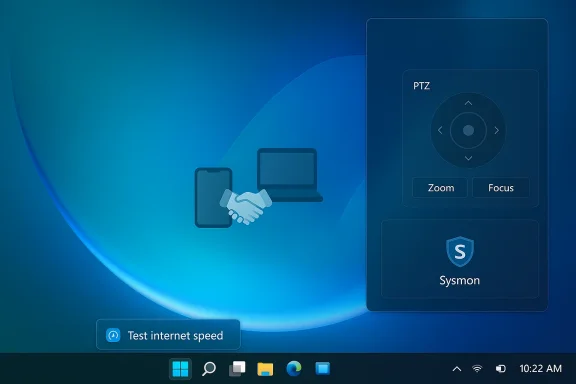
One of the most visible changes is a built‑in internet speed test surfaced directly from the system tray. You can launch it by right‑clicking the network icon in the taskbar or by opening Wi‑Fi/Cellular quick settings and selecting the Test internet speed action. The launcher opens your default browser and runs a browser‑based speed test that reports download, upload, and latency for Ethernet, Wi‑Fi, and cellular connections.- The feature is intentionally lightweight: it’s a launcher to a browser‑hosted test rather than an embedded kernel‑level network diagnostic.
- For quick triage — checking whether your home mesh is performing as expected, or confirming that a tethered phone’s cellular link has the advertised throughput — it removes friction.
- For formal validation (SLA checks, ISP dispute evidence, reproducible lab benchmarking) you should still use vendor‑approved tools or controlled test endpoints.
Smaller but practical personalization and peripheral tweaks
Several interface and peripheral updates landed alongside the speed test:- Set WebP images as desktop backgrounds. WebP is now a first‑class wallpaper format in Settings > Personalization > Background, and you can right‑click a .webp file in File Explorer and set it as background without conversion. This eliminates an awkward step for users who download high‑quality artwork from the web.
- Basic pan/tilt (PTZ) camera controls. For cameras that expose pan/tilt capabilities, a basic control surface appears under Settings > Bluetooth & devices > Cameras. Users with meeting room webcams or higher‑end USB cameras can now reposition the view without vendor utilities.
- Emoji updates. Windows 11 picks up additional emoji glyphs in this build, aligning the OS with recent emoji sets and making communication in short messages and social apps more expressive.
- Taskbar behavior tweak. If your taskbar is set to uncombined (classic multi‑window buttons), Windows no longer moves all windows from a single app into overflow as a block. Only the windows that actually lack space will go to overflow. This reduces the odd UX where the overflow area looked crowded despite apparent free space on the taskbar.
Enterprise and admin improvements
Windows Backup for Organizations expands first‑sign‑in restore
Microsoft is widening the scope of Windows Backup for Organizations so that more device types can use first‑sign‑in restore flows. Previously, this capability was more narrowly targeted at consumer or specific managed devices. The expansion includes:- Microsoft Entra hybrid joined devices
- Cloud PCs (Windows 365)
- Multi‑user environments
Quick Machine Recovery (QMR) behavior changes
A subtle but important change: Quick Machine Recovery (QMR) — previously more of a consumer feature — now turns on automatically for Windows Pro devices that are not domain‑joined and are not enrolled in enterprise endpoint management. That aligns Windows Pro behavior more closely with Windows Home and improves recovery options for smaller organizations and solo professionals who don’t use domain or device management.Sysmon becomes an optional, in‑box feature
Security teams now get an easier path for Sysmon deployment. Sysmon (the system monitoring tool from Microsoft’s Sysinternals suite) is included as a disabled, optional feature that admins can enable via Settings > System > Optional features > More Windows features, or via DISM. This lowers the friction for enterprises that want robust event‑level telemetry without distributing a third‑party installer. Note that the in‑box Sysmon is disabled by default and must be intentionally enabled; if you previously installed Sysmon from the Sysinternals site, it should be uninstalled before toggling the in‑box feature.Smart App Control, Smart UX bits, and cross‑device continuity
Smart App Control becomes accessible without reinstallation
Historically, Smart App Control (SAC) — the protective feature that blocks unsigned or suspicious binaries — was limited: enabling it on new installations was easy, but switching it on after an upgrade typically required a clean install. The recent servicing wave surfaces the SAC toggle under Windows Security > App & Browser Control > Smart App Control, enabling existing installations to opt into SAC without reinstalling Windows.- That’s a significant security usability win: organizations and individuals can trial SAC on live systems.
- As always, test SAC in audit mode first to ensure legitimate signed‑but‑unusual enterprise apps aren’t blocked.
Cross‑device resume and phone integration
Microsoft continues to expand cross‑device resume experiences. Notifications that let you resume Spotify, Microsoft Office files (Word, Excel, PowerPoint), and supported browser sessions can appear in the Windows taskbar when moving between supported Android phones and Windows PCs. The feature emphasizes a smoother handoff for media and document sessions across devices from phone partners such as Samsung, Vivo, Xiaomi, Oppo, and Honor.These are convenience investments aimed at users working across personal or work phones and PCs. They rely on companion services and manufacturer integrations; behavior will vary by phone model, browser, and app.
The February cumulative (KB5077181): fixes, features, and friction
KB5077181 is the February cumulative rollup that many Windows 11 users will see applied automatically. It does three kinds of work: deliver quality/security fixes, surface new UX bits for Insiders and consumers, and remediate earlier regressions — most notably those caused by the January cumulative KB5074109.What KB5077181 adds
Notable items within the cumulative include:- NVIDIA black‑screen and gaming regression fixes. A sequence of graphics stability problems that emerged after the January update — black screens, freezes, and driver instability in some multi‑monitor/NVIDIA configurations — are addressed. The update targets kernel‑ and driver‑level conditions that caused system instability.
- MIDI improvements. Enhanced MIDI compatibility and the beginnings of more modern Windows MIDI services were added, benefiting music production workflows and hardware interfacing.
- Smart App Control toggle for existing installations. As discussed above, SAC becomes accessible without requiring a reinstall.
- UI tweaks. The Start menu sees some reorganization, a color‑coded battery icon is introduced, and the Settings home page gains a hardware overview card listing basic device specs.
Repair vs. risk: installation errors and regressions
KB5077181 is not universally trouble‑free. Administrators and power users have reported:- Installation failures with error codes such as 0x800F0991, 0x800F0983, and 0x800F0922. Some machines fail to complete the update and roll back.
- Post‑install issues in a subset of systems: Wi‑Fi/DHCP anomalies, Bluetooth devices disappearing or malfunctioning, audio glitches, sleep/resume oddities, and — in rare cases — boot loops.
- Ongoing graphics problems for some hardware combinations even after the supposed fix, driven by driver/firmware interplay.
Why the speed‑test and small features matter — and why the update headaches matter more
The case for small wins
Microsoft’s strategy of shipping small, visible conveniences has clear advantages:- Reduced cognitive overhead. Fixing an everyday annoyance — set a WebP wallpaper, reposition a webcam — increases satisfaction and reduces helpdesk tickets.
- Lower friction for common tasks. A taskbar speed test saves time for users who check connectivity frequently: setup techs, remote support, and gigabit home network hobbyists all benefit.
- Incremental modernization. Including Sysmon in‑box and enabling SAC for existing installs tighten security posture across more devices.
But cumulative update quality is existential
The counterweight to those small wins is the fundamental requirement that security and quality updates must not break systems. When a security rollup introduces black screens, boot failures, or pervasive driver instability, the immediate user impact dwarfs the convenience of a new wallpaper format.From an operational perspective, the problems are existential for admins:
- A break in a security update forces troubleshooting and rollback.
- If a fix requires uninstalling a prior update or performing recovery in WinRE, it increases support cost and user downtime.
- Confidence in the update pipeline erodes — organizations may delay patching, which leaves known vulnerabilities open.
Practical guidance: what users and admins should do now
For home power users
- If you’re curious, try the taskbar speed‑test launcher. Use it for quick checks, but don’t rely on it for formal ISP benchmarking.
- If you use SAC and plan to enable it on an existing system, put it into audit mode first and verify that your essential apps run unimpeded.
- If you recently installed KB5074109 (the January rollup) and experienced black screens, check Windows Update for KB5077181 and install it — it contains targeted fixes for some GPU‑related regressions. If you encounter issues after KB5077181, be prepared to uninstall via the update history or use WinRE.
- Keep current graphics drivers from OEM/NVIDIA/AMD/Intel handy; sometimes driver updates in tandem with cumulative updates resolve oddities faster than waiting for a new rollup.
For IT administrators and enterprise teams
- Test updates in a staging ring. Continue to validate cumulative updates on representative hardware before broad deployment.
- Use phased deployment. Let the controlled rollout reach pilot groups before mass distribution; monitor telemetry and user reports.
- Plan rollback and recovery. Document WinRE uninstall steps, have offline install media available, and consider using recovery features like Quick Machine Recovery where supported.
- Leverage Sysmon responsibly. The new in‑box Sysmon lowers deployment friction, but ensure you have log collection and retention defined before rolling it out widely.
- Review Smart App Control in audit mode. SAC changes can benefit security posture but must be evaluated for enterprise application compatibility.
Technical caveats and verifiability notes
- The taskbar test is a browser‑launched speed test. Microsoft’s release notes describe it as a quick launcher; independent coverage shows it invokes a Bing‑hosted speed utility. The exact backend (for example, whether it uses a third‑party measurement engine under the hood) can vary and isn’t explicitly enumerated in the release note. For reproducible measurements, prefer controlled test tools.
- Microsoft’s KB entries intentionally use high‑level wording for fixes. When outlets report that KB5077181 resolves NVIDIA black‑screen issues, those confirmations typically come from a combination of Microsoft notes, vendor advisories, and third‑party testing. While Microsoft’s statements describe the fix as addressing isolated multi‑user or upgrade‑related display black screens, validation on particular hardware configurations should be done on a case‑by‑case basis.
- Reports of installation errors and post‑install regressions with KB5077181 are real and documented by multiple user forums and technical outlets. The prevalence is a minority relative to the Windows install base, but the impact is concentrated: when it affects productivity or boot reliability, the consequence is severe even if statistically uncommon.
Final analysis: incremental polish or distraction from quality?
Microsoft’s cadence of adding incremental convenience features — a taskbar speed test, PTZ camera controls, WebP wallpaper support — is sensible. These changes are low friction, reduce third‑party dependencies for small tasks, and modernize the OS in subtle ways that users will notice and appreciate.However, the timing and optics matter. Shipping convenience features while cumulative security updates introduce regressions undermines trust. The February cumulative, KB5077181, demonstrates both sides of Microsoft’s update model: it delivers necessary security and bug fixes — including for the January‑introduced NVIDIA black‑screen problems — but it also surfaced new installation failures and device‑specific regressions for some users.
For Microsoft, the path forward is clear in principle:
- Invest in wider hardware validation across the more heterogeneous Windows ecosystem.
- Improve telemetry and canary channels so that high‑risk regressions are caught in staging before reaching broader release.
- Continue to deliver small, useful UX improvements, but not at the expense of update stability.
Conclusion
The latest Windows 11 preview and cumulative updates exemplify the duality of modern platform maintenance: convenience features that make daily computing a little smoother, counterbalanced by the persistent challenge of delivering reliable system updates across an enormous matrix of hardware and software. The built‑in network speed test, camera improvements, Sysmon inclusion, WebP wallpapers, and Smart App Control accessibility are welcome additions that remove friction and raise the platform’s baseline capabilities. But the debate around KB5077181 — a bundle that both fixes serious issues and introduces fresh installation and stability headaches for some — is a reminder that update quality remains the core currency of any operating system.If you manage Windows devices, adopt a cautious patching strategy and validate updates before broad deployment. If you’re a casual user, enjoy the small conveniences, but keep backups and know where to find recovery options if an update misbehaves. Ultimately, Microsoft’s job is to keep shipping progress without compromising reliability; getting that balance right will determine whether these small conveniences are remembered as thoughtful refinements or as footnotes in the larger story of update angst.
Source: TechSpot Windows 11 keeps adding small conveniences, including speed tests
