

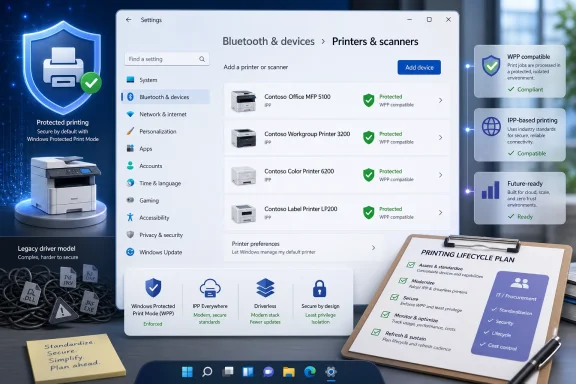
Microsoft’s latest Windows 11 non-security update adds a new printer compatibility badge in Settings that shows, with a shield and green check mark, whether a connected printer supports Windows Protected Print Mode and modern IPP-based printing. It is a small icon attached to a much larger bet: that Windows printing can finally be dragged away from the driver jungle that has defined it for decades. The change does not mean old printers suddenly stop working, but it does make Microsoft’s preferred future much harder to miss. For IT departments, the badge is less a convenience feature than a warning light for the next procurement cycle.
The new indicator appears in Windows 11’s Printers & scanners area, where most users only go when something has already gone wrong. That placement is telling. Microsoft is not launching a new print architecture with a splashy app, a branding campaign, or a consumer-friendly wizard; it is quietly annotating the place where admins and power users already inspect devices.
The shield-and-check badge identifies printers that support Windows Protected Print Mode, or WPP, along with modern Internet Printing Protocol capabilities. In plain terms, it marks printers that can work with Microsoft’s modern print stack rather than depending on traditional third-party printer drivers. That sounds mundane until you remember how often “printer driver” has been shorthand for corporate misery.
The badge also does something Microsoft badly needed after months of confusion around printer-driver policy. It converts an abstract compatibility matrix into a visual cue. Instead of asking users to understand Mopria certification, IPP class drivers, V3 and V4 driver models, Windows Update distribution rules, and enterprise print policy, Windows can now say: this printer is part of the modern world, and that one may not be.
That is a classic Microsoft move in the Satya Nadella era: absorb complexity into the platform, expose a simplified signal, and then use that signal to steer behavior. The company is not merely documenting a transition. It is redesigning Windows so the transition becomes the path of least resistance.
The modern Windows print strategy is shaped by that history. PrintNightmare did not create Microsoft’s distrust of the old print stack, but it made the stakes visible to everyone outside the print-management niche. The old model gave too many moving parts too much privilege, and it did so in environments where printers were often treated as furniture rather than networked computers with attack surfaces.
Windows Protected Print Mode is Microsoft’s answer to that architectural problem. When enabled, WPP uses the Windows modern print stack and removes reliance on third-party printer drivers. It is designed around Mopria-certified printers and Microsoft’s IPP class driver, which means a compatible device should be able to print without the traditional vendor-specific driver package.
The security appeal is obvious. Fewer third-party drivers mean fewer kernel-adjacent components, fewer stale packages, fewer vendor utilities of uncertain quality, and fewer ways for a print path to become an endpoint compromise path. Microsoft is not saying every old driver is dangerous. It is saying the model is too expensive to trust indefinitely.
But the deeper story is security standardization. A driverless model gives Microsoft more control over the boundary between Windows and peripheral hardware. It also makes printing more predictable across devices, which matters in a world where Windows PCs increasingly include Arm laptops, cloud-managed endpoints, and locked-down corporate builds.
This is why the new compatibility icon matters. It is not merely telling a home user that their printer is “good.” It is telling an administrator that this printer belongs to the class of hardware Microsoft wants Windows estates to standardize around. In 2026, that kind of signal has purchasing consequences.
The irony is that printing’s old complexity often existed because customers demanded it. Specialty trays, finishing units, accounting codes, secure release workflows, label media, scanning integrations, and vendor-specific color controls all pushed printer makers toward custom software. Microsoft’s modern stack can simplify the base case, but the enterprise edge cases are where migrations get messy.
Microsoft later clarified that existing Windows 11-compatible printers are not being deliberately killed. If a printer works today with an existing driver, the company’s message has been that it should continue to work. The important distinction is distribution and servicing, not an immediate execution order for every legacy printer in the field.
That distinction matters. Microsoft is no longer welcoming new legacy print drivers into Windows Update the way it once did, and future updates are being narrowed, especially as the company moves toward security-only exceptions. But admins can still encounter manufacturer packages, existing drivers, and special cases where a printer cannot be Mopria-certified or targets older Windows environments.
The problem is that nuance does not travel well. A small-business owner hears “Microsoft is ending printer drivers” and imagines a perfectly functional laser printer becoming e-waste. A sysadmin hears it and imagines a help desk queue full of accounting users who cannot print checks. Microsoft’s new badge is partly a technical feature, but it is also a communications repair job.
The basic premise is attractive: a certified printer should communicate through standardized protocols rather than demanding a bespoke Windows driver. That is especially important as Windows moves across more hardware architectures. A driver model that assumes every printer maker will maintain polished packages for every Windows variant is not sustainable.
The upside is real for ordinary printing. A modern network printer that speaks the right protocols can be added with less ceremony, work across different Windows machines, and avoid the worst rituals of vendor installer software. In a household or small office, that may feel like the way printing should always have worked.
The tradeoff is that standards rarely cover every vendor feature perfectly. Businesses do not buy printers only to output a single-page PDF. They buy fleets with finishing options, badge release systems, scanning workflows, departmental accounting, and compliance requirements. If those features depend on vendor software or legacy drivers, WPP may feel less like modernization and more like a partial downgrade.
That shift changes how printer fleets are evaluated. A printer that functions today but lacks WPP compatibility may still be acceptable for a legacy corner of the business. But it becomes harder to justify as a new purchase, harder to standardize on, and harder to defend in a security review. The badge gives procurement teams a simple proxy for future readiness.
Admins also have to think about policy. WPP can remove non-compatible printers when enabled, and if it is enforced through Group Policy or device management, users may not be able to disable it themselves. That is exactly the sort of control security teams like and support desks fear unless the fleet has been tested first.
The practical migration path is therefore not “turn on WPP everywhere tomorrow.” It is discovery, segmentation, pilot testing, application validation, and then policy. Printing may be boring, but it touches invoices, shipping labels, prescriptions, classroom materials, legal filings, and manufacturing workflows. The boring systems are often the ones that punish rushed modernization.
This is a nudge, not a guillotine. Microsoft is not making Windows 11 refuse every legacy printer the moment the icon appears. It is instead making modern compatibility visible and gradually making legacy paths less attractive. That approach gives enterprises time while still making the direction unmistakable.
It also protects Microsoft from the worst version of the backlash. If printers fail after an aggressive cutoff, Microsoft owns the outage in the public mind. If Windows increasingly marks which printers are modern, documents the transition, and limits new legacy driver distribution over time, Microsoft can argue that customers and vendors had a long runway.
That does not mean the transition will be painless. It means the pain will be unevenly distributed. A home user with a recent HP, Canon, Brother, Epson, or Lexmark device may never notice much beyond a friendlier setup experience. A business with specialized label printers, aging copiers, or vendor workflows built on old drivers may notice a great deal.
A badge in Settings can do what a support article cannot. It appears at the moment of inspection. It reduces ambiguity. It also creates a subtle hierarchy: printers with the badge look approved, modern, and safe; printers without it look suspect, even if they still function perfectly.
That matters because Windows is a mass-market operating system used inside managed enterprises. Microsoft cannot rely only on Intune dashboards and Learn pages to change behavior. It has to reach the technician standing at a user’s desk, the office manager buying a replacement printer, and the enthusiast troubleshooting a family member’s PC.
The company has done this before. Windows 11’s hardware requirements turned security posture into an eligibility test. Smart App Control and driver blocklists turned trust decisions into visible platform behavior. The WPP badge applies the same philosophy to one of the most neglected parts of the PC estate.
That can still be an improvement. A standardized modern stack is easier to secure than a sprawl of vendor drivers. But users will judge it by outcomes, not architecture diagrams. If a printer loses duplex settings, accounting codes, stapling options, scan-to-desktop behavior, or color controls under the modern stack, the user will not thank Microsoft for reducing attack surface.
This is where printer manufacturers have to do their part. Microsoft can define the platform direction, but vendors must ensure their devices expose enough functionality through modern protocols and support apps. If they treat Mopria compatibility as a checkbox while reserving important capabilities for legacy packages, customers will be trapped between security guidance and operational reality.
The same pressure applies to Microsoft. The modern print stack cannot be merely “good enough for simple documents” if the company wants enterprises to embrace WPP. It has to mature into a dependable replacement for the workflows that made old drivers sticky in the first place.
Microsoft’s security strategy since then has been increasingly architectural. Rather than patching individual flaws forever, the company has been trying to reduce classes of risk by changing defaults, removing legacy paths, and privileging standards-based components. WPP belongs in the same conceptual family as virtualization-based security, stricter driver controls, and hardware-rooted trust.
The challenge is that printing is unusually physical. You can modernize identity with a policy and modernize browsers with an update channel. Printers sit in offices for years, often long after their firmware update cadence has slowed or their vendor support has become ambiguous. A fleet refresh is capital expenditure, logistics, toner contracts, user training, and sometimes lease negotiation.
That is why the shield icon is more important than it looks. It gives organizations a way to start classifying the physical fleet against Microsoft’s software direction. Security architecture has arrived in the printer aisle.
That does not mean every old printer should be ripped out. Replacement for its own sake is wasteful, expensive, and often unnecessary. But it does mean old printers should be mapped, risk-rated, and planned around before a Windows policy change or driver-servicing cutoff turns them into an emergency.
The right approach is boring, which is usually the right approach in IT. Inventory the fleet. Identify which devices show the WPP compatibility badge. Test critical workflows under WPP. Confirm whether scanning, finishing, accounting, secure print, and application-specific output still behave properly. Then decide which printers are safe to keep, which need vendor updates, and which should be retired on a schedule rather than during an outage.
The new icon makes that conversation easier. It gives admins a visible fact they can bring to management: this printer is ready for Microsoft’s modern stack; that one is not. In budget meetings, a green check mark can be more persuasive than a paragraph from a support page.
Source: Neowin Microsoft is making it easier to identify more modern, secure printers in Windows 11
 Microsoft Turns Printer Security Into a Settings Icon
The new indicator appears in Windows 11’s Printers & scanners area, where most users only go when something has already gone wrong. That placement is telling. Microsoft is not launching a new print architecture with a splashy app, a branding campaign, or a consumer-friendly wizard; it is quietly annotating the place where admins and power users already inspect devices.The shield-and-check badge identifies printers that support Windows Protected Print Mode, or WPP, along with modern Internet Printing Protocol capabilities. In plain terms, it marks printers that can work with Microsoft’s modern print stack rather than depending on traditional third-party printer drivers. That sounds mundane until you remember how often “printer driver” has been shorthand for corporate misery.
The badge also does something Microsoft badly needed after months of confusion around printer-driver policy. It converts an abstract compatibility matrix into a visual cue. Instead of asking users to understand Mopria certification, IPP class drivers, V3 and V4 driver models, Windows Update distribution rules, and enterprise print policy, Windows can now say: this printer is part of the modern world, and that one may not be.
That is a classic Microsoft move in the Satya Nadella era: absorb complexity into the platform, expose a simplified signal, and then use that signal to steer behavior. The company is not merely documenting a transition. It is redesigning Windows so the transition becomes the path of least resistance.
The Printer Driver Was Always the Weakest Link
Printing has never had the glamour of browsers, kernels, identity systems, or endpoint security platforms, but it has carried many of the same risks with less scrutiny. Printer drivers sit at an awkward intersection of hardware compatibility, user convenience, legacy code, and elevated system access. That is exactly the sort of place where old assumptions become security liabilities.The modern Windows print strategy is shaped by that history. PrintNightmare did not create Microsoft’s distrust of the old print stack, but it made the stakes visible to everyone outside the print-management niche. The old model gave too many moving parts too much privilege, and it did so in environments where printers were often treated as furniture rather than networked computers with attack surfaces.
Windows Protected Print Mode is Microsoft’s answer to that architectural problem. When enabled, WPP uses the Windows modern print stack and removes reliance on third-party printer drivers. It is designed around Mopria-certified printers and Microsoft’s IPP class driver, which means a compatible device should be able to print without the traditional vendor-specific driver package.
The security appeal is obvious. Fewer third-party drivers mean fewer kernel-adjacent components, fewer stale packages, fewer vendor utilities of uncertain quality, and fewer ways for a print path to become an endpoint compromise path. Microsoft is not saying every old driver is dangerous. It is saying the model is too expensive to trust indefinitely.
WPP Is a Security Feature Wearing a Convenience Costume
Microsoft’s consumer-facing pitch for WPP leans on simplicity: no driver hunting, more consistent printing across processor architectures, and less administrative burden. That is all true enough. Anyone who has tried to support a mixed fleet of x86, Arm, Windows 10, Windows 11, and multifunction printers can see the attraction of a more universal model.But the deeper story is security standardization. A driverless model gives Microsoft more control over the boundary between Windows and peripheral hardware. It also makes printing more predictable across devices, which matters in a world where Windows PCs increasingly include Arm laptops, cloud-managed endpoints, and locked-down corporate builds.
This is why the new compatibility icon matters. It is not merely telling a home user that their printer is “good.” It is telling an administrator that this printer belongs to the class of hardware Microsoft wants Windows estates to standardize around. In 2026, that kind of signal has purchasing consequences.
The irony is that printing’s old complexity often existed because customers demanded it. Specialty trays, finishing units, accounting codes, secure release workflows, label media, scanning integrations, and vendor-specific color controls all pushed printer makers toward custom software. Microsoft’s modern stack can simplify the base case, but the enterprise edge cases are where migrations get messy.
The Driver Phaseout Is Real, but the Panic Was Overstated
The most combustible part of this story has been Microsoft’s plan to phase out third-party printer drivers through Windows Update. When Microsoft tightened the pipeline for new V3 and V4 printer drivers, the news was widely interpreted as Windows 11 preparing to abandon older printers outright. That was not an unreasonable fear, because “printer support is changing” and “your printer may stop working” have been neighbors in the Windows imagination for a long time.Microsoft later clarified that existing Windows 11-compatible printers are not being deliberately killed. If a printer works today with an existing driver, the company’s message has been that it should continue to work. The important distinction is distribution and servicing, not an immediate execution order for every legacy printer in the field.
That distinction matters. Microsoft is no longer welcoming new legacy print drivers into Windows Update the way it once did, and future updates are being narrowed, especially as the company moves toward security-only exceptions. But admins can still encounter manufacturer packages, existing drivers, and special cases where a printer cannot be Mopria-certified or targets older Windows environments.
The problem is that nuance does not travel well. A small-business owner hears “Microsoft is ending printer drivers” and imagines a perfectly functional laser printer becoming e-waste. A sysadmin hears it and imagines a help desk queue full of accounting users who cannot print checks. Microsoft’s new badge is partly a technical feature, but it is also a communications repair job.
Mopria Becomes the New Compatibility Shorthand
Mopria has been around for years, but Windows Protected Print Mode gives it a new kind of visibility. For many users, Mopria was previously something they might notice on a printer spec sheet and ignore. Now it is increasingly the dividing line between printers that fit Microsoft’s desired Windows future and printers that require legacy accommodations.The basic premise is attractive: a certified printer should communicate through standardized protocols rather than demanding a bespoke Windows driver. That is especially important as Windows moves across more hardware architectures. A driver model that assumes every printer maker will maintain polished packages for every Windows variant is not sustainable.
The upside is real for ordinary printing. A modern network printer that speaks the right protocols can be added with less ceremony, work across different Windows machines, and avoid the worst rituals of vendor installer software. In a household or small office, that may feel like the way printing should always have worked.
The tradeoff is that standards rarely cover every vendor feature perfectly. Businesses do not buy printers only to output a single-page PDF. They buy fleets with finishing options, badge release systems, scanning workflows, departmental accounting, and compliance requirements. If those features depend on vendor software or legacy drivers, WPP may feel less like modernization and more like a partial downgrade.
IT Admins Will Read the Badge as an Inventory Problem
For home users, the new shield icon is a reassurance. For IT, it is an inventory marker. The question is not simply “does this printer work?” but “does this printer align with where Windows is going?”That shift changes how printer fleets are evaluated. A printer that functions today but lacks WPP compatibility may still be acceptable for a legacy corner of the business. But it becomes harder to justify as a new purchase, harder to standardize on, and harder to defend in a security review. The badge gives procurement teams a simple proxy for future readiness.
Admins also have to think about policy. WPP can remove non-compatible printers when enabled, and if it is enforced through Group Policy or device management, users may not be able to disable it themselves. That is exactly the sort of control security teams like and support desks fear unless the fleet has been tested first.
The practical migration path is therefore not “turn on WPP everywhere tomorrow.” It is discovery, segmentation, pilot testing, application validation, and then policy. Printing may be boring, but it touches invoices, shipping labels, prescriptions, classroom materials, legal filings, and manufacturing workflows. The boring systems are often the ones that punish rushed modernization.
Microsoft Is Nudging, Not Flipping the Table
The new compatibility indicator fits a broader Windows 11 pattern. Microsoft increasingly uses visible UI hints to normalize security posture: hardware-backed requirements, Secure Boot messaging, Windows Security status badges, and now printer compatibility signals. The company has learned that policy documents alone do not move the installed base.This is a nudge, not a guillotine. Microsoft is not making Windows 11 refuse every legacy printer the moment the icon appears. It is instead making modern compatibility visible and gradually making legacy paths less attractive. That approach gives enterprises time while still making the direction unmistakable.
It also protects Microsoft from the worst version of the backlash. If printers fail after an aggressive cutoff, Microsoft owns the outage in the public mind. If Windows increasingly marks which printers are modern, documents the transition, and limits new legacy driver distribution over time, Microsoft can argue that customers and vendors had a long runway.
That does not mean the transition will be painless. It means the pain will be unevenly distributed. A home user with a recent HP, Canon, Brother, Epson, or Lexmark device may never notice much beyond a friendlier setup experience. A business with specialized label printers, aging copiers, or vendor workflows built on old drivers may notice a great deal.
The Settings App Is Becoming Microsoft’s Policy Billboard
Windows Settings used to be where Microsoft slowly duplicated Control Panel. Now it is increasingly where Microsoft broadcasts the operating system’s preferred configuration. The WPP icon is part of that evolution.A badge in Settings can do what a support article cannot. It appears at the moment of inspection. It reduces ambiguity. It also creates a subtle hierarchy: printers with the badge look approved, modern, and safe; printers without it look suspect, even if they still function perfectly.
That matters because Windows is a mass-market operating system used inside managed enterprises. Microsoft cannot rely only on Intune dashboards and Learn pages to change behavior. It has to reach the technician standing at a user’s desk, the office manager buying a replacement printer, and the enthusiast troubleshooting a family member’s PC.
The company has done this before. Windows 11’s hardware requirements turned security posture into an eligibility test. Smart App Control and driver blocklists turned trust decisions into visible platform behavior. The WPP badge applies the same philosophy to one of the most neglected parts of the PC estate.
The Risk Is That “Driverless” Becomes Another Half-True Promise
The phrase driverless printing is powerful because it promises escape from one of computing’s oldest annoyances. But driverless does not mean complexity-free. It means the complexity moves: into standards, firmware, print support apps, cloud services, management profiles, and compatibility databases.That can still be an improvement. A standardized modern stack is easier to secure than a sprawl of vendor drivers. But users will judge it by outcomes, not architecture diagrams. If a printer loses duplex settings, accounting codes, stapling options, scan-to-desktop behavior, or color controls under the modern stack, the user will not thank Microsoft for reducing attack surface.
This is where printer manufacturers have to do their part. Microsoft can define the platform direction, but vendors must ensure their devices expose enough functionality through modern protocols and support apps. If they treat Mopria compatibility as a checkbox while reserving important capabilities for legacy packages, customers will be trapped between security guidance and operational reality.
The same pressure applies to Microsoft. The modern print stack cannot be merely “good enough for simple documents” if the company wants enterprises to embrace WPP. It has to mature into a dependable replacement for the workflows that made old drivers sticky in the first place.
PrintNightmare’s Long Shadow Still Shapes Windows
It is tempting to treat WPP as a feature for 2026, but its logic belongs to the post-PrintNightmare era. That vulnerability episode reminded organizations that printing was not an isolated convenience layer. It was part of the privileged Windows attack surface, and it deserved the same scrutiny as other infrastructure components.Microsoft’s security strategy since then has been increasingly architectural. Rather than patching individual flaws forever, the company has been trying to reduce classes of risk by changing defaults, removing legacy paths, and privileging standards-based components. WPP belongs in the same conceptual family as virtualization-based security, stricter driver controls, and hardware-rooted trust.
The challenge is that printing is unusually physical. You can modernize identity with a policy and modernize browsers with an update channel. Printers sit in offices for years, often long after their firmware update cadence has slowed or their vendor support has become ambiguous. A fleet refresh is capital expenditure, logistics, toner contracts, user training, and sometimes lease negotiation.
That is why the shield icon is more important than it looks. It gives organizations a way to start classifying the physical fleet against Microsoft’s software direction. Security architecture has arrived in the printer aisle.
The Small Badge That Should Change Buying Decisions
The practical consequences are already clear, even if Microsoft has not forced the final move. Any organization buying printers in 2026 should treat WPP compatibility as a baseline requirement unless there is a documented reason not to. A device that cannot live in the modern Windows print model is now a legacy exception on day one.That does not mean every old printer should be ripped out. Replacement for its own sake is wasteful, expensive, and often unnecessary. But it does mean old printers should be mapped, risk-rated, and planned around before a Windows policy change or driver-servicing cutoff turns them into an emergency.
The right approach is boring, which is usually the right approach in IT. Inventory the fleet. Identify which devices show the WPP compatibility badge. Test critical workflows under WPP. Confirm whether scanning, finishing, accounting, secure print, and application-specific output still behave properly. Then decide which printers are safe to keep, which need vendor updates, and which should be retired on a schedule rather than during an outage.
The new icon makes that conversation easier. It gives admins a visible fact they can bring to management: this printer is ready for Microsoft’s modern stack; that one is not. In budget meetings, a green check mark can be more persuasive than a paragraph from a support page.
The Green Check Mark Is Really a Deadline in Disguise
The important thing about Microsoft’s new printer badge is not that it exists, but that it compresses a messy platform transition into something ordinary users can understand. That simplicity is useful, but it should not lull anyone into thinking the underlying change is small.- Windows 11 is increasingly steering printing toward Windows Protected Print Mode, Mopria-certified devices, and IPP-based driverless printing.
- The new shield-and-check icon in Printers & scanners identifies printers that support Microsoft’s preferred modern print path.
- Existing compatible legacy printers are not being instantly disabled, but Microsoft is narrowing the role of new third-party V3 and V4 drivers through Windows Update.
- IT teams should treat WPP compatibility as a procurement and lifecycle-management criterion, not just a Settings decoration.
- The biggest migration risks are likely to appear in specialized enterprise workflows that depend on vendor-specific driver features.
- The safest path is to test WPP with real applications and real print jobs before enforcing it through policy.
Source: Neowin Microsoft is making it easier to identify more modern, secure printers in Windows 11
