

In Windows 11, open Settings > Bluetooth & devices > Printers & scanners, select the installed printer, and choose Printer Properties. That is the direct graphical route to the printer’s properties dialog. Other routes—including Printing preferences, Printer server properties, application print screens, PrintUI, and PowerShell commands—serve different purposes and should not be treated as interchangeable.
The direct Windows 11 route begins at Start > Settings > Bluetooth & devices > Printers & scanners. Select the installed printer, then choose Printer Properties.
The important prerequisite is that the intended printer appears under Printers & scanners. If it is not listed, first confirm that the correct printer has been added or made available to the Windows account in use.
Several nearby commands can easily be mistaken for Printer Properties. Windows exposes Printing preferences for a selected printer, Device Manager has its own Properties commands, and Printer server properties sits under Related settings. Applications can also present their own print interfaces before displaying any Windows printer controls.
The best way to choose a route is to identify the immediate goal rather than looking for any button containing the word “properties.”
The table is the shortest reliable guide: use the route whose destination matches the wording of the task. If a procedure says Printer Properties, do not stop at Printing preferences. If it says Printer server properties, do not open the properties page for an individual printer instead.
Choose Printer Properties when the instructions, support article, or administrator specifically call for that dialog. Choose Printing preferences when the requested option appears in the preferences interface. Avoid assuming that an option found in one window must also appear in the other.
This distinction matters during remote support. A user may report that “the printer settings are open,” even though the visible window is Printing preferences rather than Printer Properties. Before continuing, verify the title of the dialog and the exact route used to reach it.
Device Manager adds another possible source of confusion. A Properties command opened from Device Manager is not the same route as selecting the printer in Windows 11 Settings and choosing Printer Properties. Use Device Manager only when the applicable instructions explicitly direct you there.
A concise decision rule is enough:
Then select OK or press Enter. Windows opens the Printers & scanners page. Select the intended printer and choose Printer Properties.
This shortcut opens the printer area of Settings; it does not select a printer automatically. The user must still choose the correct installed printer from the list.
The command is particularly useful in support instructions because it is concise and does not require the reader to navigate each Settings category manually. It also provides a clear checkpoint: after running it, the user should be looking at Printers & scanners rather than a Device Manager page, an application print preview, or Printer server properties.
A short remote-support script can therefore be:
Press Windows logo key+R, enter the command with the installed printer’s name substituted for
The purpose of this command is narrow and useful: it opens Printer Properties for the named installed printer. It avoids browsing the Printers & scanners list when the operator already knows which printer is required.
Microsoft documents the PrintUI command for Windows 11, Windows 10, Windows Server 2025, Windows Server 2022, Windows Server 2019, Windows Server 2016, and Azure Local 2311.2 and later.
For example, if the installed printer is displayed as
Use the printer name as Windows displays it. If the command does not produce the expected dialog, return to Settings > Bluetooth & devices > Printers & scanners and verify that the intended printer is present and that its displayed name matches the name entered in the command.
PrintUI should not be described as a general printer-discovery command. It is most appropriate when the printer is already installed, its name is known, and the objective is specifically to open Printer Properties.
For an unidentified printer—or when the user is unsure which listed entry is correct—the Settings route provides the more useful visual starting point.
File > Print > choose printer > Printer Properties
Microsoft lists this route for Word for Microsoft 365, Word 2024, Word 2021, Word 2019, and Word 2016 on Windows.
Confirm the selected printer before choosing Printer Properties. Word’s print page includes a printer selector, and the properties command applies to the printer currently selected there.
This route is useful when the user is already in Word and the next documented step requires Printer Properties. It avoids leaving the application, opening Windows Settings, and finding the printer again.
Settings and more > Print
Alternatively, press Ctrl+P. Then select Print using system dialog, choose the printer under Select Printer, and select Preferences.
The direct Edge shortcut for reaching the system print dialog is Ctrl+Shift+P. From there, choose the printer and select Preferences.
The endpoint matters: Microsoft’s documented Edge route leads to Preferences. It should not be described as opening the same Printer Properties dialog documented for Word.
If a procedure specifically requires Printer Properties rather than Preferences, use the Windows 11 Settings route:
Settings > Bluetooth & devices > Printers & scanners > [printer] > Printer Properties
The distinction prevents an application-specific route from being substituted for a different Windows destination.
File > Print
or press:
Ctrl+P
Those commands open Chrome’s printing interface. If the next support step specifically requires Windows Printer Properties, leave Chrome’s print workflow and use the Windows 11 Settings route unless the applicable Chrome documentation supplies another verified path.
The broader lesson is limited but important: Ctrl+P does not guarantee the same sequence in every application. Follow instructions written for the application actually being used, and pay attention to whether the final command is called Printer Properties or Preferences.
Open:
Start > Settings > Bluetooth & devices > Printers & scanners > Related settings > Printer server properties
Use Printer server properties to manage:
This distinction is especially important when instructions mention a driver, form, or port. Opening Printer Properties for an individual printer may not place the operator in the interface the procedure expects. Conversely, someone who only needs Printer Properties should not enter Printer server properties simply because its name sounds broader.
Before proceeding, check the title of the window:
Control Panel > Hardware and Sound > Devices and Printers > Printer properties
That is the traditional Control Panel procedure. When reviewing an older guide, preserve the distinction between that route and the Windows 11 Settings route rather than combining steps from both interfaces.
For a Windows 11 procedure built around Settings, use:
Settings > Bluetooth & devices > Printers & scanners > [printer] > Printer Properties
For a procedure explicitly written around the Control Panel interface, follow its stated sequence without claiming that every screen, button, or intermediate step is identical to the Settings workflow.
This keeps documentation precise without making unsupported assumptions about which legacy surfaces are present on every device or which interface an organization should prefer.
Historical printer services that no longer function should not be included as alternative instructions. Google Cloud Print ended on December 31, 2020. Any procedure that depends on that service requires replacement rather than an attempt to locate the same controls in Windows 11.
That date has a concrete support implication: if an old guide sends users to Google Cloud Print, stop following that branch and obtain instructions for the printer’s current supported connection or management method.
Do not diagnose a missing control as a policy, permission, assignment, driver, or deployment problem without evidence. First establish the basic facts visible on the affected PC:
Avoid reinstalling a printer or adding another printer entry merely because a particular dialog was not found. First confirm that the user opened the correct interface. A mistaken route is easier to correct than an unnecessary configuration change.
If the printer is organization-managed and the expected local route does not provide the required option, consult the organization’s printer documentation or administrator. The local symptom alone does not identify whether Universal Print, Intune, Google Admin, another management technology, or no centralized system is involved.
This command retrieves printer properties.
This command changes supported print configuration.
Use each command according to its documented function. Do not describe either one as a command for opening the graphical Printer Properties window.
When the requirement is specifically to display Printer Properties for a named installed printer, use PrintUI:
When the requirement is to navigate graphically, use:
Settings > Bluetooth & devices > Printers & scanners > [printer] > Printer Properties
Keeping these methods separate prevents a command that retrieves information or changes supported configuration from being presented as though it were the equivalent of opening a Windows dialog.
Verify that the intended printer appears in the list.
Settings > Bluetooth & devices > Printers & scanners > [printer] > Printer Properties
For faster access to the same Settings page, use:
Win+R >
When the installed printer’s name is already known, PrintUI can open its Printer Properties directly:
Use Printer server properties for drivers, forms, and ports. Use Word’s documented Printer Properties route when printing from Word. In Edge, follow the system-dialog route to Preferences without assuming that it opens Word’s Printer Properties destination. In Chrome, begin with File > Print or Ctrl+P and move to Windows Settings if a separate procedure specifically requires Printer Properties.
The durable support practice is not to memorize every screen that contains the word “printer.” It is to name the intended destination, use the verified route to that destination, and confirm the window title before making changes.
Technobezz’s walkthrough highlights the central distinction: Printer Properties is not the same destination as Printing preferences, Device Manager properties, or Printer server properties. The labels are similar, but the routes open different parts of the Windows printing interface.Quick answer
Windows 11 route: Settings > Bluetooth & devices > Printers & scanners > [printer] > Printer Properties
Run shortcut: Win+R >ms-settings:printers
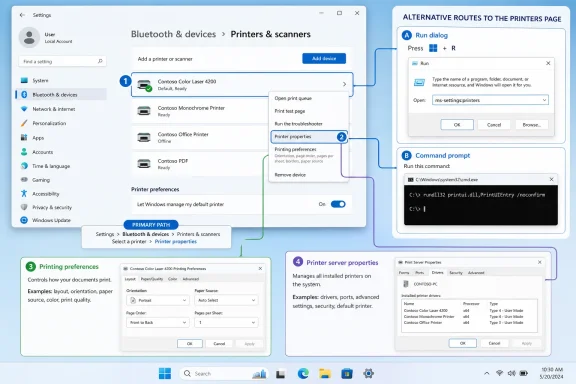 Windows 11 Puts One Printer Behind Several Similar Doors
The direct Windows 11 route begins at Start > Settings > Bluetooth & devices > Printers & scanners. Select the installed printer, then choose Printer Properties.The important prerequisite is that the intended printer appears under Printers & scanners. If it is not listed, first confirm that the correct printer has been added or made available to the Windows account in use.
Several nearby commands can easily be mistaken for Printer Properties. Windows exposes Printing preferences for a selected printer, Device Manager has its own Properties commands, and Printer server properties sits under Related settings. Applications can also present their own print interfaces before displaying any Windows printer controls.
The best way to choose a route is to identify the immediate goal rather than looking for any button containing the word “properties.”
| Goal | Route | What it opens | Best use |
|---|---|---|---|
| Open properties for one installed printer | Settings > Bluetooth & devices > Printers & scanners > select printer > Printer Properties | Printer Properties for the selected printer | When instructions specifically require Printer Properties |
| Open Printing preferences | Settings > Bluetooth & devices > Printers & scanners > select printer > Printing preferences | Printing preferences for the selected printer | When the required setting is presented there |
| Open a named printer directly | rundll32 printui.dll,PrintUIEntry /p /n "Printer name" | Printer Properties for the named installed printer | When the installed printer’s name is already known |
| Manage print-system components | Settings > Bluetooth & devices > Printers & scanners > Related settings > Printer server properties | Printer server properties | Managing drivers, forms, and ports |
| Open properties from Word | File > Print > choose printer > Printer Properties | Printer Properties for the selected printer | Reaching the printer dialog while working in Word |
| Reach printer preferences from Edge | Settings and more > Print, or Ctrl+P > Print using system dialog > choose printer > Preferences | Preferences for the selected printer | Reaching options available through Edge’s system-dialog route |
| Follow the traditional Control Panel route | Control Panel > Hardware and Sound > Devices and Printers > Printer properties | The traditional printer-properties route described in older procedures | Interpreting or following documentation written for that interface |
Printer Properties and Printing Preferences Are Different Destinations
From Settings > Bluetooth & devices > Printers & scanners, selecting a printer can expose both Printer Properties and Printing preferences. They are separate commands.Choose Printer Properties when the instructions, support article, or administrator specifically call for that dialog. Choose Printing preferences when the requested option appears in the preferences interface. Avoid assuming that an option found in one window must also appear in the other.
This distinction matters during remote support. A user may report that “the printer settings are open,” even though the visible window is Printing preferences rather than Printer Properties. Before continuing, verify the title of the dialog and the exact route used to reach it.
Device Manager adds another possible source of confusion. A Properties command opened from Device Manager is not the same route as selecting the printer in Windows 11 Settings and choosing Printer Properties. Use Device Manager only when the applicable instructions explicitly direct you there.
A concise decision rule is enough:
- If the task names Printer Properties, use the installed printer’s Printer Properties command.
- If the task names Printing preferences, open Printing preferences for that printer.
- If the task concerns drivers, forms, or ports, open Printer server properties.
- If the procedure explicitly calls for Device Manager, follow that route rather than substituting another properties window.
The Run Shortcut Removes Most of the Settings Navigation
Press Windows logo key+R, enter:ms-settings:printersThen select OK or press Enter. Windows opens the Printers & scanners page. Select the intended printer and choose Printer Properties.
This shortcut opens the printer area of Settings; it does not select a printer automatically. The user must still choose the correct installed printer from the list.
The command is particularly useful in support instructions because it is concise and does not require the reader to navigate each Settings category manually. It also provides a clear checkpoint: after running it, the user should be looking at Printers & scanners rather than a Device Manager page, an application print preview, or Printer server properties.
A short remote-support script can therefore be:
- Press Windows logo key+R.
- Type
ms-settings:printers. - Press Enter.
- Select the correct printer.
- Choose Printer Properties.
PrintUI Opens Printer Properties for a Named Printer
When the installed printer’s name is known, Windows provides a direct PrintUI command:rundll32 printui.dll,PrintUIEntry /p /n "Printer name"Press Windows logo key+R, enter the command with the installed printer’s name substituted for
Printer name, and select OK.The purpose of this command is narrow and useful: it opens Printer Properties for the named installed printer. It avoids browsing the Printers & scanners list when the operator already knows which printer is required.
Microsoft documents the PrintUI command for Windows 11, Windows 10, Windows Server 2025, Windows Server 2022, Windows Server 2019, Windows Server 2016, and Azure Local 2311.2 and later.
For example, if the installed printer is displayed as
Office Printer, the command is:rundll32 printui.dll,PrintUIEntry /p /n "Office Printer"Use the printer name as Windows displays it. If the command does not produce the expected dialog, return to Settings > Bluetooth & devices > Printers & scanners and verify that the intended printer is present and that its displayed name matches the name entered in the command.
PrintUI should not be described as a general printer-discovery command. It is most appropriate when the printer is already installed, its name is known, and the objective is specifically to open Printer Properties.
For an unidentified printer—or when the user is unsure which listed entry is correct—the Settings route provides the more useful visual starting point.
Word and Edge Reach Printer Controls Differently
Applications do not all expose Windows printer controls through the same sequence. Word provides a documented Printer Properties route, while Microsoft Edge’s documented route ends at Preferences.Microsoft Word
In Word, open:File > Print > choose printer > Printer Properties
Microsoft lists this route for Word for Microsoft 365, Word 2024, Word 2021, Word 2019, and Word 2016 on Windows.
Confirm the selected printer before choosing Printer Properties. Word’s print page includes a printer selector, and the properties command applies to the printer currently selected there.
This route is useful when the user is already in Word and the next documented step requires Printer Properties. It avoids leaving the application, opening Windows Settings, and finding the printer again.
Microsoft Edge
In Microsoft Edge, open:Settings and more > Print
Alternatively, press Ctrl+P. Then select Print using system dialog, choose the printer under Select Printer, and select Preferences.
The direct Edge shortcut for reaching the system print dialog is Ctrl+Shift+P. From there, choose the printer and select Preferences.
The endpoint matters: Microsoft’s documented Edge route leads to Preferences. It should not be described as opening the same Printer Properties dialog documented for Word.
If a procedure specifically requires Printer Properties rather than Preferences, use the Windows 11 Settings route:
Settings > Bluetooth & devices > Printers & scanners > [printer] > Printer Properties
The distinction prevents an application-specific route from being substituted for a different Windows destination.
Google Chrome
In Chrome, use:File > Print
or press:
Ctrl+P
Those commands open Chrome’s printing interface. If the next support step specifically requires Windows Printer Properties, leave Chrome’s print workflow and use the Windows 11 Settings route unless the applicable Chrome documentation supplies another verified path.
The broader lesson is limited but important: Ctrl+P does not guarantee the same sequence in every application. Follow instructions written for the application actually being used, and pay attention to whether the final command is called Printer Properties or Preferences.
Printer Server Properties Manages Drivers, Forms, and Ports
Printer server properties is a separate interface from the properties of an individual printer.Open:
Start > Settings > Bluetooth & devices > Printers & scanners > Related settings > Printer server properties
Use Printer server properties to manage:
- Drivers
- Forms
- Ports
This distinction is especially important when instructions mention a driver, form, or port. Opening Printer Properties for an individual printer may not place the operator in the interface the procedure expects. Conversely, someone who only needs Printer Properties should not enter Printer server properties simply because its name sounds broader.
Before proceeding, check the title of the window:
- Printer Properties refers to the selected installed printer.
- Printer server properties is the interface that manages drivers, forms, and ports.
- Printing preferences is a separate destination available for a selected printer.
- Device Manager Properties belongs to the Device Manager route.
Treat the Control Panel Route as a Distinct Procedure
Older documentation may direct users through:Control Panel > Hardware and Sound > Devices and Printers > Printer properties
That is the traditional Control Panel procedure. When reviewing an older guide, preserve the distinction between that route and the Windows 11 Settings route rather than combining steps from both interfaces.
For a Windows 11 procedure built around Settings, use:
Settings > Bluetooth & devices > Printers & scanners > [printer] > Printer Properties
For a procedure explicitly written around the Control Panel interface, follow its stated sequence without claiming that every screen, button, or intermediate step is identical to the Settings workflow.
This keeps documentation precise without making unsupported assumptions about which legacy surfaces are present on every device or which interface an organization should prefer.
Historical printer services that no longer function should not be included as alternative instructions. Google Cloud Print ended on December 31, 2020. Any procedure that depends on that service requires replacement rather than an attempt to locate the same controls in Windows 11.
That date has a concrete support implication: if an old guide sends users to Google Cloud Print, stop following that branch and obtain instructions for the printer’s current supported connection or management method.
Managed Printers Require Scope Checks Before Changes
Universal Print, Microsoft Intune, and Google Admin include printer-management capabilities. Their existence does not establish which system controls a particular printer, which settings a user may change, or why a specific option is unavailable.Do not diagnose a missing control as a policy, permission, assignment, driver, or deployment problem without evidence. First establish the basic facts visible on the affected PC:
- Is the intended printer listed under Printers & scanners?
- What is its exact displayed name?
- Does the requested procedure call for Printer Properties, Printing preferences, Device Manager, or Printer server properties?
- Does the issue occur in Windows Settings or only in an application’s print interface?
- Is the device managed by an organization?
- If it is managed, which team or documented management process applies?
Avoid reinstalling a printer or adding another printer entry merely because a particular dialog was not found. First confirm that the user opened the correct interface. A mistaken route is easier to correct than an unnecessary configuration change.
If the printer is organization-managed and the expected local route does not provide the required option, consult the organization’s printer documentation or administrator. The local symptom alone does not identify whether Universal Print, Intune, Google Admin, another management technology, or no centralized system is involved.
Action checklist for admins
- Confirm that the intended printer appears under Settings > Bluetooth & devices > Printers & scanners for the affected user.
- Record the printer’s exact displayed name.
- Open Printer Properties through Settings before using an alternate route.
- If using PrintUI, verify the name before running
rundll32 printui.dll,PrintUIEntry /p /n "Printer name". - Determine whether the requested task names Printer Properties, Printing preferences, Device Manager, or Printer server properties.
- Use Printer server properties only when the task concerns drivers, forms, or ports.
- Record whether the problem occurs in Windows Settings, Word, Edge, Chrome, or another application.
- For Edge, distinguish its documented Preferences endpoint from Word’s documented Printer Properties endpoint.
- Determine whether the PC or printer is organization-managed before escalating the issue.
- Do not attribute a missing control to policy, permissions, a driver, or a deployment method without supporting evidence.
- Document the exact route followed and the final window title so another technician can reproduce the result.
PowerShell Provides Two Verified Printer Commands
Two relevant PowerShell commands have distinct stated functions:Get-PrinterPropertyThis command retrieves printer properties.
Set-PrintConfigurationThis command changes supported print configuration.
Use each command according to its documented function. Do not describe either one as a command for opening the graphical Printer Properties window.
When the requirement is specifically to display Printer Properties for a named installed printer, use PrintUI:
rundll32 printui.dll,PrintUIEntry /p /n "Printer name"When the requirement is to navigate graphically, use:
Settings > Bluetooth & devices > Printers & scanners > [printer] > Printer Properties
Keeping these methods separate prevents a command that retrieves information or changes supported configuration from being presented as though it were the equivalent of opening a Windows dialog.
Narrow Troubleshooting: Verify the Route Before Diagnosing the Printer
When the expected printer dialog does not appear, begin with route verification rather than a broad printer repair.1. Confirm that the printer is listed
Open Settings > Bluetooth & devices > Printers & scanners or run:ms-settings:printersVerify that the intended printer appears in the list.
2. Confirm the selected name
Read the displayed printer name carefully, particularly when several entries have similar labels. If using PrintUI, copy that displayed name into:rundll32 printui.dll,PrintUIEntry /p /n "Printer name"3. Confirm the requested destination
Check the procedure’s wording:- Printer Properties
- Printing preferences
- Printer server properties
- Device Manager Properties
- An application’s print interface
4. Account for the application
If the process began inside an application, verify the application-specific route:- Word: File > Print > choose printer > Printer Properties
- Edge: Print using system dialog > choose printer > Preferences
- Chrome: File > Print or Ctrl+P
5. Escalate only with reproducible details
For a managed PC, record:- The Windows route used
- The exact printer name
- Whether the printer appeared in Printers & scanners
- The title of the dialog that opened
- The application involved, if any
- The command used, if PrintUI or PowerShell was involved
- The exact point at which the result differed from the documented procedure
The Correct Route Depends on the Exact Destination
For most readers who need Printer Properties in Windows 11, the answer remains direct:Settings > Bluetooth & devices > Printers & scanners > [printer] > Printer Properties
For faster access to the same Settings page, use:
Win+R >
ms-settings:printersWhen the installed printer’s name is already known, PrintUI can open its Printer Properties directly:
rundll32 printui.dll,PrintUIEntry /p /n "Printer name"Use Printer server properties for drivers, forms, and ports. Use Word’s documented Printer Properties route when printing from Word. In Edge, follow the system-dialog route to Preferences without assuming that it opens Word’s Printer Properties destination. In Chrome, begin with File > Print or Ctrl+P and move to Windows Settings if a separate procedure specifically requires Printer Properties.
The durable support practice is not to memorize every screen that contains the word “printer.” It is to name the intended destination, use the verified route to that destination, and confirm the window title before making changes.