

Windows 11 may be the most polished version of Microsoft’s desktop operating system in years, but its out-of-box defaults still reveal a clear product strategy: push users toward cloud services, keep them engaged with recommendations, and keep diagnostic and background systems humming quietly in the background. That approach can feel convenient for some people, yet it also creates friction for users who want a quieter, more local-first PC that starts fast, stays focused, and asks less of their attention. The good news is that many of the most controversial defaults can be toned down or disabled without breaking Windows itself, which is why a careful first-pass cleanup remains one of the smartest things you can do after setup. Microsoft’s own support pages show that many of these behaviors are intentional and configurable, even if they are not especially well signposted during onboarding.
The tension at the heart of Windows 11 is simple: Microsoft wants the operating system to feel modern, connected, and personalized, while many longtime Windows users want it to feel calm, direct, and under their control. That conflict shows up everywhere, from the Start menu and taskbar to the sign-in flow, diagnostics, and browser integration. In theory, these choices are meant to reduce setup time and help the system anticipate what you need next. In practice, they can look like nudges, promotions, and background activity that do not always align with how people actually use their PCs.
This is not a new problem, but Windows 11 makes it more visible. Microsoft has steadily moved Windows from a purely local desktop environment into a service layer that connects to Microsoft accounts, OneDrive, Edge, Xbox, Microsoft 365, and cloud-based personalization. The company is not hiding that direction; its own documentation explains that features like search, widgets, device encryption, and diagnostics are designed to connect to broader Microsoft services. That architecture can be genuinely useful in enterprise fleets and for users who want sync and recovery, but it also means the defaults are increasingly opinionated rather than neutral.
The strongest criticism of Windows 11 is not that any one setting is objectively bad. It is that the operating system often assumes a service-rich workflow before the user has had a chance to say yes. Search blends local and web results. Device setup pushes accounts and recommendations. BitLocker-backed device encryption can quietly attach recovery keys to an online identity. Widgets and promotional surfaces occupy prime screen real estate. Each default may be defensible on its own, but together they create an environment that feels busier and more monitored than many users want.
That is why a “de-tuning” pass matters. Not because Windows 11 is broken, but because its defaults are tuned for Microsoft’s ecosystem rather than for maximum user restraint. For consumers, the payoff is a cleaner desktop, fewer interruptions, and better privacy hygiene. For businesses, it is often about standardization, supportability, and reducing the surface area for confusion. Either way, the same lesson applies: the defaults are not the end state, just the starting point.
The practical downside is friction. Local search feels slower when web content competes for attention, and the results can be noisier when you already know you are looking for a file, setting, or installed app. Microsoft’s support pages also make clear that search can be tied to recommendations and activity-based personalization, which is exactly the sort of behavior that can feel helpful in aggregate but annoying in a daily workflow. The criticism is not that search includes the web, but that the default weight often feels tilted away from local intent.
A cleaner search experience is especially useful on work devices. Most enterprise users do not want casual web suggestions while searching for internal documents, admin tools, or settings. They want the system to behave like an efficient index, not a discovery engine.
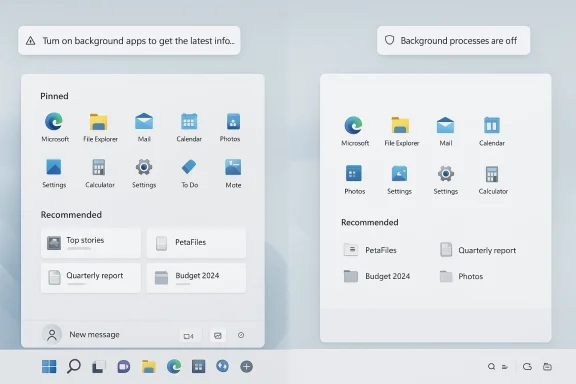
The friction here is visual as much as functional. Many users do not want the Start menu to advertise services, highlight things they never asked for, or occupy prime space with a section they will never use. That is why the ability to reduce or hide recommendations matters. Microsoft support pages now acknowledge the user’s ability to customize the Start experience, which is a tacit admission that the default is not universally welcome.
For consumers, recommendations can feel like gentle nudges. For power users, they are often just noise. For IT departments, they create another moving part to explain and manage.
The central complaint is not that telemetry exists. It is that the system does not offer a true off switch for all data collection, and the exact boundaries of what is collected can feel opaque to ordinary users. Microsoft allows users to reduce diagnostic sharing, disable optional diagnostic data, and adjust related personalization settings, but the unavoidable baseline remains. That may be acceptable in a cloud-first world, yet it still leaves privacy-minded users with a sense that their machine is talking more than it should.
That distinction matters because “required” and “optional” sound clear while the practical experience often does not. Many people complete setup without reading each toggle carefully, then only later discover how much data they have effectively agreed to share.
The issue is interruption. A prompt that takes over the screen after an update can feel presumptuous, especially when it arrives long after initial setup. Microsoft frames these nudges as ways to get the most out of Windows, but many users experience them as recurring interruptions that prioritize service engagement over workflow continuity. That is a subtle distinction in product design, but an important one in user perception.
For consumers, this can create fatigue. For businesses, it can create confusion, especially when users think something must be completed before they can keep working. That is not a good look for a professional operating system.
This is one of those areas where a little restraint goes a long way. The taskbar is not just decoration; it is a command surface used dozens or hundreds of times per day. Every extra button is a design decision about what Microsoft thinks deserves front-row placement. When that decision is made for visibility rather than utility, the result feels less personal and more promotional.
Copilot raises a different issue: it represents Microsoft’s AI ambitions in a place that used to be reserved for core navigation. Whether you see that as a feature or an intrusion depends on how often you use it. But the broader point remains: the taskbar should probably start quieter and earn its extras later.
The practical result is a setup flow that feels less optional than it once did. Yes, a Microsoft account can help with sync, backup, recovery, and service integration. But users who simply want to log in to a computer and get to work may view the added account layer as unnecessary friction. The more setup leans into cloud identity, the more the OS feels like a gateway to services rather than a standalone product.
Microsoft clearly prefers the other model. The company says Microsoft accounts unlock broader integration and convenience, and in many households that is true. But preference is not the same as universality.
Microsoft is not alone in preloading software, of course. But Windows has long promised broad compatibility and user freedom, so every added layer of preinstalled promotion feels more noticeable. The more the Start menu and onboarding experience highlight Microsoft services, the more the system appears to be steering attention before the user has fully settled in. That can be especially annoying on new hardware, where the first impression matters most.
That bet works for some buyers. For others, it feels like being handed a brochure along with the device.
This is one area where enterprise and consumer priorities overlap but do not fully match. Businesses want compliance and patch hygiene, but they also need predictable windows and minimal disruption. Consumers want security without surprise restarts in the middle of work or entertainment. The system tries to balance both, yet the defaults still lean toward Microsoft’s sense of timing more than the user’s.
If Windows wants to keep automatic updates mandatory, it should at least make the restart choreography more respectful. Predictability is a security feature too.
Yet the recovery model can feel hidden from ordinary users. If the recovery key is attached to a Microsoft account, then account access becomes part of data access. That is fine when everything works, but less comforting when users are not clearly shown where the key lives or why it matters. Microsoft’s support pages do acknowledge the linkage, but the setup flow can still feel too automatic for something this important.
That matters even more for people who assume encryption is purely local. Security is strongest when the user understands both the protection and the escape hatch.
The concern is less about theft recovery and more about continuous background location dependence. If a feature is rarely used, the default should be more careful about asking for ongoing data access. Microsoft’s own documentation makes clear that Find My Device depends on location services, which means the privacy trade-off is not abstract. It is built into the feature’s basic operation.
For a desktop at home or in an office, the utility may be marginal. For a travel-heavy laptop, it is more compelling. The default should acknowledge that difference.
This is more than a cosmetic issue. File extensions are an important clue for understanding file behavior and spotting suspicious names. If a malicious file is named to resemble a document, hiding the extension can make it look harmless at a glance. That is an unnecessary gamble for a security-sensitive platform.
For ordinary users, showing extensions improves clarity. For advanced users, it is almost non-negotiable. This is one of the easiest defaults to recommend changing immediately.
This is a classic example of a design that optimizes first-time aesthetics at the expense of repeated-use efficiency. Casual users may never notice the extra layer. Power users, however, feel it every day. When a core interaction gets split into “simple” and “full” modes, the full mode tends to become the one people actually need, which suggests the simplification was only partial.
Microsoft has improved the menu over time, but the basic trade-off remains. The streamlined menu may be visually pleasing, yet it still asks experienced users to work around the design.
This matters because operating systems are trusted spaces. When the environment where you manage files, settings, and security also pushes subscriptions and sign-ups, the line between platform and promotion gets blurry. That does not mean Microsoft should never mention its services. It means the volume and placement of those mentions need to be handled with more restraint.
That is dangerous for long-term trust. Users may tolerate some ecosystem integration if the core system remains clean. They are less forgiving when nearly every surface becomes a recommendation engine.
The complaint here is philosophical as much as technical. If a browser starts reserving memory and processes before the user asks for it, the PC feels less like a fresh environment and more like a preloaded ecosystem node. Microsoft’s support page describes the feature as minimal and helpful, which may be true in controlled testing, but it does not change the fact that “minimal” is still not “none.”
That is why Startup Boost should remain easy to disable. Users who value a clean boot path should not have to accept browser preloading as the price of speed.
For now, the best practical advice is simple: do not treat Windows 11’s first-run settings as permanent. Review them, trim them, and assume the defaults reflect Microsoft’s priorities more than your own. If you take the time to remove the clutter, reduce the prompts, and narrow the data surface, Windows 11 can become much closer to the streamlined desktop it wants to be. That is the real story behind these 14 defaults: not that Windows 11 is unusable, but that it is too opinionated until you make it yours.
Source: Windows Central https://www.windowscentral.com/microsoft/windows-11/14-worst-default-configurations-on-windows-11/
 Overview
The tension at the heart of Windows 11 is simple: Microsoft wants the operating system to feel modern, connected, and personalized, while many longtime Windows users want it to feel calm, direct, and under their control. That conflict shows up everywhere, from the Start menu and taskbar to the sign-in flow, diagnostics, and browser integration. In theory, these choices are meant to reduce setup time and help the system anticipate what you need next. In practice, they can look like nudges, promotions, and background activity that do not always align with how people actually use their PCs.This is not a new problem, but Windows 11 makes it more visible. Microsoft has steadily moved Windows from a purely local desktop environment into a service layer that connects to Microsoft accounts, OneDrive, Edge, Xbox, Microsoft 365, and cloud-based personalization. The company is not hiding that direction; its own documentation explains that features like search, widgets, device encryption, and diagnostics are designed to connect to broader Microsoft services. That architecture can be genuinely useful in enterprise fleets and for users who want sync and recovery, but it also means the defaults are increasingly opinionated rather than neutral.
The strongest criticism of Windows 11 is not that any one setting is objectively bad. It is that the operating system often assumes a service-rich workflow before the user has had a chance to say yes. Search blends local and web results. Device setup pushes accounts and recommendations. BitLocker-backed device encryption can quietly attach recovery keys to an online identity. Widgets and promotional surfaces occupy prime screen real estate. Each default may be defensible on its own, but together they create an environment that feels busier and more monitored than many users want.
That is why a “de-tuning” pass matters. Not because Windows 11 is broken, but because its defaults are tuned for Microsoft’s ecosystem rather than for maximum user restraint. For consumers, the payoff is a cleaner desktop, fewer interruptions, and better privacy hygiene. For businesses, it is often about standardization, supportability, and reducing the surface area for confusion. Either way, the same lesson applies: the defaults are not the end state, just the starting point.
1. Search Should Find Files First, Not the Internet
Windows Search remains one of the most visible examples of Microsoft’s “connected by default” philosophy. Microsoft’s own support documentation says the search box can find apps, files, settings, help, and the web, which sounds flexible until you are trying to locate a local document and the system keeps surfacing online suggestions instead. That blended approach is convenient if you want web lookup built into every search, but it is less ideal when you expect the Start menu to behave like a launcher rather than a mini browser.The practical downside is friction. Local search feels slower when web content competes for attention, and the results can be noisier when you already know you are looking for a file, setting, or installed app. Microsoft’s support pages also make clear that search can be tied to recommendations and activity-based personalization, which is exactly the sort of behavior that can feel helpful in aggregate but annoying in a daily workflow. The criticism is not that search includes the web, but that the default weight often feels tilted away from local intent.
Why this matters for daily use
The biggest issue is cognitive overhead. If you search frequently, every extra suggestion slows the path to the thing you actually wanted. That becomes even more frustrating on systems with large app libraries or lots of cloud-linked content, where the signal-to-noise ratio can dip fast.A cleaner search experience is especially useful on work devices. Most enterprise users do not want casual web suggestions while searching for internal documents, admin tools, or settings. They want the system to behave like an efficient index, not a discovery engine.
- Local-first search is faster for known items.
- Web suggestions can distract from files and apps.
- Search personalization can create clutter.
- Enterprises often benefit from narrower results.
- Users should decide whether web search is helpful.
2. Start Menu Recommendations Turn a Launcher Into a Billboard
The Start menu is supposed to be the simplest part of Windows: click, launch, move on. Yet Windows 11’s “Recommended” section adds a layer of algorithmic curation that mixes recent files, recently installed apps, and system-driven suggestions. Microsoft’s design intent is understandable; it wants to reduce friction and surface relevant items. The problem is that a launcher with recommendations stops feeling like a neutral tool and starts feeling like a content feed.The friction here is visual as much as functional. Many users do not want the Start menu to advertise services, highlight things they never asked for, or occupy prime space with a section they will never use. That is why the ability to reduce or hide recommendations matters. Microsoft support pages now acknowledge the user’s ability to customize the Start experience, which is a tacit admission that the default is not universally welcome.
Recommendation is not the same as control
This is where product philosophy matters. Recommendation systems are great when the user is browsing. They are less helpful when the user wants deterministic control over a machine. Start is one of those places where a little bit of “smart” can quickly become too much smart.For consumers, recommendations can feel like gentle nudges. For power users, they are often just noise. For IT departments, they create another moving part to explain and manage.
- The Start menu should prioritize predictability.
- Recommendations can obscure the app grid.
- Promotional surfaces erode trust over time.
- A launcher should feel faster, not busier.
- Users who want suggestions can still opt into them.
3. Diagnostics, Telemetry, and the Cost of Default Opt-In
Microsoft is unusually transparent, at least on paper, about Windows diagnostic data. Its privacy documentation explains that Windows collects required diagnostic data and, if enabled, optional diagnostic data that can include more detailed product and service usage information. The company also says this data helps improve reliability, investigate performance, and diagnose issues across Windows and related Microsoft products. That is a legitimate engineering argument, but it does not eliminate the privacy concern that the default posture leans toward collection rather than restraint.The central complaint is not that telemetry exists. It is that the system does not offer a true off switch for all data collection, and the exact boundaries of what is collected can feel opaque to ordinary users. Microsoft allows users to reduce diagnostic sharing, disable optional diagnostic data, and adjust related personalization settings, but the unavoidable baseline remains. That may be acceptable in a cloud-first world, yet it still leaves privacy-minded users with a sense that their machine is talking more than it should.
The privacy trade-off is real
There is an honest case for diagnostic data. If you want Microsoft to improve Windows reliability at scale, telemetry is part of the bargain. The company’s own documentation says it uses these signals to find and fix issues, and some settings data even informs product behavior. The issue is not whether telemetry is useful, but whether users have enough meaningful control over it.That distinction matters because “required” and “optional” sound clear while the practical experience often does not. Many people complete setup without reading each toggle carefully, then only later discover how much data they have effectively agreed to share.
- Required diagnostic data cannot be fully disabled.
- Optional data can usually be reduced or turned off.
- Transparency helps, but it does not remove concern.
- Personalization and telemetry often travel together.
- Users should review privacy settings after first boot.
4. Post-Setup Prompts Make the PC Feel Like a Sales Funnel
Few Windows 11 behaviors irritate users more than the full-screen “finish setting up your device” prompts that appear after updates or restarts. The wording suggests something essential remains unfinished, yet the device is already operational and the prompts typically push Microsoft 365, OneDrive, Xbox, or other services that are optional rather than required. In other words, the OS behaves as if convenience and adoption are the same thing. They are not.The issue is interruption. A prompt that takes over the screen after an update can feel presumptuous, especially when it arrives long after initial setup. Microsoft frames these nudges as ways to get the most out of Windows, but many users experience them as recurring interruptions that prioritize service engagement over workflow continuity. That is a subtle distinction in product design, but an important one in user perception.
When guidance becomes pressure
There is nothing wrong with surfacing useful features once. The problem begins when the same guidance keeps reappearing, or when it appears in places that feel authoritative, like a system-level modal window. At that point, the message stops being helpful and starts feeling like persuasion.For consumers, this can create fatigue. For businesses, it can create confusion, especially when users think something must be completed before they can keep working. That is not a good look for a professional operating system.
- Modal prompts should be rare and relevant.
- Optional services should not feel mandatory.
- Updates should not restart the adoption pitch.
- Repetition increases annoyance quickly.
- Users should be able to suppress these reminders.
5. Taskbar Clutter Undercuts the Simplicity Windows 11 Promises
Windows 11 launched with a more centered, simplified taskbar design, but the default element count still leaves many people feeling crowded. Widgets, Copilot, Search, and other pinned icons may be useful to some, yet they also consume precious visual space on a part of the interface that should support fast muscle memory. Microsoft’s taskbar documentation makes clear that Widgets can be shown or hidden from Taskbar settings, which is helpful, but the fact that many users immediately start removing items says something about the default layout.This is one of those areas where a little restraint goes a long way. The taskbar is not just decoration; it is a command surface used dozens or hundreds of times per day. Every extra button is a design decision about what Microsoft thinks deserves front-row placement. When that decision is made for visibility rather than utility, the result feels less personal and more promotional.
Widgets, Copilot, and the visibility problem
Widgets are not inherently bad. Microsoft describes them as cards that surface personalized information such as weather, news, traffic, and stocks. That sounds useful, especially on touch-friendly or glance-based workflows. The issue is that what is useful on paper can still be clutter in practice, particularly if the user already has better tools for those tasks.Copilot raises a different issue: it represents Microsoft’s AI ambitions in a place that used to be reserved for core navigation. Whether you see that as a feature or an intrusion depends on how often you use it. But the broader point remains: the taskbar should probably start quieter and earn its extras later.
- Fewer pinned items means less visual noise.
- Widgets suit some workflows better than others.
- Copilot may be valuable, but not universal.
- Search can stay without the extra clutter.
- The taskbar should reflect user habits, not marketing priorities.
6. Microsoft Account Pressure Changes the Character of Setup
Windows 11’s account requirements have become one of its defining friction points. Microsoft recommends using a Microsoft account, and its own support pages describe the difference between a local account and a cloud-connected Microsoft account in very clear terms: local accounts are device-specific and independent of the cloud, while Microsoft accounts sync across services and devices. That may be great if you live inside Microsoft’s ecosystem, but it is a heavier ask for anyone who wants a more self-contained PC.The practical result is a setup flow that feels less optional than it once did. Yes, a Microsoft account can help with sync, backup, recovery, and service integration. But users who simply want to log in to a computer and get to work may view the added account layer as unnecessary friction. The more setup leans into cloud identity, the more the OS feels like a gateway to services rather than a standalone product.
Local versus cloud-first thinking
A local account is not “old-fashioned”; it is a different trust model. It says the computer should be usable even without an online identity glued to it. That model still matters for privacy-conscious households, offline machines, and labs where simplicity is more important than sync.Microsoft clearly prefers the other model. The company says Microsoft accounts unlock broader integration and convenience, and in many households that is true. But preference is not the same as universality.
- Local accounts keep the device more self-contained.
- Microsoft accounts add sync and recovery options.
- The setup flow strongly favors cloud sign-in.
- Not every user needs cross-device continuity.
- The best default would be a cleaner choice architecture.
7. Preinstalled Apps and Promotional Shortcuts Make the PC Feel Less Yours
Out of the box, Windows 11 often arrives with apps, links, and shortcuts that reflect Microsoft’s ecosystem priorities more than the buyer’s actual needs. Some items are harmless, some are useful, and some are just extra baggage. The trouble is not merely bloat, but the implication that the operating system has already made a shopping list on your behalf. That undermines the sense of a fresh install as a blank slate.Microsoft is not alone in preloading software, of course. But Windows has long promised broad compatibility and user freedom, so every added layer of preinstalled promotion feels more noticeable. The more the Start menu and onboarding experience highlight Microsoft services, the more the system appears to be steering attention before the user has fully settled in. That can be especially annoying on new hardware, where the first impression matters most.
The ecosystem is the message
A modern PC is rarely just an operating system. It is a bundle of identity, subscription, cloud storage, messaging, and productivity services. Microsoft knows this, and Windows 11 reflects that strategy in how it presents apps and shortcuts. The company is essentially betting that a more integrated experience will feel more polished.That bet works for some buyers. For others, it feels like being handed a brochure along with the device.
- Preinstalled shortcuts are not always user-centered.
- Promotional apps crowd a clean install.
- Ecosystem bundling can obscure core Windows value.
- Users should choose services after setup, not before.
- The first-run experience shapes long-term trust.
8. Automatic Updates Are Necessary, But Restart Behavior Still Needs Work
Automatic updates are one of Windows 11’s most defensible defaults. Security patches matter, and Microsoft is right to keep systems current by default. The trouble is not the existence of updates but the way they can interrupt users through background downloads, restart prompts, and scheduled restarts that occasionally land at inconvenient times. Microsoft’s support guidance confirms that Windows Update is a built-in management surface, but the reality is that many users still feel they do not control the rhythm of maintenance enough.This is one area where enterprise and consumer priorities overlap but do not fully match. Businesses want compliance and patch hygiene, but they also need predictable windows and minimal disruption. Consumers want security without surprise restarts in the middle of work or entertainment. The system tries to balance both, yet the defaults still lean toward Microsoft’s sense of timing more than the user’s.
Security is not the same as convenience
The more honest framing is that updates are unavoidable, but the restart experience is negotiable. Windows is better than it used to be at active hours and notifications, yet surprise behavior still happens often enough to matter. That is a product design issue, not a patching issue.If Windows wants to keep automatic updates mandatory, it should at least make the restart choreography more respectful. Predictability is a security feature too.
- Security patches should not be optional.
- Restart timing should be easier to control.
- Active hours should be more reliable.
- Users need clearer visibility into pending restarts.
- Update urgency should not create update anxiety.
9. Device Encryption Is Good Security With an Awkward Recovery Story
Microsoft deserves credit for making device encryption automatic on many Windows 11 systems. Its documentation explains that device encryption/BitLocker can turn on automatically and that recovery keys are backed up to a Microsoft account, Entra ID, or AD DS depending on the device context. From a security standpoint, this is a strong default because it reduces the number of unprotected PCs in the wild.Yet the recovery model can feel hidden from ordinary users. If the recovery key is attached to a Microsoft account, then account access becomes part of data access. That is fine when everything works, but less comforting when users are not clearly shown where the key lives or why it matters. Microsoft’s support pages do acknowledge the linkage, but the setup flow can still feel too automatic for something this important.
Security defaults need better explanations
This is a classic case of a good default with a weak explanation. Encryption is valuable. Cloud-backed key storage is practical. But users should be more explicitly told what is happening, where the recovery key is stored, and what happens if they lose account access.That matters even more for people who assume encryption is purely local. Security is strongest when the user understands both the protection and the escape hatch.
- Encryption should remain on by default.
- Recovery keys need clearer handling.
- Users should back up keys offline.
- Account access can become recovery access.
- Better messaging would reduce support headaches.
10. Find My Device and Location Services Blur the Line Between Useful and Unnecessary
Find My Device is genuinely useful if a laptop is lost or stolen. Microsoft says the feature can help locate a Windows 11 device and relies on location being turned on to work properly. That makes sense in a theft scenario, especially for portable devices. But for many desktop users, or even laptop owners who rarely leave predictable environments, the default encouragement to keep location-enabled recovery features active can feel like overreach.The concern is less about theft recovery and more about continuous background location dependence. If a feature is rarely used, the default should be more careful about asking for ongoing data access. Microsoft’s own documentation makes clear that Find My Device depends on location services, which means the privacy trade-off is not abstract. It is built into the feature’s basic operation.
Recovery features should be opt-in by intent
The best design would let users clearly decide whether they want the recovery advantage before enabling ongoing location use. That is especially relevant during setup, when people are already making a dozen other decisions and may not fully absorb what each toggle powers.For a desktop at home or in an office, the utility may be marginal. For a travel-heavy laptop, it is more compelling. The default should acknowledge that difference.
- Location-based recovery is useful for portable PCs.
- Desktop users may not need constant tracking.
- Setup flows should explain the trade-off more clearly.
- Recovery and privacy should be balanced explicitly.
- Users should revisit location settings after installation.
11. File Extensions Should Not Be Hidden
Hiding file extensions is one of those legacy defaults that survives mainly because it once made interfaces feel simpler. In Windows 11, File Explorer still hides extensions by default, which means users cannot immediately see whether a file is a document, image, archive, or executable. Microsoft’s own File Explorer documentation acknowledges that file extensions can be revealed from the View menu, which is convenient, but the default remains the problem.This is more than a cosmetic issue. File extensions are an important clue for understanding file behavior and spotting suspicious names. If a malicious file is named to resemble a document, hiding the extension can make it look harmless at a glance. That is an unnecessary gamble for a security-sensitive platform.
Visibility is a security feature
There is no good reason to treat the true file type as optional information in an age where malware and social engineering remain constant threats. The cleaner visual look is not worth the confusion.For ordinary users, showing extensions improves clarity. For advanced users, it is almost non-negotiable. This is one of the easiest defaults to recommend changing immediately.
- Extensions help identify real file types.
- Hidden extensions can aid deception.
- Visual simplicity is not always safer.
- Troubleshooting becomes easier when types are visible.
- This is a small setting with outsized value.
12. The New Context Menu Is Cleaner, But It Hides Power
Windows 11’s streamlined right-click menu is one of its most debated interface changes. Microsoft says the new File Explorer context menu is designed to make common actions easier to reach, while older commands remain available under “Show more options.” That is true, but it also means users who rely on legacy commands now need an extra click for a task that used to be instant.This is a classic example of a design that optimizes first-time aesthetics at the expense of repeated-use efficiency. Casual users may never notice the extra layer. Power users, however, feel it every day. When a core interaction gets split into “simple” and “full” modes, the full mode tends to become the one people actually need, which suggests the simplification was only partial.
Efficiency should beat appearance
A polished UI is nice. A fast UI is better. Windows has always lived or died by how quickly it gets out of the user’s way, and context menus are a perfect test of that principle.Microsoft has improved the menu over time, but the basic trade-off remains. The streamlined menu may be visually pleasing, yet it still asks experienced users to work around the design.
- Common actions are easier to spot.
- Legacy commands require an extra click.
- Power users lose efficiency.
- The menu can feel inconsistent across apps.
- Simplicity should not become a speed penalty.
13. System-Wide Promotions Turn Windows Into a Marketing Surface
One of the most persistent criticisms of Windows 11 is that promotional content is not confined to a single corner of the OS. It appears in setup flows, the Start menu, Settings, notifications, and service prompts, creating the impression that the operating system is doubling as an ad channel for Microsoft 365, OneDrive, Xbox Game Pass, and related offerings. Microsoft’s own product guidance around personalization and connected experiences shows how integrated these services are meant to be, but the user experience can still feel more commercial than neutral.This matters because operating systems are trusted spaces. When the environment where you manage files, settings, and security also pushes subscriptions and sign-ups, the line between platform and promotion gets blurry. That does not mean Microsoft should never mention its services. It means the volume and placement of those mentions need to be handled with more restraint.
The trust problem is cumulative
A single nudge is easy to ignore. A dozen nudge points across the OS create a pattern. Once users notice the pattern, every new suggestion feels less like help and more like a sales strategy.That is dangerous for long-term trust. Users may tolerate some ecosystem integration if the core system remains clean. They are less forgiving when nearly every surface becomes a recommendation engine.
- Promotions should not dominate system surfaces.
- Setup should not feel like a subscription funnel.
- Settings should prioritize control over upsell.
- Repetition makes nudges feel manipulative.
- Trust is easier to lose than to rebuild.
14. Edge Startup Boost Is Helpful in Theory, But Still Feels Like Background Baggage
Microsoft says Edge’s Startup Boost keeps core browser processes ready in the background so the browser can launch faster after logon or when opened later. That is a legitimate performance optimization, and Microsoft even notes that the feature has a limited resource impact on supported systems. But in practice, some users still dislike seeing browser components alive at boot before they have opened Edge at all.The complaint here is philosophical as much as technical. If a browser starts reserving memory and processes before the user asks for it, the PC feels less like a fresh environment and more like a preloaded ecosystem node. Microsoft’s support page describes the feature as minimal and helpful, which may be true in controlled testing, but it does not change the fact that “minimal” is still not “none.”
Performance gains versus perceived overhead
This is a subtle but important distinction. Microsoft is optimizing for launch speed, and on paper that is a good trade. Users, however, often optimize for the feeling of a light system, especially right after boot. A browser that is quietly standing by can undermine that feeling even if the actual cost is modest.That is why Startup Boost should remain easy to disable. Users who value a clean boot path should not have to accept browser preloading as the price of speed.
- Startup Boost helps Edge open faster.
- Background browser processes still consume resources.
- The feature may feel intrusive on lean systems.
- Resource cost and perceived cost are not the same.
- Power users will often prefer explicit control.
Strengths and Opportunities
Windows 11 is not a lost cause on privacy or usability. In fact, its greatest strength is that many of the most annoying defaults can be adjusted, which gives power users a meaningful path to a cleaner machine. Microsoft has also improved documentation around privacy, widgets, search, encryption, and browser behavior, which makes the operating system more understandable than it used to be. The opportunity now is for Microsoft to make restraint a first-class design principle rather than something users must assemble manually.- Configurable defaults let users reclaim a lot of control.
- Security features like encryption and updates are genuinely valuable.
- Microsoft’s documentation is more transparent than in past eras.
- Widgets and recommendations can still help the right user.
- Local accounts remain available in certain workflows.
- Search and taskbar customization offer quick wins.
- Enterprise admins have more policy tools than consumers.
Risks and Concerns
The risks are less about one setting and more about cumulative fatigue. When a user keeps encountering ads, prompts, cloud requirements, and hidden background activity, the OS starts to feel less like a tool and more like a platform that wants something back. That perception matters, because trust is the foundation of any operating system relationship.- Telemetry ambiguity can damage confidence.
- Promotional content makes the OS feel less neutral.
- Cloud dependency can complicate account recovery.
- Background services may feel heavier than they are.
- Setup friction can alienate privacy-conscious users.
- Hidden defaults can create support confusion.
- Context menu changes can frustrate power users.
Looking Ahead
Microsoft appears committed to a Windows model that is more integrated, more personalized, and more connected to cloud services and AI experiences. That direction is unlikely to reverse, which means the real question is not whether Windows 11 will keep these defaults, but whether Microsoft can make them feel less invasive. The healthiest version of Windows is probably one that can serve both a mainstream consumer who wants convenience and a power user who wants quiet, deterministic control.For now, the best practical advice is simple: do not treat Windows 11’s first-run settings as permanent. Review them, trim them, and assume the defaults reflect Microsoft’s priorities more than your own. If you take the time to remove the clutter, reduce the prompts, and narrow the data surface, Windows 11 can become much closer to the streamlined desktop it wants to be. That is the real story behind these 14 defaults: not that Windows 11 is unusable, but that it is too opinionated until you make it yours.
- Review privacy and diagnostics settings after first boot.
- Remove unneeded taskbar items immediately.
- Decide early whether you want a Microsoft account.
- Turn off prompts and suggestions you do not need.
- Show file extensions for better clarity and safety.
Source: Windows Central https://www.windowscentral.com/microsoft/windows-11/14-worst-default-configurations-on-windows-11/
