

Thurrott’s Windows 11 privacy guide argues that Microsoft’s operating system ships with data collection, advertising identifiers, recommendations, and diagnostic settings enabled by default, and that users must actively disable many of them during setup or later inside Privacy & security settings. The uncomfortable part is not that Windows phones home; every modern OS does. The uncomfortable part is that Windows 11 turns privacy into a scavenger hunt, while reserving the most meaningful telemetry limits for editions, policies, or tools beyond the reach of ordinary users.
That makes this less a story about one settings page and more a story about control. Windows 11 presents privacy as a user choice, but it structures those choices in ways that favor Microsoft’s services, Microsoft’s advertising surface, and Microsoft’s diagnostic appetite. The user can reduce the noise. The user can refuse optional data. The user can turn off the advertising ID. But the user cannot, using the ordinary consumer interface, make Windows 11 behave like a silent local operating system.
The first meaningful privacy decision in Windows 11 arrives before the desktop does. During the out-of-box experience, Microsoft presents toggles for settings such as location, Find my device, diagnostic data, inking and typing, personalized experiences, advertising, and, on some PCs, presence sensing. These are not obscure capabilities. They define how much of the machine’s behavior is tied to Microsoft’s cloud, advertising systems, and product-improvement machinery from the beginning.
The problem is not merely that these options exist. Location services can be useful. Find my device can rescue a laptop left in a taxi or stolen from a conference table. Presence sensing can lock a workstation when a user walks away and wake it again when they return. These are legitimate features with real-world value, especially on mobile PCs.
The problem is that Microsoft’s preferred setup flow nudges users toward accepting a broader relationship than they may understand. Most people do not treat OOBE as a policy review; they treat it as the screen standing between them and a working computer. That gives Microsoft enormous power to frame privacy choices as routine onboarding rather than as consequential permission grants.
This is where the Thurrott guide lands its sharpest point. Windows 11 does technically expose many privacy settings, but exposing a setting is not the same as respecting the user’s agency. If the meaningful defaults are permissive, the explanations are softened, and the later controls are scattered, Microsoft can say the user had a choice while designing the experience so that most users will never meaningfully exercise it.
That distinction sounds clean until the user asks the obvious question: why can’t I turn all of it off? For consumers using the standard Windows 11 interface, the answer is simple. Microsoft does not offer that switch. You can reduce Windows to required diagnostic data, but you cannot make diagnostic collection disappear entirely from Settings.
There is a defensible engineering argument for some telemetry. Windows runs on a chaotic hardware ecosystem: thousands of OEM configurations, drivers of wildly varying quality, firmware edge cases, peripherals, apps, games, enterprise agents, and regional builds. A modern operating system vendor cannot fix crashes, compatibility failures, and update regressions at scale if it is blind.
But the existence of a defensible baseline does not absolve Microsoft of the way it packages the choice. “Required” is doing a lot of work here. It is a technical category, a legal category, and a product strategy category all at once. Users are asked to trust that the minimum is truly minimal, while Microsoft retains the authority to define what minimum means.
For IT professionals, this is familiar territory. Administrators have long understood that Windows privacy is not one knob but a matrix of edition, policy, management channel, account type, region, and compliance posture. Consumer Windows, however, is still presented as if the user is in charge. On telemetry, that is only partly true.
The advertising ID is one piece of that system. Microsoft assigns a unique identifier that apps and ad networks can use to provide more personalized advertising. Turning it off does not eliminate advertising, nor does it prevent every form of tracking across Microsoft and third-party services. It does, however, cut off one explicit Windows-level mechanism for ad personalization.
The broader “recommendations and offers” category is more revealing. Microsoft’s language tends to describe these intrusions as suggestions, tips, recommendations, tailored experiences, or helpful notifications. Users experience many of them as ads. The semantic gap matters because it lets Microsoft place promotional behavior inside system UX without calling it advertising in the old-fashioned sense.
That distinction may have seemed pedantic in the Windows 7 era, when the Start menu was a launcher and Settings were settings. In Windows 11, the shell is also a distribution channel. Search can point users toward Bing. Settings can push Microsoft account or Microsoft 365 prompts. Start can surface recommendations. Edge can appear as both browser and policy preference. The privacy settings are therefore not merely about secrecy; they are about whether the PC is primarily the user’s workspace or Microsoft’s customer-acquisition surface.
Yet the settings that matter most are not presented as a coherent privacy posture. They are dispersed across Privacy & security, Windows permissions, App permissions, Search permissions, Recommendations & offers, Diagnostics & feedback, and elsewhere. Users who want a private-by-default PC are not asked, plainly, whether Windows should minimize cloud-connected personalization, advertising, and diagnostic sharing. They are sent on a tour.
This design has consequences. A user may disable optional diagnostic data and still leave personalized offers enabled. Another may turn off the advertising ID but keep search highlights. A third may allow presence sensing during setup without realizing that app access deserves separate review. Each individual setting can be defended. The overall architecture still feels optimized for attrition.
The same pattern appears in the language. “Improve,” “personalize,” “tailor,” “recommend,” and “enhance” are words that reduce user resistance. They also blur the line between a feature that helps the user and a feature that helps Microsoft understand, retain, or monetize the user. The result is a privacy control surface that asks users to decode incentives as much as settings.
Find my device is another case where privacy absolutism becomes impractical. A lost laptop can contain years of work, cached credentials, browser sessions, tokens, documents, and personal information. Storing a last known location in a Microsoft account is a trade-off, but it is often a rational one. Many users should leave it enabled, particularly on portable PCs.
Presence sensing belongs in the same category, with more caution. On supported hardware, Windows can dim, lock, wake, or resume based on whether the user is physically present. That can improve both convenience and security. But the feature’s usefulness does not remove the need to inspect whether apps, including desktop apps, have access to presence-related signals.
This is the nuance Microsoft often fails to earn. Users are not demanding an operating system frozen in 1998. They want the benefits of modern hardware and cloud-aware recovery without feeling that every convenience is bundled with telemetry, targeting, or upsell behavior. Privacy-respecting design would make the trade-offs explicit and consolidated rather than distributed and euphemistic.
That can be useful. If a user wants Windows Search to find OneDrive documents, work files, Outlook content, or cloud-connected results, account integration reduces friction. For Microsoft 365-heavy users, especially those living across devices, local-only search may feel artificially limited.
But the default direction of travel is unmistakable. Microsoft benefits when Search becomes a gateway to its services rather than a strictly local utility. Search highlights and online content turn a core operating system action into another place where Microsoft can surface web experiences. For privacy-minded users, disabling account search, online file content, and search highlights is not paranoia. It is boundary-setting.
The same applies to Start personalization. A setting that improves Start and search results based on user choices may be benign in isolation. But it sits inside an environment where personalization has been stretched to cover everything from useful ranking to advertising. Users should not need a taxonomy of Microsoft wording to know which switches improve local UX and which switches advance Microsoft’s engagement strategy.
Win11Debloat and similar PowerShell-based tools sit in a strange place in the Windows ecosystem. They are popular because they address real frustration: telemetry, ads, bundled apps, Copilot prompts, Edge nudges, lock-screen content, and the steady accretion of “suggested” experiences. They are also risky because they modify system behavior in ways Microsoft may not support, may change, or may partially reverse with updates.
For enthusiasts, this trade-off is familiar. Read the script, fork the repository, test changes, understand registry keys, and keep a recovery path. For ordinary users, the calculus is harder. A third-party tool that promises to “fix” Windows privacy may be exactly what they want, but it also requires trusting an independent developer with administrative access to the machine.
That is why Microsoft should see the popularity of these tools as a product failure, not merely as a support nuisance. If users routinely need community scripts to make Windows feel respectful, the built-in controls are not sufficient. If administrators feel compelled to use policy baselines or provisioning scripts to undo consumer-facing promotional behavior, the defaults are not neutral. The existence of a debloat culture is evidence that Windows 11’s out-of-box experience is misaligned with a meaningful portion of its user base.
That difference exposes the weakness of Microsoft’s consumer posture. Businesses get policy. Consumers get toggles. Businesses get fleet management. Consumers get repeated prompts. Businesses get documentation for diagnostic levels and configuration. Consumers get a maze of friendly labels and partial switches.
This matters because the line between consumer and professional devices has blurred. A small business owner may buy Windows 11 Pro at retail and never join a domain. A contractor may use a personal laptop for client work. A developer may run sensitive code on a machine also tied to a Microsoft account. A journalist, lawyer, activist, or doctor may not have enterprise management but still have enterprise-grade privacy needs.
Microsoft cannot plausibly argue that privacy control is only an enterprise concern. The PC remains the general-purpose computer for work that is personal, commercial, political, medical, creative, and confidential. A modern Windows privacy model should reflect that reality without requiring users to become administrators of a one-device fleet.
The other path is managed Windows, even for individuals. That means treating the PC as something to configure deliberately, perhaps with scripts, policy tools, provisioning packages, or documented checklists. This is more work, but it reflects the reality of the platform. Windows 11 is not a static product; it is a service surface that changes through feature updates, Store-delivered components, cloud experiments, and account-driven prompts.
The danger is that many users choose neither. They click through setup, accept defaults, and inherit Microsoft’s preferred arrangement. That arrangement may be secure enough and functional enough, but it is not privacy-minimized. It is optimized for a Microsoft-connected experience.
The best reading of the Thurrott guide is therefore not “turn off these settings and you are done.” It is “understand that Windows 11’s privacy posture is something you must actively maintain.” Updates can add new prompts. New hardware can add new sensors. New Microsoft services can add new recommendations. Privacy is not a one-time setup screen; it is an ongoing posture.
That makes this less a story about one settings page and more a story about control. Windows 11 presents privacy as a user choice, but it structures those choices in ways that favor Microsoft’s services, Microsoft’s advertising surface, and Microsoft’s diagnostic appetite. The user can reduce the noise. The user can refuse optional data. The user can turn off the advertising ID. But the user cannot, using the ordinary consumer interface, make Windows 11 behave like a silent local operating system.
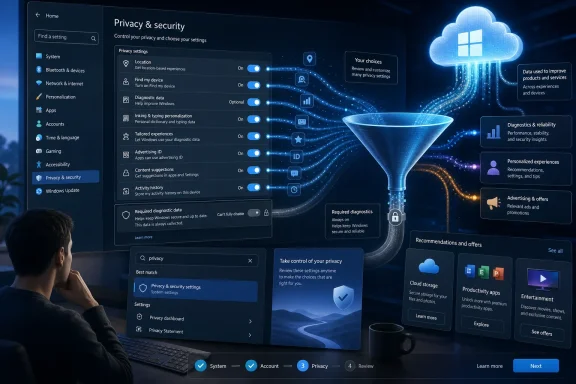 Microsoft Has Turned Setup Into a Consent Funnel
The first meaningful privacy decision in Windows 11 arrives before the desktop does. During the out-of-box experience, Microsoft presents toggles for settings such as location, Find my device, diagnostic data, inking and typing, personalized experiences, advertising, and, on some PCs, presence sensing. These are not obscure capabilities. They define how much of the machine’s behavior is tied to Microsoft’s cloud, advertising systems, and product-improvement machinery from the beginning.The problem is not merely that these options exist. Location services can be useful. Find my device can rescue a laptop left in a taxi or stolen from a conference table. Presence sensing can lock a workstation when a user walks away and wake it again when they return. These are legitimate features with real-world value, especially on mobile PCs.
The problem is that Microsoft’s preferred setup flow nudges users toward accepting a broader relationship than they may understand. Most people do not treat OOBE as a policy review; they treat it as the screen standing between them and a working computer. That gives Microsoft enormous power to frame privacy choices as routine onboarding rather than as consequential permission grants.
This is where the Thurrott guide lands its sharpest point. Windows 11 does technically expose many privacy settings, but exposing a setting is not the same as respecting the user’s agency. If the meaningful defaults are permissive, the explanations are softened, and the later controls are scattered, Microsoft can say the user had a choice while designing the experience so that most users will never meaningfully exercise it.
Required Diagnostic Data Is the Line Microsoft Will Not Let Consumers Cross
The most important distinction in Windows 11 privacy is between required and optional diagnostic data. Microsoft says required diagnostic data is used to keep Windows secure, reliable, compatible, and up to date. Optional diagnostic data goes further, adding more detailed information that can include usage patterns, configuration, app behavior, browsing-related diagnostic signals, and richer troubleshooting data.That distinction sounds clean until the user asks the obvious question: why can’t I turn all of it off? For consumers using the standard Windows 11 interface, the answer is simple. Microsoft does not offer that switch. You can reduce Windows to required diagnostic data, but you cannot make diagnostic collection disappear entirely from Settings.
There is a defensible engineering argument for some telemetry. Windows runs on a chaotic hardware ecosystem: thousands of OEM configurations, drivers of wildly varying quality, firmware edge cases, peripherals, apps, games, enterprise agents, and regional builds. A modern operating system vendor cannot fix crashes, compatibility failures, and update regressions at scale if it is blind.
But the existence of a defensible baseline does not absolve Microsoft of the way it packages the choice. “Required” is doing a lot of work here. It is a technical category, a legal category, and a product strategy category all at once. Users are asked to trust that the minimum is truly minimal, while Microsoft retains the authority to define what minimum means.
For IT professionals, this is familiar territory. Administrators have long understood that Windows privacy is not one knob but a matrix of edition, policy, management channel, account type, region, and compliance posture. Consumer Windows, however, is still presented as if the user is in charge. On telemetry, that is only partly true.
The Advertising Layer Is Not a Side Issue Anymore
It is tempting to treat the advertising ID as a small annoyance, the sort of toggle power users switch off while setting up a new machine. That understates the change in Windows’ identity. Windows 11 is not just an OS that runs applications; it is an operating environment that increasingly advertises Microsoft services, recommends cloud features, surfaces account prompts, promotes subscriptions, and steers users toward the company’s web properties.The advertising ID is one piece of that system. Microsoft assigns a unique identifier that apps and ad networks can use to provide more personalized advertising. Turning it off does not eliminate advertising, nor does it prevent every form of tracking across Microsoft and third-party services. It does, however, cut off one explicit Windows-level mechanism for ad personalization.
The broader “recommendations and offers” category is more revealing. Microsoft’s language tends to describe these intrusions as suggestions, tips, recommendations, tailored experiences, or helpful notifications. Users experience many of them as ads. The semantic gap matters because it lets Microsoft place promotional behavior inside system UX without calling it advertising in the old-fashioned sense.
That distinction may have seemed pedantic in the Windows 7 era, when the Start menu was a launcher and Settings were settings. In Windows 11, the shell is also a distribution channel. Search can point users toward Bing. Settings can push Microsoft account or Microsoft 365 prompts. Start can surface recommendations. Edge can appear as both browser and policy preference. The privacy settings are therefore not merely about secrecy; they are about whether the PC is primarily the user’s workspace or Microsoft’s customer-acquisition surface.
Windows 11’s Privacy Theater Is Real, Even When the Toggles Work
The phrase privacy theater is harsh, but it captures something recognizable to anyone who has spent time inside Windows 11’s Settings app. Microsoft offers an impressive number of privacy-related pages. There are controls for location, camera, microphone, speech, inking, diagnostics, activity history, app permissions, account search, online files, recommendations, and more. The volume of controls creates the appearance of granular empowerment.Yet the settings that matter most are not presented as a coherent privacy posture. They are dispersed across Privacy & security, Windows permissions, App permissions, Search permissions, Recommendations & offers, Diagnostics & feedback, and elsewhere. Users who want a private-by-default PC are not asked, plainly, whether Windows should minimize cloud-connected personalization, advertising, and diagnostic sharing. They are sent on a tour.
This design has consequences. A user may disable optional diagnostic data and still leave personalized offers enabled. Another may turn off the advertising ID but keep search highlights. A third may allow presence sensing during setup without realizing that app access deserves separate review. Each individual setting can be defended. The overall architecture still feels optimized for attrition.
The same pattern appears in the language. “Improve,” “personalize,” “tailor,” “recommend,” and “enhance” are words that reduce user resistance. They also blur the line between a feature that helps the user and a feature that helps Microsoft understand, retain, or monetize the user. The result is a privacy control surface that asks users to decode incentives as much as settings.
Some Data-Driven Features Are Worth Keeping
A serious privacy argument should not pretend every connected feature is malicious. Location is the obvious example. Weather, maps, time zone detection, device recovery, and some security features work better when Windows knows where the device is. The sensible question is not whether location services should exist, but whether users understand which apps and services can use them.Find my device is another case where privacy absolutism becomes impractical. A lost laptop can contain years of work, cached credentials, browser sessions, tokens, documents, and personal information. Storing a last known location in a Microsoft account is a trade-off, but it is often a rational one. Many users should leave it enabled, particularly on portable PCs.
Presence sensing belongs in the same category, with more caution. On supported hardware, Windows can dim, lock, wake, or resume based on whether the user is physically present. That can improve both convenience and security. But the feature’s usefulness does not remove the need to inspect whether apps, including desktop apps, have access to presence-related signals.
This is the nuance Microsoft often fails to earn. Users are not demanding an operating system frozen in 1998. They want the benefits of modern hardware and cloud-aware recovery without feeling that every convenience is bundled with telemetry, targeting, or upsell behavior. Privacy-respecting design would make the trade-offs explicit and consolidated rather than distributed and euphemistic.
Search Has Become a Privacy Boundary, Not Just a Productivity Tool
Windows Search used to be a local expectation. Users pressed the Windows key, typed a few letters, and launched an app or found a file. In Windows 11, Search is a boundary between the local machine, Microsoft accounts, cloud storage, Outlook data, Bing, and online content.That can be useful. If a user wants Windows Search to find OneDrive documents, work files, Outlook content, or cloud-connected results, account integration reduces friction. For Microsoft 365-heavy users, especially those living across devices, local-only search may feel artificially limited.
But the default direction of travel is unmistakable. Microsoft benefits when Search becomes a gateway to its services rather than a strictly local utility. Search highlights and online content turn a core operating system action into another place where Microsoft can surface web experiences. For privacy-minded users, disabling account search, online file content, and search highlights is not paranoia. It is boundary-setting.
The same applies to Start personalization. A setting that improves Start and search results based on user choices may be benign in isolation. But it sits inside an environment where personalization has been stretched to cover everything from useful ranking to advertising. Users should not need a taxonomy of Microsoft wording to know which switches improve local UX and which switches advance Microsoft’s engagement strategy.
Third-Party Debloat Tools Fill the Trust Gap Microsoft Created
The Thurrott guide’s final turn toward Win11Debloat is telling. It is not framed as the first resort. It is framed as the thing users reach for when Microsoft does not provide a complete built-in answer. That distinction matters.Win11Debloat and similar PowerShell-based tools sit in a strange place in the Windows ecosystem. They are popular because they address real frustration: telemetry, ads, bundled apps, Copilot prompts, Edge nudges, lock-screen content, and the steady accretion of “suggested” experiences. They are also risky because they modify system behavior in ways Microsoft may not support, may change, or may partially reverse with updates.
For enthusiasts, this trade-off is familiar. Read the script, fork the repository, test changes, understand registry keys, and keep a recovery path. For ordinary users, the calculus is harder. A third-party tool that promises to “fix” Windows privacy may be exactly what they want, but it also requires trusting an independent developer with administrative access to the machine.
That is why Microsoft should see the popularity of these tools as a product failure, not merely as a support nuisance. If users routinely need community scripts to make Windows feel respectful, the built-in controls are not sufficient. If administrators feel compelled to use policy baselines or provisioning scripts to undo consumer-facing promotional behavior, the defaults are not neutral. The existence of a debloat culture is evidence that Windows 11’s out-of-box experience is misaligned with a meaningful portion of its user base.
Enterprise IT Already Knows the Consumer Story Is Incomplete
In managed environments, privacy and telemetry are not philosophical debates; they are deployment decisions. Administrators use Group Policy, MDM, Intune, security baselines, compliance requirements, and edition-specific controls to define what Windows may collect and how the shell should behave. The consumer Settings app is not the center of gravity.That difference exposes the weakness of Microsoft’s consumer posture. Businesses get policy. Consumers get toggles. Businesses get fleet management. Consumers get repeated prompts. Businesses get documentation for diagnostic levels and configuration. Consumers get a maze of friendly labels and partial switches.
This matters because the line between consumer and professional devices has blurred. A small business owner may buy Windows 11 Pro at retail and never join a domain. A contractor may use a personal laptop for client work. A developer may run sensitive code on a machine also tied to a Microsoft account. A journalist, lawyer, activist, or doctor may not have enterprise management but still have enterprise-grade privacy needs.
Microsoft cannot plausibly argue that privacy control is only an enterprise concern. The PC remains the general-purpose computer for work that is personal, commercial, political, medical, creative, and confidential. A modern Windows privacy model should reflect that reality without requiring users to become administrators of a one-device fleet.
The Real Choice Is Between Minimal Windows and Managed Windows
For Windows 11 users who care about privacy, the practical strategy is no longer to find one magic switch. It is to decide what kind of Windows installation they want. One path is minimal Windows: required diagnostic data only, no optional diagnostics, no advertising ID, no personalized offers, no search highlights, limited account search, carefully reviewed app permissions, and only genuinely useful services such as Find my device or location enabled.The other path is managed Windows, even for individuals. That means treating the PC as something to configure deliberately, perhaps with scripts, policy tools, provisioning packages, or documented checklists. This is more work, but it reflects the reality of the platform. Windows 11 is not a static product; it is a service surface that changes through feature updates, Store-delivered components, cloud experiments, and account-driven prompts.
The danger is that many users choose neither. They click through setup, accept defaults, and inherit Microsoft’s preferred arrangement. That arrangement may be secure enough and functional enough, but it is not privacy-minimized. It is optimized for a Microsoft-connected experience.
The best reading of the Thurrott guide is therefore not “turn off these settings and you are done.” It is “understand that Windows 11’s privacy posture is something you must actively maintain.” Updates can add new prompts. New hardware can add new sensors. New Microsoft services can add new recommendations. Privacy is not a one-time setup screen; it is an ongoing posture.
The Settings Worth Changing Before Windows Settles In
The immediate lesson is concrete: Windows 11 users should revisit privacy settings even if the PC is already configured. The setup screen is not the last chance. Most of the important switches remain available, though Microsoft does not gather them into the single privacy-minimizing dashboard users deserve.- Users should disable optional diagnostic data unless they have a specific reason to help Microsoft with broader product diagnostics.
- Users should turn off personalized offers, the advertising ID, and nonessential recommendations in Settings to reduce promotional behavior inside Windows.
- Users should review Search permissions if they do not want Windows Search blending local results with Microsoft account, OneDrive, Outlook, Bing, or online content.
- Users should keep genuinely useful protections such as Find my device where the security benefit outweighs the privacy trade-off.
- Users with presence-sensing PCs should separately review whether apps are allowed to access presence information, rather than assuming the setup toggle tells the whole story.
- Users considering debloat tools should treat them as administrative changes, not casual apps, and should understand what a script changes before running it.
References
- Primary source: thurrott.com
Published: Mon, 15 Jun 2026 14:38:24 GMT
Customize Your Windows 11 Privacy Settings - Thurrott.com
Windows 11 violates your privacy by default, and it will then go on to badger you to let it do so to an even greater degree as you use it.www.thurrott.com - Official source: support.microsoft.com
Managing Presence Sensing settings in Windows 11 - Microsoft Support
Learn how to change your presence settings to automatically wake up your Windows 11 PC when you approach.support.microsoft.com - Official source: learn.microsoft.com
Optional diagnostic data for Windows 11 and Windows 10 - Windows Privacy | Microsoft Learn
Use this article to learn about the types of optional diagnostic data that is collected.learn.microsoft.com - Related coverage: windowscentral.com
14 defaults I think are worth changing: Windows 11 feels modern, but many out‑of‑box settings push services, tracking, and clutter. | Windows Central
Windows 11 ships ready for cloud and recommendations; this guide shows the 14 default settings to change for better privacy, performance, and clarity.www.windowscentral.com - Related coverage: tomshardware.com
This GitHub script claims to wipe all of Windows 11's AI features in seconds — "RemoveWindowsAI" can disable every single AI feature in the OS, from Copilot to Recall and more | Tom's Hardware
And you can disable what's left manually.www.tomshardware.com - Official source: microsoft.com
- Official source: cdn-dynmedia-1.microsoft.com
- Related coverage: dfrws.org
- Related coverage: laswitchtech.com
