

Windows 11 privacy is not controlled by one master switch: it is spread across diagnostic data, advertising identifiers, app permissions, browser settings, Microsoft account syncing, and newer AI features such as Copilot and Recall. That is the practical lesson inside ExpressVPN’s Windows 11 privacy guide, and it is the right starting point for any serious user. The uncomfortable part is that Windows privacy is no longer a single operating-system preference; it is an ecosystem negotiation. Microsoft has made the defaults convenient, but convenience is exactly where most routine data sharing hides.
The modern Windows privacy story is not that Microsoft secretly collects everything, nor that every toggle is a trap. The more accurate version is less cinematic and more frustrating: Windows 11 mixes essential telemetry, cloud conveniences, personalized recommendations, app permissions, advertising controls, and account-linked services into a sprawl of settings pages that most users will never fully audit.
That sprawl matters because the operating system is no longer just an operating system. Windows is the launchpad for Edge, Bing, Microsoft accounts, OneDrive, Store apps, widgets, Copilot, Windows Backup, and a growing layer of AI-assisted features. Each service has its own data logic, and each data logic is presented as a feature.
ExpressVPN’s guide is useful because it resists the common privacy-blog temptation to tell readers to turn everything off. Some data collection is tied to updates, malware defense, crash reporting, and basic reliability. Other data collection exists to personalize ads, recommendations, search suggestions, and cross-device experiences. Treating those categories as the same thing produces bad advice.
The better privacy posture for Windows 11 is selective skepticism. Keep the settings that make the machine secure and serviceable. Disable the settings that mostly make Microsoft’s ecosystem more personalized, more sticky, or more commercially efficient.
That is not inherently outrageous. Windows has to run on desktops, laptops, handhelds, virtual machines, enterprise fleets, gaming rigs, OEM images, and obscure driver combinations that would make a Linux kernel maintainer sigh. Some baseline reporting is part of keeping that ecosystem from collapsing under its own variety.
The problem is that “diagnostic data” sounds neutral until users learn how much can sit around the edges of it. Required data may be relatively constrained, but optional diagnostic data can include broader usage signals, more detailed error reporting, and information that feels less like repair telemetry and more like behavioral context. That is why the first serious move is not to chase fantasy zero-telemetry registry hacks, but to make sure optional diagnostics are off unless you have a specific reason to help Microsoft debug.
For most home users, the sane configuration is simple: leave required diagnostics alone, disable optional diagnostic data, and do not break Windows Update in the name of privacy. A private but unpatched PC is not a privacy win; it is a compromised PC waiting for a calendar invite.
But identifiers are the plumbing of personalized advertising. When enabled, the Windows advertising ID gives apps a way to associate activity with a device profile for more relevant ads and personalized experiences. Turning it off will not eliminate ads, and nobody should pretend it will. It simply makes one form of app-level ad personalization less straightforward.
That makes it an easy cut. Very few users receive meaningful value from allowing Windows apps to access an advertising identifier. If an app needs to show ads, it will still show ads. If Microsoft wants to recommend content, it has other channels. The advertising ID is the kind of setting that exists because the business model wants it, not because the user asked for it.
The same logic applies to language-list sharing, app launch tracking, and suggested content in Settings. These features are usually presented as small conveniences: more relevant sites, better Start recommendations, helpful tips, smoother discovery. In practice, they are soft personalization hooks. They are rarely essential, and turning them off usually costs little more than a slightly less tailored Windows experience.
This is where Windows 11’s Settings app is genuinely useful. The Privacy & security section allows users to review permissions category by category, see which Store apps have access, and revoke anything that no longer makes sense. A weather app may have a plausible reason to request location. A coupon app probably does not need the microphone.
The caveat is important: Windows permission controls are cleaner for Microsoft Store apps than for traditional desktop software. Classic Win32 applications often operate outside the tidy mobile-style permission model. Windows may offer some desktop-app controls for sensitive categories such as camera and microphone, but the operating system still cannot make every legacy app behave like a sandboxed phone app.
That limitation should shape user behavior. Privacy on Windows is not just a settings exercise; it is a software hygiene exercise. The fewer random utilities, driver updaters, RGB control panels, PDF tools, browser extensions, and “free” cleanup apps installed, the fewer actors there are asking for access in the first place.
The most private setting is to turn Location services off entirely. That is a reasonable move for desktop PCs, workstations, gaming towers, and other machines that do not move. If the device sits under a desk, its apps do not need a location feed to function.
For laptops, the more balanced approach is to leave the system capability available but restrict it aggressively. Allow location only for apps that have a clear purpose. Weather, maps, and Find My Device may justify access. Social feeds, shopping apps, and casual utilities usually do not.
The key is to stop treating location as a one-time setup choice. It should be reviewed periodically, especially after installing new apps or accepting major Windows updates. Permissions accrete over time; privacy is the act of pruning them.
Edge’s tracking prevention is a good example of Microsoft giving users meaningful controls while nudging them toward the middle. Basic allows more tracking. Strict blocks more but can break sites. Balanced is the default compromise that reduces some cross-site tracking without making the web feel broken.
For most users, Balanced is a defensible starting point. Strict is appropriate for users who are comfortable troubleshooting broken embedded content, login flows, comment widgets, payment pages, or media players. The difference is not ideological; it is operational. Privacy controls that users abandon after three broken websites do not help.
Search deserves equal attention. Windows Search can surface local files, web results, cloud content, and account-linked material. That can be powerful on a machine used for work across Microsoft 365, OneDrive, and Teams. It can also blur boundaries users may prefer to keep separate.
Clearing device search history and disabling cloud content search are modest but useful moves for users who want Start and Search to behave more like local tools than cloud-connected dashboards. As with much of Windows 11 privacy, the issue is not that the feature is useless. The issue is that Windows increasingly assumes integration first and separation second.
A Microsoft account unlocks useful features. It makes Microsoft Store purchases easier, syncs Edge data, connects OneDrive, restores settings, enables Windows Backup, and supports cross-device continuity. For many users, especially those already living in Microsoft 365, that is not a sinister arrangement. It is simply how their digital life works.
But it is also the point at which more activity can become account-linked. Search history, browsing data, location activity, app and service activity, voice interactions, media activity, and personalization settings may all become part of a broader Microsoft account profile depending on what services are used and what settings are enabled.
A local account reduces that surface. It keeps Windows sign-in local and makes the machine feel more like a standalone PC. It does not magically privatize everything, because users can still sign into Edge, OneDrive, Office, Xbox, or individual Microsoft apps. But it changes the default relationship between the operating system and the cloud.
For privacy-minded users, the practical question is not “Microsoft account bad, local account good.” It is: which features justify attaching this machine’s daily activity to a cloud identity? If the answer is “almost none,” a local account remains one of the strongest privacy choices Windows offers.
OneDrive folder backup can be a lifesaver. Anyone who has watched a laptop die before a deadline understands the value of having documents survive hardware failure. Windows Backup can also make new PC setup less painful by restoring familiar settings and app preferences.
The privacy cost is persistence. Files and settings that once lived only on a local disk may now exist in Microsoft’s cloud infrastructure, be available across devices, and remain recoverable in ways the user may not fully track. That is not necessarily bad, but it should be intentional.
The best approach is neither to disable cloud backup reflexively nor to accept every sync prompt blindly. Back up what would hurt to lose. Keep local what does not need to roam. If a folder contains tax records, medical documents, legal files, private photos, source code, or sensitive work material, users should make a conscious decision about where it lives and who can access the account protecting it.
This distinction matters. Clearing Edge history locally may not clear all account-synced activity if sync is enabled. Turning off a device setting may not erase historical data associated with Bing, Edge, location, voice, media, or app activity. Privacy is not just about stopping future collection; it is also about reviewing what has already accumulated.
The dashboard is not a perfect transparency tool, and it should not be treated as one. No consumer-facing privacy portal gives users a complete mental model of a company’s data systems. But it is still the official place to review and delete several categories of Microsoft account activity.
The practical rhythm should be familiar to anyone who maintains a password manager or checks app permissions: review it occasionally, clear what does not need to persist, and make sure personalized ads and offers reflect your actual preference rather than an old default.
Those changes matter. The original Recall backlash was not irrational panic; it was a response to the idea that a mainstream operating system might normalize searchable screen capture as a productivity feature. Microsoft’s later architecture is more privacy-conscious than the first impression suggested, and the company has worked to stress local processing and user control.
But the deeper concern remains. Recall changes the privacy model from “what did I save?” to “what did my PC observe?” Even if snapshots stay local, even if Microsoft cannot access them, and even if Windows Hello gates access, the device now holds a potentially rich history of visible activity. That can include messages, documents, websites, images, meetings, and transient information the user never intended to archive.
For some users, Recall may be genuinely useful. For others, especially journalists, lawyers, developers, activists, executives, healthcare workers, or anyone handling regulated data, it is a feature to approach with extreme caution. Local data is still data. A stolen, unlocked, malware-compromised, or poorly managed endpoint can turn local convenience into local exposure.
That fragmentation makes privacy guidance harder. Users need to review Copilot settings in the specific place where they use Copilot, including whether conversations or voice interactions may be used for training or personalization where such controls are available. The Windows app is not the whole map.
The broader shift is that Windows privacy now includes AI privacy. Prompts, generated answers, contextual suggestions, screen-aware features, cloud-connected assistants, and local AI indexes all create new categories of user expectation. Microsoft may document these systems separately, but users experience them together.
This is where administrators will be more conservative than consumers. In managed environments, the question is not whether Copilot can save a few minutes. It is whether data boundaries, retention controls, training settings, auditability, and user consent are clear enough for the organization’s risk model. In many cases, the answer will be “not until policy catches up.”
Group Policy is the right tool for managed devices, schools, businesses, and power users who know exactly which behavior they want to enforce. It can restrict diagnostic data levels, control Windows features, and prevent users from changing certain settings. In Pro, Enterprise, and Education editions, it remains one of the strongest ways to turn preferences into policy.
PowerShell can also be useful for auditing configuration, removing unwanted bundled apps, and applying repeatable changes. For administrators, scriptable privacy settings are essential. Nobody wants to click through twenty settings pages on a fleet of laptops.
But disabling core services is where privacy advice often becomes reckless. Break Windows Update and you have weakened security. Break Defender components and you have invited malware. Break diagnostics too aggressively and troubleshooting becomes harder. The goal is not to produce the quietest possible machine at any cost; it is to produce a machine that shares less unnecessary data while remaining secure, maintainable, and predictable.
That difference is especially sharp with Copilot+ PCs and Recall-capable hardware. A consumer can decide that local AI snapshots are worth the risk. A company must decide whether those snapshots could capture customer records, source code, credentials, privileged chats, incident response notes, legal material, or regulated data. The fact that a feature is local does not make it automatically compliant.
Administrators also need to separate Windows telemetry from Microsoft 365, Edge, OneDrive, Defender, Intune, Entra ID, and third-party endpoint tools. A locked-down Windows image can still leak more context than expected through browser sync, cloud storage, collaboration apps, remote monitoring agents, and SaaS integrations. Privacy reviews that stop at the OS boundary are now obsolete.
The best organizations will treat Windows privacy settings as part of endpoint governance. That means documented baselines, user education, conditional policies for different roles, and periodic review after feature updates. Microsoft’s cadence ensures that settings move, names change, and new defaults appear. Governance has to be recurring because Windows itself is recurring.
That sounds mundane because it is. But most privacy loss is mundane too. It comes from permissions granted months ago, cloud sync enabled during setup, personalization toggles accepted during an update, and apps installed for one task that remain on the system forever.
The settings most worth changing first are the ones with low downside: advertising ID, optional diagnostic data, app launch tracking, suggested content, unnecessary app permissions, broad location access, unnecessary Nearby sharing, and cloud content search if you do not use it. None of these turns Windows into a hardened operating system. Together, they make the default Windows experience less eager to observe, personalize, and sync.
The settings worth preserving are equally important. Keep Windows Update working. Keep Microsoft Defender protections active unless you have a reputable managed alternative. Keep required diagnostics rather than chasing unsupported hacks. Privacy is not achieved by making Windows brittle.
Windows 11 privacy is heading into a more complicated era, not a simpler one. As Microsoft folds more AI, cloud backup, account identity, and recommendation systems into the operating system, the old privacy model of “find the telemetry switch” will keep failing users. The better model is continuous consent: know which features are essential, which are merely convenient, and which quietly turn the PC into a more personalized observation platform. Microsoft will keep arguing that integration makes Windows more useful; privacy-minded users and administrators should answer by making integration prove its value one setting at a time.
Source: ExpressVPN Optimize your Windows 11 privacy settings effectively
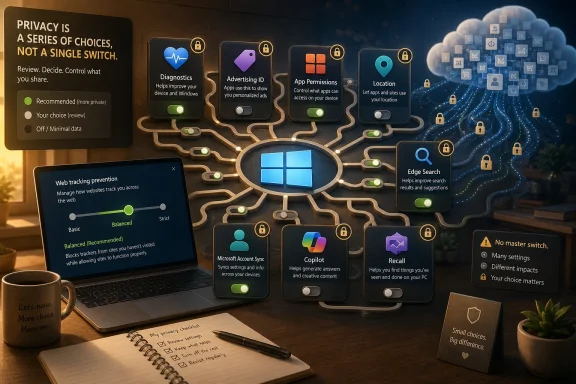 Windows Privacy Has Become a Settings Maze by Design
The modern Windows privacy story is not that Microsoft secretly collects everything, nor that every toggle is a trap. The more accurate version is less cinematic and more frustrating: Windows 11 mixes essential telemetry, cloud conveniences, personalized recommendations, app permissions, advertising controls, and account-linked services into a sprawl of settings pages that most users will never fully audit.That sprawl matters because the operating system is no longer just an operating system. Windows is the launchpad for Edge, Bing, Microsoft accounts, OneDrive, Store apps, widgets, Copilot, Windows Backup, and a growing layer of AI-assisted features. Each service has its own data logic, and each data logic is presented as a feature.
ExpressVPN’s guide is useful because it resists the common privacy-blog temptation to tell readers to turn everything off. Some data collection is tied to updates, malware defense, crash reporting, and basic reliability. Other data collection exists to personalize ads, recommendations, search suggestions, and cross-device experiences. Treating those categories as the same thing produces bad advice.
The better privacy posture for Windows 11 is selective skepticism. Keep the settings that make the machine secure and serviceable. Disable the settings that mostly make Microsoft’s ecosystem more personalized, more sticky, or more commercially efficient.
Required Diagnostics Are the Floor, Not the Scandal
The least satisfying answer in Windows privacy is also the most important one: you cannot make consumer Windows 11 completely silent. Microsoft separates diagnostic data into required and optional categories, and required diagnostic data remains part of how Windows receives updates, reports basic reliability information, and maintains compatibility across a staggering hardware base.That is not inherently outrageous. Windows has to run on desktops, laptops, handhelds, virtual machines, enterprise fleets, gaming rigs, OEM images, and obscure driver combinations that would make a Linux kernel maintainer sigh. Some baseline reporting is part of keeping that ecosystem from collapsing under its own variety.
The problem is that “diagnostic data” sounds neutral until users learn how much can sit around the edges of it. Required data may be relatively constrained, but optional diagnostic data can include broader usage signals, more detailed error reporting, and information that feels less like repair telemetry and more like behavioral context. That is why the first serious move is not to chase fantasy zero-telemetry registry hacks, but to make sure optional diagnostics are off unless you have a specific reason to help Microsoft debug.
For most home users, the sane configuration is simple: leave required diagnostics alone, disable optional diagnostic data, and do not break Windows Update in the name of privacy. A private but unpatched PC is not a privacy win; it is a compromised PC waiting for a calendar invite.
The Advertising ID Is Small, Boring, and Worth Turning Off
Windows’ advertising ID is one of those settings that feels minor because it is so abstract. It does not read like a microphone permission or a location toggle. It sounds like plumbing.But identifiers are the plumbing of personalized advertising. When enabled, the Windows advertising ID gives apps a way to associate activity with a device profile for more relevant ads and personalized experiences. Turning it off will not eliminate ads, and nobody should pretend it will. It simply makes one form of app-level ad personalization less straightforward.
That makes it an easy cut. Very few users receive meaningful value from allowing Windows apps to access an advertising identifier. If an app needs to show ads, it will still show ads. If Microsoft wants to recommend content, it has other channels. The advertising ID is the kind of setting that exists because the business model wants it, not because the user asked for it.
The same logic applies to language-list sharing, app launch tracking, and suggested content in Settings. These features are usually presented as small conveniences: more relevant sites, better Start recommendations, helpful tips, smoother discovery. In practice, they are soft personalization hooks. They are rarely essential, and turning them off usually costs little more than a slightly less tailored Windows experience.
App Permissions Are Where the Real Privacy Work Begins
The most concrete privacy risks in Windows 11 often come not from Microsoft itself, but from the applications users install and forget. Location, camera, microphone, contacts, calendar, notifications, call history, radios, and file-system access can all become long-lived permissions if users click through prompts without revisiting them.This is where Windows 11’s Settings app is genuinely useful. The Privacy & security section allows users to review permissions category by category, see which Store apps have access, and revoke anything that no longer makes sense. A weather app may have a plausible reason to request location. A coupon app probably does not need the microphone.
The caveat is important: Windows permission controls are cleaner for Microsoft Store apps than for traditional desktop software. Classic Win32 applications often operate outside the tidy mobile-style permission model. Windows may offer some desktop-app controls for sensitive categories such as camera and microphone, but the operating system still cannot make every legacy app behave like a sandboxed phone app.
That limitation should shape user behavior. Privacy on Windows is not just a settings exercise; it is a software hygiene exercise. The fewer random utilities, driver updaters, RGB control panels, PDF tools, browser extensions, and “free” cleanup apps installed, the fewer actors there are asking for access in the first place.
Location Is a Feature Until It Becomes a Habit
Location tracking is one of the clearest examples of Windows privacy as a trade-off rather than a binary. Location services can power maps, weather, time-zone adjustments, device recovery, and app-specific features that are genuinely useful. It can also become a quiet background assumption that far more software can request than most users realize.The most private setting is to turn Location services off entirely. That is a reasonable move for desktop PCs, workstations, gaming towers, and other machines that do not move. If the device sits under a desk, its apps do not need a location feed to function.
For laptops, the more balanced approach is to leave the system capability available but restrict it aggressively. Allow location only for apps that have a clear purpose. Weather, maps, and Find My Device may justify access. Social feeds, shopping apps, and casual utilities usually do not.
The key is to stop treating location as a one-time setup choice. It should be reviewed periodically, especially after installing new apps or accepting major Windows updates. Permissions accrete over time; privacy is the act of pruning them.
Edge and Search Extend Windows Privacy Beyond Windows
A Windows 11 privacy guide that stops at the Settings app is incomplete. Microsoft Edge and Windows Search are part of the same practical experience, and both can move user activity between local device behavior, cloud accounts, and Microsoft services.Edge’s tracking prevention is a good example of Microsoft giving users meaningful controls while nudging them toward the middle. Basic allows more tracking. Strict blocks more but can break sites. Balanced is the default compromise that reduces some cross-site tracking without making the web feel broken.
For most users, Balanced is a defensible starting point. Strict is appropriate for users who are comfortable troubleshooting broken embedded content, login flows, comment widgets, payment pages, or media players. The difference is not ideological; it is operational. Privacy controls that users abandon after three broken websites do not help.
Search deserves equal attention. Windows Search can surface local files, web results, cloud content, and account-linked material. That can be powerful on a machine used for work across Microsoft 365, OneDrive, and Teams. It can also blur boundaries users may prefer to keep separate.
Clearing device search history and disabling cloud content search are modest but useful moves for users who want Start and Search to behave more like local tools than cloud-connected dashboards. As with much of Windows 11 privacy, the issue is not that the feature is useless. The issue is that Windows increasingly assumes integration first and separation second.
The Microsoft Account Is the Privacy Multiplier
The biggest privacy choice in Windows 11 is not one toggle buried under Privacy & security. It is whether the PC is primarily a local machine or a Microsoft-account-connected endpoint.A Microsoft account unlocks useful features. It makes Microsoft Store purchases easier, syncs Edge data, connects OneDrive, restores settings, enables Windows Backup, and supports cross-device continuity. For many users, especially those already living in Microsoft 365, that is not a sinister arrangement. It is simply how their digital life works.
But it is also the point at which more activity can become account-linked. Search history, browsing data, location activity, app and service activity, voice interactions, media activity, and personalization settings may all become part of a broader Microsoft account profile depending on what services are used and what settings are enabled.
A local account reduces that surface. It keeps Windows sign-in local and makes the machine feel more like a standalone PC. It does not magically privatize everything, because users can still sign into Edge, OneDrive, Office, Xbox, or individual Microsoft apps. But it changes the default relationship between the operating system and the cloud.
For privacy-minded users, the practical question is not “Microsoft account bad, local account good.” It is: which features justify attaching this machine’s daily activity to a cloud identity? If the answer is “almost none,” a local account remains one of the strongest privacy choices Windows offers.
OneDrive and Windows Backup Are Convenience With a Long Memory
Cloud backup is one of the least glamorous privacy topics, which is exactly why it matters. Users often think about privacy in terms of ads and trackers while quietly syncing Desktop, Documents, Pictures, app lists, credentials, and preferences into a cloud account.OneDrive folder backup can be a lifesaver. Anyone who has watched a laptop die before a deadline understands the value of having documents survive hardware failure. Windows Backup can also make new PC setup less painful by restoring familiar settings and app preferences.
The privacy cost is persistence. Files and settings that once lived only on a local disk may now exist in Microsoft’s cloud infrastructure, be available across devices, and remain recoverable in ways the user may not fully track. That is not necessarily bad, but it should be intentional.
The best approach is neither to disable cloud backup reflexively nor to accept every sync prompt blindly. Back up what would hurt to lose. Keep local what does not need to roam. If a folder contains tax records, medical documents, legal files, private photos, source code, or sensitive work material, users should make a conscious decision about where it lives and who can access the account protecting it.
The Privacy Dashboard Is Necessary Because Windows Settings Are Not Enough
Microsoft’s Privacy Dashboard is easy to ignore because it lives outside the daily flow of Windows. That is precisely why users should visit it. Windows Settings controls the device; the dashboard controls account-linked data across Microsoft services.This distinction matters. Clearing Edge history locally may not clear all account-synced activity if sync is enabled. Turning off a device setting may not erase historical data associated with Bing, Edge, location, voice, media, or app activity. Privacy is not just about stopping future collection; it is also about reviewing what has already accumulated.
The dashboard is not a perfect transparency tool, and it should not be treated as one. No consumer-facing privacy portal gives users a complete mental model of a company’s data systems. But it is still the official place to review and delete several categories of Microsoft account activity.
The practical rhythm should be familiar to anyone who maintains a password manager or checks app permissions: review it occasionally, clear what does not need to persist, and make sure personalized ads and offers reflect your actual preference rather than an old default.
Recall Turned Privacy From a Settings Issue Into a Trust Issue
No Windows privacy discussion in 2026 can avoid Recall. Microsoft’s AI-powered feature for Copilot+ PCs is designed to help users find things they have previously seen by saving and indexing local screen snapshots. In its redesigned form, Microsoft emphasizes opt-in setup, local storage, encryption, Windows Hello authorization, app and website filtering, and controls under Privacy & security.Those changes matter. The original Recall backlash was not irrational panic; it was a response to the idea that a mainstream operating system might normalize searchable screen capture as a productivity feature. Microsoft’s later architecture is more privacy-conscious than the first impression suggested, and the company has worked to stress local processing and user control.
But the deeper concern remains. Recall changes the privacy model from “what did I save?” to “what did my PC observe?” Even if snapshots stay local, even if Microsoft cannot access them, and even if Windows Hello gates access, the device now holds a potentially rich history of visible activity. That can include messages, documents, websites, images, meetings, and transient information the user never intended to archive.
For some users, Recall may be genuinely useful. For others, especially journalists, lawyers, developers, activists, executives, healthcare workers, or anyone handling regulated data, it is a feature to approach with extreme caution. Local data is still data. A stolen, unlocked, malware-compromised, or poorly managed endpoint can turn local convenience into local exposure.
Copilot Is Not One Setting, Because Microsoft’s AI Is Not One Product
Copilot adds another layer of confusion because it is not a single thing. There is Copilot in Windows, Copilot in Edge, Copilot in Microsoft 365, Copilot on the web, and Copilot experiences that vary by region, account type, licensing, update level, and hardware. A user can uninstall one visible app and still encounter Copilot-branded features elsewhere.That fragmentation makes privacy guidance harder. Users need to review Copilot settings in the specific place where they use Copilot, including whether conversations or voice interactions may be used for training or personalization where such controls are available. The Windows app is not the whole map.
The broader shift is that Windows privacy now includes AI privacy. Prompts, generated answers, contextual suggestions, screen-aware features, cloud-connected assistants, and local AI indexes all create new categories of user expectation. Microsoft may document these systems separately, but users experience them together.
This is where administrators will be more conservative than consumers. In managed environments, the question is not whether Copilot can save a few minutes. It is whether data boundaries, retention controls, training settings, auditability, and user consent are clear enough for the organization’s risk model. In many cases, the answer will be “not until policy catches up.”
Group Policy Is Powerful, but It Is Not a Privacy Personality
Advanced users often reach for Group Policy, PowerShell, registry edits, and service disabling as proof that they have taken Windows privacy seriously. Sometimes they have. Sometimes they have simply traded visible settings for invisible fragility.Group Policy is the right tool for managed devices, schools, businesses, and power users who know exactly which behavior they want to enforce. It can restrict diagnostic data levels, control Windows features, and prevent users from changing certain settings. In Pro, Enterprise, and Education editions, it remains one of the strongest ways to turn preferences into policy.
PowerShell can also be useful for auditing configuration, removing unwanted bundled apps, and applying repeatable changes. For administrators, scriptable privacy settings are essential. Nobody wants to click through twenty settings pages on a fleet of laptops.
But disabling core services is where privacy advice often becomes reckless. Break Windows Update and you have weakened security. Break Defender components and you have invited malware. Break diagnostics too aggressively and troubleshooting becomes harder. The goal is not to produce the quietest possible machine at any cost; it is to produce a machine that shares less unnecessary data while remaining secure, maintainable, and predictable.
The Enterprise Lesson Is That Defaults Are Not Governance
For IT departments, the ExpressVPN-style checklist is a starting point, not a policy. Consumer privacy settings tell an individual what to click. Enterprise privacy management requires deciding what the organization permits, documents, audits, and supports.That difference is especially sharp with Copilot+ PCs and Recall-capable hardware. A consumer can decide that local AI snapshots are worth the risk. A company must decide whether those snapshots could capture customer records, source code, credentials, privileged chats, incident response notes, legal material, or regulated data. The fact that a feature is local does not make it automatically compliant.
Administrators also need to separate Windows telemetry from Microsoft 365, Edge, OneDrive, Defender, Intune, Entra ID, and third-party endpoint tools. A locked-down Windows image can still leak more context than expected through browser sync, cloud storage, collaboration apps, remote monitoring agents, and SaaS integrations. Privacy reviews that stop at the OS boundary are now obsolete.
The best organizations will treat Windows privacy settings as part of endpoint governance. That means documented baselines, user education, conditional policies for different roles, and periodic review after feature updates. Microsoft’s cadence ensures that settings move, names change, and new defaults appear. Governance has to be recurring because Windows itself is recurring.
The Home User’s Best Defense Is Boring Maintenance
For home users, the best privacy strategy is not a dramatic one. It is a routine. Review privacy settings after major Windows updates. Check app permissions every few months. Audit Edge sync and search settings. Look at OneDrive backup folders. Visit the Microsoft Privacy Dashboard. Turn off features you do not use.That sounds mundane because it is. But most privacy loss is mundane too. It comes from permissions granted months ago, cloud sync enabled during setup, personalization toggles accepted during an update, and apps installed for one task that remain on the system forever.
The settings most worth changing first are the ones with low downside: advertising ID, optional diagnostic data, app launch tracking, suggested content, unnecessary app permissions, broad location access, unnecessary Nearby sharing, and cloud content search if you do not use it. None of these turns Windows into a hardened operating system. Together, they make the default Windows experience less eager to observe, personalize, and sync.
The settings worth preserving are equally important. Keep Windows Update working. Keep Microsoft Defender protections active unless you have a reputable managed alternative. Keep required diagnostics rather than chasing unsupported hacks. Privacy is not achieved by making Windows brittle.
The Useful Windows 11 Privacy Setup Is Selective, Not Paranoid
The strongest Windows 11 privacy posture is not “disable everything.” It is “make every data flow earn its place.” That principle produces a setup that is both more private and more livable.- Turn off the Windows advertising ID because it mostly benefits app-level ad personalization, not core PC functionality.
- Disable optional diagnostic data while leaving required diagnostics and Windows Update intact.
- Review location, camera, microphone, contacts, and calendar permissions on a schedule rather than only when an app first asks.
- Keep Edge tracking prevention at Balanced unless you are willing to manage the occasional site breakage that can come with Strict.
- Use a local account if you do not need Microsoft account syncing, but remember that signing into individual Microsoft apps can still create account-linked data.
- Treat Recall and Copilot as separate privacy decisions, not as ordinary Windows conveniences that should be accepted automatically.
Windows 11 privacy is heading into a more complicated era, not a simpler one. As Microsoft folds more AI, cloud backup, account identity, and recommendation systems into the operating system, the old privacy model of “find the telemetry switch” will keep failing users. The better model is continuous consent: know which features are essential, which are merely convenient, and which quietly turn the PC into a more personalized observation platform. Microsoft will keep arguing that integration makes Windows more useful; privacy-minded users and administrators should answer by making integration prove its value one setting at a time.
Source: ExpressVPN Optimize your Windows 11 privacy settings effectively
