

Windows 11 gives you a surprisingly granular privacy control panel—if you know where to look and what each toggle actually does—so spending 10–20 minutes auditing and tightening those settings will materially reduce data sharing with Microsoft and third‑party apps while preserving the features you rely on.
Windows has long collected diagnostic and telemetry data to help Microsoft improve reliability, security, and user experience. That telemetry ranges from basic crash reports to richer optional signals used for personalization and product improvement. Windows 11 surfaces most controls in Settings > Privacy & security, but the precise labels and the scope of what is collected can vary by Windows edition (Home vs. Pro vs. Enterprise) and by build—so knowing the official paths and the practical trade‑offs matters. Microsoft’s online privacy dashboard also plays a role: there is an account‑level store of some activity (search, location, Edge browsing history when synced) that you must manage separately if you use a Microsoft account. For users who prefer storage and sync to be minimized, a combination of local Settings changes plus online privacy cleanup is the practical approach.
 Background
Windows has long collected diagnostic and telemetry data to help Microsoft improve reliability, security, and user experience. That telemetry ranges from basic crash reports to richer optional signals used for personalization and product improvement. Windows 11 surfaces most controls in Settings > Privacy & security, but the precise labels and the scope of what is collected can vary by Windows edition (Home vs. Pro vs. Enterprise) and by build—so knowing the official paths and the practical trade‑offs matters. Microsoft’s online privacy dashboard also plays a role: there is an account‑level store of some activity (search, location, Edge browsing history when synced) that you must manage separately if you use a Microsoft account. For users who prefer storage and sync to be minimized, a combination of local Settings changes plus online privacy cleanup is the practical approach. Where to find every privacy control (quick overview)
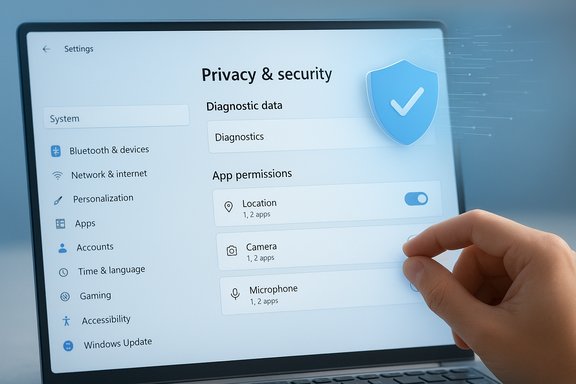
Accessing Windows privacy controls is straightforward:- Press Windows + I to open Settings.
- Select Privacy & security from the left sidebar.
- Review the three groups: Security, Windows permissions, and App permissions.
- Click each category to view global toggles and per‑app lists (where applicable).
This article walks through the most impactful toggles, explains what each one does, and provides safe recommendations plus advanced options for power users and enterprises.
Diagnostics & Feedback: the telemetry control center
What this section does
Diagnostics & Feedback is where Windows asks whether your device should send only the minimum required diagnostic data or also send richer, optional data used for troubleshooting and Tailored experiences (personalized tips and recommendations). The common recommendation for privacy‑minded users is to opt out of optional telemetry while keeping required signals enabled for security updates and system health reporting.How to change it (exact steps)
- Open Settings > Privacy & security > Diagnostics & feedback.
- Under Diagnostic data, set the device to Send required diagnostic data only (or toggle Send optional diagnostic data to Off).
- Turn Tailored experiences off to stop Windows using diagnostic signals to personalize tips, ads, and suggestions.
- Optionally click Delete diagnostic data to request deletion of previously collected optional data.
Trade‑offs and verification
- Turning off optional telemetry reduces personalized features and can limit the richness of information available to Microsoft support during troubleshooting. For most home users, disabling optional data gives a strong privacy win with minimal downside. Enterprise environments can enforce stricter levels using Group Policy or MDM.
- Note: advanced instructions on disabling telemetry services (DiagTrack, dmwappushservice) and registry keys exist, but these measures can break diagnostics and may be reverted by feature updates—treat them as advanced and document your changes.
Location: when to block and when to keep it
Why it matters
Location data is powerful: it enables Find My Device, mapping, contextual weather, and local search. It also leaks precise movement patterns when enabled for apps and when saved to the cloud. Microsoft documents that you can control location access per account and per app; some functions will degrade if you disable location services entirely.How to control location
- Settings > Privacy & security > Location.
- Use the top‑level Location services toggle to disable location system‑wide (admin right required for device‑level changes).
- When enabled, use the per‑app list to turn access off for apps that don’t need precise location.
- To remove stored account location activity, go to your Microsoft account privacy dashboard and clear location activity; local storage behavior has changed in recent builds and cloud history handling may differ by update.
Important caveat
Microsoft updated the way it stores location history: local location history behavior was changed in 2025 and some data is now cloud‑linked if you sign in with a Microsoft account; clear cloud stored location data from your Microsoft account to fully erase it. If you rely on Find My Device, disabling location will prevent that feature from locating a lost device.Camera and Microphone: lock them down by default
Why you should audit these now
Camera and microphone access is the primary vector for surreptitious audio/video capture. Windows provides both a global sensor access toggle and per‑app permission lists; locking both down and re‑enabling only when required is the safest posture.How to manage
- Settings > Privacy & security > Camera (and repeat for Microphone).
- Use the global toggle to block apps, then open the per‑app list to grant access selectively.
- Confirm that desktop (Win32) apps behave as expected—classic apps sometimes use different APIs and may need internal app settings adjusted.
Practical tip
After toggling, open a communications app (Teams, Zoom) and verify the app prompts for permission. If a critical app fails, re‑enable only the specific permission it requires.App permissions: tidy the long list
What to check
Under App permissions you will find controls for Contacts, Calendar, Call history, Filesystem access, and more. Many apps request convenience permissions they don’t truly need. Audit the list and remove permissions for anything unnecessary to reduce your exposure.Recommended sweep
- Camera, Microphone, Location — turn off unless necessary.
- Contacts and Calendar — only allow trusted communication apps.
- File system, Documents, Pictures — restrict editor and utility access to apps that need it.
- Remove permissions from preinstalled or trial apps you don’t use.
Advertising ID and targeted ads: stop local ad tracking
Windows assigns each user profile a local Advertising ID used by apps to build in‑system ad profiles. Turning this off prevents apps from using that local identifier for targeted in‑app ads; it doesn’t opt you out of internet cookies or server‑side advertising tied to your Microsoft account. How to disable:- Settings > Privacy & security > General > toggle off Let apps show me personalized ads by using my advertising ID.
Activity history, Start & Search suggestions, and Windows tips
Activity history sync helps resume apps and docs across devices but also creates a cross‑device log if you use a Microsoft account. If you don’t use cross‑device features, turn this off:- Settings > Privacy & security > Activity history: uncheck Store my activity history on this device and Send my activity history to Microsoft and click Clear to remove stored activity.
To reduce UI‑side recommendations and ads: - Settings > Personalization > Start: turn off Show recommendations.
- Settings > Privacy & security > General: disable suggestions and tailored content toggles.
Microsoft account privacy and the Privacy Dashboard
If you sign into Windows with a Microsoft account, some activity and history may be stored in the cloud (Edge sync, search history, location activity). To manage this centrally:- Visit your Microsoft account privacy dashboard and review Search, Browsing, and Location history. Delete entries and change personalized ad settings there to stop account‑level personalization.
Note: disabling the advertising ID in Windows doesn’t remove server‑side personalization tied to your Microsoft account—change account privacy settings separately.
Advanced controls: Group Policy, Registry, and third‑party tools
Enterprise and power user options
For Pro/Enterprise/Education editions, Group Policy or MDM gives admins precise telemetry control (AllowTelemetry policy, Cloud Content policies for Tailored experiences). Registry edits map to the same policies for Home users—but they carry risk and may be reset by updates.Third‑party privacy tools
Utilities such as O&O ShutUp10++ and other debloaters consolidate many privacy toggles into one interface, which can be convenient for rapid hardening. Use them with caution: they require elevated rights and may disable security‑related features. Always review each change and create a System Restore point first.Practical warning
Aggressively disabling telemetry services or removing packages can complicate troubleshooting, break expected behaviors, or get reverted by feature updates. Document all changes and keep a rollback plan.Additional hardening steps (beyond Settings)
- Use a local account if you want to minimize cloud syncing and account‑level data retention. Switching from a Microsoft account is available via Settings > Accounts > Your info.
- Enable BitLocker (Pro/Enterprise) or Device Encryption to protect data at rest. Back up recovery keys.
- Keep Windows and firmware updated to patch security flaws. Confirm Secure Boot and TPM are enabled where possible.
- Use reputable endpoint protection and consider a VPN on untrusted networks to reduce exposure of IP‑based tracking.
Step‑by‑step privacy checklist (do this in order)
- Open Settings > Privacy & security and run a quick sweep: Location, Camera, Microphone — toggle off global switches or per‑app access for apps you don’t trust.
- Diagnostics & feedback: set telemetry to required/basic; turn off Tailored experiences; click Delete diagnostic data.
- General: turn off Advertising ID and disable suggestions in Settings and Start.
- Activity History: stop syncing and clear stored history.
- Visit your Microsoft account privacy dashboard and clear browsing, location, and search history stored at account level.
- Create a System Restore point before making Group Policy or registry changes; if using third‑party tools, test on a non‑critical machine first.
What to expect after tightening settings
- Fewer personalized tips, Start menu suggestions, and in‑app ad targeting.
- Potential reduced diagnostic detail if you contact Microsoft support; you may be asked to temporarily re‑enable richer telemetry during troubleshooting.
- Some apps (maps, weather, Find My Device) will have degraded functionality when location is disabled. Plan to re‑enable individual permissions for apps you use frequently.
Verification, recent changes, and things that can be surprising
- Microsoft’s documentation confirms the Settings paths and the purpose of the Advertising ID, Diagnostics & feedback, and per‑capability permissions. Use the official support pages when labels or menu locations aren’t obvious after an update.
- Some changes over 2024–2025, including Settings app UI refinements and the evolving treatment of local vs. cloud location history, mean menu names and behavior can shift across builds. Re‑audit after major feature updates. Community testing and multiple independent guides corroborate the practical behavior of the toggles and the Group Policy alternatives.
- If you encounter claims that a single hidden switch will permanently stop all telemetry across every edition and survive every update, treat those claims as unlikely or unverified—platform behavior and administrative enforcement differ by edition and by update cycle. Use documented Group Policy/registry mappings for reliable control in managed environments.
Final analysis and recommended baseline
For most users who want meaningful privacy improvements with minimal disruption:- Disable optional diagnostic data and tailored experiences.
- Turn off the Advertising ID.
- Audit and restrict Camera, Microphone, and Location to apps that truly need them.
- Clear activity and account‑level history you don't want stored in the cloud.
- Keep required telemetry for security updates and to preserve supportability unless you are managing devices centrally through Group Policy or MDM and understand the consequences.
Power users and administrators seeking a higher privacy posture can combine Group Policy, registry edits, and trusted third‑party tools—but they should maintain backups, documentation, and a rollback plan because updates can change behavior and some third‑party changes may disable security features.
Windows 11 gives everyday users useful, reversible controls that let you take back a lot of privacy without sacrificing safety—if you follow a measured process: audit, toggle, verify, and document. The biggest privacy gains come from turning off optional telemetry and ad identifiers, then pruning app permissions and account‑level history. For anyone who values privacy and control, a quarterly audit of Privacy & security is a small investment that pays ongoing dividends.
Source: Windows Report How to Change Privacy Settings on Windows 11
Last edited:
