

Windows 11 Pro doesn’t make your PC mysteriously “faster” — it gives you controls that change what your PC can do, and those controls are where the real value for professionals, small businesses, and power users lives. ows 11 Pro is the business‑oriented sibling of Windows 11 Home: same core OS, but with a toolkit focused on manageability, security, and controlled flexibility. For many users the upgrade only pays off once their workflows change — handling regulated data, supporting remote access to an always‑on workstation, running untrusted apps safely, or automating consistent settings across several machines. The five features TechRadar singled out as “easy to overlook but practical” — BitLocker, Windows Sandbox, Hyper‑V, Remote Desktop hosting, and the Local Group Policy Editor — are emblematic of that toolkit: not flashy, but foundational.
Below I summarize ey the technical claims, and provide practical, security‑minded guidance for using them safely in real‑world scenarios. Where Microsoft documentation confirms a claim I’ve flagged that reference; where practical caveats or recent community reports matter, I call them out and explain mitigation steps.
BitLocker is the most business‑critical Pro feature for many mobile users: it encrypts entire volumes so stolen or lost devices don’t immediately expose your data. On modern Windows 11 configurations BitLocker commonly uses the TPM (Trusted Platform Module) to protect keys so the drive can’t be trivially unlocked by removing it or booting external media. This is how Microsoft documents BitLocker’s TPM integration and recovery model.
If you need a concise checklist tailored to a single device or a small fleet (what to enable, what to escrow, and what tests to run), follow the “Quick reference” section above as a starting point and document every configuration change so the next time you need to roll back or audit a machine, you know exactly what you did and why.
Source: TechRadar 5 things you probably didn't know Windows 11 Pro can do for you
Below I summarize ey the technical claims, and provide practical, security‑minded guidance for using them safely in real‑world scenarios. Where Microsoft documentation confirms a claim I’ve flagged that reference; where practical caveats or recent community reports matter, I call them out and explain mitigation steps.
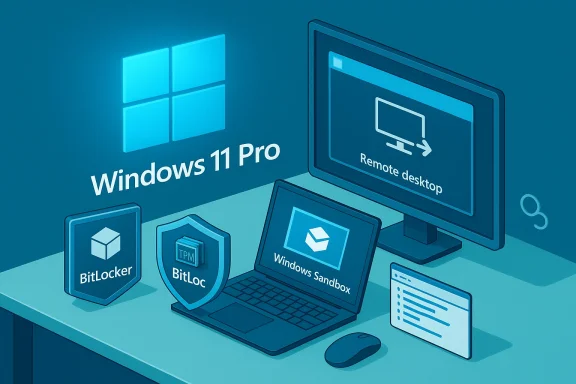 BitLocker: full‑disk encryption that actually matters
BitLocker is the most business‑critical Pro feature for many mobile users: it encrypts entire volumes so stolen or lost devices don’t immediately expose your data. On modern Windows 11 configurations BitLocker commonly uses the TPM (Trusted Platform Module) to protect keys so the drive can’t be trivially unlocked by removing it or booting external media. This is how Microsoft documents BitLocker’s TPM integration and recovery model.Why BitLocker matters
- Physical‑theft protection: A lost laptop with BitLocker enabled is far less likely to leak data than one with an unlocked disk.
- Regulatory and compliance: Full‑disk encryption is often a baseline control in privacy and security frameworks.
- Transparent day‑to‑day UX: Once configured with TPM, users sign in normally; encryption/decryption is automatic.
The part many people miss: recovery key management
BitLocker creates a recovery key during setup. If that key is lost you can permanently lock yourself out — a reality that makes where you store recovery keys as important as turning BitLocker on. Microsoft encourages storing recovery keys in organization‑controlled repositories (Azure AD/Entra, Intune, or an on‑premises AD) rather than a single user’s notes app; Microsoft’s recovery guidance explains how recovery keys are surfaced and stored.Practical steps to enable BitLocker (short)
- Check TPM presence and firmware state in the system BIOS/UEFI.
- Open Settings → Privacy & security → Device encryption / BitLocker (or search “BitLocker”).
- Choose TPM + automatic unlock or add a PIN for additional pre‑boot authentication.
- Save the recovery key to Azure AD/Entra (enterprise) or export to a secure location — never leave it in an unsynchronized personal notes app.
- Allow the encryption process to complete; verify recovery key presence before making the device your main work machine.
Risks and mitigations
- Risk: Recovery keys stored in consumer Microsoft accounts may be disclosed to law enforcement under legal process — organizations should prefer centrally managed escrow with appropriate legal and policy controls. Recent reporting reiterates Microsoft’s obligations under lawful requests; that reality reinforces the need for enterprise key‑escrow policies.
- Mitigation: Use Entra/Azure AD automated escrow for corporate devices and institute a documented process for key retrieval and audit.
Windows Sandbox: fast, disposable Windows for quick vetting
Windows Sandbox provides a lightweight, disposable Windows instance that runs isolated from your main system. It’s ideal for testing unknown installers, opening suspicious attachments, or running one‑off tools without polluting your host environment. The Sandbox runs a separate kernel using the Microsoft hypervisor and — by design — discards all changes when you close the window (though recent Windows 11 versions have introduced reboot persistence options for particular scenarios). Microsoft’s installation and requirements pages explain the prerequisites and how Sandbox maps to the OS’ virtualization stack.What Sandbox does well
- Speed and convenience: No full VM creation is required; it appears as a packaged feature you enable.
- Isolation: Sandbox sessions use hardware virtualization and a separate kernel to prevent most host contamination.
- Disposable workflow: Close the sandbox and everything inside vanishes, keeping the host clean.
Requirements and traps
- Requires hardware virtualization (Intel VT‑x / AMD‑V) and Hyper‑V support enabled in firmware and on the host.
- Sandbox consumes memory and CPU; it runs best on machines with 8GB+ RAM and recent multi‑core CPUs.
- There have been community reports and bug threads where Sandbox fails to start or times out — if you depend on Sandbox for security testing, validate it on your hardware and keep an alternate VM workflow available.
How to enable and use Sandbox (concise)
- Enable hardware virtualization in UEFI/BIOS.
- Turn Windows features on or off → check Windows Sandbox, restart if prompted.
- Launch “Windows Sandbox” from Start, copy files into the window or download inside the session, test, then close to discard.
Caveats
- Don’t assume Sandbox is an impenetrable barrier for advanced malware — for targeted or kernel‑level threats, prefer an isolated lab VM with snapshotting and network controls.
- If Sandbox is unreliable on a device (errors, stalls), validate using Hyper‑V VMs or a separate test machine until an official patch stabilizes the feature.
Hyper‑V: when you need proper virtual machines
Hyper‑V is a full virtualization platform built into Windows 11 Pro (and Enterprise/Education). Unlike Sandbox’s ephemeral environment, Hyper‑V lets you create durable VMs, install alternative OSes, take snapshots, and manage virtual networks — making it the right tool for development, testing, and troubleshooting that needs persistence and more granular control. Microsoft and community documentation show how to enable Hyper‑V and the hardware prerequisites.Why Hyper‑V still matters
- Persistent test environments: Useful for reproducing bugs, testing installers, and running unsupported OS versions safely.
- Network and resource control: You can create virtual switches, isolate traffic, and allocate CPU/RAM precisely.
- Integration with corporate tooling: Hyper‑V plays well with Windows management stacks (PowerShell, Windows Admin Center).
Practical guidance for Hyper‑V hosts
- Ensure hardware virtualization and second‑level address translation (SLAT) are supported and enabled.
- Be realistic about resources: VMs want CPU and RAM. A machine with 16GB or more is far more comfortable for multiple VMs.
- Use Virtual Switch Manager to isolate VM networking for test environments and avoid exposing test VMs to production networks.
Quick enable steps
- Open Control Panel → Programs → Turn Windows features on or off → check Hyper‑V → restart.
- Launch Hyper‑V Manager; create new VMs and configure virtual switches.
- Use PowerShell cmdlets (Enable‑WindowsOptionalFeature / New‑VM) for scripted deployments.
Risk notes
- Hyper‑V can conflict with other hypervisors or software that relies on direct hardware access (some GPU passthrough and gaming overlays). If you need full gaming performance outside VMs, run VMs only when necessary.
- Keep host OS patched and isolate management ports; a compromised host can expose VMs.
Remote Desktop hosting: your PC as a secure remote workstation
One of the simplest, most practical Pro advantages: only Pro (and higher) editions let a PC act as an RDP host so other machines can connect to it. Remote Desktop hosting turns a desktop or office PC into a remote workstation you can access from another PC, Mac, or mobile device. Microsoft’s user documentation describes the host/ client distinction and steps to enable Remote Desktop, including keeping Network Level Authentication (NLA) enabled.The real value proposition
- Remote continuity: Leave heavy apps and local files on your main machine and access them from lightweight devices.
- Support scenarios: IT can remotely troubleshoot or deploy tools without shipping hardware.
- Device consolidation: Small teams can centralize certain licensed apps on a host machine accessed remotely.
Security best practices
- Keep Remote Desktop turned off unless required.
- Restrict access using firewalls, VPNs, or conditional access rules; expose RDP to the public internet only through a hardened gateway.
- Use strong account security: unique administrative accounts, MFA where possible, and Network Level Authentication (NLA) — Microsoft recommends NLA to require authentication before a full session is established.
How to enable Remote Desktop (short)
- Settings → System → Remote Desktop → toggle Enable Remote Desktop.
- Note the PC name, add allowed user accounts, and ensure NLA is checked in Advanced settings.
- For external access, prefer a VPN or Azure AD Application Proxy rather than opening TCP/3389 to the internet.
Pitfalls to avoid
- Exposing RDP directly to the public internet is a common vector for compromise; always prefer VPN or jump‑host architectures for remote access.
- Keep host machines up to date; remote hosts neglected for patches are a systemic risk.
Local Group Policy Editor (gpedit.msc): policy control without third‑party hacks
The Local Group Policy Editor (gpedit.msc) is the Pro-only GUI for applying hundreds of Windows settings centrally and predictably. It’s an interface to a very large set of configuration controls; changes map to registry entries but are easier to manage and document in Group Policy. Microsoft and administration documentation explain the role of gpedit.msc and note that it is included in Pro, Enterprise, and Education editions but not in Home by design.Why gpedit.msc is valuable
- Consistency: Apply a setting once and know where it lives and how to reverse it.
- Auditability: Policies are visible in a structured tree; changes can be documented and rolled back.
- Scope control: Local policy affects a machine or user without needing domain controllers — handy for shared workstations or locked‑down lab machines.
How to open and use it
- Press Windows + R, type gpedit.msc, and press Enter (Pro machines).
- Browse the Computer Configuration and User Configuration trees to find policies.
- When making changes on production machines, document the policy location and option so you can revert if needed.
Critical caveat: Home edition limitations and risky workarounds
- Microsoft intentionally omits gpedit.msc from Home. Community “installers” or scripts that add gpedit functionality to Home are unofficial and may not replicate domain-level enforcement; they can also introduce system instability. The supported path is upgrading to Pro when you need consistent Local Group Policy capabilities.
Putting it together: when the Pro upgrade actually pays
If you’re asking whether Windows 11 Pro is “worth it,” the real question is whether you need the controls it unlocks. Here are pragmatic scenarios where Pro tends to pay for itself:- You manage or travel with sensitive data and need full‑disk encryption with centrally managed recovery keys.
- You test software or handle untrusted binaries frequently and want fast, low‑friction isolation (Sandbox) or persistent lab VMs (Hyper‑V).
- You or your IT team require reliable remote access to a specific host machine with controlled user access.
- You administer shared machines and want predictable configuration enforcement without third‑party tools.
Critical analysis: strengths, tradeoffs, and gotchas
Strengths
- Built‑in, supported tooling: Pro features are maintained by Microsoft and integrate tightly with Windows management tooling (PowerShell, Intune, Entra/Azure AD).
- Lower operational overhead: Centralized recovery key escrow, gpedit policy control, and virtualization that’s shipped with the OS reduce third‑party complexity.
- Real security value: Full‑disk encryption and host hardening reduce the most common, high‑impact risks (lost/stolen hardware; unvetted apps).
Tradeoffs and real‑world risks
- Complexity and user friction: Managed keys, NLA, and Hyper‑V resource demands require operational maturity; misconfigured BitLocker or misplaced recovery keys can cause lockouts.
- Feature reliability: Some components, particularly Sandbox, have experienced intermittent issues in certain Windows builds; if you rely on Sandbox for security testing, keep a backup VM strategy.
- Legal and privacy considerations: Storing recovery keys in cloud accounts carries legal process exposure; enterprises should adopt governance and legal controls for key escrow.
Practical remediation checklist for adoption
- Inventory devices and enable BitLocker with TPM + organization‑escrowed recovery keys.
- Standardize virtualization policies (who may run VMs, resource quotas).
- Limit Remote Desktop exp jump hosts and enforce strong authentication.
- Document every gpedit change and review policies quarterly.
- Test Sandbox and Hyper‑V features on representative hardware before relying on them for security workflows.
Quick reference: one‑page action plan
- BitLocker: enable, use TPM, escrow recovery keys in Entra/Azure AD or Intune, and test recovery before deployment.
- Sandbox: enable only on machines with hardware virtualization; validate it works and keep alternative VM workflows ready.
- Hyper‑V: enable via Windows features for persistent labs; budget RAM/CPU and isolate VM networking.
- Remote Desktop: enable only when needed; require NLA, use VPN, whitelist connecting accounts.
- Group Policy: use gpedit.msc on Pro machines for consistent configuration; upgrade Home to Pro if you need official local policy support.
Conclusion
Windows 11 Pro buys you control. It doesn’t promise magical performance gains; instead it gives you levers you can pull to reduce risk, standardize configurations, and run safer test environments. For hybrid workers, small businesses, and tech hobbyists who run labs, those levers translate directly into fewer incidents and faster troubleshooting. Use BitLocker with an enterprise key‑escrow policy, treat Remote Desktop as a managed service with proper network controls, prefer Hyper‑V for durable VMs, and rely on Local Group Policy to keep shared workstations predictable. And when you enable Sandbox, test it under your specific hardware and have fallback VM plans — the theory is excellent, but real‑world reliability can vary between builds and devices.If you need a concise checklist tailored to a single device or a small fleet (what to enable, what to escrow, and what tests to run), follow the “Quick reference” section above as a starting point and document every configuration change so the next time you need to roll back or audit a machine, you know exactly what you did and why.
Source: TechRadar 5 things you probably didn't know Windows 11 Pro can do for you