

Windows 11 is quietly doing the small, repetitive things right — and for many of us those tiny, consistent wins add up into genuinely better days at the keyboard.
Windows has always been the operating system of compromise: massive compatibility, decades of legacy features, and an interface shaped by generations of different design philosophies. That history makes it easy to criticize, but it also explains why Windows remains the backbone of the desktop: its ubiquity is a product of pragmatic, if messy, evolution. Recent metrics confirm that Windows still dominates the desktop market, holding roughly three‑quarters of desktop share in recent measurements — a reminder that deliberate polish and incremental improvements still move the needle for hundreds of millions of users.
This piece expands on a straightforward premise: Windows 11, for all its rough edges, delivers a set of modest but high‑frequency quality‑of‑life improvements that materially reduce friction day to day. The five areas we’ll examine — native archive extraction, File Explorer tabs, Snap assist layouts, named virtual desktops, and built‑in screen recording / OCR — aren’t headline‑grabbers, but they are precisely the kinds of features that compound into hours saved and fewer context switches across weeks and months. Much of Microsoft’s own messaging around Windows 11 emphasizes productivity and reduced frictgh File Explorer and multitasking improvements.
Windows 11’s recent updates target this space intentionally: Microsoft has prioritized refinements to File Explorer and multitasking flows that meaningfully reduce friction for everyday workflows. The company has noted that tabs in File Explorer and other small productivity features were top user asks when designing incremental updates, which helps explain acked into major releases.
That’s not to excuse the platform’s faults: Windows still ships with features some users find unnecessary, update cycles can introduce regressions, and pockets of legacy behavior remain. But judged purely by the question, “Does Windows 11 make some parts of my day easier?” the answer is clearly yes — and often in ways that, once experienced, are surprisingly difficult to give up. Microsoft’s ongoing work to smooth Explorer and multitasking mechanics suggests the company knows where the wins are: in the small, daily interactions that collectively define how productive we feel.
If you use Windows all day, those tiny seconds saved — moving a file without opening a new window, extracting a zip without a detour, grabbing text from an image in a heartbeat — accumulate into something that matters: more focus, fewer interruptions, and, simply put, a slightly easier life.
Source: XDA For all its problems, these are 5 ways Windows 11 makes my life easier every day
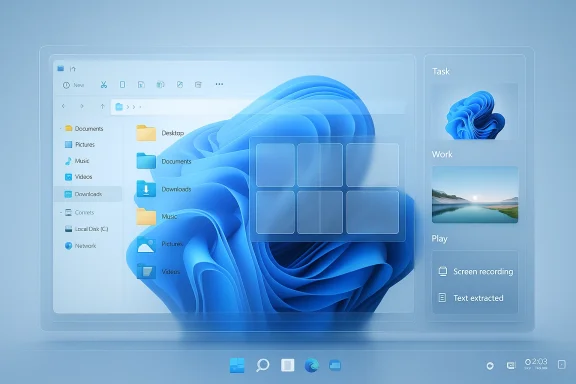 Background
Windows has always been the operating system of compromise: massive compatibility, decades of legacy features, and an interface shaped by generations of different design philosophies. That history makes it easy to criticize, but it also explains why Windows remains the backbone of the desktop: its ubiquity is a product of pragmatic, if messy, evolution. Recent metrics confirm that Windows still dominates the desktop market, holding roughly three‑quarters of desktop share in recent measurements — a reminder that deliberate polish and incremental improvements still move the needle for hundreds of millions of users.This piece expands on a straightforward premise: Windows 11, for all its rough edges, delivers a set of modest but high‑frequency quality‑of‑life improvements that materially reduce friction day to day. The five areas we’ll examine — native archive extraction, File Explorer tabs, Snap assist layouts, named virtual desktops, and built‑in screen recording / OCR — aren’t headline‑grabbers, but they are precisely the kinds of features that compound into hours saved and fewer context switches across weeks and months. Much of Microsoft’s own messaging around Windows 11 emphasizes productivity and reduced frictgh File Explorer and multitasking improvements.
Overview: Why “small” features matter
Not every improvement needs to be revolutionary. The difference between a good OS and a great one often comes down to how it handles routine tasks — opening folders, moving files, copying text from screenshots, or arranging windows so you can actually focus. These are actions you repeat dozens or hundreds of times in a workday. If the OS makes each of those actions slightly faster or less error‑prone, the benefit compounds.Windows 11’s recent updates target this space intentionally: Microsoft has prioritized refinements to File Explorer and multitasking flows that meaningfully reduce friction for everyday workflows. The company has noted that tabs in File Explorer and other small productivity features were top user asks when designing incremental updates, which helps explain acked into major releases.
1) Native extraction: stop detouring to WinRAR or 7‑Zip
What changed
Windows 11 makes the basic act of extracting compressed archives — zip files being the common case — more discoverable and convenient. The “Extract All” command and extraction toolbar entry are easier to reach in the File Explorer context and command bar, reducing the need to reflexively open a third‑party tool just to unzip a file. For users who spent years defaulting to WinRAR or 7‑Zip, this is a subtle but meaningful simplification.Why it matters
- It removes a repeated extra step when handling downloads, shared archives, and asset bundles.
- It reduces third‑party bloat on machines where you don’t want extra utilities installed.
- It shortens the mental path between “right‑click → do a thing” and the result, which matters when you repeat the same action many times a day.
Verification and context
The extraction UI is a built‑in File Explorer affordance; community documentation and recent how‑to discussions confirm the presence of “Extract All” in the context menu and command bar in modern Windows builds. If you prefer the granular power of 7‑Zip for uncommon archive formats, that tool remains useful — but for the majority of zipped workflows the native extractor is now a perfectly sensible default.Caveats and tips
- If you rely on advanced archive formats (multi‑volume, exotic compression, RAR variants) continue using 7‑Zip or WinRAR; the native tool is meant for convenience, not full power‑user parity.
- On managed or locked machines the context menu experience may be modified by OEMs or enterprise policies; check local settings if “Extract All” appears missing.
2) File Explorer tabs: the single window that tames the chaos
What changed
File Explorer finally gained native tabbed navigation, letting you keep multiple folder views inside a single window rather than juggling dozens of separate Explorer windows. Tabs were rolled into Windows 11’s broader feature pipeline and became widely available with the Windows 11 22H2 wave of updates and subsequent enablement packages.Why it matters
- Tabs reduce taskbar clutter and simplify window management.
- They enable workflows like “download → extract → bulk rename → move” without opening a new window for each step.
- Tabbed sessions can act like lightweight workspaces: keep a tab for project assets, another for current exports, and another for archived downloads.
UX realism and rough edges
File Explorer tabs are a clear quality‑of‑life improvement, but they were not a flawless rollout. Some users reported UI glitches and functionality gaps (drag‑and‑drop behavior between tabs, or occasional blanking) in the early 22H2 and follosoft has continued to iterate on Explorer’s stability and context‑menu ergonomics in Insider channels. If you run into bugs, check for the latest cumulative updates; Microsoft has actively tested fixes and usability tweaks in preview builds.Practical tips
- Use Ctrl+T and Ctrl+W to open/close explorer tabs quickly.
- Keep the command bar visible for quick access to common operations like Extract, Copy Path, and Rename.
- If a tab UI hangs or goes blank, a quick alternative is to open a new Explorer window and migrate — but file Explorer’s reliability has improved with recent updates.
3) Snap assist and layouts: multitasking that doesn’t feel like Tetris
The feature
Snap layouts are the little pop‑up grid chooser you get when you hover over a window’s maximize button or press Win+Z. They expose several clean layout presets — halves, thirds, and quadrants — and Snap Assist helps you fill the remaining zones with open windows. Microsoft refined this behavior in Windows 11 to be more context‑aware, offering three‑column layouts for wide screens and stacked layouts for portrait monitors.Why it helps
- It removes manual resizing and pixel nudging from multitasking.
- It’s ideal for mixed workflows (research + writing + reference material + comms).
- Snap groups let you treat a set of snapped windows as a single contextual unit you can recall from the taskbar.
Verification
Microsoft documents the Snap experience (hover over maximize or use Win+Z), and how‑to guides from reputable outlets break down the layout behavior and customization options in Settings → System → Multitasking. These sources confirm both the intent and the mechanics behind Snap layouts.Limitations and risks
- Some legacy or non‑UWP apps may not participate perfectly in Snap layouts.
- On very large multi‑monitor setups, snapping behavior can feel inconsistent; experiment with Snap settings under Multitasking.
- Snap layouts are helpful, but they’re not a substitute for monitor real estate: when you truly need to keep many windows visible, an exters.
4) Virtual desktops that feel personal: names, wallpapers, and boundaries
What changed
Windows 11 allows you to create multiple virtual desktops and customize each with its own name and wallpaper, turning “multiple desktops” from a crude switching mechanism into meaningful, named workspaces. That capability makes it far easier to mentally separate tasks — “Work”, “Writing”, “Testing”, “Gaming” — and restore the right context quickly. Microsoft explicitly designed Desktops to be more personal and task‑oriented in Windows 11 updates.Why personalization matters
Physical separation is a powerful cognitive tool. When you can close a desktop labeled “Work” and immediately see the (different) wallpaper of “Leisure”, you get a small, immediate cognitive cue that reduces task bleed and improves focus. For anyone managing multiple projects or roles on a single machine, those cues are surprisingly effective.Practical workflow examples
- Keep a dedicated "Writing" desktop with only a text editor and research browser tabs.
- Create a "Testing" desktop for builds, logs, and experiment VMs.
- Use a "Play" desktop with games, chat, and media that you open only during breaks.
Confirming the behavior
User guides and community walkthroughs show how to create, rename, and assign different backgrounds to desktops via Task View (Win+Tab) and right‑click context menus. Guides verify that desktop names and per‑desktop backgrounds are supported and stable in modern Windows 11 builds.Caveats
- Desktop customization is cosmetic and doesn’t isolate processes; apps aren’t sandboxed to a desktop.
- Closing a desktop will move its windows to the next desktop in line — be mindful before closing desktops with active background tasks.
5) Native screen recording and OCR: quick capture, instant utility
The feature set
Windowsscreen capture and short video recording through the Snipping Tool / screen recorder and accelerates text extraction via on‑device OCR in a couple of places (PowerToys’ Text Extractor and evolving Snipping Tool features). For quick clips and ad‑hoc tutorials, the native recorder is faster than booting OBS; for clipping error messages or extracting quotes from screenshots, on‑device OCR is a huge time‑saver. PowerToys’ Text Extractor (and later Snipping Tool enhancements) brought practical on‑device OCR to Windows users, making the clipboard a first‑class place for copied screenshot text.Why this is a big deal
- Copying text from images removes the repetitive step of re‑typing error messages or extracting captions.
- Native screen recording cuts friction for small tutorials, bug reports, or ephemeral highlights — the sort of short media most users need day to day.
- Because OCR and recording can operate locally, they are faster and avoid cloud roundtrips for many scenarios.
Evidence and timing
PowerToys’ Text Extractor arrived as a popular utility and was documented in September 2023 as an official PowerToys feature; Snipping Tool and other inbox apps have been evolving to include similar text extraction and video snip capabilities. Community reporting and feature notes corroborate the incremental rollout of these tools.Pro tips
- Use Windows Key + Shift + S to capture a region quickly, then leverage the Text Extractor (PowerToys) or Snipping Tool actions to pull text.
- Keep OBS for high‑quality long recordings, but use the built‑in recorder for 15–60 second clips and quick bug reports.
- Be mindful of privacy: screenshots containing sensitive text should be handled like any other sensitive data — don’t leave them in public folders or unencrypted cloud syncs.
Cross‑cutting analysis: strengths, trade‑offs, and risks
Strengths
- Focus on frequency: ins target very high‑frequency interactions (file handling, window arrangement, short captures). Improving those returns outsized productivity gains.
- Incremental, measurable polish: Microsoft’s approach has been to add small but well‑placed features (tabs, snap layouts) and iterate based on user feedback.
- On‑device features: OCR and quick recording that run locally reduce latency and privacy exposure compared with cloud‑first alternatives.
Trade‑offs and risks
- Stability vs. cadence: Microsoft ships iterative, sometimes experimental updates via enablement packages and Insider channels. That means some features are rolled out unevenly and early users may encounter regressions. Recent File Explorer experiments (pru rework) show Microsoft walking the line between rapid improvement and introducing new bugs.
- Fragmentation of behaviors: Legacy codepaths and modern UX layers coexist in Windows, which can create inconsistent experiences and unpredictable edge cases (e.g., drag‑and‑drop quirks between tabs or third‑party context‑menu entries).
- Privacy surface: New features that read content (copy suggestions, OCR, file recommendations) increase the surface where telemetry or local processing intersects with personal content. Always verify privacy settings and understand what gets synced or shared.
What to watch
- Microsoft’s ongoing Explorer experiments (preload toggle, context‑menu decluttering) are promising, but keep an eye on update changelogs and Insider notes before enabling experimental builds.
- As AI features are folded into the OS, review settings for features that analyze content (e.g., suggested actions, Copilot integrations) and adjust privacy controls to taste.
Practical recommendations — getting the most out of these features
- Enable and learn the keyboard shortcuts:
- Ctrl+T / Ctrl+W for Explorer tabs.
- Win + Z to open Snap layouts; Win + Left/Right to tile windows.
- Win + Shift + S for the snip tool; PowerToys Text Extractor (Win + Shift + T) if installed.
- Keep PowerToys installed if you rely on advanced OCR and text extraction. It’s lightweight and often gets useful utilities faster than inbox apps.
- Use virtual desktops deliberately: name them, assign wallpapers, and close unused desktops to keep context clear.
- Audit startup and context‑menu extensions — third‑party shell extensions are common causes of Explorer instability when tabs or the context menu behave oddly.
- Update carefully in production environments: stay current with cumulative updates but test major feature updates on a non‑critical machine if you rely on specific workflows.
Conclusion
Windows 11’s incremental gains — a more visible Extract All, native File Explorer tabs, smarter Snap layouts, customizable virtual desktops, and integrated short‑form recording plus OCR — illustrate a simple design truth: when an OS eliminates dozens of tiny frictions, the aggregate result is noticeable calm and speed in everyday work. These changes won’t rewrite headlines about big platform shifts, but they don't need to. For the person who lives in their computer, the value is real and recurring.That’s not to excuse the platform’s faults: Windows still ships with features some users find unnecessary, update cycles can introduce regressions, and pockets of legacy behavior remain. But judged purely by the question, “Does Windows 11 make some parts of my day easier?” the answer is clearly yes — and often in ways that, once experienced, are surprisingly difficult to give up. Microsoft’s ongoing work to smooth Explorer and multitasking mechanics suggests the company knows where the wins are: in the small, daily interactions that collectively define how productive we feel.
If you use Windows all day, those tiny seconds saved — moving a file without opening a new window, extracting a zip without a detour, grabbing text from an image in a heartbeat — accumulate into something that matters: more focus, fewer interruptions, and, simply put, a slightly easier life.
Source: XDA For all its problems, these are 5 ways Windows 11 makes my life easier every day
