

Microsoft has begun previewing a substantial Windows 11 update in the Release Preview channel that pushes Microsoft’s continuity and AI agendas forward while smoothing a pile of everyday reliability and security rough edges for Insiders and early adopters. The package — delivered as KB5074105 and appearing as Windows 11 builds 26100.7701 and 26200.7701 — expands Cross‑Device Resume (phone-to-PC handoff), folds AI helpers more tightly into Settings and system workflows, improves voice and accessibility tooling, and includes several stealthy security hardening changes and quality-of-life fixes. These items are being rolled out gradually and remain gated by Microsoft’s controlled feature rollout policy, so individual availability will vary by device, OEM, and region.
Microsoft has been iterating on phone-to-PC continuity for years — from Your Phone and Phone Link to the Continuity SDK and, more recently, the Cross‑Device Resume concept first teased in 2025. The core idea is simple and familiar to Apple users: let a task you begin on your phone be resumed on your PC with a single tap or click. Microsoft’s implementation deliberately avoids streaming or emulating the phone UI; instead, Android apps (or OEM system apps) publish a compact metadata descriptor — often called an AppContext — that tells Windows what activity to resume and where. Windows then maps that descriptor to the best available desktop handler: a native app when present, or a browser fallback otherwise. This metadata-driven model reduces compute, limits the attack surface compared with UI streaming, and preserves native desktop fidelity.
What’s new in this Release Preview build cluster is not a single headline gimmick but a broader set of practical expansions and refinements that move continuity from proof-of-concept to potentially useful daily workflow tech. Microsoft explicitly lists resuming Spotify playback, continuing Microsoft 365 files opened in the Copilot mobile app, and restoring active browser tabs (Vivo Browser called out) as supported resume scenarios in the current gradual rollout, while also delivering AI-driven Settings helpers, voice improvements, peripheral Windows Hello enhancements, and a raft of background security upgrades.
If you’re an Insider tester, this is the right preview to evaluate continuity and voice improvements; if you run production systems, treat this as a cue to tighten patching, review Secure Boot and DPAPI recovery plans, and start evaluating governance for cross‑device signals before the public rollout expands. The feature set is practical and usable, but its success will hinge on predictable availability, robust OEM adoption, and careful attention to privacy and enterprise controls as the staged rollout continues.
Source: TechRepublic Windows 11 Preview Brings AI, Phone Continuity Upgrades
 Background / Overview
Microsoft has been iterating on phone-to-PC continuity for years — from Your Phone and Phone Link to the Continuity SDK and, more recently, the Cross‑Device Resume concept first teased in 2025. The core idea is simple and familiar to Apple users: let a task you begin on your phone be resumed on your PC with a single tap or click. Microsoft’s implementation deliberately avoids streaming or emulating the phone UI; instead, Android apps (or OEM system apps) publish a compact metadata descriptor — often called an AppContext — that tells Windows what activity to resume and where. Windows then maps that descriptor to the best available desktop handler: a native app when present, or a browser fallback otherwise. This metadata-driven model reduces compute, limits the attack surface compared with UI streaming, and preserves native desktop fidelity. What’s new in this Release Preview build cluster is not a single headline gimmick but a broader set of practical expansions and refinements that move continuity from proof-of-concept to potentially useful daily workflow tech. Microsoft explicitly lists resuming Spotify playback, continuing Microsoft 365 files opened in the Copilot mobile app, and restoring active browser tabs (Vivo Browser called out) as supported resume scenarios in the current gradual rollout, while also delivering AI-driven Settings helpers, voice improvements, peripheral Windows Hello enhancements, and a raft of background security upgrades.
Cross‑Device Resume: the handoff you’ll actually use
What this update adds
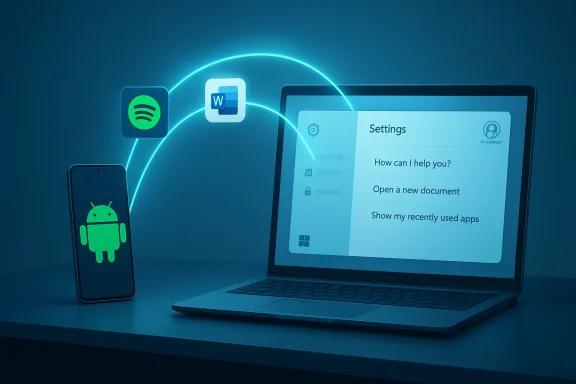
This Release Preview update broadens the resume scenarios and the app/OEM partnerships that can take advantage of the feature. The practical, user-visible expansions called out in Microsoft’s notes include:- Resume Spotify playback you started on an Android phone and continue on your PC; if the Spotify desktop client is missing, Windows can suggest a one‑click install.
- Continue working on Microsoft 365 documents (Word, Excel, PowerPoint) that were opened in the Microsoft Copilot mobile app on supported Android phones (HONOR, OPPO, Samsung, vivo, Xiaomi); files open in the desktop Office apps if installed, otherwise in the browser. Offline-only files saved only on the phone are not supported.
- Restore active browsing sessions from compatible Android browsers — Microsoft explicitly mentions Vivo Browser — by opening the same tab in the PC’s default browser.
How it works (short technical breakdown)
Cross‑Device Resume uses one of two signalling vectors:- The Link to Windows / Continuity SDK path, where apps and OEMs integrate Microsoft’s Continuity SDK to publish AppContext payloads.
- The Windows Notification Service (WNS) path, a newer alternative that lets apps post resume-capable notifications to Windows as a simpler onboarding route for developers.
Practical limits and why they matter
- Online-only content: Resume uses cloud or service links; files stored purely on the phone are not resumable today. That keeps the mechanism lean, but limits some workflows.
- OEM and app integration: The experience depends on app and OEM cooperation; vendors must integrate Continuity SDK or use WNS to deliver resume signals. That’s why features will reach some phones faster than others.
- Server‑side gating: Microsoft uses Controlled Feature Rollout (CFR), so rollout is phased and regionally constrained. Simply being on Release Preview does not guarantee immediate access.
AI assistance lands inside Settings — practical, not theatrical
Natural-language Settings Agent
Rather than shipping an entirely new assistant surface, Microsoft is bringing AI support directly into places users already interact with — starting with Settings. The Settings Agent in this build now accepts natural-language descriptions of what you want to change and guides you to the right options. Microsoft also extended language coverage for the agent on Copilot+ PCs, expanding the feature to German, Portuguese, Spanish, Korean, Japanese, Hindi, Italian, and Simplified Chinese. This is a pragmatic approach: help users find Settings options without rewriting their muscle memory.Why this matters
Embedding AI where people already look reduces discovery friction and keeps cognitive load low. Instead of learning new commands or trust models, users can ask in plain English (or supported languages) and be guided to toggles and pages. For enterprise admins, this also simplifies support: fewer “where is this setting?” tickets and a clearer path to train users on new controls.Voice and accessibility: incremental but meaningful
This update refines existing voice tools rather than reshaping them:- Narrator: Users can choose which UI details Narrator speaks and change the order in which on‑screen information is read — making output less overwhelming and better matched to a user’s navigation style.
- Voice Access: Setup is streamlined with an improved flow to download the right speech model, pick a microphone, and learn the basics quickly.
- Voice Typing: Gains a Wait time before acting control so the system waits a custom interval before running voice commands — helpful for people who speak more slowly, pause while dictating, or have variable cadence.
Security upgrades designed to be invisible — and why they matter
This release includes several low‑visibility but important security improvements that administrators and security-conscious users should notice:- Windows Hello Enhanced Sign‑in Security (ESS) now supports peripheral fingerprint sensors, expanding stronger biometric options to desktops and other configurations that previously lacked ESS support. That opens up more secure biometric sign‑in across device types.
- Smart App Control can now be toggled on or off without requiring a clean OS reinstall, easing lifecycle management for app protection policies.
- Secure Boot and boot manager refresh: the update refreshes Secure Boot components on systems that have the Windows UEFI CA 2023 certificate, a subtle but important trust-chain maintenance step. Administrators should be cautious when resetting Secure Boot databases, as the change can cause a Secure Boot violation if recovery media isn’t prepared.
- DPAPI domain backup key rotation: automatic rotation options for DPAPI domain backup keys strengthen cryptographic hygiene for enterprise environments. This reduces long-term key exposure and supports better key management practices.
Small fixes that make a big difference
KB5074105 also bundles a long list of focused quality fixes aimed at making Windows feel steadier in daily use. Notable corrections include:- Improved File Explorer responsiveness in network locations and general explorer stability.
- Fixes for startup hangs where explorer.exe or the taskbar may not appear.
- Corrected Start menu behavior and mobile device pane issues.
- Lock screen responsiveness fixes and prevention of unexpected desktop-icon movement.
- Windows Update stalls and activation failures during certain upgrade paths.
- Display issues in multi‑user environments and keyboard input setting label corrections.
Risks, privacy, and enterprise considerations
This preview brings real utility, but it also carries trade-offs that IT teams and privacy-conscious users should evaluate carefully.Privacy and data flow
- Metadata vs. content: Cross‑Device Resume primarily transfers metadata — identifiers, URLs, and context pointers — not raw local files. That minimizes data movement but does mean your activity signals may traverse Microsoft services or notification channels. Enterprises should validate how those signals are logged, retained, and controlled under company policy. Microsoft’s documentation and FAQs make this explicit; still, admins need to map resume signals to corporate data loss prevention and audit controls.
Fragmentation and user experience consistency
- OEM dependence: Because vendor integration is required, some users will enjoy near-seamless resume while others won’t see the feature at all. That variability complicates internal support and training.
Attack surface and reliability
- New signalling paths (WNS + Continuity SDK) increase the number of components that must be secured and monitored. While the metadata-only model is safer than streaming a UI, misconfigurations or notification-service vulnerabilities could leak activity signals or increase phishing surface area if resume affordances are not properly authenticated. Admins should audit resume-capable apps and notification permissions.
Patch hygiene urgency
- Microsoft and industry watchers are already wrestling with high‑priority Office and Windows security issues this month. An actively exploited Office zero‑day and multiple out-of-band Windows fixes landed in January 2026; organizations must maintain a disciplined patch cadence and look for emergency mitigations when Microsoft issues them. The presence of urgent Office fixes and recent problematic security updates underscores that installing previews is useful for testing but production environments should be guarded and staged.
How to try this safely (for Insiders and curious users)
If you’re an Insider or you run a test fleet, here’s a short, practical path to experiment without risking production stability:- Join the Windows Insider Program and choose the Release Preview channel.
- Install available updates until you reach KB5074105 (builds 26100.7701 / 26200.7701) and confirm you’re on 24H2 or 25H2 as required.
- Pair an Android phone with Link to Windows (or ensure the Copilot/Spotify apps and browser are signed in and allowed to send notifications).
- Enable resume features: Settings → Apps → Resume and confirm “Allow this PC to access your mobile devices” under Bluetooth & devices → Mobile devices. Test with Spotify playback, an online Copilot Word/Excel/PowerPoint document, and a Vivo Browser tab if you have compatible hardware.
- If you’re an admin testing Smart App Control or Smart App Control policy changes, use images or VMs first; the new toggle reduces friction but policies must still be validated.
- Maintain strict patching for Office and Windows security fixes — apply Microsoft’s emergency Office patch if applicable and follow vendor guidance for known exploited vulnerabilities. Consider isolating preview machines from sensitive networks.
What to watch next
- Will Microsoft convert Cross‑Device Resume from a gated, OEM-tethered novelty into a reliable, broadly supported workflow? The answer depends on developer uptake (WNS or Continuity SDK integrations), OEM participation, and whether Microsoft can make the server-side gating predictable. Early signs are promising — Microsoft has explicitly listed the scenarios and OEM partners in the Insider notes — but ubiquity will take time.
- How will enterprises govern resume signals? Expect new guidance in corporate policies, DLP solutions, and endpoint management tooling as companies decide whether to allow resume hints across managed devices. Admins will want visibility into which apps can post resume payloads and whether those payloads include links to corporate resources.
- Will Microsoft keep expanding AI into core workflows (Settings, Narrator, Voice) in a privacy-friendly, on-device-first direction for Copilot+ hardware? The company’s continued emphasis on Copilot+ PCs and localized agents suggests yes, but the split between on-device and cloud processing will be a recurring governance and product trade-off.
Conclusion
KB5074105 (Builds 26100.7701 / 26200.7701) represents a measured but meaningful step in Windows 11’s long migration from a traditional desktop OS into a more connected, assistant-led platform. Cross‑Device Resume, better Settings AI, voice refinements, and subtle security hardenings show Microsoft prioritizing usefulness and reliability over spectacle. For everyday users the changes promise tangible convenience — resume a song, reopen a Copilot document, or pick up a browser tab — while admins and privacy-aware users will need to review telemetry, integration, and policy controls before enabling these capabilities broadly.If you’re an Insider tester, this is the right preview to evaluate continuity and voice improvements; if you run production systems, treat this as a cue to tighten patching, review Secure Boot and DPAPI recovery plans, and start evaluating governance for cross‑device signals before the public rollout expands. The feature set is practical and usable, but its success will hinge on predictable availability, robust OEM adoption, and careful attention to privacy and enterprise controls as the staged rollout continues.
Source: TechRepublic Windows 11 Preview Brings AI, Phone Continuity Upgrades
