

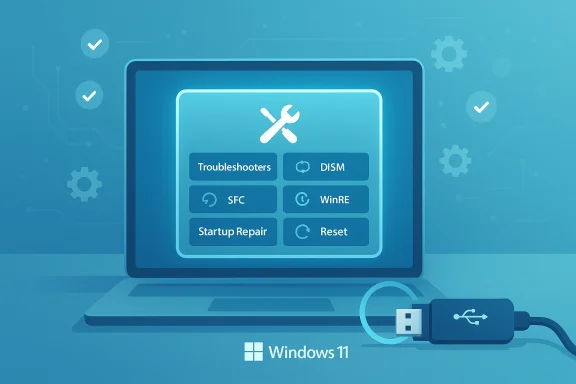
If your Windows 11 PC is slow, unstable, or failing to boot, you can often restore full functionality quickly using built‑in repair tools — start with the automated troubleshooters and escalate through SFC and DISM, WinRE’s Startup Repair, System Restore, an in‑place repair, and finally Reset this PC before considering a clean reinstall or hardware replacement.
Background / Overview
Windows 11 ships with a layered recovery toolkit designed so ordinary users and technicians can recover most software problems without a full reinstall. These include automatic troubleshooters in Settings, the System File Checker (sfc), the Deployment Image Servicing and Management tool (DISM), the Windows Recovery Environment (WinRE) with Startup Repair and System Restore, and the Reset this PC flow that reinstalls Windows while optionally preserving personal files. Community troubleshooting guides and forum threads consistently recommend following an ordered, non‑destructive → more invasive escalation path: start with quick fixes, then repair system files, then use WinRE tools, and use Reset or in‑place repair only when earlier steps fail.This article gathers those proven, step‑by‑step fixes, explains why each works, flags common pitfalls and hardware considerations, and gives a compact, prioritized checklist you can run through when time is short.
Quick triage — what to check first
Before running repair commands, do a fast triage. These simple checks resolve many transient issues and reduce risk during deeper repairs.- Restart the PC and observe errors. Many hangs and update failures clear on reboot.
- Disconnect external peripherals (USB drives, printers, phones). External devices frequently break boot paths or delay startup.
- Try Safe Mode (WinRE → Troubleshoot → Advanced options → Startup Settings → Enable Safe Mode) to see whether the issue is driver/service related.
- Ensure you have a current backup of irreplaceable files before proceeding past non‑destructive repairs. Backups are the single most important safety step.
Step 1 — Run Windows troubleshooters (fast, non‑destructive)
Windows includes targeted troubleshooters for common subsystems: Windows Update, Internet Connections, Audio, Printer, Bluetooth, and more. These automated wizards can fix configuration or service issues without command‑line work.How to run:
- Open Settings (Windows + I) → System → Troubleshoot → Other troubleshooters.
- Click Run beside the relevant trouble area (for update problems choose Windows Update).
- Follow on‑screen prompts; apply suggested fixes and reboot if requested.
Step 2 — Repair system files: SFC and DISM (the essential duo)
When Windows components or apps fail due to corrupted files, System File Checker (sfc /scannow) and DISM are the proven remedy. Use DISM to repair the component store and then SFC to restore protected files.Recommended sequence and commands (run from an elevated Command Prompt or Windows Terminal as Administrator):
- DISM health checks:
- DISM /Online /Cleanup-Image /CheckHealth
- DISM /Online /Cleanup-Image /ScanHealth
- DISM /Online /Cleanup-Image /RestoreHealth
- SFC:
- sfc /scannow
What to watch for:
- If SFC reports “Windows Resource Protection found corrupt files but was unable to fix some of them,” run DISM /RestoreHealth and then rerun SFC.
- Inspect logs for stubborn failures: C:\Windows\Logs\DISM\dism.log and C:\Windows\Logs\CBS\CBS.log. These logs are vital when posting troubleshooting output on forums or working with support.
Step 3 — Startup Repair and WinRE (when Windows won’t boot)
If Windows fails to boot normally and enters Automatic Repair, use Startup Repair from WinRE — it automates many boot fixes, repairs BCD/EFI problems, and runs diagnostics.How to access:
- Force WinRE: power on and forcibly power off during boot three times, or boot from Windows install USB and choose Repair your computer.
- In WinRE: Troubleshoot → Advanced options → Startup Repair. Choose your account and sign in if prompted.
- Use WinRE's Command Prompt to run chkdsk and offline DISM/SFC if Startup Repair fails. Example offline commands: chkdsk C: /f /r then DISM /Image:C:\ /Cleanup-Image /RestoreHealth and sfc /scannow /offbootdir=C:\ /offwindir=C:\Windows. These are essential when the installed Windows image is inaccessible from the normal environment.
- bootrec /fixmbr
- bootrec /fixboot
- bootrec /scanos
- bootrec /rebuildbcd
If bootrec /fixboot returns “Access is denied” on UEFI/GPT systems, additional steps (assigning an EFI drive letter and using bcdboot) may be required. Only perform BCD edits if comfortable with recovery media at hand.
Step 4 — System Restore (revert to a known good state)
System Restore rolls back system files, drivers, and registry settings to a previous restore point without touching personal files. It’s an effective next step after Startup Repair or when a recent update/driver caused instability.How to use:
- From Windows: Search for Create a restore point → System Protection tab → System Restore → pick a restore point dated before symptoms began.
- From WinRE: Troubleshoot → Advanced options → System Restore.
- System Restore points are not guaranteed; retention depends on configuration and disk space. Don’t rely on them as a sole backup strategy.
- If System Restore is unavailable or fails, skip to in‑place repair or Reset this PC. Community guidance emphasizes always having a separate backup or image before major changes.
Step 5 — Reset this PC (reinstall Windows quickly, keep files option)
When SFC/DISM and WinRE tools don’t restore stability, use Reset this PC as the final software remedy before a clean install. Reset reinstalls Windows and offers options to keep personal files or remove everything.How to run:
- Settings → System → Recovery → Reset this PC → Reset PC → choose Keep my files (or Remove everything) and select Cloud download or Local reinstall.
- Removes installed apps and drivers but can preserve user files when Keep my files is selected. Expect to reinstall many applications afterward.
- Reset is destructive to installed programs and system settings; back up licenses and data before proceeding.
In‑place repair (repair install) — preserve apps and settings
An in‑place repair (running Setup from a matching Windows 11 ISO) refreshes system files and servicing components while keeping apps and most settings. It’s often the most reliable way to repair deep corruption without a full reinstall.How to perform:
- Download a matching Windows 11 ISO (matching edition and build channel if possible).
- Mount the ISO in File Explorer, run Setup.exe, and choose Keep personal files and apps.
- Follow prompts and reboot when complete.
- In‑place repairs fix issues that DISM and SFC cannot because they replace damaged servicing components and refresh the Windows installation in place. Community reports show this step fixes stubborn update or component store problems.
- Suspend BitLocker before starting or have your recovery key available. Ensure adequate free disk space (~20–30 GB recommended). Back up critical data first.
Advanced repairs and diagnostic checks
When software repairs don’t hold, investigate disks, memory, and drivers.- CHKDSK: Run chkdsk C: /f /r from an elevated CMD (may require scheduling on reboot) to detect and attempt recovery of bad sectors. Repeated disk errors indicate imminent drive failure — image the drive immediately.
- Memory testing: Use Windows Memory Diagnostic or MemTest86 for extended testing; replace failing DIMMs if errors appear.
- Driver checks and clean boot: Use a clean boot (msconfig → disable non‑Microsoft services and startup items) to isolate by disabling third‑party services. For Explorer/context‑menu slowdowns, disable non‑Microsoft shell extensions with ShellExView. Community threads identify third‑party shell extensions and security software as frequent culprits for UI lag and update interference.
- Driver Verifier (advanced): Use only with a recovery plan; it stresses drivers and can provoke crashes that reveal faulty drivers.
- If DISM can’t download repair files, provide an install.wim or install.esd from a mounted ISO: DISM /Online /Cleanup-Image /RestoreHealth /Source:wim
 :\sources\install.wim:1 /LimitAccess (adjust for ESD). This is crucial when systems have limited network access or Windows Update is the blocked source.
- Rebuilding BCD and writing boot sectors (bootrec, bcdboot) can recover systems where the EFI/BCD store is corrupted. Use these from WinRE Command Prompt and proceed carefully — mistakes can make systems unbootable if you don’t have recovery media.
Driver and firmware gotchas — what to watch for
Drivers and firmware can create hard‑to‑diagnose issues:- OEM drivers: Always prefer vendor‑provided drivers over third‑party driver updaters. If a recent driver causes crashes, roll back using Device Manager or uninstall it in Safe Mode.
- SSD firmware/HMB registry issue: Community reports around Windows 11 feature updates have documented problems with DRAM‑less NVMe SSDs and Host Memory Buffer (HMB) allocations that produced blue screens on certain drives. Some forum workarounds involved a registry cap, but these are model‑specific and temporary — prefer firmware updates from the SSD vendor and treat registry tweaks with caution. Back up data before attempting experimental fixes.
- Security/AV interference: Third‑party security suites can block servicing operations. Temporarily pause or disable them for repair tasks and re‑enable after verifying repairs. Always re‑enable protection once troubleshooting ends.
Recommended, ordered checklist — repairs that work (fast → invasive)
- Quick triage: Restart, unplug external devices, check simple settings and available restore points.
- Run relevant Windows Troubleshooter (Settings → System → Troubleshoot → Other troubleshooters).
- Repair component store and files: DISM /Online /Cleanup-Image /RestoreHealth then sfc /scannow. Reboot.
- Clean boot and isolate third‑party services or shell extensions (msconfig, ShellExView).
- If boot fails: run Startup Repair from WinRE. If that fails, run chkdsk C: /f /r, offline DISM, and SFC from WinRE.
- Use System Restore to revert to a known good state if available.
- In‑place repair (run Setup from ISO, choose Keep personal files and apps).
- Reset this PC (Keep my files) as last software step before clean install.
- If hardware faults are suspected, perform disk and memory diagnostics and image the drive before destructive steps.
Time estimates and practical tips
- Troubleshooters: 2–10 minutes. Quick and safe.
- SFC/DISM: 10–60 minutes combined depending on disk speed and corruption level. Always let them complete.
- Startup Repair / WinRE tasks: 15–45 minutes typical; offline DISM/SFC or chkdsk can extend this.
- In‑place repair: 30–90 minutes, requires 20–30 GB free and a stable power connection.
- Reset this PC: 30 minutes to several hours depending on options and hardware. Plan for downtime and reinstallation of apps.
- Keep a recovery USB handy (Windows Media Creation Tool) — it allows access to WinRE tools even when Windows won’t boot.
- Suspend BitLocker before performing in‑place repairs or Reset; have the recovery key available.
- If DISM fails to reach Windows Update for repairs, mount a matching ISO and use it as the source.
Risks, limitations, and when to stop
Strengths:- The layered approach resolves most software issues without reinstalling, and tools are built into Windows. Community troubleshooting consistently shows success with SFC/DISM and WinRE steps.
- Tools can mask failing hardware. Recurrent corruption, repeated chkdsk repairs, or SMART warnings point to a failing drive — image the disk immediately and replace hardware.
- Driver Verifier and manual BCD edits can create situations that require recovery media. Use advanced diagnostics only with recovery tools available.
- Reset removes installed apps and drivers even when keeping files; plan to reinstall necessary software and drivers.
- Repeated hardware errors (SMART, bad sectors, memory errors).
- Complex firmware/BIOS repairs gone wrong.
- Deep malware that resists cleaning — create a full image and consult a recovery specialist.
Short FAQ (practical answers)
- Can I repair Windows 11 without reinstalling? Yes — most issues resolve with Troubleshooters, SFC, DISM, Startup Repair, and System Restore. Use Reset or in‑place repair only if those fail.
- Will Reset remove my apps? Yes — Reset removes installed applications but lets you keep personal files if you choose Keep my files. Back up installers and license keys first.
- Should I run DISM before or after SFC? Run DISM first to repair the component store, then run SFC. Doing so increases the chance SFC can repair reported issues.
- How long will repairs take? SFC and DISM commonly take 15–30 minutes each on modern hardware; Reset or in‑place repairs are longer and depend on hardware and chosen options.
Final verdict — a practical repair philosophy
Repairing Windows 11 is usually a matter of following a methodical escalation path: quick, non‑destructive fixes first; repair the component store and system files next; use WinRE’s automated and offline tools for boot issues; and resort to in‑place repair or Reset if corruption runs deeper. This approach minimizes downtime, protects data, and reduces the need for a full reinstall. Keep backups, keep recovery media at hand, and document drivers and license keys before you begin. Community experience and technical guidance converge on these steps as the fastest, safest way to restore Windows 11 stability.If previous attempts fail, prioritize imaging the drive and replacing suspect hardware, because persistent corruption is often a hardware warning in disguise. Take conservative steps, verify each result, and escalate deliberately — the tools above are powerful, but they work best when used in the right order and with appropriate backups.
Source: Windows Report Repair Windows 11 Fast: Step-by-Step Fixes That Work
